How to Change a Steam Password: Step-by-Step Guide for Every Situation
This guide explains how to change your Steam password efficiently across devices and situations to keep your account secure.
This article explains how to change Steam password efficiently across different situations and devices. Steam users often need to update their password to enhance account security or recover access after losing login details. The guide covers how to change Steam password while logged in, using both PC and mobile platforms, and offers clear steps for those without access to their registered email or phone number.
Changing a Steam password involves navigating account settings precisely and understanding recovery options available. Users locked out of their account will find detailed instructions on restoring access securely. This article ensures users can manage their Steam credentials confidently, avoiding common pitfalls and delays.
Before you start: What is needed to change a Steam password
Changing a Steam password requires preparation and access to specific information and devices. First, confirm access to the Steam account credentials or the recovery options linked to the account. Without the current password or recovery methods, changing the password will be difficult.
A device with internet connectivity is necessary. This can be a PC, a mobile browser, or the Steam mobile app. Each platform supports password changes, but the process may vary slightly.
Knowing the current password simplifies the process significantly. If the password is forgotten, the recovery email or phone number registered with the account will be essential. Steam's recovery success rates depend heavily on having at least one recovery method available; accounts with verified email or phone recovery options have a notably higher chance of successful password resets.
Enabling Steam Guard adds a layer of security when changing passwords. Steam Guard requires verification via email or the Steam mobile app, preventing unauthorized access during the password change process.
- Confirm access to the Steam account by logging in or verifying recovery details. Successful login or verification confirms readiness.
- Ensure a device with internet access is ready, such as a PC or smartphone. The device should be able to reach the Steam website or app without connectivity issues.
- Verify knowledge of the current password or access to the registered recovery email or phone. Having this information allows proceeding with the password change or recovery.
- Check that Steam Guard is enabled in account settings under "Account" > "Manage Steam Guard Account Security." Active status means additional verification steps will be required and possible.
How to change Steam password while logged in
- Open the Steam client on PC or launch the Steam mobile app and log into the account. The main interface should appear with the user's library and store tabs.
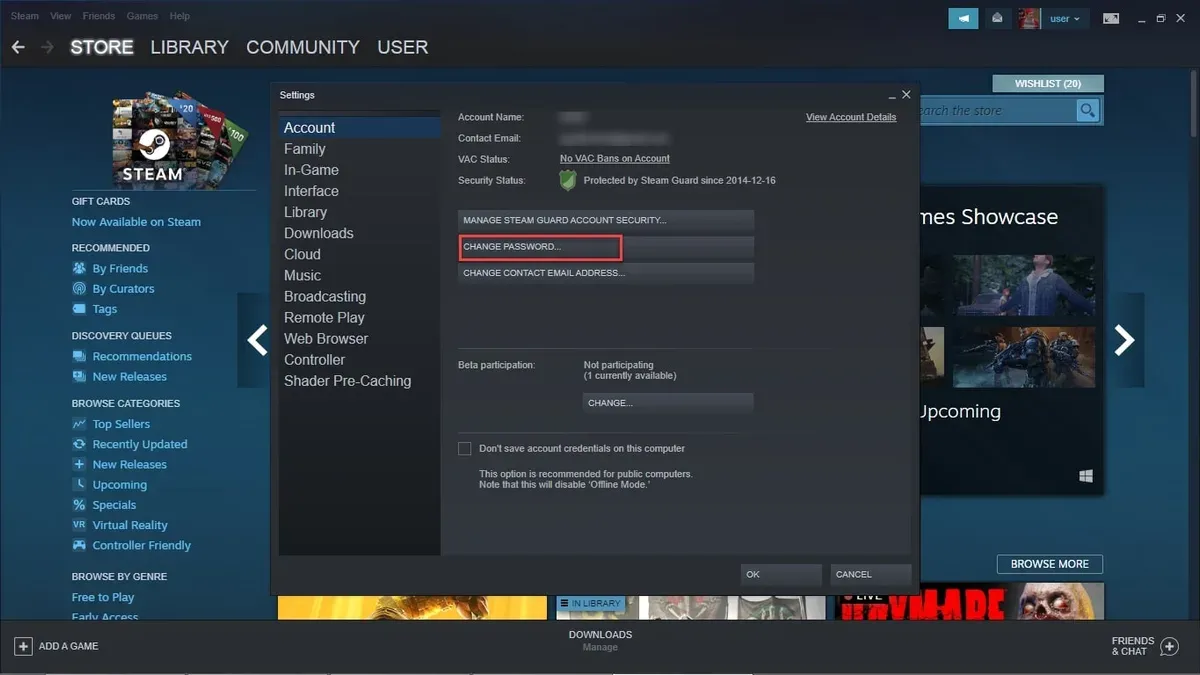
- Navigate to the account settings by selecting the username at the top-right corner on PC and clicking "Account details" or, on the mobile app, tapping the menu icon (three horizontal lines) and choosing "Account Settings." A page displaying account information will open.
- Locate and click the "Change my password" or "Change password" option within the account details section. This action opens the password update interface.
- Enter the current password in the designated field to verify identity. The interface will typically prompt for the new password immediately after successful verification.
- Set a new, strong password by typing it into the "New password" field and re-enter it in the "Confirm new password" field. The system usually indicates password strength and alerts if the entries do not match.
- Submit the password change request by clicking the "Change Password" or "Save" button. A confirmation message appears indicating the password update was successful.
- If Steam Guard is enabled, check the registered email or mobile authenticator for a verification code or confirmation prompt. Enter the code when requested to complete the process.
- After confirmation, log out and log back in with the new password to verify the change took effect and ensure uninterrupted account access.
Tip: Use a password manager to generate and store a unique, complex password to enhance account security.
How to change Steam password on PC
The Steam client offers a direct and fast method to change the password through its interface. Alternatively, the Steam website provides a web-based option that may be preferable if the client is unresponsive or unavailable. Both methods require the current password for verification and provide access to additional account security settings.
Using the Steam Client
- Open the Steam client and log in to the account. The main interface should appear upon successful login.
- Click on the username in the top-right corner and select Account details from the dropdown menu. The account management page will open within the client.
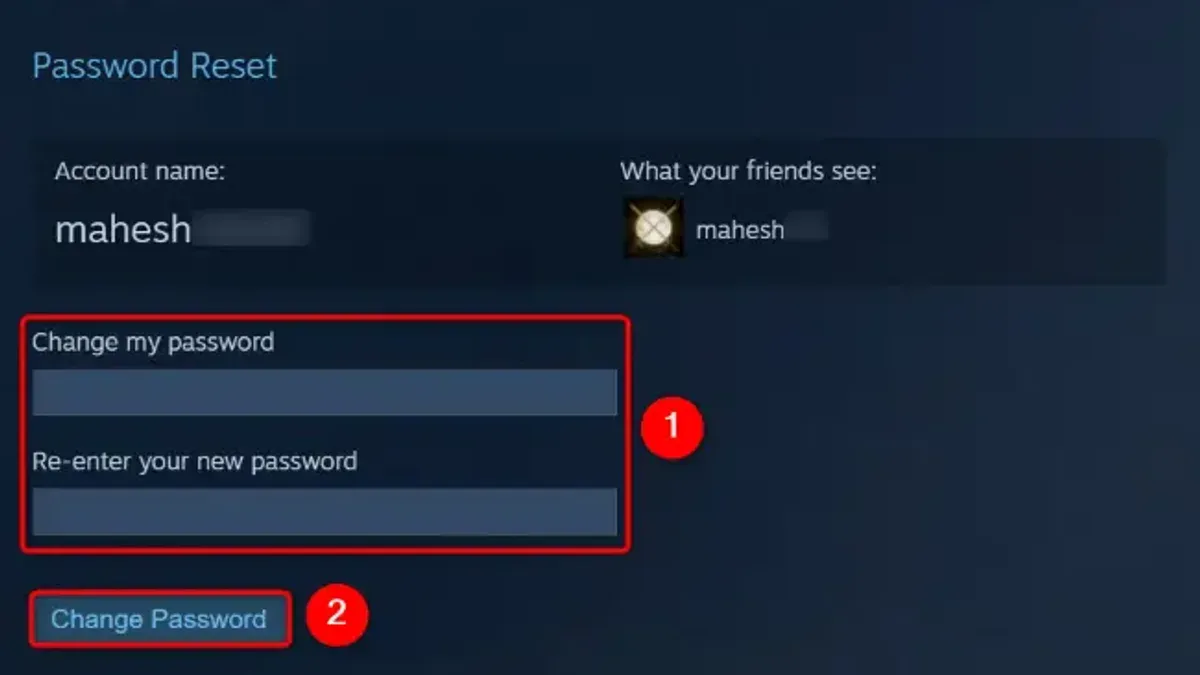
- Scroll down and click on Change my password. A password change form will appear.
- Enter the current password, then type the new password twice for confirmation. Steam will show strength indicators for the new password.
- Submit the change by clicking Change Password. A confirmation notification will appear once the update is successful.
Using the Steam Website
- Navigate to https://store.steampowered.com/account/ in a web browser and log in.
- Under Account Security, click Change my password. This opens a secure form similar to the client’s.
- Enter the current password, then the new password twice for confirmation. The site also provides password strength feedback.
- Click Change Password to finalize. A success message confirms the update.
Between the two options, the Steam client typically provides a smoother and quicker experience since it does not require loading a full webpage and uses saved session data. However, the website is a reliable fallback if the client is slow or encounters errors.
For a strong password, combine uppercase and lowercase letters, numbers, and special characters, aiming for at least 12 characters. Avoid common words and repeated patterns to enhance security.
Tip: Use a password manager to generate and store complex passwords securely, reducing the risk of reuse or forgetfulness.
How to change Steam password on mobile app
Changing a Steam password using the Steam mobile app on iOS or Android is straightforward and secure, utilizing the app’s built-in account management features alongside Steam Guard Mobile Authenticator for verification. The process begins by accessing the account settings within the app, where password updates are managed.
- Open the Steam mobile app and tap the menu icon, represented by three horizontal lines in the upper-left corner; this opens the main navigation panel.
- Select "Settings" from the menu options; this leads to various account and app management settings.
- Tap "Account Details" to access personal account information and security settings.
- Choose "Change Password"; the app will prompt for the current password to verify identity.
- Enter the current password, then input the new password twice to confirm accuracy; the app will display password strength indicators.
- If Steam Guard Mobile Authenticator is enabled, a verification code will be requested; open the Steam Guard section in the app to retrieve the code.
- Enter the Steam Guard code when prompted to complete the password change process.
- Upon successful change, the app displays a confirmation message, and the new password takes immediate effect across all devices.
Tip: Keep the Steam Guard Mobile Authenticator active during password changes to ensure smooth verification and enhanced security.
How to change Steam password without email
When the registered email is inaccessible, the phone number linked to the Steam account can serve as the primary recovery option. If a phone number is connected, users can request a password reset code sent via SMS to verify identity. This bypasses the need for email access and allows password updating through the Steam recovery interface.
- Go to the Steam login page and click on "Forgot your password?". A prompt for account identification appears.
- Enter the Steam account name or phone number linked to the account. Steam will detect available recovery methods.
- Select the option to receive a verification code on the registered phone number. Upon successful delivery, a text message with the code should arrive shortly.
- Enter the received code on Steam’s recovery page. Successful verification grants access to reset the password.
- Set a new password, ensuring it meets Steam's security requirements. Confirmation of the change will display on the screen.
If the phone number is not linked or inaccessible, Steam’s account recovery form is the next step. This form requires providing proof of account ownership, such as previous purchase details or payment method information. Steam Support evaluates submissions, though response times can vary from a few hours to several days depending on request volume.
Limitations: Without access to both email and phone number, recovery depends entirely on Steam Support’s manual verification process, which may not always guarantee success. Delays and additional verification requests are common in this scenario.
Tip: Adding multiple recovery options to the account in advance can prevent lockouts caused by losing email access.
How to change Steam password without email and phone number
When access to both the registered email and phone number is lost, recovering a Steam account to change its password requires submitting a detailed support ticket to Steam Support. This process hinges on providing sufficient proof of account ownership to verify identity and authorize password reset.
- Gather proof of ownership such as original purchase receipts for games or wallet transactions, details of payment methods used (e.g., credit card last 4 digits), retail CD keys, or any linked third-party transaction confirmations. Accepted proof examples include Steam store purchase receipts, PayPal transaction IDs linked to the account, and activation keys from game boxes.
- Visit the Steam Support site and select "I can't sign in" followed by "I no longer have access to my email address" and then "I no longer have access to my phone number" to reach the account recovery form. This form requests detailed information about the account and proof attachments.
- Complete the form meticulously, providing all requested details such as account name, approximate date of account creation, and evidence of purchases. Upload scanned or digital copies of the proof documents to strengthen the case.
- Submit the ticket and await a response, which typically takes several days but can vary depending on support volume. Responses may request further information or clarification to verify ownership thoroughly.
- Follow all instructions from Steam Support promptly and provide any additional requested documents. Successful verification will lead to an email with instructions to reset the password securely.
Tip: Including multiple types of proof and detailed account history increases the likelihood of successful recovery when email and phone access are lost.
Steam’s policy emphasizes thorough verification to prevent unauthorized account access, so patience and precision in providing documentation are essential. Users should monitor the support ticket closely and respond quickly to any follow-ups.
Troubleshooting: What to do if Steam change password is not working or login fails after changing password
When encountering issues after changing a Steam password, start by clearing the Steam client's cache and cookies or reinstalling the Steam client or mobile app. This often resolves glitches preventing successful login or password update. After clearing or reinstalling, launch Steam and attempt to log in again; a successful login confirms the issue was local.
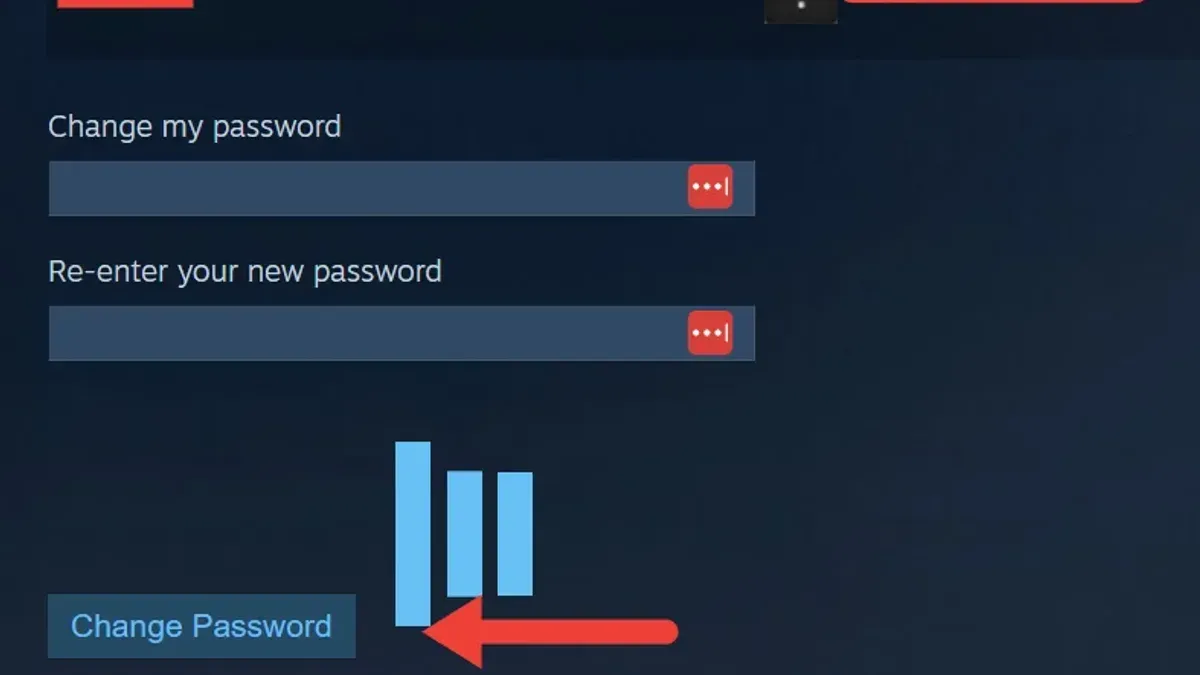
Next, verify Steam’s server status on the official Steam status page or trusted third-party services. Server outages or maintenance windows can block password changes or login attempts. If the servers are down, wait until normal service resumes before retrying.
Steam Guard and two-factor authentication (2FA) can also cause login failures if not configured correctly. Ensure that Steam Guard Mobile Authenticator is synchronized with the correct time and that authentication codes are entered promptly. If 2FA codes are rejected, disable and re-enable Steam Guard via account settings once access is restored.
If the new password does not allow login, reset it again through the Steam password recovery process. Use the "Forgot Password" link on the login page and follow the steps to receive a reset code via email or phone. If password reset attempts repeatedly fail, contact Steam Support with proof of ownership for assistance.
Frequently asked questions
How to change steam password 2025?
Changing a Steam password follows the same process regardless of the year. Access the Steam account settings either through the desktop client, the mobile app, or the Steam website, then navigate to the "Change Password" section. Follow the prompts to enter the current password and set a new one. This method is consistent and does not vary by year.
How to change steam password if forgotten?
If the Steam password is forgotten, use the "Forgot your password?" link on the Steam login page. Provide the account name or associated email to receive a recovery code. Follow the instructions sent via email or phone to reset the password and regain account access.
How to change Steam password on mobile
Open the Steam mobile app and tap the menu icon. Go to "Settings," then select "Account Details." From there, choose "Change Password" and follow the on-screen steps, which include verifying the current password and entering a new one.
How to change Steam password without app
Access the Steam website through a browser on any device. Log in and click on the profile name at the top right, then select "Account details." Find the "Change password" option and proceed by entering the current password and setting a new one. This process requires no app installation.
How to change Steam password if forgotten
Use the password recovery process by clicking "Forgot your password?" on the Steam login screen. Provide the account name, email, or phone number linked to the account. Steam will send a verification code to confirm identity, after which a new password can be created.
What this advice does not cover
This article does not cover account recovery scenarios involving hacked accounts beyond Steam’s official support processes. Users experiencing unauthorized access or suspected account compromise should contact Steam Support directly for specialized assistance.
Users without any linked recovery options face significant challenges that may require direct Steam support intervention with proof of ownership, such as purchase receipts or CD keys. This guide focuses on password changes when at least one recovery method is accessible or when logged into the account.
For those unable to regain access through the outlined methods, submitting a detailed support ticket to Steam with all relevant information is the recommended next step.
Tip: Keep recovery options like email and phone number updated in Steam settings to avoid complicated recovery processes.
The most effective immediate action after reading this guide is to verify and update all account recovery options in Steam’s settings. This ensures smoother password management and reduces the risk of being locked out in the future.
See also: How to Change Rockstar Games Password: Clear Steps and Solutions · How to Change Your Battle.net Password: Step-by-Step Guide · How to Change Your Fortnite Password: Device-Specific Steps and Security Tips · How to Change Your GitHub Password Across Devices: Complete Steps