
Mac Keyboard Shortcut to Type Degree Symbol: Quick and Reliable
Discover how to quickly type the degree symbol on Mac using a simple keyboard shortcut and alternative input methods.
You’re writing a report or a message and need to insert the degree symbol quickly. Without the right shortcut, searching through menus or character viewers can slow you down.
This guide explains the Mac keyboard shortcut to type degree symbol and why it works, along with alternative methods if the shortcut does not fit your workflow. You’ll also find troubleshooting tips for common issues and learn when using other input options might be more efficient.
Key takeaways
- The fastest way to type the degree symbol on Mac is Option + Shift + 8.
- If the shortcut doesn’t work, check your keyboard layout settings or try the Emoji & Symbols viewer.
- Using the Character Viewer is helpful for occasional use or when typing on non-standard keyboards.
- Knowing when to use shortcuts versus other input methods depends on your typing frequency and device.
How to type degree symbol on Mac using keyboard shortcut
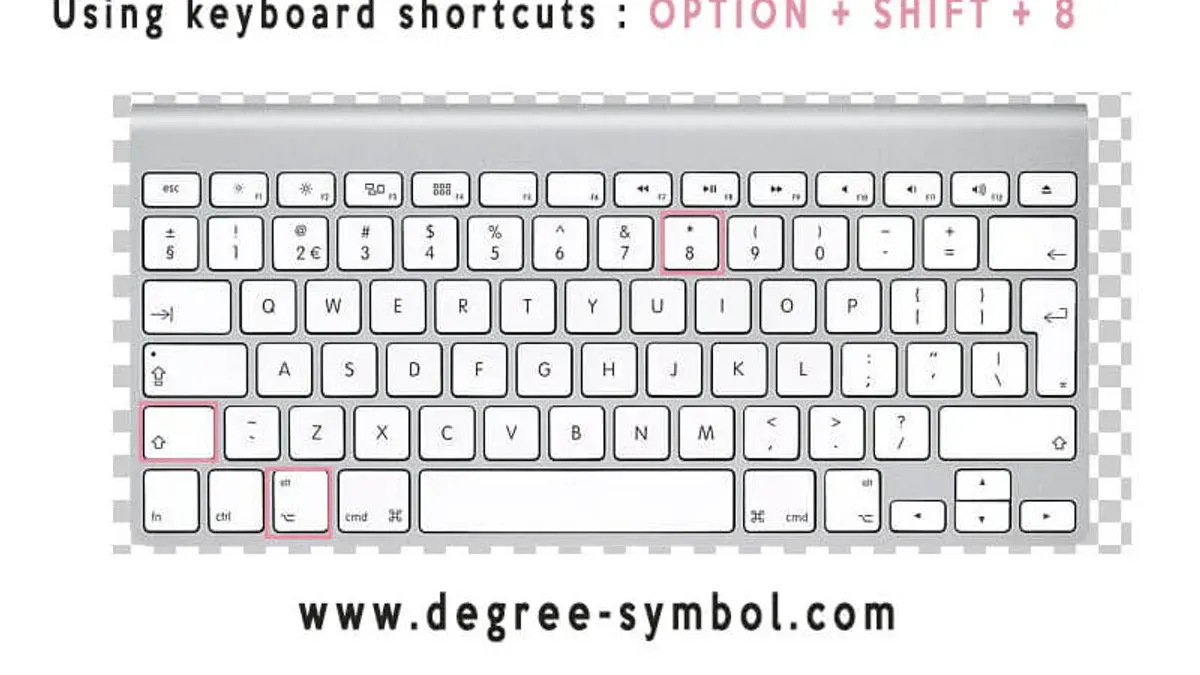
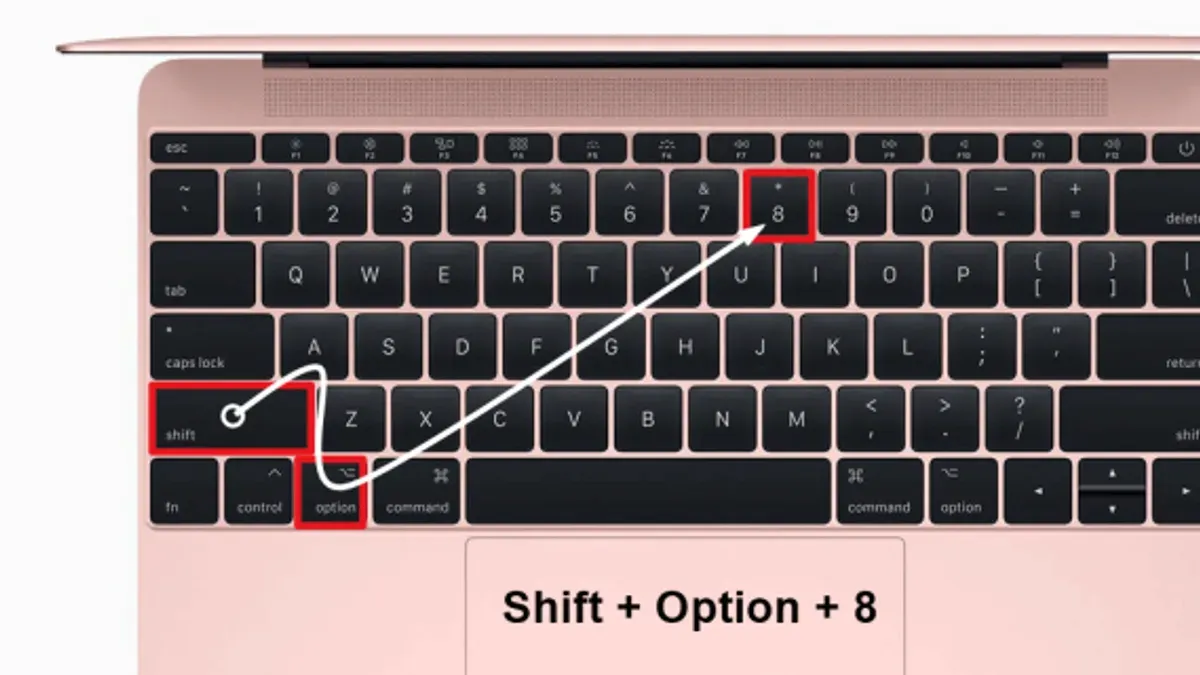
To type the degree symbol (°) on a Mac keyboard, press Option + Shift + 8 simultaneously. This shortcut inserts the degree character directly into your text without needing to open any menus or special character panels.
Here’s how it works: the Option key on macOS enables access to alternate characters assigned to certain keys. Combining it with Shift modifies the output further, allowing the number 8 key to produce the degree symbol instead of the standard asterisk (*).
For example, if you want to write “Temperature is 25°,” place the cursor after the number 25, then press Option + Shift + 8. The degree sign will appear immediately: 25°.
Note that this shortcut is consistent on U.S. and many international Mac keyboard layouts, but some regional keyboards may differ slightly. If you notice the shortcut does not produce the degree symbol, check your keyboard layout settings in System Preferences under Keyboard > Input Sources.
How to get degree symbol on Mac keyboard without shortcuts
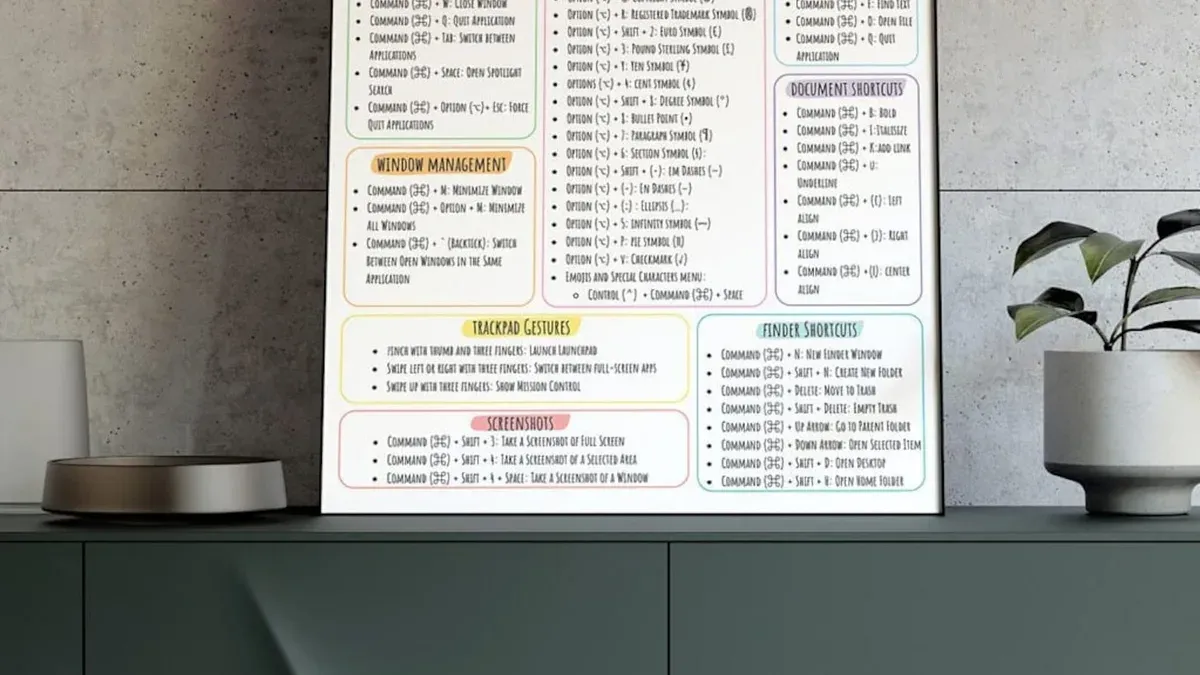
If the keyboard shortcut feels awkward or you need alternative ways, Mac offers several options. One is the Character Viewer, accessible by clicking the Edit menu in most apps and selecting Emoji & Symbols or by pressing Control + Command + Space. This opens a searchable panel where you can type “degree” to find and insert the symbol. It’s slower than a shortcut but useful if you rarely type it or forget the key combo.
Another method is copy-pasting the degree symbol from a document or webpage. For example, you might copy ° from a weather report online and paste it where needed. This is straightforward but inefficient if you insert the symbol frequently.
For frequent usage without memorizing the shortcut, set up a text replacement in System Preferences under Keyboard > Text. Create a shortcut like “::deg” that automatically expands to °. This balances speed and ease, especially if you prefer typing text over key combos. However, it requires initial setup and remembering your chosen trigger.
How to type degree symbol on MacBook trackpad and keyboard layouts
The Option + Shift + 8 shortcut to type the degree symbol remains consistent across most MacBook models, whether you use a MacBook Air or Pro. This is because macOS standardizes keyboard shortcuts regardless of hardware. However, keyboard layouts influence where the keys are placed, which can make the shortcut less intuitive on non-US keyboards.
For example, on a French AZERTY keyboard, the number keys require pressing Shift to access digits, so the combination might involve Option + Shift + the key labeled '8' or '°' depending on the layout. In some international layouts, the degree symbol might be directly accessible via a dedicated key or through Option combined with another key, such as Option + K on certain Nordic keyboards.
If you use a compact or international MacBook keyboard, consider checking the Keyboard Viewer (found under System Preferences > Keyboard > Show Keyboard and Emoji Viewers in menu bar) to locate the exact key mapped to the degree symbol. This tool visually confirms how modifier keys like Option and Shift interact with your specific layout. This step helps avoid trial and error, especially when keys differ from the US QWERTY standard.
Common mistakes when using Mac keyboard shortcut to type degree symbol
A frequent error is confusing the keys in the shortcut, such as pressing Option + Shift + 0 instead of Option + Shift + 8. Since 8, not 0, holds the degree symbol, this mistake results in unexpected characters or no symbol at all. For example, pressing Option + Shift + 0 inserts a different character, causing confusion.
Another common issue arises from conflicts with third-party applications or custom key mappings. Some apps override default shortcuts, disabling the Option + Shift + 8 combination. If you notice the shortcut not working in certain programs, check their keyboard shortcut settings or temporarily disable conflicting key remaps.
Finally, users often overlook the Character Viewer as a fallback when shortcuts fail. Enabling it via System Preferences > Keyboard > Input Sources > Show Input menu in menu bar lets you access symbols directly. This option is especially useful if your keyboard layout differs or if the shortcut is disabled.
Practical uses of the degree symbol and when to use keyboard shortcuts
The degree symbol is essential in various fields like science, weather reporting, and cooking where precise measurements matter. For example, when writing a weather forecast, you might note a temperature as 72° F, which is clearer and more professional with the correct symbol. In a scientific paper discussing angles or temperature, such as stating “a 90° angle” or “the reaction occurred at 37° C,” using the degree symbol ensures accuracy and readability.
For professionals and students who regularly include these measurements, the keyboard shortcut saves time and prevents disruption in writing flow. Quickly inserting the degree symbol without navigating menus or copying from other sources streamlines document creation.
However, if you only occasionally need the degree symbol or are working in an unfamiliar app where shortcuts conflict, using the Character Viewer or copy-pasting may be more practical. For instance, a recipe writer drafting a single oven temperature of 350° F might find copy-paste faster than memorizing a shortcut.
- Mac Keyboard Shortcut to Type an Em Dash: Quick and Clear Guide
- Mac Keyboard Shortcut to Open Emoji Picker: A Clear Guide
- Mac Keyboard Shortcut to Find and Replace: How to Use and Customize It
Frequently asked questions
How to get degree symbol keyboard mac?
You can type the degree symbol on a Mac by pressing Shift + Option + 8 simultaneously. This keyboard shortcut inserts the ° symbol directly into your text without needing to access menus or special characters.
How to get degree symbol keyboard Mac?
The degree symbol appears on Mac keyboards through the shortcut Shift + Option + 8. If you prefer, you can also access it via the Character Viewer by clicking the Edit menu and selecting Emoji & Symbols, then searching for 'degree'.
Keyboard shortcut to make degree symbol on Mac?
The standard keyboard shortcut to type the degree symbol on a Mac is Shift + Option + 8. This works across most text fields and applications without additional configuration.
Shortcut to degree symbol on keyboard MacBook?
On a MacBook keyboard, use Shift + Option + 8 to insert the degree symbol. The compact layout does not affect this shortcut, and it functions the same as on other Mac keyboards.
Degree symbol on Mac keyboard not working, what to do?
If the shortcut Shift + Option + 8 doesn’t produce a degree symbol, check if your keyboard layout is set to a different language under System Preferences > Keyboard > Input Sources. Also, verify that the Option key is functioning properly and try restarting the application or Mac if issues persist.
Limits of this advice
This advice assumes a standard macOS environment and may not apply if you use heavily customized keyboard settings or third-party remapping software. Users relying on specialized input methods, international keyboard layouts, or accessibility tools might find that the described shortcuts do not function as expected. In those cases, consulting system preferences under Keyboard > Input Sources or exploring third-party utilities designed for symbol input is recommended.
For the most reliable experience, ensure your macOS is up to date and that no conflicting shortcuts are assigned in System Preferences > Keyboard > Shortcuts. If you frequently need symbols beyond the degree sign, consider creating custom text replacements under System Preferences > Keyboard > Text for faster access.
To move forward confidently, check your Keyboard preferences for enabled input sources and shortcut conflicts. This step often resolves common issues and ensures that the degree symbol shortcut works seamlessly within your workflow.



