
Mac Keyboard Shortcut to Open Emoji Picker: A Clear Guide
Learn the Mac keyboard shortcut to open the Emoji picker quickly and keep your typing flow smooth and efficient.
You’re typing a message and want to add a quick emoji to express your mood, but navigating menus slows you down. Knowing the Mac keyboard shortcut to open Emoji picker can save you time and keep your typing flow uninterrupted.
This article covers how to access the emoji picker on Mac using keyboard shortcuts, compares it with the Windows equivalent, and offers tips to make your emoji use more efficient. Whether you switch between Mac and Windows or want to improve your typing experience, understanding these shortcuts will help you communicate more smoothly.
Key takeaways
- Press Control + Command + Space on Mac to open the emoji picker instantly.
- Windows users use Windows key + Period (.) or Semicolon (;) to open their emoji panel.
- Using keyboard shortcuts avoids interrupting your workflow by removing the need to navigate menus.
- You can customize some macOS settings to improve emoji search and input speed.
- Common issues include shortcut conflicts and disabled input sources that can be resolved in system preferences.
What the Emoji Picker Is and Why It Matters
The emoji picker is a built-in tool on many operating systems that allows you to quickly insert emojis, symbols, and special characters into your text without searching for them manually. Instead of scrolling through long lists or remembering keyboard codes, you can open this panel with a shortcut and select the icon that best expresses your message.
Emojis play a key role in digital communication by adding tone and clarity that words alone sometimes lack. For example, a simple "Thanks!" can be enhanced with a 🙂 or 🙏, helping convey friendliness or gratitude more effectively. Messaging platforms and social media use emojis extensively, with many users including them regularly to enrich conversation.
Using the emoji picker improves typing speed and accessibility by streamlining the process of finding and inserting these characters. This reduces interruptions in your workflow, especially when writing casual messages or social posts. Imagine quickly adding a 🎉 after announcing good news, all without breaking your typing rhythm or switching apps.
Mac Keyboard Shortcut to Open Emoji Picker
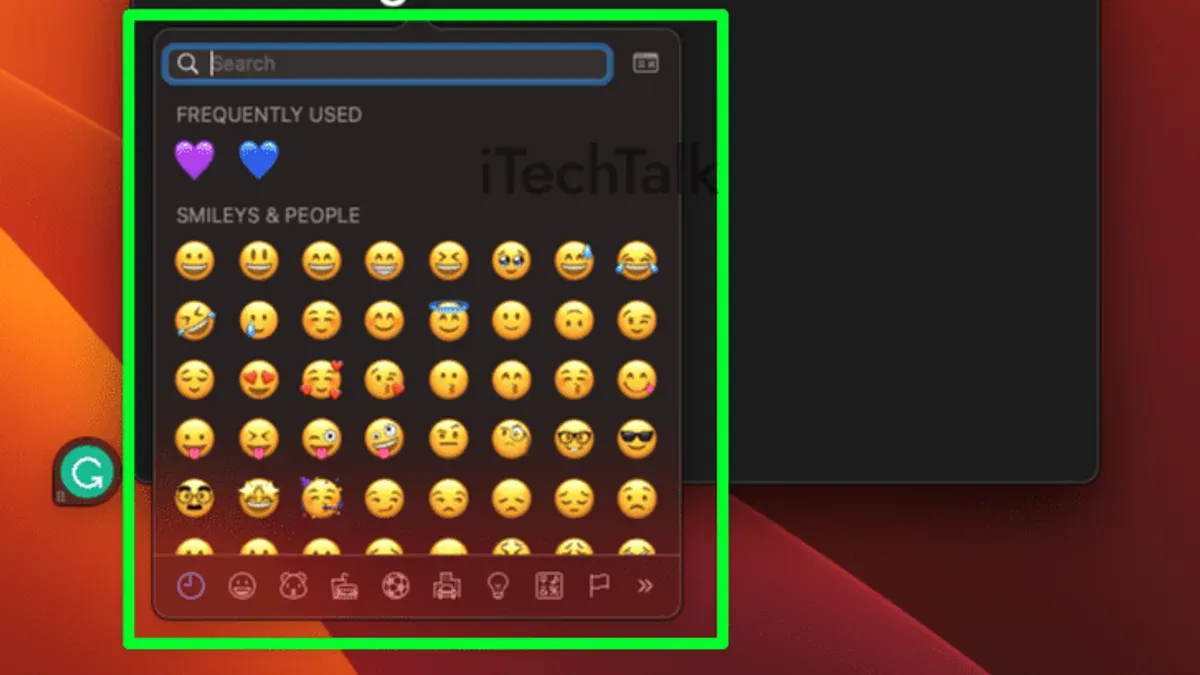
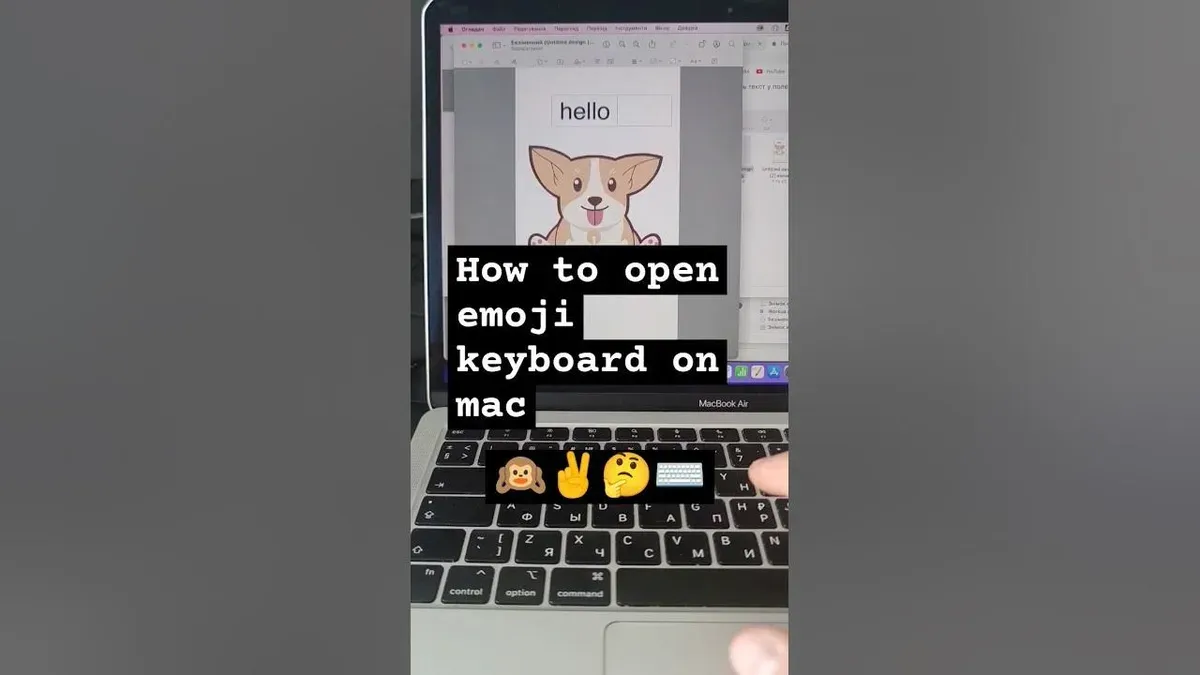
The quickest way to open the emoji picker on a Mac is by pressing Control + Command + Space simultaneously. This shortcut instantly brings up the emoji and symbol viewer at your cursor’s location, allowing you to insert emojis without interrupting your workflow.
Once the emoji picker appears, you can navigate through categories using the tab bar at the top or search for specific emojis by typing their name in the search field. Selecting an emoji inserts it directly into your active text field.
Alternatively, you can open the emoji picker manually by going to the menu bar and selecting Edit > Emoji & Symbols. However, this method is slower compared to the keyboard shortcut.
Note that some custom keyboard layouts or third-party keyboard utilities might alter or disable the default shortcut. If Control + Command + Space doesn’t work, check System Preferences under Keyboard > Shortcuts > App Shortcuts to see if the shortcut has been reassigned or disabled. Restoring the default shortcut or disabling conflicting apps usually resolves this issue.
For example, when composing a message in an app like Messages or Notes, pressing Control + Command + Space pops up the emoji picker right where you’re typing, making it easy to quickly add an emoji without breaking your typing flow.
How to Open Emoji Picker in Windows
On Windows 10 and 11, you can quickly access the emoji picker by pressing Windows key + Period (.) or Windows key + Semicolon (;). This shortcut brings up a panel where you can browse emojis, kaomojis, and symbols, similar to the Mac emoji picker.
Once opened, the Windows emoji picker displays categories on the left, such as smileys, animals, food, and symbols, allowing you to navigate easily. You can also search for emojis by typing keywords, which streamlines finding the right one without scrolling. For example, typing "heart" will show various heart-related emojis.
Compared to Mac's Control + Command + Space shortcut, Windows provides a more segmented interface with distinct tabs for GIFs and symbols, which may be missing or less prominent on Mac. The Windows picker also supports a wider variety of kaomojis, catering to different user preferences.
While the emoji sets are largely overlapping, some Windows emojis have a slightly different design style, and the Windows picker integrates GIFs directly, unlike Mac's version. This difference means you might find additional expressive options on Windows, but the Mac interface tends to be more compact and minimalist.
Overall, if you switch between Mac and Windows, knowing these shortcuts and interface nuances helps maintain smooth communication and efficient typing across platforms.
Shortcut Tips to Maximize Emoji Picker Use on Mac
After opening the emoji picker with Control + Command + Space, you can type keywords directly into the search bar to filter emojis efficiently. For example, typing "heart" quickly narrows the options to various heart emojis, allowing you to select one without scrolling. Using arrow keys and Enter lets you navigate and insert emojis without needing a mouse, enhancing keyboard-only accessibility.
The picker also keeps track of your recently used emojis, which appear in the first tab for faster access. You can add favorites by right-clicking an emoji and selecting "Add to Favorites," making frequently used emojis even easier to find. Conversely, you can remove categories from the sidebar by right-clicking and unchecking them, tailoring the picker to your preferences and reducing clutter.
Consider a scenario where you want to send a smiling face emoji quickly. Without using the shortcut and search, you might scroll through many categories. With the shortcut and typing "smile," you locate and insert 😊 within seconds, saving time and maintaining your typing flow.
Common Mistakes and Issues with Emoji Picker Shortcuts
One frequent issue is the emoji picker shortcut not working because of conflicting applications or keyboard remapping. For example, some third-party utilities that customize keyboard shortcuts can override Control + Command + Space, preventing the picker from opening. To fix this, check System Preferences under Keyboard > Shortcuts and disable conflicting shortcuts or quit apps that might intercept the key combination.
Another problem users encounter is the emoji picker failing to appear or experiencing lag. This can happen if the system is under heavy load or if the input source settings are misconfigured. Restarting the Mac or switching input sources via System Preferences > Keyboard > Input Sources often resolves the delay or non-appearance.
Misunderstanding shortcut key combinations also occurs, especially on Macs with Touch Bar. Since the Touch Bar replaces the physical function keys and some modifier keys, users might mistakenly press wrong keys or expect physical keys that are absent. For instance, on certain MacBook models, the Command key position is consistent, but Control may feel different, so confirming the exact keys on your keyboard is crucial.
Lastly, the emoji picker has limitations. Some emojis lack skin tone or gender variants within the picker, requiring manual modification after insertion. This limitation affects diverse communication and might prompt users to seek alternative apps for expanded emoji options.
- Mac Keyboard Shortcut to Open Spotlight: A Clear Guide
- Mac Keyboard Shortcut to Record the Screen: A Complete Guide
- How to Take a Screenshot of a Selected Area on Mac Using Keyboard Shortcuts
- Mac Keyboard Shortcut to Copy Screenshot to Clipboard Explained
Frequently asked questions
windows emoji picker keyboard shortcut
On Windows, you can open the emoji picker by pressing the Windows key +. (period) or Windows key +; (semicolon). This shortcut works on Windows 10 and later versions, providing quick access to emojis, kaomojis, and symbols. It’s useful for enhancing your messages without leaving the keyboard.
macos emoji keyboard shortcut
To open the emoji picker on macOS, use the shortcut Control + Command + Space. This brings up a small window with emojis, symbols, and special characters ready for insertion. It’s a consistent method across most macOS applications.
mac os emoji shortcut
The emoji shortcut on Mac OS is the same as macOS: Control + Command + Space. This combination opens the Character Viewer, which includes emojis and other symbols. It works system-wide, making it easy to add emojis wherever you type.
shortcut to open emoji keyboard mac
The shortcut to open the emoji keyboard on a Mac is Control + Command + Space. Pressing these keys simultaneously brings up the emoji picker window, allowing you to quickly browse and insert emojis into your text. This shortcut is widely supported in most Mac applications.
Limits of This Advice
This article does not cover third-party emoji apps or plugins that may offer alternative shortcuts or expanded emoji libraries, which some users might prefer. If you require specialized emoji sets, animated emojis, or enhanced customization beyond the system defaults, exploring dedicated software could be beneficial. Additionally, this guide focuses on native keyboard shortcuts and does not address accessibility tools that might alter how emoji pickers are accessed.
To make the most of emoji input across your devices, the single most useful next step is to practice using the native emoji picker shortcuts regularly. On Mac, pressing Control + Command + Space is the fastest way to open the emoji picker, and on Windows, Windows key + Period (.) or Windows key + Semicolon (;) works similarly. Familiarity with these shortcuts will streamline your typing and communication by allowing quick emoji insertion without interrupting your workflow.



