
Mac Keyboard Shortcut to Type Copyright Symbol Made Simple
Discover the simple Mac keyboard shortcut to type the copyright symbol and other quick methods to mark your work professionally.
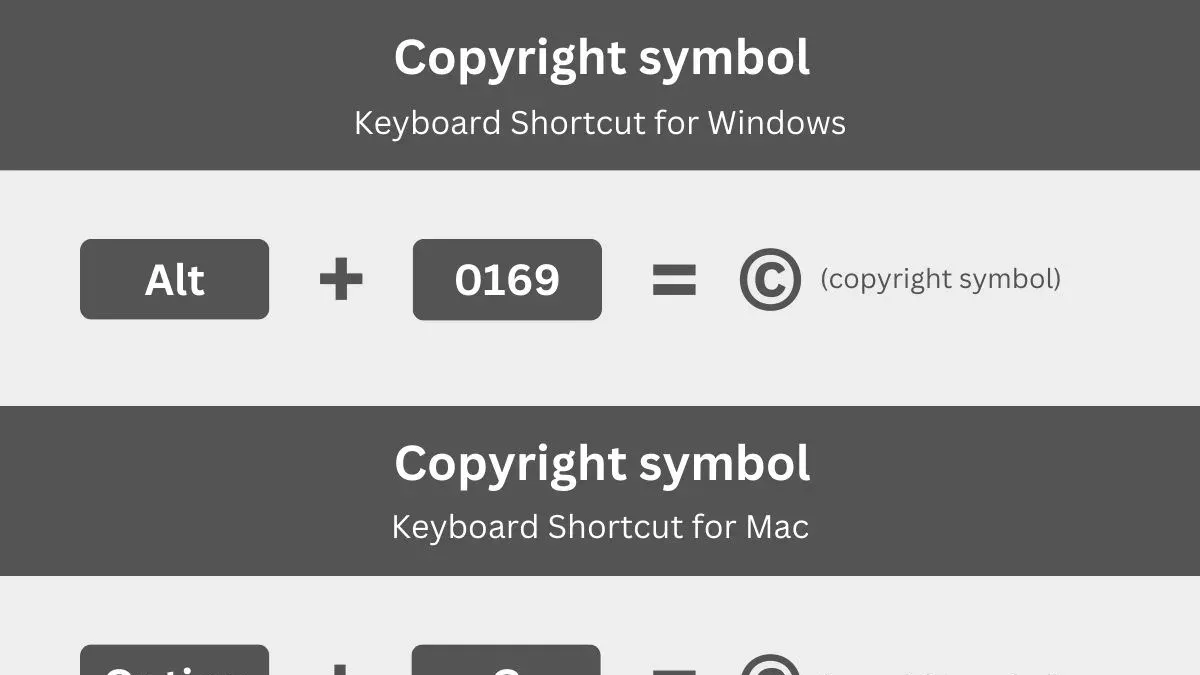
You're working on a document or a creative project and need to insert the copyright symbol quickly. Knowing the Mac keyboard shortcut to type copyright symbol can save you time and ensure your work is properly marked.
This article explains how to type the copyright symbol using a Mac keyboard shortcut and explores alternative methods. You'll also learn when and why to use the symbol correctly, along with common mistakes to avoid to maintain professionalism and legal clarity in your writing.
Key takeaways
- Use Option + G on your Mac keyboard to type the copyright symbol instantly.
- The copyright symbol indicates legal protection of original works and should be used thoughtfully.
- You can also insert the symbol via the Emoji & Symbols viewer or copy-paste it from trusted sources.
- Place the copyright symbol before the year and author's name for proper attribution.
- Avoid confusing the copyright symbol with trademark or registered symbols to prevent legal misunderstandings.
What the copyright symbol means and why it matters
The copyright symbol (©) is a universally recognized mark indicating that the creator of a work claims legal rights over it. It serves as a concise notice that the content—be it text, images, music, or software—is protected under copyright law. Using this symbol informs others that the work is not freely available for duplication or distribution without permission.
For example, you might see the copyright symbol followed by a year and a name, such as “© 2024 John Doe,” on books, websites, or digital media. This notation clearly signals who holds the rights and when the protection began, which can be crucial in legal contexts. While writing the word “Copyright” or a full copyright statement also conveys ownership, the symbol is a standardized and easily recognized shorthand that helps avoid ambiguity.
Common scenarios for using the copyright symbol include labeling original creative works, marking legal notices on websites, and protecting software or multimedia products. Its presence helps deter unauthorized use and supports enforcement of intellectual property rights.
How to type copyright symbol on Mac keyboard shortcut
Typing the copyright symbol (©) on a Mac is straightforward using a simple keyboard shortcut. Press Option + G simultaneously, and the © symbol will appear at your cursor's position. This shortcut works consistently across most Mac applications, including word processors like Pages and Microsoft Word, email clients such as Mail, and web browsers.
For example, if you are writing an article in Pages and want to insert the copyright symbol after your name, place the cursor where you want the symbol, hold down the Option key, then press the G key. The © symbol will instantly appear, confirming the shortcut worked.
Visually, the © symbol looks like a capital letter C enclosed within a circle. It will appear inline with your text, matching the font style and size. If you do not see the symbol after pressing Option + G, ensure your keyboard settings are correct and that you are not using a custom shortcut that overrides this command.
Compared to other symbol shortcuts on Mac, such as Option + R for ® (registered trademark) or Option + 2 for ™ (trademark), Option + G is specifically designated for the copyright symbol, making it easy to remember.
Alternative methods to insert the copyright symbol on Mac
If you prefer not to use the Option + G shortcut, the Mac offers several other ways to insert the copyright symbol reliably.
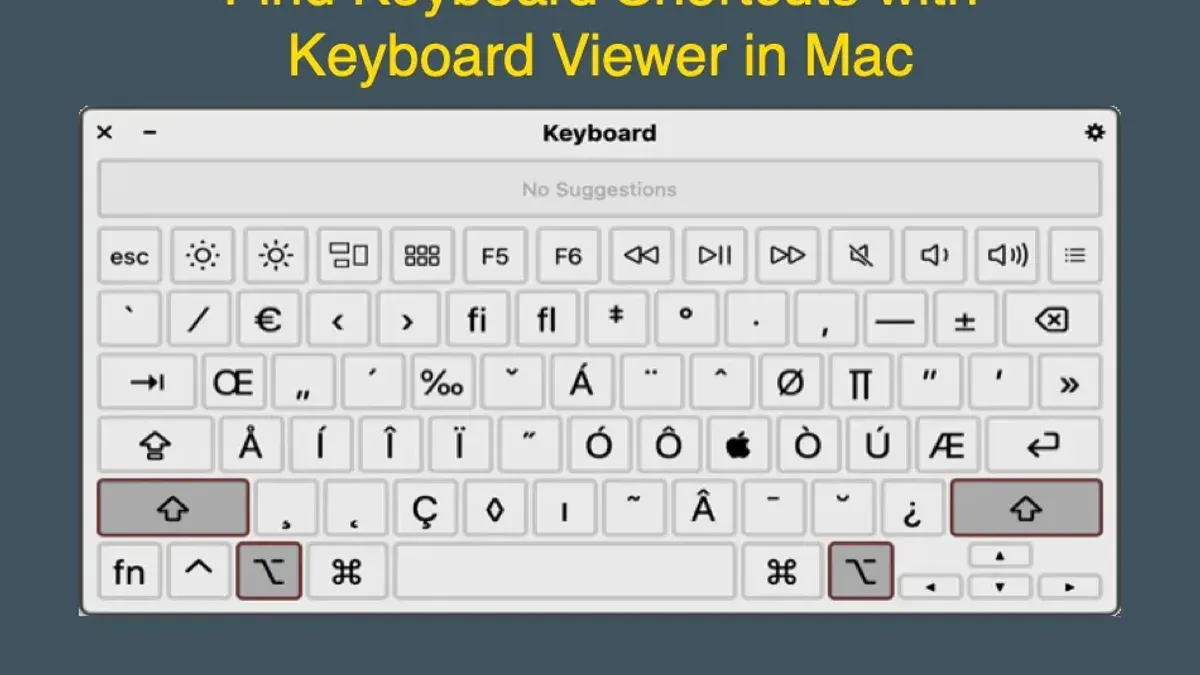
Character Viewer or Emoji & Symbols panel
You can access the copyright symbol through the Character Viewer. Click the Edit menu in most Mac applications, then choose Emoji & Symbols, or press Control + Command + Spacebar to open the panel. In the search field, type "copyright" to find ©. Double-clicking the symbol inserts it at the cursor location. This method is useful if you occasionally need the symbol and want a visual selection tool.
Copy-pasting from online sources or documents
Copying the copyright symbol from a trusted online source or a document where it already appears is straightforward. For example, highlight © on a webpage, press Command + C to copy, then Command + V to paste into your document. This method works anywhere but depends on having a source at hand.
Using text replacement or custom keyboard shortcuts
You can set up a text replacement to type the copyright symbol quickly. Go to System Preferences > Keyboard > Text. Click the “+” button to add a new replacement, such as replacing "(c)" with ©. Now, typing "(c)" followed by a space or punctuation automatically converts to the symbol. This method speeds up typing if you frequently need the symbol but want a custom trigger beyond the default shortcut.
How to use the copyright symbol correctly in your writing
The copyright symbol is typically placed at the beginning of a copyright notice, directly before the year and the owner's name. For example: © 2024 Jane Smith is the standard format, clearly indicating the year of first publication and the rights holder. This placement helps establish a clear claim and is widely recognized.
Common formatting styles include placing the symbol on the same line as the year and name, often followed by a statement like All rights reserved. For instance: © 2024 Jane Smith. All rights reserved. This format is both professional and legally meaningful.
The symbol is legally significant when used in proper copyright statements to indicate ownership. However, some use it stylistically in informal settings without legal intent, which can cause confusion. Incorrect usage examples include placing the symbol after the year or separating it from the name, such as 2024 © Jane Smith or © Jane Smith 2024, which are less clear and not standard practice.
By following the correct placement and format, you ensure your writing communicates ownership clearly and aligns with conventional copyright notices.
Common mistakes to avoid when typing the copyright symbol on Mac
One frequent error is confusing the copyright symbol (©) with the registered trademark (®) or trademark (™) symbols. These symbols serve different legal purposes and have distinct keyboard shortcuts: Option + R for ® and Option + 2 for ™ on a Mac. Using the wrong symbol can misrepresent your legal claims and cause confusion.
Another common mistake is typing similar-looking characters such as the letter "C" inside parentheses (© vs. (c)), which do not hold the same legal weight and may appear unprofessional. For example, typing (c) instead of © in a publication can undermine the clarity of your copyright notice.
Assuming that simply placing the copyright symbol grants legal protection is also misleading. The symbol is a notice, not a registration. Without proper copyright registration where required, the symbol alone does not secure enforceable rights.
To avoid errors, rely on the exact Option + G shortcut or the Character Viewer, and verify the symbol visually before finalizing your document.
- Mac Keyboard Shortcut to Type Degree Symbol: Quick and Reliable
- Mac Keyboard Shortcut to Type an Em Dash: Quick and Clear Guide
- Mac Keyboard Shortcut to Open Emoji Picker: A Clear Guide
Frequently asked questions
How to type copyright symbol mac?
To type the copyright symbol on a Mac, press Option (⌥) + G simultaneously. This keyboard shortcut inserts the © character directly into your text wherever the cursor is positioned.
how to type copyright symbol mac
The copyright symbol can be typed on a Mac by holding the Option key and then pressing the G key. This method works in most applications that support standard text input.
how to type copyright symbol on mac keyboard shortcut
The exact keyboard shortcut to type the copyright symbol on a Mac is Option + G. You must press both keys at the same time, and the symbol will appear immediately.
how to insert copyright symbol on mac without shortcut
If you prefer not to use the keyboard shortcut, you can insert the copyright symbol via the Character Viewer. Open it by clicking Edit > Emoji & Symbols in the menu bar, search for "copyright," then double-click the symbol to insert it.
what is the copyright symbol on mac keyboard
The Mac keyboard does not have a dedicated copyright symbol key, but the symbol can be generated using the Option + G shortcut. This combination is the standard way to produce the © character on Mac systems.
What this advice does not cover and who should seek other help
This advice does not cover detailed legal copyright registration processes or variations in copyright law across jurisdictions. If you need to register a copyright formally or require legal guidance on copyright enforcement, consulting a qualified intellectual property attorney or official copyright office resources is essential. This guide focuses strictly on how to type and use the copyright symbol effectively on a Mac.
The most useful next step is to practice inserting the copyright symbol using the keyboard shortcut (Option + G) in your preferred text editor or word processor. Familiarizing yourself with this shortcut ensures you can add the symbol quickly whenever needed, helping maintain professionalism and clarity in your documents and digital content.



