
How to Change the Time Zone on Mac: A Step-by-Step Guide
Discover step-by-step how to change the time zone on Mac to avoid scheduling errors and keep your clock accurate.
You’ve just traveled across time zones or noticed your Mac’s clock doesn’t match your current location. This can lead to confusion with meeting schedules, calendar events, and app notifications.
This guide covers how to change the time zone on Mac, including system settings and adjustments within key applications like Calendar, Outlook, and Microsoft Teams. You’ll learn step-by-step methods for different Mac models and tips to avoid common pitfalls when updating your time zone.
Key takeaways
- Access Time Zone settings under System Preferences > Date & Time > Time Zone to update your Mac’s system clock.
- Adjust time zone settings separately within Calendar and communication apps to prevent scheduling errors.
- Use the “Set time zone automatically using current location” option for effortless updates when traveling.
- Manually changing time zones may require restarting apps to reflect the new settings.
- If problems persist, verify Location Services permissions and check for app-specific time zone overrides.
Before you start: What you need to change your Mac’s time zone
To change your Mac’s time zone successfully, confirm that you have administrator access. Without it, you won’t be able to modify system settings. You can check this by opening System Preferences and looking for the lock icon at the bottom left; if it’s locked, you need admin credentials to proceed.
Next, verify your macOS version because interface layouts and option names can vary. For example, macOS Big Sur and later use "System Preferences" renamed to "System Settings," and the location of Date & Time settings may differ slightly. Knowing your macOS version helps you navigate efficiently.
Ensure your Mac is connected to the internet if you plan to use the automatic time zone feature. This setting relies on location services and online data to update your time zone accurately. Without connectivity, your Mac may show an incorrect or default time zone.
Accurate time zone settings are essential because they affect your system clock, calendar events, and communication apps like Mail, Messages, Outlook, and Microsoft Teams. For instance, if your time zone is wrong, meetings may appear at incorrect times, causing missed appointments or confusion with timestamps on messages and files.
- Check you have administrator access by opening System Preferences and looking for the lock icon; if it is unlocked, you have access.
- Find your macOS version by clicking the Apple menu > About This Mac; note the version name and number.
- Confirm your internet connection is active by clicking the Wi-Fi icon or using Safari to visit a website.
How to change the time zone on MacBook and Mac computers
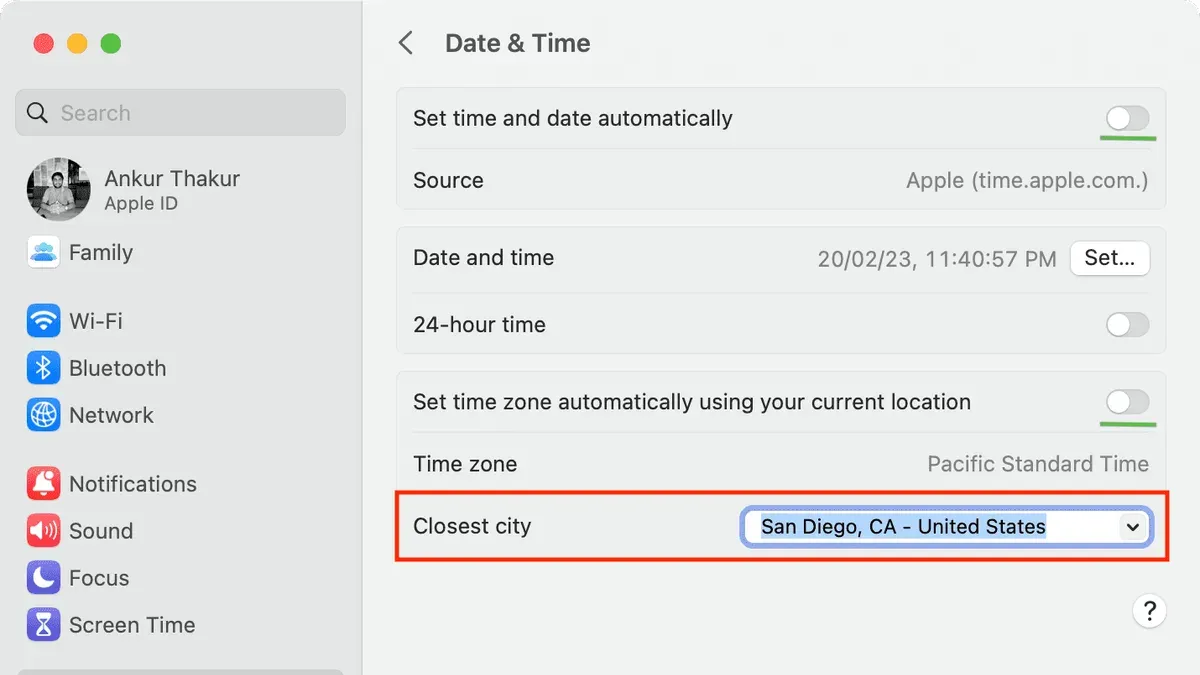
Adjusting your Mac’s system time zone is done through the Date & Time settings in System Settings or System Preferences. You have the option to set the time zone automatically using location services or select it manually from a list or map.
- Open System Settings (or System Preferences on older macOS versions) from the Apple menu. You should see a sidebar or grid of settings icons.
- Navigate to Date & Time. In some macOS versions, this is under the General category or directly listed in the main settings area.
- If the settings are locked, click the lock icon in the lower-left corner and enter your administrator username and password. This enables editing of the time zone.
- To set the time zone automatically, check the box labeled Set time zone automatically using current location. Your Mac will use location services to determine and update your time zone as you move between regions.
- To select the time zone manually, uncheck the automatic option. Then click the map or the dropdown list to choose your desired time zone. The map highlights regions and cities to help you pick the correct zone.
- After selecting the time zone, close the settings window. The system clock should update immediately to reflect your new time zone.
- Verify the change by looking at the menu bar clock or opening the Date & Time settings again. The displayed time should match the chosen time zone.
Automatic time zone setting is generally more accurate for frequent travelers or users who move between time zones often, but it requires enabling location services. Manual selection offers control and privacy but demands you remember to update the setting when you change time zones.
How to change the time zone on Mac Calendar
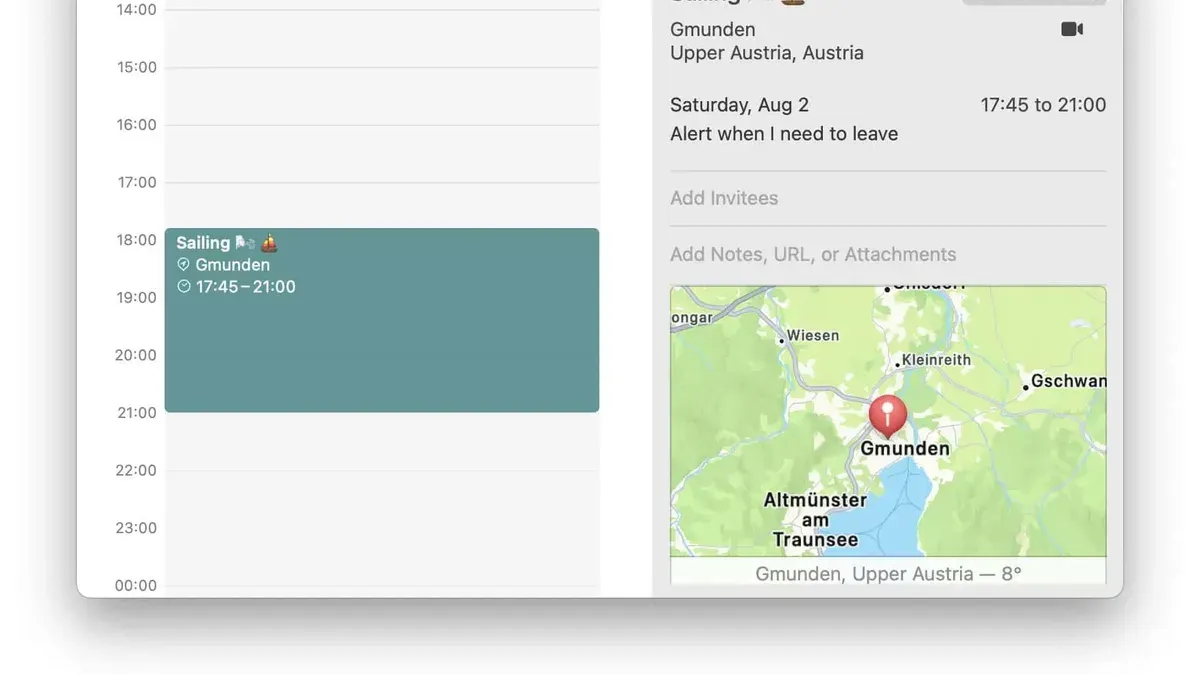
Adjusting the time zone within the Mac Calendar app ensures that your events display correctly, especially when scheduling across different regions. You can enable or disable time zone support to control how event times are shown relative to your chosen zones.
- Open the Calendar app on your Mac. You should see your calendar events laid out by date and time.
- Click Calendar in the menu bar at the top of the screen, then select Preferences. A settings window will appear.
- In the Preferences window, select the Advanced tab. Here, locate the Turn on time zone support option.
- Check the box to enable time zone support. This allows you to set and view event times in different time zones. When enabled, a time zone selector appears in the Calendar window.
- To set a preferred time zone for new events, use the time zone selector dropdown in the Calendar toolbar. Select your desired zone; new events will default to this zone unless otherwise specified.
- For existing events, double-click an event and click the time zone field to adjust its specific time zone if needed. This is useful for appointments that occur in a different location than your current zone.
- If you disable time zone support, all events will display in your Mac's current system time zone, which can cause confusion when traveling or collaborating across zones.
For example, with time zone support enabled, a meeting scheduled for 10:00 AM Eastern Time will show as 7:00 AM if your Mac is set to Pacific Time. Without time zone support, the event will always show as 10:00 AM regardless of your Mac’s time zone, potentially leading to missed or mistimed appointments.
Managing events in different time zones within Calendar helps avoid scheduling conflicts, particularly when you frequently travel or coordinate with people in other regions.
How to change the time zone on MacBook Air and MacBook Pro
Both MacBook Air and MacBook Pro models use similar processes to update the time zone, but there are key differences related to location services and power management settings that can affect automatic updates.
First, check Location Services permissions, as these control whether your Mac can update the time zone automatically based on your current location. Go to System Preferences > Security & Privacy > Privacy > Location Services and make sure System Services has permission, especially the Setting Time Zone option enabled. Without this, automatic time zone updates may not work.
Battery-saving settings differ slightly between the MacBook Air and MacBook Pro. The Air generally prioritizes longer battery life and may have stricter power management that restricts background location updates. In System Preferences > Battery, check if Low Power Mode is enabled, which can disable automatic time zone updates to conserve power. The Pro allows more flexibility here but can also suspend updates if the battery is critically low.
To manually set the time zone on either model, follow these steps:
- Open System Preferences and select Date & Time.
- Click the Time Zone tab.
- Uncheck Set time zone automatically using current location if it’s enabled.
- Manually select your time zone by clicking on the map or choosing from the dropdown list.
- Close the window; your Mac will now use the selected time zone.
Common issues on portable Macs include automatic time zone updates failing because of disabled location services or active power-saving modes. Remember that when running on battery, especially on the Air, your Mac might delay these updates to preserve energy, unlike desktop Macs which rely on constant power.
How to change the time zone in Outlook and Microsoft Teams on Mac
Outlook for Mac allows you to set a specific time zone for your calendar events, which can differ from your Mac's system time zone. To update this setting:
- Open Outlook and go to the Calendar view. You should see your scheduled events.
- Click on the Outlook menu, then select Preferences. A new window will open.
- Choose Calendar under the Email category.
- Scroll to find Time zones. Here, you can enable the option to show a second time zone or change the primary time zone manually.
- Select the desired time zone from the dropdown menu. After selecting, your calendar events will reflect this new setting.
- Close Preferences. When you create or edit meetings, Outlook will use this time zone for start and end times.
Microsoft Teams uses your Mac's system time zone by default. It does not offer a separate setting for time zones within the app. If your Mac’s time zone is accurate, Teams will display meeting times correctly.
If your Mac’s system time zone and Outlook’s calendar time zone differ, meeting invitations may show incorrect times. For example, if your Mac is set to Pacific Time but Outlook is set to Eastern Time, a 3 PM meeting in Outlook will appear as 12 PM in Teams, causing confusion.
To maintain consistent scheduling, ensure your Mac’s system time zone matches the time zone set in Outlook. Since Teams relies on the system time zone, aligning these prevents discrepancies across your communication tools.
Troubleshooting common issues when changing the time zone on Mac
If your time zone change is not reflected in the system clock, first verify that you have administrator privileges. Without these, changes may not save properly. Also, check if "Set time zone automatically using current location" is enabled in System Settings > Date & Time > Time Zone. If it is and the time zone still does not update, your Mac might be unable to access location services.
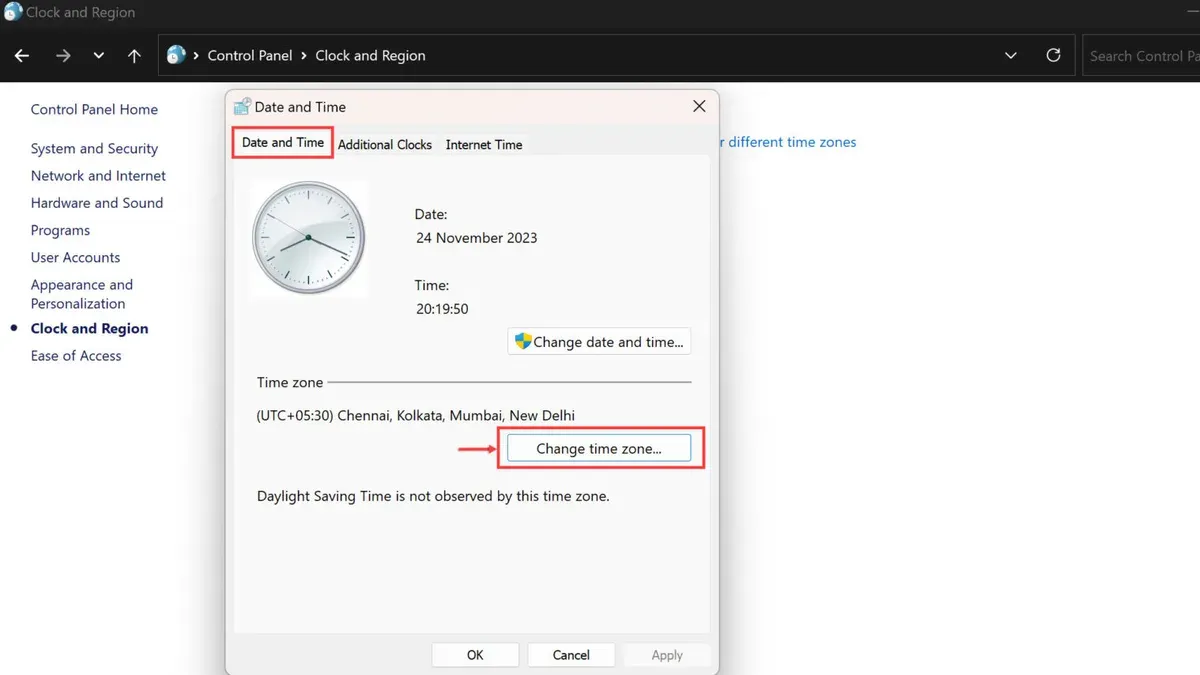
If the system reverts to an old time zone after a restart, the cause can be corrupted preference files. To fix this, reset the time zone preferences by deleting the file located at /Library/Preferences/com.apple.timezone.auto.plist and then reboot your Mac. After restarting, manually set the correct time zone again via System Settings.
Location services disabling automatic time zone updates is a common issue. Ensure that System Preferences > Security & Privacy > Privacy > Location Services has "System Services" enabled, specifically for "Time Zone & System Customization". Without this permission, automatic updates are blocked, resulting in static or incorrect time zones.
Conflicts between system time and synced calendar events often occur when calendar apps have different time zone settings than the system. For instance, if your Calendar app does not have time zone support enabled or reflects a different zone, meetings may appear at incorrect times. Verify that time zone support is enabled in Calendar preferences and matches the system time zone to avoid such discrepancies.
- Open System Settings and navigate to Date & Time > Time Zone.
- Disable "Set time zone automatically using current location" if enabled, then manually select the correct time zone from the map or list.
- Go to Security & Privacy > Privacy > Location Services, unlock the pane if needed, and ensure "Time Zone & System Customization" is checked under System Services.
- Delete the file /Library/Preferences/com.apple.timezone.auto.plist using Finder or Terminal to reset time zone preferences.
- Restart your Mac to apply changes fully.
- Open Calendar and verify that time zone support is enabled and set to the current system time zone.
Following these steps resolves most common time zone change problems, ensuring your Mac and apps reflect the correct local time consistently.
Tips for managing time zones when traveling or working remotely on Mac
When you travel frequently or collaborate across time zones, managing your Mac’s time zone settings efficiently helps prevent scheduling conflicts. Leveraging automatic time zone updates can simplify this, but it requires ensuring Location Services are enabled and accurate. Automatic updates adjust your system clock as you move between zones, but manual override remains essential if you encounter inaccurate location detection.
Using Calendar’s time zone support keeps event times consistent regardless of where you are. For example, if you schedule a meeting for 9 AM New York time while in London, the event will appear at 2 PM local time, avoiding confusion. Always enable time zone support under Calendar > Preferences > Advanced to benefit from this feature.
Synchronize time zone settings across your Apple devices by ensuring they use the same Apple ID and have automatic time zone enabled. This prevents discrepancies in meeting times when switching between Mac, iPhone, or iPad.
In communication apps like Outlook, set a default time zone in preferences to avoid mismatches, especially when scheduling meetings with participants in multiple zones. Teams, which follows the system time zone, requires that your Mac’s time zone is correct to display meeting times accurately.
- Enable Location Services: Go to System Settings > Privacy & Security > Location Services and confirm it’s on for System Services, including Time Zone & System Customization. You should see your Mac update the time zone automatically when you move.
- Turn on Calendar time zone support: Open Calendar, select Calendar > Preferences > Advanced, check “Turn on time zone support.” Events now show in their original time zones, maintaining accuracy across locations.
- Verify device time zone sync: On each Apple device, confirm automatic time zone is enabled—System Settings > Date & Time > Set time zone automatically using current location. This keeps event and system times aligned.
- Set default time zones in Outlook: In Outlook for Mac, go to Preferences > Calendar, choose a default time zone under Time Zones. This reduces confusion when scheduling across regions.
Manual time zone setting can be preferable when traveling to regions with unreliable location services or when you want to fix your calendar and system times to a single zone. Automatic settings offer convenience but may cause unexpected changes if Location Services misidentify your location. Choosing between manual and automatic depends on your travel frequency and preference for control versus convenience.
- How to Turn On Find My Mac on Your MacBook: A Step-by-Step Guide
- How to Set Auto Login on Mac: A Step-by-Step Guide
- How to Require Password After Sleep on Mac: A Clear Step-by-Step Guide
- How to Set Up Touch ID on Your Mac: A Step-by-Step Guide
Frequently asked questions
How to update time zone on mac?
To update the time zone on your Mac, open System Settings and go to General > Date & Time. Unlock the settings if necessary by clicking the lock icon and entering your password. Then, either enable "Set time zone automatically using current location" or manually select your preferred time zone from the Time Zone section.
How to set timezone on mac?
Setting the timezone on a Mac involves accessing System Settings, navigating to General > Date & Time, and choosing your time zone. You can allow your Mac to set the time zone automatically by enabling location services or pick a specific time zone manually by clicking the map or selecting a city from the list.
How to set the time zone on mac?
Go to System Settings > General > Date & Time, unlock the pane if locked, then either check the option to set time zone automatically or select your desired time zone from the map or dropdown menu. Make sure your Mac’s location services are enabled if you want automatic time zone updates.
How to change the time zone on my Mac computer?
To change the time zone on your Mac computer, open System Settings, choose General, then Date & Time. Click the lock icon to make changes, then either turn on automatic time zone setting or manually pick a time zone by city or region. Confirm your choice and close settings to apply it.
How to update time zone on Mac?
Updating the time zone on a Mac requires going to System Settings > General > Date & Time. After unlocking changes, you can update the time zone by enabling automatic detection or selecting the correct time zone manually. Restarting certain apps like Calendar or communication tools may be necessary to reflect the change.
What this guide does not cover and when to seek additional help
This guide does not address time synchronization problems caused by faulty hardware clocks or conflicts introduced by third-party time management applications. If your Mac uses specialized network configurations, VPNs, or enterprise-managed policies affecting time settings, consult your IT support team for tailored troubleshooting and adjustments.
For the most reliable update, verify your Mac’s time zone setting directly in System Preferences under Date & Time, ensuring “Set time zone automatically using current location” is enabled if you frequently travel. This step often resolves discrepancies across apps and services that rely on the system clock.



