How to Convert Audio with afconvert in Mac Terminal: Step-by-Step Guide
Discover how to convert audio files efficiently using afconvert in Mac Terminal with step-by-step instructions and troubleshooting tips.
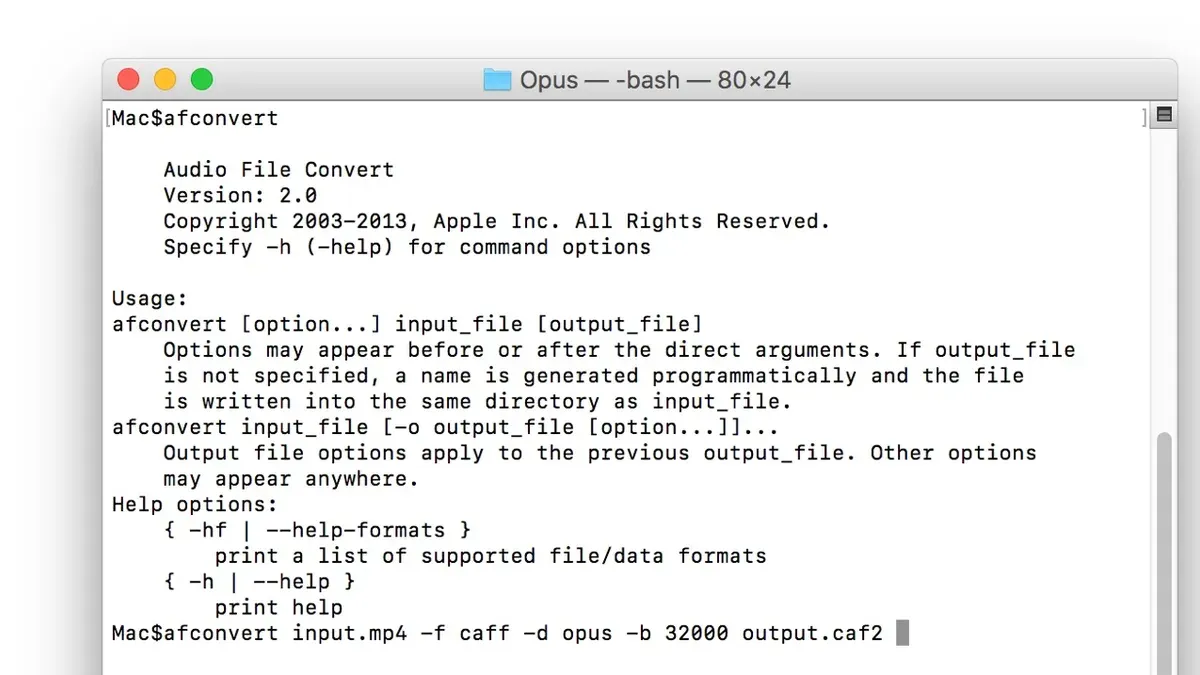
You have a folder full of audio files that need converting to a specific format for your project, but dragging them through a GUI feels inefficient. Using the Terminal on your Mac, you can convert these files quickly and with precise control over settings. This article explains how to convert audio with afconvert in Mac Terminal, covering both basic commands and advanced parameter choices.
You'll learn how to check audio file details using afinfo before conversion, adjust quality and codec parameters to suit your needs, and handle batch conversions. Common errors and troubleshooting tips are also included to ensure a smooth workflow when working with different audio formats.
Key takeaways
- Use afinfo to inspect audio file properties before converting.
- Basic afconvert syntax requires input file, output file, and codec specification.
- Adjust bitrate and sample rate parameters to balance quality and file size.
- Batch convert multiple files efficiently with shell scripting techniques.
- Common errors often stem from unsupported codecs or incorrect file paths.
Before you start: What you need to use afconvert
afconvert is a built-in command-line tool in macOS designed for audio file conversion, so no additional installation is necessary. To use it effectively, you should have a basic familiarity with the Terminal app, including navigating directories and handling file paths.
Ensure your source audio files are accessible on your Mac and note their exact location to avoid confusion during conversion. Knowing the formats you want to convert from and to helps in selecting the right parameters and codecs.
Check that you have sufficient disk space for the output files, especially when converting to formats with larger file sizes or higher quality settings.
To verify the details of your audio files before conversion, use the afinfo command. For example, running afinfo /path/to/file.wav in Terminal will display format, sample rate, channels, and other relevant data.
- Open the Terminal app on your Mac. You should see a prompt indicating readiness for commands.
- Navigate to the folder containing your audio files using the cd command (e.g., cd ~/Music/SourceFiles), and verify you see the files by listing them with ls.
- Run afinfo filename to view detailed audio file information. Successful execution shows codec, bit rate, sample rate, and channel count.
How to check audio file details with afinfo
Before converting audio files with afconvert, you need to understand the source file's properties. The Terminal command afinfo reveals detailed metadata and technical information, helping you tailor conversion settings effectively.
- Open Terminal on your Mac.
- Type
afinfo path/to/yourfile.wavand press Enter. Replacepath/to/yourfile.wavwith the actual file path. - Observe the output, which includes key details such as Sample Rate, Bit Depth, Channels, and Format.
- For example, a WAV file output might show:
"format: 1 ch: 2 bit depth: 16 sample rate: 44100"indicating stereo (2 channels), 16-bit depth, and 44.1 kHz sample rate. - Use this information to decide on matching or changing parameters in afconvert to maintain quality or reduce file size.
Checking these details prevents unintended quality loss or compatibility issues during conversion by aligning output settings with the original file's characteristics or your target format requirements.
Basic audio conversion with afconvert
afconvert uses a straightforward command syntax to convert audio files. The basic command includes the input file, output file, and optional format flags: -f for file format and -d for data format (codec).
- Open Terminal.
- Enter the command using this pattern:
afconvert input.wav output.aac -f m4af -d aac
This converts a WAV file to AAC format inside an M4A container. - Press Enter. If successful, Terminal will display conversion progress and completion without errors.
The -f flag specifies the container or file format (e.g., m4af for M4A/AAC, mp3 for MP3 if supported), while -d defines the audio codec (e.g., aac, mp3, lpcm for uncompressed audio).
If you omit -f and -d, afconvert defaults to converting the input file to AIFF format with uncompressed PCM data. This may increase file size but ensures compatibility.
Example terminal output after running the command might look like:
afconvert: input.wav -> output.aac
Conversion completed successfully
Advanced conversion options: controlling quality and codec parameters
Using -r, you can specify the sample rate in Hz, such as 44100 or 48000. Adjusting sample rate affects audio fidelity and compatibility; for example, converting a 48 kHz file to 44.1 kHz can reduce file size but may slightly alter audio quality.
Bit depth and bit rate adjustments impact quality and file size. For uncompressed formats like AIFF, use -d aifc with options to set bit depth; for compressed formats like AAC or ALAC, bit rate control is essential. For instance, -d aac accepts bit rate flags that balance quality and size.
Codec-specific data format strings with -d enable fine-tuned control. Examples include:
-d alacfor Apple Lossless, preserving quality with moderate file sizes.-d aacfor lossy compression with adjustable bit rates.-d aifcfor uncompressed AIFF with customizable bit depths.
Below is a comparison illustrating how varying these parameters influences file size and conversion time:
| Parameters | Output Format | Sample Rate (Hz) | Bit Rate/Depth | File Size (MB) | Conversion Time (s) |
|---|---|---|---|---|---|
| Default | AIFF PCM | 44100 | 16-bit | 50 | 3 |
| Lower sample rate | AIFF PCM | 22050 | 16-bit | 25 | 2.5 |
| ALAC | Apple Lossless | 44100 | Lossless | 35 | 4 |
| AAC low bit rate | AAC | 44100 | 128 kbps | 10 | 2 |
- Run
afconvert input.wav output.aiff -r 22050to downsample and reduce file size; verify output is smaller with acceptable quality. - Use
afconvert input.wav output.m4a -d aac -b 128000to convert to AAC at 128 kbps; check for faster conversion and smaller file. - Apply
afconvert input.wav output.m4a -d alacfor lossless compression; expect moderate file size and longer conversion time. - Compare file sizes and listen to outputs to decide best balance of size and quality for your needs.
Batch converting multiple audio files with afconvert
To efficiently convert many audio files at once, you can use a bash for loop in the Terminal. This automates the process by applying afconvert to each file in a directory, preserving original filenames and organizing outputs.
- Open Terminal and navigate to the folder containing your audio files. You should see your source files listed by running
ls. - If the
convertedfolder does not exist, create it beforehand withmkdir converted. You should see new files listed inside this folder after the loop runs. - Monitor for errors by appending
|| echo "Conversion failed for $f"inside the loop, which alerts you to any files that failed conversion without stopping the batch process. - After completion, list the converted files with
ls converted/to verify all expected files were created.
Run a for loop to convert all files with a specific extension (e.g.,.wav) to your desired format. For example:
for f in *.wav; do afconvert -f mp4 -d aac "$f" "converted/${f%.wav}.m4a"; done
This creates a converted subfolder and converts each WAV file into an AAC-encoded M4A file with the original filename preserved.
This method saves time and keeps your original files separate from converted ones, reducing confusion. Error handling ensures you catch issues without interrupting the entire batch.
Troubleshooting common afconvert errors
When using afconvert, you might encounter errors related to unsupported formats or codec issues. For example, the error message "afconvert: unsupported output format" indicates the selected format or codec is not compatible with the source or system. To fix this, verify the format (-f) and codec (-d) options against supported values listed in the afconvert man page.
Permission or file path problems often cause errors like "afconvert: could not open input file" or "permission denied". Ensure the input file path is correct and that you have read/write permissions. Using absolute paths instead of relative ones can prevent path resolution issues.
Unexpected output quality or file corruption may result from incompatible codec parameters or interrupted conversion. Double-check your parameter choices and try a simpler conversion command to isolate the problem. If corruption persists, test the input file integrity or try converting to a less complex format.
If afconvert limitations prevent the desired conversion—such as unsupported codecs or advanced editing needs—consider alternative tools like ffmpeg, which offer broader format support and more extensive parameter control.
- Check the exact error message afconvert returns when a command fails.
- Confirm your input file exists and the path is correct; use
lsin Terminal to verify. - Verify you have necessary permissions; adjust with
chmodor run the command withsudoif appropriate. - Review your -f (format) and -d (codec) parameters for compatibility using
man afconvert. - Test conversion with a basic format (e.g.,
-f AIFF -d LEI16) to rule out complex parameter issues. - If errors persist, consider using ffmpeg by installing it via Homebrew with
brew install ffmpegfor greater flexibility.
- How to Download Files Using curl in Mac Terminal: A Step-by-Step Guide
- How to Search Text with Grep in Mac Terminal: A Step-by-Step Guide
- How to Install Oh My Zsh in Mac Terminal: A Clear Step-by-Step Guide
- How to Use Aliases in zsh on Mac Terminal: A Practical Guide
Frequently asked questions
Can afconvert convert any audio format supported by macOS?
afconvert can handle most audio formats supported by macOS’s Core Audio framework, including AIFF, WAV, AAC, and Apple Lossless. However, some less common or proprietary formats may not be convertible directly. It’s best to check the specific format compatibility with afinfo before conversion.
How do I preserve metadata when converting audio with afconvert?
afconvert does not automatically preserve metadata during conversion. To retain tags like artist, album, and title, you need to use additional tools such as afclip or third-party utilities to extract and reapply metadata after conversion. Alternatively, scripting a workflow that copies metadata before and after conversion helps maintain it.
Is it possible to convert audio files to MP3 using afconvert?
afconvert does not natively support MP3 encoding. To convert audio to MP3, you need to use other tools like LAME or ffmpeg after or instead of afconvert. afconvert is more suited for Apple codecs and formats such as AAC, ALAC, and AIFF.
What should I do if afconvert output sounds distorted or has issues?
Distorted output often results from incompatible codec settings or sample rate mismatches. Check that input and output sample rates align or specify them explicitly with the -r option. Also, avoid unsupported bit depths or channel configurations, and verify you’re using appropriate format flags for your target codec.
Limits of using afconvert for audio conversion
afconvert does not support all audio codecs, notably it lacks native MP3 encoding capabilities. If your workflow requires a wide range of codec options or advanced encoding features, third-party tools like ffmpeg may offer more flexibility. Additionally, afconvert's command-line parameters can be less intuitive for complex codec settings compared to dedicated audio conversion software with graphical interfaces.
For users focused on quick conversions of Apple-friendly formats such as AAC, ALAC, or AIFF, afconvert remains a reliable choice. However, those needing extensive format compatibility or batch processing with customized metadata might find specialized tools better suited to their needs.
To deepen your practical use of afconvert, start by experimenting with codec and quality parameters on sample files, paying close attention to the -f (output format) and -d (audio data format) options. This hands-on approach will help you balance file size against audio quality and avoid common errors related to unsupported combinations.