
How to Search Text with Grep in Mac Terminal: A Step-by-Step Guide
Discover how to use grep in Mac Terminal to search text efficiently across files and directories with practical, easy-to-follow steps.
You have a folder full of log files and need to find specific error messages without opening each file. Or maybe you want to scan through configuration files quickly to locate a particular string. Knowing how to search text with grep in Mac Terminal can save you time and streamline your workflow.
This guide walks you through practical steps to use grep effectively on your Mac. You will learn basic single-file searches, how to extend searches across directories, combine grep with the Unix find command, and handle common errors. Real command outputs and common pitfalls are highlighted to help you avoid frustration.
Key takeaways
- Use grep 'pattern' filename for quick single-file searches.
- Search multiple files or directories with grep -r 'pattern' /path/to/directory.
- Combine find with grep for targeted searches by file type or name.
- Use options like -i for case-insensitive and -n to show line numbers.
- Check file permissions and syntax carefully to troubleshoot common grep errors.
Before you start: What you need to know
To use grep effectively, you first need access to the Mac Terminal app and basic familiarity with command line operations. Terminal is found in the Utilities folder within Applications, and launching it presents a command prompt where you can enter text commands.
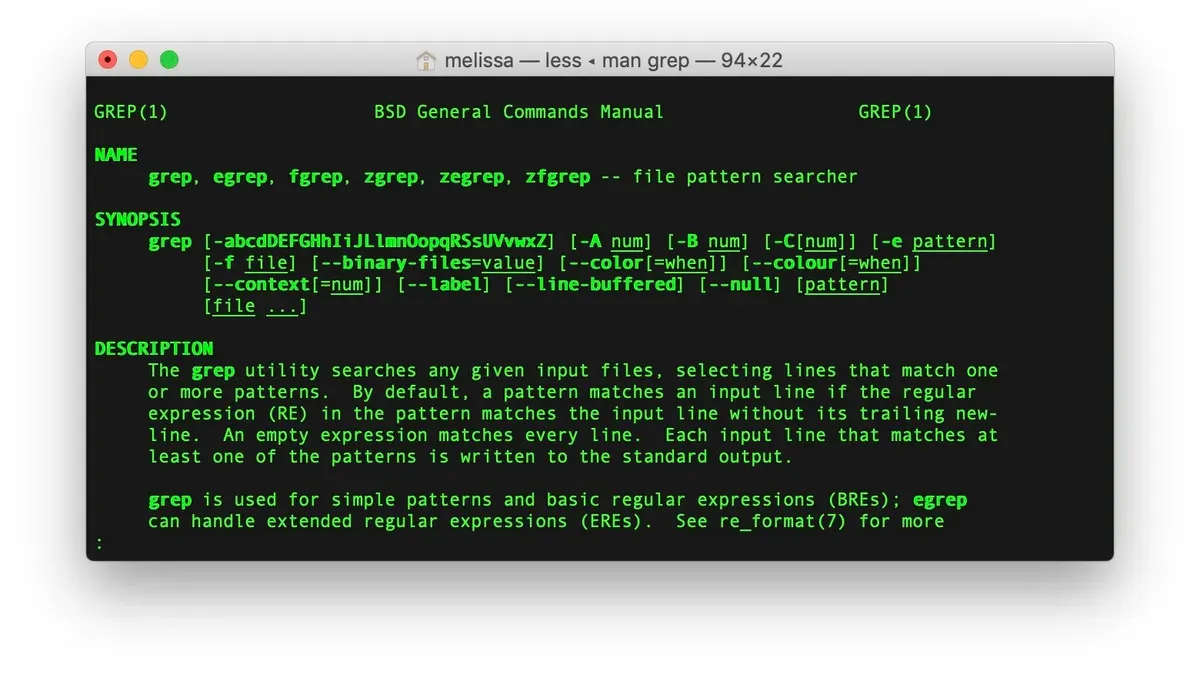
Grep is a command-line utility designed to search plain-text data sets for lines matching a specified pattern. It is especially useful for locating specific text strings within files or directories quickly.
On macOS, grep comes pre-installed by default, so no additional installation is typically required. However, there are variations like GNU grep that offer extended options and may be installed via package managers if needed.
- Open Terminal from Applications > Utilities. You should see a prompt ending with a $ sign, indicating readiness for commands.
- Type grep --version and press Enter. The Terminal should display the installed grep version details, confirming its availability.
How to grep text: Basic search in a single file
To search for specific text within a single file using grep, you use the syntax grep 'pattern' filename. The search is case-sensitive by default, meaning it distinguishes between uppercase and lowercase letters. Always enclose your search pattern in single quotes to ensure the shell interprets it correctly, especially if your pattern contains spaces or special characters.
- Open Terminal on your Mac.
- Type
grep 'example' sample.txtand press Enter. This command searches for the word "example" within the file named sample.txt. - Observe the output displaying all lines from sample.txt that contain the exact word "example" with matching case. Each matching line is printed as-is.
For instance, if sample.txt contains the lines:
Example line one.
Another example line.
Sample text.
The output for grep 'example' sample.txt will be:
Another example line.
This is because "example" (lowercase) matches only in the second line, whereas "Example" (capitalized) in the first line does not match the case-sensitive search.
How to do a grep search across multiple files or directories
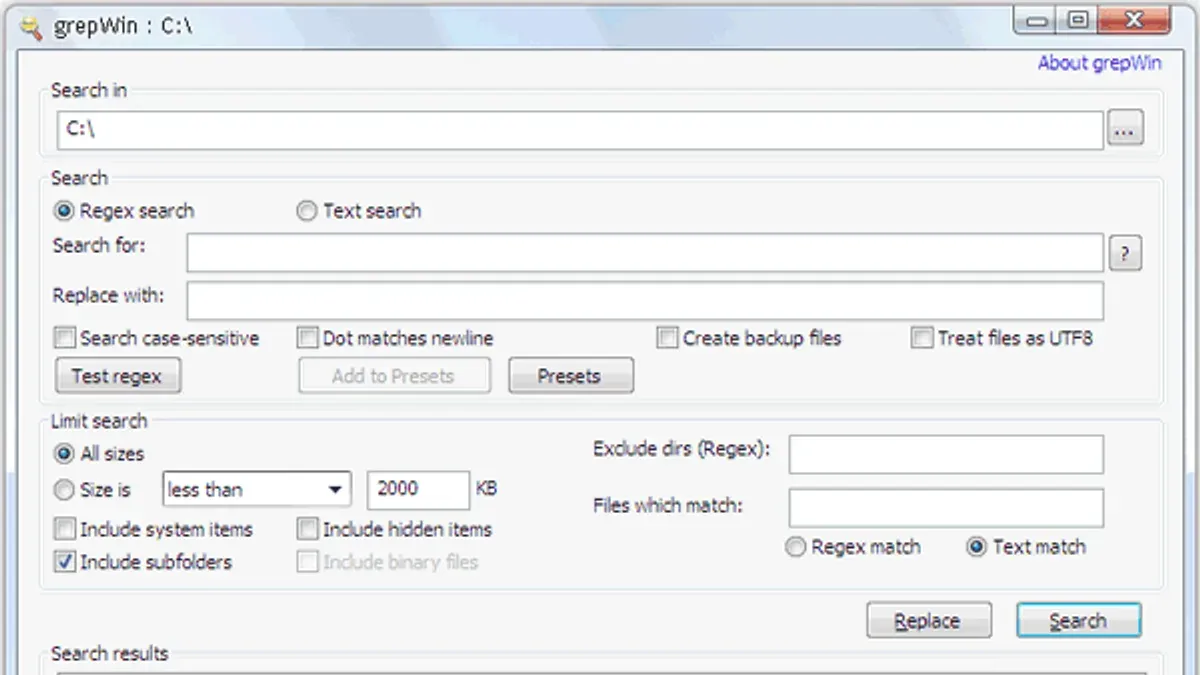
To search text recursively within directories and multiple files, use the -r option with grep. This tells grep to scan through all files in the specified directory and its subdirectories.
- Open Terminal and enter a command like
grep -r 'searchText' /path/to/directory. You should see all matching lines from files within the directory and its subfolders. - To limit the search to specific file types, combine grep with the
--includeoption, for example:grep -r --include='*.txt' 'searchText' /path/to/directory. This restricts results to only.txt files. - Alternatively, use the Unix
findcommand for more control. Example:find /path/to/directory -name '*.txt' -exec grep 'searchText' {} +. This finds all.txt files first, then runs grep on them. - Comparing outputs,
grep -ris simpler and faster for straightforward recursive searches, butfind... -exec grepoffers flexibility to filter files by complex criteria before searching.
For instance, with a directory containing subfolders and mixed files, grep -r lists all matches in every file, while the find method lets you target only.txt files, avoiding irrelevant results.
How to search using grep with common options
- Use -i to ignore case sensitivity. For example, grep -i "error" logfile.txt matches "Error", "ERROR", or "error". The output shows all lines containing any case variation of "error".
- Add -n to display line numbers alongside matching lines. For instance, grep -n "timeout" server.log outputs lines like 25: Connection timeout occurred, where 25 is the line number.
- Use -l to list only filenames with matches, not the matching lines themselves. Running grep -l "password" *.txt returns a list of file names that contain the word "password".
- Apply -v to invert the match, showing lines that do not contain the pattern. For example, grep -v "DEBUG" app.log filters out all lines with "DEBUG".
- Combine grep with regular expressions (regex) to find complex patterns. Use -E for extended regex support, such as grep -E "error|fail" report.txt, which matches lines containing either "error" or "fail".
How to use grep to find specific text patterns and files
Grep supports regular expressions (regex) to match complex text patterns, allowing flexible and precise searches. Use quotes around your pattern for special characters. For example, to find lines containing either "cat" or "dog" in a file, run:
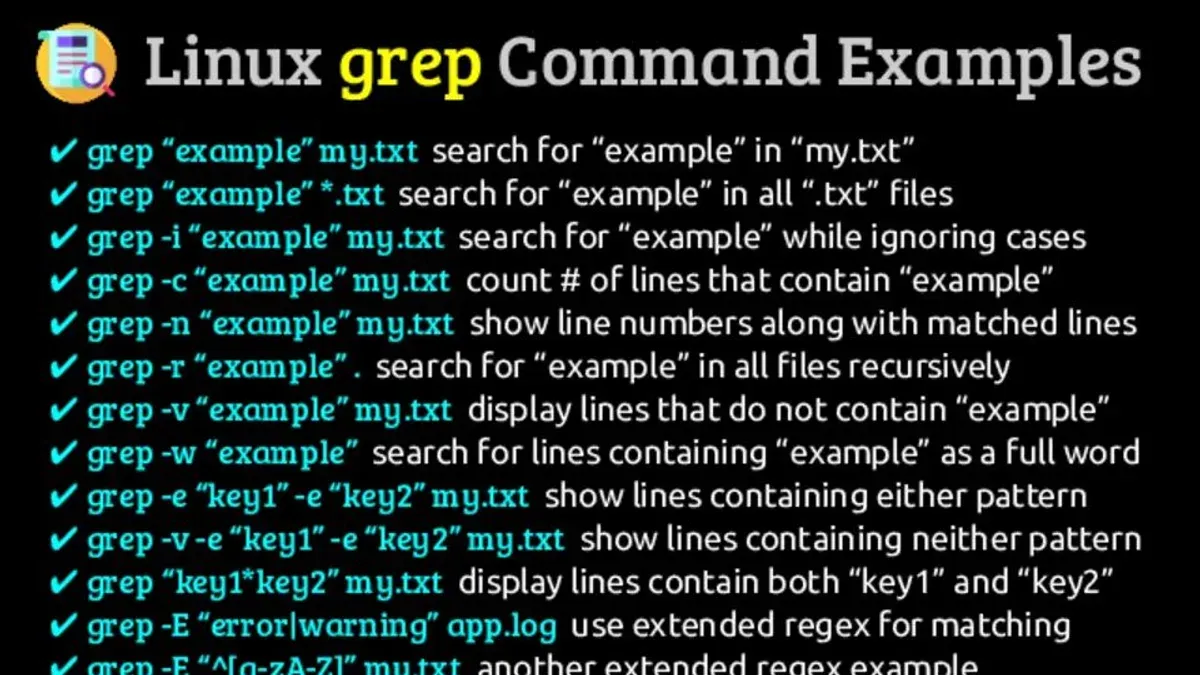
- Type: grep -E "cat|dog" filename
Expected output: lines containing "cat" or "dog". - Search for whole words: Use the -w option to avoid partial matches. For example, grep -w "cat" filename finds "cat" but not "catalog".
Expected output: lines where "cat" appears as a separate word. - List files containing a pattern: Use -l to display filenames instead of matching lines. For instance, grep -rl "error" /path/to/dir
Expected output: a list of files inside the directory containing "error". - Combine grep with find for targeted searches: To search only specific file types, use find with grep. For example:
find /path/to/dir -name "*.log" -exec grep -H "failed" {} +
Expected output: lines containing "failed" with filenames from all.log files found.
These techniques allow you to tailor your searches precisely, making grep a powerful tool for pattern matching and file content discovery on your Mac.
Troubleshooting common grep issues in Mac Terminal
No output returned: When grep produces no output, it means no matches were found. To confirm, add the -n option to display line numbers or try a simpler search pattern. Silent results can also occur if searching binary files; use the -a option to treat binary files as text.
Permission denied errors: Searching system or protected directories may cause errors like grep: /path: Permission denied. To fix this, run grep with sudo if you have administrative rights, e.g., sudo grep -r 'pattern' /protected/directory. Alternatively, limit your search to directories you own to avoid permission issues.
Differences between BSD grep on macOS and GNU grep on Linux: macOS uses BSD grep, which has fewer features compared to GNU grep. For example, GNU grep supports --color=auto for colored output, which BSD grep lacks. Installing GNU grep via Homebrew (brew install grep) provides enhanced options. Below is a comparison:
| Feature | BSD grep (macOS) | GNU grep (Linux/Homebrew) |
|---|---|---|
| Recursive search | -r supported | -r supported |
| Extended regex | -E supported | -E supported |
| Color highlighting | Not supported | --color=auto supported |
| Binary file handling | Limited options | More control with --binary-files |
Handling binary files and performance: Grep may skip or truncate binary files without warning. Use -a to force text processing. For large files, grep performance can degrade; consider using fgrep (or grep -F) for fixed strings without regex, which is faster. Splitting large files or narrowing search scope can also improve speed.
- How to Compare Two Files with diff in Mac Terminal: A Practical Guide
- How to Generate an SSH Key in Mac Terminal: A Step-by-Step Guide
- How to Use SSH in Mac Terminal: A Clear Step-by-Step Guide
- How to Kill a Process by Name in Mac Terminal: Step-by-Step Guide
Frequently asked questions
How to grep text in files on Mac Terminal?
To grep text in files on Mac Terminal, use the command grep 'search_text' filename. Replace search_text with the phrase or word you want to find and filename with the file's name. This command searches the specified file and outputs lines containing the text.
How to do a grep search for text in files?
You perform a grep search for text by specifying the search pattern and one or more files. For example, grep 'pattern' *.txt searches all text files in the current directory for the pattern. If you want case-insensitive matching, add the -i option.
How to use grep command to search within directories?
Use grep -r 'search_text' directory_path to recursively search through all files within a directory. The -r option tells grep to scan subdirectories, making it effective for directory-wide searches.
How to combine Unix find command with grep for better searches?
Combining find with grep helps target specific file types or locations. For instance, find. -name "*.log" -exec grep 'error' {} + searches all .log files in the current directory and subdirectories for the word "error". This method allows precise control over which files to search.
What this guide does not cover
This guide does not cover installing GNU grep on Mac or advanced scripting use cases such as integrating grep within complex shell scripts or automation workflows. Users who need extended grep functionalities, such as recursive binary file search with more options or pattern matching beyond basic regular expressions, should consult dedicated Unix or Mac developer resources.
If you require searching very large datasets or need to combine grep with other powerful tools like awk or sed for text manipulation, exploring specialized command-line tutorials or official documentation will provide deeper insights.
The single most useful next step is to practice combining grep with the find command in your Terminal. This allows you to efficiently target specific file types or directories, making your searches faster and more relevant—something that many users overlook initially but significantly improves search precision and speed.



