
How to Enable and Use Sticky Keys on Mac: A Step-by-Step Guide
This guide shows how to enable Sticky Keys on Mac, making keyboard shortcuts easier by pressing keys sequentially instead of simultaneously.
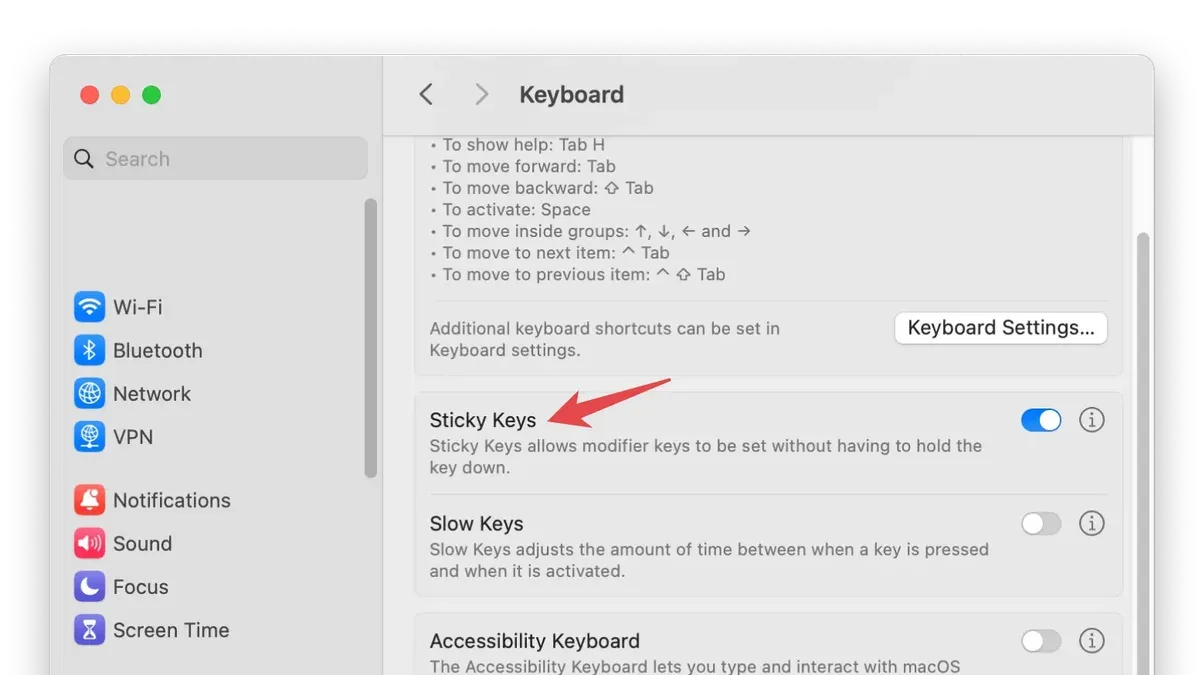
Trying to press multiple keys simultaneously can be frustrating, especially if you have limited dexterity or face occasional keyboard input issues. Sticky Keys offers a solution by letting you press keys sequentially instead of simultaneously, simplifying shortcuts and key combinations.
This guide explains how to enable Sticky Keys on Mac, providing clear, step-by-step instructions. You'll also learn how to disable it, troubleshoot common problems, and understand practical customization options to tailor Sticky Keys to your needs.
Key takeaways
- Enable Sticky Keys via System Settings > Accessibility > Keyboard.
- Activate Sticky Keys quickly by pressing the Shift key five times.
- Disable Sticky Keys through the same Accessibility settings or keyboard shortcut.
- Troubleshoot Sticky Keys by checking keyboard hardware and resetting preferences.
- Customize Sticky Keys delay and audio feedback for better usability.
Before you start: what you need to know about Sticky Keys
Sticky Keys is an accessibility feature designed to assist users who have difficulty pressing multiple keys simultaneously. It allows modifier keys like Shift, Control, Option, and Command to remain active after being pressed once, enabling easier keyboard shortcuts without holding down multiple keys at the same time.
This feature is especially useful for individuals with limited mobility or those who experience muscle fatigue when using traditional key combinations. While Sticky Keys simplifies multi-key inputs, it does not replace full keyboard functionality or enhance typing speed for all users.
Before enabling Sticky Keys, ensure your Mac is running a compatible version of macOS that supports accessibility features, which is standard in recent macOS releases. Most Apple keyboards and many third-party keyboards work with Sticky Keys, but some specialized keyboards may have limited support.
Understanding what Sticky Keys does—and what it doesn’t—is crucial. It helps with key combinations but does not address issues like key repeat delay or typing errors unrelated to simultaneous key presses.
Usage of accessibility features like Sticky Keys is common among users requiring alternative input methods, reflecting its importance in making computing more inclusive.
How to enable Sticky Keys on Mac using System Settings
- Click the Apple menu at the top-left corner of your screen and select System Settings. This opens the main configuration panel.
- In the sidebar, scroll down and click Accessibility. You will see a list of accessibility features.
- Scroll to the Keyboard section and click on it. This reveals keyboard-related accessibility options.
- Locate the Sticky Keys toggle and click it to turn it on. Once enabled, you will notice that modifier keys like Shift, Control, Option, and Command can be pressed one at a time instead of simultaneously.
- Click the arrow or Options button next to Sticky Keys to access additional settings. Here you can enable sound feedback that plays a tone when a modifier key is pressed, or allow locking modifier keys by pressing them twice consecutively.
- After enabling Sticky Keys, test your keyboard input by pressing modifier keys sequentially followed by another key to confirm the feature works as expected.
Enabling Sticky Keys changes how your keyboard interprets modifier keys, making shortcuts easier to perform if pressing multiple keys at once is difficult. However, it may take some adjustment if you are used to pressing keys simultaneously.
How to turn on Sticky Keys quickly with keyboard shortcuts
You can toggle Sticky Keys on or off rapidly by pressing the Shift key five times in a row. This default shortcut is designed for quick access, especially useful when you need to enable Sticky Keys temporarily without navigating through System Settings.
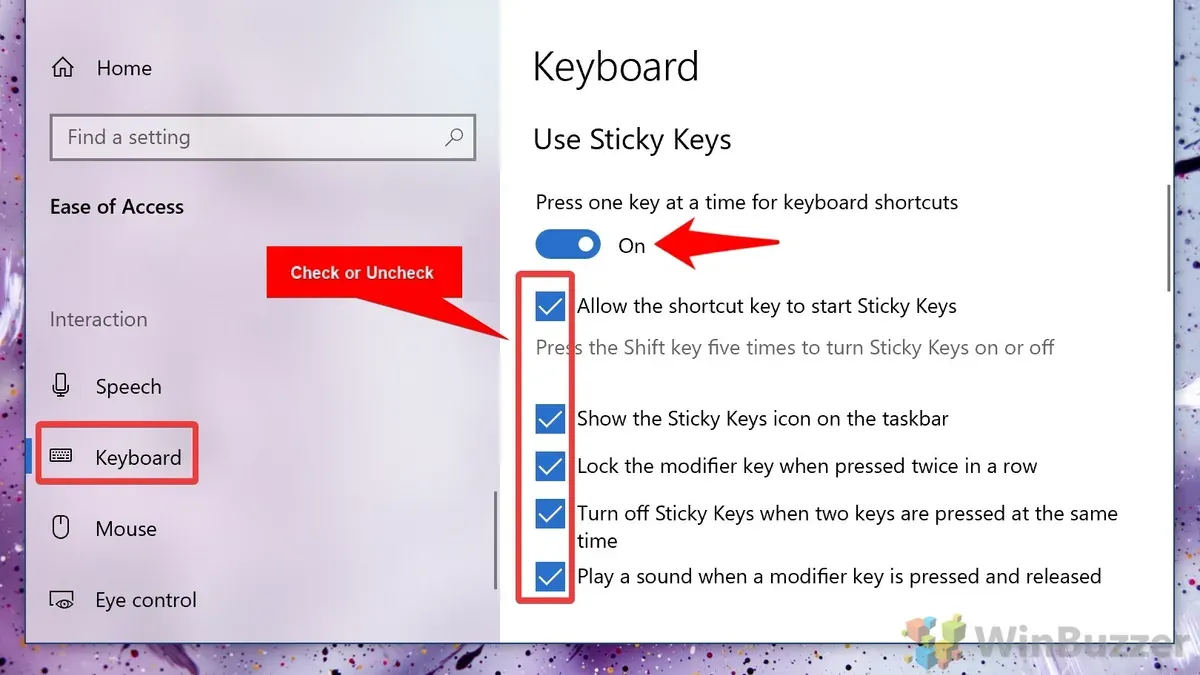
- Press the Shift key five times consecutively.
Result: A dialog box appears asking if you want to enable Sticky Keys. - Click "Turn On Sticky Keys" or press the Enter key to confirm.
Result: Sticky Keys is enabled immediately. - To disable Sticky Keys using the shortcut, press the Shift key five times again.
Result: Sticky Keys turns off, confirmed by a notification.
This shortcut is particularly useful in situations where you need to switch Sticky Keys on or off quickly, such as when using keyboard shortcuts in software that require multiple modifier keys or when mobility needs vary throughout the day.
If you find the shortcut triggers unintentionally, you can customize or disable it. To do so, go to System Settings > Accessibility > Keyboard > Sticky Keys, then uncheck the option "Press the Shift key five times to toggle Sticky Keys." This prevents accidental activation while allowing you to enable Sticky Keys through System Settings.
User feedback often highlights the convenience of this shortcut for temporary use but notes that accidental activation can disrupt workflow, making customization options valuable.
How to disable Sticky Keys on Mac
Disabling Sticky Keys can restore your keyboard to its standard behavior if you find the feature intrusive or unnecessary. You have two main options: turning it off via System Settings or using the keyboard shortcut.
Disabling Sticky Keys through System Settings
- Open System Settings from the Apple menu.
- Click Accessibility in the sidebar.
- Select Keyboard under the Motor section.
- Locate the Sticky Keys option and toggle it off.
- Confirm the feature is disabled when the toggle no longer appears highlighted.
This method guarantees Sticky Keys is fully deactivated and prevents accidental activation through the interface.
Turning off Sticky Keys using the keyboard shortcut
- Press the Shift key five times in quick succession.
- When Sticky Keys is active, this shortcut will prompt a notification asking if you want to disable it.
- Confirm by clicking Turn Off in the notification.
Note that this shortcut only works if the feature is already enabled. It offers a fast way to toggle Sticky Keys without diving into settings.
To prevent Sticky Keys from turning on automatically, disable the shortcut that activates it by going to Accessibility > Keyboard > Sticky Keys > Options and unchecking Press the Shift key five times to toggle Sticky Keys. Users report fewer accidental activations and a smoother typing experience after disabling this shortcut.
How to fix Sticky Keys issues on MacBook
If Sticky Keys does not activate or deactivate as expected, start by verifying the keyboard shortcut settings. Sometimes the Shift key shortcut to toggle Sticky Keys can be disabled or conflicting with other functions.
- Go to System Settings > Accessibility > Keyboard > Sticky Keys. Ensure that "Enable Sticky Keys" is checked and that the shortcut for toggling Sticky Keys is enabled if you want quick access. Successful activation shows the checkbox filled and a notification when pressing Shift five times.
- Check for conflicts with other accessibility features like Slow Keys or Mouse Keys, also found under Accessibility > Keyboard. Disable these temporarily to see if Sticky Keys responds correctly.
- Inspect your keyboard physically for stuck keys that might cause unexpected behavior resembling Sticky Keys. Press each key firmly and clean debris around keys if needed. If keys are stuck, Sticky Keys may not work properly or may appear to be stuck on.
- If problems persist, reset accessibility settings by turning Sticky Keys off, then navigating to System Settings > Accessibility > Privacy and Security > Reset Accessibility Settings. This clears any corrupted preferences that may affect Sticky Keys functionality.
Following these steps typically resolves common issues with Sticky Keys on MacBook, ensuring reliable activation and deactivation aligned with your needs.
How to access Sticky Keys settings quickly
Finding Sticky Keys settings without navigating deep into menus can save you valuable time. Here are three efficient methods to access these settings swiftly.
Using Spotlight Search
- Press Command + Spacebar to open Spotlight Search.
- Type "Sticky Keys" into the search field.
- Select the "Sticky Keys" option under System Preferences or Accessibility from the search results.
- The Sticky Keys settings panel opens immediately, letting you adjust options directly.
This method typically takes just a few seconds compared to manually browsing through multiple menus.
Adding Accessibility Shortcuts to Menu Bar or Control Center
- Open System Settings and go to Accessibility.
- Scroll to the bottom and select "Shortcut" or "Accessibility Shortcuts."
- Enable the Accessibility Shortcut in the menu bar or Control Center.
- Click the Accessibility icon in the menu bar or Control Center to quickly toggle Sticky Keys or jump to its settings.
With this, you can access Sticky Keys settings in one or two clicks without opening System Settings fully.
Using Siri or Voice Commands
- Activate Siri by clicking its icon or pressing the Siri shortcut (usually Command + Spacebar, then say "Hey Siri").
- Say "Open Sticky Keys settings."
- Siri opens the Sticky Keys pane in Accessibility settings for you.
Voice commands provide hands-free access and can be especially useful if you are already using assistive technologies.
How to use Sticky Keys on Mac effectively
Sticky Keys modifies how you use modifier keys like Shift, Control, Option, and Command by allowing you to press them one at a time rather than simultaneously. This can simplify keyboard shortcuts, especially if pressing multiple keys at once is difficult.
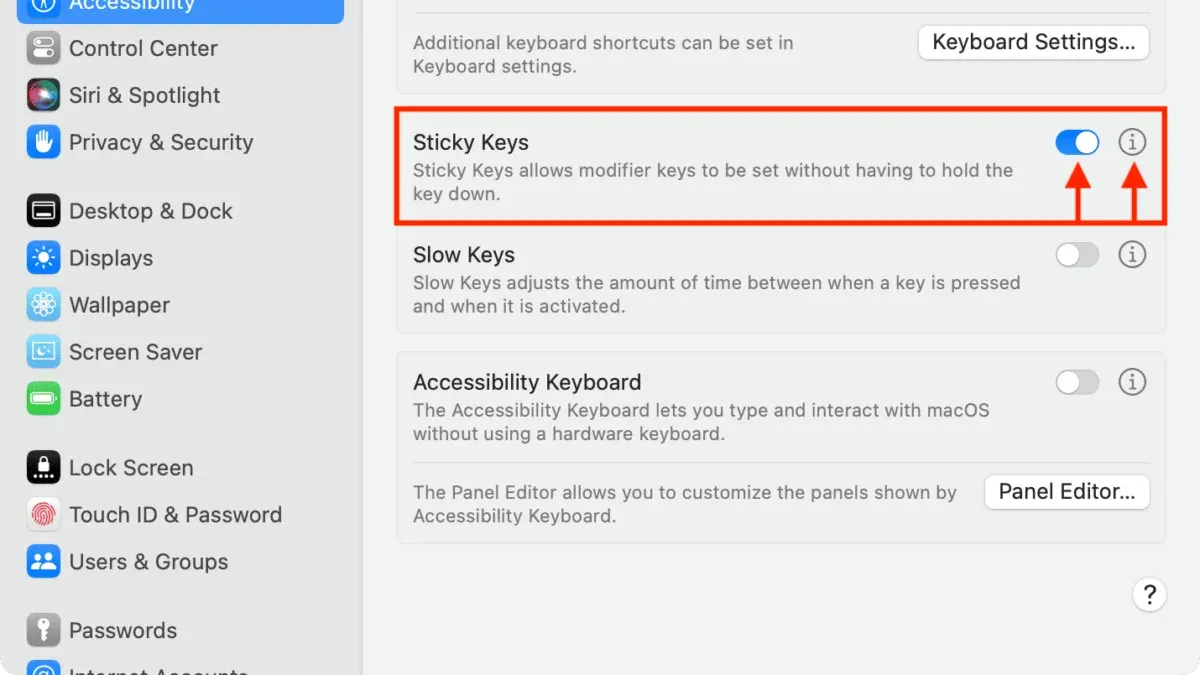
- Enable sound or visual feedback by going to System Settings > Accessibility > Keyboard > Sticky Keys, then toggle on “Play sound when modifier keys are pressed” or “Display pressed keys on screen.” This confirms each key press so you know the system registered it.
- Use Sticky Keys for common shortcuts such as Command + C for copy or Option + Tab to switch windows. By pressing each key sequentially, you reduce finger strain and increase accuracy.
- Apply Sticky Keys in scenarios like gaming or software with complex shortcuts, where holding several keys simultaneously can be challenging. Users often report fewer input errors and improved comfort.
- Be aware that Sticky Keys may slow down fast typing or workflows requiring simultaneous key presses, as it introduces a slight delay while waiting for additional keys.
- If you find Sticky Keys cumbersome during rapid typing or certain applications, consider toggling it off temporarily to avoid interference with your normal input speed.
Sticky Keys settings that matter: customization options
Sticky Keys offers several customization options that affect how you interact with modifier keys and receive feedback. One key feature is the Lock modifier keys, which allows you to press a modifier key twice to lock it active until you press it again. This can simplify complex shortcuts but may cause unintended inputs if you forget the lock is on.
You can also configure sound and visual alerts to confirm when Sticky Keys engages or disengages. Sound alerts provide auditory confirmation, while visual alerts highlight the active modifier keys on-screen. Enabling both enhances awareness but might distract some users.
Adjusting timing settings controls how long a modifier key stays active before it resets automatically. A longer duration benefits slower typists but can slow down faster keyboard users by delaying key resets.
Managing accessibility shortcuts related to Sticky Keys lets you customize or disable the shortcut that toggles Sticky Keys with five quick Shift presses, preventing accidental activation.
- Open System Settings, then go to Accessibility > Keyboard > Sticky Keys. You should see all customization options clearly listed.
- Toggle on Lock modifier keys and test pressing a modifier key twice; the key should stay active until pressed again.
- Enable Sound and Visual Alerts to receive feedback when Sticky Keys status changes; you should hear a sound and see on-screen indicators.
- Adjust the Reset modifier keys after timing slider to increase or decrease how long keys remain active; test by pausing between modifier and other keys.
- Go to Accessibility > Keyboard > Accessibility Keyboard Shortcuts to customize or disable the Sticky Keys shortcut; this prevents unwanted toggling.
By tailoring these settings, you can balance ease of use and control, reducing errors from locked keys or missed feedback. Default settings favor simplicity but customizing them enhances efficiency and prevents accidental Sticky Keys activation.
- How to Use VoiceOver on Mac: A Complete Step-by-Step Guide
- How to Turn On Zoom Accessibility on Mac: Step-by-Step Guide
- How to Increase Cursor Size on Mac: Clear Step-by-Step Guide
- How to Turn On Live Captions on Mac: A Clear Step-by-Step Guide
Frequently asked questions
How to turn off sticky keys mac?
To turn off Sticky Keys on a Mac, open System Settings and go to Accessibility > Keyboard. Toggle off the Sticky Keys option to disable it. Alternatively, if Sticky Keys was enabled via shortcut, pressing the Shift key five times quickly can also prompt a disable option.
How to fix sticky keys on macbook?
If Sticky Keys isn’t working correctly, first check your accessibility settings to ensure it’s enabled properly. Restarting your Mac can clear temporary glitches, and updating macOS can resolve compatibility issues. If the problem persists, resetting the keyboard settings or consulting Apple's support may be necessary.
How to enable/disable sticky keys?
You can enable or disable Sticky Keys on your Mac by navigating to System Settings > Accessibility > Keyboard, then toggling the Sticky Keys switch. Alternatively, pressing the Shift key five times consecutively will prompt an option to turn Sticky Keys on or off, depending on its current state.
How to open sticky keys?
Sticky Keys settings are accessed through System Settings under Accessibility > Keyboard. There, you can open the Sticky Keys panel to adjust options or enable the feature. Using the keyboard shortcut of pressing Shift five times quickly also opens a prompt related to Sticky Keys activation.
How to use stickies on mac?
Stickies is a separate app on Mac used for creating digital sticky notes. You can open it from the Applications folder or via Spotlight search. Once open, you can create, move, resize, and customize notes for quick reminders or information, unrelated to the Sticky Keys accessibility feature.
What this guide does not cover and who should look elsewhere
This guide does not cover third-party keyboard utilities or software that may override macOS Sticky Keys behavior. Sticky Keys is primarily an accessibility feature designed to help with modifier key combinations and may not resolve all keyboard input issues, especially those caused by hardware faults. If you experience persistent keyboard malfunctions, consider consulting an Apple authorized service provider.
Users with specific disabilities requiring tailored solutions should seek advice from specialized assistive technology professionals. They can recommend alternative or complementary tools better suited to individual needs beyond what macOS’s built-in Sticky Keys can provide.
The most useful next step is to familiarize yourself with the full range of Sticky Keys settings in System Settings under Accessibility > Keyboard. Adjusting options like key repeat delay and audible feedback will help you customize the feature to your typing style and improve your overall experience.



