
How to Fix Excel Not Opening Files on Mac
Resolve Excel not opening files on Mac by following a clear, step-by-step guide addressing subscription, preferences, permissions, and file size.
Mac users can resolve issues preventing Excel from opening files by following a clear, step-by-step process designed specifically for macOS. This guide provides an Excel not opening files on Mac fix that addresses common and complex problems in the right order. One critical cause is Microsoft 365 subscription status: after July 13, 2026, Office apps on macOS may enter a reduced functionality mode that allows opening and printing files but disables editing, saving, or creating new ones. Understanding this restriction early prevents unnecessary troubleshooting.
Excel preference files, stored in the Containers folder under com.microsoft.Excel.plist, often contain corruption that blocks file access; resetting preferences by deleting this file can clear the issue. The guide also covers permission settings unique to Mac, add-in conflicts, large file handling, and disk errors. Each step builds on the previous, ensuring the root cause is addressed without skipping or reversing the essential order of operations.
Quick overview of Excel file opening issues on Mac
- Check Microsoft 365 subscription status to avoid reduced functionality mode.
- Reset Excel preferences by deleting
com.microsoft.Excel.plistto fix corruption. - Grant full file access to Excel under System Settings → Privacy & Security for proper file handling.
- Split large files if Excel fails to open them due to size limits on Mac.
Every limit and setting name below comes from Microsoft, TechWiser, Guiding Tech (full list at the end), as of November 2026.
Force quit Excel and reopen the file
When Excel becomes unresponsive or fails to open files, the quickest fix is to force quit the application and then try reopening the file. This action clears temporary glitches that may block Excel from functioning properly. It is often the first step before more advanced troubleshooting.
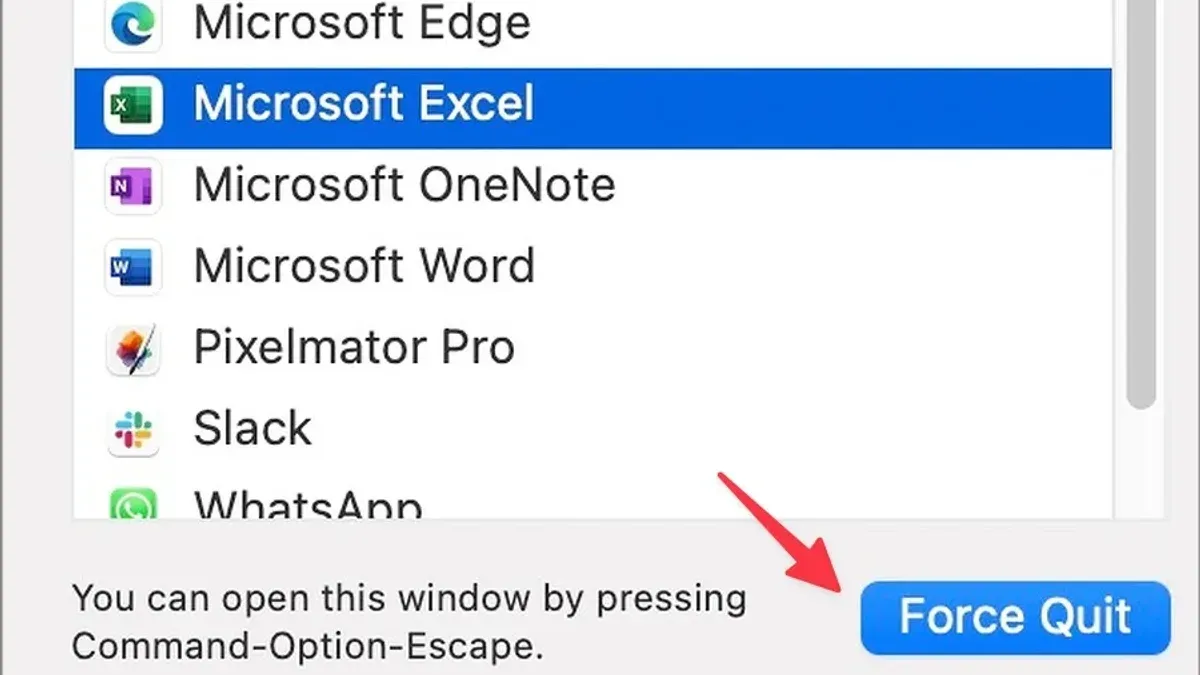
- Press Option + Command + Esc simultaneously on the Mac keyboard. This opens the Force Quit Applications window.
- In the list that appears, select Microsoft Excel.
- Click the Force Quit button. A confirmation prompt may appear; confirm to close Excel immediately.
- Wait a few seconds to ensure Excel has completely closed.
- Relaunch Excel from the Dock, Applications folder, or Launchpad.
- Attempt to open the Excel file again to check if the issue is resolved.
If the problem persists after this step, subsequent troubleshooting measures should be followed.
Update Microsoft Excel to the latest version
Using an outdated version of Microsoft Excel on a Mac can result in files failing to open due to unresolved bugs or compatibility issues. Updating Excel ensures the app has the latest fixes that address these problems and improves overall performance. The Mac App Store provides a straightforward way to check for and install updates.
- Open the App Store application on the Mac. The App Store window will load, displaying the main page.
- Click the Updates tab in the sidebar. This section lists all available updates for installed apps.
- Press
Command + Rto refresh the updates list. This ensures the most recent updates appear. - Locate Microsoft Excel in the updates list. If an update is available, an Update button will appear next to it.
- Click the Update button for Microsoft Excel. The App Store will download and install the latest version.
- Once installation finishes, launch Excel and attempt to open the file again. The update should have resolved bugs that prevented opening files.
Regularly checking the Mac App Store updates section ensures the software runs with the latest fixes and improvements.
Reset Excel preferences by deleting the plist file
Corrupted Excel preferences can prevent files from opening properly on a Mac. These preferences are stored in a specific plist file that controls Excel’s behavior. Resetting this file clears any app-specific corruption without affecting user data, offering a fresh start for Excel.
- Open Finder and navigate to the menu bar. Select Go > Go to Folder.
- Enter the path
~/Library/Containers/and press Enter. This opens the folder containing Excel’s container files. - Locate the file named
com.microsoft.Excel.plistwithin this folder. - Drag
com.microsoft.Excel.plistto the Trash. This action resets Excel preferences without deleting any personal or saved Excel files. - Restart Excel. The app generates a new plist file with default settings, which often resolves issues blocking file opening.
Any custom settings or shortcuts will need to be re-established, but this step can clear corrupted configurations that otherwise stop files from opening.
For detailed guidance on the file location and procedure, see this resource.
Grant Excel full file access permissions on Mac
Microsoft Excel may fail to open files on a Mac if it lacks the necessary file access permissions. Without these permissions, Excel can hang or display error messages when attempting to open documents. This issue arises because macOS restricts app access to files for privacy and security reasons, requiring explicit user approval to allow apps such as Excel to access file locations.
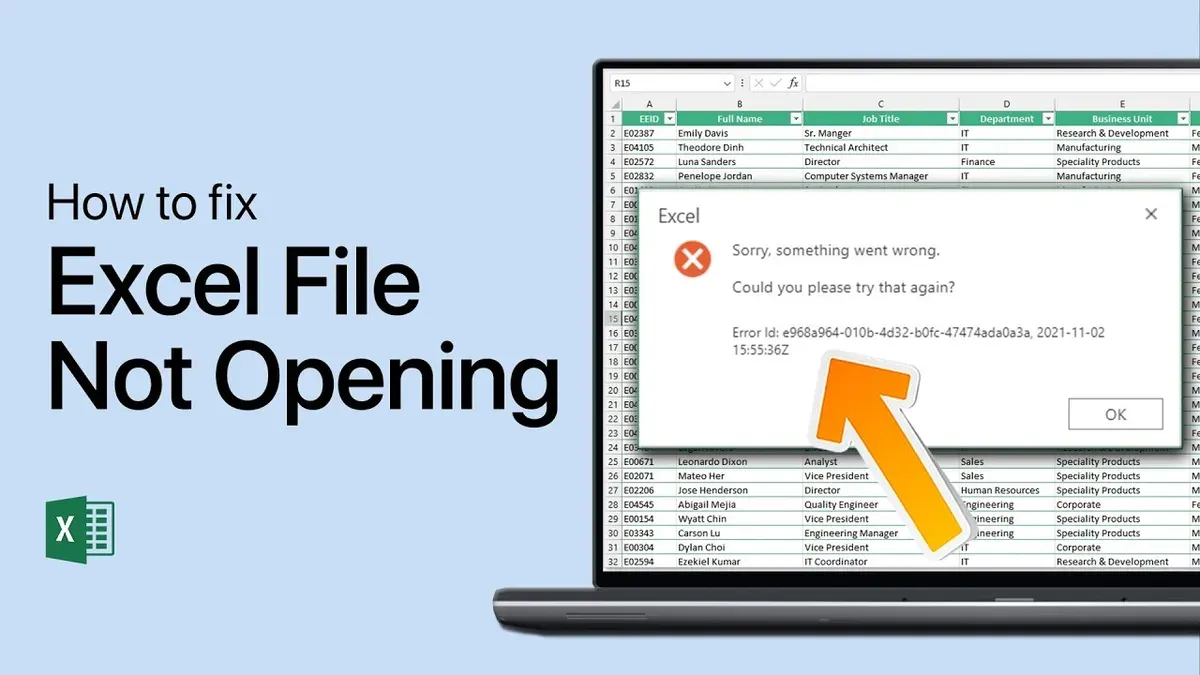
To resolve this, grant Excel full file access through the Mac’s privacy settings. Follow these steps carefully to ensure Excel has the required permissions and can open files properly.
- Open System Settings from the Apple menu.
- Navigate to Privacy & Security in the sidebar.
- Scroll down to find the section for app permissions and click the Plus (+) icon to add a new app.
- In the file browser that appears, locate and select Microsoft Excel (usually in the Applications folder), then click Ok.
- Make sure the checkbox next to Microsoft Excel is enabled to grant it full file access.
This action typically resolves hanging issues and error messages related to file opening. If Excel still cannot open files after this, the cause likely lies elsewhere.
Granting Excel full access is a critical step on macOS to avoid file access restrictions that interfere with normal Excel functionality. This step must be completed before troubleshooting other potential causes.
More about granting Excel permission on macOS
Disable Excel add-ins that might block file opening
Conflicting or faulty add-ins can prevent Excel from opening files properly. These add-ins often interfere with Excel’s normal operation, causing files to fail to load or triggering error messages. Disabling all add-ins temporarily helps isolate whether an add-in is the root cause of the problem.
To disable add-ins on a Mac, follow these steps carefully to check if they are blocking file opening:
- Open Microsoft Excel.
- Navigate to the menu bar and select Insert > Add-Ins > My Add-Ins. A pane listing all installed add-ins will appear.
- In the pane, disable each add-in by deselecting or removing it. This may involve unchecking boxes or clicking a remove button depending on the add-in type.
- Close the add-ins pane and attempt to open the Excel file again. If the file opens successfully, an add-in was causing the issue.
- Re-enable add-ins one by one, reopening the file each time, to identify the specific add-in responsible.
Removing or disabling the problematic add-in restores Excel’s ability to open files normally. This method ensures any add-in-related barriers are addressed before more invasive troubleshooting steps are taken.
Disabling add-ins via Insert > Add-Ins > My Add-Ins is the direct way to resolve opening failures caused by these extensions.
Check and repair disk errors using Disk Utility First Aid
Disk errors can block access to Excel files or cause them to fail opening. Running Disk Utility's First Aid on the Mac's primary storage drive detects and repairs these issues, restoring file system integrity essential for Excel to function correctly. This process targets underlying storage problems that might not be apparent but directly impact file accessibility.
To begin, open Disk Utility from the Utilities folder within Applications. Then select the main drive where Excel files are stored, typically named “Macintosh HD” or a custom name for the startup disk. Next, click the First Aid button in the toolbar to initiate a disk check.
After clicking First Aid, press Run when prompted. The system will scan the drive, verifying the file system and attempting repairs as needed. If the process completes successfully, a confirmation message will appear, indicating no errors or that repairs were made. This confirms the disk is healthy enough to support opening Excel files without file system conflicts.
Persistent disk errors might require further diagnostics, but this step often resolves corruption-related access problems swiftly and with minimal user effort. Follow this procedure to maintain proper drive health, which is foundational for Excel file operations on Mac.
Open Mac in Safe Mode to identify app conflicts
Safe Mode disables third-party startup services and applications. This helps isolate whether a background app or service is causing Excel to fail when opening files. By booting the Mac into Safe Mode, the system runs with minimal resources and no extra software that might interfere.
- For Intel-based Macs: Restart the Mac. Immediately hold the Shift key while it boots. Release the key when the login screen appears. The Mac is now in Safe Mode.
- For M-series Macs: Shut down the Mac completely. Hold the power button until the startup options appear. Select the Macintosh HD drive. Hold the Shift key, then click Continue in Safe Mode. Release the key after the login screen shows.
- Once in Safe Mode, open Microsoft Excel and attempt to open the problematic file. If the file opens successfully, a third-party app or service is likely causing the conflict in normal mode.
- If Excel still cannot open the file in Safe Mode, the issue is less likely to be caused by startup items or background apps.
It is an essential diagnostic step before more invasive troubleshooting.
Safe Mode boot disables interfering apps that block file opening.
Split large Excel files to avoid size-related opening issues
Excel files that are very large can cause opening failures on a Mac. This happens because Mac Excel has limits on the file size it can handle, which may lead to the app freezing or simply not opening the file at all. To resolve this, splitting the large file into smaller parts allows Excel to open each segment without hitting these limits.
One effective tool for this task is MacMister CSV Splitter. It divides large Excel files into manageable pieces without losing data integrity. This approach is necessary when files exceed Mac Excel’s handling capacity, preventing freezes and crashes.
To split a large Excel file, follow these steps:
- Download and install MacMister CSV Splitter on the Mac.
- Launch the app and select the large Excel file that fails to open.
- Choose the desired size or number of smaller files to split the original into.
- Start the splitting process; the tool will create multiple smaller files.
- Open each smaller file in Excel to verify they load without errors.
It provides a practical way to manage oversized files and avoid the frustration of file opening failures.
Provide the correct password for password-protected Excel files
Password protection on Excel files prevents access without entering the correct password. When attempting to open a password-protected file, Excel will prompt for this password before granting access. Without the correct password, the file remains locked and cannot be opened or edited.
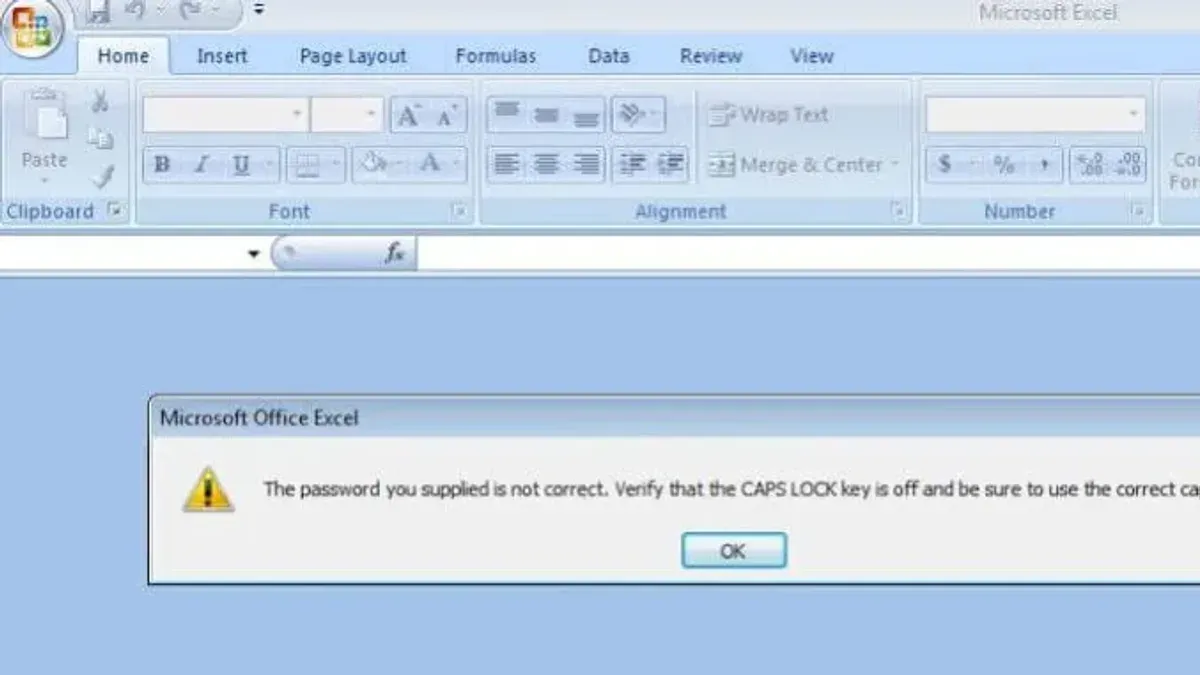
To open a password-protected Excel file, the exact password set by the file's creator must be entered. If the password is forgotten or lost, there is no built-in method in Excel to recover the file’s content. In such cases, it may be necessary to contact the file owner to obtain the password or use third-party recovery tools with caution, as these are not officially supported and may risk data integrity.
- Open the Excel file by double-clicking it or using Excel’s File > Open menu. A password prompt should appear immediately.
- Enter the correct password in the prompt window. If the password is correct, the file will open normally, allowing full access to its contents.
- If the password is incorrect, Excel will deny access and display an error message. Re-enter the password carefully, checking for case sensitivity and any special characters.
- If the password cannot be recalled, seek the password from the file’s source or consider secure recovery options outside Excel.
Uninstall and reinstall Microsoft Excel as a last resort
When multiple troubleshooting steps fail to resolve the issue of Excel not opening files on a Mac, uninstalling and reinstalling Microsoft Excel becomes necessary. This approach addresses deep application corruption or persistent errors that other fixes cannot correct. Before uninstalling, back up all important Excel files and any custom templates to avoid data loss.
- Quit Microsoft Excel completely to ensure no processes are running.
- Open the Finder and navigate to the Applications folder. Locate Microsoft Excel, then drag it to the Trash. This removes the main application but does not delete files saved elsewhere.
- Empty the Trash to finalize the removal.
- Go to the Mac App Store and search for Microsoft Excel. Download and install the latest version available. This ensures the app is fresh, updated, and free from previous errors.
- Launch Excel after installation and verify that it opens files correctly.
After reinstalling, monitor Excel’s performance over the next few days. If issues reappear, verify subscription status and file permissions as ongoing maintenance. It is possible to undo some customizations lost during reinstall by restoring backed-up templates or preferences.
Essential Steps to Fix Excel File Opening Issues on Mac
If files now open normally, the issue is resolved. Should problems persist, verifying that Microsoft 365 subscription status is active is important, as reduced functionality mode restricts file editing. Additionally, consider uninstalling and reinstalling Microsoft Excel only after all prior steps fail, and then monitor Excel's performance over the following days to ensure stability.
Sources
- Fixes or workarounds for recent issues in Excel for Mac | Microsoft Support — Microsoft
- 8 Fixes for Microsoft Excel File Not Opening on Mac - TechWiser — TechWiser
- 5 Ways to Fix Microsoft Excel Not Opening on Mac — Guiding Tech
- Excel File not opening in Mac? Try these Top 5 Fixes! — MacMister
- Excel Won't Open on Mac? Top 5 Fixes — EaseUS
See also: How to Fix iPhone Not Showing in Finder on Mac · How to Fix Android File Transfer Not Working on Mac · How to Fix Software Update Not Showing on Mac · Finder Not Responding on Mac: How to Fix It Step-by-Step


