How to Export Saved Passwords from Keychain Access: A Clear Step-by-Step Guide
This guide explains how to export saved passwords in Keychain Access securely, with clear steps and security tips to protect your data.
You might want to switch to a new password manager or create a backup of your credentials stored in Keychain Access. However, extracting those saved passwords securely can feel tricky if you haven’t done it before. This guide will walk you through how to export saved passwords in Keychain Access, highlighting clear steps combined with important security considerations.
Whether you need to export a single password or a full list, this article breaks down the process into manageable actions. You’ll also learn how to handle the exported data safely to avoid exposing sensitive information. By following these instructions carefully, you’ll minimize risks and avoid common mistakes often made during password export.
Key takeaways
- Export passwords individually using Keychain Access’s detailed item view for precise control.
- Use Safari’s built-in password export feature for bulk password management.
- Consider trusted third-party tools cautiously and verify their security reputation.
- Always protect exported password files with encryption or secure storage.
- Be aware of macOS permissions required to access and export Keychain passwords.
Before You Start: What You Need to Export Passwords Safely
Before exporting any passwords from Keychain Access, ensure you have administrator access on your Mac. Without admin rights, you won’t be able to view or export saved passwords, as macOS restricts access to sensitive data for security reasons. For example, attempting to export passwords while logged into a standard user account will likely result in permission errors or blocked actions.
Keychain Access does not provide a built-in feature to export all passwords at once. You will need to export individual password entries manually or use workarounds such as syncing with iCloud Keychain to access passwords on other devices. Planning ahead helps avoid frustration when looking for a bulk export option that isn’t available.
If you intend to move your passwords to another manager or keep a backup, gather any external storage devices like USB drives or prepare the target password manager software beforehand. This step ensures a smooth transfer process after export.
Finally, be aware of the security risks involved in exporting passwords. Exported files containing plain text passwords can be vulnerable if stored or transferred insecurely. Protect these files with strong encryption or store them only in trusted locations to reduce the risk of exposure.
Export Individual Passwords from Keychain Access
To export passwords one by one securely, you first need to open Keychain Access. You can find it in the Utilities folder within Applications, or search for it using Spotlight. Once open, navigate to the “Passwords” category in the sidebar to see your saved login credentials.
Follow these steps carefully to reveal and copy a password:
- Locate the account or website name in the list and double-click it. This opens the password item details window.
- Check the box labeled Show password. You will be prompted to authenticate using your Mac administrator password or Touch ID.
- After successful authentication, the password will appear in the field next to “Show password.” Carefully select and copy this password to your clipboard.
- Paste the password into a secure location, such as a trusted password manager or an encrypted note. Avoid saving it in plain text files.
- If you need to save the password item as a text file or note, create a secure document manually with the account details and password, then store it securely.
This method is safest for handling individual passwords because it requires manual authentication for each password and avoids bulk exposure. However, exporting multiple passwords this way can be time-consuming and tedious, so it’s best suited for exporting just a few critical passwords.
Using the Password Export Feature in Safari to Export Passwords
Safari offers a convenient way to export your saved passwords in bulk, leveraging the synchronization it maintains with Keychain Access. This method bypasses the manual effort required when exporting passwords individually from Keychain Access and is especially practical if you want to export many entries at once.
Here’s how to export your passwords from Safari:
- Open Safari and go to Safari > Settings (or Preferences) from the menu bar. You should see the settings window open.
- Click on the Passwords tab. You will be prompted to authenticate with your Mac password or Touch ID. Once authenticated, the list of saved passwords will appear.
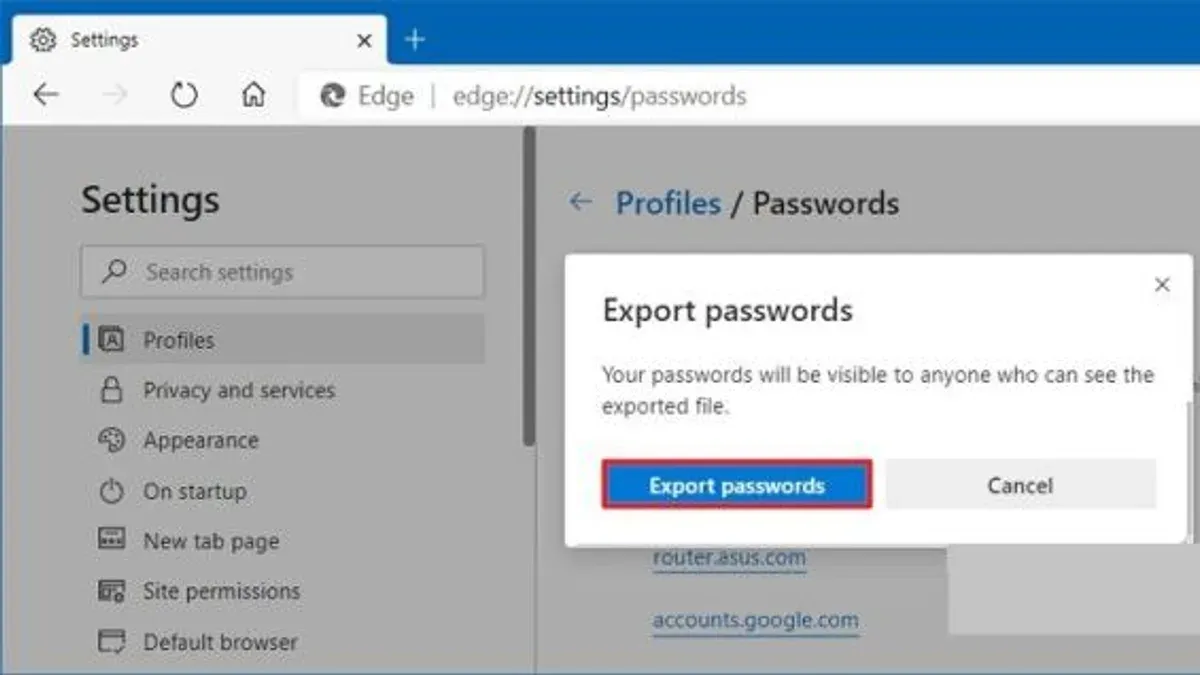
- At the bottom of the list, click the ••• button and select Export Passwords. A warning will appear, explaining that the exported file is unencrypted and contains sensitive information.
- Confirm the export, choose a secure location to save the CSV file, and click Save. The file will contain columns such as website URL, username, and password in plain text, making it easy to import into many third-party password managers.
Compared to manually exporting passwords one by one, this CSV export saves considerable time and effort. However, because the file is unencrypted, treat it with care: delete it immediately after importing into your password manager and avoid storing it on shared or cloud drives without encryption.
Exporting Passwords Using Third-Party Tools and Automation
If you are comfortable with advanced options, third-party apps and automation scripts can streamline exporting passwords from Keychain Access. Some reputable apps, such as 1Password and Secrets, offer features to import Keychain data with your explicit permission. These tools often provide user-friendly interfaces and bulk export capabilities, but granting access to external apps carries inherent security risks. Only use well-reviewed software from trusted developers and ensure you understand the data access permissions you grant.
Automation through AppleScript or command-line tools can also assist in exporting passwords, particularly for users who want to customize or repeat the process. For example, a simple AppleScript snippet to open Keychain Access and reveal a password might look like this:
tell application "Keychain Access" to reveal password of first keychain item
. Such scripts require scripting knowledge and admin permissions, and they must be run with care to avoid exposing sensitive data unintentionally.
Consider third-party and automation methods when manual export becomes too time-consuming or when you need integration with other software. Always vet the tools carefully, back up your Keychain data beforehand, and evaluate whether the convenience outweighs the potential exposure risks.
| Tool | Pros | Cons |
|---|---|---|
| 1Password | Trusted brand, easy import, secure storage | Requires subscription, indirect export from Keychain |
| Secrets | Open-source, supports Keychain import/export | Less polished UI, smaller user base |
| AppleScript | Customizable, no third-party app needed | Requires scripting knowledge, risk of errors |
| Command-line tools (e.g., security CLI) | Powerful, scriptable, native to macOS | Complex commands, risk if misused |
- Choose a reputable third-party app or prepare an automation script. You should see clear documentation about Keychain access.
- Grant the app permission to access your Keychain when prompted. The app should confirm successful access.
- Use the app's export feature or run your script to extract passwords. You should see the exported data or a confirmation message.
- Save the exported passwords securely, ideally encrypting the file or importing it directly into a password manager.
- Revoke third-party app access in System Preferences > Security & Privacy > Privacy > Full Disk Access, if desired, to maintain security.
Securely Handling and Importing Exported Passwords
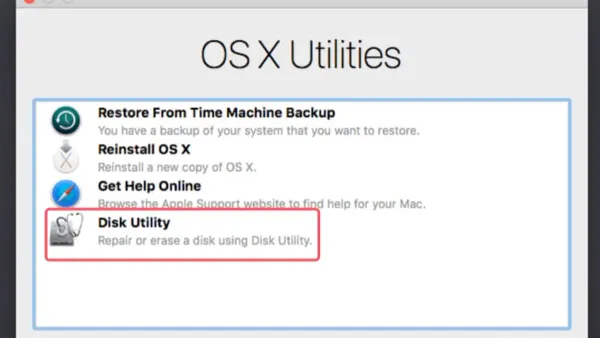
Once you've exported your passwords, protecting the exported file is crucial. Never email or upload unencrypted password files, as this exposes your sensitive data. Instead, use built-in macOS encryption to safeguard the file. For example, you can create an encrypted disk image using Disk Utility: open Disk Utility, select File > New Image > Blank Image, choose a size slightly larger than your CSV file, set "AES-128" or "AES-256" encryption, and create a strong password. Then move your exported CSV into this encrypted image before storing or transferring it.
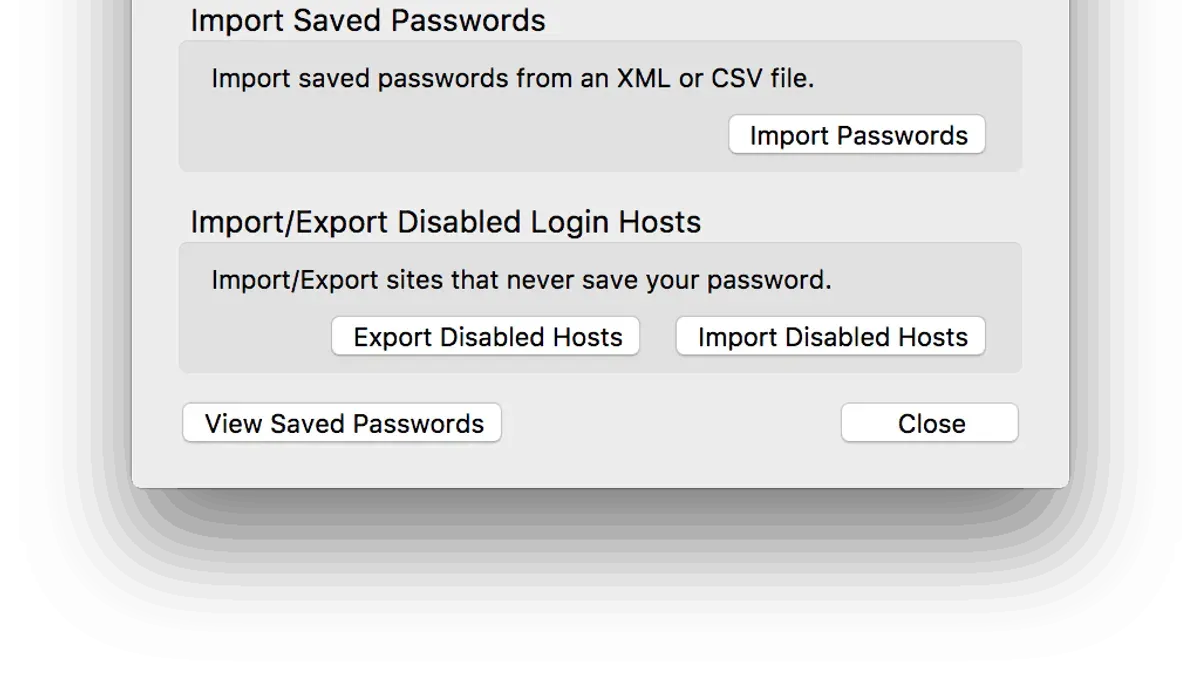
When importing passwords, popular password managers like 1Password and LastPass accept CSV files but require specific formats. In 1Password, open the app, go to File > Import, select your CSV file, and follow prompts to map fields; a successful import shows your entries in the vault. For LastPass, log in to the web vault, go to Advanced Options > Import, choose the CSV file, and confirm the import; you should see your passwords listed afterward.
After a successful import, delete the exported CSV and encrypted disk image securely by emptying the Trash or using Terminal’s rm command to avoid recovery. If you suspect your passwords were exposed during export, immediately update those passwords on their respective websites to prevent unauthorized access.
Troubleshooting Common Issues When Exporting Passwords
If passwords don’t appear or are greyed out in Keychain Access, it often indicates permission or authentication problems. For example, an error like "Access Denied" means you might not have the required admin rights or you need to unlock the keychain by selecting the keychain name and entering your password. After unlocking, passwords should become visible and exportable.
Some passwords might not export due to app-imposed restrictions or keychain corruption. If you see messages such as "Item cannot be accessed because it is locked" or missing entries, try repairing the keychain using the Keychain First Aid feature found under the Keychain Access menu. Running a repair can resolve inconsistencies preventing export.
When Safari export fails or shows missing passwords, ensure that Safari is updated and that you have enabled password syncing via iCloud Keychain. Error messages like "Unable to export passwords" often resolve after a restart or by toggling iCloud Keychain off and back on in System Preferences > Apple ID > iCloud.
If exports remain blocked, resetting your keychain to default settings might be necessary. This action should be a last resort, as it deletes saved passwords. To reset, open Keychain Access, go to Preferences > Reset My Default Keychain, then authenticate. After reset, you should see a fresh, empty keychain ready for new password entries and export attempts.
- Open Keychain Access and locate the locked or missing password entry. You should see the password field greyed out or an error message.
- Unlock the keychain by selecting it in the sidebar and entering your password. The passwords should become visible.
- If that fails, go to the Keychain Access menu, select "Keychain First Aid," enter your credentials, and run the repair. You should see a message indicating successful repair.
- For Safari export issues, open System Preferences > Apple ID > iCloud, toggle iCloud Keychain off and on, then restart Safari. The export option should now work without errors.
- If none of these work, reset your default keychain via Keychain Access > Preferences > Reset My Default Keychain. Confirm deletion and authentication. You should then have a new empty keychain allowing export.
Frequently asked questions
Can I export all my passwords at once from Keychain Access?
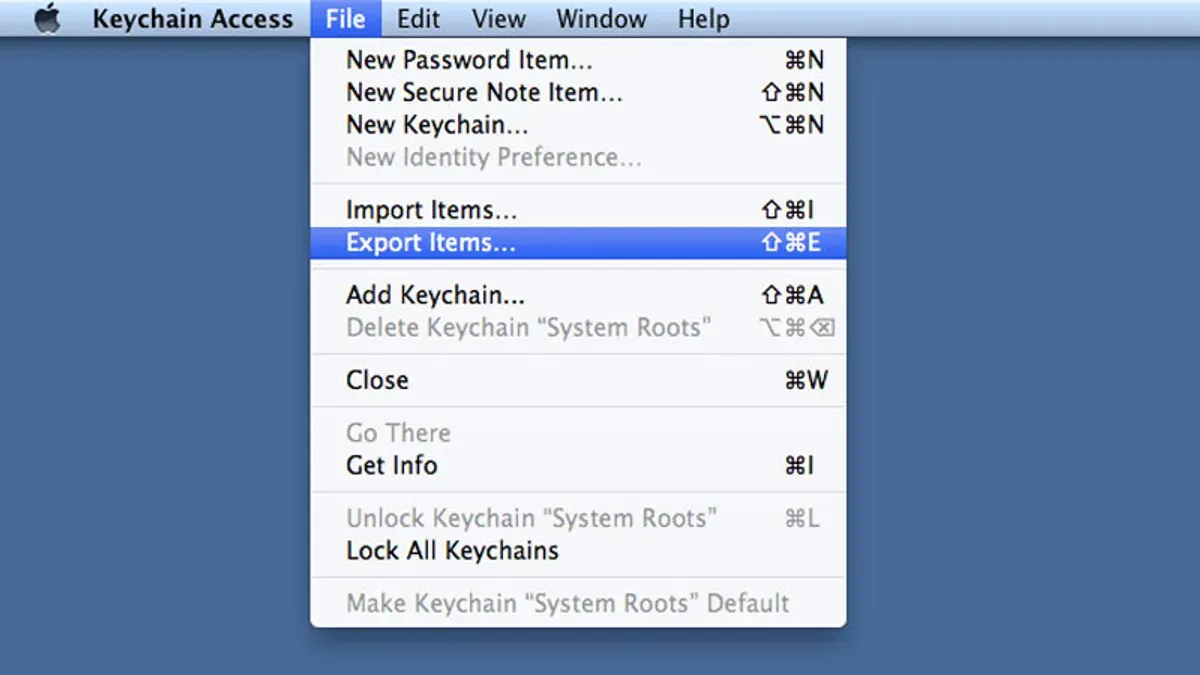
No, Keychain Access does not provide a built-in feature to export all passwords at once. You need to export passwords individually by selecting each item and choosing "Export Items". Alternatively, you can export passwords from Safari's password manager if you use Safari to save them, which allows batch export.
Is it safe to export passwords to a CSV file?
Exporting passwords to a CSV file is convenient but carries significant security risks because the file is stored in plain text. Anyone with access to this file can read all your passwords. Always store CSV exports in a secure location, encrypt the file if possible, and delete it immediately after importing to reduce exposure.
What should I do if I forget my Mac administrator password during export?
If you forget your Mac administrator password, you will be unable to authorize the export process from Keychain Access. To regain access, you can reset your password using your Apple ID or Recovery Mode. Without administrator authentication, exporting passwords is not possible due to security restrictions.
Can I import exported Keychain passwords into other password managers?
Yes, many password managers support importing passwords from CSV files or other export formats. After exporting your passwords from Keychain Access or Safari, check your password manager’s import options and follow their instructions carefully. Remember to securely delete the exported file after importing to protect your data.
What This Guide Does Not Cover
This guide focuses on exporting passwords stored directly within Keychain Access and Safari's password manager. It does not cover passwords saved in third-party apps outside of Keychain Access or issues related to syncing passwords via iCloud Keychain. If you use a non-standard setup, such as enterprise-managed devices, custom keychain configurations, or rely heavily on iCloud syncing for password storage, you may need specialized assistance from your IT department or Apple Support to address those complexities.
The single most useful next step is to carefully verify your exported password file immediately after export. Open it in a secure text editor while offline to confirm completeness and accuracy, then store it in an encrypted location such as a password manager or encrypted disk image. This cautious approach helps prevent accidental exposure and ensures your exported passwords are ready for safe import into your preferred password manager or backup system.
See also: How to Stop Keychain Password Popups in Keychain Access · How to Reset the Login Keychain in Keychain Access: Step-by-Step Guide · How to Delete a Keychain Entry in Keychain Access: Step-by-Step Guide · How to Find Saved Wi-Fi Passwords in Keychain Access