
How to Find Your Mac Serial Number Using Terminal
Discover how to quickly find your Mac serial number using Terminal commands for easy support and warranty verification.
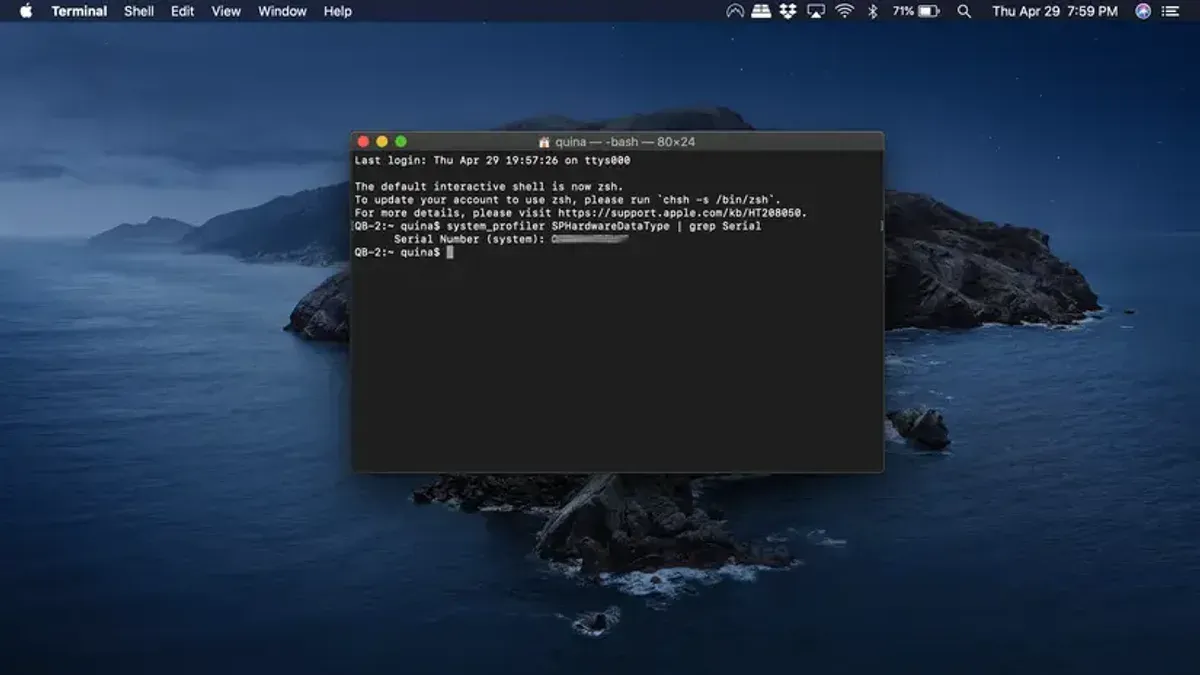
You need your Mac serial number for a support request, warranty check, or inventory tracking but don’t want to navigate system menus or locate tiny labels. Terminal offers a direct way to retrieve this unique identifier, especially useful if you prefer command-line tools or are working remotely.
This article explains how to find Mac serial number in Mac Terminal with clear, reliable commands. It covers multiple Terminal methods, clarifies the difference between the serial number and the MAC address, and includes troubleshooting tips for common issues. You’ll gain practical know-how to identify your Mac’s serial number quickly and accurately using command-line techniques.
Key takeaways
- Use the system_profiler SPHardwareDataType command to display the serial number in Terminal.
- The ioreg -l command provides an alternative way to locate the serial number.
- The Mac serial number is different from the MAC address; the latter identifies network interfaces.
- You can retrieve the serial number remotely or on headless Macs using SSH and Terminal commands.
- Physical serial numbers on Mac hardware match the Terminal output but may be harder to read or access.
Before you start: What you need to find your Mac serial number in Terminal
To find your Mac serial number using Terminal, you should first understand a few key points and prepare accordingly. The serial number is a unique identifier assigned to your Mac by Apple, distinct from the MAC address, which relates to your network interfaces. This difference is important because Terminal commands for serial numbers differ from those that show network addresses.
You will need basic familiarity with the Terminal app, the default command-line interface on macOS. Terminal is located in Applications > Utilities > Terminal. Opening it presents a text-based interface where you enter commands to interact directly with the system.
Ensure you have access to a Mac with either administrator or standard user privileges. Most commands to retrieve the serial number do not require elevated permissions, but you should be logged into the account you intend to use.
- Open Finder and navigate to Applications > Utilities.
- Double-click on Terminal. A window with a prompt (usually ending with $) should appear.
- Confirm you are ready to enter commands by checking for the prompt and your username displayed at the start.
With access to Terminal and understanding the difference between serial and MAC addresses, you are prepared to proceed with the commands to find your Mac’s serial number.
How to find Mac serial number in Terminal using system_profiler command
- Open Terminal from your Applications > Utilities folder or by searching for Terminal in Spotlight. You should see a command prompt ready for input.
- Type the command system_profiler SPHardwareDataType and press Enter. This command queries detailed hardware information about your Mac.
- To extract only the serial number without additional text, use the command system_profiler SPHardwareDataType | grep 'Serial Number (system)'. This filters the output, showing just the serial number line.
- For a cleaner output with only the serial number itself, you can further refine the command:
system_profiler SPHardwareDataType | awk '/Serial Number \(system\)/ {print $4}'
This returns only the serial number, such as C02XXXXXXXXX.
Look through the output for the line labeled Serial Number (system):. It shows your Mac’s serial number clearly. For example:
Serial Number (system): C02XXXXXXXXX
This method works reliably across most Mac models and macOS versions, from older Intel Macs to newer Apple Silicon devices, providing a straightforward way to retrieve the serial number via Terminal.
How to find serial number on Mac using ioreg command in Terminal
If the system_profiler command is unavailable or slow on your Mac, you can use the ioreg command as a fast alternative to retrieve the serial number directly from the system registry.
- Open Terminal from Applications > Utilities or via Spotlight search.
- Type the following command and press Enter:
ioreg -l | grep IOPlatformSerialNumber - Look for a line similar to:
"IOPlatformSerialNumber" = "C02TQ0ABC123"
This output shows your Mac's serial number enclosed in quotes after the equal sign.
This method is generally quicker than system_profiler because it queries the IORegistry directly without loading extensive hardware details. However, the formatting of the output is less descriptive and may include additional text you need to ignore.
Note that the serial number string returned is the same unique identifier used by Apple for hardware verification, matching what you’d find via other methods.
How to find Mac address in Terminal and distinguish it from the serial number
The MAC address is a unique identifier assigned to your Mac's network hardware, such as the Wi-Fi or Ethernet interface. It is different from the Mac serial number, which identifies the physical device itself. Confusing these two can lead to errors in verification or support processes.
To find the MAC address of your primary network interface, typically the Wi-Fi adapter (en0), use the following command:
- Open Terminal.
- Type ifconfig en0 | grep ether and press Enter.
- You should see output like ether 3c:22:fb:1a:2b:3c, which is your MAC address.
If your Mac uses multiple network interfaces, you may want to check others by replacing en0 with en1, en2, or en3. Use ifconfig alone to list all interfaces.
Unlike the serial number, which is a single unique code for your Mac's identity, MAC addresses correspond to each network interface and can be changed or spoofed. Knowing this distinction helps ensure you use the correct identifier for device verification or inventory purposes.
How to check Mac serial number command line with system commands and scripting
You can streamline serial number extraction by using shell scripting techniques to parse the output of system_profiler. This approach is useful for automation, inventory management, or bulk reporting.
- Run a command like
system_profiler SPHardwareDataType | awk '/Serial Number/{print $4}'. This prints just the serial number by searching for the line containing "Serial Number" and outputting the fourth field. You should see your Mac's serial number alone. - Alternatively, use
system_profiler SPHardwareDataType | grep "Serial Number" | sed 's/.*: //'. This finds the line with "Serial Number" and removes everything up to the colon and space, leaving only the serial number. Verify that the output matches your Mac’s serial number. - To assign the serial number to a shell variable for further use, run
serial=$(system_profiler SPHardwareDataType | awk '/Serial Number/{print $4}'). You can then reference$serialin scripts or commands. - For bulk reporting, combine this with other system commands or export the variable into a CSV or inventory system.
Parsing methods differ slightly in syntax and robustness. awk is concise but depends on consistent field positioning, while sed can handle variations by focusing on text replacement. macOS updates might alter output formatting, so test scripts after system upgrades.
Be cautious of localized system languages or unexpected output changes, which can break simple parsers. For complex needs, consider more sophisticated parsing or using APIs.
How to get MacBook serial number from Terminal when remote or headless
Accessing the Mac serial number remotely or on a headless Mac requires SSH (Secure Shell) access. You must have a user account with sufficient permissions, typically administrative, to run system information commands.
- Open Terminal on your local machine.
- Connect to the remote Mac via SSH using the command ssh username@remote-mac-ip. Replace username with the remote user and remote-mac-ip with the Mac’s IP address. Successful connection displays the remote shell prompt.
- Run
system_profiler SPHardwareDataType | grep 'Serial Number'orioreg -l | grep IOPlatformSerialNumberto retrieve the serial number. The output shows the serial number string. - If permission errors occur, verify that the SSH user has administrative rights or try using
sudobefore the commands. You may be prompted for the user password. - For automated inventory scripts, include the SSH command with the serial number retrieval command combined, such as
ssh username@remote-mac-ip system_profiler SPHardwareDataType | grep 'Serial Number', capturing output directly.
This method is essential for IT asset management, remote troubleshooting, or managing Mac servers without direct physical access or GUI login.
Where to find the Mac serial number physically and how it relates to Terminal info
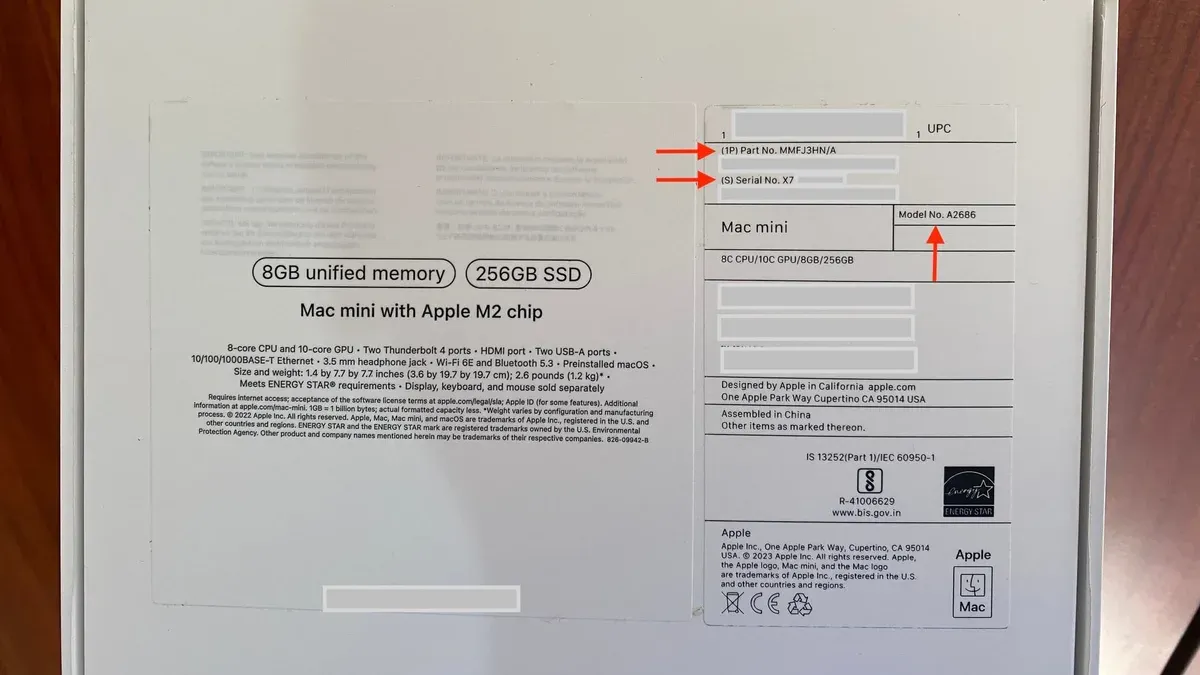
Your Mac's serial number appears in several physical locations. On MacBook models, it is typically printed on the underside near regulatory markings or on the original packaging box. For desktop Macs, such as iMacs or Mac Minis, the serial number is usually found on the bottom or back panel. Additionally, you can view it within the macOS interface under Apple menu > About This Mac.
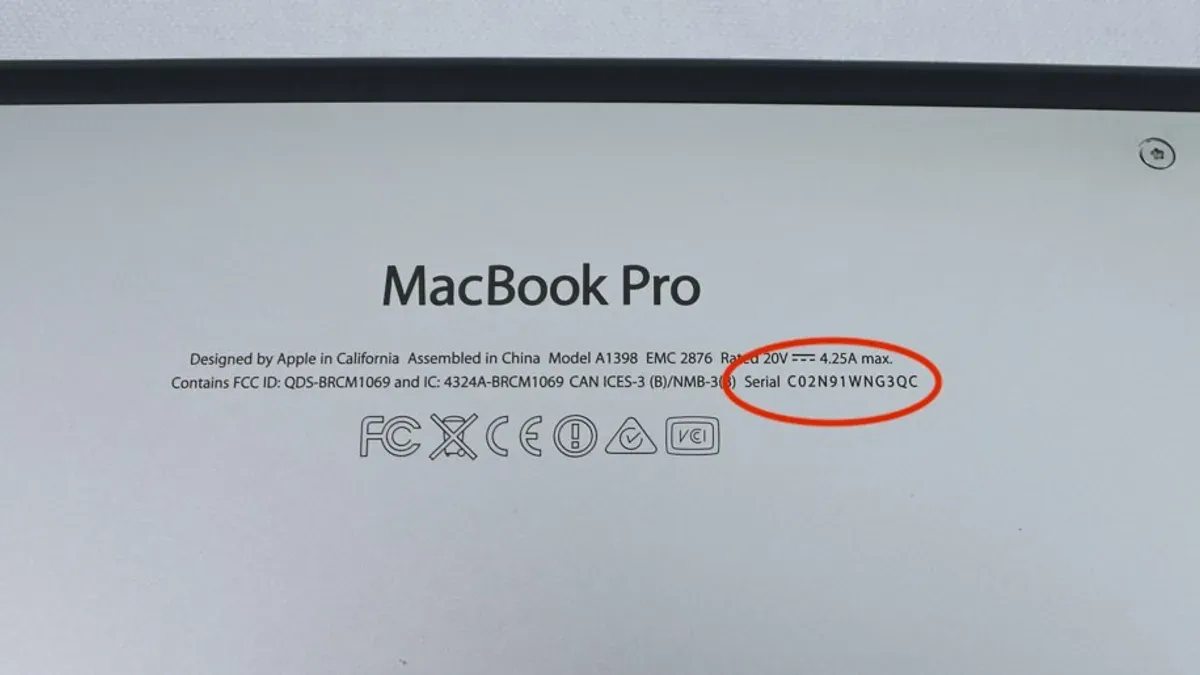
These physical serial numbers correspond exactly to the value retrieved from Terminal commands because they are stored in the Mac's firmware. Terminal reads this embedded firmware data directly, ensuring consistency between the software-reported serial number and the one physically on the device.
However, discrepancies can occur if hardware components like logic boards have been replaced or modified, as the serial number is tied to the mainboard's firmware. In rare cases, counterfeit devices or unauthorized repairs may show incorrect or invalid serial numbers physically or in Terminal outputs. Verifying serial numbers across multiple sources helps ensure authenticity.
Troubleshooting common issues when finding the Mac serial number in Terminal
If you run system_profiler SPHardwareDataType or ioreg -l | grep IOPlatformSerialNumber and see no serial number or receive errors like "Unable to get serial number" or "Permission denied", several steps can help resolve these issues.
- Check your Terminal permissions: Ensure you run Terminal with appropriate privileges. Open Terminal and use
sudobefore your command (e.g.,sudo system_profiler SPHardwareDataType). Enter your admin password when prompted. Success shows the serial number listed. - Verify command syntax: Mistyped commands can cause errors or empty output. Copy-paste commands exactly or double-check spelling and case sensitivity.
- Inspect output for garbled or incomplete data: If the serial number appears truncated or contains unexpected characters, your system files might be corrupted. Restart your Mac and try again.
- Consider hardware faults: Rarely, a malfunctioning logic board or firmware issue can prevent serial number access. If errors persist despite correct commands and permissions, consult Apple Support or authorized service providers.
- Use alternative commands: If one method fails, try the other (system_profiler vs. ioreg) to cross-check.
These steps address the most common obstacles when retrieving your Mac's serial number via Terminal, ensuring you can access this critical information reliably.
- How to Check Open Ports in Mac Terminal: A Step-by-Step Guide
- How to Flush DNS Cache in Mac Terminal: Step-by-Step Guide
- How to Show Hidden Files Using Mac Terminal: A Clear Step-by-Step Guide
Frequently asked questions
How to find my mac serial number?
You can find your Mac serial number by opening Terminal and typing system_profiler SPHardwareDataType, then pressing Enter. Look for the line labeled Serial Number (system) in the output. Alternatively, you can use the command ioreg -l | grep IOPlatformSerialNumber to get the serial number directly.
What is the default terminal in mac?
The default Terminal app on a Mac is simply called Terminal. It provides a command-line interface to interact with the system and is pre-installed on all macOS versions.
How to find my Mac serial number quickly in Terminal?
The quickest way is to open Terminal and enter ioreg -l | grep IOPlatformSerialNumber. This command displays the serial number in a single line without extra details.
What is the default Terminal in Mac and how do I open it?
The default Terminal is the Terminal app, located in /Applications/Utilities/. You can open it by using Spotlight Search (Cmd + Space) and typing “Terminal,” then pressing Enter, or by navigating through Finder to the Utilities folder.
How to find serial number on Mac without Terminal?
You can find your serial number without Terminal by clicking the Apple menu, selecting About This Mac, and viewing the serial number in the window that appears. It is also printed on the original packaging, the underside of some MacBook models, or on the receipt if available.
What this guide does not cover and who should look elsewhere
This guide does not cover retrieving serial numbers on non-Apple hardware or Hackintosh systems, where Terminal commands like system_profiler and ioreg may not return accurate or any information. If you are using a virtual machine or third-party Mac emulation, these methods typically will not work. Additionally, this advice does not extend to finding serial numbers for iOS devices or other Apple products beyond macOS computers.
If you require serial number information as part of warranty service or trade-in and cannot access Terminal, contacting Apple Support directly or visiting an Apple Store may be the most reliable option. For corporate environments managing large fleets, specialized device management software often provides more comprehensive inventory details than command-line queries alone.
To proceed confidently with your Mac serial number lookup, the single most useful next step is to open Terminal and run system_profiler SPHardwareDataType | grep Serial. This command is straightforward, widely supported, and works in nearly all macOS environments to quickly display the exact serial number you need for verification, support, or asset tracking.



