How to Fix Excel Formulas Not Updating Automatically on Mac
Discover step-by-step solutions to fix Excel formulas not updating automatically on Mac and ensure your calculations refresh correctly.
You open your Excel workbook on your Mac, expecting your formulas to update automatically as you change data, but nothing happens. The numbers stay the same, and you’re left wondering why your calculations aren’t refreshing as they should.
This is a common frustration for Mac users, and understanding how to fix Excel formulas not updating on Mac requires looking beyond Excel itself to macOS settings and Excel’s calculation modes. This article guides you step-by-step through the key checks and adjustments to restore automatic formula updates on your Mac, so you can avoid unnecessary trial and error and get back to analyzing your data confidently.
Key takeaways
- Ensure Excel’s calculation mode is set to Automatic under Formulas > Calculation Options.
- Check for circular references, which can prevent formulas from updating properly.
- Verify linked workbooks aren’t set to Manual calculation mode, which affects formula updates.
- Clear Excel’s cache and reset preferences if settings seem stuck or corrupted.
- Review macOS settings like Low Power Mode or app permissions that can interfere with Excel’s performance.
Before you start: What you need to check first
Before troubleshooting Excel formulas that are not updating automatically on your Mac, it's important to ensure your environment is properly set up. First, check that you have the latest stable version of Excel installed. Running an outdated or beta version can cause unexpected behavior. Next, prepare a sample workbook where you can safely test fixes without risking important data.
Understand whether the formula update issue occurs in all Excel files or only specific workbooks. This distinction helps narrow down the cause. Also, verify your Mac’s system resources such as available RAM and CPU usage to ensure Excel has sufficient capacity to function smoothly. Low system resources can interfere with Excel’s performance.
Here's a checklist to get you started:
- Open Excel and click Excel in the top menu, then select About Excel. You should see your current Excel version displayed. Confirm it matches the latest stable release available from Microsoft.
- Have a workbook ready where formulas are not updating, or create a new one with simple formulas like
=SUM(A1:A3)to test behavior. - Observe if the issue occurs in this test file and others. If it’s only specific files, the problem may be file-related.
- Click the Apple logo in the top-left corner of your screen, select About This Mac, then click System Report. Check the Memory and CPU sections to ensure your Mac is not overloaded.
Turn on Automatic Calculation in Excel
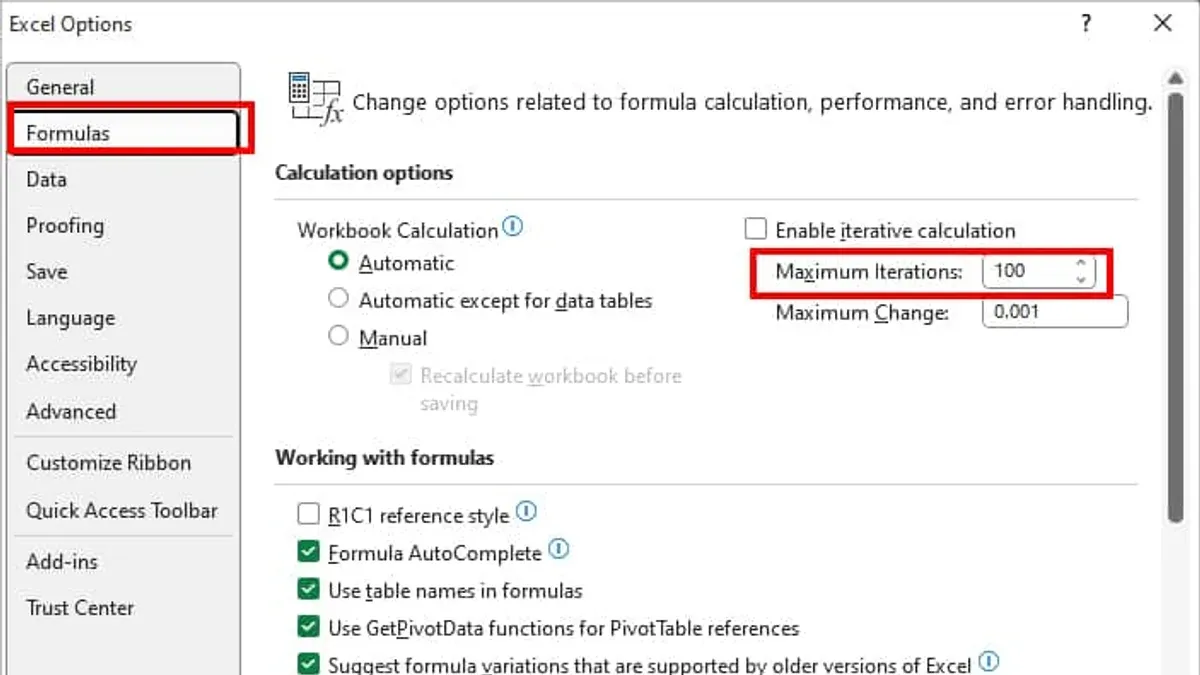
Your formulas might not update because Excel is set to calculate manually instead of automatically. To fix this, you need to switch the calculation mode back to Automatic so Excel recalculates formulas whenever you change data.
- Open Excel and click on Excel in the top menu bar, then select Preferences. This opens the Excel Preferences window.
- In Preferences, choose Calculation under the Formulas and Lists section. You will see options for calculation modes.
- Ensure Automatic is selected under Calculation options. When Automatic is on, Excel recalculates formulas immediately as you edit cells.
- If manual is checked, formulas won’t update until you force a recalculation. Change it to Automatic and close Preferences.
- To manually force a calculation if needed, press Command + = on your keyboard. This triggers a recalculation without switching modes.
By enabling Automatic calculation, your Excel formulas update consistently, preventing stale results caused by manual mode. If you still see outdated values, forcing a manual recalculation can help temporarily.
Check for Circular References and Formula Errors
A circular reference happens when a formula refers back to its own cell, either directly or through a chain of formulas. For example, if cell A1 contains =A1+1, Excel cannot calculate this because it creates an endless loop. When Excel detects a circular reference, it stops auto-updating formulas and displays a warning message stating "Circular Reference Warning" in the status bar or a pop-up alert.
To find circular references, go to the Formulas tab on the ribbon, then click Error Checking and select Circular References. Excel will list the cells involved, letting you locate and fix the issue.
If you need to disable circular reference warnings temporarily, open Excel Preferences, go to Formulas and Lists, and uncheck Enable background error checking. However, this is a workaround and should be used with caution to avoid hidden calculation problems.
Formula errors like #REF! (invalid cell reference) or #VALUE! (wrong data type) also prevent updates. Check formulas for these errors, correct references or data types, and ensure all referenced cells exist and contain appropriate data.
- Click the Formulas tab, then select Error Checking > Circular References. Excel highlights the first cell with a circular reference.
- Inspect the formula in the highlighted cell for self-referencing or loops. For example, a formula like =A1+1 in cell A1 creates a circular reference.
- Modify the formula to remove the circular reference, such as changing it to refer to a different cell or breaking the loop.
- After fixing, check the status bar or the Circular References menu again to confirm no circular references remain.
- Review any cells showing errors like #REF! or #VALUE!, correct their formulas or references to restore automatic updates.
Turn off Manual Calculation Mode in Linked Workbooks
When your Excel formulas reference data from other workbooks, those linked files can influence how calculations update in your main workbook. If a linked workbook is set to Manual calculation mode, it may prevent formulas from refreshing automatically, even if your main file is in Automatic mode. This is because Excel respects the calculation settings of each file separately, and manual mode in a linked workbook can disrupt the flow of updated data.
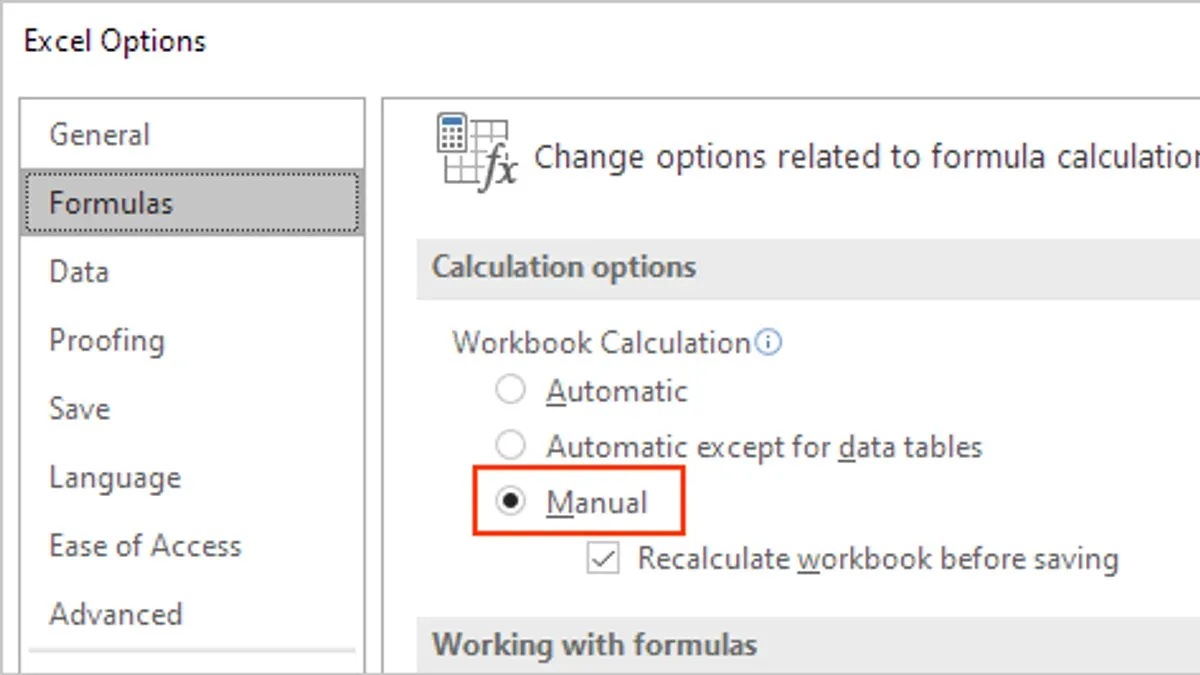
To resolve this, you need to check the calculation mode in every linked workbook and switch it to Automatic. Doing this ensures that all related files recalculate their formulas immediately after changes, keeping your main workbook’s data current.
- Open the linked workbook by clicking the relevant link or navigating to its file location. You should see the file open in Excel.
- Go to the Excel menu and select Preferences.
- Choose Calculation under Formulas and Lists.
- Set the calculation mode to Automatic. You should see the option selected, indicating that formulas will now update automatically.
- Save and close the linked workbook.
- Return to your main workbook and press Command + = to force a recalculation; your formulas should now update properly.
By aligning calculation modes across all linked workbooks, you prevent conflicts that stop formula updates. For example, if your main workbook is automatic but a linked file remains manual, changes in the linked workbook won’t trigger recalculation, causing outdated results in your main file. Keeping all linked workbooks on Automatic calculation mode keeps your data synchronized and reliable.
Clear Excel Cache and Reset Preferences on Mac
Excel stores cache and preferences files on your Mac to speed up processes and save customized settings. However, these files can become corrupted or outdated, causing issues like formulas not updating automatically. Clearing the cache and resetting preferences removes these problematic files, often resolving hidden bugs and improving formula update performance.
Before proceeding, back up any important customizations, such as custom templates, macros, or ribbon settings, as resetting preferences will restore Excel to its default state.
- Quit Excel completely to ensure no files are in use.
- Open Finder and press Command + Shift + G to open the "Go to Folder" window.
- Enter
~/Library/Containers/com.microsoft.Excel/Data/Library/Caches/and click "Go". - Delete all files in this Caches folder; this clears Excel's cache. When successful, Excel will rebuild these files fresh on next launch.
- Again, press Command + Shift + G and enter
~/Library/Preferences/. - Find and delete the file named
com.microsoft.Excel.plist. This resets Excel preferences to default settings. - Restart Excel and open your workbook. Formulas should now update more reliably and faster.
After completing these steps, you may notice Excel responding more smoothly and formulas recalculating without delay. This reset often clears obscure glitches that interfere with automatic updates.
Check Mac System Settings That Affect Excel Performance
Sometimes macOS settings can unintentionally limit Excel’s ability to update formulas automatically. One common culprit is Low Power Mode, which reduces background activity to save battery life. When enabled, Excel’s background calculations may slow down, causing noticeable delays in formula updates. For example, turning off Low Power Mode often results in immediate formula recalculation after data changes.
- Open System Settings and go to Battery > Battery.
- Locate Low Power Mode and toggle it off.
- Return to Excel and make a change in a formula cell; you should see the formula update instantly.
Another factor is macOS Security & Privacy settings. Excel needs permissions like Full Disk Access or File and Folder Access to function fully. Without these, Excel might not save changes properly, blocking formula updates.
- Open System Settings and go to Privacy & Security.
- Scroll to Full Disk Access and add Microsoft Excel if it is not listed.
- Restart Excel and check if formulas update without delay.
File permissions can also cause issues if you don’t have write access to the Excel files. Ensure your user account has appropriate read/write permissions by selecting the file in Finder, choosing Get Info, and verifying the permissions at the bottom.
Lastly, background apps or extensions that interfere with Excel’s processes may cause update failures. Disable any unnecessary utilities, especially those that monitor or modify file activity, to test if they affect formula behavior.
Use Excel’s Manual Recalculation as a Temporary Workaround
If automatic formula updates are not working and you need to see results immediately, you can force Excel to recalculate formulas manually. This is especially useful for complex workbooks where automatic recalculation might lag or fail temporarily. However, relying on manual recalculation should be a short-term solution while you continue troubleshooting the root cause.
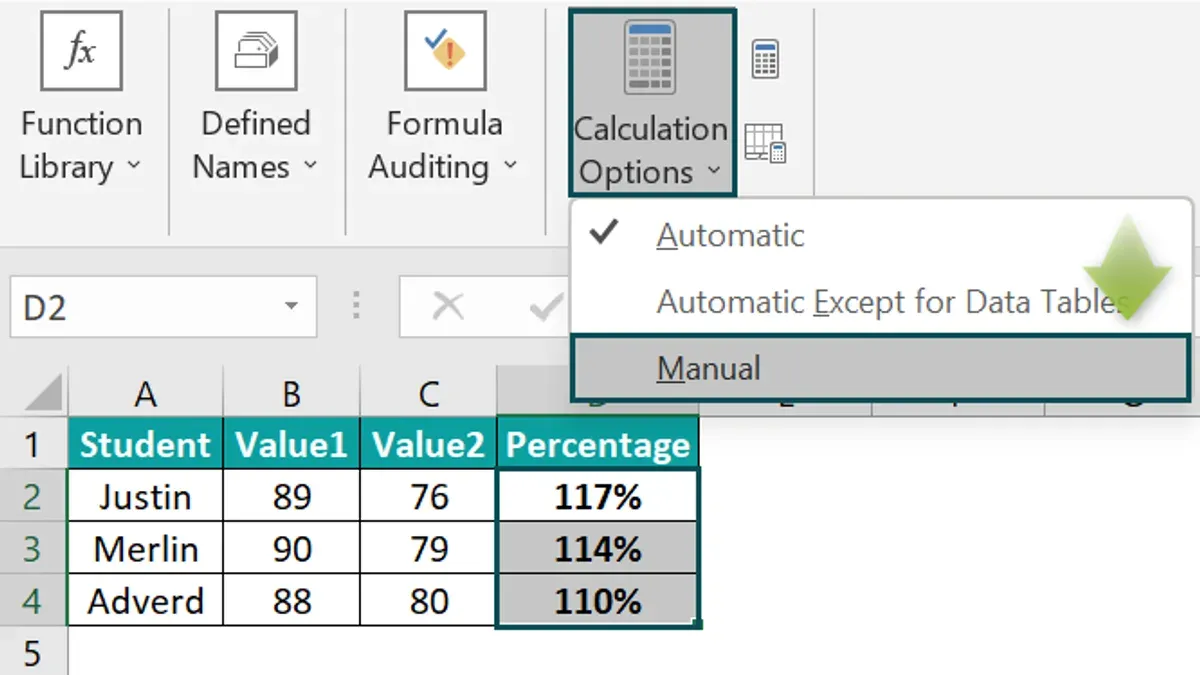
- Press Command + = to recalculate the entire workbook. When done, you’ll see the updated results in your formulas immediately.
- Alternatively, press Shift + Command + F9 to recalculate only the active worksheet. After this, check that the formulas on the current sheet reflect the latest data.
- Use manual recalculation when working with large, complex formulas or extensive data sets that slow down automatic updates. For example, a formula summarizing thousands of rows may update faster when triggered manually rather than waiting for Excel’s automatic process.
- Remember that manual recalculation does not fix underlying issues causing update failures. Use it only as a stopgap while continuing to address automatic calculation problems.
By pressing these shortcuts, you save time compared to waiting for Excel to attempt an automatic update, especially if your workbook contains complex array formulas or linked data. Keep an eye on workbook size and complexity, as these factors often determine when manual recalculation becomes necessary.
Frequently asked questions
Why is my Excel file not updating formulas automatically on Mac?
Your Excel formulas may not update automatically if the calculation mode is set to Manual instead of Automatic. This setting can be found under Excel's Preferences in the Calculation section. Additionally, linked workbooks set to Manual calculation or system settings like Low Power Mode on your Mac can interfere with automatic updates.
How do I fix ms excel formulas not updating automatically?
To fix formulas not updating automatically, first check that Excel’s calculation mode is set to Automatic via Preferences > Calculation. Also, ensure there are no circular references causing calculation issues, and verify that linked workbooks are not set to Manual calculation. Restarting Excel or resetting its preferences can help if settings appear correct but issues persist.
What to do when excel formulas are not updated after editing?
If formulas don’t update after editing, try pressing Command + = to force recalculation. Check if the cell is formatted as Text, which prevents formulas from calculating; changing it to General and re-entering the formula often resolves this. Also, confirm that calculation mode is Automatic and no circular references exist.
Why are excel formula cells not updating until I press enter?
This behavior usually occurs when the cell is formatted as Text or when the workbook is in Manual calculation mode. Changing the cell format to General and pressing Enter forces Excel to recognize and compute the formula. Confirming that calculation mode is Automatic can prevent the need to press Enter repeatedly.
What This Guide Does Not Cover
This guide does not cover issues caused by corrupted Excel installation or hardware failures; if you experience persistent problems after trying these steps, you may need to reinstall Excel or consult Apple Support for deeper troubleshooting. Some advanced Excel add-ins or macros can interfere with formula updating and fall outside the scope of this article. Additionally, if your workbook relies heavily on very complex or volatile functions, performance limitations on Mac hardware may still cause delays in formula updates despite these fixes.
The single most useful next step is to ensure that Automatic Calculation is enabled in Excel’s Preferences under Formulas & Lists. This setting controls whether formulas update as you work and is often the key to resolving update issues on Mac. Double-checking this setting before exploring other options can save you time and help restore smooth formula functionality quickly.
See also: How to Use Data Analysis ToolPak in Excel on Mac: Step-by-Step Guide · How to Enable Power Query in Excel on Mac: A Step-by-Step Guide · How to Create a Macro in Excel on Mac: A Step-by-Step Guide · How to Use the F4 Absolute Reference Shortcut in Excel on Mac