How to Diagnose and Fix MacBook Pro M1 Pro Black Screen Issues
Discover clear steps to diagnose and fix MacBook Pro M1 Pro black screen issues, separating hardware and software causes effectively.
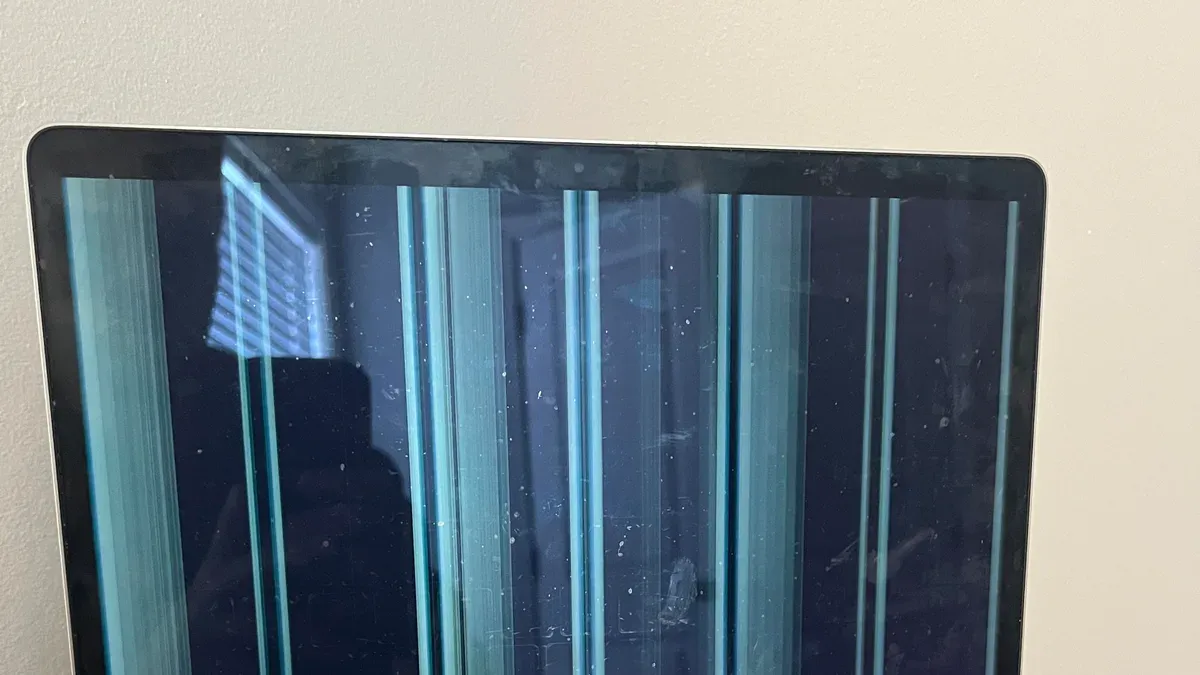
You open your MacBook Pro M1 Pro, but the screen stays black. The device seems powered on, yet nothing appears on the display, leaving you unsure whether it's a hardware fault or a software glitch.
This article helps you confidently diagnose and fix MacBook Pro M1 Pro black screen issues by guiding you through clear, step-by-step checks. You'll learn how to separate hardware problems from software ones, perform practical tests like using Safe Mode and Apple Diagnostics, and apply effective fixes without unnecessary repairs. Additionally, you'll discover common pitfalls to avoid and understand when professional support is the right choice.
Key takeaways
- Verify power connections and display brightness before deeper troubleshooting.
- Use Safe Mode and reset NVRAM to identify software-related black screen causes.
- Run Apple Diagnostics to detect hardware problems specific to the M1 Pro.
- Try external displays or Recovery Mode as practical fixes.
- Avoid repeated forced shutdowns that may worsen hardware issues.
Recognize What a Black Screen Means on Your MacBook Pro M1 Pro
A black screen on your MacBook Pro M1 Pro means the display remains completely dark and unlit, even when you press the power button or open the lid. This is different from a blank screen, which may show a cursor or backlight but no content, or a dim screen where the brightness is very low but still visible. Understanding this difference helps you identify whether your issue is with the display itself, the graphics system, or deeper hardware or software problems.
Black screen issues can arise from either hardware faults—like a failed display panel, logic board problem, or battery issues—or software faults such as corrupted system files or startup errors. Because these causes range widely, recognizing the symptom early guides you toward the right troubleshooting path. For example, if your MacBook powers on but the screen stays black, this points more to hardware; if you hear startup sounds but see no image, software could be involved.
Diagnosing early is crucial. It saves time by avoiding unnecessary repairs and reduces the risk of data loss that might come from more invasive fixes. Picture opening your MacBook and seeing no light at all; knowing this is a black screen rather than a dim one helps you decide whether to try software resets or seek hardware checks first. Many users on forums report that roughly half of black screen cases can be traced to software glitches, making a clear distinction essential before proceeding.
Check Power and Display Basics Before Diving Deeper
Before exploring complex fixes, start by confirming your MacBook Pro M1 Pro is receiving power correctly. Connect your charger firmly and check for the charging indicator light on the MagSafe connector or USB-C cable. If the light is amber or green, the charger is supplying power. Next, press the power button and observe the screen for any signs of battery status or startup icons. If your MacBook has a battery, look at the menu bar or press the power button briefly to see if the battery percentage appears. A completely drained battery can cause a black screen, so charging at least 15 minutes before retrying helps.
Also verify if an external display is connected by checking all cables and adapters. If you use an external monitor, ensure it is powered on and set to the correct input source. Sometimes, your MacBook’s screen may stay black while the system outputs to the external display. To check, try disconnecting the external monitor and see if the MacBook screen lights up or use the keyboard shortcut Control + F2 to switch displays.
Remember, a black screen does not always mean the MacBook is off. It could be in sleep mode, or the brightness might be turned all the way down. To rule out brightness issues, press the brightness up key (F2) a few times. If the screen remains black, try pressing any key or the trackpad to wake it from sleep. Visualize this: You plug in your charger, see the amber light, press the power button, but the screen stays dark. By increasing brightness and disconnecting external monitors, you can quickly isolate simple causes before moving on.
Use Safe Mode and Reset NVRAM/SMC to Isolate Software Causes
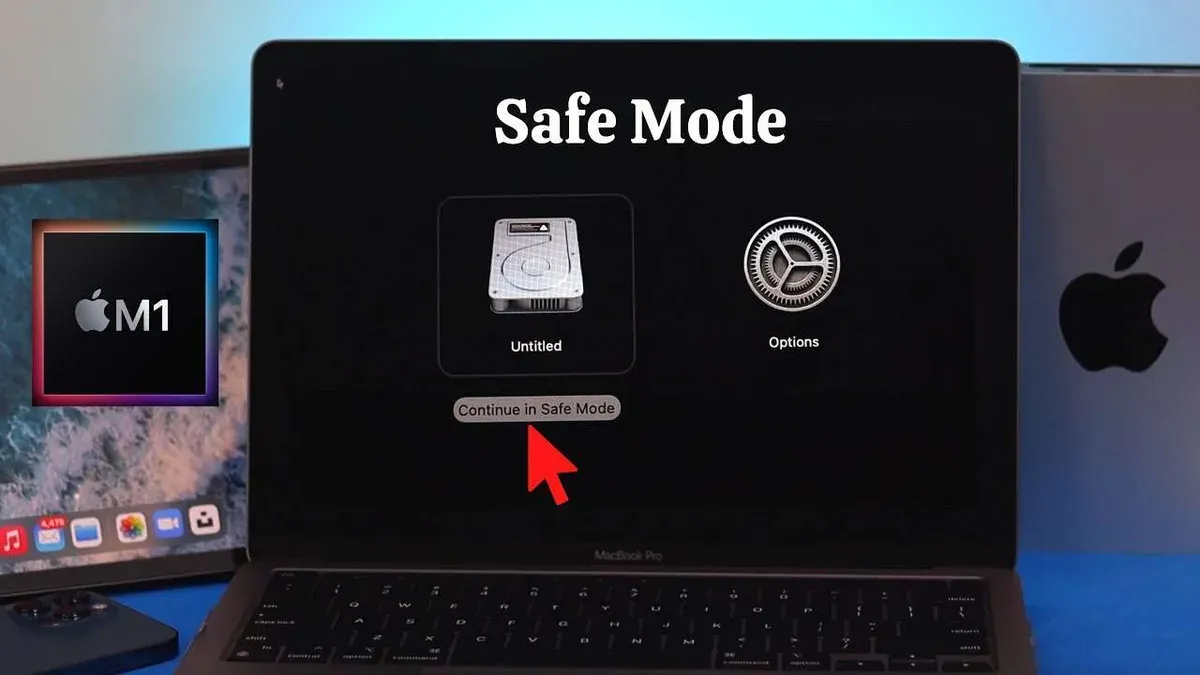
Booting your MacBook Pro M1 Pro into Safe Mode helps you identify if software is behind the black screen issue. To enter Safe Mode, shut down your Mac completely. Then, press and hold the power button until you see the startup options window. Select your startup disk, press and hold the Shift key, and click "Continue in Safe Mode." Safe Mode loads only essential system software, disabling third-party extensions and clearing some caches, which often resolves display problems caused by software conflicts.
Resetting the NVRAM can fix screen-related settings like brightness or display resolution that might cause a black screen. On M1 Pro Macs, NVRAM resets automatically during startup, so simply restarting your Mac often refreshes these settings. You can confirm this by noticing any changes in sound volume, display resolution, or time zone after reboot.
The System Management Controller (SMC) reset, common on Intel Macs, manages power and hardware functions, but on Apple silicon like the M1 Pro, the SMC is integrated and resets automatically when you shut down and restart your device. If you experience a persistent black screen, a full shutdown, waiting a few seconds, then turning the Mac back on effectively resets the SMC functions.
For example, if your Mac was stuck on a black screen after waking from sleep, starting in Safe Mode might show a normal login screen. After exiting Safe Mode and restarting normally, the display should function correctly. If not, try a full shutdown and restart to refresh NVRAM and SMC settings. This stepwise approach helps you isolate and resolve software causes without jumping to hardware repairs.
Run Apple Diagnostics to Identify Hardware Problems
Apple Diagnostics is a built-in tool designed to help you detect hardware issues that might cause your MacBook Pro M1 Pro’s black screen. To start this test, first shut down your Mac completely. Then, press and hold the power button until you see the startup options window. Next, press Command (⌘) + D on your keyboard to launch Apple Diagnostics.
The diagnostics will run automatically and display codes if any hardware problems are detected. For example, if you encounter a code like PFM001, it could indicate a display or graphics-related fault. Similarly, a code such as PPT002 might suggest an issue with the logic board or power system. These codes guide you on the specific hardware component that needs attention.
If Apple Diagnostics reports no issues but the black screen persists, the problem may still be subtle or software-related. However, if you receive any error codes, it’s advisable to contact Apple Support or a certified repair service for professional hardware repair. Attempting repairs yourself can risk further damage, especially with complex components like the logic board.
Using Apple Diagnostics helps you distinguish between hardware and software causes reliably, preventing unnecessary repairs and guiding your next steps effectively.
Perform Practical Fixes: External Display, Safe Restore, and Recovery Mode
If your MacBook Pro M1 Pro shows a black screen, connecting an external monitor can help determine if the issue lies with the internal display. Use a compatible HDMI or Thunderbolt adapter to connect the external display. After connection, press Command-F1 to toggle display mirroring. If the external monitor shows your desktop, the internal screen or its connection may be faulty, allowing you to continue working while planning repairs.
macOS Recovery offers a way to repair or reinstall the operating system without erasing your data. To access it, turn off your Mac, then hold the power button until the startup options appear. Select Options, then click Continue to enter Recovery Mode. Here, you can run Disk Utility’s First Aid to fix disk errors or choose “Reinstall macOS” to refresh system files.
Before deeper troubleshooting, back up your data using Time Machine or by copying essential files to an external drive. This ensures your information remains safe if further steps require erasing or restoring your Mac. Many users successfully regain functionality through Recovery Mode, making it a practical step before seeking professional help.
Avoid Common Mistakes That Can Worsen Black Screen Problems
Repeatedly forcing your MacBook Pro M1 Pro to shut down by holding the power button can cause serious harm. Each forced shutdown interrupts system processes, which may corrupt software or damage hardware components. For example, a user on a support forum described how multiple forced shutdowns led to a logic board failure, requiring costly repairs. Instead, try waiting a few minutes after the screen goes black before attempting a restart.
Opening your MacBook without proper expertise or tools risks voiding your warranty and causing physical damage. The M1 Pro models have delicate connectors and tightly integrated components that can be easily harmed. Apple explicitly advises against self-repair unless you are certified, as improper handling can worsen the problem or create new ones.
Downloading random third-party fixes or software from unofficial websites is another common mistake. Such downloads may contain malware or incompatible tools that can further disrupt your system. Always rely on official Apple resources or trusted sources when seeking repair software. For example, a user who downloaded an unverified utility experienced data loss and had to restore from backup.
Know When to Contact Apple Support or Certified Repair Services
If your MacBook Pro M1 Pro continues to show a black screen despite completing software troubleshooting and diagnostics, the issue likely stems from hardware faults that require professional repair. Signs include persistent black screen after resets, unusual noises, or failure detected by Apple Diagnostics indicating components like the display panel, logic board, or internal connectors are damaged. Attempting further repairs yourself risks voiding warranty or causing additional damage.
Before scheduling a repair appointment, ensure you have a current backup of your data via Time Machine or iCloud to protect against unexpected data loss. Gather results from Apple Diagnostics and note any error codes displayed; this information helps Apple technicians quickly identify the problem. Also, know your MacBook’s serial number, available under Apple menu > About This Mac, to check warranty status.
Apple’s limited warranty typically covers manufacturing defects for one year, and AppleCare+ extends this coverage with added benefits. Repairs within warranty or AppleCare+ may be free or low cost. Out-of-warranty repairs for screen or logic board issues can range from a few hundred to over a thousand dollars, depending on damage severity. For example, a damaged display connector might cost significantly less than a full logic board replacement.
Choosing an Apple Authorized Service Provider ensures genuine parts and proper repair standards. If you notice a persistent black screen after all self-help steps, contacting Apple Support or visiting an authorized center is the safest path to restore your MacBook Pro M1 Pro’s performance reliably.
Frequently asked questions
Why does my MacBook Pro M1 Pro screen go black but the machine stays on?
This usually indicates a display or graphics issue rather than a complete system failure. Your MacBook might still be running processes in the background, but the screen fails to show any image. It could stem from software glitches like display driver conflicts, or hardware problems such as a faulty display cable or backlight. Checking connections, rebooting into Safe Mode, or running diagnostics can help narrow down the cause.
Can I fix a black screen issue at home without losing data?
Yes, many black screen problems can be resolved without data loss by following safe troubleshooting steps. For example, booting into Safe Mode or using Recovery Mode to reinstall macOS without erasing your disk can fix software-related issues. Avoid forcefully erasing or reinstalling unless necessary, and always back up important files if possible before attempting advanced fixes.
What does it mean if Apple Diagnostics finds no errors but the screen is black?
If Apple Diagnostics reports no hardware faults but the screen remains black, the issue is likely software-related or involves components that diagnostics don't test thoroughly, such as specific display connectors. It can also indicate a firmware or driver problem affecting screen output. At this point, trying software resets or reinstalling macOS through Recovery Mode is advisable before considering hardware repair.
How long should I wait before concluding the MacBook Pro M1 Pro black screen is a hardware problem?
If the black screen persists after you have completed software troubleshooting steps like Safe Mode, resets, and diagnostics, and the issue does not resolve after a reasonable restart period (a few minutes), it suggests hardware involvement. Extended black screens with no response beyond these checks generally mean a hardware component, such as the display panel or logic board, may be defective and require professional support.
Understand the Limits of This Guide
This guide focuses on diagnosing and resolving black screen issues caused by software glitches or general hardware checks on your MacBook Pro M1 Pro. It does not cover problems resulting from liquid damage, physical screen damage, or other hardware failures that require component replacement. If your MacBook has suffered a spill, a drop, or visible screen cracks, professional repair is necessary. Avoid opening your MacBook yourself unless you have the proper training and tools, as this can void warranties and cause further damage.
When software troubleshooting and basic hardware diagnostics don’t resolve the black screen, or if Apple Diagnostics reports serious hardware issues, contacting Apple Support or visiting an Apple Authorized Service Provider is the safest next step.
The single most helpful action you can take after following these steps is to run Apple Diagnostics. This test quickly identifies hardware faults that software resets cannot fix, helping you decide whether professional repair is needed. You can start it by shutting down your MacBook, then pressing and holding the power button until the diagnostics screen appears.
See also: How to Fix Your MacBook Pro M1 Pro Stuck on Apple Logo: A Step-by-Step Guide · How to Understand and Fix MacBook Pro M1 Pro Kernel Panic Issues · How to Restart Your MacBook Pro M1 Pro: Clear Steps & Insights · How to Factory Reset Your MacBook Pro M1 Pro Safely