Google Workspace Implementation Timeline: A Clear Step-by-Step Guide
Discover a clear Google Workspace implementation timeline with step-by-step guidance to plan, deploy, and optimize your organization's productivity tools.
Your organization has decided to adopt Google Workspace, but the path from decision to full deployment can seem unclear. Understanding the Google Workspace implementation timeline helps you manage expectations and coordinate resources effectively.
This article covers the origins and evolution of Google Workspace, breaks down its core components, and provides a detailed step-by-step guide for planning and executing your deployment. You’ll also find advice on maximizing Workspace’s features post-launch and tips to avoid common implementation pitfalls.
Key takeaways
- Google Workspace evolved from early cloud collaboration tools, growing into a comprehensive productivity suite.
- Implementation involves phased steps: planning, domain verification, user setup, and training.
- Realistic timelines account for technical configuration, user adoption, and integration challenges.
- Effective post-launch use requires ongoing support and adjustment of access permissions.
- Avoid skipping the pilot testing phase to catch configuration issues early.
What Google Workspace Is and Why It Matters
Google Workspace is an integrated suite of cloud-based productivity and collaboration tools designed for businesses and teams. Unlike standalone Google apps such as Gmail or Google Docs used by consumers, Google Workspace combines these applications with enhanced administrative controls, security features, and business-grade support.
Businesses prefer Google Workspace over free Google accounts because it offers real-time collaboration capabilities across apps like Google Docs, Sheets, and Slides, allowing multiple users to edit documents simultaneously. Cloud storage through Google Drive ensures all files are accessible from any device without version conflicts. Security controls such as centralized user management, data loss prevention, and advanced phishing protection help organizations safeguard sensitive data.
For example, a marketing team working on a campaign can use Google Workspace to coauthor a proposal in Google Docs while simultaneously sharing feedback via Google Chat. The team's manager can monitor progress through the Admin console and set access permissions to keep information secure. Industry analysts note that organizations adopting Google Workspace often see improved collaboration efficiency and streamlined IT management compared to using separate, disconnected tools.
When Google Workspace Launched and Its Evolution
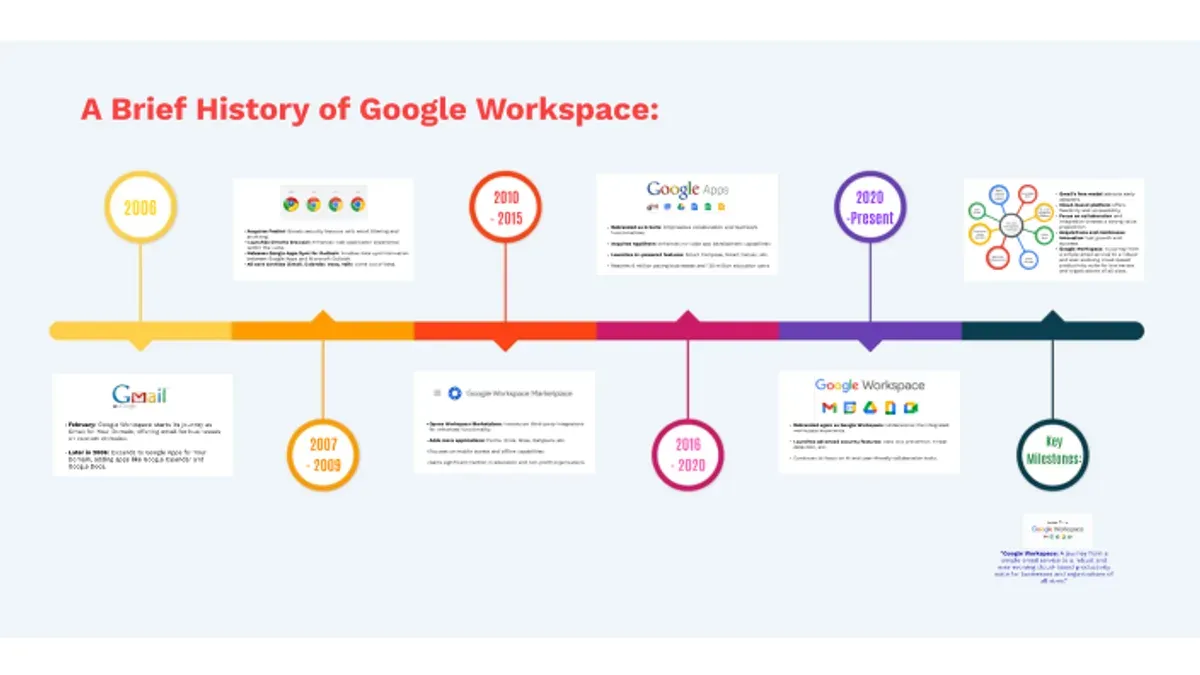
Google Workspace began as Google Apps for Your Domain, introduced in 2006 as a suite of cloud-based productivity tools designed for businesses. This initial launch included Gmail, Google Calendar, Google Talk, and Google Docs, aimed at replacing traditional on-premises software with cloud alternatives.
The platform's rebranding to Google Workspace marked a significant shift, reflecting an expanded vision beyond basic office tools. It introduced tighter integration between applications, enhanced collaboration features like shared drives and smart scheduling, and incorporated advanced security measures suitable for enterprises.
Major milestones include the rollout of real-time collaboration in Docs and Sheets, the addition of Meet for video conferencing, and the introduction of AI-powered features such as Smart Compose and automated meeting summaries. These updates evolved the platform from a simple productivity suite into a comprehensive work environment.
For example, the integration of Google Meet directly into Calendar allows users to create video meetings with one click, streamlining remote team coordination. Over time, Google Workspace matured to support larger organizations by adding administrative controls, compliance tools, and endpoint management.
User adoption grew steadily, moving from small businesses to large enterprises, reflecting the platform's growing capability to meet diverse organizational needs. The timeline of these developments illustrates Google Workspace’s progression from basic tools to a robust, interconnected ecosystem for modern work.
How Google Workspace Works: Core Components and Integration
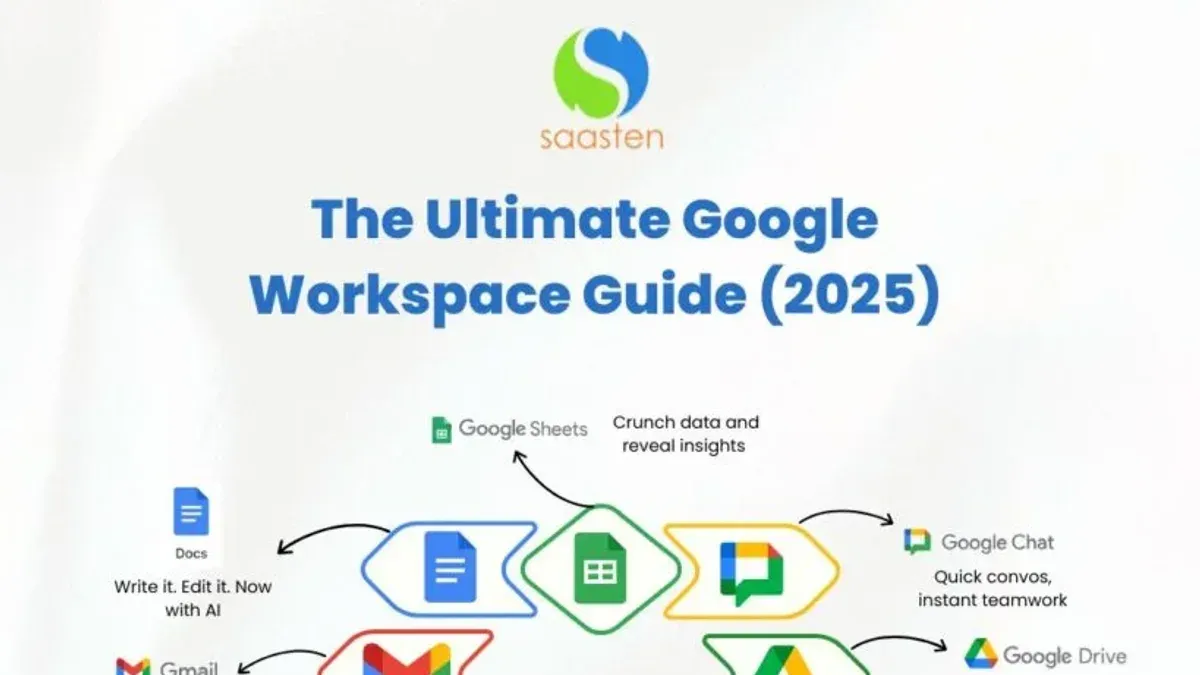
Google Workspace is built around key applications that work together to support business productivity. Core apps include Gmail for email communication, Drive for cloud file storage, Docs and Sheets for document and spreadsheet creation, Meet for video conferencing, and Calendar for scheduling and time management. These apps share a unified cloud infrastructure, enabling seamless data flow and collaboration.
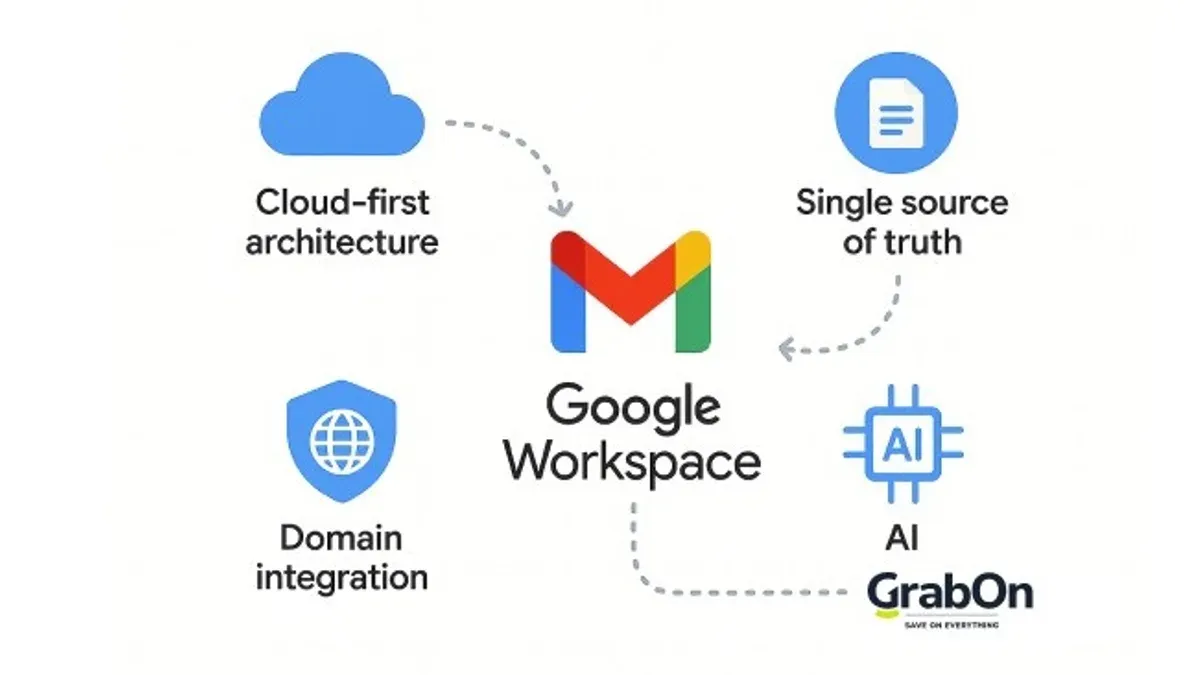
Integration among these apps enhances workflow efficiency. For example, when you receive a meeting invite via Calendar, you can open the linked Meet video call directly from the event. Documents attached in Gmail open in Docs or Sheets without needing to download files. Additionally, Drive's shared folders can be accessed and edited collaboratively in real-time within Docs or Sheets, reducing version conflicts.
Administrative controls in the Google Admin console allow IT managers to configure settings such as user access, data sharing permissions, and security protocols. Features like two-step verification enforcement, data loss prevention rules, and endpoint management help secure sensitive information while maintaining user flexibility. Workflow automation is supported through integrations with Google Apps Script and third-party tools, enabling tasks like auto-archiving emails or syncing calendar events with project management apps.
As an example, a team lead can set up a shared Drive folder for a project, grant editing rights via Admin console controls, schedule recurring Meetings through Calendar, and use automated email notifications triggered by changes in Docs. This interconnected environment reduces the need to switch between multiple platforms and streamlines daily operations.
How to Start a Google Workspace: Planning Your Implementation
Before deploying Google Workspace, start by assessing your organization's specific needs and defining clear goals. For example, a mid-sized marketing agency identified collaboration bottlenecks and security concerns as primary drivers for adoption. They outlined objectives such as improving real-time document editing and securing company data.
Next, select the appropriate Google Workspace plan that aligns with your organization's size and feature requirements. Google Workspace offers plans ranging from Business Starter, which includes essential apps and 30 GB cloud storage per user, to Business Plus and Enterprise editions that provide advanced security, compliance tools, and increased storage capacity. The marketing agency chose the Business Standard plan to balance cost with needed features like shared drives and video conferencing for up to 150 participants.
Prepare your IT infrastructure by ensuring reliable internet connectivity and verifying device compatibility. Plan your rollout communication carefully by creating a detailed schedule and training materials. The agency scheduled team training sessions and created step-by-step user guides to ease the transition. A readiness checklist should include verifying domain ownership, backing up existing data, and confirming that all users have Google accounts.
Google Workspace Implementation Timeline: Step-by-Step Deployment
Implementing Google Workspace typically spans several weeks, progressing through distinct phases to ensure smooth adoption.
Initial Setup and Domain Verification
The process begins with creating your Google Workspace account and verifying your domain ownership via the Admin console under Domains > Manage domains. This phase often takes 1 to 3 days, depending on DNS propagation speeds and domain registrar responsiveness.
Migrating Existing Data and User Accounts
Next, migrate email, calendars, contacts, and files from legacy systems using Google’s Data Migration Service or third-party tools. For a mid-sized company, this can take 1 to 2 weeks. Migration success rates are generally high if source data is well-organized, but watch for common issues like unsupported file formats or corrupted emails that require manual handling.
Training Users and Establishing Governance Policies
Concurrent with migration, conduct user training sessions focused on Gmail settings, Drive collaboration, and Meet usage. Structured sessions combined with on-demand resources reduce resistance and raise productivity. Establish governance policies in the Admin console, such as access controls and data retention. This phase often spans 2 to 3 weeks.
Monitoring Adoption and Troubleshooting
After launch, monitor adoption through reports under Reports > User Activity and address issues like login problems or sync errors promptly. Regular check-ins and support channels help maintain momentum. Expect this phase to continue for 1 to 2 months post-deployment.
For example, a company with 100 users might allocate 3 days for setup, 10 days for migration, 14 days for training and policy setup, and ongoing monitoring beyond that. This staged approach balances thorough preparation with timely rollout, minimizing disruptions while fostering user confidence.
How to Utilize Google Workspace Effectively After Launch
To maximize Google Workspace benefits after launch, focus on enhancing collaboration and streamlining workflows. Encourage your team to use Google Docs, Sheets, and Meet collaboratively by leveraging real-time editing and commenting features. For instance, in Google Docs, use the "Suggesting" mode to propose changes without altering the original text, which helps maintain clarity during document revisions.
Managing storage efficiently is key. Regularly review Google Drive storage usage via the Admin console under "Apps > Google Workspace > Drive and Docs > Manage shared drives and storage". Implement policies to archive or delete outdated files, preventing clutter and maintaining optimal performance.
Automation tools and add-ons can significantly boost productivity. Utilize Google Workspace’s built-in automation with Google Apps Script or integrate add-ons like Form Publisher to automate report generation from Google Forms. For example, automate a workflow where form responses automatically populate a Sheet and trigger email notifications, saving hours of manual effort weekly.
User productivity often improves after adopting these practices, with smoother communication and reduced manual tasks. An experienced IT manager noted that automating approval workflows through Google Workspace reduced processing times by nearly half, illustrating practical gains from these tools.
Common Mistakes to Avoid During Google Workspace Implementation
Many Google Workspace rollouts face setbacks due to underestimated training and change management efforts. Users often struggle when introduced to new tools without sufficient hands-on sessions or clear guidance, leading to low adoption rates and frustration. For example, skipping role-specific training can result in employees misusing features like Google Drive sharing settings, causing workflow disruptions.
Neglecting security settings and compliance requirements is another frequent pitfall. Administrators must configure settings such as two-factor authentication under Security > Authentication in the Admin console and review data loss prevention rules to prevent vulnerabilities. Ignoring these can expose sensitive data and violate company policies or legal standards.
Poor communication amplifies resistance and confusion during deployment. Without regular updates and clear messaging, users may not understand the benefits or changes, fueling skepticism. An implementation where updates were only sporadically shared via email saw prolonged helpdesk tickets and repeated questions about basic functions.
Expert recommendations emphasize early involvement of stakeholders, tailored training programs, and thorough security audits before launch. Addressing these areas improves user satisfaction and reduces delays commonly reported in surveys of enterprise software transitions.
Understanding Google Workspace Limitations and Time Tracking Features
While Google Workspace offers a comprehensive suite for collaboration and productivity, it lacks built-in advanced time tracking functionalities. Its native tools do not provide detailed employee time logs, project tracking, or billable hours management, which are essential for many businesses.
For time tracking, users often turn to third-party applications like Toggl, Clockify, or Harvest, which integrate with Google Workspace through add-ons or APIs. These specialized apps offer features such as automatic time capture, reporting dashboards, and invoicing support that Google Workspace does not natively include.
Regarding video conferencing, Google Meet has meeting duration limits depending on your subscription. For example, meetings with licensed users can last up to 24 hours, but those involving free accounts are capped at 60 minutes. This limitation can be a challenge for longer workshops or webinars.
A common workaround is to split long sessions into multiple shorter meetings or upgrade to plans with extended limits. Users who require advanced scheduling or attendance tracking may need dedicated webinar platforms or third-party integrations.
Consider a mid-sized marketing agency coordinating remote teams: they might use Google Workspace for document collaboration but rely on Clockify for tracking billable hours and Zoom or a webinar platform for long client presentations exceeding Google Meet limits.
| Feature | Google Workspace | Specialized Time Tracking Apps |
|---|---|---|
| Time Logging | Not available | Detailed automatic/manual logging |
| Project Tracking | Basic task lists via Google Tasks | Advanced project and task tracking |
| Reporting and Analytics | Limited to basic activity reports | Comprehensive reports and dashboards |
| Billing/Invoicing | Not supported | Integrated billing features |
| Meeting Duration (Google Meet) | Up to 60 minutes for free accounts; up to 24 hours for paid plans | Varies by platform, often unlimited with premium plans |
"Google Workspace is excellent for productivity, but when it comes to tracking employee hours, we had to adopt a third-party tool to get accurate data," reports an IT manager at a consulting firm.
- Switching from Google Drive to SharePoint: A Clear Migration Guide
- Switching from Google Drive to OneDrive: A Practical Guide
Frequently asked questions
When did google workspace start?
Google Workspace started as a rebranding of Google’s productivity suite in October 2020. It evolved from Google Apps for Work, which had been available since 2006, reflecting a broader focus on integrated collaboration tools.
How long has google workspace been around?
Google Workspace has been around since 2020 under that name, but its foundational tools date back to 2006 when Google Apps for Work was introduced. This means the platform's core services have been developed and refined over more than a decade.
When did google workspace launch?
Google Workspace launched officially in October 2020 as the successor to G Suite and Google Apps for Work. This launch marked a significant update to the branding and integration of Google’s collaboration and productivity tools for businesses.
When was google workspace launched?
The official launch of Google Workspace occurred in October 2020. This represented a shift from the earlier G Suite branding and introduced a tighter integration of communication and productivity apps under one platform.
When was google workspace released?
Google Workspace was released in October 2020 as an evolution of Google’s business productivity offerings. It brought together Gmail, Drive, Docs, Meet, and other tools into a more cohesive suite designed for modern workplace collaboration.
What this advice does not cover and who should seek specialized support
This article does not cover deep technical migration strategies for complex legacy systems or highly customized enterprise environments. If your organization relies on specialized on-premises infrastructure, extensive third-party integrations, or has strict compliance requirements, engaging with certified Google Cloud partners or migration experts is advisable. Additionally, intricate data governance policies and advanced security configurations may require tailored professional consultation beyond the scope of this guide.
To move forward effectively, focus on defining clear goals and assembling a core project team that includes IT, operations, and end-user representatives. Start by using the Google Admin console to set up your domain and user accounts, then proceed with configuring essential services like Gmail, Calendar, and Drive. This foundational step ensures a smoother rollout and prepares your organization to adapt the platform to your needs.