How to Install Amphetamine on Mac: A Clear Step-by-Step Guide
This guide shows you how to install Amphetamine on Mac safely and easily to keep your device awake during key tasks.
If you want to keep your Mac awake without fighting sleep settings every few minutes, Amphetamine is the app to install. For how to install Amphetamine on Mac, the short version is simple: get it from the Mac App Store, confirm your Mac meets the compatibility requirement, and open it from the menu bar once installation finishes. The details below cover the exact path, the setup people usually miss, and the mistakes that stop the app from working as expected.
Every limit and setting name below comes from Apple App Store, as of November 2026.
What you need before installing
Amphetamine is a free utility that prevents your Mac from entering sleep mode and gives you manual and automated control over sleep behavior. It is available only through the Mac App Store, and it requires macOS 10.13 High Sierra or later on either Intel or Apple Silicon Macs.
If your Mac is running an earlier version of macOS, Amphetamine will not install. That is a compatibility limit, not a temporary download issue, so there is no workaround inside the app itself.
Install Amphetamine from the Mac App Store
The app is distributed exclusively through the Mac App Store, so direct download links and license files are not part of the process. The current release listed in the store is version 5.3.2, with a file size of 6.7 MB, and it is identified as a free app. You can confirm the listing at the Mac App Store page.
- Open the App Store on your Mac.
- Search for Amphetamine.
- Open the result for the Mac app by William Gustafson.
- Click Get or the store’s install button.
- Approve the download with your Apple ID, Touch ID, or password if prompted.
- Wait for the App Store to finish the installation automatically.
That is the entire install process. Amphetamine does not use a separate installer package, and you do not drag it into place yourself. The App Store handles placement and updates, which is one reason this app is straightforward to keep current.
Open the app and set it up for first use
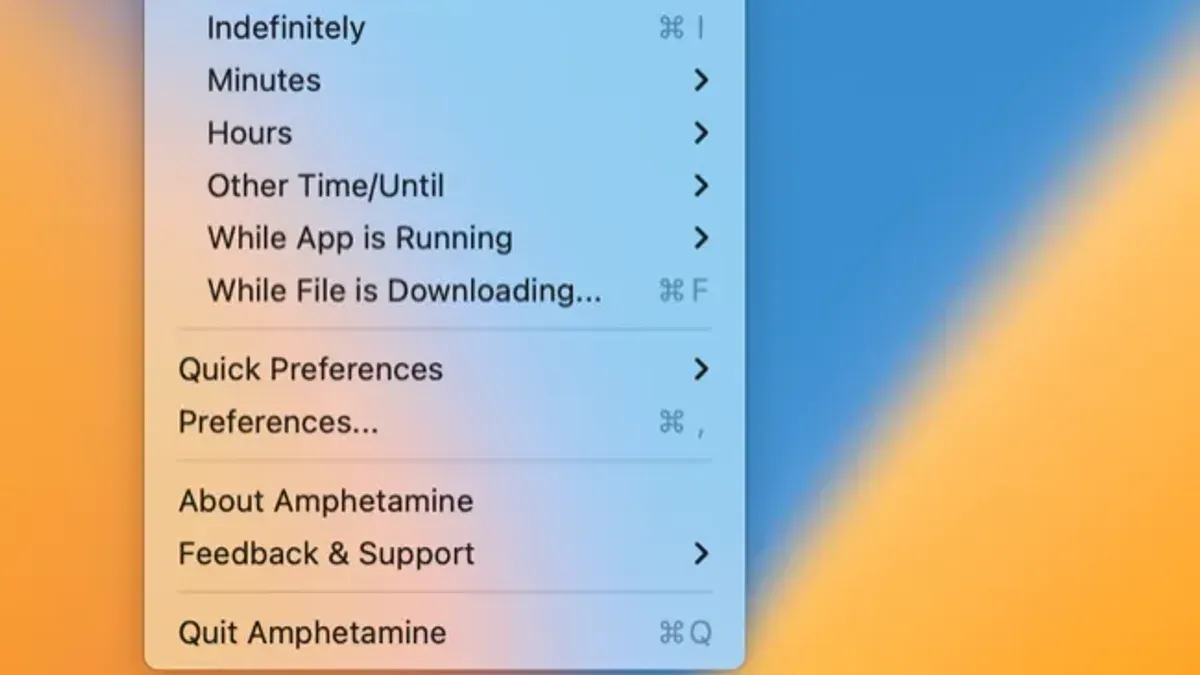
After the App Store finishes, open Amphetamine from the App Store listing or from Launchpad. It runs from the menu bar, where its icon becomes your control point for starting and ending sessions.
On first launch, the app may prompt for permissions related to the features you choose to use. Grant only the prompts that match how you plan to use it. If you want basic manual sleep prevention, you do not need to turn on every optional setting the app offers.
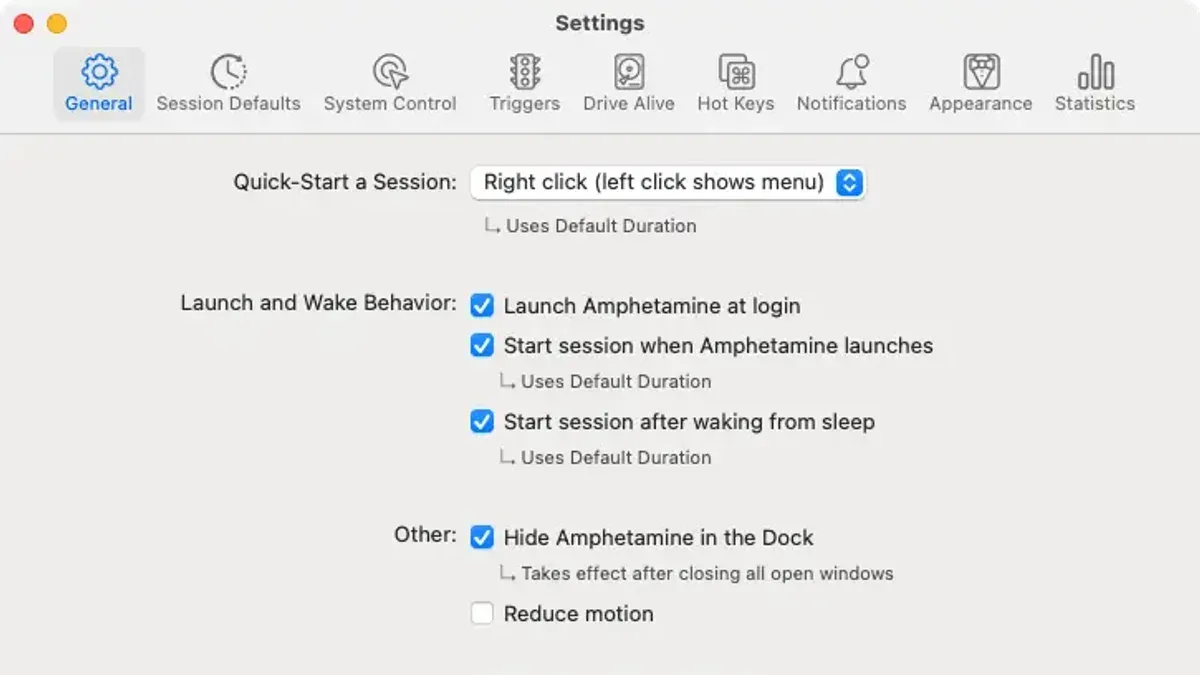
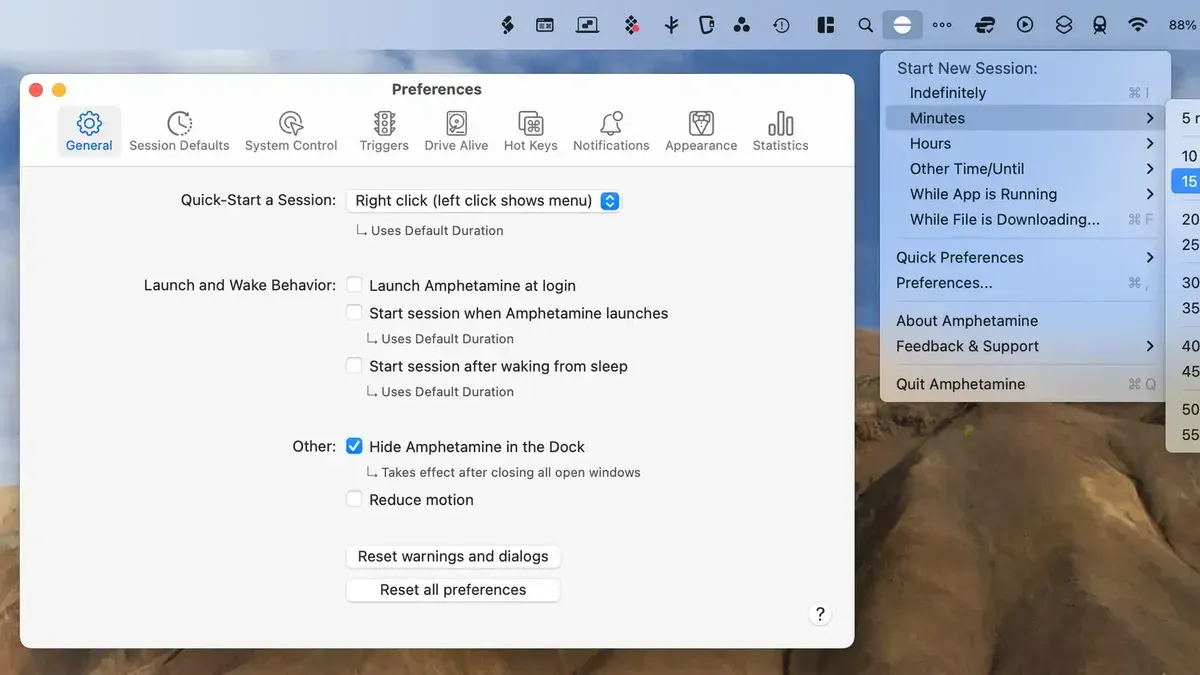
There is one useful setting many people want right away: automatic launch at login. If you want Amphetamine ready every time you sign in, use the menu bar icon, then go to Preferences, then the General tab, then enable Launch Amphetamine at login. That path is specific to this app and is the quickest way to keep it active without remembering to open it each time.
| Task | Where to find it | Why it matters |
|---|---|---|
| Start the app | Menu bar icon | Lets you control sleep prevention without opening a separate window |
| Turn on login launch | Preferences > General > Launch Amphetamine at login | Keeps the app available when you sign in |
| Use a timed session | Session menu | Keeps the Mac awake for a defined period |
| Use app-based triggers | Session settings | Starts sleep prevention when selected apps are running |
| Use closed-display mode | Supported on MacBooks | Helps keep sessions active even with the display closed |
Use the controls that matter
Amphetamine is not just a one-switch utility. Its main value is that it gives you manual control when you need it and automation when you do not want to babysit the Mac. The app’s store listing highlights timed sessions, app-based triggers, and closed-display mode for MacBooks.
In practice, that means you can keep the Mac awake for a download, a long render, or an app that must stay open, without changing broader system behavior. If you only need a temporary hold on sleep, a timed session is the cleanest choice. If the session should continue only while a certain app is active, use an app-based trigger. If you use a MacBook and need the lid closed, closed-display mode is the feature to look for.
For everyday use, the menu bar icon is enough. You click it, start a session, and end it when you are done. That is the correct way to think about Amphetamine: it is a session-based utility, not a permanent rewrite of your Mac’s sleep settings.
Where people go wrong with this install
Most install problems with Amphetamine come from assuming it behaves like a normal drag-and-drop Mac app or from trying to get it outside the App Store. Those are the wrong assumptions for this particular app.
These are the mistakes that cause the most trouble:
- Trying to download a direct installer or license file. Amphetamine is only available through the Mac App Store, so those files are not part of the real install path.
- Installing on an unsupported macOS version. If your Mac is earlier than macOS 10.13, the app will not run.
- Expecting a Windows version. Amphetamine is a Mac app only, so a Windows copy is not the same product.
- Looking for it in the wrong place after installation. Amphetamine is controlled from the menu bar, not from a traditional always-open main window.
- Overlooking the login setting. If you want it available every time you sign in, you still have to switch on Launch Amphetamine at login in Preferences.
Those are the practical failure points. If you avoid them, the install itself is usually uneventful.
What to do if Amphetamine does not appear or behave correctly
If the app does not show up after you install it, the first thing to check is whether the App Store actually completed the download. Open the store listing again and confirm the button has changed from install to open. If the app is present but not obvious, look for its menu bar icon rather than a standalone window.
If Amphetamine opens but does not keep your Mac awake, check two places: the app’s own session settings and your Mac’s power settings. Amphetamine is designed to override sleep behavior through its own controls, but your chosen session type still has to be active. If the app is not running a session, it will not hold the Mac awake on its own.
When users report a failure, the cause is usually one of three things: the Mac is too old for the app, the session was never started, or the user expected the app to work from a download that was not from the Mac App Store. Those are very different problems, and only one of them is actually fixable by reinstalling.
Why the Mac App Store matters here
Amphetamine’s App Store-only distribution is not just a packaging choice. It also explains why you should not look for a separate download site, an installer package, or a license file. The store listing is the product distribution channel, the update path, and the source of truth for compatibility.
This also matters because Amphetamine is a free utility. There is no need to compare license files or activation keys before installing. If you prefer a free, feature-rich way to stop your Mac from sleeping, Amphetamine fits that use case well.
The app’s current listing also shows that it supports both Intel and Apple Silicon Macs, so the main question is not processor type. It is whether your Mac meets the macOS version requirement.
What this installation guide leaves out
This article focuses on getting Amphetamine onto your Mac and opening it correctly. It does not walk through advanced session recipes, specialized automation, or deeper system power management. If you need more than a straightforward install and first setup, you should work from Amphetamine’s own preferences and documentation.
If you use Windows, this is not the app for you. Amphetamine is macOS-only, so you will need a different sleep-prevention utility for that platform.
Common follow-up questions after installation
Once Amphetamine is installed, most people want to know how quickly they can use it, whether it should launch automatically, and what happens if they close the lid on a MacBook. The answers depend on the session type you choose, but the app is built for all three situations: a quick manual session, an automatic session trigger, or a closed-display setup on supported MacBooks.
Another common question is whether the app needs to stay open in the Dock. It does not. Its day-to-day control is meant to live in the menu bar, which is why the first thing to learn is where that icon is and how to open its session menu.
If you want the cleanest setup after installation, enable login launch and then test one short session. That confirms the app is installed, visible, and controlling sleep the way you expect before you rely on it for longer tasks.
The next step is simple: open Amphetamine from the menu bar, turn on Launch Amphetamine at login in Preferences > General if you want it to start automatically, and run one test session so you know the app is working before you depend on it for longer tasks.
Where the Amphetamine download numbers come from
- Amphetamine App - App Store — Apple App Store