
How to Install Grammarly on Mac: A Clear Step-by-Step Guide
Follow this clear step-by-step guide to install Grammarly on your Mac and enhance your writing across apps, browsers, and Microsoft Word.
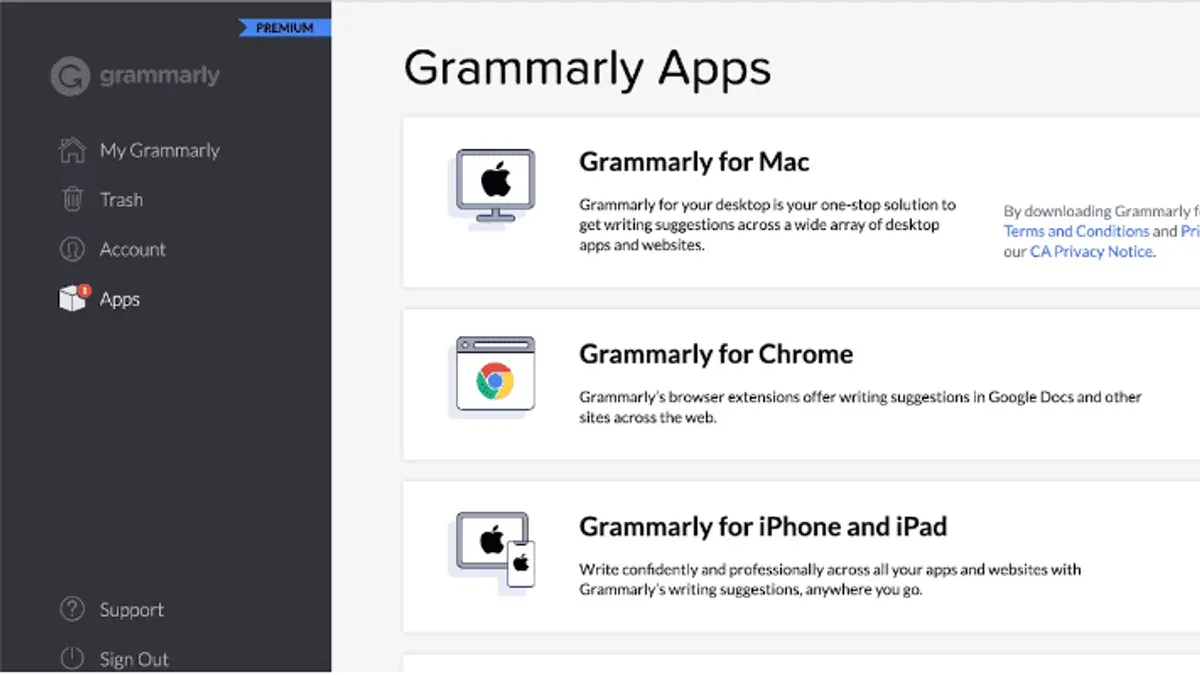
If you want to improve your writing on a Mac, knowing how to install Grammarly on Mac can help you catch grammar mistakes and enhance clarity across your documents and online content. Whether you use a MacBook Air, MacBook Pro, or a desktop Mac, this guide walks you through the installation options to fit your needs.
Overview of installing Grammarly on Mac
- Choose between the desktop app, browser extensions, or Microsoft Word add-in depending on your writing habits.
- The desktop app works across most applications, while browser extensions improve writing within web pages.
- Microsoft Word integration requires separate installation and offers basic editing features.
- Ensure your Mac runs macOS Mojave (10.14) or later for compatibility.
Choosing the right Grammarly setup for your Mac
The best installation method depends on how and where you write:
- Desktop app: Ideal if you want Grammarly’s help across multiple apps, including offline documents.
- Browser extensions: Best for users who write mostly in web browsers like Safari, Chrome, or Firefox.
- Microsoft Word add-in: Suitable if you primarily edit documents in Word and want inline grammar checks.
Pick the option that matches your workflow to streamline your writing improvements.
Installing the Grammarly desktop app on Mac
The desktop app provides system-wide writing assistance and works on macOS 10.14 or newer.
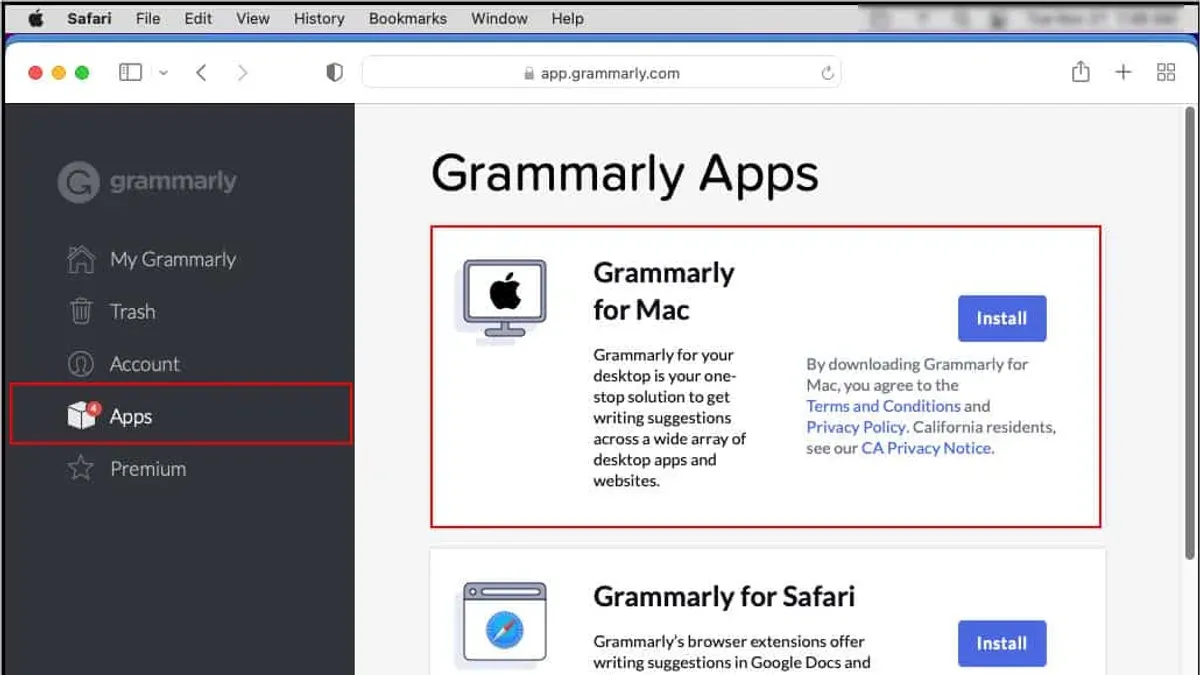
- Go to Grammarly’s official Mac download page at https://www.grammarly.com/native/mac.
- Click the "Download Grammarly for Mac" button to get the Grammarly.dmg file.
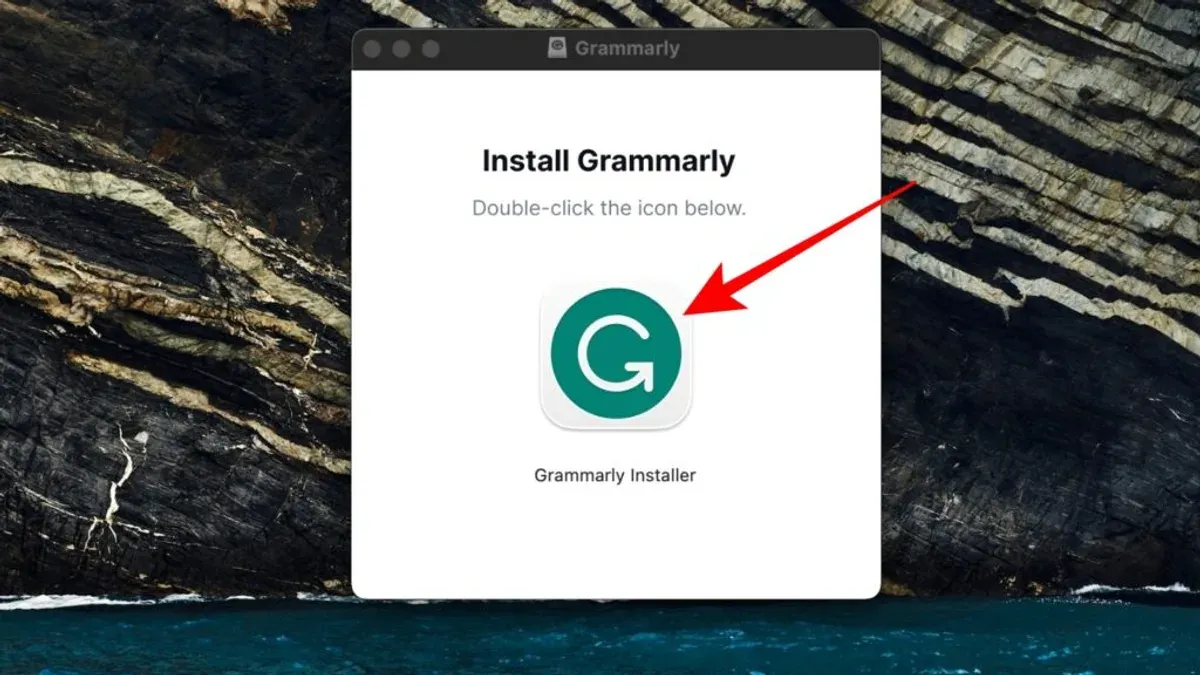
- After downloading, open the.dmg file. A window will prompt you to drag the Grammarly icon into the Applications folder.
- Drag the icon to Applications to install the app.
- Open the Applications folder and launch Grammarly. Confirm any security prompts to allow the app to open.
- Sign in with your Grammarly account or create one if needed.
- Adjust settings through the gear icon to customize language preferences and notifications.
The installation usually takes a few minutes. The app then runs independently of any browser, letting you write with Grammarly’s support in most apps.
Adding Grammarly extensions to browsers on Mac
Browser extensions integrate Grammarly’s real-time checks directly into web pages, helping with emails, online documents, and social media posts.
- Safari: Open Safari Extensions from the Safari menu, search for Grammarly in the App Store, then install and enable it under Safari Preferences > Extensions.
- Chrome: Visit the Chrome Web Store, find Grammarly, add it to Chrome, and confirm permissions.
- Firefox: Go to Firefox Add-ons, add Grammarly, and enable it in the toolbar.
- Edge: Access the Edge Add-ons store, install Grammarly, and activate the extension.
These extensions require permission to read and modify website content. You can limit access to specific sites if preferred. Unlike the desktop app, extensions provide immediate feedback while typing in web-based editors.
Installing Grammarly for Microsoft Word on Mac
For users who edit mainly within Microsoft Word, Grammarly offers an add-in to check grammar and spelling inside documents.
- Open Microsoft Word and select the Insert tab.
- Click Get Add-ins or Store to open the Office Add-ins panel.
- Search for "Grammarly" and click Add to install the add-in.
- Once installed, the Grammarly icon appears on Word’s ribbon; click it to open the sidebar.
- Sign in to your Grammarly account to activate the tool.
- Use the sidebar to review and apply grammar and style suggestions within your document.
Note that this add-in offers core correction features but lacks some advanced tools like tone detection and plagiarism checks available in the desktop app or browser extensions.
| Feature | Word Add-in | Desktop App | Browser Extension |
|---|---|---|---|
| Spelling and grammar | Yes | Yes | Yes |
| Style suggestions | Basic | Advanced | Advanced |
| Tone detection | No | Yes | Yes |
| Plagiarism checker | No | Yes (Premium) | No |
| Real-time scanning speed | Slower | Fast | Fast |
Installing Grammarly on different MacBook models
Grammarly runs on MacBook Air, MacBook Pro, and other models with macOS 10.14 or newer. Apple Silicon Macs (M1, M2 chips) tend to offer smoother performance with the desktop app.
Older Intel-based MacBooks may encounter slower response times when handling large documents in the desktop app. If your device has limited RAM or storage, the browser extension can provide a lightweight alternative for web writing.
Consider your primary writing environment: the desktop app suits offline and multi-application use, while browser extensions are efficient for online writing tasks.
Comparing Grammarly installation on Mac and Windows
Both Mac and Windows support Grammarly desktop apps and browser extensions, but installation steps differ slightly.
| Aspect | Windows | Mac |
|---|---|---|
| Desktop app installation | Download.exe, run installer | Download.dmg, drag to Applications |
| Browser extensions | Chrome, Firefox, Edge, Safari | Chrome, Firefox, Edge, Safari |
| Microsoft Word integration | Installed during setup with more features | Separate add-in installation, fewer features |
| System requirements | Windows 10 or later | macOS Mojave (10.14) or later |
| Account synchronization | Yes, via login | Yes, via login |
Use the platform that best fits your workflow; your Grammarly account syncs across devices.
Fixing common Grammarly installation issues on Mac
If installation fails, verify your internet connection and download a fresh installer from Grammarly’s site. macOS security settings may block the app; allow installation by confirming prompts in System Preferences under Security & Privacy.
Login or syncing problems can often be fixed by signing out and back in or restarting the app. Check that the Grammarly add-in or extension is enabled in Word or your browser.
- Restart your Mac to clear temporary issues.
- Confirm you can log in to Grammarly without errors.
- In Word, check that Grammarly is active under Insert > My Add-ins.
- In browsers, verify Grammarly is enabled and visible in the extensions menu.
- If problems continue, uninstall Grammarly completely and reinstall the latest version.
Uninstalling and reinstalling Grammarly on Mac
Removing the desktop app
- Open Applications in Finder and locate Grammarly.
- Drag Grammarly to the Trash or right-click and select Move to Trash.
- Delete
~/Library/Application Support/Grammarlyvia Finder’s Go > Go to Folder to remove leftover data. - Empty the Trash to complete removal.
Removing browser extensions
- Safari: Safari > Preferences > Extensions, select Grammarly, then Uninstall.
- Chrome: Go to
chrome://extensions/, find Grammarly, click Remove. - Firefox: Open
about:addons, select Grammarly, then Remove. - Edge: Visit
edge://extensions/, locate Grammarly, and Remove it.
Why reinstall Grammarly?
Reinstalling can resolve crashes, login failures, or syncing errors. It refreshes the app without affecting your cloud-synced data. Save any unsynced documents externally before uninstalling.
Verifying removal and reinstalling
After uninstalling, check that Grammarly is no longer in Applications or browser extensions. Restart your Mac, then download the latest installer from Grammarly’s website to reinstall.
- How to Install Google Drive for Desktop on Mac: A Step-by-Step Guide
- How to Install Claude App on Mac: A Clear Step-by-Step Guide
- How to Open and Install.pkg Files on Mac: A Clear Step-by-Step Guide
- How to Install Microsoft Remote Desktop on Mac: A Step-by-Step Guide
Frequently asked questions
How do I install Grammarly for Windows and Mac?
Download the desktop app from Grammarly’s website for your OS, run the installer, and follow instructions. You can also add browser extensions or install the Microsoft Word add-in as needed.
How to install Grammarly on a laptop?
Whether your laptop runs Windows or macOS, download the desktop app or add the browser extension via your preferred browser’s store. Follow prompts to complete installation.
Do Grammarly work on Mac?
Yes, Grammarly supports MacBook Air, MacBook Pro, and desktop Macs through desktop apps, browser extensions, and Microsoft Word add-ins.
How to install Grammarly on computer?
Visit Grammarly’s official site, download the desktop app for your system, or add browser extensions. For Microsoft Word, install the add-in separately within Word.
How to install Grammarly on MacBook Pro or MacBook Air?
Both MacBook Pro and MacBook Air support Grammarly’s desktop app and browser extensions if running macOS 10.14 or later. Follow the same installation steps for the desktop app or browser extension based on your writing needs.



