
How to Install and Use Mendeley on Mac: A Step-by-Step Guide
This guide explains how to install Mendeley on Mac, set up browser extensions, integrate with Word, and troubleshoot common issues.
You have a Mac or MacBook and need a reliable reference manager to organize your research papers and citations. Installing Mendeley on your Mac can streamline your academic workflow, but the process involves more than just downloading the software.
This article explains how to install Mendeley on Mac, covering the desktop app installation, setting up the Mendeley Web Importer browser extension, integrating Mendeley with Word for Mac, and tips for effective use. It also addresses common Mac-specific issues during installation and use, along with troubleshooting advice to ensure a smooth experience.
Key takeaways
- Download Mendeley Desktop directly from the official website for Mac compatibility.
- Install the Mendeley Web Importer extension in Safari, Chrome, or Firefox to save references easily.
- Use the Mendeley Cite add-in for Word on Mac to insert citations and bibliographies seamlessly.
- Adjust Mac security settings to allow installation from identified developers if needed.
- Sync your Mendeley library across Mac and iOS devices for access on the go.
Before you start: What you need to install Mendeley on Mac
To ensure a smooth installation of Mendeley desktop on your Mac, verify that your system meets the necessary requirements. Mendeley supports macOS versions from macOS 10.14 Mojave onwards, including macOS 11 Big Sur, macOS 12 Monterey, and later updates. Older macOS versions may not be compatible with the latest Mendeley releases.
You will need a stable internet connection to download the software and to create and log into your Mendeley account. Account setup requires an email address and password, so have those ready before installation.
Ensure your Mac has at least 500 MB of free disk space dedicated to Mendeley installation and its local document storage. While the software itself is lightweight, syncing documents and PDFs can increase storage needs over time.
Most modern Mac models released within the past five years support Mendeley well, including MacBook Air, MacBook Pro, iMac, and Mac Mini with Intel or Apple Silicon processors. Note that for Apple Silicon Macs (M1, M2), Mendeley runs via Rosetta 2 emulation if a native version is not available, which usually does not affect performance significantly.
- Check your macOS version: Click the Apple menu and select "About This Mac." Confirm that the OS version is 10.14 or higher.
- Verify your internet connection: Open a browser and navigate to any website to confirm connectivity.
- Confirm you have at least 500 MB of free disk space: Open Finder, select your main drive, and press Command+I to view available space.
- Create a Mendeley account if you don’t have one: Visit https://www.mendeley.com and sign up using your email address. Ensure you can log in successfully.
- Ensure you know your login credentials before proceeding with installation.
How to download and install Mendeley desktop on Mac
- Open your preferred web browser and visit the official Mendeley website at https://www.mendeley.com/download-desktop/. You should see the option to download Mendeley Desktop specifically for Mac.
- Click the "Download for Mac" button. The installer file, typically a.dmg file around 80 to 120 MB, will begin downloading. The file size may vary slightly depending on the latest version.
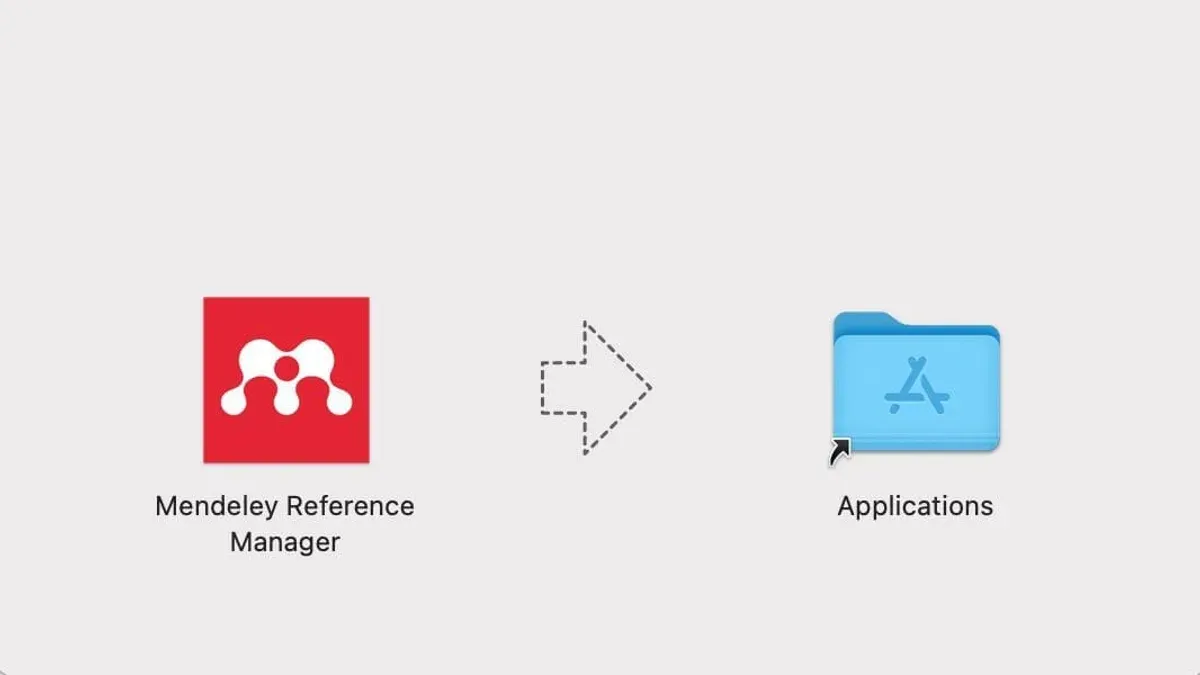
- Once the download completes, open the.dmg file by double-clicking it from your Downloads folder. This will open a new window showing the Mendeley app icon and the Applications folder shortcut.
- Drag the Mendeley app icon into the Applications folder shortcut within the window to initiate the installation. This copies the app to your Mac's Applications directory.
- After copying finishes, eject the.dmg disk image by right-clicking its icon on the desktop and selecting "Eject". You can now delete the.dmg file if desired to save space.
- Open your Applications folder and double-click the Mendeley app to launch it. On first launch, macOS may prompt you to confirm you want to open an app downloaded from the internet; click "Open" to proceed.
- When Mendeley opens, sign in with your Mendeley credentials or create a new account if needed. The app is now installed and ready for use.
- If you encounter any permissions prompts during installation or launch, such as requests to access files or folders, grant these to ensure full app functionality.
The entire installation process usually takes just a few minutes, depending on your internet speed and Mac performance. Verifying successful installation is straightforward: the Mendeley desktop app should open without error and allow sign-in.
How to install Mendeley Web Importer on Mac
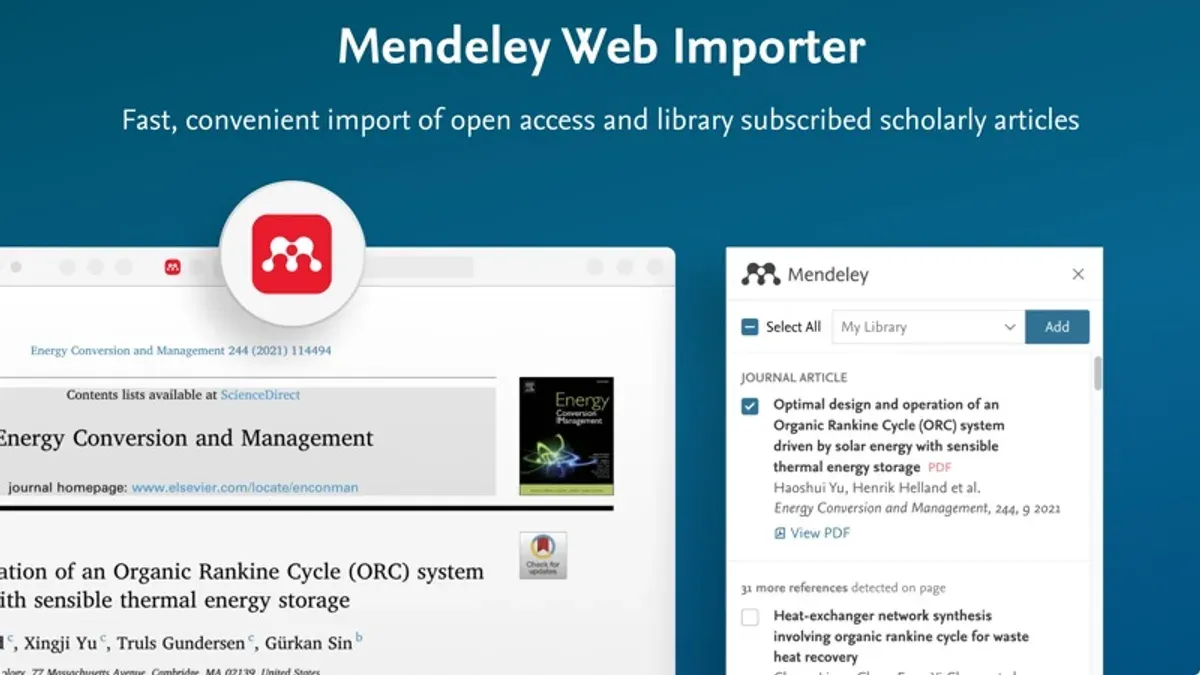
Mendeley Web Importer is compatible with popular browsers on Mac such as Safari, Google Chrome, Mozilla Firefox, and Microsoft Edge. Before installation, ensure your browser is updated to the latest version for optimal performance.
- Open your preferred browser on your Mac.
- Navigate to the browser’s extension or add-on store: the Safari Extensions Gallery for Safari, Chrome Web Store for Chrome, Firefox Add-ons for Firefox, or Microsoft Edge Add-ons for Edge.
- Search for Mendeley Web Importer in the store’s search bar.
- Select the Mendeley Web Importer extension from the results and click Add or Install. You may be prompted to grant permissions; accept these to enable the extension to save references.
- Once installed, you should see the Mendeley icon near your browser’s address bar. Clicking this icon confirms successful installation.
To use the Web Importer, navigate to a research article or reference page. Click the Mendeley icon; the importer will detect available references and metadata on the page. Select the items you want to save and click Add to Mendeley. The references will sync to your Mendeley library across devices.
Common issues include the extension not appearing after installation, which can often be resolved by restarting the browser or checking the browser’s extension management page to ensure it is enabled. Permissions must be granted for the extension to access web page data; review the browser’s privacy settings if importing fails. Some academic databases or websites may have restrictions that limit metadata extraction, requiring manual addition in Mendeley.
Using the Web Importer streamlines adding references directly from the web, eliminating manual entry and improving workflow efficiency on Mac devices.
How to install Mendeley on Word for Mac
To use Mendeley citation tools within Microsoft Word on your Mac, ensure your Word version is compatible. Mendeley supports Word 2016 and later versions on macOS. Older versions may not fully support the plugin.
- Open Mendeley Desktop on your Mac.
- From the menu bar, select Tools and then click Install MS Word Plugin. This begins the installation of the Mendeley Cite toolbar in Word.
- Wait for a confirmation message indicating the plugin has installed successfully.
- Launch Microsoft Word on your Mac.
- Open a new or existing document. You should see a Mendeley Cite-O-Matic section on the Word ribbon, typically under the References tab.
- Click on Insert Citation within the Mendeley toolbar. A search box will appear, allowing you to find references from your Mendeley library.
- Select a reference and click OK to insert it at the cursor position in your document.
- To add a bibliography, position the cursor where you want the list, then click Insert Bibliography in the Mendeley toolbar. The bibliography will list all citations used in your document.
- Manage citation styles by clicking Style in the Mendeley toolbar. Choose from popular styles like APA, MLA, or Chicago, or add custom styles if needed.
If the Mendeley toolbar does not appear, check Word’s Preferences > Ribbon & Toolbar to ensure the Mendeley add-in is enabled. Restart Word if necessary.
Using these tools inside Word improves citation accuracy and streamlines bibliography creation for your academic and professional writing.
| Supported Word Versions on Mac |
|---|
| Word 2016 and later (Office 365 included) |
| Word 2011 or earlier versions may not support full Mendeley integration |
How to use Mendeley on Mac and MacBook effectively
The Mendeley desktop interface on Mac features a clean sidebar with sections for Library, Recently Added, and Shared Collections. The middle pane displays your references, while the right pane shows detailed metadata and PDF previews. This layout is optimized for macOS, supporting native gestures and Retina displays.
To organize your research library, start by adding PDFs or references using the “Add Files” button or drag-and-drop. Mendeley automatically extracts metadata from PDFs, but you can edit entries manually by clicking the details pane. Create folders and subfolders in the sidebar to group papers by topic or project.
Syncing your library ensures access across MacBook and iOS devices. Once enabled in Preferences under the Sync tab, Mendeley uploads your library to the cloud. Sync speed depends on your internet connection and library size but typically completes within a few minutes for libraries under a few thousand documents.
Use the search bar at the top to find references quickly by author, title, or keywords. Tags can be added in the details pane to categorize papers, and notes allow you to annotate PDFs or reference entries for easy recall.
Exporting references is straightforward: select the desired items, then choose File > Export and pick formats like BibTeX or RIS for use in other tools. You can also share collections by right-clicking a folder and selecting “Share Collection” to collaborate with colleagues.
- Open Mendeley desktop on your Mac or MacBook. You should see the sidebar with Library and other sections.
- Add PDFs by dragging files into the library area; Mendeley will display them with extracted metadata.
- Create folders via the “Create Folder” button in the sidebar; drag references into these folders to organize your library.
- Enable syncing in Preferences > Sync, then click “Sync Library” to start cloud synchronization. Confirm your library appears on other devices.
- Use the search bar above the library list to type keywords or author names; matching results appear instantly.
- Select a reference and add tags or notes in the details pane on the right to improve categorization and recall.
- To export, select references, go to File > Export, choose your preferred file format, and save the output for use outside Mendeley.
- To share a collection, right-click its folder, choose “Share Collection,” and invite collaborators via email.
Following these steps helps you manage and access your research efficiently using Mendeley on Mac and MacBook.
Troubleshooting common issues installing or using Mendeley on Mac
If the installer won’t open or is blocked, macOS security settings are often the cause. You may see a message like “"Mendeley Installer" can’t be opened because Apple cannot check it for malicious software.” To fix this, go to System Preferences > Security & Privacy > General and click Allow Anyway for the Mendeley installer, then try opening it again.

If Mendeley desktop crashes or fails to launch, first ensure your macOS is up to date and that you have sufficient disk space. You can also try deleting the Mendeley cache by removing the ~/Library/Application Support/Mendeley Desktop folder. Restart your Mac and relaunch Mendeley. If crashes persist, check the Console app logs for error messages mentioning Mendeley.
When the Word plugin does not appear or malfunctions, open Word and navigate to Tools > Templates and Add-ins. Ensure the Mendeley Word plugin is checked. If it’s missing, reinstall the plugin from Mendeley Desktop under Tools > Install MS Word Plugin. Restart Word after installation.
If the Mendeley Web Importer extension is not working in your browser, confirm it is enabled in your browser’s extensions or add-ons manager. Clear the browser cache and restart the browser. Supported browsers include Safari, Chrome, and Firefox. If issues continue, try reinstalling the extension from the official Mendeley website.
Sync errors or login issues often stem from incorrect credentials or network restrictions. Verify your username and password on the Mendeley website. If syncing fails with vague errors, check your firewall or VPN settings as they may block Mendeley servers. Resetting your password or logging out and back in can also help.
For advanced troubleshooting, consult Mendeley’s official support pages at https://service.elsevier.com/app/home/supporthub/mendeley/ or visit user forums where similar issues are discussed.
How to download Mendeley version for iOS and sync with Mac
You can download the Mendeley app for iPhone or iPad from the Apple App Store. Search for "Mendeley" and choose the official app published by Elsevier. Once installed, open the app and sign in with the same Mendeley account you use on your Mac.
To sync your libraries between Mac desktop and iOS, ensure both devices have internet access and the app is signed in. Mendeley syncs automatically when changes occur, but you can manually trigger synchronization by pulling down the library screen on iOS or clicking the sync icon in the Mac app. Sync frequency depends on connection speed and activity but typically completes within a few minutes.
Note that the iOS app has some limitations compared to the Mac desktop version. For example, file organization and advanced annotation features are more limited on iOS, and certain citation tools are unavailable. However, the mobile app allows you to read, highlight, and add notes on PDFs, access your entire library on the go, and save references directly from your browser using the built-in web importer.
Use cases for mobile access include reviewing papers during commutes, making quick annotations while away from your desk, and referencing articles during meetings or presentations.
| Feature | Mac Desktop | iOS App |
|---|---|---|
| Full library management | Yes | Limited |
| PDF annotation | Advanced | Basic |
| Reference organization | Comprehensive folders and tags | Folders only |
| Citation plugin integration | Yes (Word, LibreOffice) | No |
| Sync frequency | Manual or automatic on launch | Automatic with manual refresh option |
- How to Install Zotero on Mac: A Step-by-Step Setup Guide
- How to Install Anki on Mac: A Clear Step-by-Step Guide
- How to Install Zoom on Mac: A Clear Step-by-Step Guide
Frequently asked questions
How to download mendeley in laptop?
To download Mendeley on your laptop, visit the official Mendeley website and navigate to the download section. Choose the version compatible with your operating system, such as Windows or macOS, then click the download link. Once the file is downloaded, open it to begin the installation process.
How to download mendeley desktop?
Mendeley Desktop can be downloaded directly from Mendeley's official site. Select the desktop version suitable for your system, either Windows, macOS, or Linux. After downloading, follow the on-screen installation instructions to set up the application on your computer.
How to install mendeley on macbook?
After downloading the Mendeley Desktop installer for macOS, locate the.dmg file in your Downloads folder and double-click to open it. Drag the Mendeley icon into the Applications folder as prompted. Finally, open Mendeley from the Applications folder and complete the initial setup by signing in or creating an account.
Does mendeley work on mac?
Yes, Mendeley is fully compatible with Mac devices, including MacBooks. The desktop application is optimized for macOS and supports integration with Word for Mac and the Mendeley Web Importer. However, some features or updates may require macOS to be updated to a recent version for optimal performance.
How to use mendeley on macbook?
After installing Mendeley Desktop on your MacBook, you can add references by importing PDFs or syncing with your Mendeley account. Use the Word plugin to insert citations directly into your documents. Organize your library with folders and tags, and use the Web Importer extension in browsers like Safari or Chrome to quickly save references from online sources.
What this guide does not cover
This guide does not cover advanced customization or troubleshooting of Mendeley’s backend syncing technology, which can involve complex network and account settings. It also does not explore alternatives to Mendeley for Mac users who prefer open-source or offline-only reference managers, such as Zotero or Papers. If you require such specialized functionality, consider consulting dedicated resources or forums focused on those topics.
The single most useful next step is to create a well-organized Mendeley library by adding your existing PDFs and references manually or via the Web Importer. This foundational step ensures your citations and references are accurate and accessible, enabling smooth integration with Word for Mac and efficient management of your academic workflow.



