Mac Keyboard Shortcut to Minimize All Windows: A Complete Guide
Discover how to quickly minimize all windows on your Mac using keyboard shortcuts and improve your workflow with efficient window management.
You’re working on your Mac with multiple apps open, and suddenly need a clean desktop to focus or find a file. You quickly want to minimize or hide all windows without clicking each one individually.
This article explains the difference between minimizing and hiding windows on Mac and explores whether there is a Mac keyboard shortcut to minimize all windows at once. You’ll learn the built-in shortcuts available, their limitations, and practical ways to clear your screen efficiently depending on your workflow.
Key takeaways
- Minimizing windows sends them to the Dock, while hiding windows keeps them active but out of view.
- There is no default Mac keyboard shortcut that minimizes all windows simultaneously.
- Using Mission Control or the “Hide Others” shortcut can help clear the screen quickly.
- Custom shortcuts or third-party tools can provide more control over window management.
- Choosing between minimizing and hiding depends on whether you want quick access or to free up screen space.
What it means to minimize all windows on Mac
Minimizing windows on a Mac means sending open application windows down to the Dock without closing the apps themselves. This action keeps the programs running in the background, allowing you to quickly access them later by clicking their icons in the Dock. Minimizing differs significantly from hiding windows or showing the desktop, both of which serve different purposes.
Hiding windows (usually via Command + H) temporarily removes all windows of the active app from view but does not move them to the Dock. Showing the desktop (via a gesture or Mission Control shortcut) clears the screen by pushing all windows aside but keeps them visible in the background. In contrast, minimizing reduces visual clutter by placing each window in the Dock as an icon.
For example, if you're working on a report and need to quickly check a reference website, minimizing the report window sends it to the Dock without closing or hiding it. You can then access the website and return to the report by clicking its minimized icon, speeding up task switching without losing your place.
| Action | Effect on Windows | Effect on Apps | Use Case |
|---|---|---|---|
| Minimize | Sends window to Dock | App remains active | Reduce clutter while keeping work accessible |
| Hide | Removes windows from view | App active but windows hidden | Focus on other apps without visual distractions |
| Show Desktop | Pushes all windows aside | All apps active | Access desktop files or clear view temporarily |
Minimizing is especially useful when you want to clear screen space without interrupting your workflow or losing track of open documents. It allows selective window management, unlike showing the desktop which affects all windows at once or hiding which targets only the current app's windows.
Is there a way to minimize all windows on Mac with a keyboard shortcut
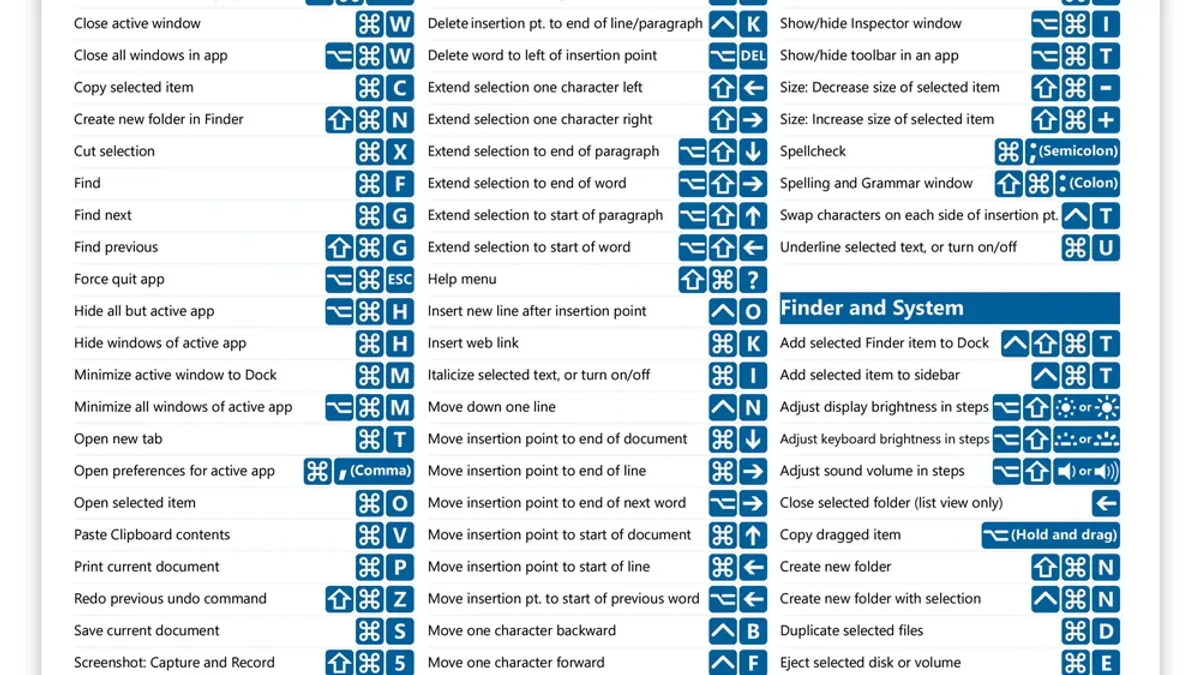
macOS does not include a default keyboard shortcut that minimizes all open windows simultaneously. The closest built-in shortcut is Command + Option + M, which minimizes only the active front window, sending it to the Dock. This shortcut helps reduce clutter one window at a time but does not provide a quick way to clear the entire screen.
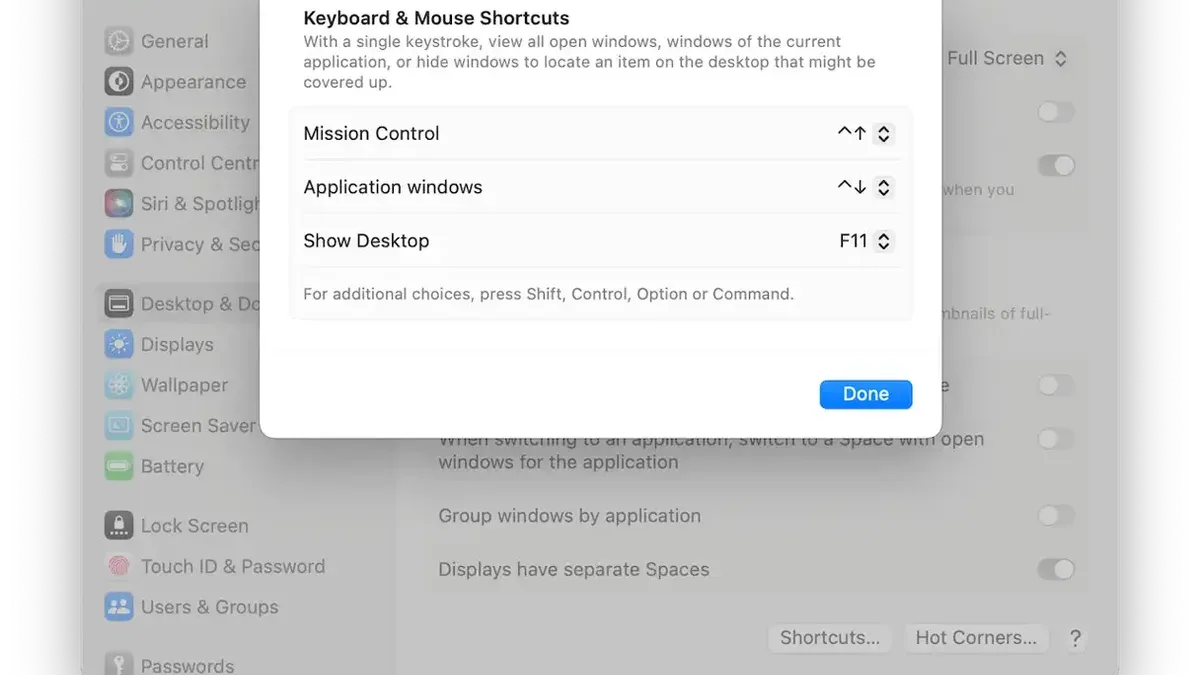
Mission Control shortcuts, such as Control + Up Arrow or Control + Down Arrow, assist with window management by showing all open windows or the application’s windows but do not minimize them. These are useful for navigating between windows but do not achieve a full minimization.
For users seeking to minimize all windows at once, third-party apps like BetterTouchTool or Hammerspoon can create custom shortcuts or scripts to perform this action. Another alternative is using an Automator script that cycles through open windows of all running applications and minimizes them. For example, an Automator workflow can be assigned to a keyboard shortcut via System Preferences, allowing you to minimize every window with a single key combination. While these solutions require setup beyond default macOS features, they offer effective ways to clear your screen quickly.
How to minimize all windows on Mac using keyboard shortcuts and other methods
To minimize the frontmost window, press Command + Option + M. This shortcut sends only the active window to the Dock, so you'll need to repeat it for each window if minimizing individually.
Alternatively, you can manually minimize windows by clicking the yellow minimize button at the top-left corner of each window or by right-clicking the app icon in the Dock and selecting “Hide.” While hiding isn’t minimizing, it clears the screen quickly.
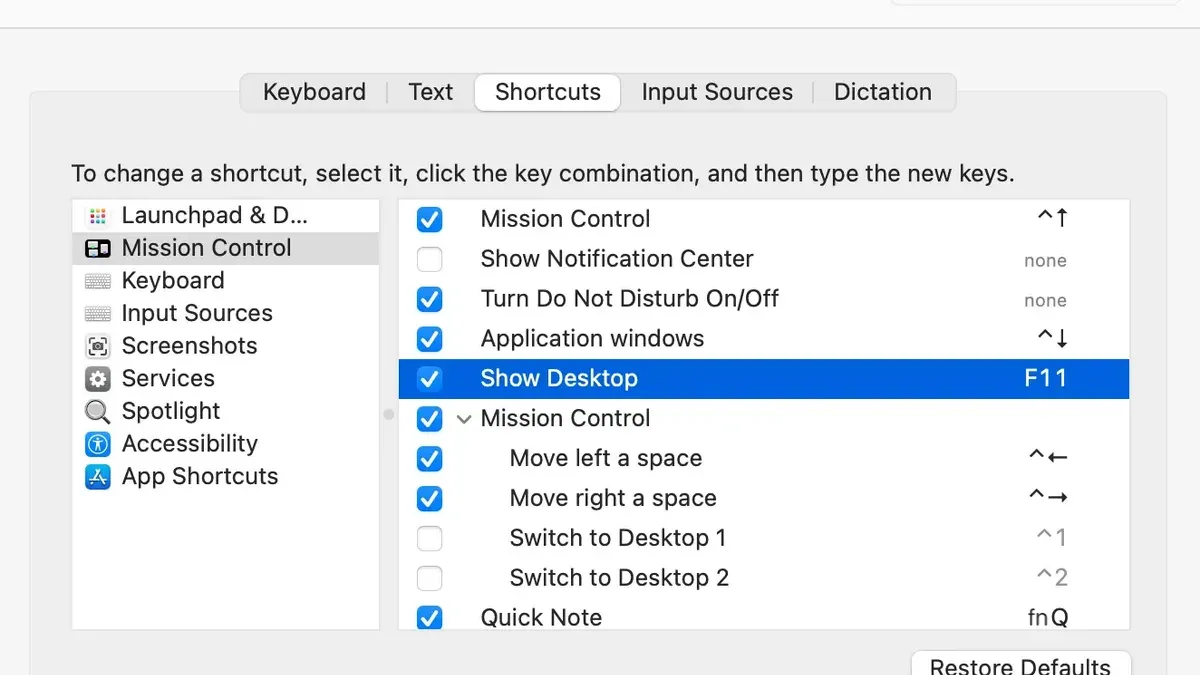
Using Mission Control (Control + Up Arrow) or the Show Desktop shortcut (F11 or Fn + F11 on some keyboards) lets you temporarily clear your screen without minimizing any windows, useful if you want to access the desktop without closing or minimizing apps.
For batch minimizing, Automator workflows or third-party apps can automate sending all windows of a specific app—or all apps—to the Dock. For example, an Automator service can run an AppleScript that loops through all open windows and minimizes them. A simple AppleScript might look like: tell application "System Events" to set visible of every window of every process to false, which hides windows but can be modified to minimize.
Setting up these scripts requires opening Automator, creating a new service or application, adding a “Run AppleScript” action, and saving it for quick access. While this method takes initial setup time, it minimizes all windows instantly thereafter.
In practice, using Command + Option + M is fastest for a few windows, but Automator or AppleScript workflows save time when you need to minimize dozens of windows at once. Mission Control or Show Desktop shortcuts provide a non-destructive way to clear your screen without minimizing.
Common mistakes when trying to minimize all windows on Mac
A frequent misunderstanding is confusing minimizing windows with hiding them or showing the desktop. Minimizing sends windows to the Dock individually, while hiding (Command + H) conceals all windows of the active app without minimizing them. Users expecting a single shortcut to minimize every window across all apps often become frustrated because macOS does not include this functionality by default.
Another common error is overusing the hide function to clear the screen. This can lead to confusion when managing app states, as hidden windows remain active but invisible, making it harder to locate specific windows later. For example, a user might hide multiple apps and then struggle to remember which ones are running but hidden.
Relying on third-party tools or scripts to minimize all windows without verifying macOS compatibility or security poses risks. Some support forum posts warn about apps that cause system instability or do not work after macOS updates. Before installing, check user reviews and update status to avoid compatibility issues.
Picture trying to clear your screen quickly: you press Command + Option + M hoping all windows vanish, but only the front window minimizes. Then you try Command + H, hiding an app but leaving others in place. The result is more clutter, not less. Understanding these distinctions helps avoid such pitfalls.
How minimizing all windows fits into your Mac productivity workflow
Minimizing windows helps you focus by clearing visual clutter while keeping apps active and ready to reopen, which is useful when switching between tasks that require different sets of windows. For example, a user working on a research project might minimize all browser tabs and note-taking apps to quickly access a clean desktop for writing, rather than hiding apps, which can obscure what’s open and complicate multitasking.
Unlike hiding, which conceals all windows of an app, minimizing sends individual windows to the Dock, allowing selective reopening without disrupting app states. This distinction is valuable during multitasking, where you want certain windows out of the way but still visible in the Dock for quick retrieval.
Integrating minimizing shortcuts with macOS features like Mission Control or Spaces enhances workflow by enabling rapid context switching. For instance, after minimizing windows, you can use Mission Control (swipe up with three fingers or press the Mission Control key) to switch desktops or find open apps quickly.
Balancing window minimizing with organized app usage means adopting habits like grouping related windows before minimizing or using the Dock’s right-click options to manage minimized windows efficiently. A user who adopted Command + Option + M to minimize windows reports smoother transitions between tasks and less distraction, as the desktop remains accessible without closing apps or losing window states.
- How to Reset Dock to Default Using Mac Terminal: Step-by-Step Guide
- Mac Keyboard Shortcut to Open Spotlight: A Clear Guide
Frequently asked questions
Is there a way to minimize all windows on Mac?
Mac does not offer a single built-in keyboard shortcut to minimize all open windows at once. However, you can use Mission Control or Hot Corners to quickly clear the screen by showing the desktop, which effectively hides all windows without minimizing them. Alternatively, minimizing each window individually or using third-party apps can achieve a similar result.
What is the Mac shortcut to minimize all windows?
There is no default Mac keyboard shortcut that minimizes all windows simultaneously. The closest built-in shortcut is Command + Option + M, which minimizes only the active window. To minimize multiple windows, you need to use this shortcut repeatedly or rely on other methods like Mission Control.
How do I hide all windows on Mac using a keyboard shortcut?
To hide all windows, you can press Command + Option + H, which hides all other applications except the one you are using. If you want to show the desktop and hide all windows, press Command + F3 (or Fn + F11 on some keyboards) to activate Mission Control’s Show Desktop feature.
What is the Mac OS X keyboard shortcut to minimize all windows?
Mac OS X does not provide a direct keyboard shortcut to minimize all windows simultaneously. The Command + Option + M shortcut minimizes only the frontmost window. Many users rely on Mission Control shortcuts or create Hot Corners to reveal the desktop quickly instead.
Limits of built-in shortcuts and when to consider other options
macOS does not provide a native single keyboard shortcut to minimize all windows simultaneously. While you can use shortcuts like Command + Option + H to hide other apps or Command + M to minimize individual windows, these do not achieve a complete “minimize all” effect in one step. For users needing this functionality regularly, third-party apps like BetterTouchTool or Automator scripts can offer solutions but may introduce security risks or compatibility issues, especially after system updates.
If your workflow requires instantly clearing your desktop without closing apps, leveraging Mission Control’s Show Desktop gesture (configured in System Preferences > Trackpad > More Gestures) might be a safer alternative. This hides windows without minimizing them, allowing quicker restoration.
To streamline your experience, start by customizing the shortcuts you already have access to and explore Mission Control gestures. This approach balances efficiency with system stability, avoiding the pitfalls of third-party tools while still helping you keep a clear screen when needed.