
Mac Keyboard Shortcut to Switch Input Language Explained
Discover how to quickly switch input languages on your Mac using keyboard shortcuts for a smoother, faster typing experience.
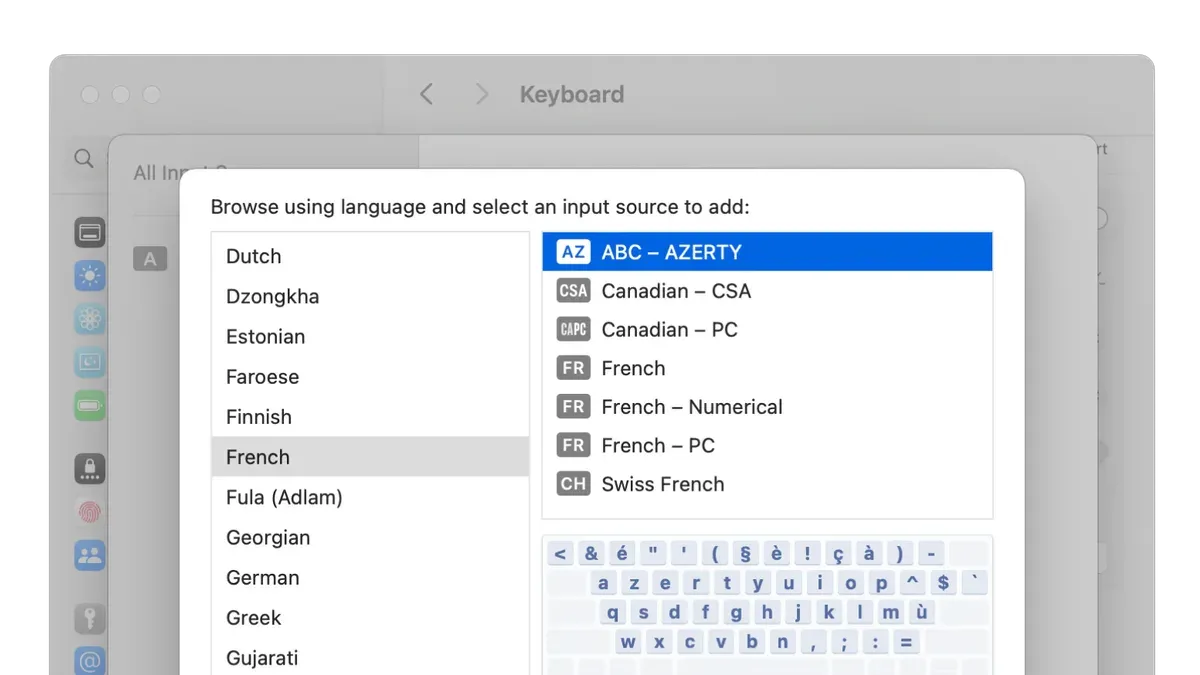
You’re typing an email in one language and need to switch to another quickly without interrupting your flow. Instead of clicking through menus, using a Mac keyboard shortcut to switch input language can save valuable time and make your workflow smoother.
This article explains how to use the default shortcuts on macOS to change input languages, customize these shortcuts to fit your unique needs, and avoid common mistakes that slow you down. Whether you’re using a MacBook or a desktop Mac, you’ll find practical tips to optimize how you toggle between languages efficiently.
Key takeaways
- The default shortcut to switch input language is Control + Space, but it can be customized in System Settings.
- You can assign specific shortcuts to individual input sources for faster access.
- Make sure input sources are added under System Settings > Keyboard > Input Sources before setting shortcuts.
- Avoid conflicts by checking that shortcuts don’t overlap with app-specific commands.
- Using the menu bar icon offers a visual method but slows down switching compared to keyboard shortcuts.
How to switch language on Mac keyboard shortcut
macOS provides default keyboard shortcuts to switch between your enabled input languages quickly. By default, you can press Control + Space to toggle between the most recently used input sources. Another shortcut, Option + Command + Space, cycles through all enabled input sources in sequence.
These shortcuts work based on how many input languages you have enabled. If you only have two input languages, pressing Control + Space switches directly between them. When more than two input sources are active, Control + Space toggles between the current and last used input source, while Option + Command + Space moves through all options.
To use these shortcuts in daily typing, first ensure you have added your preferred languages under System Preferences > Keyboard > Input Sources. For example, if you have English and Spanish added, pressing Control + Space while typing in English switches your keyboard to Spanish instantly, allowing you to type accented characters without changing settings manually.
On the Input Sources panel, you can also see these shortcuts listed under the Shortcuts > Input Sources settings, confirming their current assignments and availability.
How to switch language on MacBook keyboard shortcut
MacBook keyboards use the same default shortcuts for switching input languages as other Mac models, specifically Control + Space and Option + Command + Space. These shortcuts function consistently across MacBook Air, MacBook Pro, and other MacBook variants, ensuring a unified experience.
On MacBook Pro models equipped with the Touch Bar, you can also customize the Control Strip to include an Input Source button. This provides quick access to language switching without relying solely on keyboard shortcuts. To add this, go to System Preferences > Keyboard > Customize Control Strip, then drag the Input Source icon to the Touch Bar.
Physical keyboard layouts on MacBooks can affect shortcut usability. For instance, ANSI layouts (common in the U.S.) differ slightly from ISO layouts (often used in Europe) in key placement, especially the modifier keys. This may require adjustment when using shortcuts that involve Option or Command keys. For example, the position of the Option key can vary, so confirming your keyboard layout under System Preferences > Keyboard > Input Sources helps prevent confusion.
For ergonomic typing, MacBook users might consider remapping language-switching shortcuts to combinations involving keys that are easier to reach on their specific keyboard layout. You can customize these shortcuts under System Preferences > Keyboard > Shortcuts > Input Sources. For example, using Caps Lock as a language toggle can reduce finger stretch during typing sessions.
How to customize Mac keyboard shortcut to change input language
To customize your Mac's input language shortcut, start by opening System Settings (or System Preferences depending on your macOS version). Navigate to Keyboard and then select Input Sources. Here, you can find options to modify or create new shortcuts for switching input languages.
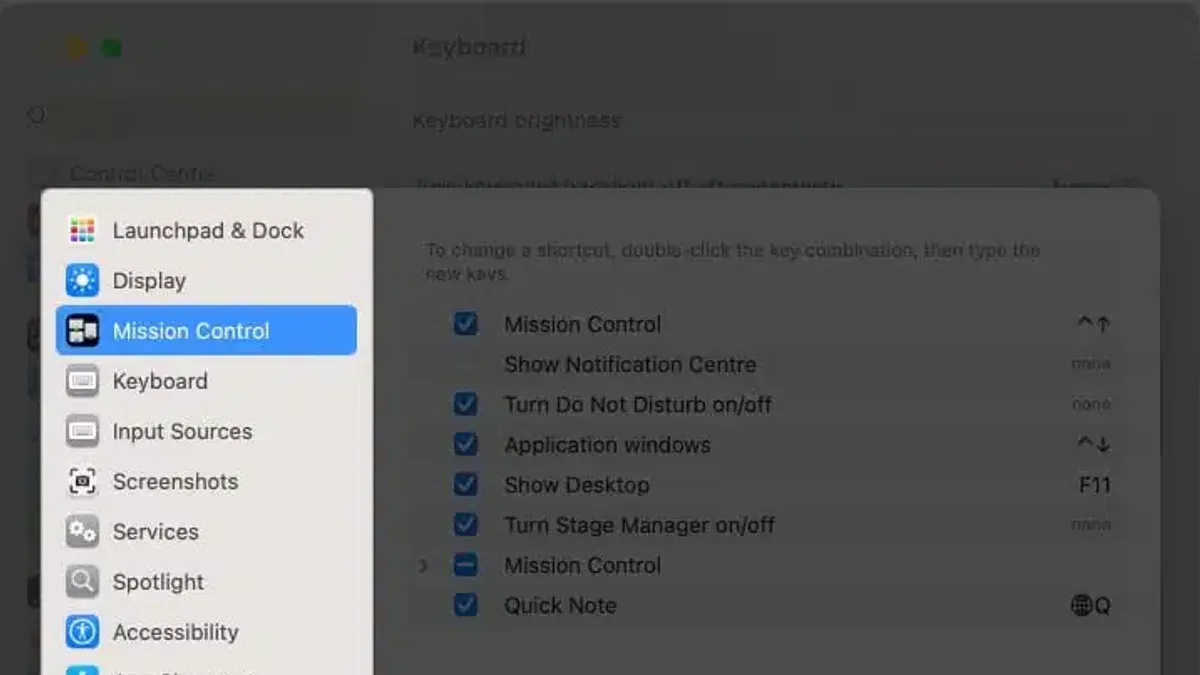
Click on the Keyboard Shortcuts button, then choose Input Sources from the sidebar. You will see the default shortcuts like Control + Space and Option + Command + Space. To change a shortcut, double-click the current key combination and press your desired keys. For example, you might choose Command + Shift + L if it’s not used by other functions.
If macOS limits the shortcut customization you need, third-party apps like Karabiner-Elements or BetterTouchTool offer more extensive remapping options. These apps let you assign complex shortcuts or gestures tailored to your workflow.
When choosing shortcuts, avoid combinations already assigned to system functions or popular apps to prevent conflicts. For instance, Command + C is universally copy, so avoid overriding it. Balancing ease of access with uniqueness ensures smooth language switching without disrupting other commands.
Compared to default shortcuts, custom ones can improve your efficiency by fitting your typing habits but may require adjustment time. Keeping a note of your new shortcut helps transition smoothly.
Common mistakes to avoid when using macOS keyboard shortcut change input language
One frequent error is not enabling multiple input languages in System Settings under Keyboard > Input Sources. Without at least two active input sources, shortcuts to switch languages will have no effect, causing confusion for users expecting a toggle.
Shortcut conflicts also commonly disrupt language switching. For instance, if you assign Control + Space to switch input languages but an app like Spotlight or a third-party tool uses the same combination, the shortcut may trigger the other function instead. To resolve this, check System Settings > Keyboard > Keyboard Shortcuts and the app’s preferences to identify conflicts and reassign shortcuts accordingly.
Assuming shortcuts behave identically across different macOS versions or devices can lead to unexpected issues. A shortcut that works on one Mac may not work on another with a different macOS version or hardware, such as a MacBook with a Touch Bar. Testing shortcuts after system updates or on different machines helps avoid surprises.
Accessibility features can also affect shortcut behavior. For example, enabling VoiceOver or Sticky Keys might alter how macOS interprets key presses, potentially interfering with language switching shortcuts. Review Accessibility settings under System Settings to ensure no features unintentionally block your input language shortcuts.
By avoiding these mistakes, you can maintain smooth input language switching and reduce frustration.
Practical tips for efficient input language switching on Mac
Using the input source indicator in the menu bar gives immediate visual confirmation of your current language, preventing mistakes when typing. To enable it, go to System Settings > Keyboard > Input Sources and check Show Input menu in menu bar. This small cue helps especially when you cycle through multiple languages using shortcuts.
Combining keyboard shortcuts with text replacement or input method editors (IMEs) can streamline your workflow. For example, if you frequently switch between English and Japanese, pairing a shortcut with an IME that automatically converts romaji to kana can reduce manual corrections and speed up typing.
If your work or study requires frequent language toggling, consider organizing input sources by priority in System Settings > Keyboard > Input Sources, placing your most-used languages at the top. This optimizes cycling shortcuts by reducing the number of presses needed.
In some cases, hardware solutions like external keyboards with language-specific keys or dedicated switches may enhance efficiency. For instance, a bilingual user working extensively in Russian might benefit from a keyboard with Cyrillic legends alongside Latin characters, enabling tactile language cues without relying solely on shortcuts or visual indicators.
Imagine a translator toggling between three languages: enabling the menu bar indicator helps avoid typing in the wrong language, while custom shortcuts combined with text replacements speed up repetitive terms. Adding a physical keyboard with localized keys further reduces cognitive load, demonstrating a layered approach to efficient language switching.
- Mac Keyboard Shortcut to Open Terminal Quickly: A Practical Guide
- Mac Keyboard Shortcut to Open Finder: Quick Access Guide
Frequently asked questions
How to switch language on Mac keyboard shortcut if default doesn’t work?
If the default shortcut (usually Control + Space or Command + Space) doesn’t work, first check System Settings under Keyboard > Keyboard Shortcuts > Input Sources to confirm or reset the shortcut. Sometimes conflicts with Spotlight or other services disable it. You can also try restarting your Mac or removing and re-adding input languages to refresh the settings.
Can I set a single shortcut to cycle through multiple input languages on macOS?
Yes, macOS allows you to cycle through all enabled input sources using a single shortcut, typically Control + Space or Option + Command + Space. This cycles forward through your list of input languages in the order they appear under System Settings > Keyboard > Input Sources. You can customize this shortcut or set a reverse cycle shortcut in the same menu.
What to do if macOS keyboard shortcut to change input language conflicts with other shortcuts?
If your input language shortcut conflicts with another system or app shortcut, go to System Settings > Keyboard > Keyboard Shortcuts and change or disable the conflicting shortcut. Prioritize shortcuts you use most and consider assigning a unique combination with modifiers like Control, Option, or Command to avoid overlap. Restarting the Mac after changes can help apply them smoothly.
Is there a way to switch input language without using the keyboard shortcut on Mac?
Yes, you can switch input languages by clicking the input menu icon in the menu bar at the top right of your screen. If the icon isn’t visible, enable it under System Settings > Keyboard > Input Sources by checking “Show Input menu in menu bar.” You can then select the desired language manually with a mouse or trackpad.
What this advice does not cover and important considerations
This advice does not cover third-party keyboard remapping tools in depth, which may behave differently and require separate configuration. Additionally, some shortcut behaviors may vary slightly depending on your macOS version and hardware model; you should verify compatibility with your specific system. If you rely heavily on advanced keyboard customization beyond macOS’s built-in options, exploring dedicated utilities like Karabiner-Elements or BetterTouchTool might be necessary, but they involve a steeper learning curve and different setup processes.
The single most useful next step is to open System Settings, navigate to Keyboard > Keyboard Shortcuts > Input Sources, and customize the shortcuts there. This direct approach ensures your shortcuts are tailored to your workflow and avoids conflicts with other system or app shortcuts, helping you switch input languages quickly and efficiently every time you type.



