Mac Keyboard Shortcut to Undo Close Tab: How to Restore Tabs Quickly
Discover how to quickly undo a closed tab on Mac using keyboard shortcuts across popular browsers like Safari, Chrome, and Firefox.
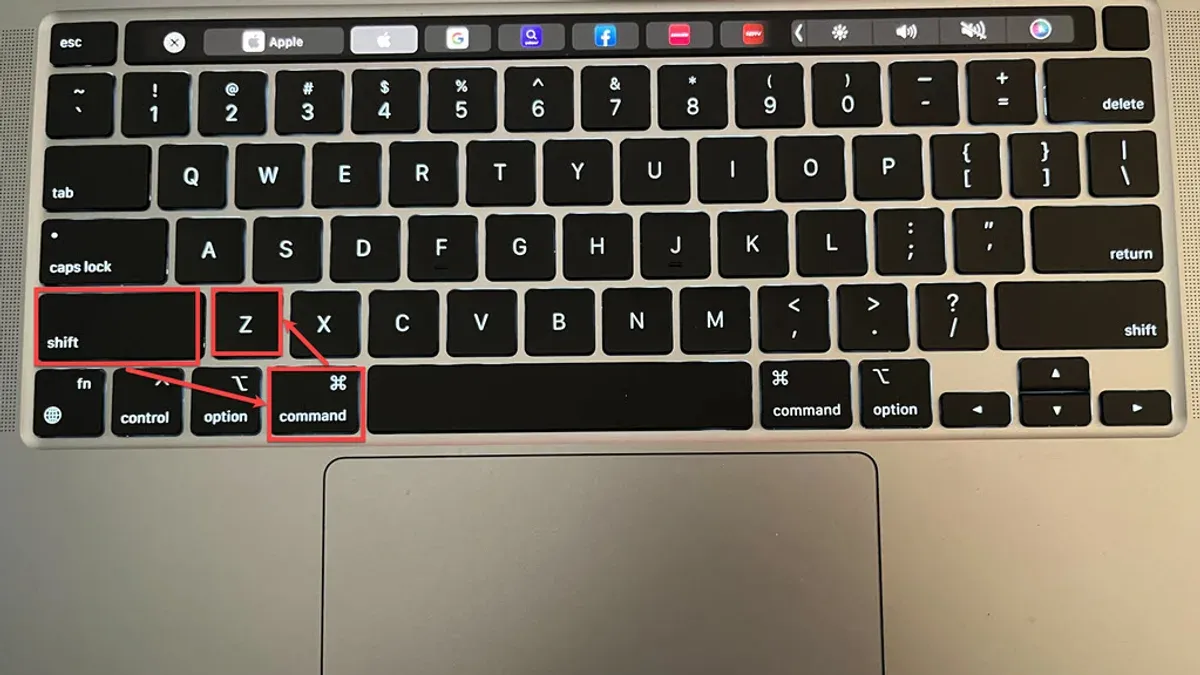
You accidentally close a tab while browsing on your Mac, disrupting your workflow. Instead of searching through your history or reopening the browser, you want a quick way to restore that tab without hassle.
This article shows you the Mac keyboard shortcut to undo close tab and how it works across popular browsers like Safari, Chrome, and Firefox. You'll also learn what to do if the shortcut doesn’t respond, how to recover multiple tabs, and common mistakes to avoid when using these shortcuts.
Key takeaways
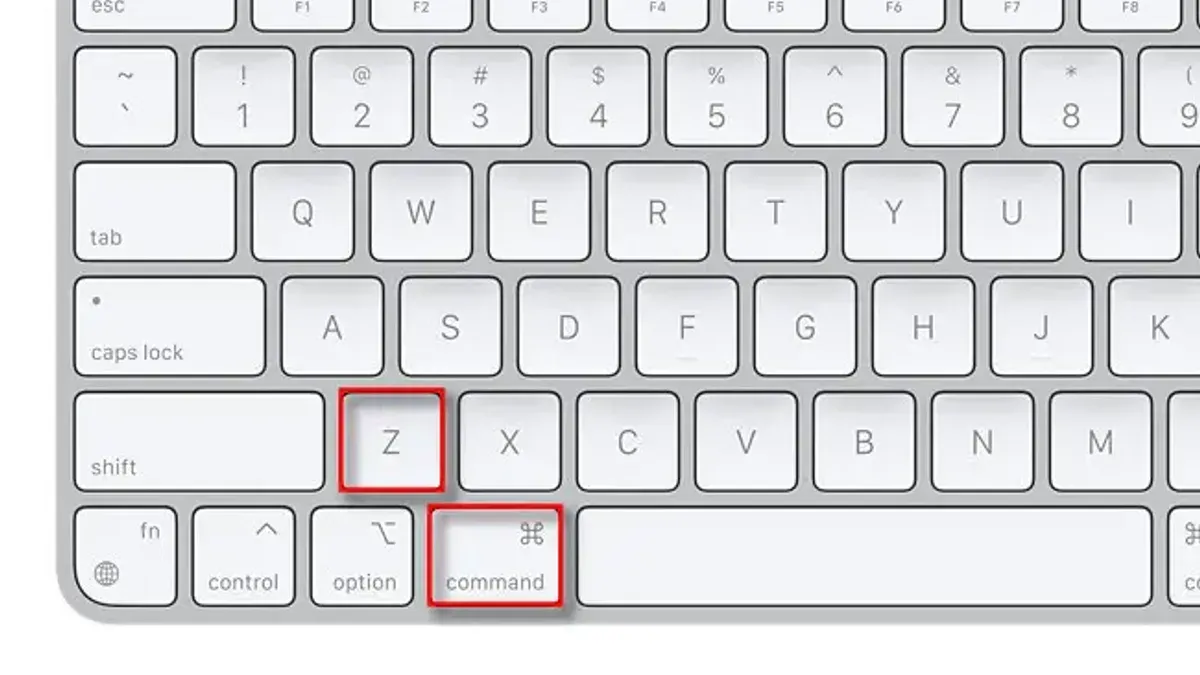
- Press Command + Shift + T to reopen the last closed tab in most browsers.
- Safari uses Command + Z to undo a closed tab, differing from Chrome and Firefox.
- If the shortcut doesn’t work, try reopening tabs via the browser history or menu options.
- Multiple closed tabs can be restored by repeating the shortcut in sequence.
- Avoid closing private or incognito windows if you want to recover tabs later, as these sessions don’t save history.
How to undo close tab on Mac
Undoing a closed tab means quickly reopening a tab you accidentally closed while browsing. This feature is valuable because it saves you from losing important webpages, helping you maintain your workflow without the need to search again.
Imagine you are researching a topic and unintentionally close a tab containing crucial information. Instead of navigating back through your browsing history or retyping the URL, you can instantly restore the tab with a simple shortcut, keeping your research seamless and efficient.
Many users close tabs by mistake due to fast typing or using keyboard shortcuts incorrectly. Although exact statistics on tab closure frequency vary, accidental tab closures are common enough to make this undo feature essential across all major web browsers on Mac.
How to undo closed tab in Mac across different browsers
Each popular Mac browser offers a specific keyboard shortcut to quickly undo a closed tab, helping you restore your browsing session without delay. In Safari, use Command + Z immediately after closing a tab to reopen it. Alternatively, you can click History in the menu bar and select Reopen Last Closed Tab.
For Google Chrome, the standard shortcut is Command + Shift + T. Pressing this combination repeatedly will reopen multiple closed tabs in the order they were closed. You can also find recently closed tabs under History > Recently Closed in the menu.
Mozilla Firefox uses the same shortcut as Chrome: Command + Shift + T. Additionally, Firefox’s menu under History > Recently Closed Tabs lists tabs you can reopen individually.
In Microsoft Edge on Mac, Command + Shift + T also works to undo closed tabs. The menu path History > Recently Closed offers a visual list for manual reopening.
For example, if you accidentally close a tab in Chrome, pressing Command + Shift + T instantly restores it, and if you press it again, the next most recently closed tab reappears. This repeated action is a key advantage of Chrome, Firefox, and Edge over Safari’s single-step undo.
How do I undo close tab if the shortcut doesn’t work?
Sometimes, the Command + Shift + T shortcut fails due to cleared tab history or restrictive browser settings. For example, if you have set your browser to clear history on exit, the shortcut cannot restore closed tabs because the session data no longer exists.
When the shortcut doesn’t work, check your browser’s “History” menu. In Safari, go to History > Reopen Last Closed Tab or view Recently Closed tabs in the sidebar. Chrome and Firefox offer a similar option under History > Recently Closed Tabs. These manual methods often recover tabs even when the shortcut fails.
To prevent losing tabs, consider session management extensions like “Session Buddy” for Chrome or “Tab Session Manager” for Firefox. These save your browsing sessions, allowing recovery after crashes or accidental closures. Also, bookmarking important tabs or grouping them can help maintain quick access.
For instance, a Mac user browsing in Chrome who closes multiple tabs and then quits the browser without saving session data may find the shortcut ineffective. Using the History menu or a session manager extension can restore their tabs reliably in such cases.
How to undo the close tab with multiple tabs closed
When you close multiple tabs accidentally, pressing Command + Shift + T repeatedly on a Mac browser like Chrome or Firefox will reopen closed tabs one by one in the reverse order they were closed. For instance, if you closed five tabs, pressing the shortcut five times will restore each tab starting from the last closed.
For bulk recovery, browsers often provide options such as Chrome’s History > Reopen Closed Tabs or Safari’s History > Reopen All Windows from Last Session. These features let you restore entire sessions or groups of tabs at once, saving time when many tabs were lost.
However, shortcuts have limits; they typically only restore the most recent tabs and may not recover tabs closed a long time ago or after a browser restart. Using session restore options or history menus is more reliable for recovering large numbers of tabs.
For example, imagine you closed eight tabs during a browsing session. Pressing Command + Shift + T eight times will sequentially reopen each tab in reverse order. If you then quit and reopen the browser, using Reopen All Windows from Last Session in Safari or the session restore option in Chrome can bring back all eight tabs simultaneously.
Common mistakes to avoid when using undo close tab shortcuts
One frequent error is closing the entire browser window instead of just a single tab. Most browsers treat a closed window differently, which can prevent the undo close tab shortcut from restoring individual tabs. For example, if you accidentally close the whole Safari window with multiple tabs, pressing Command + Shift + T will not reopen those tabs one by one; you need to use the “Reopen Last Closed Window” option under the History menu.
Another pitfall is clearing browsing data or history immediately after closing tabs. When you delete your browsing history through Safari’s Preferences > Privacy > Manage Website Data or Chrome’s Clear Browsing Data menu, the record of recently closed tabs is erased. This action makes undoing closed tabs impossible until new browsing data accumulates.
Users also sometimes confuse the undo close tab shortcut with general undo commands like Command + Z, which affect text input or page actions but do not reopen tabs. For instance, after closing a tab, pressing Command + Z will not bring it back, leading to frustration. Remember, Command + Shift + T is the dedicated shortcut for undoing closed tabs.
- Mac Keyboard Shortcut to Open Spotlight: A Clear Guide
- Mac Keyboard Shortcut to Switch Between Windows of the Same App
- Mac Keyboard Shortcut to Lock the Screen: How to Secure Your Mac Quickly
- Mac Keyboard Shortcut to Delete Forward: How to Use It Effectively
Frequently asked questions
undo close tab shortcut key
The undo close tab shortcut key on a Mac is usually Command + Shift + T. This works in most popular browsers like Chrome, Firefox, and Safari, instantly reopening the last closed tab. If it doesn’t work, the browser may have different settings or limitations.
shortcut key to undo the closed tab
To undo a closed tab, press Command + Shift + T on your Mac keyboard. This shortcut reopens the most recently closed tab, helping you quickly recover lost browsing sessions without needing to navigate through menus.
shortcut to undo closed tab
Press Command + Shift + T to undo a closed tab in most Mac browsers. This shortcut can be repeated to open multiple closed tabs in the order they were closed, but some browsers may have limits on how far back this works.
undo shortcut key on mac
The general undo shortcut key on Mac is Command + Z, but this applies to actions like typing or deleting, not closing tabs. For undoing closed tabs specifically, use Command + Shift + T instead, as it is dedicated to restoring browser tabs.
Limits of undo close tab shortcuts and when to seek alternatives
This advice does not cover restoring tabs after a browser crash or system reboot where session data is lost. In such cases, session recovery depends on browser-specific features or third-party tools rather than simple shortcuts. Some browsers limit how many closed tabs can be restored via keyboard shortcuts, typically retaining only the last 10 to 15 closed tabs. Additionally, third-party extensions can alter default shortcut behaviors and may require different commands or settings adjustments to work correctly.
The single most useful next step is to familiarize yourself with your browser’s history and session management options. Knowing how to access the full history menu or use built-in session restore features ensures you have fallback methods when shortcuts do not suffice, helping you maintain your workflow without interruption.