How to Manage iCloud Storage on Mac: A Step-by-Step Guide
Discover how to manage iCloud storage on Mac to review usage, delete files, manage backups, and optimize your storage across devices.
You're running low on iCloud storage, and your Mac alerts you that it can no longer back up important files automatically. At the same time, your iPhone and iPad are filling up, and you've noticed some confusion when trying to access your iCloud data from a Windows PC.
This article covers how to manage iCloud storage on Mac and across your Apple devices and Windows computers. You'll learn how to review and optimize storage use, remove unnecessary files, manage backups, and understand cross-platform differences. It also explains how to upgrade or downgrade your iCloud plan based on your needs, helping you make informed decisions about your storage management.
Key takeaways
- Access iCloud storage details on your Mac via System Settings > Apple ID > iCloud > Manage.
- Review and delete large files, old backups, and app data you no longer need to free space.
- Manage iCloud storage on iPhone and iPad through Settings > Apple ID > iCloud > Manage Storage.
- Use iCloud for Windows to sync and manage files but expect some feature limitations compared to Apple devices.
- Choose an iCloud storage plan that balances your device backups, photos, and documents across platforms.
Before you start managing iCloud storage on Mac
To manage your iCloud storage effectively from your Mac, you need to have certain prerequisites in place. First, ensure you have your Apple ID and password ready, as you will need to sign in or verify your identity when accessing iCloud settings.
Your Mac must be running a macOS version that supports iCloud Drive and storage management features. Typically, macOS versions from Mojave onward offer comprehensive iCloud integration, but checking for the latest updates via System Settings > General > Software Update is advisable.
Understanding your current iCloud storage plan and usage is essential before making changes. You can view this information directly on your Mac to see how much storage you have, how much is used, and what is consuming space.
It’s also helpful to know the basics of iCloud Drive, which syncs files across your Apple devices and Windows PC if applicable. Being aware of what is synced and how can prevent unexpected storage use.
- Open System Settings on your Mac.
- Click Apple ID at the top of the sidebar.
- Select iCloud in the Apple ID pane.
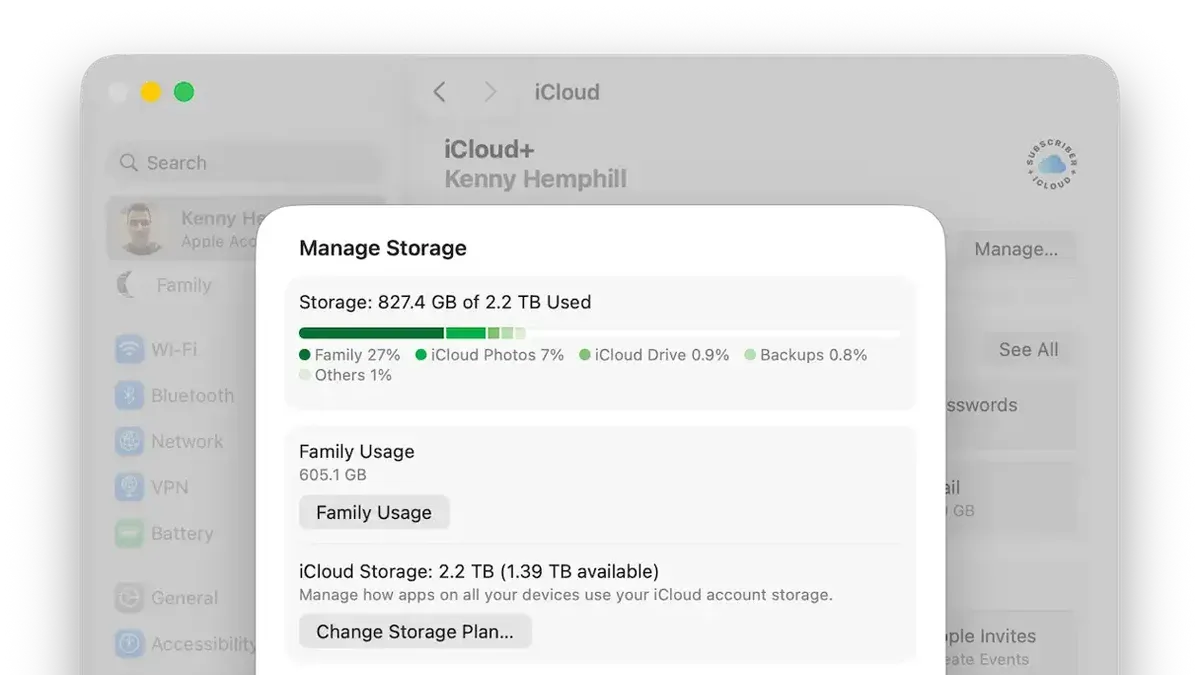
- Here, you will see a storage bar showing total and used iCloud storage.
- Click Manage next to the storage bar to view detailed usage by app and service.
- Verify that you are signed in with the correct Apple ID to avoid confusion with multiple accounts.
This view provides a clear snapshot of your iCloud storage status and is the starting point for management decisions.
How to manage storage on iCloud from your Mac
To manage your iCloud storage directly from your Mac, start by accessing the storage details through the System Settings. This allows you to see which apps and data types consume the most space and take action to free up storage efficiently.
- Open System Settings from the Apple menu. You should see a list of system preferences options.
- Click on your Apple ID at the top of the sidebar. This opens Apple ID settings including iCloud options.
- Select iCloud in the Apple ID menu, then click the Manage button next to the storage bar. You will see a detailed breakdown of your iCloud storage usage by category such as Backups, Photos, Documents, Mail, and others.
- Review the list to identify large storage consumers. For example, old device backups often take up significant space. Click on Backups to see a list of devices with stored backups. Select any old or unused device backup and click Delete to remove it. Confirm the deletion when prompted.
- Navigate back and select Documents and Data or iCloud Drive. Here, you can identify large files or folders. To free space, select files you no longer need and delete them. Remember that deleting files here removes them across all devices using the same iCloud account.
- To reduce ongoing storage use, consider disabling iCloud Drive syncing for large folders. Go to System Settings > Apple ID > iCloud, then click Options next to iCloud Drive. Uncheck folders or apps that sync large amounts of data you don’t need on your Mac. This stops automatic syncing and can significantly reduce iCloud storage use.
For example, deleting an old iPhone backup occupying several gigabytes and removing large, seldom-used files from iCloud Drive can quickly free up considerable space, making your iCloud storage more manageable.
How to manage iCloud storage on iPhone and iPad
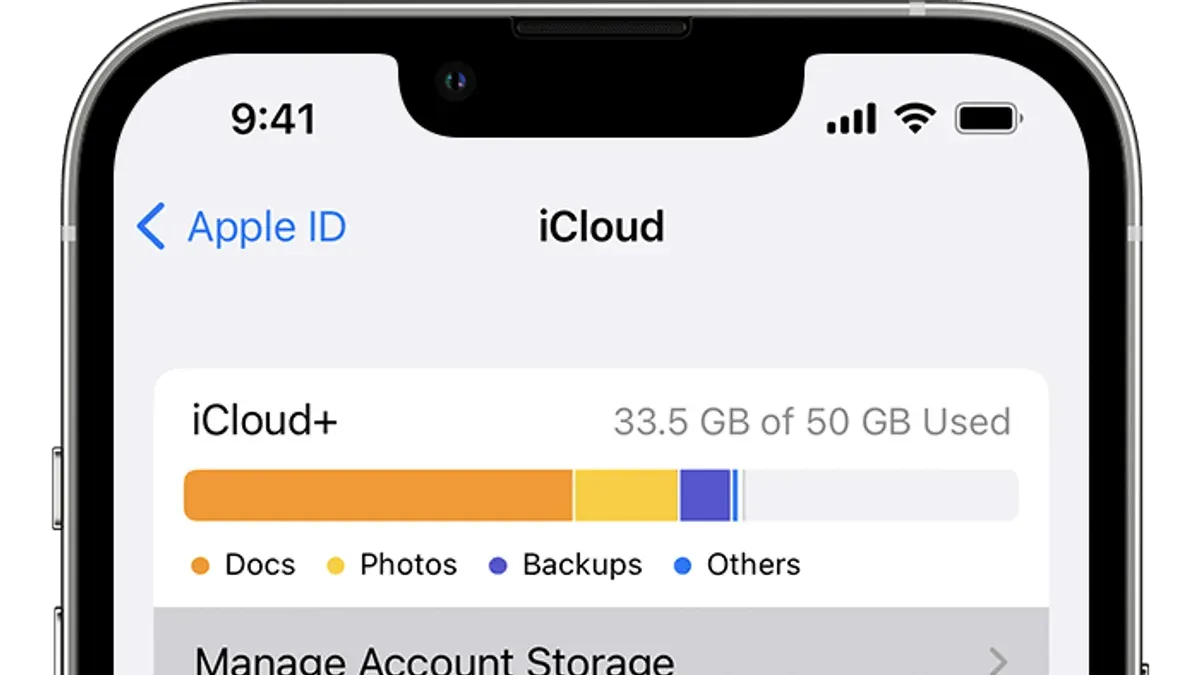
- Open the Settings app on your iPhone or iPad. You should see your Apple ID banner at the top; tap it to access your account settings.
- Tap iCloud, then select Manage Storage. Here, you will see a breakdown of how your iCloud storage is being used by apps and backups.
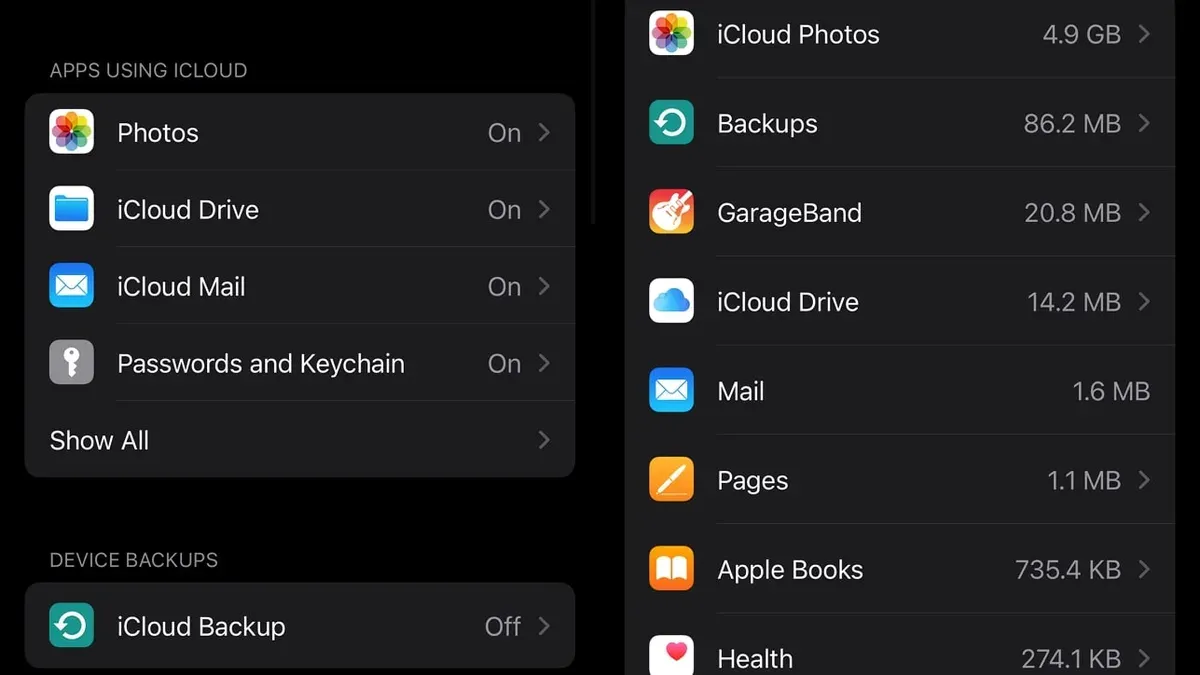
- Review the list of apps under Documents & Data to identify which apps consume the most iCloud storage. Tap any app to delete stored data if it’s no longer needed, freeing up space.
- Under Backups, tap your device’s name to view backup details. You can delete old device backups or disable backup for specific apps to reduce storage use.
- Next, return to the main iCloud settings and tap Photos. Ensure iCloud Photos is enabled if you want your photos synced across devices.
- Enable Optimize iPhone Storage (or iPad Storage) in Photos settings. This setting stores smaller, space-saving versions of photos on your device while keeping full-resolution originals in iCloud.
- After enabling optimization, your device storage used by photos will typically decrease significantly, often by tens of percent, depending on photo library size. You can check this by comparing the Photos app storage before and after enabling.
How to manage iCloud storage on Windows PC
To manage your iCloud storage on a Windows PC, start by installing iCloud for Windows from Apple's official website or the Microsoft Store. After installation, sign in with your Apple ID to access your iCloud services.
- Open the iCloud for Windows app and sign in using your Apple ID. Once signed in, you will see a dashboard with options like iCloud Drive, Photos, Mail, Contacts, Calendars, and Bookmarks.
- Click on the “Storage” button at the bottom-right corner of the app window. This opens a detailed view showing your total iCloud storage, used space, and a breakdown by category such as Backups, Photos, and Documents.
- To manage files in iCloud Drive, open File Explorer and select “iCloud Drive” from the Quick Access or Navigation pane. Here, you can view, move, or delete files. Deleting files here will free up iCloud storage across all your devices.
- For photos, enable iCloud Photos in the app, then open the Photos folder within iCloud Drive or use the Photos app on Windows. You can delete unwanted images or videos to reduce storage usage.
- To remove device backups or other data, return to the Storage view in iCloud for Windows and select “Backups” or a specific category. Choose the backup or data set you no longer need and click “Delete.” Confirm to remove it and recover storage space.
- Alternatively, visit appleid.apple.com and sign in to view and manage your iCloud storage online. The web interface offers similar options for deleting backups or managing data linked to your Apple ID.
A common oversight is not deleting backups from old devices, which can occupy significant space. Regularly review these backups to optimize storage.
Screenshot walkthrough: Opening iCloud for Windows shows the storage button; clicking it reveals the usage breakdown; File Explorer’s iCloud Drive folder displays synced files ready for management.
How to manage iCloud storage on MacBook, MacBook Air, and MacBook Pro
The steps to manage iCloud storage are consistent across all MacBook models, including MacBook Air and MacBook Pro. The iCloud settings interface and options in System Settings or System Preferences are identical, ensuring a uniform experience regardless of your MacBook type.
However, storage constraints differ: MacBook Air models often have smaller SSDs compared to MacBook Pro models, which impacts how you should balance local and iCloud storage. Managing local storage effectively becomes critical on MacBook Air to prevent running out of space.
Here’s how you can optimize your iCloud and local storage on any MacBook:
- Open System Settings (or System Preferences) and click Apple ID. You should see your iCloud storage usage summary.
- Click Manage next to iCloud storage to review what is consuming space. You will see categories like Backups, Photos, Documents, and Mail.
- Review local storage by selecting About This Mac from the Apple menu, then Storage. This shows how your SSD space is allocated and highlights opportunities for optimization.
- For MacBook Air users, consider enabling Optimize Mac Storage under iCloud Drive options. This setting keeps recent files locally and older files only in iCloud, saving local disk space.
- Delete or offload large files and backups that you no longer need from both iCloud and your local drive. On MacBook Pro models with larger SSDs, this is less urgent but still beneficial for maintaining performance.
- Regularly empty the Trash on your Mac to reclaim local storage; files in Trash still occupy SSD space until permanently deleted.
Both MacBook Air and Pro support the same iCloud storage features; the main difference is managing local disk space effectively on smaller drives. The trade-off when enabling optimization is occasional delays accessing older files stored only in iCloud.
Apple iCloud storage options and how to decide what’s right for you
Apple offers several iCloud storage plans to suit varying needs, ranging from 5 GB free to larger paid tiers. Understanding these options helps you choose a plan aligned with your device usage and data volume.
| Plan | Storage Size | Typical Use Case | Price (Monthly) |
|---|---|---|---|
| Free | 5 GB | Basic backups, minimal photos and documents | Free |
| Plus | 50 GB | Light users with moderate photos and app data | Affordable low-tier price |
| Family / Standard | 200 GB | Multiple devices, shared family storage | Mid-range price |
| Premium | 2 TB | Heavy users, extensive photos, videos, backups | Highest tier price |
To determine if you need more storage, check your current usage in System Settings under Apple ID > iCloud > Manage Storage. If you frequently receive storage warnings or cannot back up important data, consider an upgrade.
- Open System Settings on your Mac and click your Apple ID at the top.You should see your iCloud storage bar indicating used and available space.
- Select "Manage Storage" to review detailed usage by app and service.This breakdown helps identify which data types consume the most space.
- Evaluate your usage patterns: frequent photo uploads, app backups, and file syncs generally require higher storage plans.If your usage approaches your current limit regularly, an upgrade is advisable.
- Consider family sharing if multiple users need storage; the 200 GB or 2 TB plans allow shared access, often more cost-effective than individual plans.
- For very large files or extensive backups, explore alternatives like external drives or third-party cloud services, as these can supplement or reduce reliance on iCloud storage.
Downgrading your plan is possible but requires reducing stored data to fit the lower capacity to avoid data loss. Always back up critical files before changing plans.
Troubleshooting common iCloud storage management issues
When managing iCloud storage, you might encounter issues such as storage usage not updating, problems deleting backups or files, sync errors, or full storage warnings despite missing data. Below are practical solutions to address these common problems.
iCloud storage usage not updating
- Open System Settings on your Mac and select Apple ID → iCloud → Manage. Wait a few minutes to allow the storage data to refresh. You should see updated storage numbers reflecting recent changes.
- If it remains outdated, sign out of iCloud by clicking Overview → Sign Out and then sign back in. Upon successful login, storage usage should refresh.
- Restart your Mac if the issue persists. After reboot, check storage again in System Settings; the numbers should now be current.
Issues deleting iCloud backups or files
- Navigate to System Settings → Apple ID → iCloud → Manage, then select Backups or Files. Choose the item you want to delete and click Delete.
- If you receive an error such as "Cannot delete backup" or "Operation not permitted," ensure your device is connected to the internet and signed into the correct Apple ID.
- Try deleting the backup or file from the corresponding device directly (e.g., iPhone Settings > Apple ID > iCloud > Manage Storage > Backups) if deletion on Mac fails.
Sync errors between Mac and other devices
- Check that all devices are signed in with the same Apple ID and have stable internet connections.
- Open System Settings → Apple ID → iCloud and verify that relevant apps (e.g., Photos, iCloud Drive) are enabled for syncing.
- Force a sync by toggling the iCloud service off and then on again on your Mac and the other device. Wait a few minutes for changes to propagate.
- If the error message "iCloud synchronization failed" appears, restart all affected devices and ensure software updates are installed.
iCloud storage full but data appears missing
- Check the Manage section of iCloud settings to identify which categories consume the most space.
- Look for hidden data such as app caches, mail attachments, or old device backups that may occupy storage.
- On your Mac, open Finder → Go → Go to Folder and enter
~/Library/Mobile Documents/to examine iCloud Drive files stored locally. - If you find orphaned or large files, delete or move them as appropriate and then verify if storage availability improves.
Common error messages and fixes
| Error Message | Cause | Fix |
|---|---|---|
| "Cannot delete backup" | Backup is in use or device offline | Ensure device is online, sign out and back in, or delete from the device itself |
| "iCloud synchronization failed" | Network issues or software conflict | Restart devices, check internet, update software, toggle iCloud sync |
| "Storage usage not updating" | Sync delay or system cache | Sign out and back into iCloud, restart Mac |
| "iCloud storage full but no data visible" | Hidden or orphaned files | Review storage management, clear caches, delete old backups |
Frequently asked questions
How to manage icloud storage from computer?
On a Mac, open System Settings and click your Apple ID, then select iCloud > Manage to view and control your storage. On Windows, use the iCloud app, sign in, and click Storage to manage your data. You can delete backups, documents, and photos selectively to free up space.
How to manage iCloud storage on laptop?
If you use a MacBook or similar Apple laptop, access System Settings, click your Apple ID, then iCloud > Manage Storage. For Windows laptops, open the iCloud app installed from Apple’s website and manage storage via the Storage option. Clearing out large files or unwanted backups helps optimize your plan.
How to manage iCloud storage from computer?
Managing iCloud storage from a computer involves accessing the iCloud management section appropriate to your OS: System Settings on Mac or the iCloud app on Windows. You can review storage usage, delete old backups, and manage synced files. Remember to confirm deletions carefully as some actions are irreversible.
How to manage iCloud storage on PC?
On a Windows PC, download and install the iCloud for Windows app from Apple’s site. After signing in, click Storage to view your usage. You can delete backups, documents, or photos directly from here to free space, but keep in mind syncing may take time depending on your internet connection.
Manage your iCloud storage - Apple support
Apple Support provides detailed instructions accessible via the official Apple website or the Support app. They guide you through checking storage, deleting data, and upgrading plans. Following these official steps ensures safe and effective management of your iCloud storage across all devices.
What this advice does not cover
This guide focuses on user-level iCloud storage management across Apple devices and Windows PCs. It does not cover enterprise or managed Apple IDs typically used in business or education settings. Additionally, advanced topics such as third-party cloud storage integrations or detailed local disk management fall outside the scope of this article.
For users managing storage in a corporate environment or requiring specialized backup and sync solutions, consulting your IT department or professional support services is recommended.
The most useful next step is to regularly review and adjust your iCloud storage settings directly from your Mac by opening System Settings, selecting your Apple ID, then clicking iCloud followed by Manage. This lets you identify large files, delete unnecessary backups, and decide if upgrading or downgrading your plan fits your current needs, ensuring your storage stays optimized without surprises.