How to Set Up iCloud Keychain on Mac: A Step-by-Step Guide
This guide shows you how to set up iCloud Keychain on Mac to sync passwords and autofill data securely across your Apple devices and Windows PC.
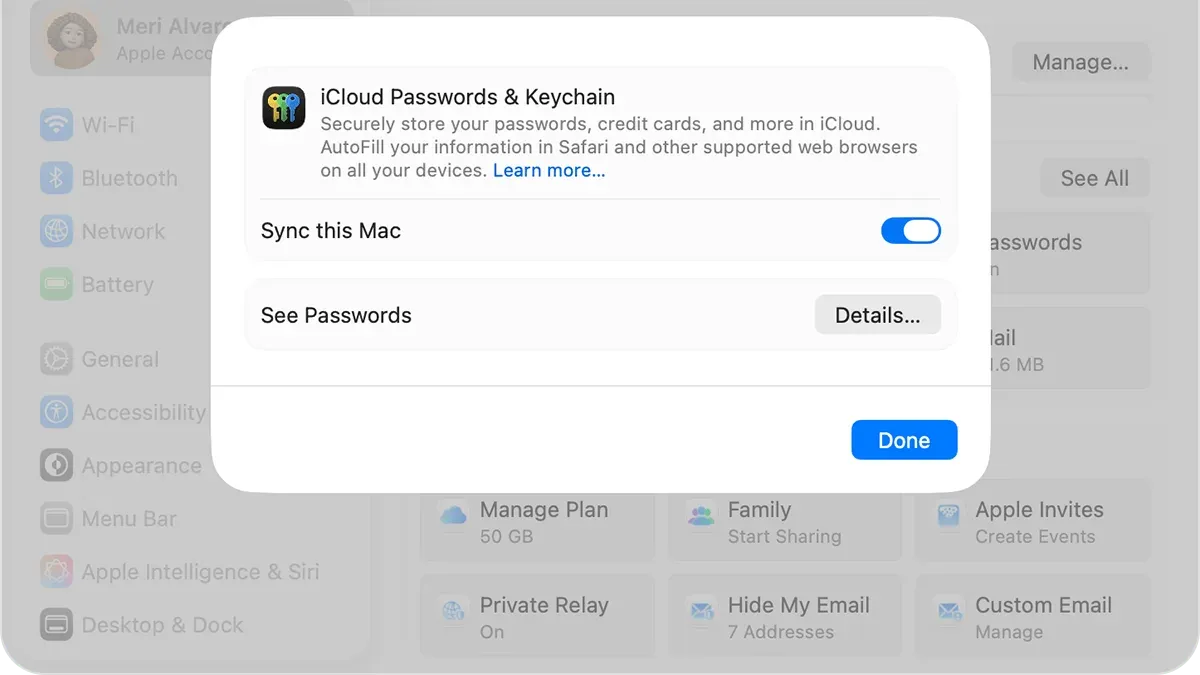
You’ve just bought a new Mac and want your passwords and autofill information to be available across all your Apple devices and even on your Windows PC. Managing these details manually can be cumbersome and risky without a secure system in place.
This guide explains how to set up iCloud Keychain on Mac so you can sync and manage your passwords seamlessly across devices, including iPhones and Windows computers. You'll learn the exact steps to enable iCloud Keychain, access it quickly, troubleshoot common issues, and understand the security trade-offs involved in using this feature.
Key takeaways
- Enable iCloud Keychain in System Settings under Apple ID > iCloud.
- Use the same Apple ID on all devices for seamless syncing.
- Access saved passwords in Safari Preferences and iPhone Settings.
- Install iCloud Passwords extension on Windows for cross-platform use.
- Be aware that syncing passwords relies on Apple ID security and two-factor authentication.
Before you start: What you need to set up iCloud Keychain
To use iCloud Keychain on your Mac, ensure you meet these prerequisites for a smooth setup experience. First, you must be signed in with your Apple ID on your Mac and any other Apple devices you want to sync with, such as iPhone or iPad. Your Mac should be running macOS Sierra (10.12) or later, as this is the minimum version supporting iCloud Keychain. A stable internet connection is also required to sync your data securely across devices.
Additionally, two-factor authentication (2FA) must be enabled on your Apple ID. This security feature provides an extra layer of protection by requiring a verification code from a trusted device when signing in. You can check and enable 2FA by going to System Preferences > Apple ID > Password & Security on your Mac.
Having a basic understanding of password management benefits—like auto-filling passwords, generating strong passwords, and syncing credentials—will help you get the most from iCloud Keychain. It simplifies signing into websites and apps but requires trusting Apple’s encryption and cloud storage approach.
- Sign in to your Apple ID on your Mac via System Preferences > Apple ID. You should see your account details and iCloud options.
- Verify your macOS version by selecting About This Mac from the Apple menu. Ensure it is Sierra (10.12) or newer.
- Confirm internet connectivity by opening a website in Safari or another browser.
- Enable two-factor authentication under System Preferences > Apple ID > Password & Security. You should see a status message confirming 2FA is on.
How to turn on iCloud Keychain on your Mac
- Open System Preferences from the Apple menu or Dock. You should see a window with various settings.
- Click on Apple ID in the top-right corner of System Preferences. This will display your Apple ID settings along with iCloud options.
- In the sidebar, select iCloud. A list of iCloud-enabled apps and services will appear.
- Locate Keychain in the list and toggle the checkbox or switch next to it to on. When enabled, the switch will typically turn blue or show a checkmark.
- If prompted, verify your identity. You may be asked to enter your Mac’s device passcode or your Apple ID password to confirm this change.
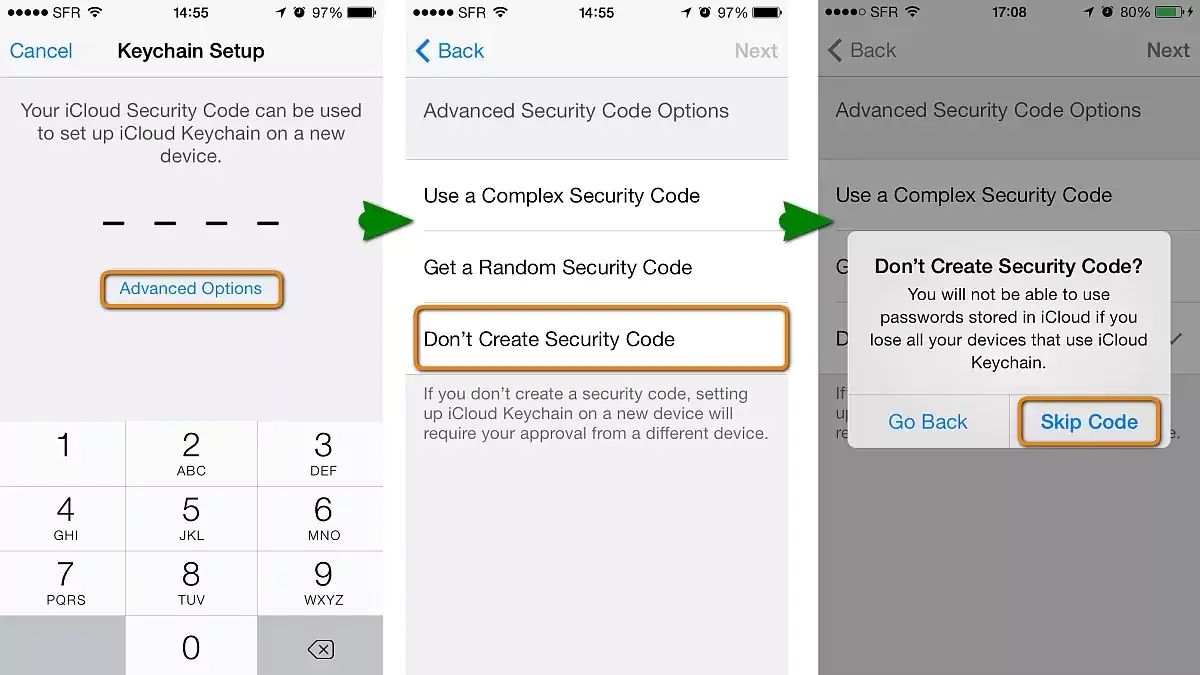
- Next, you will see options to approve with another device or set up a security code. Choose the preferred method:
- Approve with another device: You will receive a notification on an Apple device signed in with the same Apple ID. Confirming on that device completes the setup.
- Set up a security code: Create a code that you will use to authorize new devices accessing your Keychain data.
- After approval, you should see a confirmation message that iCloud Keychain is now active. Your passwords and autofill data will begin syncing securely across your Apple devices.
Note: If you do not have a second Apple device for approval, setting up a security code is necessary, but it introduces an extra step when adding new devices later.
How to enable iCloud Keychain on iPhone and access it
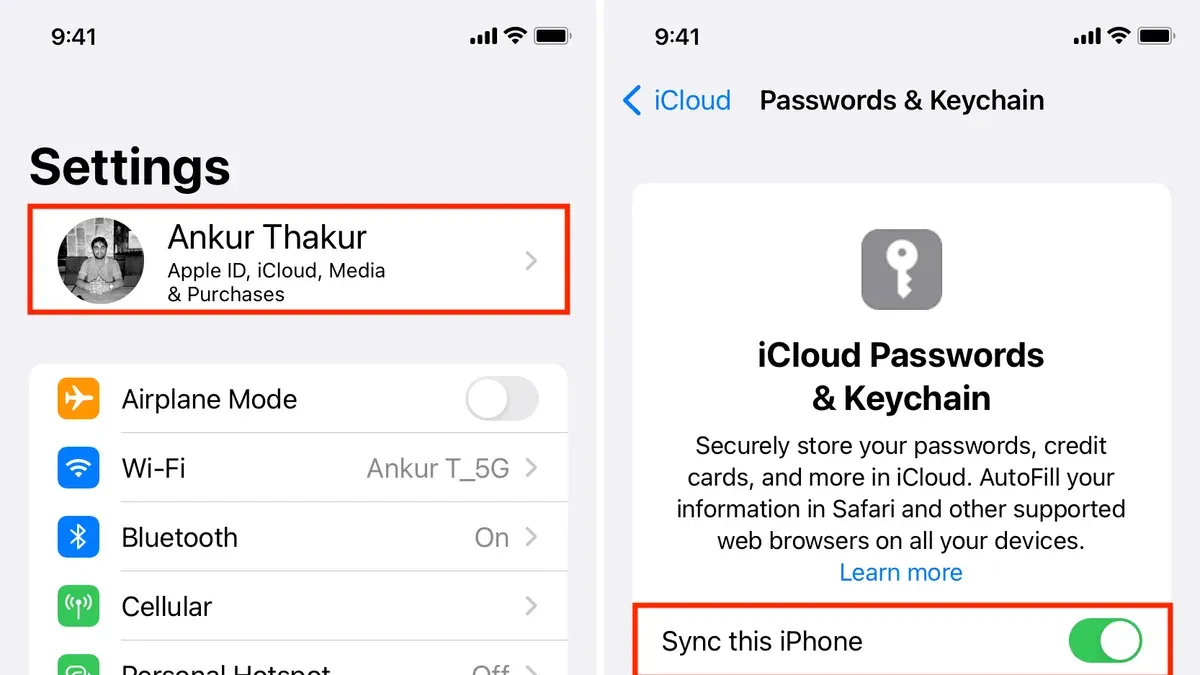
- Open the Settings app on your iPhone. You should see your name and Apple ID at the top of the list.
- Tap your Apple ID banner, then select iCloud from the menu.
- Scroll down to find Keychain and tap it. You will see a toggle switch for iCloud Keychain.
- Toggle iCloud Keychain on. If prompted, authenticate using Face ID, Touch ID, or your passcode to confirm the change.
- Once enabled, your iPhone will start syncing passwords and autofill information with your other Apple devices signed in to the same Apple ID.
- To view saved passwords on your iPhone, return to Settings, then scroll down and tap Passwords. Authenticate again if required to access the list.
- You will see saved website and app passwords similar to what appears on your Mac, though the interface is optimized for iOS with touch-friendly navigation.
- Any changes you make to passwords or autofill data on your iPhone automatically sync to your Mac and vice versa, keeping your credentials consistent across devices.
Compared to the Mac interface, the iPhone’s password management is streamlined but provides the same core functionality: viewing, editing, and deleting saved credentials. This integration ensures seamless cross-device syncing, which is essential for managing your passwords securely and conveniently.
How to access and use iCloud Keychain on Windows PC
Windows users can access iCloud Keychain data by installing iCloud for Windows from Apple’s official website. This software allows you to sync passwords stored in iCloud Keychain and use them on your PC, although the experience differs from using a Mac.
- Download and install iCloud for Windows from Apple’s support site. Once installed, open the application.
- Sign in with your Apple ID credentials. After signing in, you will see various options for syncing content.
- Enable the Passwords option by checking its box. This activates the iCloud Passwords service on your Windows PC.
- Download and install the iCloud Passwords browser extension available for Microsoft Edge and Google Chrome. This extension enables autofill for passwords saved in iCloud Keychain.
- Open your browser, sign in to the extension with your Apple ID if prompted, and allow it to access your saved passwords. You can now autofill login credentials on websites as you would on Apple devices.
Limitations on Windows: iCloud for Windows does not provide a full keychain management app like on Mac. You cannot view or edit passwords directly through the iCloud app; management must be done on an Apple device or via the web at passwords.apple.com. Autofill works only within supported browsers using the extension.
| Feature | Mac | Windows |
|---|---|---|
| Enable/Disable iCloud Keychain | System Preferences > Apple ID > iCloud | iCloud for Windows app |
| View/Edit Passwords | Keychain Access app or System Preferences | Only via passwords.apple.com or Apple devices |
| Autofill Support | All browsers and apps on Mac | Microsoft Edge, Google Chrome via extension |
| Sync Speed and Reliability | Native, seamless | Dependent on extension and app sync |
Example workflow on Windows: When you visit a login page in Chrome, the iCloud Passwords extension will suggest saved credentials from your iCloud Keychain. Selecting this autofills the username and password fields automatically. If you need to add or change a password, you must do so on your Mac or iPhone for it to sync back to Windows.
How to get to iCloud Keychain on iPhone and Mac for quick access
Accessing and managing your saved passwords on both Mac and iPhone is straightforward, allowing you to update, search, or delete credentials as needed.
On your Mac
- Open Safari and click on Safari in the menu bar, then select Preferences. A new window appears.
- Click the Passwords tab. You will be prompted to enter your Mac password or use Touch ID to authenticate.
- Once authenticated, you will see a list of saved passwords synced via iCloud Keychain. Use the search bar at the top to find specific entries.
- To edit a password, select the desired entry and click Edit. Modify the password or username, then click Done to save changes.
- To delete a password, select the entry and click the Remove button (a minus icon) at the bottom of the list.
- Alternatively, you can access passwords via System Preferences > Passwords, which opens the same interface for password management.
On your iPhone
- Open the Settings app and tap Passwords. You will be prompted to authenticate using Face ID, Touch ID, or your passcode.
- The list of saved passwords appears; use the search bar at the top to quickly find specific accounts.
- Tap an entry to view details. To edit, tap Edit in the upper-right corner, modify the information, then tap Done to save.
- To delete a password, swipe left on an entry and tap Delete.
Using autofill with iCloud Keychain works seamlessly in Safari and supported apps on both Mac and iPhone, filling usernames and passwords automatically to speed up sign-in processes.
Note: Screenshots showing these paths clearly highlight the authentication prompts, the search bar location, and the edit/delete options, helping you navigate quickly and confidently.
Troubleshooting common iCloud Keychain setup and sync issues
If the iCloud Keychain toggle on your Mac is grayed out or won’t turn on, first check that your Apple ID is signed in with two-factor authentication enabled. Also, ensure your Mac meets the minimum system requirements. Sometimes, signing out of iCloud and back in can reset the toggle’s availability.
Sync delays or missing passwords are often caused by network issues or temporary Apple server outages. To address this, verify your internet connection and check Apple's system status page for iCloud services. Restarting your device can also prompt a sync refresh.
Two-factor authentication errors, such as repeated verification prompts or failure to approve a login, may indicate time or date settings are incorrect on your Mac or paired devices. Confirm all involved devices have accurate date and time set automatically.
If persistent sync failures or corrupted password data occur, you may need to reset iCloud Keychain. Be aware this deletes all stored passwords from iCloud and devices, requiring you to re-enter saved credentials manually.
Steps to reset iCloud Keychain on Mac
- Open System Preferences and select Apple ID.
- Click on iCloud in the sidebar, then uncheck Keychain.
- Choose "Delete from Mac" when prompted to remove local Keychain data.
- Restart your Mac to clear cached data.
- Return to Apple ID > iCloud and re-enable Keychain.
- Follow on-screen prompts to set up iCloud Keychain again.
This process resolves many stubborn sync issues but requires re-entering passwords not stored elsewhere. User discussions on forums often highlight that patience during initial re-syncing is necessary as data repopulates.
Security considerations when using iCloud Keychain
iCloud Keychain uses end-to-end encryption to protect your passwords and autofill data, meaning your information is encrypted on your device and can only be decrypted on devices authorized with your Apple ID. According to Apple's security documentation, this encryption ensures that even Apple cannot access your stored credentials, as the keys remain on your devices.
However, syncing passwords across multiple devices introduces potential risks if any device is lost, stolen, or compromised. Protecting your Apple ID with a strong password and enabling two-factor authentication is essential to reduce unauthorized access. Additionally, securing your devices with passcodes or biometric authentication adds another layer of defense.
Users who require advanced features such as password auditing, sharing options, or cross-platform support beyond Apple devices might prefer third-party password managers like 1Password or LastPass. These services often provide more detailed security reports and wider compatibility but rely on trusting their cloud infrastructure rather than Apple’s ecosystem.
While iCloud Keychain offers seamless integration and strong encryption within Apple’s environment, understanding its limits and taking precautions to secure your Apple ID and devices are crucial for maintaining password security.
How to disable iCloud Keychain if you change your mind
Turning off iCloud Keychain will stop syncing your passwords and autofill data across your devices. Before disabling, consider exporting or backing up your passwords to avoid losing important information.
- On your Mac, open System Preferences and click Apple ID.
- In the sidebar, select iCloud, then uncheck Keychain. A prompt will appear asking whether to keep or delete passwords from your Mac.
- Choose to keep passwords if you want local access, or delete them to remove all Keychain data from the Mac.
- On your iPhone, go to Settings > Your Name > iCloud, then tap Keychain and toggle it off.
- A prompt will ask if you want to keep passwords on your iPhone or delete them; select accordingly.
After disabling, passwords stored in iCloud will no longer sync to your devices, and autofill functionality will stop working with iCloud Keychain. If you delete passwords during the disable process, they are removed from the device but remain in iCloud unless you turn off Keychain on all devices.
To safeguard your data, export passwords from Safari on Mac via File > Export Passwords before disabling. Alternatively, use third-party password managers for continued secure storage and syncing across platforms.
Users often switch off iCloud Keychain when moving to a different password manager or when concerned about syncing sensitive information across devices. Remember that disabling on one device does not remove data from others until Keychain is turned off everywhere.
- How to Require Password After Sleep on Mac: A Clear Step-by-Step Guide
- How to Turn On FileVault on Mac: A Step-by-Step Guide
- How to Use Apple Watch to Unlock Your Mac: A Step-by-Step Guide
- How to Change Siri Voice on Mac: A Step-by-Step Guide
Frequently asked questions
How to access icloud keychain on windows?
To access iCloud Keychain on a Windows PC, first download and install the iCloud for Windows app from the Microsoft Store or Apple's website. After signing in with your Apple ID, enable Passwords in the iCloud settings. You can then use the iCloud Passwords extension for browsers like Chrome or Edge to view and autofill saved passwords.
How to use icloud keychain on windows?
Using iCloud Keychain on Windows involves installing iCloud for Windows and enabling Passwords in the app. Once set up, passwords saved on your Apple devices sync to the Windows app, where you can manage them or autofill login forms using the iCloud Passwords browser extension. Keep in mind that some features available on Apple devices may have limited functionality on Windows.
How to access icloud keychain on iphone?
On your iPhone, open the Settings app and tap your name to access Apple ID settings. Go to Passwords & Security, then tap Passwords to view saved credentials stored in iCloud Keychain. You can also enable Safari autofill in Settings > Safari > Autofill to use saved passwords when browsing.
How to access icloud keychain?
You can access iCloud Keychain on your Mac through System Preferences by clicking Apple ID > iCloud, then selecting Keychain. On iOS devices, it’s available in Settings under Passwords or Passwords & Security. For Windows PCs, use iCloud for Windows with the Passwords feature enabled and the browser extension installed.
How to set up icloud keychain?
To set up iCloud Keychain, start by signing into your Apple ID on your device. On a Mac, enable Keychain under Apple ID > iCloud in System Preferences. On iPhone, go to Settings > [your name] > iCloud > Keychain and turn it on. You may need to verify your identity with a device passcode or two-factor authentication during setup.
What this guide does not cover
This guide focuses on setting up and using iCloud Keychain on Mac, iPhone, and Windows PCs. It does not cover managing iCloud Keychain on non-Apple mobile platforms beyond Windows, such as Android devices. Additionally, it does not replace specialized advice for enterprise-level password management solutions that offer more extensive administrative controls and compliance features. If you require advanced password sharing or auditing capabilities for a business environment, consider dedicated enterprise password managers.
To get the most reliable and secure experience with iCloud Keychain, the single most useful next step is to verify that two-factor authentication is enabled on your Apple ID. This adds an essential layer of security that protects your synced passwords and autofill data across all devices. You can check this by opening System Settings on your Mac, selecting your Apple ID, then Password & Security, and confirming that two-factor authentication is turned on. This step significantly reduces the risk of unauthorized access to your keychain data.