How to Turn Off iCloud Drive Desktop and Documents Sync on Mac
Discover how to disable iCloud Drive Desktop and Documents sync on Mac to free up storage and control your local files effectively.
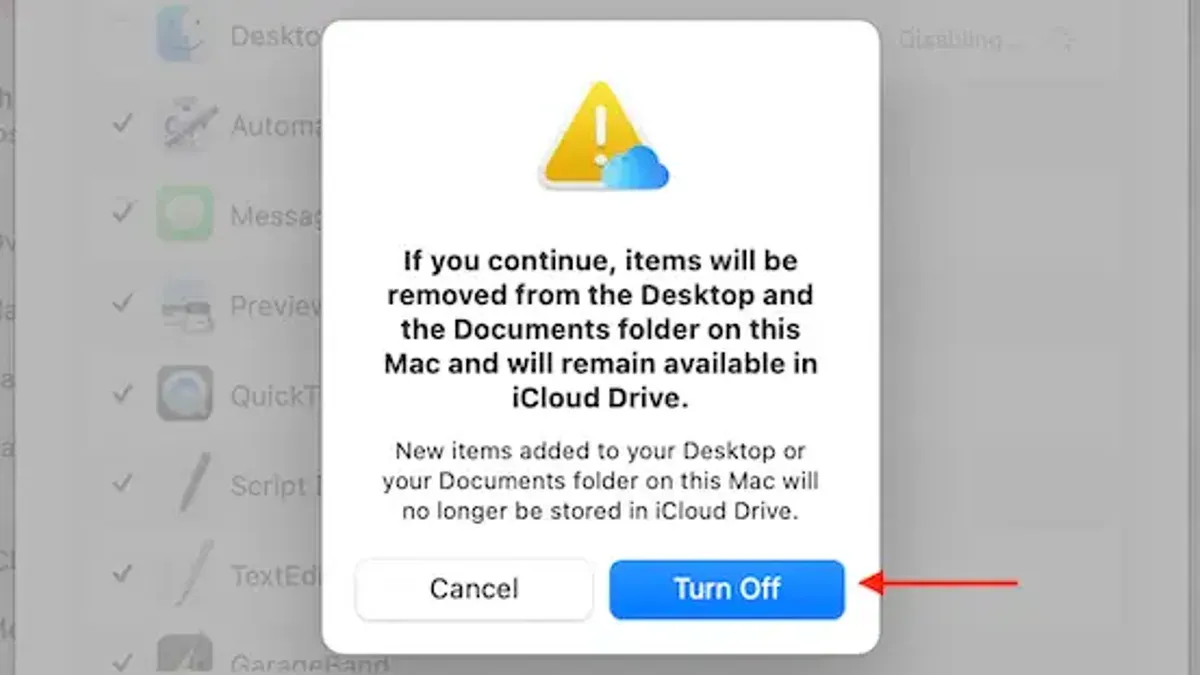
You rely on iCloud Drive to keep your Desktop and Documents folders accessible across all your Apple devices. However, you might find that syncing these folders uses up your iCloud storage quickly or complicates local file management.
This article explains how to turn off iCloud Drive Desktop and Documents sync on Mac, helping you decide if this change suits your needs. You'll learn the benefits and drawbacks of disabling sync, clear step-by-step instructions for turning it off, and what happens to your files afterward.
Key takeaways
- Disabling sync stops automatic backup of Desktop and Documents to iCloud but keeps local copies on your Mac.
- Before turning off sync, ensure you have copies of important files to avoid accidental data loss.
- Turning off sync frees up iCloud storage but removes seamless access to these folders on other devices.
- You can safely move Desktop and Documents folders back to local storage via Finder after disabling sync.
- Common issues include missing files or sync errors, often resolved by checking iCloud settings or restarting your Mac.
Before you start: What you need to know and prepare
iCloud Drive’s Desktop and Documents sync automatically stores files from these folders in iCloud, making them accessible across your Apple devices and helping save local disk space. This feature is often enabled by default during macOS setup to streamline file management and backup.
Before disabling this sync, check your iCloud storage usage by opening System Settings, selecting your Apple ID, then iCloud. Desktop and Documents folders can consume a large portion of your iCloud storage, especially if you store numerous or large files there.
Backing up important files is crucial. Disabling sync stops updates across devices and may remove iCloud copies from your Mac, which can lead to accidental data loss if files aren’t properly saved locally. There have been cases where users lost files after turning off sync without an adequate backup.
- Open System Settings and click your Apple ID at the top of the sidebar. You should see an overview of your iCloud storage usage here.
- Click iCloud, then Manage to view a breakdown of storage by app and folder. Confirm how much space Desktop and Documents folders occupy.
- Use Finder to copy important files from your Desktop and Documents folders to an external drive or another safe location. You should be able to access these files independently of iCloud.
- Verify your backup by opening a few of the copied files from the backup location to ensure they are intact and accessible.
How to turn off iCloud Drive Desktop and Documents sync on your Mac
- Open System Settings by clicking the Apple menu and selecting it from the list. You should see a sidebar with various settings categories.
- In the sidebar, click your name at the top to access Apple ID settings, then select iCloud from the right pane.
- Within the iCloud options, locate iCloud Drive and click the Options… button next to it.
- In the popup window, find the checkbox labeled Desktop & Documents Folders. Uncheck this box to disable syncing these folders.
- After unchecking, macOS will prompt you to decide whether to keep a local copy of your files or remove them from the Mac. Choose Keep a Copy to ensure your files remain accessible locally.
- Click Done to close the dialog and complete the process.
- After disabling sync, your Desktop and Documents folders will revert to local storage. You can confirm this by opening Finder and checking that the folders no longer have the cloud icon.
Note that in macOS versions prior to Ventura, these options are found under System Preferences > Apple ID > iCloud. The procedure is otherwise similar.
Disabling sync stops future changes from uploading to iCloud but does not delete files already stored there. Ensure you have copies of important files before proceeding.
What happens to your files after disabling sync
When you disable iCloud Drive Desktop and Documents sync, any files already downloaded to your Mac remain accessible locally. However, changes you make to these files will no longer update in iCloud Drive or other devices connected to your Apple ID.
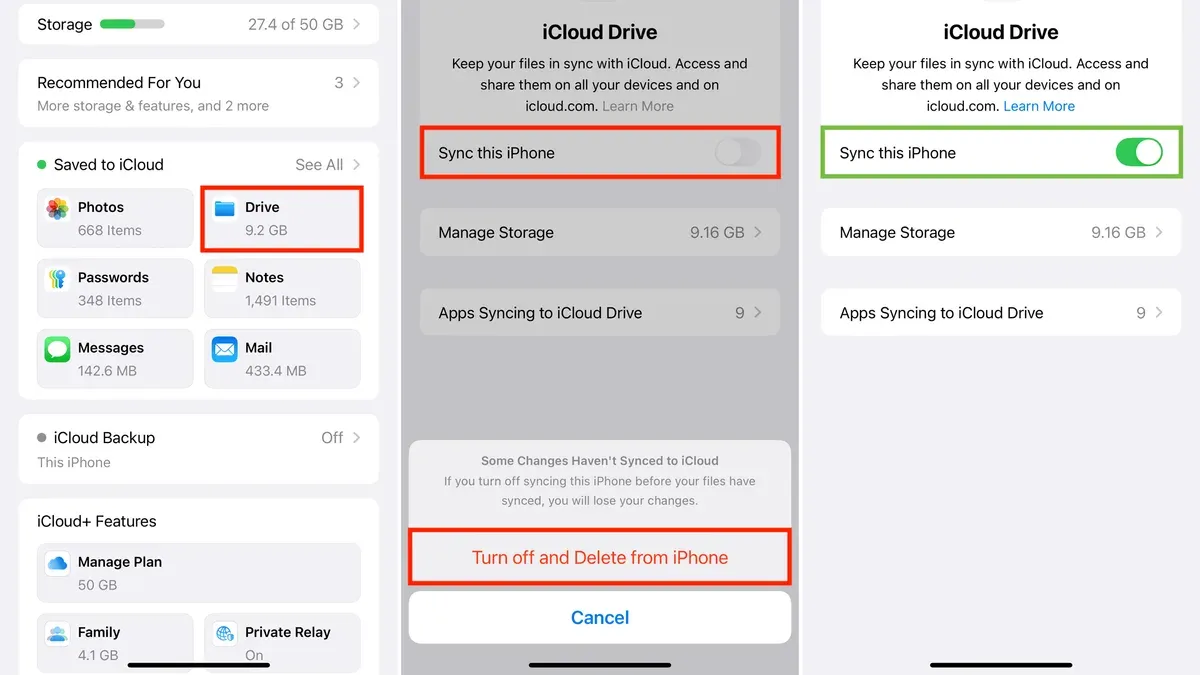
Files that exist only in iCloud Drive but were not downloaded to your Mac may be removed from your local storage, though they remain safely stored in iCloud. You can still access these files via iCloud.com or other devices signed in with the same Apple ID.
If you edit a file on your Mac after disabling sync, that change does not reflect on iCloud or your other devices. For example, a document edited on your Mac will diverge from the version stored in iCloud, potentially causing confusion or duplication if you later re-enable sync.
When syncing is turned back on, your Mac may detect different versions of files and create duplicates or prompt you to choose which version to keep. This situation can be avoided by carefully managing files before re-enabling sync.
How to safely move your Desktop and Documents folders back to local storage
After disabling iCloud Drive Desktop and Documents sync, your files may remain in the iCloud Drive folders, which are located at ~/iCloud Drive/Desktop and ~/iCloud Drive/Documents. To restore local control, you need to relocate these files to the standard local folders outside iCloud Drive.
- Open Finder and navigate to iCloud Drive > Desktop. You should see your files stored online but accessible locally if downloaded.
- Open a new Finder window and go to your local Desktop folder at ~/Desktop. This folder may be empty or contain older files.
- Select all files and folders inside the iCloud Drive Desktop folder and drag them to the local Desktop folder. The files will start copying; large folders may take time. When done, verify the local Desktop folder shows the expected size increase (for example, from 0 to several GB) and your disk’s free space decreases accordingly.
- Repeat the process for the Documents folder by moving files from iCloud Drive > Documents to ~/Documents.
- After moving, confirm all files open correctly offline by disconnecting from the internet and opening a few documents.
- Back up these local folders using Time Machine or another backup solution to prevent data loss.
- Check your frequently used apps’ default save locations and update them if needed to point to the local Desktop or Documents folders instead of iCloud Drive.
This process ensures your files are fully local, freeing you from relying on iCloud Drive syncing. Keep in mind that moving large amounts of data will reduce free disk space proportionally.
Troubleshooting common issues when turning off Desktop and Documents sync
After disabling iCloud Drive Desktop and Documents sync, you might notice files disappearing or not appearing as expected. This often happens because the files remain in iCloud Drive but haven’t been fully downloaded locally. To resolve this, open Finder, go to iCloud Drive, and manually check for missing files. If they are available there, drag them to your local Desktop or Documents folder.
Duplicate files or missing items can cause confusion, especially if sync was toggled multiple times. Look for files with "conflicted copy" in their names; these are duplicates created to prevent overwriting. Decide which version to keep and delete the others carefully.
Slow performance or sync errors during the process might display messages like "iCloud Drive cannot be updated" or "Waiting to upload." These issues usually resolve by signing out of iCloud, restarting your Mac, and signing back in.
If you accidentally delete files, check the iCloud Drive “Recently Deleted” folder via Finder or iCloud.com. Files remain there for about 30 days. Also, check your local Trash for deleted items.
For detailed guidance, visit Apple’s official support pages: iCloud Drive troubleshooting and Recover deleted files from iCloud Drive.
Alternatives to turning off Desktop and Documents sync
If you want to keep syncing but gain more control or free storage space, consider these alternatives.
- Manage files selectively within iCloud Drive: Review your Desktop and Documents folders in iCloud Drive and delete or move large or unnecessary files to local storage or external drives. This reduces iCloud storage use without disabling sync.
- Use Optimize Mac Storage: Enable this in System Settings > Apple ID > iCloud > iCloud Drive > Options. It keeps recent files locally and stores older files only in iCloud, freeing local disk space while maintaining sync.
- Archive or export files outside iCloud Drive: For infrequently accessed documents, export them to external drives or another cloud service. This removes them from iCloud storage but keeps your local Mac organized.
- Use third-party cloud services: Services like Dropbox or Google Drive offer selective sync features that might suit your needs better. However, they may require separate apps and come with different storage limits and privacy policies.
| Alternative | Pros | Cons |
|---|---|---|
| Selective file management | Frees iCloud space; keeps sync active | Requires manual effort to organize files |
| Optimize Mac Storage | Reduces local disk use automatically | Older files need internet access to open |
| Archiving/exporting files | Clears iCloud and local storage | Files less accessible and not synced |
| Third-party cloud services | Selective sync options; alternative storage | Requires additional apps; different ecosystem |
- How to Turn Off Spotlight Web Results on Mac: A Step-by-Step Guide
- How to Turn Off App Notifications on Mac: A Clear Step-by-Step Guide
Frequently asked questions
Will turning off Desktop and Documents sync delete my files?
Turning off Desktop and Documents sync does not automatically delete your files. However, you will be prompted to download and keep a local copy of your files from iCloud Drive. If you choose not to save them locally, some files may be removed from your Mac but remain in iCloud.
Can I re-enable Desktop and Documents sync later without losing data?
Yes, you can re-enable Desktop and Documents sync at any time through System Settings > Apple ID > iCloud > iCloud Drive > Options. When you do, your local Desktop and Documents folders will merge with those stored in iCloud without losing existing files, provided you have sufficient storage space.
How do I access my files in iCloud Drive after disabling sync on my Mac?
After disabling sync, your files remain accessible by signing into iCloud.com and opening iCloud Drive in a web browser. You can also access them from other devices signed into the same iCloud account, such as an iPhone or iPad.
What should I do if files go missing after turning off sync?
If files seem missing, first check iCloud Drive via iCloud.com to verify they still exist in the cloud. Next, ensure you selected the option to keep a local copy during disabling. If files are missing locally but present in iCloud, you can manually download them back to your Mac.
What this guide does not cover and who should consider other options
This guide does not cover disabling iCloud Drive completely or managing other iCloud sync features such as Photos, Mail, or app-specific data. If you rely on multiple Macs or iOS devices for your workflow, disabling Desktop and Documents sync could disrupt seamless file access across your devices. In such cases, carefully evaluate how turning off sync might affect your productivity before proceeding.
The most useful next step is to review your current iCloud Drive storage usage and backup status. Before disabling sync, ensure you have a complete local backup of your Desktop and Documents folders. This prevents accidental data loss and allows you to manage your files safely once sync is turned off.