How to Turn Off Spotlight Web Results on Mac: A Step-by-Step Guide
Discover easy steps to disable Spotlight web results on your Mac for better privacy and faster local searches without losing core functionality.
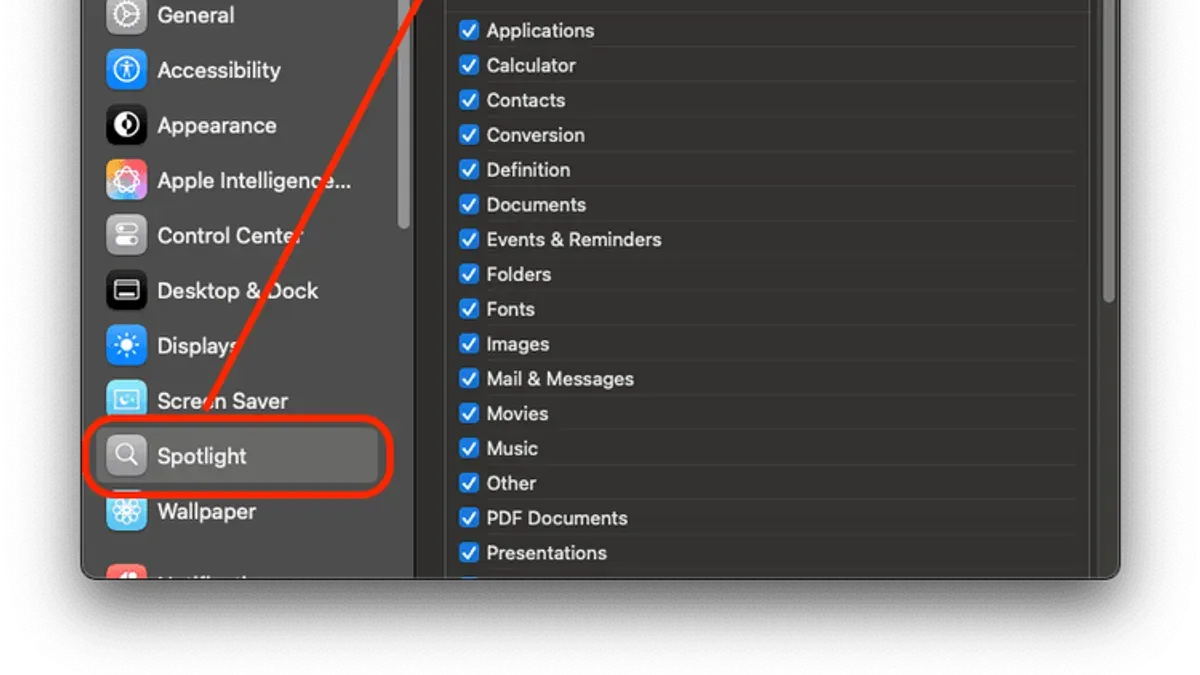
You start typing a query into Spotlight on your Mac, expecting quick local results, but web suggestions pop up instead. This can slow down your search and raise privacy concerns if you prefer to keep your queries local.
This article explains how to turn off Spotlight web results on Mac, helping you manage your search experience for better privacy and system responsiveness. You'll learn several methods, from simple settings adjustments to using Terminal commands, along with tips to maintain core Spotlight functionality without losing useful local search features.
Key takeaways
- Access Spotlight settings through System Settings > Siri & Spotlight to manage web results.
- Disable the “Spotlight Suggestions” toggle to stop web content from appearing.
- Customize Spotlight categories by unchecking “Suggestions & News” to refine search scope.
- Use Terminal commands for deeper control if standard settings don’t fully disable web results.
- Maintain Spotlight’s local search power while improving privacy and speed by selectively turning off web results.
Before you start: understanding Spotlight and its web results
Spotlight is macOS's built-in search tool that helps you quickly find files, applications, emails, and other local content on your Mac. Beyond local data, Spotlight also pulls in web results from online sources like Siri Suggestions and Bing, which is Apple's search partner. These web results appear alongside local files in your search results, providing information from the internet without opening a browser.
Some users choose to disable Spotlight web results for privacy reasons, as these online queries can send data to Apple and Bing. Others prefer to turn off web results to improve search speed, since fetching online content can add delay. Benchmarks and user feedback suggest that disabling web results can make Spotlight responses slightly faster and reduce data sharing.
Disabling Spotlight web results does not turn off Spotlight entirely—you will still be able to search and find local files and applications on your Mac. This approach balances maintaining core Spotlight functionality while controlling what content appears in your searches and limiting external data access.
How to get to Spotlight on Mac for disabling web results
To manage Spotlight’s web results, you first need to open Spotlight and access its settings. The quickest way to bring up Spotlight search is by pressing the keyboard shortcut Command + Space. This opens the Spotlight search bar in the center of your screen, ready for input.
If you prefer not to use the keyboard shortcut, you can also click the magnifying glass icon located at the top-right corner of your menu bar. This icon opens the same Spotlight search interface.
Once Spotlight is open, you cannot disable web results directly here. Instead, you need to navigate to the system settings where Spotlight preferences are configured. To do this:
- After opening Spotlight (via Command + Space or menu bar icon), click the Apple menu () in the top-left corner of your screen.
- Select System Settings (or System Preferences on older macOS versions).
- In the settings window, scroll or search for Siri & Spotlight or simply Spotlight depending on your macOS version.
- Click on Siri & Spotlight (or Spotlight) to open the panel where you can adjust Spotlight categories and web results settings.
This pathway leads you to the controls where web results can be turned off or modified. Screenshots of this process typically show Spotlight open at the center, the Apple menu selected, and the System Settings window highlighting the Siri & Spotlight section.
How to turn off Spotlight web results on Mac via System Settings
Disabling Spotlight web results through System Settings allows you to prevent Siri Suggestions and Spotlight Suggestions from displaying online content, enhancing privacy while keeping local search intact.
- Click the Apple menu and select System Settings. The Settings window will open.
- In the sidebar, scroll down and click Siri & Spotlight. This opens the settings related to Siri and Spotlight features.
- Locate the Search Results section. Here, you'll find toggles controlling what Spotlight includes in its search results.
- Toggle off Siri Suggestions. Turning this off disables Siri from suggesting web-based content in Spotlight.
- Toggle off Spotlight Suggestions. This action prevents Spotlight from showing online search results and information sourced from the internet.
- Close System Settings. When you now use Spotlight, you will see only local results such as files, apps, and settings.
Disabling these toggles stops web results from appearing in Spotlight, which can improve your system's responsiveness and protect your privacy. However, it also means you lose quick access to web searches and related online information directly in Spotlight.
After making these changes, test Spotlight by pressing Command + Space and typing a query. You should no longer see web-based suggestions or Siri-generated content, confirming the settings took effect.
How to turn off Spotlight web results by modifying Spotlight categories
To fine-tune which types of results appear in Spotlight searches, you can selectively disable categories related to web content such as 'Siri Suggestions' and 'Bing Web Searches'. This method allows you to maintain useful local search features while removing online results that might affect privacy or clutter your search.
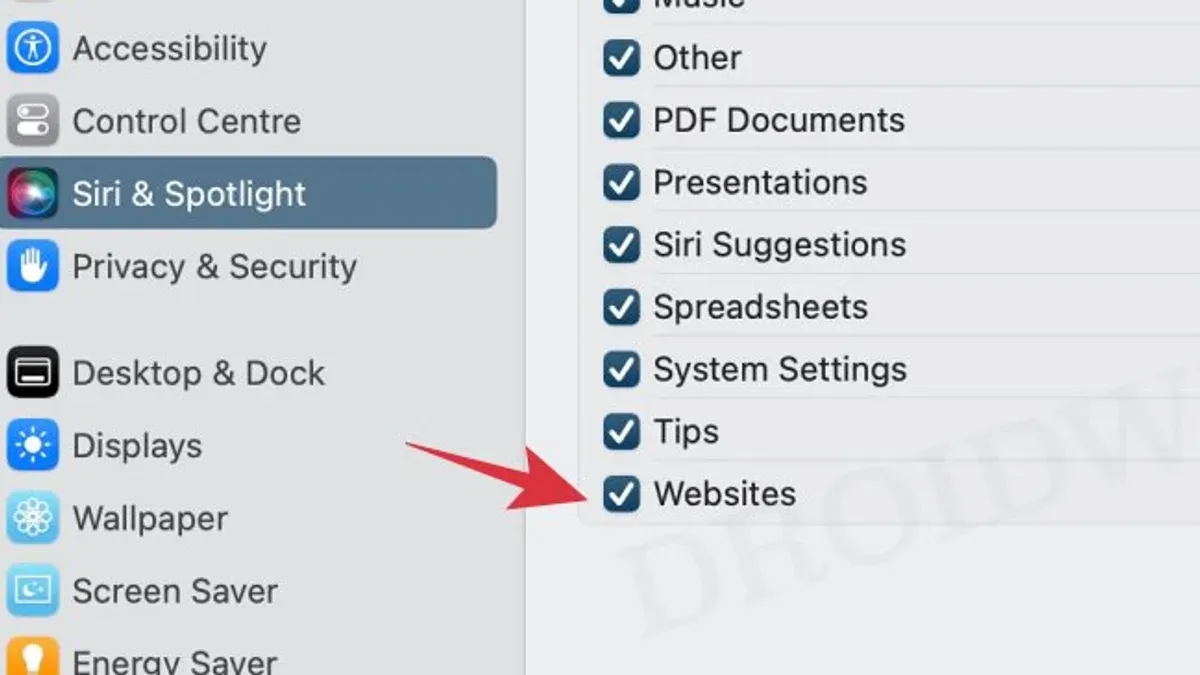
- Open System Settings and select Siri & Spotlight.
- Scroll to the Spotlight Categories list, where you will see checkboxes for various result types like Applications, Documents, Siri Suggestions, Bing Web Searches, and more.
- Uncheck Siri Suggestions and Bing Web Searches to disable web-based results from appearing in Spotlight searches.
- Close System Settings and activate Spotlight with Command + Space. Type a search term to confirm that web results no longer show, while local files and apps still appear.
Disabling these categories removes online results, which enhances privacy and can speed up search response. However, you lose convenient information like Siri’s contextual suggestions, news headlines, and web-based answers directly in Spotlight.
For example, with all categories enabled, searching "weather" shows local apps, documents, and real-time web forecasts. With web categories off, you see only local files and apps named or related to "weather," but no online data.
Balancing functionality and privacy means deciding which categories you value. If you want quick web info inside Spotlight, keep some web categories enabled; if privacy or speed is a priority, deselect them accordingly.
How to remove Spotlight web results using Terminal commands
If you are comfortable with the command line, Terminal provides an advanced method to disable Spotlight web results more precisely. This approach uses defaults write commands to modify system preferences related to Spotlight suggestions and web searches.
- Open Terminal from Applications > Utilities.
- To disable Spotlight suggestions, enter:
defaults write com.apple.Spotlight SuggestionsEnabled -bool false
You should see no output, indicating the command executed successfully. - Next, disable Bing web searches with:
defaults write com.apple.Spotlight BingWebSearchEnabled -bool false
Again, no output means success. - Restart the Spotlight process to apply changes:
killall Spotlight
Terminal will return to the prompt without errors. - To verify the settings, run:
defaults read com.apple.Spotlight SuggestionsEnabled
This should return 0 indicating disabled. - Similarly, check Bing web search status:
defaults read com.apple.Spotlight BingWebSearchEnabled
You should see 0.
If you need to revert these changes, repeat the commands replacing false with true, then restart Spotlight again.
This method offers granular control but requires caution as improper commands can affect system behavior.
Troubleshooting Spotlight when web results don’t turn off or Spotlight search is not working
If you have disabled Spotlight web results but still see them appearing, or if Spotlight search is malfunctioning, several steps can help resolve these issues.
Spotlight still shows web results after disabling
First, verify that both "Siri Suggestions" and "Spotlight Suggestions" are turned off in System Settings under Siri & Spotlight. Sometimes, toggling these settings off and back on can reset the behavior. If that doesn't work, proceed to rebuild the Spotlight index.
Rebuilding the Spotlight index
A corrupted or incomplete Spotlight index can cause web results to persist or search to fail. Rebuilding the index forces macOS to re-index all files and settings, often correcting these glitches.
- Open System Settings and go to Privacy & Security > Spotlight Privacy.
- Click the + button and add your entire Macintosh HD (or the main drive) to the list; this excludes it from Spotlight indexing.
- Wait a few seconds, then select the drive and click the – button to remove it from the exclusion list. This triggers reindexing.
- Spotlight will now rebuild its index. This process may take several minutes to hours depending on your data size.
- Once indexing completes, test Spotlight search again; web results should now respect your disabled settings and search functionality should be restored.
Alternatively, you can rebuild the index using Terminal with the command sudo mdutil -E /. Running this requires administrator privileges and will erase and restart Spotlight's indexing.
Check for macOS updates
Occasionally, Spotlight issues arise from bugs fixed in system updates. Navigate to System Settings > General > Software Update and install any available updates. After updating, retry Spotlight functionality and the disabling of web results.
How to manage Spotlight privacy and storage by deleting unwanted Spotlight files
Spotlight stores its index and cache files mainly in the hidden system folder /private/var/folders/ on your Mac. These files can grow over time, consuming disk space and potentially raising privacy concerns if local search data is retained longer than desired.
Before deleting any Spotlight files, be aware that removing these caches may temporarily slow down search performance as Spotlight rebuilds its index. Full deletion can also cause some system processes relying on Spotlight to behave unpredictably until reindexing completes.
To safely delete unwanted Spotlight files and manage storage, follow these steps:
- Open System Settings and go to Spotlight.
- Click on Privacy and add your main disk (usually named “Macintosh HD”) to prevent Spotlight from indexing it temporarily.
- Open Terminal from Applications > Utilities.
- Enter the command
sudo mdutil -E /and press Enter. This instructs Spotlight to erase its index and start fresh. - Remove the disk from the Spotlight Privacy list in System Settings to allow reindexing to begin.
After these steps, Spotlight will rebuild its index from scratch, which can free space used by old cached data. Disk space recovery varies but can be noticeable if large caches existed.
As an alternative to full deletion, reindexing without adding the disk to Privacy can also refresh Spotlight data safely. For more detailed guidance, Apple’s official support documents on Spotlight indexing provide further instructions and warnings.
How to use Mac Spotlight effectively while web results are turned off
Disabling web results in Spotlight helps protect your privacy and can speed up local searches, but you can still leverage Spotlight’s powerful local search capabilities. To maximize productivity, focus on refining your search queries and using keyboard shortcuts.
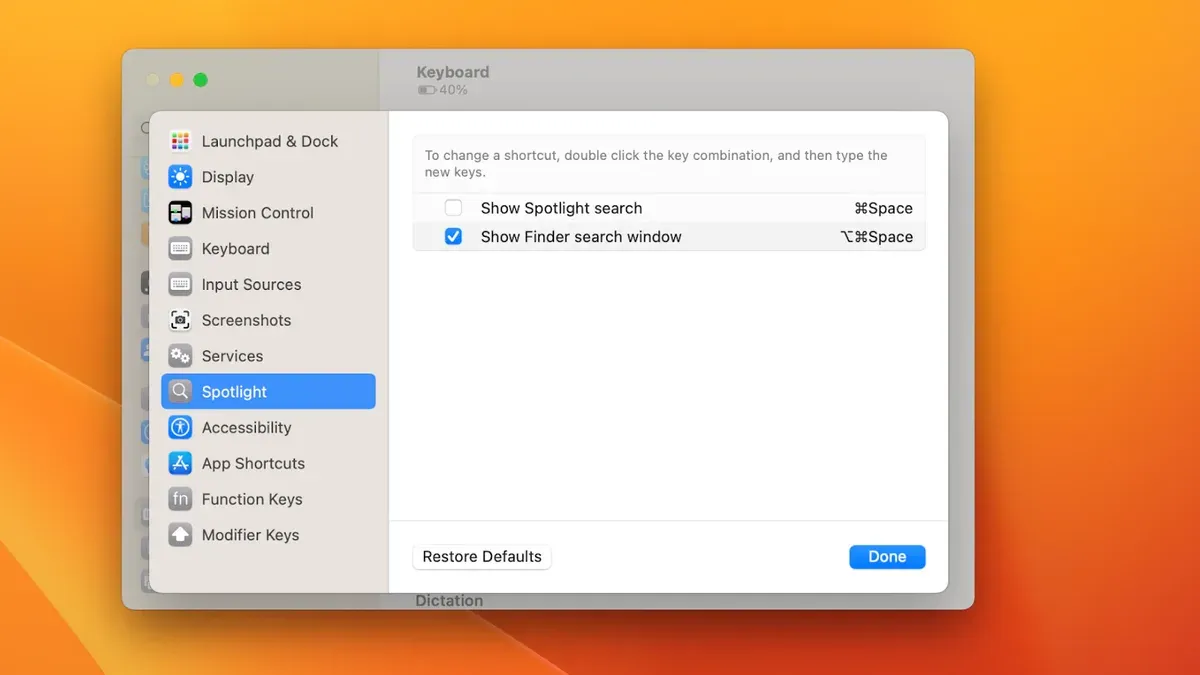
Start by using specific keywords and file types in your searches. For example, type "kind:pdf budget" to find PDF documents with "budget" in the name or content, without web results appearing. Without web results, a query like "weather" will show only local apps or files with that name, instead of online weather forecasts.
Use Spotlight to launch apps quickly by typing their names or abbreviations. For example, typing "Safari" or "Cal" will prioritize the Safari browser or Calendar app, respectively. Calculator functions also work seamlessly; entering "45*3" returns 135 without pulling web calculations.
Keyboard shortcuts improve accuracy and speed. Press Command + Space to open Spotlight, Arrow keys to navigate results, and Return to open the selected item. Use Tab to move between search fields in apps when Spotlight suggests them.
Balancing privacy with usability means accepting that some web-based information, like quick online facts, won’t appear directly in Spotlight. Instead, use dedicated apps or browsers for those queries. This approach keeps your searches local and fast while maintaining essential Spotlight functions.
- How to Turn Off App Notifications on Mac: A Clear Step-by-Step Guide
- How to Enable and Use Type to Siri on Your Mac
- How to Change Siri Voice on Mac: A Step-by-Step Guide
Frequently asked questions
How to turn off spotlight search mac?
To turn off Spotlight search on your Mac, open System Settings and go to Spotlight. From there, you can disable specific categories or uncheck the option for Allow Spotlight Suggestions to prevent web results from appearing. For complete disabling, you may need to use Terminal commands, but this can reduce overall search functionality.
How to access spotlight on mac?
You can access Spotlight on Mac by clicking the magnifying glass icon located in the upper-right corner of the menu bar. Alternatively, you can use the keyboard shortcut Command (⌘) + Spacebar to open the Spotlight search bar.
How to pull up spotlight on mac?
To pull up Spotlight, press Command (⌘) + Spacebar on your keyboard. This shortcut immediately opens the search field where you can type your query. You can also click the magnifying glass icon in the menu bar to activate Spotlight.
How to find spotlight on mac?
Spotlight is located at the top-right corner of your Mac’s screen as a magnifying glass icon in the menu bar. If it’s not visible, check your System Settings under Dock & Menu Bar to ensure Spotlight is enabled in the menu bar items.
How to open spotlight on mac?
Open Spotlight by either clicking the magnifying glass icon in the menu bar or pressing Command (⌘) + Spacebar. This opens the Spotlight search window where you can start typing to find files, apps, or web results depending on your settings.
Limits of disabling Spotlight web results
Disabling Spotlight web results can limit the breadth of your search results by excluding information sourced from the internet. This also means that Siri Suggestions, which provide quick access to relevant online content, will no longer appear, potentially reducing convenience for some users. This guide does not cover fully disabling Spotlight or removing the Spotlight icon from the menu bar, as these involve deeper system modifications that can affect overall system stability and are recommended only for advanced users comfortable with macOS internals.
The most useful next step is to carefully review the Spotlight search categories in System Settings under Spotlight & Privacy and selectively disable web-related categories like "Bing Web Searches" or "Siri Suggestions". This lets you maintain core local search functionality while restricting online queries, offering a balance between privacy and usability that many users overlook.