How to Merge Two Folders in Finder on macOS Safely
This guide explains how to merge two folders in Finder on macOS safely, avoiding data loss and handling file conflicts effectively.
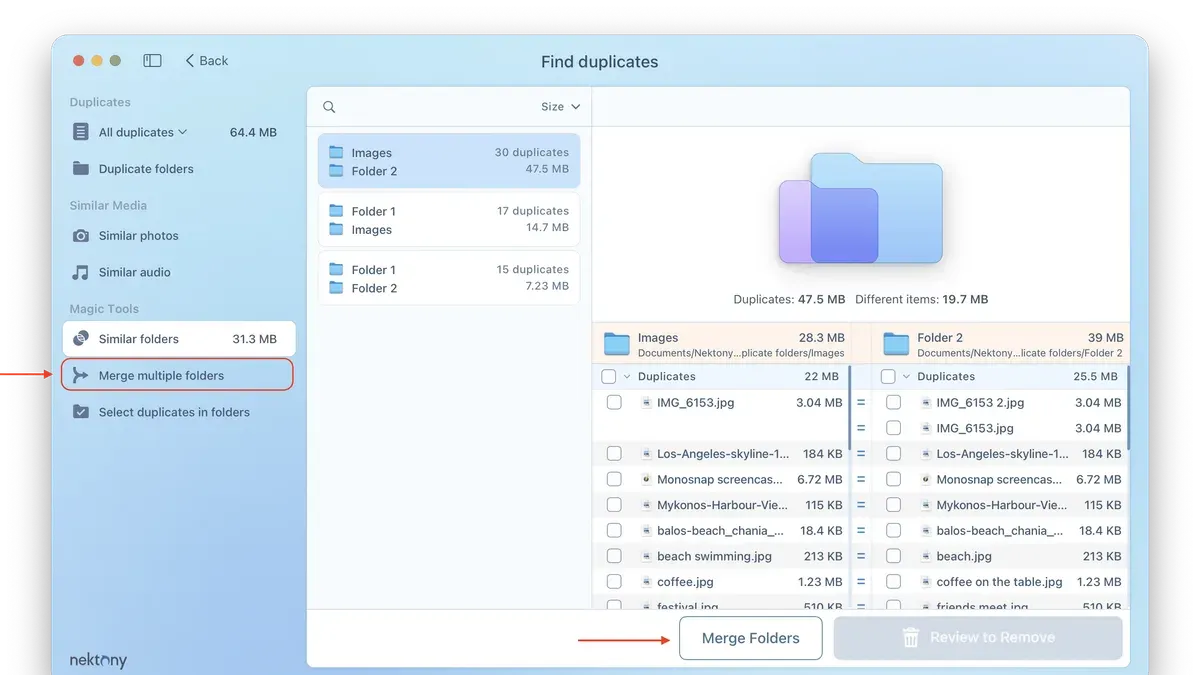
Merging folders on a Mac requires understanding Finder’s specific behaviors to avoid data loss or duplicates. This guide explains how to merge two folders in Finder, focusing on macOS’s handling of file conflicts and folder contents.
Understanding Finder’s Folder Merge Behavior
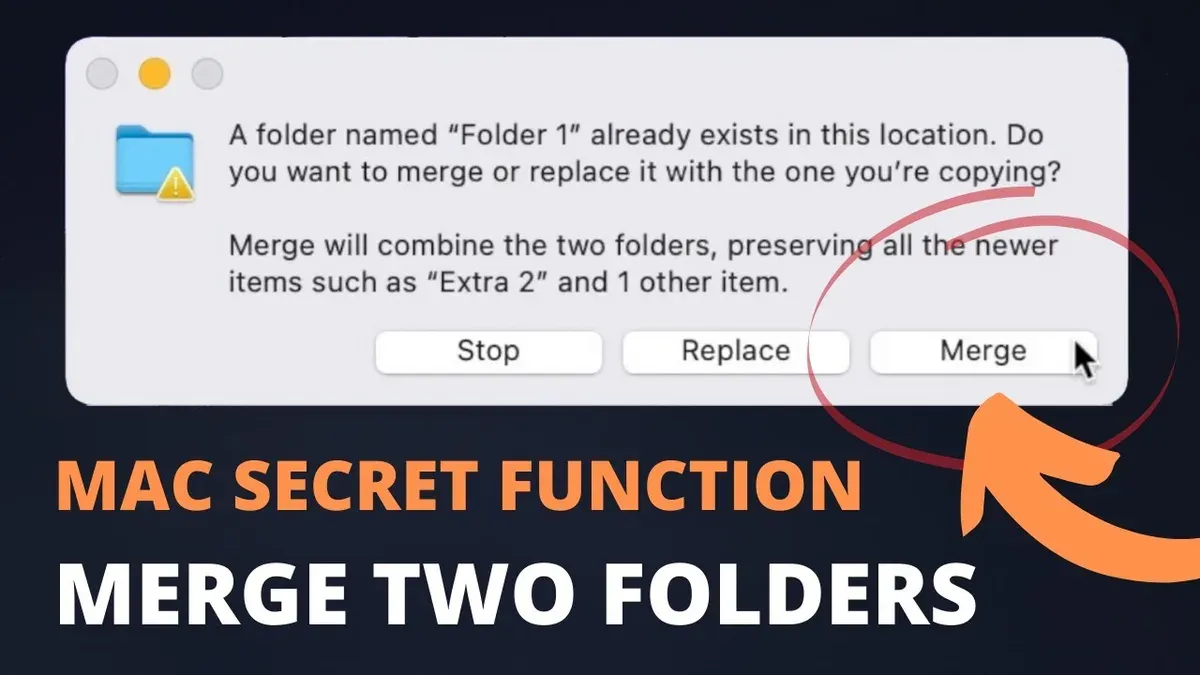
When you drag one folder onto another in Finder and hold the Option key on macOS Catalina (10.15) and later, the “Merge” option appears. Selecting it combines the contents of both folders instead of replacing the destination folder. Without holding Option, dragging a folder with the same name overwrites the destination folder.
During a merge, macOS compares folder structures and file names. Unique files in the source folder are copied to the destination folder. For files with identical names, Finder prompts you to replace the existing file or keep both by renaming the new one (e.g., adding a number suffix). Subfolders with the same name merge recursively, combining their contents similarly.
Before macOS Catalina, dragging a folder onto another with the same name replaced the entire folder, increasing the risk of data loss.
For example, consider two folders named “Project”:
- Folder A contains report.docx, summary.pdf, and a subfolder Images with diagram.png.
- Folder B contains report.docx (a different version), notes.txt, and a subfolder Images with photo.jpg.
Merging Folder B into Folder A prompts about the conflicting report.docx. Choosing to keep both renames the incoming file (e.g., report 2.docx). The Images subfolders merge, so the destination contains both diagram.png and photo.jpg.
Step-by-Step Guide to Merging Two Folders Safely in Finder
- Prepare your folders: Ensure both folders are accessible in Finder and located on the same drive or volume.
- Hold the Option key: Click and drag the source folder onto the destination folder while pressing and holding Option. This reveals the “Merge” option instead of “Replace”.
- Select “Merge”: In the popup dialog, choose “Merge” to combine the folder contents.
- Resolve conflicts: For files with identical names, Finder prompts to replace or keep both. Choose based on your needs; keeping both renames the incoming file automatically.
- Verify the merge: After merging, check the destination folder to confirm all files and subfolders merged correctly.
Example: Merging “Work Files” into “Work Archive” while holding Option prompts about a conflicting budget.xlsx. Choosing to keep both creates budget 2.xlsx in “Work Archive”. Unique files from “Work Files” are added without overwriting.
Alternatives When Finder’s Merge Option Isn’t Available or Suitable
The Finder merge option only works when folders share the same name, are on the same drive, and you hold Option while dragging. It does not appear if folders are on different drives, network shares, or on macOS versions before Catalina.
Alternative methods include:
Terminal’s ditto Command
The ditto command merges folders recursively and preserves metadata better than Finder. It overwrites files in the destination with those from the source if names conflict. Use the syntax:
ditto /path/to/source/ /path/to/destination/Replace /path/to/source/ and /path/to/destination/ with your actual folder paths. This is useful for large or cross-drive merges.
Third-Party Folder Merge Tools
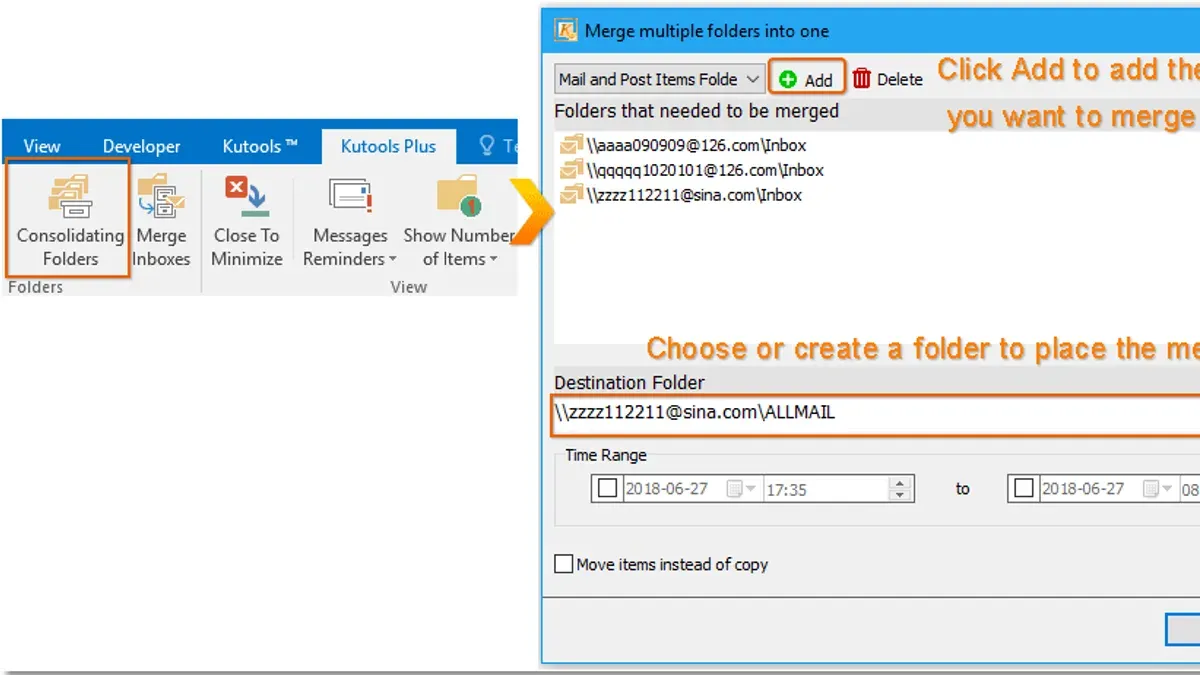
Apps like Path Finder, ForkLift, or Beyond Compare provide advanced folder merging features including previews and conflict resolution. They support merges across drives and network shares, reducing risk of errors.
Manual Merging
For critical data, manually copying files and verifying each step prevents accidental overwrites. This is slower but safest for sensitive merges.
| Method | Ease of Use | Risk of Data Loss | Best For |
|---|---|---|---|
| Finder Merge | Easy | Low if prompts are read carefully | Same drive, macOS Catalina and later |
Terminal ditto |
Moderate | Low, overwrites destination files | Large folders, cross-drive merges |
| Third-Party Apps | Varies (User-friendly to complex) | Minimal with previews | Complex merges, conflict previews |
| manual | Slow | Minimal | Small, critical or sensitive merges |
Common Issues and How to Avoid Data Loss During Folder Merges
To prevent problems during merges:
- Backup first: Always duplicate both folders or use Time Machine before merging.
- Verify contents: After merging, compare folder sizes, file counts, or use Finder’s Get Info to confirm all files transferred.
- Metadata and permissions: Finder merge may not preserve all metadata or permissions perfectly;
dittopreserves these better. - Hidden files: Hidden files (starting with a dot) may not merge if not visible or selected.
Backup checklist before merging:
- Copy source folder to a separate location or external drive
- Copy destination folder similarly
- Confirm backups are complete and accessible
- Proceed with merge only after backups are secured
Caveats
This article does not cover merging folders inside third-party cloud storage apps like Dropbox or Google Drive, where syncing rules differ and may override Finder behavior. Always consult those apps’ documentation for folder merging guidelines.
Frequently Asked Questions
What does the "Merge" option do in Finder exactly?
It combines the contents of two folders with the same name on the same drive, adding unique files and merging subfolders recursively. For files with identical names, Finder prompts whether to replace or keep both, renaming the incoming file if kept.
Can I undo a folder merge if I make a mistake?
No, Finder does not provide an undo for merges. You must restore from backup or manually remove unwanted files.
Why doesn’t the "Merge" option appear when I drag folders?
The merge option appears only when dragging a folder onto another with the same name on the same drive while holding the Option key. It requires macOS Catalina or later.
Are there risks to merging folders on external drives or network shares?
Yes. Finder’s merge may not work or behave unpredictably across different volumes or network locations. Using Terminal commands like ditto or third-party tools is safer in these cases.
Related reading
- Master Finder’s Batch Rename for Mac Files Like a ProStreamline your workflow by learning how to batch rename files in Finder on Mac with easy, practical steps for 2026.
- How to Create a Smart Folder in Finder for Efficient File ManagementDiscover how to create a smart folder in Finder to dynamically organize and access your files efficiently on Mac.