How to Show the Path Bar in Finder for Precise File Navigation
Learn how to enable and use the path bar in Finder for precise file navigation and better folder management on macOS 2026.
Mac users navigating complex folder structures benefit from showing the path bar in Finder. This feature displays the full folder hierarchy at the bottom of Finder windows, improving navigation accuracy and reducing errors.
What is the Finder Path Bar and Why It Matters
The Finder path bar is a horizontal strip at the bottom of each Finder window. It shows the full path from the current folder back to the root of the drive or volume. Unlike the sidebar, which shows favorites or frequently accessed folders, and the title bar that shows only the current folder's name, the path bar provides a complete breadcrumb trail.
By showing every folder level, the path bar helps users maintain awareness of their exact location within the file system. This clarity is especially useful when working deep inside nested directories. It also aids in precise drag-and-drop actions and quick jumps to parent or sibling folders without relying on the sidebar or back button.
| Navigation Element | Description | Primary Use |
|---|---|---|
| Path Bar | Full folder hierarchy at window bottom | Exact location awareness and quick jumps |
| Sidebar | Favorites and commonly accessed folders | Fast access to preferred folders |
| Title Bar | Current folder name | Basic current location information |
Step-by-Step Guide to Enabling the Path Bar in Finder
Enabling the path bar on macOS 2026 is straightforward. Follow these steps to activate it:
- Open any Finder window by clicking the Finder icon in the Dock.
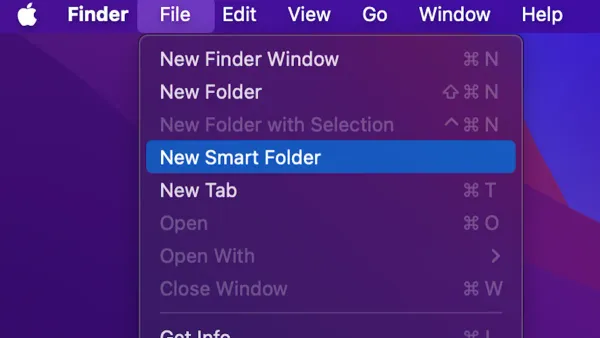
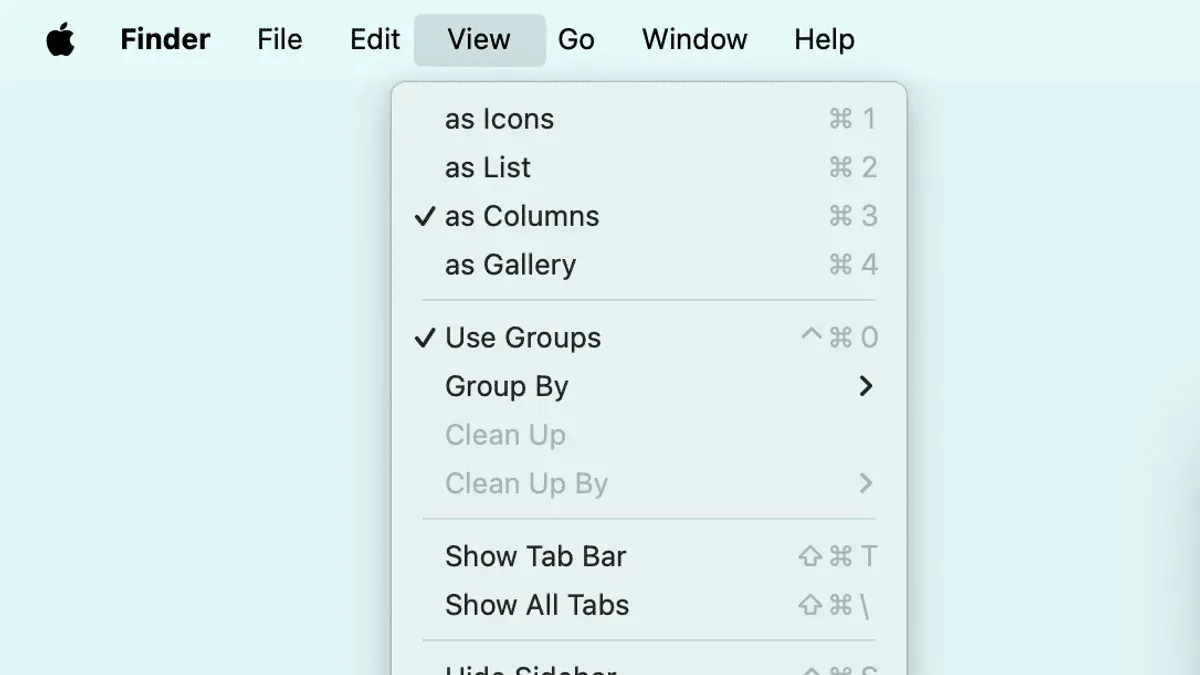
- From the menu bar at the top of the screen, select View.
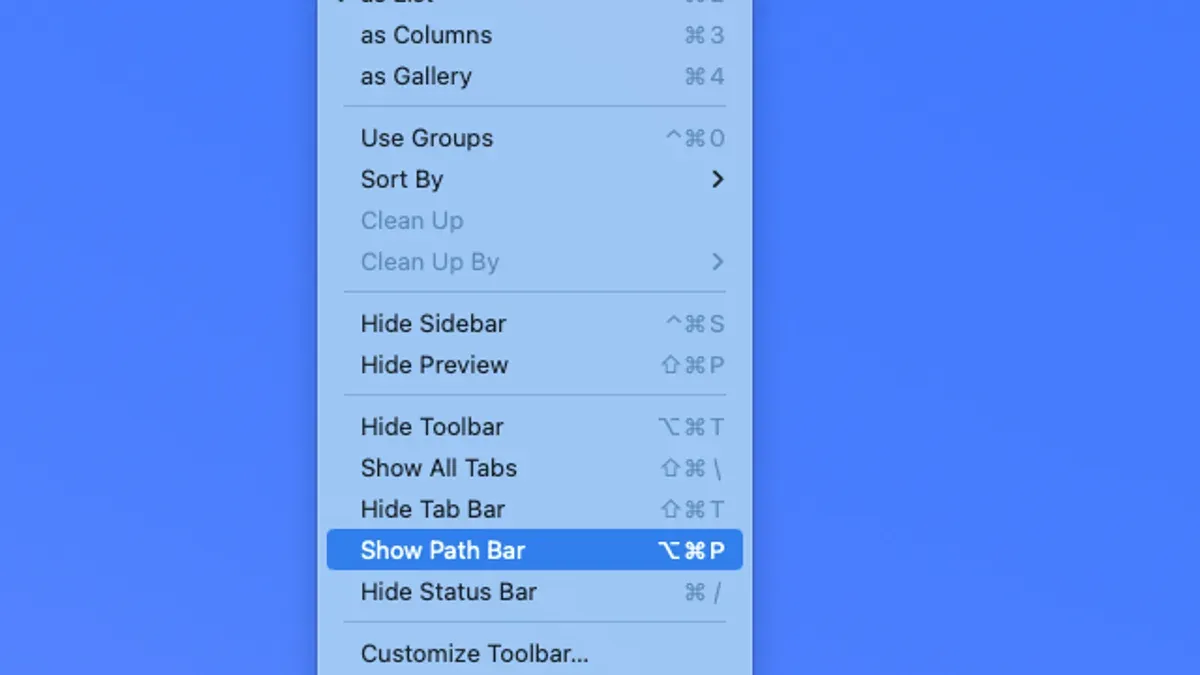
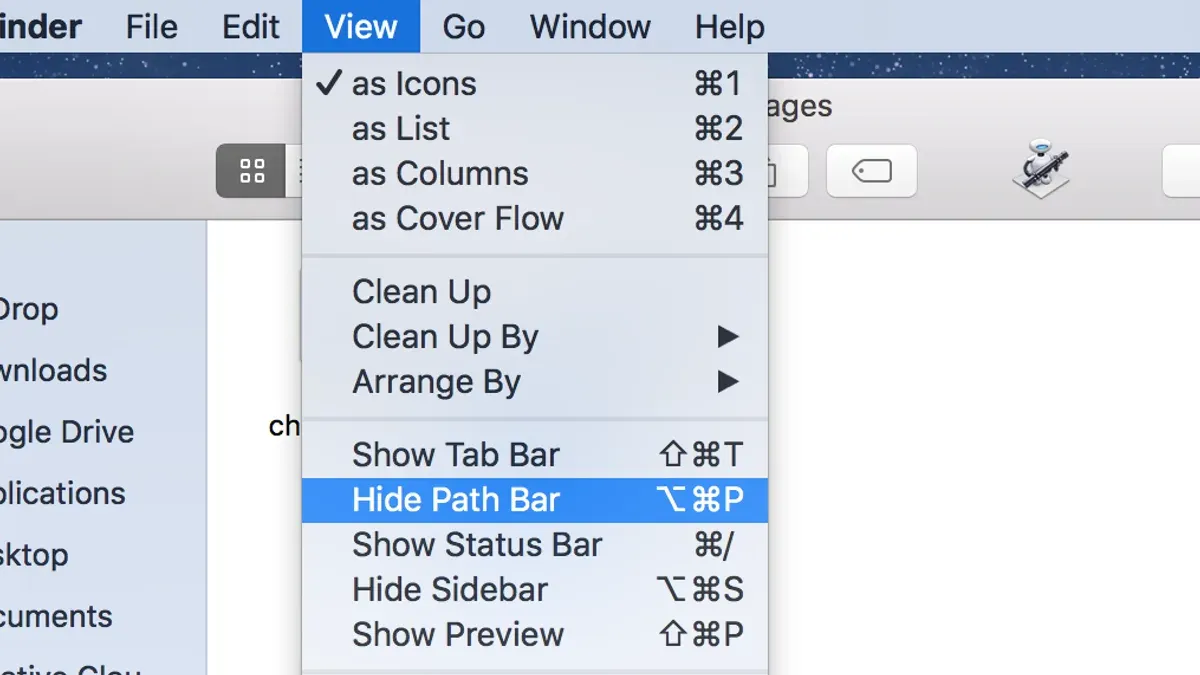
- In the dropdown menu, click Show Path Bar. If the option reads Hide Path Bar, the path bar is already enabled.
You can also toggle the path bar quickly using the keyboard shortcut Option + Command + P.
Once enabled, the path bar appears at the bottom of the Finder window. It displays clickable folder names representing the full path. Right-clicking a folder in the path bar reveals options such as copying the folder path or opening it in a new tab.
Note: Sometimes users miss that the path bar only appears in Finder windows set to icon, list, or column view—not in gallery view. Switching views can make the path bar visible.
Using the Path Bar to Navigate and Manage Files More Efficiently
The path bar offers practical navigation and file management advantages:
- Quick jumps: Clicking any folder in the path bar switches the Finder view to that folder, eliminating repeated back clicks or sidebar navigation.
- Drag and drop: Drag files or folders directly onto any folder in the path bar to move or copy items there, enabling precise reorganization without opening multiple windows.
- Visual confirmation: The path bar helps prevent misplacement by constantly showing the exact location where actions occur, reducing errors with similar folder names or complex structures.
For example, when organizing photos into year and event folders nested several levels deep, the path bar helps verify the destination folder before dropping files, reducing the risk of misplacement.
Troubleshooting Common Issues with the Finder Path Bar
If the path bar option is greyed out or missing, first verify you are running a supported macOS 2026 version. Some older or heavily customized systems may not show this option.
If problems persist, try these steps:
- Restart Finder: Right-click the Finder icon in the Dock while holding
Optionand select Relaunch. - Reset Finder preferences: Navigate to
~/Library/Preferences/and movecom.apple.finder.plistto the Desktop. Then restart Finder. This resets Finder settings without deleting data. - Check for macOS updates: System updates may fix bugs affecting Finder features.
Error messages related to the path bar are rare but may occur if system permissions are restricted or third-party utilities modify Finder behavior.
Alternatives and When Not to Use the Path Bar
The path bar is not ideal in every situation. Consider these points before enabling it:
- Users working mainly within a few top-level folders may find the sidebar or keyboard shortcuts faster than clicking through the path bar.
- For simple folder structures, the path bar may add unnecessary visual clutter.
- In networked or synced folders, the path bar may not always reflect real-time changes accurately, which can cause confusion.
In such cases, relying on sidebar favorites or command-line navigation might improve efficiency.
Caveats
This article focuses on macOS 2026 Finder features. Users with significantly older macOS versions may experience differences or lack some described options, including the path bar toggle or customization features.
Frequently Asked Questions
Can I customize what folders appear in the Finder path bar?
The path bar automatically shows the full folder hierarchy of the current folder. It cannot be customized to show only selected folders since it reflects the actual path.
Does enabling the path bar affect Finder performance or battery life?
Enabling the path bar has a negligible impact on performance or battery life. It is a lightweight UI feature designed to work efficiently within Finder.
Is the path bar available in all macOS versions or only recent ones?
The path bar feature has been available in most macOS versions for several years, including the 2026 release. Very old versions may lack this feature or have different enabling methods.
How do I hide the path bar if I decide I don’t want it visible?
To hide the path bar, open any Finder window, choose the View menu, and select Hide Path Bar. Alternatively, use the shortcut Option + Command + P again to toggle it off.
Related reading
- How to Show File Extensions in Finder on Your MacDiscover how to show file extensions in Finder on your Mac to improve file identification and security.