
Moving from Dropbox to OneDrive Checklist: Your Step-by-Step Guide
A moving from Dropbox to OneDrive checklist helps you plan and execute a smooth file migration while leveraging OneDrive’s collaboration features.
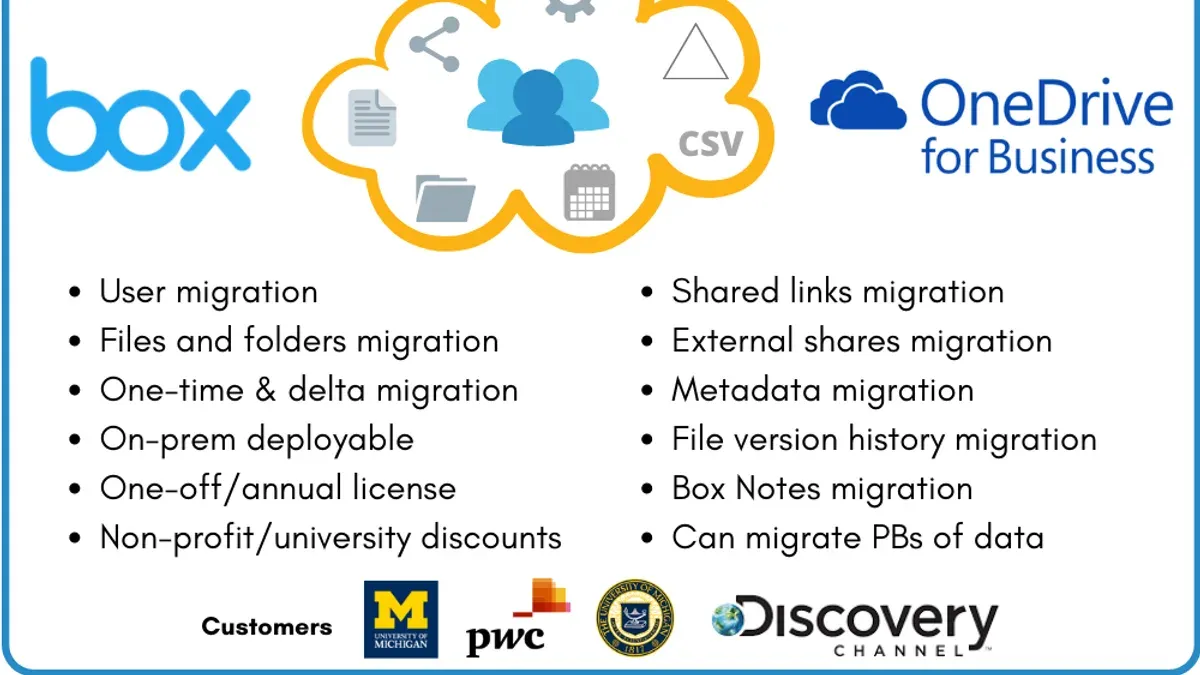
Short answer: Moving from Dropbox to OneDrive is a structured process that involves understanding platform differences, planning your migration carefully, and transferring files with attention to detail. A moving from Dropbox to OneDrive checklist helps you avoid common pitfalls while ensuring a smooth transition.
This guide covers everything you need to confidently switch your organization or personal files from Dropbox to OneDrive. You'll learn how to plan your migration, execute the file transfer step-by-step, and adapt to OneDrive’s features to maintain or improve your current workflow. Additionally, it highlights frequent mistakes to avoid and how to leverage OneDrive’s integration with Microsoft 365 for enhanced collaboration and security.
Understand the Differences Between Dropbox and OneDrive
Dropbox and OneDrive both offer cloud storage and file synchronization but differ fundamentally in architecture and ecosystem integration. Dropbox uses a block-level sync technology that speeds up uploading and downloading by syncing only changed parts of files. OneDrive also supports differential sync but is deeply integrated within the Microsoft 365 ecosystem, enabling seamless collaboration on Office files directly within the cloud.
OneDrive’s integration with tools like Microsoft Teams, SharePoint, and Outlook allows you to open, edit, and share documents without leaving the environment. For example, when you edit an Excel file stored in OneDrive, multiple users can co-author simultaneously with real-time changes visible, reducing version conflicts common in Dropbox’s ecosystem. Dropbox offers strong sharing controls and third-party integrations but lacks the native Microsoft productivity suite integration.
| Feature | Dropbox | OneDrive |
|---|---|---|
| Sync Technology | Block-level sync | Differential sync + Office file co-authoring |
| Integration | Dropbox Paper, third-party apps | Microsoft 365 (Teams, SharePoint, Outlook) |
| Collaboration | File sharing, comments | Real-time co-authoring, version history |
| Security & Compliance | Strong encryption, GDPR compliant | Enterprise-grade security, Advanced Threat Protection |
Security is robust on both platforms, but OneDrive's compliance with enterprise standards and integration with Microsoft’s security tools can provide enhanced control for organizations. Moving to OneDrive is more than copying files; it’s about leveraging integrated workflows and security frameworks that can increase productivity and governance.
How to Move from Dropbox to OneDrive: Planning Your Migration
Before migrating, thoroughly assess your current Dropbox data and structure. Start by auditing your files to identify active projects, archived folders, and redundant data. For example, you might find multiple versions of marketing materials scattered across shared folders. This audit helps you decide what truly needs to be migrated.
Create a clear inventory that includes folder sizes, file types, and sharing permissions. Note which files are shared externally or have specific access controls, as replicating these permissions in OneDrive requires careful planning.
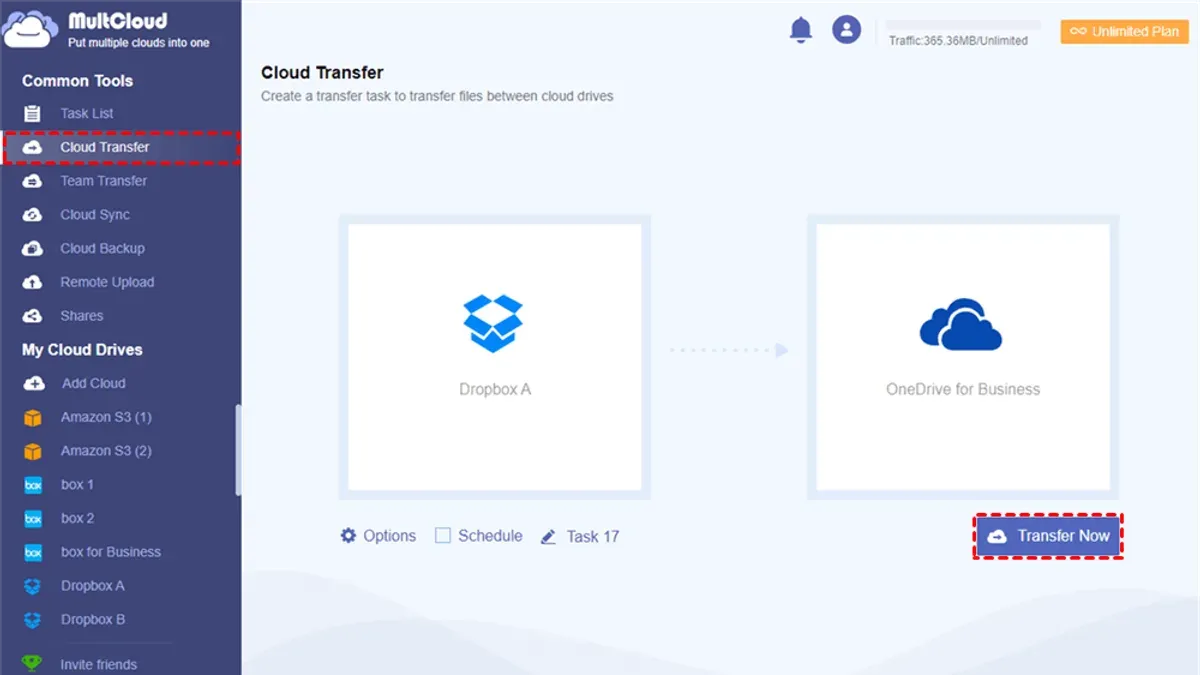
Next, choose between manual migration and automated tools. Manual migration involves downloading files from Dropbox and uploading them to OneDrive, which offers full control but can be time-consuming for large datasets. Automated tools like Mover.io or CloudFuze streamline the process and preserve metadata but may require subscription fees and have learning curves.
Consider the trade-offs: manual migration costs less but risks missing complex sharing settings; automated tools reduce human error but need configuration and validation. For instance, a small team with under 50 GB might prefer manual migration, while a large enterprise with terabytes of data benefits from automation.
Finally, implement a robust backup strategy before moving any data. Backup your Dropbox files to an external drive or a separate cloud storage to prevent data loss. Confirm backup integrity by checking file accessibility.
Sample data audit checklist:
- List all top-level folders and approximate sizes
- Identify files not accessed in the last 12 months
- Note files with external sharing links
- Document folder-level and file-level permissions
- Flag large files exceeding OneDrive limits (e.g., 250 GB)
Comparison of migration tools:
| Tool | Pros | Cons |
|---|---|---|
| Mover.io | Preserves metadata; automates transfer; integrates with OneDrive | Requires subscription; setup complexity for beginners |
| CloudFuze | Supports bulk migration; maintains sharing settings; multi-cloud support | Costly for large users; occasional sync delays |
| Manual Migration | No cost; full control over files transferred | Time-consuming; risk of missing permissions; potential for user error |
How to Transfer Dropbox Files to OneDrive: Step-by-Step Process
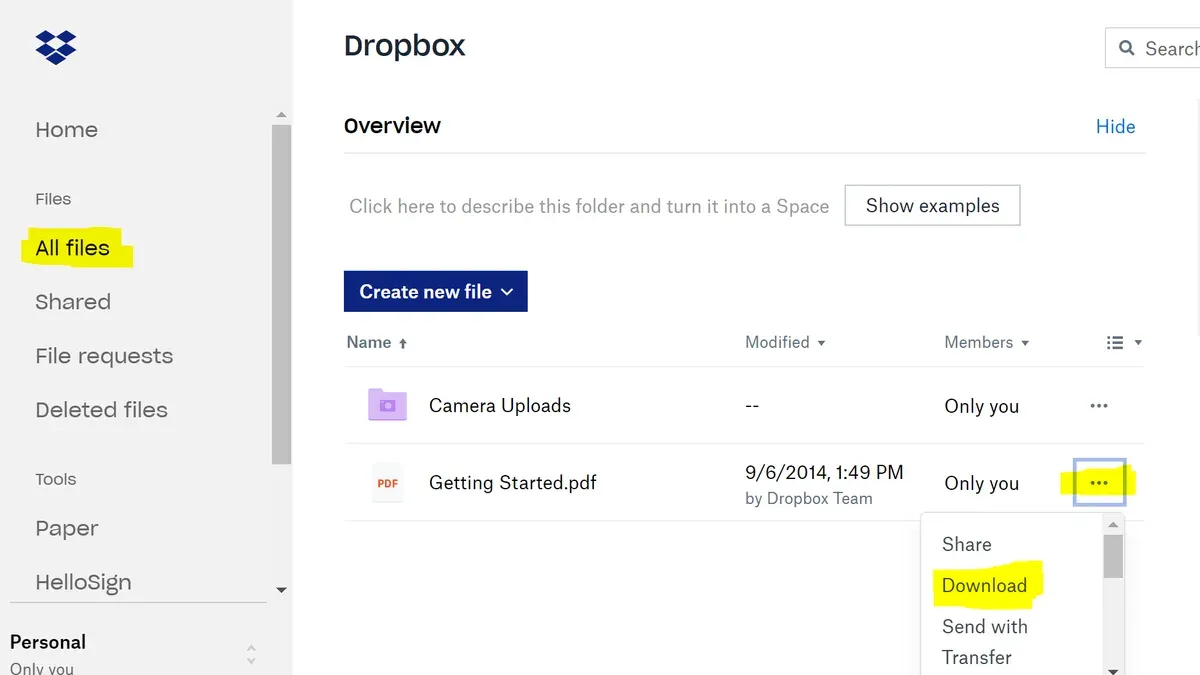
Begin by exporting your Dropbox files. Using the Dropbox desktop app, select the folders or files you want to move, then right-click and choose Show in Dropbox folder to locate them locally. Alternatively, via the Dropbox web interface, navigate to your files, select them, and click Download—this creates a ZIP archive for bulk export. For example, if you have a project folder named "Q3 Reports," download it as a ZIP to your desktop.
Next, upload these files to OneDrive. Open the OneDrive web app, select Upload > Folder or Files, and choose the extracted content or individual files. Organize your files into folders matching your Dropbox structure for consistency, such as creating a "Q3 Reports" folder in OneDrive. OneDrive’s drag-and-drop feature also facilitates this step.
Recreate sharing permissions by visiting each folder or file in OneDrive, selecting Share, and setting permissions similar to those in Dropbox. Note that direct permission transfers aren’t available, so document original sharing settings beforehand to replicate them accurately.
Finally, verify file integrity by comparing file sizes and counts between Dropbox and OneDrive. Use OneDrive’s sync status indicators to ensure full upload. Common errors include interrupted uploads or ZIP extraction failures; resolving them usually involves retrying after stable internet connection or re-extracting files.
- Export files via Dropbox desktop app or web interface
- Upload and organize files in OneDrive
- Manually recreate sharing permissions
- Verify file integrity and sync status
How to Use OneDrive Like Dropbox After Migration
To replicate your Dropbox folder behavior in OneDrive, start by configuring the OneDrive sync client. Open OneDrive settings, go to the Account tab, and select "Choose folders" to sync only the folders you need—this mirrors Dropbox’s selective sync. Ensure "Files On-Demand" is enabled under the Settings tab to save local storage by downloading files only when accessed.
OneDrive offers robust version history and file restore features. Right-click any file in the OneDrive folder and select "Version history" to view or restore previous versions—a feature comparable to Dropbox but with deeper integration in Microsoft 365. This is invaluable when recovering from accidental edits or deletions.
Sharing files and folders with external users securely is straightforward. Use the "Share" option in OneDrive and set link permissions to "Anyone with the link" or restrict by specific people. You can set expiration dates and password protection, enhancing security beyond Dropbox’s basic sharing.
For example, if you have a shared marketing folder in Dropbox, recreate it in OneDrive by creating a folder in your OneDrive root, sharing it with your team via their Microsoft accounts, and enabling co-authoring in Word or Excel. This allows simultaneous editing and commenting, a step beyond Dropbox’s simpler collaboration.
Checklist:
- Set up OneDrive sync client with selective folder sync and Files On-Demand
- Use Version History to manage and restore file versions
- Configure secure sharing links with permissions, expiration, and passwords
- Create shared folders and leverage Microsoft 365 co-authoring for collaboration
Common Mistakes to Avoid When Migrating from Dropbox to OneDrive
One critical error is skipping a full data backup before migration. Without a secure backup, accidental data loss can occur if files don’t transfer correctly. For example, a mid-sized marketing firm lost several weeks of campaign assets after a partial upload failure because no backup was kept.
Ignoring differences in file permissions and sharing settings is another common pitfall. Dropbox’s sharing model differs from OneDrive’s Microsoft 365-based permissions, so failing to carefully map these can lead to unauthorized access or broken links. A nonprofit organization once faced client complaints because shared folders became inaccessible post-migration.
Underestimating sync time and bandwidth needs often causes extended downtime. Large file volumes require significant time to upload, especially over constrained networks. One IT department experienced a week-long sync delay that disrupted daily operations because they hadn’t scheduled migration during off-hours or accounted for bandwidth throttling.
Finally, not training users on OneDrive’s interface and features leads to confusion and resistance. OneDrive offers capabilities like Files On-Demand and integrated Office editing that differ from Dropbox. A financial services company saw productivity drops when staff struggled with the new layout and failed to utilize version history effectively.
- Create a complete backup of all Dropbox data before starting migration.
- Review and replicate sharing permissions carefully using OneDrive’s sharing settings.
- Plan for sufficient sync time and ensure network bandwidth can handle large uploads.
- Provide comprehensive user training on OneDrive’s interface and collaboration tools.
Read next
- Moving from Dropbox to Google Workspace: Your Complete Checklist
- Moving from Dropbox to Google Drive Checklist for Seamless Migration
- Dropbox Rollout Plan for Teachers with Low Tech Confidence
- Dropbox Implementation Timeline: From Inception to Everyday Use
Frequently asked questions
How to move dropbox files to onedrive?
To move Dropbox files to OneDrive, start by downloading your files from Dropbox to your local device. Then, upload these files into your OneDrive account using the OneDrive web interface or the OneDrive sync client. For large transfers, consider syncing both services locally and then moving files between folders to speed up the process.
How to migrate from dropbox to onedrive?
Migrating from Dropbox to OneDrive involves planning your folder structure, permissions, and sharing settings in advance. After downloading or syncing Dropbox content locally, upload it to OneDrive, ensuring you recreate any sharing links or access rights manually. Use OneDrive’s integration with Microsoft 365 tools to optimize collaboration post-migration.
How to transfer dropbox to onedrive?
Transfer Dropbox to OneDrive by first syncing Dropbox files to your computer with the Dropbox desktop app. Then move or copy these synced files into your OneDrive folder on your device. OneDrive will automatically upload the transferred files, keeping them synced across your devices.
How to create a dropbox in onedrive?
OneDrive does not have a direct equivalent called “Dropbox,” but you can create a dedicated folder in OneDrive to serve the same purpose. Simply make a new folder named “Dropbox” or similar, then organize and sync files there. Use OneDrive’s sharing and versioning features to manage your files effectively within that folder.
Does onedrive work like dropbox?
OneDrive and Dropbox offer similar core functions like file syncing, sharing, and collaboration, but OneDrive integrates deeply with Microsoft 365 apps, providing advanced co-authoring and document management features. OneDrive also offers Files On-Demand to save local storage, which differs from Dropbox’s selective sync. Your choice depends on your ecosystem preferences and collaboration needs.
Quick checklist
- Evaluate your storage needs and compare Dropbox and OneDrive plans.
- Audit your Dropbox files and permissions before migration.
- Notify your team about planned downtime or changes.
- Use OneDrive sync client for seamless file transfer and access.
- Recreate shared folder permissions in OneDrive to maintain collaboration.
- Enable OneDrive’s Files On-Demand to save local disk space.
- Set up version history and retention policies in OneDrive to match Dropbox behavior.
- Train users on OneDrive’s interface and unique features like integration with Microsoft 365.
- Monitor storage usage and user adoption post-migration.
What this guide does not cover
This guide does not cover enterprise-level migrations involving thousands of users or highly customized Dropbox environments, which require specialized migration services. If your organization has complex compliance needs, advanced security requirements, or integrates Dropbox with multiple third-party systems, consider engaging professional migration consultants or Microsoft FastTrack services.
For personal users or small teams, this checklist and step-by-step process should suffice to ensure a smooth transition.
Start by setting up OneDrive sync on your devices and begin transferring a small batch of files. This hands-on approach uncovers potential permission or syncing issues early, allowing you to adjust your migration plan before scaling up.



