
How to Open.ass Files on Mac: Step-by-Step Guide
Discover practical methods to open.ass subtitle files on Mac using compatible video players, subtitle editors, and Terminal commands.
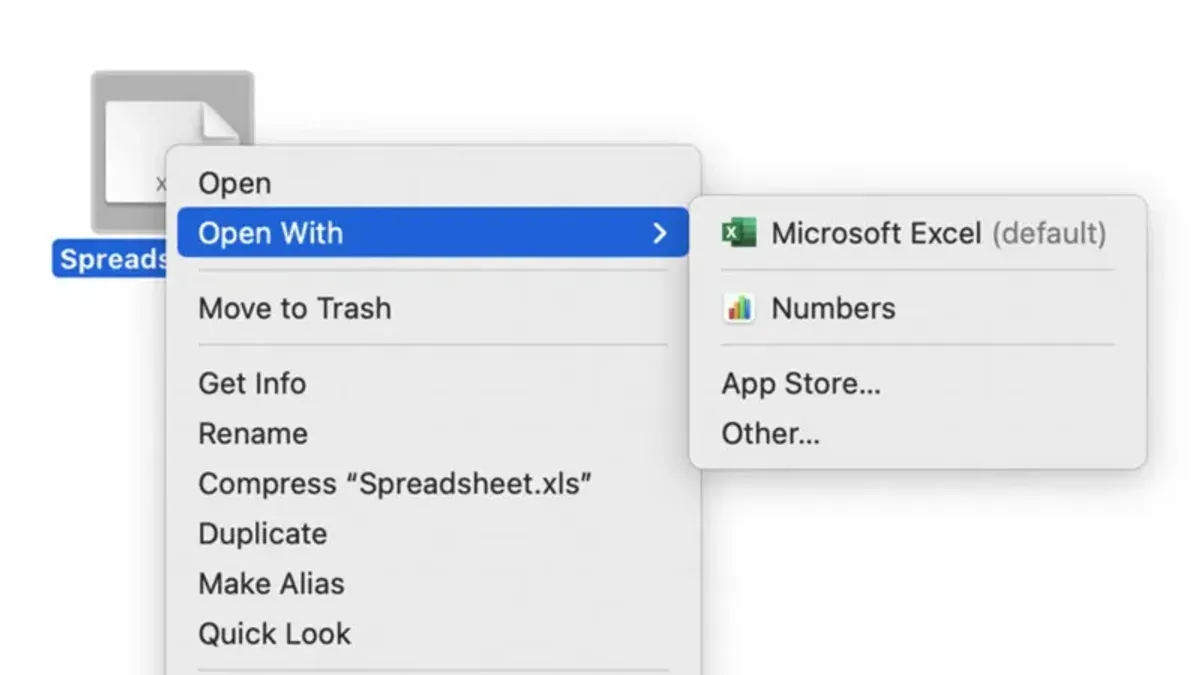
You have a subtitle file with the extension.ass and want to use it on your Mac, but the usual apps don’t recognize it immediately. Maybe you tried opening it with TextEdit or QuickTime Player but didn’t get the results you expected. Understanding how to open.ass file on Mac is essential for viewing or editing these advanced subtitle files properly.
This guide covers practical methods for handling.ass subtitle files on Mac. You'll learn how to open these files using graphical applications, Terminal commands, and compatible video players. It also explains how to manage.ass files if you switch between Mac and Windows, and offers solutions to common problems you might encounter along the way.
Key takeaways
- You need specific subtitle editors or media players like VLC or IINA to open.ass files effectively on Mac.
- Using Terminal commands can help you inspect or convert.ass files if you prefer command-line tools.
- Cross-platform compatibility requires attention to subtitle formats and encoding differences between Mac and Windows.
- Common issues include font rendering problems and file association errors, which can be fixed with settings adjustments.
Before you start: what you need to open.ass files on Mac
An.ass file uses the Advanced SubStation Alpha subtitle format, commonly found in video playback and editing. While these files are text-based and can be opened with any text editor, you need specialized software to properly display the formatted subtitles during video playback.
To view or edit.ass files effectively on a Mac, you should have a compatible video player or subtitle editor. Popular options include VLC Media Player, MPV, and subtitle editing tools designed for macOS.
Because.ass subtitles are external files, your video player must support loading external subtitle tracks to synchronize them with your videos.
| Software | .ass Compatibility | Key Features |
|---|---|---|
| VLC Media Player | Full support | Free, supports external subtitles, customizable subtitle rendering |
| MPV | Full support | Lightweight, command-line options, high-quality subtitle rendering |
| Jubler Subtitle Editor | Edit only | Subtitle editing, timing adjustments, requires MPlayer for preview |
- Install a subtitle-compatible video player (e.g., VLC or MPV). After installation, launch the player successfully.
- Ensure you have the.ass subtitle file and a video file to use it with. Both files should be accessible on your Mac.
- Check that your video player supports loading external subtitles, usually found under "Subtitle" or "Add Subtitle File" menus. You should see the subtitle displayed when playing the video.
How to open a file in MacBook: using graphical applications
To open.ass subtitle files on your MacBook using graphical applications, start by downloading VLC Media Player, a widely used free app capable of loading these files alongside videos.
- Visit the official VLC website at videolan.org and download the Mac version; once the.dmg file is downloaded, open it and drag the VLC icon into your Applications folder. You should see VLC available in your Launchpad after installation.
- Open VLC from the Applications folder and load your video file by selecting File > Open File… from the menu bar. The video will begin playing.
- To add your.ass subtitle file, click Subtitle > Add Subtitle File… in the menu bar and select your.ass file. The subtitles should now display over your playing video.
- Alternatively, use MPV Player, another lightweight app supporting.ass subtitles. Download it similarly from the official MPV website and open videos with subtitles by placing them in the same folder with matching filenames.
- For editing.ass files, Aegisub is a dedicated subtitle editor available for Mac. Download it from aegisub.org, install, and open your.ass file to edit styles and text. Use the File > Open Subtitles menu option to load files.
- To associate.ass files with your preferred app for easier access, right-click any.ass file, select Get Info, then under Open with:, choose your app (e.g., VLC or Aegisub) and click Change All… to apply this association system-wide.
This method provides a user-friendly way to open and manage.ass subtitle files without command-line usage, letting you play or edit subtitles with familiar interfaces.
How to open a file in Mac using Terminal
.ass subtitle files are plain text files, which means you can view and edit them directly in the Terminal. This approach is useful for quick inspections or minor edits without opening a graphical application.
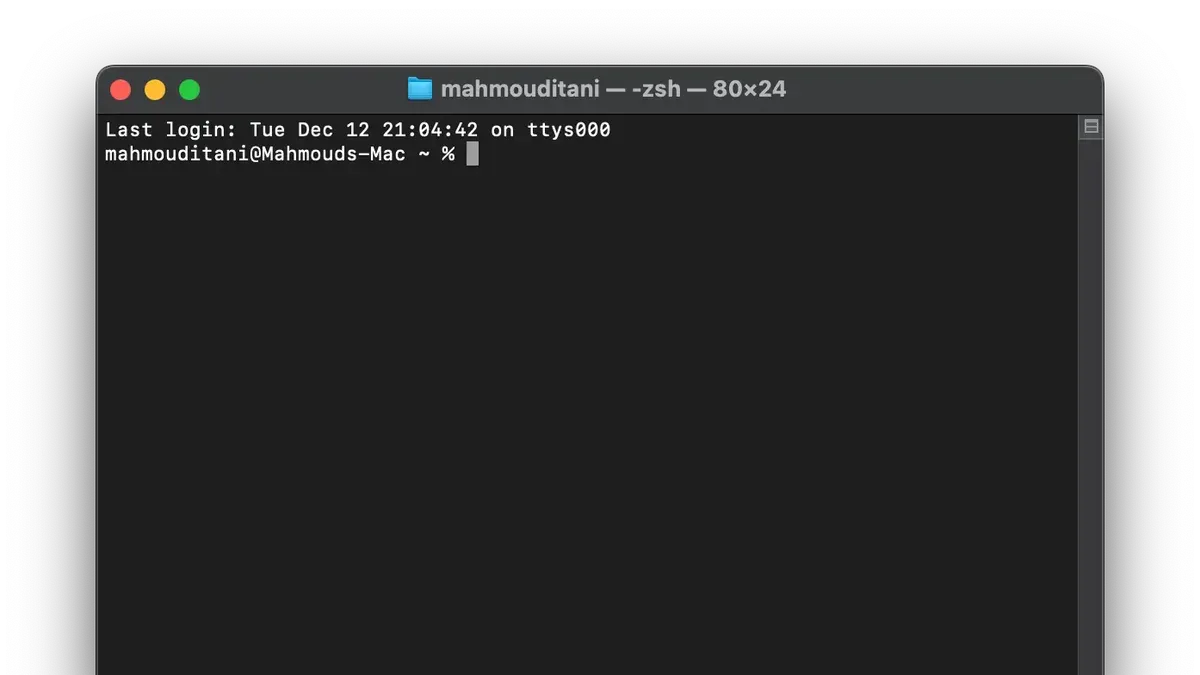
- Open Terminal from Applications > Utilities > Terminal.
- Navigate to the folder containing your.ass file using the cd command. For example, if your file is in Documents/Subtitles, type cd ~/Documents/Subtitles and press Enter. You should now be in the correct directory.
- To quickly view the subtitle content, type cat filename.ass replacing filename.ass with your file’s name. The entire file will be displayed in the Terminal window.
- For easier reading, use less filename.ass. This allows scrolling through the file with arrow keys and exiting with the Q key.
- If you want to make small edits to timing or text, open the file with a terminal text editor like nano by typing nano filename.ass. Make your changes, then save with Control + O and exit with Control + X.
Keep in mind that Terminal editors show raw subtitle code without rendering styles or formatting. For full subtitle appearance and syncing, graphical software remains necessary.
How to play.ass files on Mac with video players
.ass files are subtitle files and do not contain video content, so you need to load them into a video player that supports external subtitles to view them alongside your videos.
- Open your video file in VLC Media Player.
- Go to the menu bar, select Subtitle > Add Subtitle File....
- Locate and select your.ass subtitle file; the subtitles should appear on the video immediately.
- To adjust subtitle synchronization in VLC, go to Tools > Track Synchronization, then modify the Subtitle track synchronization value in seconds until the subtitles match the dialogue.
- In VLC, customize subtitle appearance via Tools > Preferences > Subtitles / OSD, where you can change font size, color, and outline for better readability.
- For MPV player, load the video normally and place the.ass file in the same folder with the exact video filename; subtitles load automatically.
- In IINA, open the video, then from the Subtitles menu, select Open Subtitle File... and choose your.ass file.
- If subtitles do not appear or are out of sync, verify the.ass file is not corrupted and matches the video length; adjusting sync settings as described often resolves timing issues.
How to open Mac files on Windows: handling.ass files across platforms
.ass subtitle files are plain text and platform-independent, meaning you can use files created on Mac directly on Windows without conversion. However, some differences in encoding or rendering may affect display quality.
To transfer.ass files from Mac to Windows, copy them via USB, cloud storage, or network sharing. On Windows, open the files with subtitle-capable players like VLC or MPC-HC. Both support.ass subtitles with advanced styling and positioning.
Sometimes,.ass files exported on Mac use UTF-8 encoding, which Windows players generally support but may misinterpret if encoding settings differ. If subtitles appear garbled or show strange characters, try changing the subtitle encoding in the player settings. For example, in VLC, go to Subtitle > Subtitle Track > Subtitle Track Settings and select UTF-8 or Western European (Windows-1252) encoding.
Comparing players, VLC on Windows often renders.ass subtitles faithfully, closely matching Mac behavior. MPC-HC also offers customizable rendering but may require manual font or style adjustments. Ensuring both video and subtitle files are in the same folder with matching names improves automatic loading.
Best practices for cross-platform management include keeping.ass files in UTF-8 encoding, double-checking subtitle appearance on each platform, and avoiding proprietary subtitle features that may not render identically on Windows players.
Troubleshooting common issues when opening.ass files on Mac
If the subtitle doesn’t appear when you load your video, first verify that the subtitle track is enabled in your player’s menu, often under Subtitle or Tracks. If it remains invisible, check the file path and name to ensure the.ass file is correctly linked.
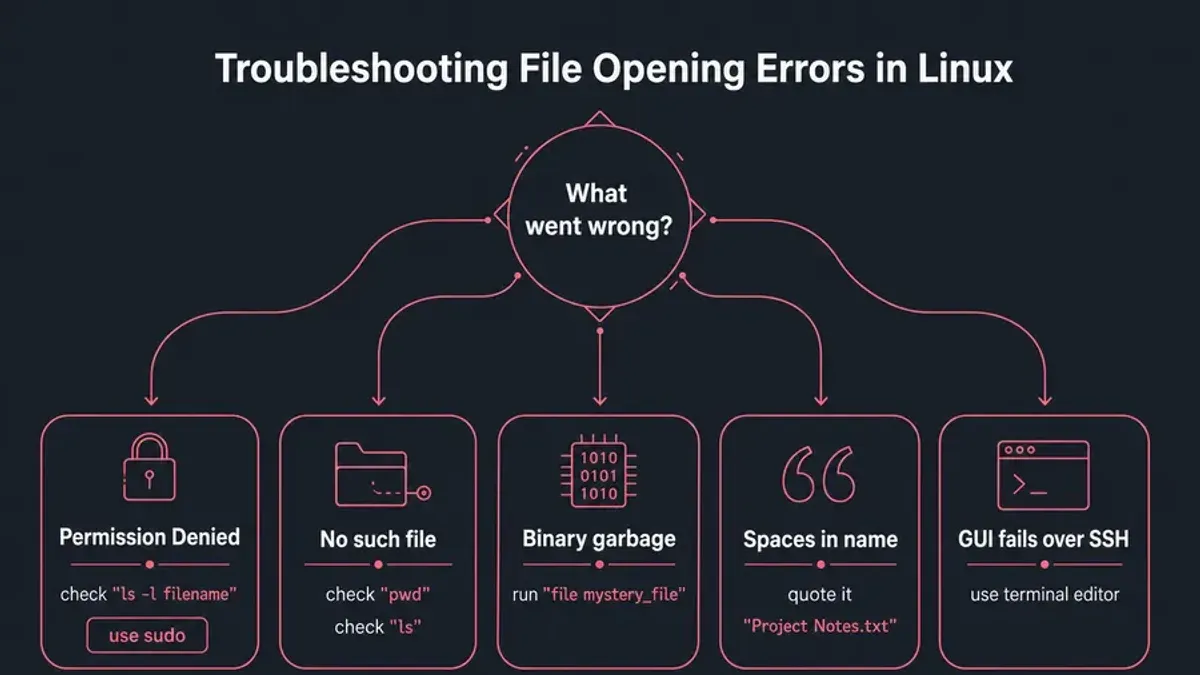
Subtitle synchronization problems can be fixed using tools like Subtitle Edit or Aegisub. For example, adjusting the Delay setting by ±500 ms and confirming the output lines shift as expected (e.g., dialogue appearing earlier or later) indicates a successful sync fix.
Encoding issues often cause garbled text. Open the.ass file in a text editor like TextEdit set to UTF-8 encoding. If characters appear as � or strange symbols, convert the file to UTF-8 using tools like iconv in Terminal: iconv -f WINDOWS-1252 -t UTF-8 input.ass -o output.ass. The subtitle should then display correctly.
For corrupted or improperly formatted.ass files producing error messages like “Header missing” or “Format line error”, open the file in a subtitle editor and look for missing sections such as [Script Info] or [Events]. Repairing these manually or replacing the file may be necessary.
When persistent compatibility or formatting issues occur, consider converting.ass files to more widely supported formats like.srt using tools like ffmpeg with the command ffmpeg -i input.ass output.srt. This trade-off may sacrifice styling but improves general playback support.
- How to Open.WMA Files on Mac: Clear Step-by-Step Guide
- How to Open and Play.flac Files on Mac: Step-by-Step Guide
Frequently asked questions
How to open file on mac?
To open a file on Mac, locate it in Finder and double-click it. If the default app doesn’t support the file type, right-click the file, choose "Open With," and select an appropriate application. For subtitle files like.ass, specialized programs or text editors may be needed.
What is ass file?
An.ass file is a subtitle file format known as Advanced SubStation Alpha. It contains text with timing, styling, and positioning information used for subtitles in videos. These files are plain text and can be edited with text editors or subtitle software.
How to open mac file on windows?
To open a Mac file on Windows, first identify its file type and ensure you have compatible software. For subtitle files like.ass, programs such as VLC Media Player or subtitle editors work cross-platform. You can also transfer files via USB, cloud storage, or network sharing.
What is an ass file?
An.ass file is a subtitle format designed to support rich text formatting, multiple styles, and precise timing. It is widely used for adding detailed subtitles to videos. You can open it with subtitle editors, media players, or text editors on Mac and other operating systems.
How to open file on Mac?
Opening a file on Mac involves locating it in Finder and double-clicking, which launches the default application. If the file type is not recognized, use "Right-click > Open With" to select a suitable app. For subtitle files like.ass, dedicated subtitle viewers or editors are often required.
Limits of this guide
This guide does not cover professional subtitle creation or advanced editing beyond basic text adjustments. If you require detailed subtitle production, such as timing synchronization or styling beyond simple font changes, specialized subtitle editing software and resources are recommended. Additionally, not all video players on Mac support.ass subtitles natively; you may need to try multiple apps to find one that meets your playback needs.
The most practical next step is to choose the software that best fits your immediate purpose—whether viewing, basic editing, or embedding subtitles—and test opening your.ass files there. For general viewing, apps like VLC or IINA offer robust subtitle support. If you prefer terminal-based methods, ensure you have the necessary dependencies installed. This approach will help you identify the ideal workflow for your specific use case without unnecessary complications.



