
How to Open a.gpx File on Mac: Clear Step-by-Step Instructions
Discover practical methods to open and view.gpx files on Mac with clear instructions for popular apps and web tools.
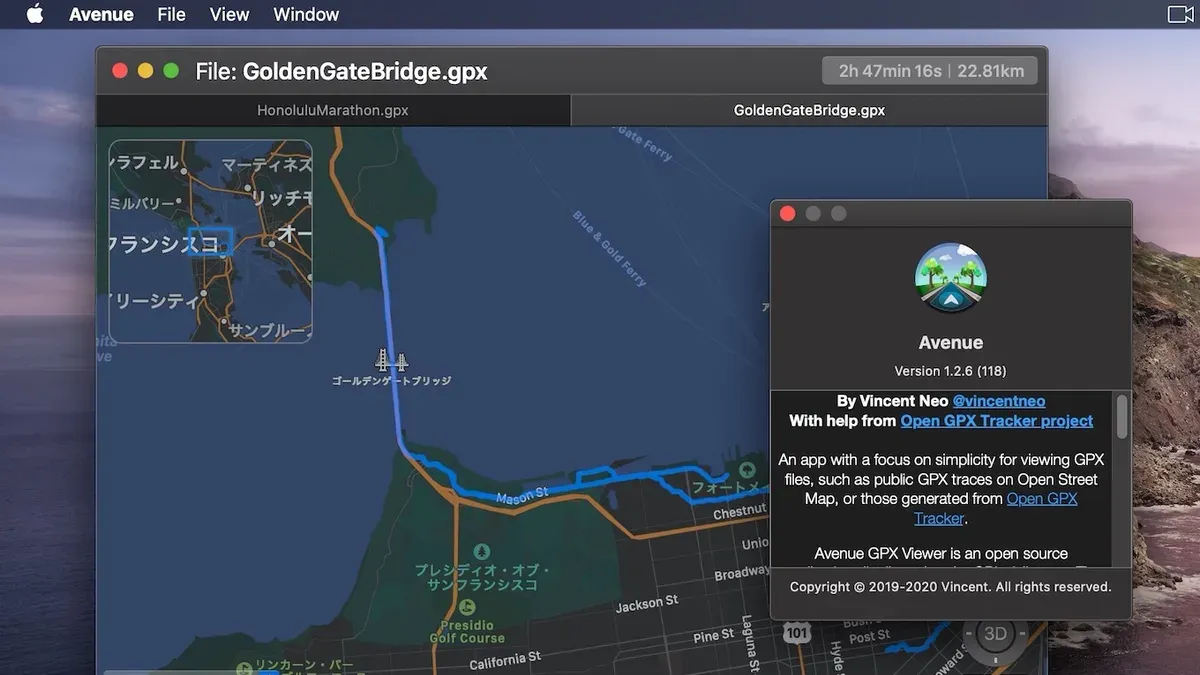
You’ve just downloaded or received a.gpx file on your Mac, but you’re unsure how to open it or what to do next. Whether it’s a hiking route, a cycling path, or a GPS tracking file, getting it to display correctly can be tricky if you’re not familiar with GPS data formats.
This guide explains how to open.gpx file on Mac using practical, tested methods tailored for Mac users. You’ll find step-by-step instructions for popular GPS visualization apps, browser-based tools like Google Maps, as well as Apple’s native apps and useful workarounds. Beyond opening the file, you’ll also learn how to import and view routes effectively and troubleshoot common problems.
Key takeaways
- Use apps like Garmin BaseCamp or GPXSee for detailed.gpx file viewing on Mac.
- Google Maps lets you upload.gpx files via My Maps but requires conversion to KML for full functionality.
- Apple’s native apps don’t directly support.gpx, but you can use third-party apps or convert files for easier access.
- Import.gpx files into mapping apps to visualize routes and waypoints clearly.
- Common issues include file format errors and app compatibility, which can often be resolved by using the right tools or converting files.
Before you start: What you need to open a.gpx file on Mac
A.gpx file, standing for GPS Exchange Format, is an XML-based file used to store and share GPS data such as routes, tracks, and waypoints. These files are common among hikers, cyclists, and users of GPS devices who want to map or analyze geographic paths.
Mac computers do not offer built-in support for opening.gpx files directly. To view or edit these files, you will need third-party applications or web-based services designed to interpret GPS data. This is because.gpx files contain structured text data that requires specialized software to render maps or route information visually.
- Ensure your Mac is running the latest version of macOS to maximize compatibility with GPS apps and web browsers. When this works, your system will support the latest app versions and security updates.
- Have an active internet connection ready if you plan to use web services like Google Maps or online GPS viewers. Success is indicated by the ability to upload and process your.gpx file online.
- Optionally, download a GPS or mapping application from the Mac App Store or trusted developers, such as GPX Editor, RouteConverter, or Garmin BaseCamp. Once installed, opening a.gpx file in these apps should display your routes and waypoints clearly.
- Be prepared for file size variations: small.gpx files typically contain simple waypoints, while larger files with detailed tracks can be several megabytes, influencing loading times and app performance.
How to open a.gpx file on Mac using GPS visualization apps
Several dedicated GPS visualization apps allow you to open, view, and analyze.gpx files directly on your Mac. Popular options include GPXSee, Garmin BaseCamp, and RouteConverter, each with distinct features and compatibility considerations.
Using GPXSee
- Download GPXSee from the official website or a trusted source and install it on your Mac.
- Launch GPXSee and select File > Open from the menu.
- Navigate to and select your.gpx file. The app will load the file and display routes, tracks, and waypoints on its map interface.
- Use the zoom and pan controls to explore the route details visually.
GPXSee is free, open-source, and lightweight. It supports multiple map layers and offers clear visualizations but has a minimalist interface with limited editing features.
Using Garmin BaseCamp
- Download Garmin BaseCamp from Garmin's official website and install it.
- Open Garmin BaseCamp and click File > Import.
- Select your.gpx file to import it into the library.
- After import, the routes and waypoints appear in the left pane and on the map; click any item to view details.
BaseCamp offers extensive route planning and device syncing features, but it is more complex and can be slower on some Macs. It is free but primarily designed for Garmin device users.
Using RouteConverter
- Download the RouteConverter Mac version from its official website.
- Open RouteConverter and choose File > Open to load your.gpx file.
- View the loaded routes and waypoints on the interactive map.
- Use the sidebar to browse waypoints or edit route details if needed.
RouteConverter supports multiple GPS file formats and offers basic editing tools. It is free but has a less polished interface compared to others.
| App | Cost | Features | Usability | Mac Compatibility |
|---|---|---|---|---|
| GPXSee | Free | Visualization, multiple map layers | Simple, minimal editing | Fully compatible |
| Garmin BaseCamp | Free | Route planning, device sync, detailed info | Complex, steeper learning curve | Compatible, may be slower |
| RouteConverter | Free | Multi-format support, basic editing | Functional but less refined | Compatible |
How to open a.gpx file on Mac with Google Maps and web services
You can view.gpx files on your Mac without installing software by using web-based tools like Google Maps and other online services. These platforms allow you to upload and visualize GPS routes directly in your browser.

- Go to Google My Maps at https://www.google.com/mymaps and sign in with your Google account. Once logged in, click the red + CREATE A NEW MAP button.
- In the new map interface, click Import in the left panel under the untitled layer. A file upload dialogue will open.
- Select your.gpx file from your Mac and confirm the upload. Processing time varies by file size, but most typical route files upload within seconds.
- Once uploaded, the route or waypoints from your.gpx file will be displayed on the map. You can zoom, pan, and click waypoints for details.
- You can add layers or customize the map further, then save or share it using Google My Maps options.
Other web services like GPS Visualizer and Mapstogpx also support.gpx files. GPS Visualizer can convert and display routes with detailed elevation profiles and waypoint data. Mapstogpx allows file format conversions and simple route previews.
Keep in mind that these web tools have limitations such as maximum file sizes (often a few megabytes) and fewer editing options compared to dedicated apps. Complex tracks may load slowly or not fully display. For quick viewing and sharing, however, these services are convenient and require no installation.
How to open a.gpx file on MacBook using Apple’s native apps and workarounds
Apple Maps does not natively support.gpx files, so you cannot directly import or view these files within the app. To work around this limitation, converting.gpx files to a supported format like.kml is necessary before viewing routes in Apple Maps.
- Use an online converter such as GPS Visualizer or MyGeodata Cloud to upload your.gpx file and convert it to.kml format. After conversion, download the.kml file to your MacBook.
Expected result: You will have a new.kml file saved on your device ready for use. - Open the converted.kml file by double-clicking it. This should launch Apple Maps and display the route or points of interest contained in the file.
Expected result: Apple Maps opens and shows the route, but note that some complex route details or metadata may not display perfectly due to format differences. - If you only need to inspect the contents of a.gpx file, right-click the file and choose “Open With” > “TextEdit” or “Preview.”
Expected result: The file opens as plain XML code, allowing you to view raw data such as waypoints and track points without map visualization.
These workarounds provide basic access to.gpx data using Apple’s native tools but have limitations. Conversion may omit some route details, and raw file viewing requires familiarity with XML. For full-featured handling, third-party apps remain preferable.
How to open other file types on Mac related to.gpx, like.vhd and torrented files
.vhd files are virtual hard disk images commonly used to store the contents of a virtual machine or backup drives. On Mac, you can open.vhd files using Disk Utility, which supports mounting some virtual disk formats directly, or with third-party tools like Paragon VHD Mounter or VirtualBox for more advanced use.
- Open Disk Utility (found in Applications > Utilities).
- Click File > Open Disk Image and select your.vhd file.
- If supported, the.vhd will mount as a drive in Finder, allowing you to browse its contents.
- If Disk Utility cannot open the file, try using Paragon VHD Mounter or install VirtualBox to access the virtual disk.
Torrented files often come in various formats such as.mp4,.avi,.pdf, or compressed archives. When handling torrented files, always ensure you download from legal and trusted sources to avoid malware or copyright infringement. Use reputable torrent clients like qBittorrent or Transmission on Mac, and scan files with antivirus software before opening.
For unknown file types on Mac, avoid opening files directly if the source is untrusted. macOS Gatekeeper and XProtect provide some protection, but you should manually verify file extensions and use the “Get Info” option in Finder to check file details. Consider opening suspicious files in sandboxed environments or virtual machines to reduce risk.
How to use.gpx files after opening them on Mac
Once you have opened a.gpx file on your Mac, you can do more than just view the route. Editing waypoints and routes, exporting data to other formats or devices, and sharing files with fitness or outdoor apps are common next steps that enhance the usefulness of your.gpx files.
Editing waypoints and routes
Apps like Garmin BaseCamp allow you to modify your.gpx files directly. You can add, delete, or move waypoints and adjust routes to better fit your plans.
- Open your.gpx file in Garmin BaseCamp. You should see your route and waypoints displayed on the map.
- Select the waypoint or route segment you want to edit. The selected item will highlight or show editable handles.
- Drag waypoints to new locations or use the right-click menu to add or delete points. Changes appear immediately on the map.
- Save your edits by going to File > Save or using the Save icon. The updated.gpx file will reflect your changes.
Exporting and transferring.gpx data
After editing, export the file in formats compatible with your GPS device or smartphone apps. Garmin BaseCamp, for example, lets you export.gpx,.kml, or.tcx files.
- In your app, choose File > Export.
- Select the desired format based on your target device or app (e.g.,.gpx for GPS units,.kml for mapping apps).
- Save the exported file to a known location on your Mac.
- Transfer the file to your device via USB, cloud storage, or syncing apps.
Sharing and integrating with fitness or outdoor apps
You can upload.gpx files to popular fitness platforms like Strava or outdoor navigation apps like Komoot. These services allow you to track activities, plan routes, or share your adventures with a community.
- Log in to the web or desktop app of your chosen platform.
- Find the import or upload feature, often under 'Routes' or 'Activities.'
- Select your.gpx file and confirm the upload.
- Once uploaded, view, analyze, or share the route within the app.
Troubleshooting common issues when opening.gpx files on Mac
When you encounter problems opening.gpx files on your Mac, several typical issues may be the cause. Addressing these can help restore access and usability.
File corruption or incorrect extensions
If your.gpx file won’t open, first verify its integrity. A corrupted file might show errors like “Cannot parse XML” or “Invalid GPX format.” To check, open the file in a plain text editor such as TextEdit; a valid.gpx file should display readable XML code starting with <gpx>. If the file appears empty or contains garbled text, it may be damaged or mislabeled. Confirm the file extension is exactly .gpx—sometimes files are saved with the wrong extension, causing apps to reject them.
App compatibility issues
Some GPS apps may not work properly if they are outdated or incompatible with your current macOS version. For example, older versions of Garmin BaseCamp might fail to open files on newer macOS releases, showing messages like “Unsupported file format.” To fix this, download the latest version of your GPS app from the developer’s website, ensuring it matches your system requirements. If problems persist, try an alternative app known for broad compatibility, such as GPXSee.
Handling large.gpx files
Large.gpx files containing extensive routes or multiple tracks can cause slow loading or crashes. Apps like RouteConverter may struggle with files larger than a few megabytes. If you experience freezing or app crashes, split the.gpx file into smaller sections using a GPX splitter tool or online service. Alternatively, select a lightweight viewer like GPXSee, which handles large files more efficiently.
Permissions and security settings
Mac security features may block access to.gpx files, especially if downloaded from the internet. If you see a warning stating the file can’t be opened due to permissions, right-click the file and select Get Info. Under Sharing & Permissions, ensure your user account has Read & Write access. Also, check System Preferences > Security & Privacy > Privacy to confirm the GPS app has permission to access files and folders. Granting necessary permissions typically resolves file access issues.
Frequently asked questions
How to open gpx file on pc?
To open a GPX file on a PC, you can use GPS visualization software like Garmin BaseCamp or GPS Track Editor. Alternatively, web services such as Google Earth or GPS Visualizer allow you to upload and view GPX files directly in your browser. Some mapping applications like QGIS also support GPX import for more advanced analysis.
What program will open a gpx file?
Programs that open GPX files include Garmin BaseCamp, GPX Viewer apps, and GPS Track Editor. Many mapping and navigation apps, including Google Earth and QGIS, support GPX files. On Mac, apps like RouteConverter or GPXSee can also open these files.
How to open gpx file on mac?
On a Mac, you can open GPX files using dedicated GPS apps like RouteConverter or GPXSee. Alternatively, upload the file to web-based tools such as Google Maps or GPS Visualizer for easy viewing. Apple’s native apps don’t support GPX directly, but you can convert or import the data into compatible apps.
How to open gpx file on macbook?
To open a GPX file on a MacBook, install a GPS file viewer like GPXSee or RouteConverter. You can also use online platforms like Google Maps by importing the GPX file via the “Your Places” feature. For offline use, third-party apps remain the most straightforward option.
How to open vhd file on mac?
A VHD file is a virtual hard disk and doesn’t open like a typical document. On a Mac, you can mount VHD files using Disk Utility by selecting “Open Disk Image” from the File menu. Alternatively, virtualization software like Parallels Desktop or VirtualBox can use VHD files to run virtual machines.
What this advice does not cover and who should do something else
This article does not cover advanced GPS data analysis or professional GIS software; users needing those capabilities should seek specialized guides tailored to those tools. Some recommended apps may have limited features in their free versions, require in-app purchases for full functionality, or need updates to ensure compatibility with the latest Mac OS versions.
The single most useful next step is to open your.gpx file with a trusted GPS visualization app such as GPXSee or RouteConverter. This provides an immediate, clear view of your routes and waypoints, allowing you to confirm the file’s content before considering further actions like importing into mapping services or fitness apps.



