
How to Open.xml Files on Mac: Easy Step-by-Step Methods
Discover easy methods to open and view.xml files on your Mac using built-in apps, browsers, Excel, and third-party tools.
You just received an.xml file via email or downloaded one from a website, but you’re unsure how to open it on your Mac. Opening an.xml file might seem daunting at first since it’s not a common format like.docx or.pdf, yet there are several straightforward ways to view or edit its contents.
This article explains how to open.xml file on Mac, guiding you through options from simple text viewers to spreadsheet applications and specialized editors. Whether you want to quickly read the data or make detailed edits, you’ll learn which tools suit your needs and technical comfort.
Key takeaways
- TextEdit offers a quick way to view.xml files without additional software.
- Web browsers display.xml files in a readable, structured format.
- Excel can import.xml files for spreadsheet analysis but may require data mapping.
- Third-party apps provide advanced editing and validation features.
- Command line tools allow power users to view or manipulate.xml files efficiently.
Before you start: What you need to open an.xml file on Mac
An.xml file is a plain text document that uses tags to structure data, making it both human-readable and machine-readable. Commonly, XML files store data such as configuration details, web feeds, or document formats. Unlike binary files,.xml files are relatively small in size because they contain only text characters and tags; for example, a typical.xml file might look like this:
<note>
<to>Alice</to>
<from>Bob</from>
<message>Meeting at 3PM</message>
</note>
This snippet shows how tags such as <to> and <from> organize the content.
You do not need special software to open an.xml file on your Mac because it is essentially a text file. The built-in TextEdit app can open and display the content, though the raw tags will be visible. For a cleaner view, you can also use Safari or other web browsers, which format the file hierarchically but do not allow editing.
If you want to edit XML files with more ease or work with data, third-party applications like XML editors or Microsoft Excel can interpret the file’s structure. Excel, for instance, can import XML data into spreadsheets, which is helpful for data analysis but may require some basic setup.
In summary, basic tools like TextEdit and Safari are readily available and sufficient for viewing most.xml files. More advanced software is optional depending on your needs.
How to open.xml file on Mac using TextEdit
TextEdit is the simplest built-in app on your Mac that can open and display.xml files without requiring additional software. It shows the raw XML content, including all tags and text, in a plain text format.
- Locate your.xml file in Finder and right-click (or Control-click) it.
- Select Open With and then choose TextEdit from the list of available applications. The file will open displaying the unformatted XML code.
- To improve readability, enable plain text mode by clicking Format in the menu bar and selecting Make Plain Text. This removes any rich text formatting that TextEdit might apply by default.
- Adjust the window size or zoom in (using Command +) to better view the XML tags and content. You will see the full structure including opening and closing tags.
Note that TextEdit does not provide syntax highlighting, indentation, or a tree view for XML files. It simply shows the raw text, which can be harder to navigate in large or complex XML files.
TextEdit handles most XML files well, but very large files may open slowly or cause performance issues. It also supports common text encodings, but if your XML file uses an uncommon encoding, the text might not display correctly.
Overall, TextEdit is best for quick viewing or simple edits to XML files when you do not need specialized XML features.
How to view.xml file on Mac with a web browser
You can use Safari or other web browsers like Chrome to open and view.xml files on your Mac. Browsers display XML with basic formatting and collapsible nodes, making it easier to navigate structured data compared to plain text editors.
- Locate the.xml file in Finder.
- Right-click (or Control-click) the file, select Open With, then choose Safari or another installed browser like Google Chrome.
- The browser will open the.xml file, showing the content formatted with tags displayed hierarchically.
- You will see collapsible arrows next to parent nodes; click these arrows to expand or collapse the nested content, which helps you focus on sections you want to read.
Using a browser offers clearer visual structure than plain text, allowing you to fold sections and better understand the XML hierarchy without additional software.
However, browsers do not offer editing capabilities or syntax highlighting. Also, very large XML files may load slowly or become unresponsive.
| Feature | Browser View | Text Editor View |
|---|---|---|
| Formatting | Hierarchical with collapsible nodes | Plain text, no collapsible sections |
| Editing | No | Yes (depending on editor) |
| Readability | Improved for structure navigation | Basic, raw text |
| Performance with large files | May slow down | Generally faster |
For example, in Safari, you will see arrows next to parent tags such as <root> or <item>. Clicking these arrows folds or unfolds the content inside, making it easier to skim through complex XML documents.
How to open.xml file in Excel on Mac
If your goal is to analyze XML data in a spreadsheet format, Excel on Mac can import XML files and convert the data into tables. This is useful when the XML file contains structured data with a clear schema, such as product lists, contact details, or financial records. However, Excel's import function requires the XML to be well-formed and usually needs an associated XML schema (XSD) to map elements properly. Complex or schema-free XML files may not import correctly.
- Open Excel on your Mac.
- Go to the File menu and select Import.
- In the import dialog, choose XML data and click Import.
- Navigate to your.xml file and select it, then click Get Data.
- Excel will prompt you to select how to open the file; choose As an XML table and click OK. You should see the data converted into rows and columns within a table format.
For example, an XML file listing books with tags like <title> and <author> will appear as a table with columns for each tag and rows for each record.
If Excel cannot open the file, it may display an error about missing a schema or complex XML structure. In such cases, you can try using third-party XML editors or convert the XML file to CSV using online tools before opening it in Excel. Alternatively, you can use Mac command line tools or specialized apps designed to handle advanced XML data.
How to open and edit.xml files using third-party apps on Mac
For users needing more than basic viewing, third-party XML editors offer advanced features like syntax highlighting, validation, and autocomplete to streamline editing and reduce errors.
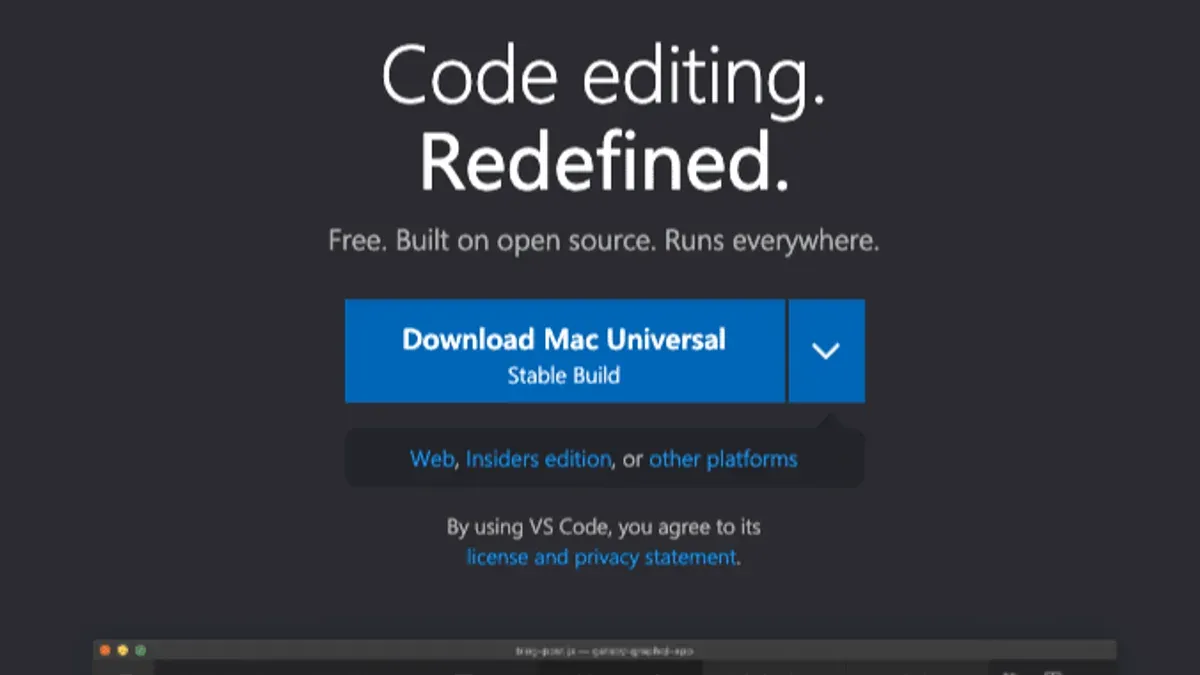
Popular options include Visual Studio Code (free), Sublime Text (paid with unlimited trial), and Oxygen XML Editor (paid, specialized for XML).
- Download and install your chosen editor: Visit the official website (e.g., Visual Studio Code, Sublime Text, or Oxygen XML Editor) and follow the installation instructions.
- Launch the app and open your XML file using File > Open. You should see the XML code displayed with color-coded syntax highlighting.
- Enable XML validation if available: In Visual Studio Code, install the “XML Tools” extension for validation and autocomplete. Oxygen XML Editor has built-in validation options under the "Validate" menu.
- Edit the XML as needed. These editors provide tag matching, error highlighting, and suggestions to prevent common XML mistakes.
- Save your changes regularly using File > Save or the shortcut Command+S.
Comparison of features and pricing:
| Editor | Cost | Syntax Highlighting | Validation | Autocomplete |
|---|---|---|---|---|
| Visual Studio Code | Free | Yes | Via extensions | Via extensions |
| Sublime Text | Paid (~$80), unlimited trial | Yes | Limited, via plugins | Yes |
| Oxygen XML Editor | Paid (varies, professional XML tool) | Yes | Built-in comprehensive | Built-in advanced |
Choose these third-party editors if you frequently work with XML files or require features like schema validation and error detection. For occasional edits, simpler tools may suffice, but these apps provide a more robust environment for XML editing on Mac.
How to open.xml files on Mac using command line tools
If you are comfortable using Terminal, command line tools offer efficient ways to view, pretty-print, and validate.xml files on your Mac without additional software.
- View raw XML with
catorless: Open Terminal and entercat filename.xmlto display the entire file content. Useless filename.xmlto scroll through large files easily. This shows raw XML but without formatting. - Pretty-print XML with
xmllint: This built-in tool formats XML for readability. Runxmllint --format filename.xmlto output indented XML. For example,xmllint --format sample.xmlwill display structured XML with nested tags indented, making it easier to read directly in Terminal. - Validate XML structure: Use
xmllint --noout --schema schema.xsd filename.xmlif you have an XML schema (.xsd) to check the file’s validity. Without a schema,xmllint --noout filename.xmlchecks for well-formedness.
These command line methods are ideal for quick inspections, scripting, or when working on remote servers. They avoid the overhead of graphical apps but require familiarity with Terminal commands.
Troubleshooting common issues when opening.xml files on Mac
If an XML file won’t open or displays garbled text, the issue is often related to text encoding. For example, you might see strange characters or question marks instead of readable content. To fix this, open the file in TextEdit, then go to Format > Make Plain Text and reopen it with the correct encoding by selecting File > Reopen with Encoding and trying options like UTF-8 or ISO Latin 1 until the text displays properly.
If the XML file appears empty or incomplete, it could be due to a truncated download or corruption. Check the file size in Finder; if it is unusually small, try re-downloading or obtaining the file again. Opening the file with a third-party editor like Visual Studio Code can also reveal hidden content or errors in the structure.
When importing XML files into Excel, errors often arise because the file lacks a schema or has a complex structure. Common error messages include "The file is not valid" or "Import failed due to schema mismatch." To address this, verify the XML is well-formed and consider using Excel’s Data > Get Data > From File > From XML feature, which requires a simple, flat structure. For complex XML, converting to CSV or using specialized XML editors might be necessary.
If a browser displays the XML file as raw code without formatting or collapsible tags, it may be due to missing or incorrect XML declaration at the top of the file. The first line should read something like <?xml version="1.0" encoding="UTF-8"?>. Adding or correcting this line in a text editor can enable browsers like Safari to render the file properly.
- How to Open a.json File on Mac: Step-by-Step Guide
- How to Open and Edit.md Files on Mac: A Complete Guide
- How to Open a.PSD File on Mac: Step-by-Step Methods
Frequently asked questions
How to open xml file on mac?
You can open an XML file on a Mac by using built-in apps like TextEdit or a web browser such as Safari or Chrome. For simple viewing, right-click the file, select Open With, and choose TextEdit or your preferred browser. For editing or structured viewing, consider spreadsheet apps like Excel or specialized third-party XML editors.
How to open a.xml file?
To open a.xml file, identify your purpose first: viewing, editing, or data extraction. Use TextEdit or a browser for quick viewing. If you want to edit or analyze the data, open the file in Excel or an XML-specific editor like Oxygen XML or Visual Studio Code with XML plugins.
How to open xml file on macbook?
On a MacBook, you can open XML files by right-clicking and choosing Open With, then selecting TextEdit for straightforward text viewing or Safari for formatted display. For more detailed work, apps like Numbers or Excel handle XML data import, while third-party editors provide enhanced editing capabilities.
How to read xml file on mac?
Reading an XML file on Mac is easiest with a web browser that displays the hierarchical structure, making it more readable than plain text. Alternatively, open the file in TextEdit to see the raw code, or use a dedicated XML viewer app for a clearer presentation of tags and content.
How to view xml file on mac?
Viewing XML files on Mac can be done by opening them in Safari or Chrome, which render the XML with collapsible nodes for easier navigation. You can also use TextEdit for a raw view or download free XML viewers from the Mac App Store to visualize and navigate complex XML files more effectively.
Limits of this advice and when to seek specialized tools
This article does not cover editing XML files for programming or development purposes in depth. If you need to work with advanced XML schema design, XSLT transformations, or integrate XML data into software projects, specialized tools like Oxygen XML Editor or XMLSpy are more appropriate. Those tasks often require a deeper understanding of XML syntax and related technologies that go beyond simple viewing or basic editing.
For most Mac users, the methods outlined here provide straightforward ways to open, view, and perform basic edits on.xml files without unnecessary software. However, if your work involves extensive XML manipulation or validation, consulting dedicated developer resources or software is recommended.
The most useful next step is to decide your primary purpose for opening the.xml file—whether it is simply to read its contents or to edit and manipulate data. For reading and light editing, start with TextEdit or a web browser to avoid complexity. If you require more control or data handling, try Excel or a trusted third-party app suited to your needs.



