How to Open.rtf Files on Mac: Easy Step-by-Step Guide
Discover simple steps to open.rtf files on Mac using TextEdit, Microsoft Word, Pages, and other free apps with troubleshooting tips.
You have just received an.rtf file via email or found one saved on your Mac, but you're unsure how to open it. The.rtf (Rich Text Format) file type is widely used but may not open automatically with your preferred app.
This article explains how to open.rtf file on Mac using built-in applications like TextEdit, popular programs such as Microsoft Word or Pages, and offers practical conversion options. You will also find guidance on handling.rtf files on various Apple devices and troubleshooting tips for common issues. Finally, you'll learn which free applications can open.rtf files, helping you choose the best method based on your needs and Mac setup.
Key takeaways
- TextEdit is the default Mac app that opens.rtf files quickly without extra software.
- Microsoft Word and Pages provide enhanced editing features for.rtf files but require installation.
- Converting.rtf files to PDF or DOCX can improve sharing and compatibility.
- Apple devices like iPhone and iPad can open.rtf files using compatible apps such as Pages or Files.
- Common issues include file corruption or unsupported formatting, often resolved by using alternative apps or converting the file.
Before you start: what you need to open.rtf files on Mac
.rtf files, or Rich Text Format files, are a widely supported document type designed to maintain text formatting across different platforms and word processors. This cross-platform compatibility makes.rtf files ideal for sharing documents between Windows, Mac, and other operating systems without losing layout or style.
Most Mac computers come pre-installed with software capable of opening.rtf files. The built-in TextEdit app, included with macOS, fully supports.rtf files, allowing you to open, read, and edit them without additional downloads. Your Mac must be running a supported version of macOS, which is generally any recent release still receiving updates, ensuring compatibility with TextEdit and other native apps.
You do not usually need to purchase or install special software to open.rtf files on your Mac. Besides TextEdit, other free apps like Pages or third-party options can handle.rtf files, often with added features. Access to these apps and a functioning Mac system are the basic requirements to open and work with.rtf files smoothly.
How to open a.rtf file on Mac using TextEdit
TextEdit is the simplest built-in app on Mac for opening.rtf files. It allows you to view and edit rich text with basic formatting. Follow these steps to open your.rtf file quickly:
- Locate the.rtf file in Finder. When you double-click it, TextEdit will usually open the file automatically, showing the formatted text.
- If the file does not open in TextEdit, right-click the.rtf file, select Open With, then choose TextEdit. The file should open in a new window displaying the content.
- To associate all.rtf files with TextEdit permanently, right-click any.rtf file, select Get Info. In the Open with: section, select TextEdit from the dropdown menu, then click Change All… to apply this setting to all.rtf files.
- You can now edit the text directly in TextEdit. It supports basic formatting like fonts, colors, and lists but has limited advanced features compared to full word processors.
- After editing, save your changes by selecting File > Save or pressing Command + S.
TextEdit provides a quick and straightforward way to open and edit.rtf files without extra software. However, if your file contains complex layouts or features, you may notice some formatting differences.
How to open a.rtf file on Mac with Microsoft Word or Pages
If you require more advanced editing or formatting options than TextEdit provides, Microsoft Word and Apple Pages are popular alternatives that handle.rtf files well.
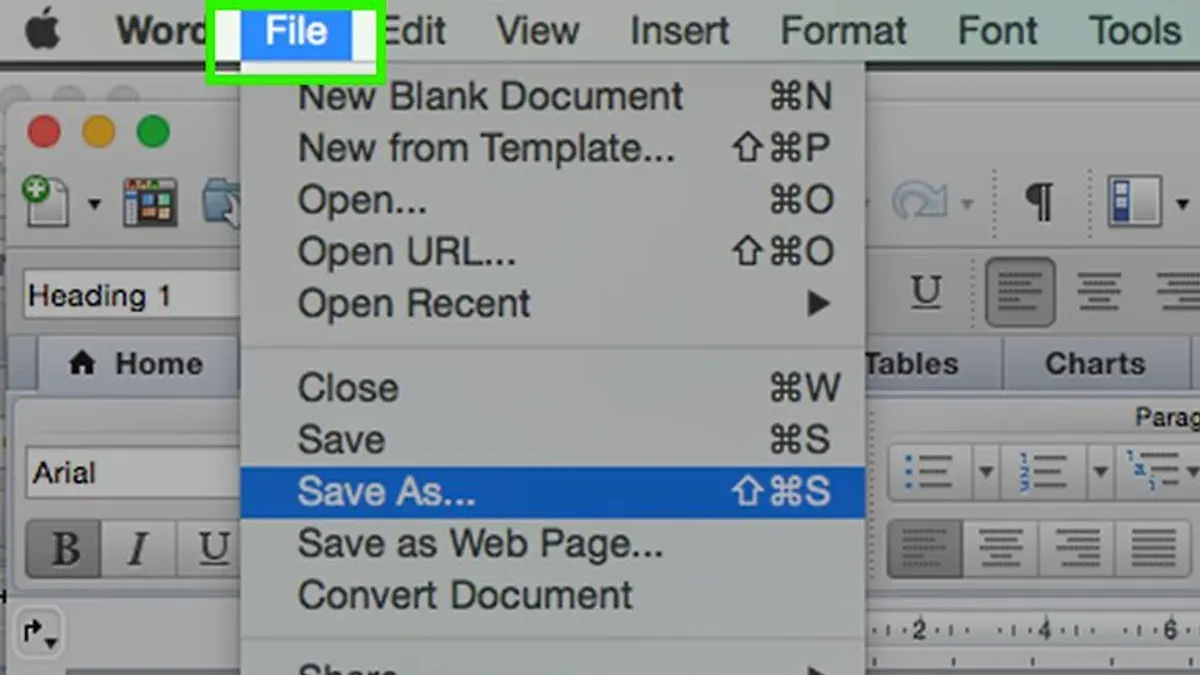
Opening a.rtf file in Microsoft Word
- Launch Microsoft Word on your Mac.
- Click File in the menu bar and select Open.
- Navigate to your.rtf file, select it, then click Open.
- The file will open with Word's full editing and formatting tools available.
Opening a.rtf file in Apple Pages
- Open the Pages app on your Mac.
- Choose File from the menu bar, then Open.
- Select your.rtf file and click Open.
- Pages will import the document, allowing you to edit with its native interface.
Both apps support.rtf files but differ in features and formatting fidelity, as shown below.
| Feature | Microsoft Word | Apple Pages |
|---|---|---|
| Complex formatting support | High – retains most styles and layouts | Moderate – may simplify some formatting |
| Track changes and comments | Full support | Limited support |
| Compatibility with Windows users | Excellent | Good but less common |
| Cost | Requires Microsoft 365 subscription or purchase | Free with macOS |
Choose Microsoft Word if you need precise formatting, collaboration features, or cross-platform compatibility. Pages suits users who prefer a free app integrated with macOS and are working with simpler documents.
How to convert.rtf files to other formats on Mac
Converting.rtf files on Mac is straightforward and can suit different needs, from simple text extraction to creating shareable PDFs.
Using TextEdit to convert.rtf to.txt
- Open your.rtf file with TextEdit.
- Go to the menu bar and select File > Save As.
- In the save dialog, choose Plain Text (.txt) from the File Format dropdown.
- Rename the file if desired and click Save.
- The saved.txt file contains the text only, without any formatting.
This method is useful for extracting just the text content, but you lose formatting such as bold, italics, and images.
Using Preview or Pages to convert.rtf to PDF
- Open your.rtf file in Pages or TextEdit.
- In Pages, choose File > Export To > PDF. In TextEdit, select File > Print, then click PDF at the bottom-left and choose Save as PDF.
- Name your file and select a save location.
- Click Save to create a PDF version.
PDFs preserve formatting and are ideal for sharing, but are less editable without specialized software.
Third-party apps and converters
For batch conversions or advanced options, free apps like LibreOffice or online converters can convert.rtf files to formats including DOCX, HTML, or EPUB. These tools often support multiple files at once but may require uploading your files to a server, which could raise privacy concerns.
Benefits of converting include easier sharing, compatibility with different software, and simplified editing. Drawbacks may be loss of formatting, increased file size, or reduced editability depending on the target format.
How to open.rtf files on MacBook and other Apple devices
Your MacBook uses the same methods as other Macs to open.rtf files, including built-in apps like TextEdit and third-party apps such as Microsoft Word and Apple Pages. These applications maintain consistent functionality across macOS devices.
On iOS and iPadOS devices, you can open.rtf files using the Files app, Pages, or Microsoft Word for iOS. The Files app allows you to browse and preview.rtf files quickly, while Pages and Word provide editing capabilities with support for formatting.
To transfer.rtf files from your MacBook to an iPhone or iPad, you can use iCloud Drive, AirDrop, or email. Uploading the file to iCloud Drive makes it accessible across all your Apple devices. AirDrop provides a direct wireless transfer, and email lets you open attachments directly on your iOS or iPadOS device.
- Open the Files app on your iPhone or iPad and locate the.rtf file in iCloud Drive or On My iPhone/iPad. You should see a preview of the document when you tap it.
- Tap the Share icon and select "Open in Pages" or "Copy to Word" if you want to edit the file. The app will open the document, showing its formatted content.
- Alternatively, use AirDrop from your MacBook by selecting the.rtf file in Finder, clicking the Share button, and choosing your iPhone or iPad. Accept the transfer on your device and open the file using Pages or Word.
- If you receive an.rtf file via email, tap the attachment in the Mail app, then choose to open it with Pages or Word for editing or viewing.
These options ensure you can view, edit, or share.rtf files seamlessly across your MacBook and other Apple devices with familiar apps and straightforward file transfer methods.
Troubleshooting common issues opening.rtf files on Mac
If your.rtf file won’t open, first verify the file extension. Right-click the file and select Get Info. The file type should be listed as Rich Text Format (.rtf). If it’s different or missing, the file may be mislabeled or corrupted.
When you try to open a.rtf file, you might see errors like “The file can’t be opened” or “The document is damaged.” These usually indicate corruption or compatibility problems.
Follow these steps to troubleshoot:
- Check file permissions: Right-click the file, choose Get Info, then look under Sharing & Permissions. Ensure your user account has Read & Write access. If not, click the lock icon, enter your password, and adjust permissions. When successful, you should be able to open the file.
- Reset file associations: Right-click the.rtf file, select Open With, then choose TextEdit or another preferred app. If this works, set it as default by clicking Change All… in the same menu.
- Try alternative apps: If built-in apps fail, use free apps like LibreOffice or Google Docs (via browser). Uploading the file to Google Docs can sometimes bypass corruption issues.
- Restore from backup: If the file is corrupted, try recovering a previous version from Time Machine or another backup service.
If none of these steps work, the file may be irreparably damaged or not a true.rtf file. Obtaining a new copy is often the best solution.
What applications open.rtf files on Mac for free
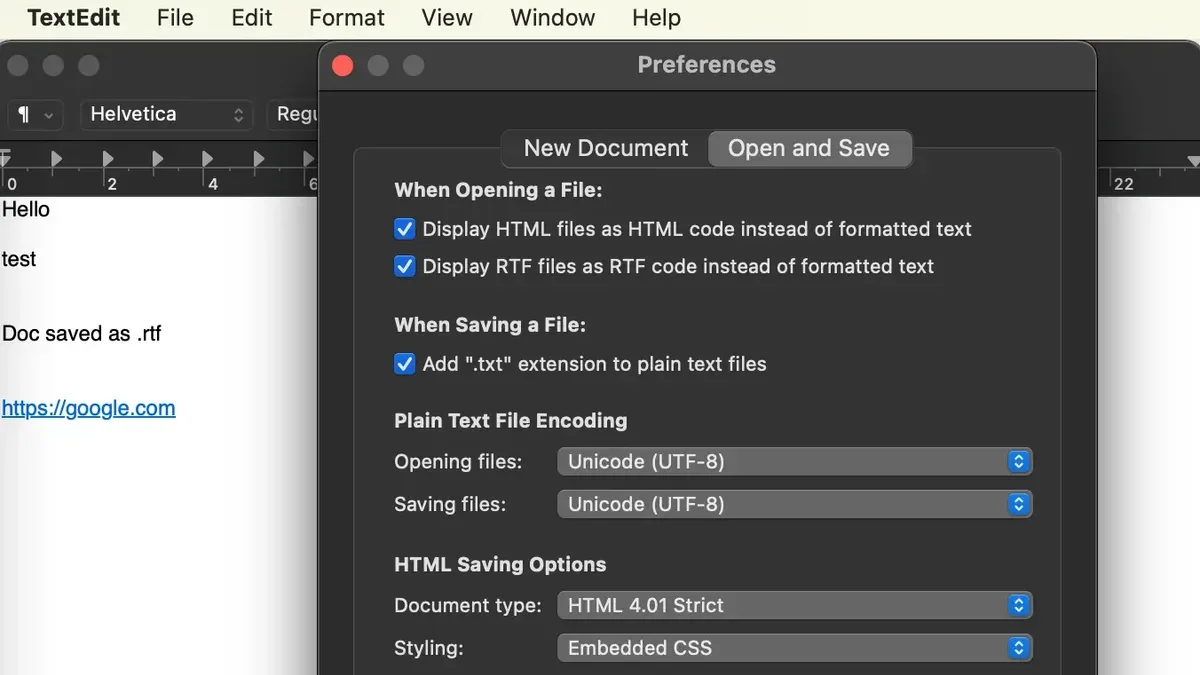
Several free applications can open.rtf files on Mac, each with different features and resource requirements. TextEdit is the default macOS app, lightweight and straightforward, ideal for quick viewing and basic editing.
LibreOffice and OpenOffice are open-source office suites that support.rtf files with more advanced formatting and editing options. They are larger in file size—often over 300 MB—but offer comprehensive tools comparable to paid word processors.
Other lightweight free options include Bean and AbiWord, which focus on simplicity and speed but may lack some modern features. Online viewers, such as Google Docs, allow opening.rtf files without installing software but require an internet connection and uploading your document.
| App | Approximate File Size | Core Features | User Experience |
|---|---|---|---|
| TextEdit | Built-in (no extra download) | Basic editing, formatting, default macOS integration | Fast, simple, reliable for most.rtf needs |
| LibreOffice | ~300 MB | Advanced formatting, extensive editing, multiple file formats | Feature-rich but heavier on system resources |
| OpenOffice | ~300 MB | Similar to LibreOffice, strong compatibility | Comprehensive but slower startup |
| Bean | ~10 MB | Simple editing, focuses on speed | Lightweight but limited advanced features |
| Online viewers (Google Docs) | None (web-based) | View, edit, share documents online | Convenient but requires internet and file upload |
Free apps offer a range of options depending on your needs. TextEdit is best for quick, easy access without installation. LibreOffice and OpenOffice suit users needing more robust editing. Lightweight apps and online services provide alternatives balancing functionality with convenience. Paid applications typically offer smoother performance and additional features but require investment.
- How to Open.odt Files on Mac and Apple Devices Easily
- How to Open.ods Files on Mac: Step-by-Step Guide
- How to Open.numbers Files on Mac and Other Devices
Frequently asked questions
How to open rtf file on windows?
On Windows, you can open.rtf files using built-in applications like WordPad or Microsoft Word. Simply right-click the file, choose "Open with," and select WordPad or Word. Alternatively, you can drag the file into these apps or open them first and use the File > Open menu.
How to open rtf file on mac?
To open.rtf files on a Mac, the easiest way is to use TextEdit, the default text editor. Double-click the file, and it should open automatically in TextEdit. You can also use Microsoft Word or Apple Pages for more editing features.
How to open rtf file on macbook?
Opening an.rtf file on a MacBook works the same as on other Macs. Use TextEdit by double-clicking the file or open it via File > Open within TextEdit, Pages, or Microsoft Word. Ensure your MacBook has these apps installed for the best experience.
How to read rtf file on mac?
Reading an.rtf file on a Mac involves opening it in a compatible app like TextEdit, which supports rich text formatting. After opening the file, you can view the content directly. If the formatting looks off, try opening it with Pages or Microsoft Word for better rendering.
How to open rtf file on my computer?
To open an.rtf file on your computer, use a text editor or word processor that supports rich text format. On Windows, WordPad or Microsoft Word work well; on Mac, TextEdit, Pages, or Word are good options. Right-click the file, choose "Open with," and select your preferred program for easy access.
What this advice does not cover
This article does not cover complex.rtf files with embedded objects or macros that may require specialized software beyond common word processors. Users with older macOS versions might encounter compatibility issues with some apps mentioned, such as Microsoft Word or Pages. The advice assumes the.rtf files are not corrupted or password protected, which can prevent opening or editing regardless of the method used.
To move forward, try opening your.rtf file first with TextEdit, the built-in Mac app, as it provides a quick and reliable way to view and edit most.rtf documents without additional setup. If you require more advanced features or need to convert files, explore Microsoft Word or Pages next based on your preferences and software availability.