How to Open and Use.woff Files on Mac: A Practical Guide
Discover practical methods to open.woff files on Mac, including previewing, converting, and installing web font formats with ease.
You've downloaded a website's custom font file with a.woff extension and want to preview it on your Mac, but you're unsure how to proceed. Opening a.woff file directly isn't as straightforward as opening common font formats like.ttf or.otf, which can cause confusion when trying to view or install these web-optimized fonts.
This article explains how to open.woff files on Mac, covering practical methods using font viewers, web browsers, and conversion tools. You will learn how to install these fonts for use in design or development apps, convert between.woff and other font formats, and understand the differences between.woff and.woff2 files. Whether you want to preview the font quickly or fully install it system-wide, this guide provides clear, step-by-step instructions tailored to macOS.
Key takeaways
- You can preview.woff files using Safari or Chrome by dragging the file into the browser window.
- Font Book on Mac doesn’t support installing.woff files directly; conversion to.ttf or.otf is needed for system-wide use.
- Free tools like FontForge or online converters help convert.woff files to installable formats.
- .woff2 files require similar handling but have fewer native Mac tools supporting them.
- Understanding your intended use (preview, install, or convert) helps choose the best method.
Before you start: What you need to open a.woff file on Mac
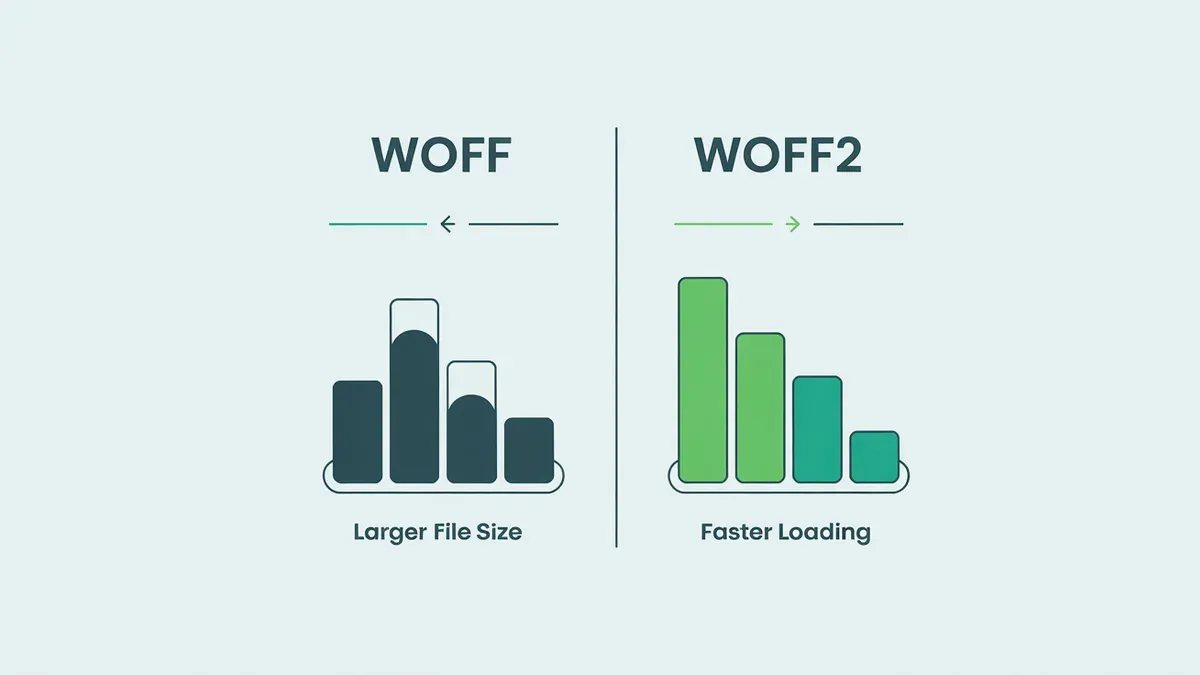
.woff and.woff2 files are font formats designed primarily for web use. They package font data efficiently, allowing faster loading times on websites. These files are not standard font files like.ttf or.otf, so macOS does not natively support installing or previewing them as system fonts without additional tools.
Before you try to open or use a.woff file on your Mac, identify your goal: do you want to simply view the font's appearance, install it for use in apps, or convert it to another format? The method and tools you'll need depend on this.
Popular Mac-compatible apps and online tools vary in their support for.woff and.woff2 files. Some are dedicated font viewers, others are font management apps, and many online services offer conversion or preview capabilities.
| Tool | Supports.woff | Supports.woff2 | Functionality | Notes |
|---|---|---|---|---|
| Font Book (macOS built-in) | No | No | Font management and installation | Does not open.woff files directly |
| FontForge | Yes | Yes | Font editing and conversion | Free, open-source, requires installation |
| TransType | Yes | Partial | Font conversion and installation | Commercial software with trial available |
| Browsers (Safari, Chrome, Firefox) | Yes | Yes | Font preview | Can drag.woff file into browser window to view |
| Online converters (e.g., CloudConvert, Transfonter) | Yes | Yes | Conversion between font formats | Requires internet connection, file upload |
To prepare your Mac for working with.woff files, consider these steps:
- Decide your end goal: viewing, installing, or converting the font. If you want to see the font's style quickly, a browser is often easiest.
- If you plan to install the font system-wide or in apps, know that macOS does not support.woff files natively; you will need to convert them to.ttf or.otf first.
- Download and install a font editor or converter like FontForge if you want free, versatile control over the files.
- Alternatively, bookmark or locate reliable online converters for quick format changes without installing software.
- Ensure your Mac is running a recent version of macOS to avoid compatibility issues with fonts and apps.
With this preparation, you'll choose the right tool and process to open, install, or convert.woff files effectively on your Mac.
How to open a.woff file on Mac using font viewers and browsers
You can quickly preview.woff font files on your Mac without installing additional software by using modern web browsers like Safari, Chrome, or Firefox. These browsers render the font so you can see how it looks, though they don’t provide detailed information or editing features.
- Locate the.woff file in Finder.
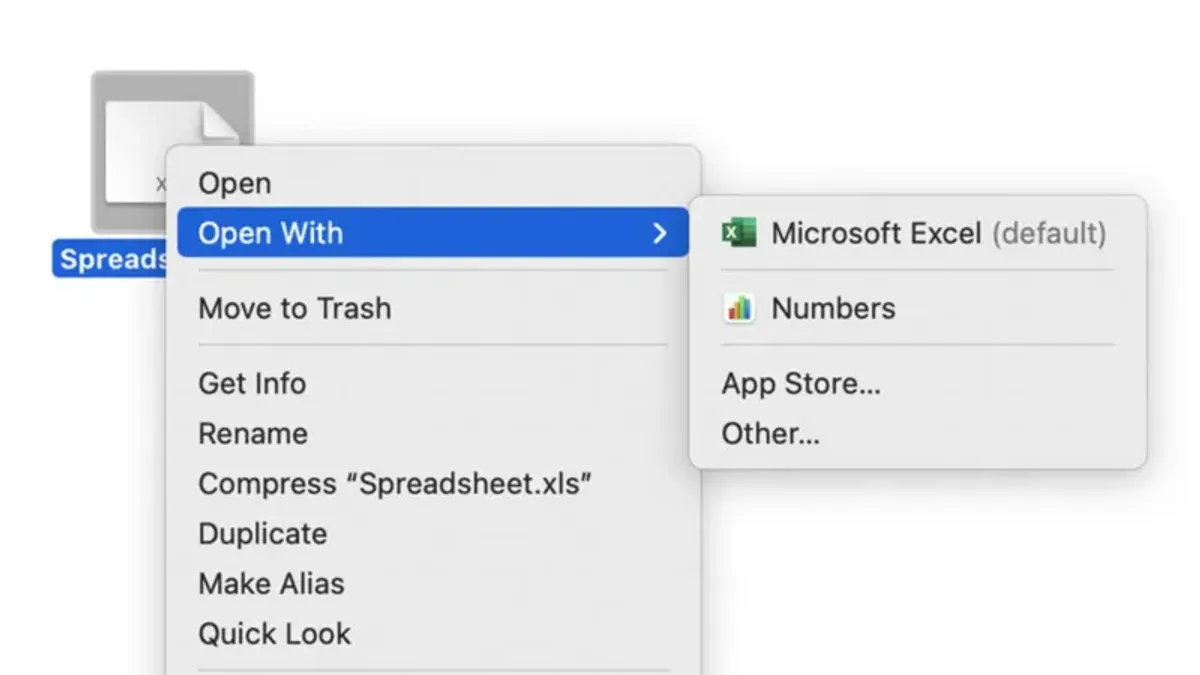
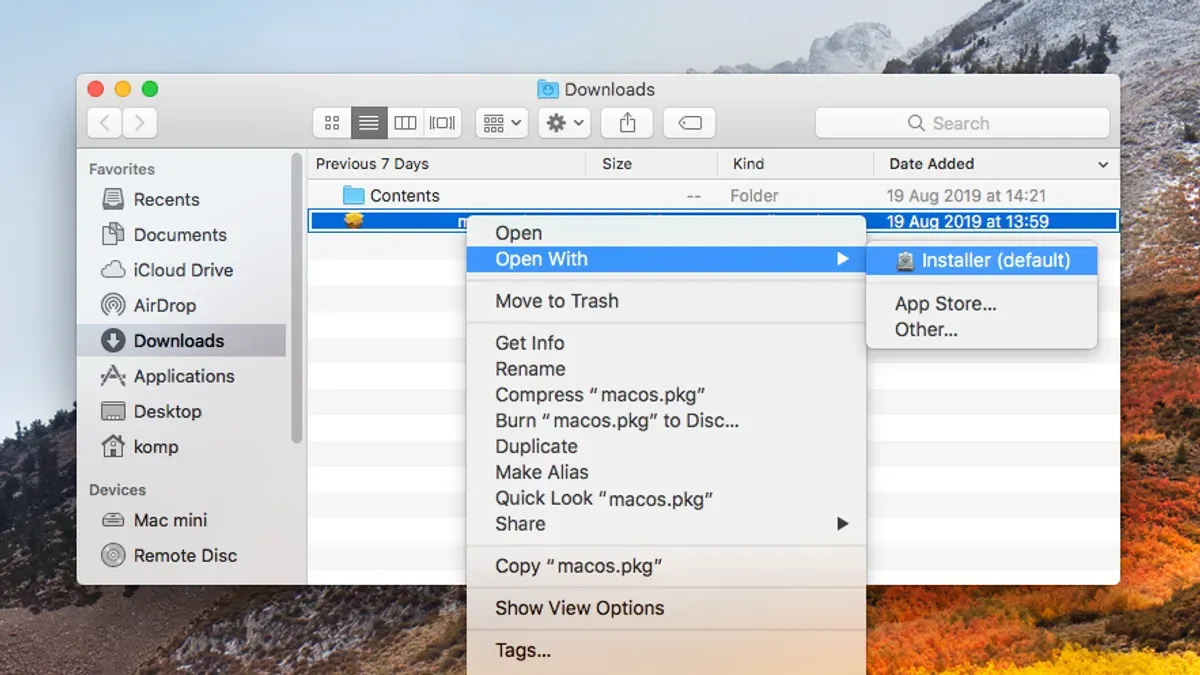
- Right-click the file, select "Open With," then choose Safari, Chrome, or Firefox.
- The browser will display a blank page, but the font will be loaded in the developer tools or by dragging the file into a simple HTML page referencing it.
- Alternatively, drag the.woff file into an online font preview tool (opened in the browser) to see the font’s characters rendered.
For a more straightforward preview, you can use dedicated third-party font viewer apps like Font Book (macOS default), Typeface, or FontBase. These apps allow you to open, inspect, and compare fonts, including.woff files, with detailed glyph views and metadata.
- Download and install a font viewer app such as Typeface or FontBase if you don’t already have one.
- Open the app and use the "Import" or "Open" function to load the.woff file.
- The app will display the font’s glyphs, styles, and metadata, letting you explore characters and font details visually.
Using browsers is convenient for quick checks but doesn’t provide detailed font information. Dedicated font viewers offer richer insights and better organization but require installation and sometimes a learning curve. Choose the method that fits your immediate needs.
How to install.woff files on Mac for system-wide or app-specific use
macOS does not support installing.woff files directly as system fonts because they are web-optimized font formats rather than desktop font formats like.ttf or.otf. To use a.woff font across macOS or in specific applications, you must first convert it to a compatible format.
Begin by converting your.woff file to a.ttf or.otf format using a reliable conversion tool such as FontForge or an online converter that preserves font integrity. After conversion, you can install the font using the macOS Font Book application.
- Open your preferred font converter and load the.woff file. Export or save the font as.ttf or.otf. You should see a new font file in the chosen format in your destination folder.
- Double-click the converted.ttf or.otf file to open it in Font Book. A preview window will appear showing the font glyphs.
- Click the "Install Font" button at the bottom of the preview window. Font Book will add the font to your user fonts by default.
- Open an application where you want to use the font (e.g., Pages, Word, or Adobe software) and check the font dropdown list. The newly installed font should appear and be selectable.
- For system-wide use, open Font Book, select the font, then use the "File" menu to choose "Validate Font" to check for issues. If validation passes, the font will be available across most apps.
If you encounter any errors during conversion or installation, verify the source.woff file is not corrupted and retry with a different converter if needed.
How to convert fonts to and from.woff and.woff2 formats on Mac
Converting fonts between.woff,.woff2, and installable formats is essential for web and system use. On Mac, you can use dedicated apps like FontForge or online tools such as Transfonter and Font Squirrel’s Webfont Generator for this purpose.
FontForge is a free, open-source font editor that supports importing and exporting many font formats, including.woff and.woff2. Online converters offer quick conversions without installation but may have file size limits.
Converting to.woff or.woff2 for web use
- Open your source font file (.ttf or.otf) in FontForge or upload it to an online converter like Transfonter.
- Choose the output format: select.woff for broader compatibility or.woff2 for better compression if targeting modern browsers.
- Start the conversion process; once complete, download the converted font file.
- Verify the file size:.woff2 files are typically smaller and load faster but may not be supported by very old browsers.
Converting from.woff or.woff2 to installable formats
- Open your.woff or.woff2 file in FontForge or an online converter that supports reverse conversion.
- Select the export format as.ttf or.otf, which macOS can install via Font Book.
- Complete the conversion and save the font file to your Mac.
- Check the font integrity by previewing it in Font Book or a font viewer before installation.
The difference between.woff and.woff2 mainly lies in compression efficiency;.woff2 offers better compression resulting in smaller file sizes, which helps reduce web page load times. However,.woff has wider browser support, especially for legacy browsers. Choose.woff2 when targeting modern environments and.woff for maximum compatibility.
How to open.woff2 files on Mac and online alternatives
The.woff2 format is the successor to.woff, offering improved compression for faster web font loading. However, macOS does not provide native support for previewing or installing.woff2 files directly, which can complicate handling these fonts locally.
Currently, most Mac font viewer apps lack built-in support for.woff2, meaning you cannot open them directly as you might with.ttf or.otf files. Browsers like Safari and Chrome can render.woff2 fonts within web pages but do not offer a direct file preview option.
To work around this limitation, you can use online tools that open or convert.woff2 files. Reliable web-based converters allow you to upload a.woff2 file and convert it to more accessible formats such as.ttf or.otf. These tools typically display a preview of the font and provide download options for the converted file.
When choosing online tools, prioritize those with clear privacy policies, as you upload font files to external servers. Some popular options include Fontie, Transfonter, and Font Squirrel’s web font generator, which handle.woff2 conversion efficiently and maintain font quality.
- Open your preferred browser and navigate to a trusted online font converter like Font Squirrel's Webfont Generator.
- Upload the.woff2 file using the provided interface; after upload, the tool should display a font preview.
- Choose the output format such as.ttf or.otf and start the conversion process.
- Download the converted font file once the process completes; you can now open or install this file using standard Mac font utilities.
This approach allows you to bypass macOS limitations by converting.woff2 fonts into formats that macOS and common apps support, ensuring you can view and use the fonts effectively.
How to use a.woff file effectively once opened on Mac
Once you have opened or installed a.woff font on your Mac, you can apply it in various design and development contexts. In graphic design applications like Adobe Illustrator, after installing the font in Font Book, it will appear in the font dropdown menu, allowing you to select and style text directly within your projects.
For developers, embedding.woff fonts in web projects ensures optimized loading and broad browser compatibility. You include them via CSS using the @font-face rule, specifying the font file's URL and format. This approach is essential for consistent typography across different devices.
Despite their advantages for web use,.woff fonts have limitations outside web environments. They are primarily web-optimized container formats and may not be supported as system fonts by some desktop applications unless converted to formats like.ttf or.otf. For example, Xcode supports system-installed fonts but does not natively handle.woff files directly for UI elements or storyboards.
- Open Adobe Illustrator and create or open a document. You should see your installed font available in the font selection dropdown. Selecting it applies the font style to your text objects.
- In your web development project, add a CSS rule such as
@font-face { font-family: 'CustomFont'; src: url('CustomFont.woff') format('woff'); }. This makes the font available for use in your site's stylesheets. - Test your web page in multiple browsers to ensure the.woff font loads correctly, confirming effective embedding.
- For desktop apps like Xcode, ensure you convert the.woff font to.ttf or.otf first and install it via Font Book. The font will then be selectable in Interface Builder for UI design.
Troubleshooting common issues when opening or installing.woff files on Mac
If your.woff files won’t open or preview in browsers, first ensure the file isn’t corrupted by trying to open it in multiple browsers like Safari and Chrome. If the file fails in all, it may be damaged. For browser errors such as "Failed to load resource" or "Unsupported font format," check that the.woff file has the correct extension and MIME type when used in web projects.
During font conversion or installation, errors like "Invalid font file" or "Conversion failed" often indicate compatibility issues or corrupted source files. Use reliable conversion tools like FontForge or online services with good reputations and retry conversion. If installation via Font Book fails with messages like "Font could not be installed" or "Font is corrupt," verify that the font was properly converted to a supported format (.ttf or.otf) before installing.
To verify font integrity, open the font in a dedicated viewer such as Font Book or Typeface to check for display errors or missing glyphs. Confirm compatibility by ensuring the target app supports the font format you are using.
Step-by-step troubleshooting flow
- Open the.woff file in Safari or Chrome. If it previews, the file is intact and browser-compatible.
- If it does not open, attempt to open it in a font viewer app. Successful display indicates a problem with the browser or file association.
- Use a trusted font converter to convert the.woff file to.ttf or.otf. If conversion succeeds, the original file is likely valid.
- Install the converted font via Font Book by selecting File > Add Fonts. If installation completes without errors, the font is ready for use.
- If errors occur at any step, re-download or obtain a clean version of the font file, as corruption is common.
Frequently asked questions
How to use a woff file?
You use a.woff file primarily as a web font embedded in websites for consistent typography across browsers. To use it locally on your Mac, you need to convert it into a standard font format like.ttf or.otf, or install it in a font management app that supports web fonts. Once installed or converted, you can apply it in design software or within web development projects.
How to view a woff file?
You can view a.woff file on Mac by opening it in a modern web browser such as Safari, Chrome, or Firefox, which display the font's glyphs when you drag and drop the file into the browser window. Alternatively, font management or font preview utilities like Font Book or third-party apps can show the font’s characters and details.
How to install woff files?
Mac’s native Font Book app does not support direct installation of.woff files. You must first convert the.woff to a compatible format like.ttf or.otf using font conversion tools or online services. After conversion, open the resulting font file with Font Book and click 'Install Font' to make it available system-wide.
What is woff file extension?
The.woff extension stands for Web Open Font Format, a compressed font format optimized for web use. It packages font data efficiently for faster loading in browsers while preserving font quality. It is not designed for direct desktop use but for embedding fonts in web pages.
How to open woff file?
To open a.woff file on Mac, you can drag it into a web browser to preview the font visually. For more detailed inspection, use font viewer apps or convert it to.ttf/.otf and open with Font Book or design software. Direct system installation requires conversion since macOS does not natively support.woff fonts.
What this guide does not cover and who should look elsewhere
This guide does not cover editing or creating.woff fonts from scratch, which requires specialized font design software such as Glyphs or FontLab and a solid understanding of typography and font engineering. If you need to customize font outlines or develop fonts for distribution, consider using dedicated font creation tools and consulting detailed typography resources.
For web developers focusing on advanced font optimization or integration beyond basic use, specialized workflows involving CSS and font subsetting tools are recommended. This guide focuses on how to open, install, and convert.woff and.woff2 files on macOS for general use rather than deep font development or web font deployment strategies.
The most useful next step is to install a reliable font management app like Font Book (built into macOS) or a third-party tool such as Typeface or FontBase. These apps simplify activation and organization of.woff fonts, helping you use them efficiently across system-wide or application-specific scenarios.