How to Change Your Default Email App in Mail App: Step-by-Step
This guide shows you how to change your default email app in Mail app on Mac, iPhone, and Windows to improve your email management.
You're used to clicking your favorite email app to send and receive messages, but suddenly your device opens a different program. This can slow you down or change how you manage your inbox. Knowing how to change default email app in Mail app can help you regain control and streamline your email experience across devices.
This guide walks you through the steps to set or switch your default email client on Mac, iPhone, and Windows. You'll also understand what a default email app means and why choosing the right one matters. By following clear instructions and decision-making tips, you’ll be able to confidently pick and configure the app that suits your needs best.
Key takeaways
- On Mac, set your default email app via the Mail app’s Preferences under “General” and choose “Default email reader.”
- On iPhone, you can change the default email app in Settings by selecting your preferred mail app under “Default Mail App.”
- Windows users adjust the default email client through Settings > Apps > Default apps, then selecting the email program.
- Understanding what “default email app” means helps avoid confusion and ensures emails open where you want them.
- Some apps offer better integration on specific platforms, so consider your workflow before choosing.
Before you start: What you need to know to change your default email app
The "default email app" is the program your device automatically opens when you click on an email link or initiate an email action from another app. Setting the right default ensures a seamless experience, so your preferred email client handles composing and sending messages without extra prompts. This setting affects how mailto: links behave on websites and in documents, as well as system-wide email requests.
To change your default email app, your device must meet certain requirements. On a Mac, you need the Mail app installed, which comes preloaded with macOS. On an iPhone, the app you want to use must be installed and compatible with iOS's default email settings. For Windows 10 or 11, your chosen email client must also be installed and recognized by the system.
Keep in mind that you cannot set an email app as default if it isn’t already installed. Common default email apps include Apple Mail on Mac and iPhone, Microsoft Outlook on Windows, and third-party apps like Spark or Gmail if they are installed and supported. Each operating system handles defaults a bit differently: macOS uses the Mail app’s preferences menu, iOS requires changing the default within the Settings app, and Windows uses the Default Apps section in Settings.
How do I change the default email app on my Mac?
To change the default email app on your Mac, you will use the Mail app’s preferences, even if you want to set a different email client as the default. This setting controls which app opens when you click on email links (mailto links) or perform email-related tasks from other apps.
- Open the Mail app on your Mac. You can find it in your Applications folder or by using Spotlight Search.
- In the Mail menu at the top left of your screen, click Mail and then select Preferences.
- In the Preferences window, click the General tab. Near the top, you'll see the setting labeled Default email reader.
- Click the dropdown menu next to Default email reader. This will show a list of compatible email apps installed on your Mac, such as Mail, Microsoft Outlook, or Spark.
- Select the email app you want to set as your default. If your preferred app isn’t listed, ensure it’s installed and fully updated, then try reopening Mail’s preferences.
- Close the Preferences window. Your change is saved automatically.
- To verify the change, click an email link (mailto link) in a web browser or document. It should open your newly selected email app with a new message window ready.
For example, if you select Outlook as your default, clicking an email link will launch Outlook instead of Mail. This switch helps streamline your workflow if you prefer a different app’s interface or features.
Remember, the default email reader setting only affects how links and email-triggered actions behave system-wide. It does not change your email account settings within those apps.
How to change default email in Mail app on iPhone
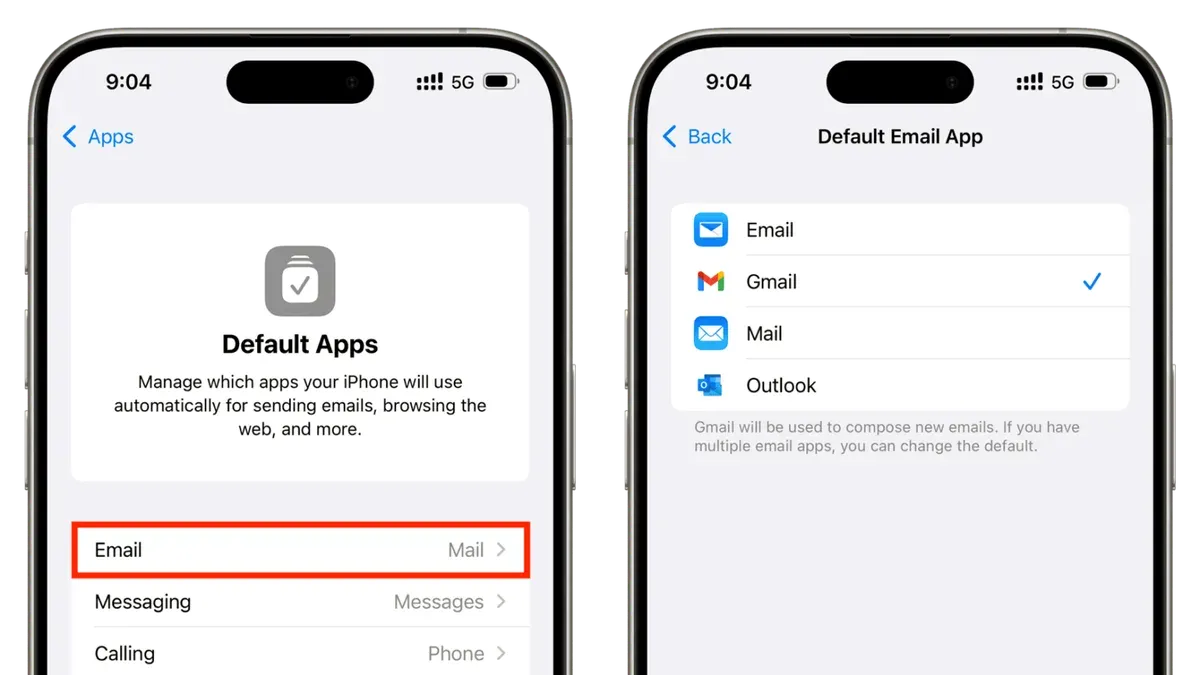
On your iPhone, you can set an email app other than Apple Mail as the default to handle all email links and related tasks. This feature requires iOS 14 or later and that your preferred email app supports default mail client functionality. Popular supported apps include Gmail, Microsoft Outlook, Spark, and Edison Mail, among others.
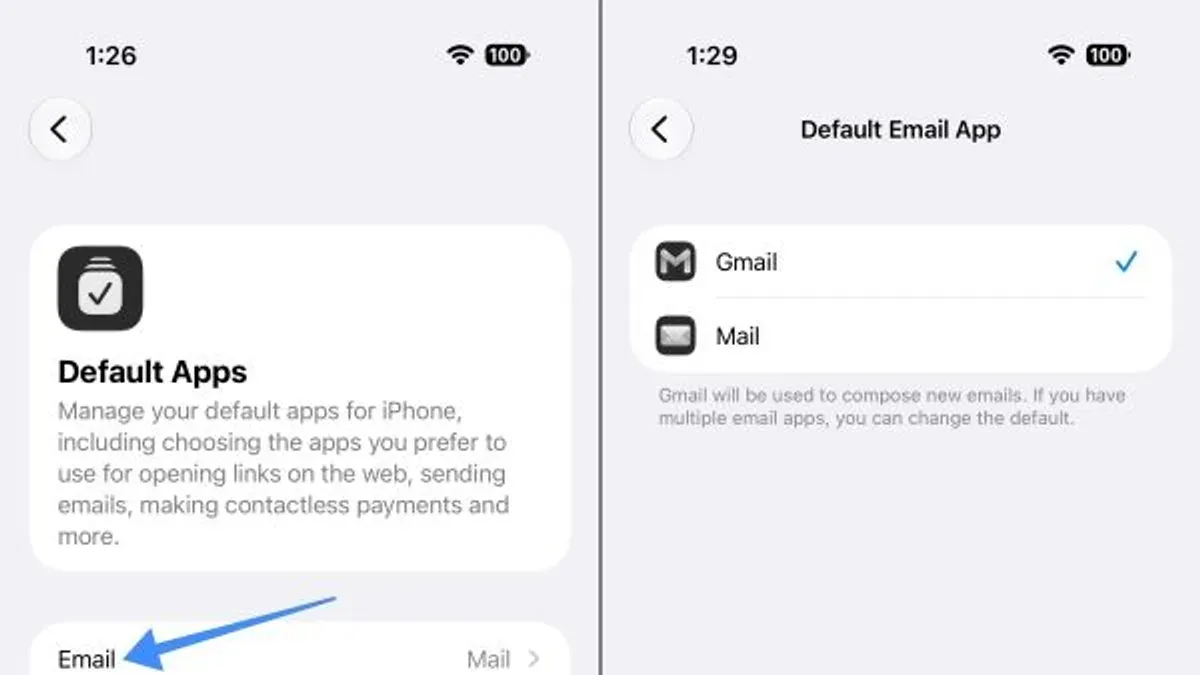
To switch your default email app, start by opening the Settings app on your iPhone. Scroll down until you find the email app you want to set as default, such as Gmail or Outlook, and tap it. Inside the app’s settings page, you will see an option labeled Default Mail App. Tap this to see a list of installed email apps that can be set as default.
Choose your preferred app from the list. Once selected, your iPhone will use this app for all email-related actions, like opening mailto: links. If the option does not appear, ensure your iOS version is up to date and that the email app itself is updated to the latest version, as older versions may not support this feature.
- Open Settings on your iPhone.
- Scroll down and tap the email app you want to set as default (e.g., Gmail or Outlook).
- Tap Default Mail App within the app’s settings.
- Select your preferred email app from the list that appears.
- Exit settings. The selected app now handles email by default.
For example, setting Gmail as your default involves opening Settings, locating Gmail, tapping Default Mail App, and selecting Gmail. After this, tapping email links anywhere on your iPhone will open Gmail instead of Apple Mail.
How to change Windows default email app
To set your preferred email client as the default on Windows, you need to access the Default apps settings. This controls which app opens when you click email links or perform email-related actions. Windows 10 and 11 have similar steps, but the interface might look slightly different.
- Open the Settings app by clicking the Start menu and selecting the gear icon, or press Windows key + I. You should see the main settings categories.
- Click on Apps to open the apps management section. This is where you find default apps, installed apps, and optional features.
- Select Default apps from the menu on the left. You will see a list of default apps for various functions like web browser, music player, and email.
- Scroll down to the Email section and click the current default email app listed there. A pop-up menu will appear showing available email clients installed on your PC, such as Windows Mail, Outlook, or Thunderbird.
- Choose the email client you want to set as default. For example, if you want to switch from Windows Mail to Outlook, select Outlook from the list. The change should apply immediately.
- Close the Settings app. To confirm the change worked, click a mailto link in a web page or document. It should open in your newly selected email app.
Windows Mail is a built-in app offering basic email features and tight Windows integration, while clients like Outlook or Thunderbird provide more advanced tools and customization options. Choosing the right default depends on your email habits and needs.
How to change primary email on Apple Mail app
In Apple Mail, the primary email account is the one used by default when you compose new messages. This is different from the default email app, which determines which application opens when you click email links. Managing multiple accounts within Apple Mail lets you choose which email address appears as the sender by default, improving your workflow and communication clarity.
To set or change your primary email account in Apple Mail, you reorder your accounts or specify the default sending account within Mail preferences. This ensures new emails and replies come from your preferred address, such as Gmail, while keeping all accounts accessible.
- Open the Mail app on your Mac and select Mail from the top menu bar, then click Preferences. You should see the Preferences window open.
- Click the Accounts tab to view all your configured email accounts. Here, each account is listed in the sidebar.
- To set a default sending account, look for the dropdown labeled "Default Account" at the bottom of the Accounts pane. Click it and select the email account you want as primary, for example, your Gmail address.
- Close the Preferences window. Now, when you compose a new email, the "From" field will show your chosen primary account by default.
- If you want to reorder accounts for easier access, drag them up or down in the sidebar. Note this does not change the default sending account but helps organize your accounts visually.
Choosing a primary account affects new messages and replies when no specific account is selected. For replies, Mail usually uses the account that received the original message, but for new emails, the primary account you set will be the sender by default.
Setting Gmail as your primary Apple Mail account means your outgoing emails will show your Gmail address unless you manually switch accounts per message. This setup helps keep your communication consistent and prevents sending emails from unintended addresses.
What does default mail app mean and why it matters
The default mail app is the email program your operating system automatically uses to handle email-related tasks. This includes opening mailto links on websites, initiating new email messages from other apps, and managing email notifications. Setting a default app streamlines your workflow by ensuring all email actions open your preferred client without extra prompts or manual selection.
For example, when you click an email address link on a webpage, your device uses the default mail app to compose the message. If your default is Apple Mail, it launches that app; if it’s Outlook, then Outlook opens instead. This choice affects how quickly you can respond, how integrated your email is with calendar or contacts apps, and the consistency of notifications you receive.
Choosing the right default mail app impacts your efficiency. If you rely heavily on Gmail’s web interface but set Outlook as default, mailto links might open Outlook instead, causing additional steps. Conversely, selecting the app you use most often ensures smoother transitions between apps.
| Behavior | With Apple Mail Default | With Outlook Default |
|---|---|---|
| Opening mailto link | Apple Mail opens with new message window | Outlook opens with new message window |
| Calendar integration | Seamless with Apple Calendar | Requires Outlook calendar setup |
| Notification style | System notifications on Mac/iPhone | Outlook notifications, may differ in look |
Troubleshooting common problems when changing your default email app
Sometimes, when you try to set a new default email app, the app you want doesn’t appear as an option. This often happens if the app isn’t fully installed or lacks the necessary system integration. Make sure the app is updated to the latest version and supports default app settings. On iPhone, only apps that support default email roles show up, so check the app’s compatibility and permissions in Settings.
If mailto links still open your old email app after you change the default, it’s usually due to cached settings or the system not refreshing. A simple device restart often resolves this. For Windows, you can also clear the default app association by going to Settings > Apps > Default apps, clicking the email app, and selecting "Reset" before setting your preferred app again.
After system updates, you might notice your default email app resets to the original one. To fix this, revisit the default app settings and reapply your choice. Updates sometimes override custom app preferences as part of system maintenance.
Lastly, verify that your email app has proper permissions, such as access to notifications and background app refresh, to maintain smooth operation. Keeping the app updated ensures compatibility with system changes and reduces glitches with default app settings.
- Check your desired email app is installed and updated; open the app to confirm it runs correctly.
- Go to your device’s default app settings and look for your email app; if it’s missing, reinstall or update the app, then check again.
- Set the new default email app, then restart your device to clear cached settings; test by clicking an email link.
- If the default resets after an update, reapply your preferred app in settings immediately.
- Confirm the app has necessary permissions under Settings > Privacy > Notifications and Background App Refresh on iPhone, or Settings > Privacy on Windows.
How to set mail as default email app on iPhone and Mac for best integration
To keep Apple Mail as your default email app and take full advantage of its integration within the Apple ecosystem, you need to ensure it is set correctly and configured for optimal use. This allows features like Handoff, Siri suggestions, and Spotlight search to work seamlessly with your emails.
- On your iPhone, open the Settings app, scroll down to Mail, and tap Default Mail App. Select Mail. You should see a checkmark next to Mail confirming it is set as default.
- On your Mac, open the Mail app, then go to Mail > Preferences from the menu bar. Under the General tab, find Default email reader and choose Mail from the dropdown. Close preferences to save; mailto links will now open in Mail.
- Configure your Mail app accounts under Mail > Preferences > Accounts on Mac or Settings > Mail > Accounts on iPhone. Manage multiple accounts by setting a primary sending account on Mac, and enable push notifications for timely alerts.
- Enable Handoff on both devices by going to Settings > General > AirPlay & Handoff on iPhone and System Settings > General > AirDrop & Handoff on Mac. This lets you start an email on one device and continue on the other.
- Use Spotlight search on Mac to find emails quickly by typing keywords; it indexes Mail content for fast access. Siri can also suggest relevant emails and contacts when composing or searching.
By setting Mail as your default on both iPhone and Mac and configuring these settings, you ensure a smooth, integrated email experience that leverages Apple’s ecosystem strengths.
Frequently asked questions
What is default email app?
The default email app is the application your device automatically uses to open and manage email links or messages. When you tap an email address or select “send email” from another app, this default program launches without asking you to choose. It streamlines your email experience by connecting actions to your preferred email client.
How to change default email on mail app?
To change the default email app on your device’s Mail app, you first need to install the email client you want to use. Then, access system settings where default apps are managed—on iPhone, this is in Settings > Mail > Default Mail App; on Mac, it’s in the Mail app preferences under General. Select your desired email app from the list to set it as default.
How to set default email app?
Setting a default email app depends on your device. On iPhone, go to Settings, find the Mail section, then tap Default Mail App and choose your preferred app. On Windows, open Settings, go to Apps > Default Apps, then select your email app under the Email category. On Mac, open the Mail app, go to Preferences > General, and pick the default email reader.
How to set default mail app?
To set your default mail app, start by installing the email client you want. On a Mac, open Mail > Preferences > General and select your preferred app from the Default email reader dropdown. On iPhone, navigate to Settings > Mail > Default Mail App and tap the app you want. On Windows, use Settings > Apps > Default Apps and assign your email app under the Email section.
How do I change the default email app on my Mac?
Open the Mail app on your Mac, then go to Mail in the menu bar and select Preferences. Click the General tab, then look for Default email reader. Click the dropdown menu and choose the email app you want to set as default. If your preferred app isn’t listed, make sure it’s installed and supports being set as default.
What This Guide Does Not Cover
This guide does not cover setting default email apps on Android devices or on older versions of macOS, iOS, or Windows that lack native support for changing default email apps. If your device is running an outdated operating system, you may need to update it first or use third-party software solutions specific to your platform. Additionally, advanced configurations involving enterprise or managed devices often require administrator access and specialized instructions not included here.
To get the most out of your default email app settings, verify your device’s operating system is up to date and supports these features natively. If you encounter restrictions or missing options, checking for system updates or consulting your device’s official support resources will be your best next steps.
Now that you understand how to choose and set your preferred email client across Mac, iPhone, and Windows, the single most useful next step is to open your device’s settings and set the default email app to the client you use most. This simple action streamlines your email workflow and ensures links and mailto: commands open exactly where you want them.
See also: How to Add a Gmail Account in the Mail App: Step-by-Step Guide · How to Set Up Mail Rules in the Mail App: A Step-by-Step Guide · How to Set Up an Auto Reply in Mail App: A Clear Step-by-Step Guide · How to Block a Sender in the Mail App: Clear Steps for Apple Users