Set Google Chrome as Your Default Browser on Mac: A Clear Step-by-Step Guide
Follow this clear step-by-step guide to set Google Chrome as your default browser on Mac and enjoy seamless browsing with every link you click.
You’ve just installed Google Chrome on your Mac and want every link you click to open in this fast, versatile browser. Maybe you’ve tried before but found the settings confusing, or you’re new to Mac and unsure how to make Chrome your default choice.
This article guides you step-by-step on how to set as default browser in Google Chrome on Mac, walking you through the system settings you need to adjust and how to confirm the change is in effect. By following these clear instructions, you’ll ensure all web links open in Chrome, making your browsing experience smoother and more consistent.
Key takeaways
- Access the default browser option in System Settings under the General section.
- Select Google Chrome from the Default web browser dropdown to set it as default.
- Verify your choice by opening a web link and confirming it launches in Chrome.
- Use Chrome’s internal settings to prompt default browser change if needed.
- Check for macOS updates or restrictions if the change doesn’t apply immediately.
Before You Start: What You Need to Make Chrome Your Default Browser
Before setting Google Chrome as your default browser, ensure that Chrome is installed on your Mac and updated to its latest version. Using an up-to-date Chrome guarantees compatibility and access to the newest features. Setting a default browser means that every web link you click, whether in emails or other apps, will automatically open in that browser instead of Safari or any other browser.
You will also need administrator access or permission to change system settings on your Mac. Without this, the system won’t allow you to switch your default browser. Keep in mind that macOS versions can vary slightly in how the settings interface looks; for example, in some versions, the Default Browser setting is found in the “General” pane of System Settings, while in others it may appear under “Desktop & Dock.” This guide focuses on the most common layouts to help you navigate effectively.
- Make sure Google Chrome is installed and updated. Open Chrome, click the three-dot menu at the top right, then select “Help” > “About Google Chrome” to verify the version.
- Confirm you have administrator privileges on your Mac by checking in System Settings under “Users & Groups” that your account type is “Admin.”
- Familiarize yourself with the System Settings app on your Mac, knowing that the Default Browser option is typically found under the “General” section.
Open System Settings to Access Default Browser Preferences
To change your default browser on a Mac, you first need to open the system settings where this option is managed. Depending on your macOS version, the app may be called System Settings or System Preferences. Both provide access to the controls that determine which browser opens links system-wide.
- Click the Apple menu icon in the top-left corner of your screen. This opens a dropdown menu.
- Select System Settings if available; if your Mac runs an older macOS version, select System Preferences. A new window will appear.
- In the System Settings window, locate and click on Desktop & Dock in the sidebar. For older versions, open General instead.
- Scroll down within this pane until you find the Default web browser option. This setting controls which browser opens links from all apps on your Mac.
This centralized location means any change you make here affects all applications that open web links, ensuring a consistent browsing experience. By navigating these settings, you access the core control point for default browser management on your Mac.
Set Google Chrome as Your Default Browser in System Settings
Once you have System Settings open where the default browser option is located, you can set Google Chrome as your default quickly. Look for the section labeled Default web browser. This is usually a dropdown menu or a selection list showing all installed browsers on your Mac.
- Click on the Default web browser dropdown menu. You will see a list of browsers currently installed on your Mac.
- From the list, select Google Chrome. It should appear alongside other browsers like Safari or Firefox if you have them installed.
- After selecting Chrome, the dropdown menu will update to show Google Chrome as the chosen default. Your Mac may display a brief confirmation or simply reflect the change immediately.
- Close System Settings. Now, any web link you click in other apps will open in Google Chrome by default.
This change applies system-wide, so you don’t have to set Chrome as default in individual apps. If you want to double-check, you can try opening a link from Mail or Notes to confirm it launches in Chrome.
Confirm That Google Chrome Is Now Your Default Browser
After setting Google Chrome as your default browser, it’s essential to verify that the change took effect. The most straightforward way to test this is by clicking a web link from another app, such as Mail, Notes, or Messages. For example, open an email with a link in the Mail app and click on the link. If Chrome opens and loads the webpage, your default browser is correctly set.
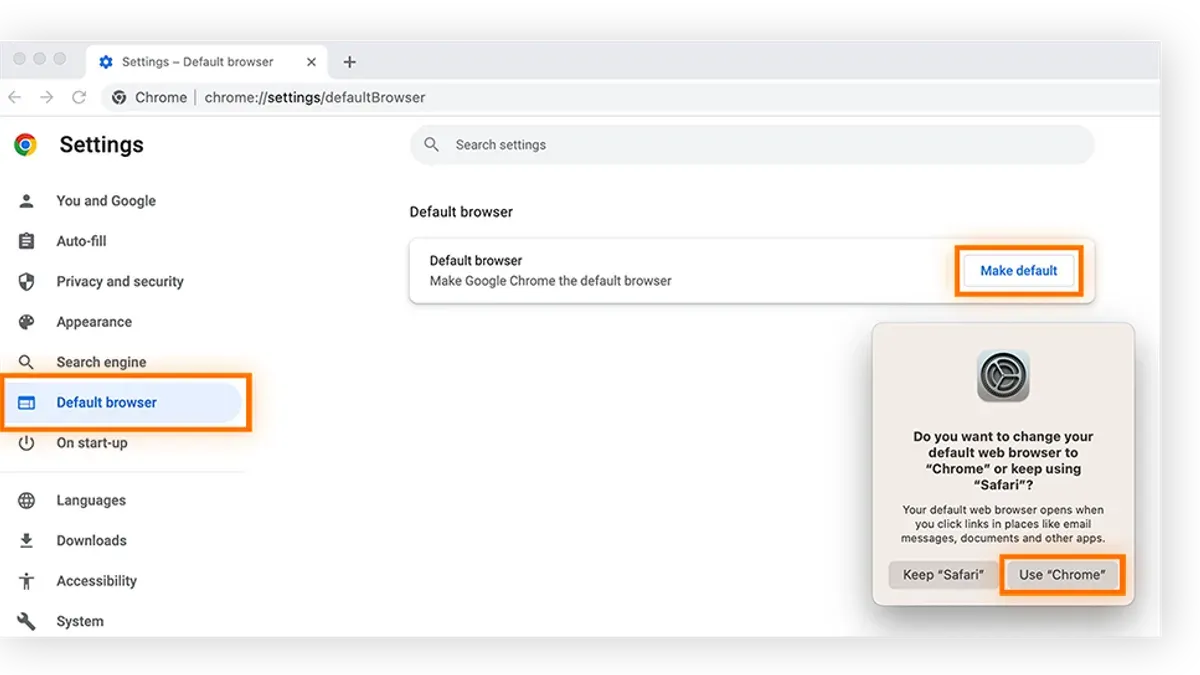
If clicking the link opens a different browser, your change did not apply successfully. In this case, revisit the system settings or try the optional Chrome settings method described later. Also, note that Google Chrome may display a prompt asking if you want to make it your default browser when you launch it. If you see this message, click Use Chrome as Default to finalize the change.
- Open the Mail, Notes, or Messages app and find an email or note containing a web link.
- Click the link and observe which browser opens.
- If Google Chrome launches and loads the page, the default browser setting is confirmed.
- If a different browser opens, return to System Settings and set Chrome as default again.
- Open Google Chrome and respond to any prompt by clicking Use Chrome as Default if it appears.
Troubleshoot Common Issues When Setting Chrome as Default Browser
If Google Chrome does not appear as an option in your Mac’s default browser list, first ensure Chrome is fully installed and updated. Outdated or corrupted installations can prevent the system from detecting Chrome properly. Visit the official Chrome website to download the latest version or reinstall if necessary.
Sometimes macOS restrictions, such as parental controls or managed device settings, can block changes to default apps. Check under System Settings > Screen Time > Content & Privacy Restrictions or consult with your administrator if the option is grayed out or unavailable.
Some third-party applications or browser extensions may interfere with default browser settings by overriding system preferences. Temporarily disable such software and try setting Chrome again to see if this resolves the issue.
If changes do not take effect immediately or the system reverts back to the previous default, restart your Mac. A reboot often finalizes settings changes and clears any temporary conflicts.
- Open System Settings > Default Web Browser. If Chrome is missing, update or reinstall Chrome from google.com/chrome. You should see Chrome listed afterward.
- Check Screen Time > Content & Privacy Restrictions to ensure app changes are allowed. If restrictions are active, disable or adjust them so default apps can be modified.
- Temporarily disable any third-party apps or extensions related to browsers. Then retry setting Chrome as default; if successful, re-enable them one by one to identify the culprit.
- After making changes, restart your Mac. Confirm by opening a link in another app to verify Chrome opens the webpage.
For detailed error messages or additional help, consult Apple's support pages on default apps and Google Chrome's help center, which provide up-to-date troubleshooting guidance.
Set Google Chrome as Default Browser via Chrome Settings (Optional Step)
You can also set Google Chrome as your default browser directly through Chrome’s own settings. This method provides a convenient shortcut to prompt macOS to update your default browser, though it does not replace the system-wide setting you adjust in System Settings.
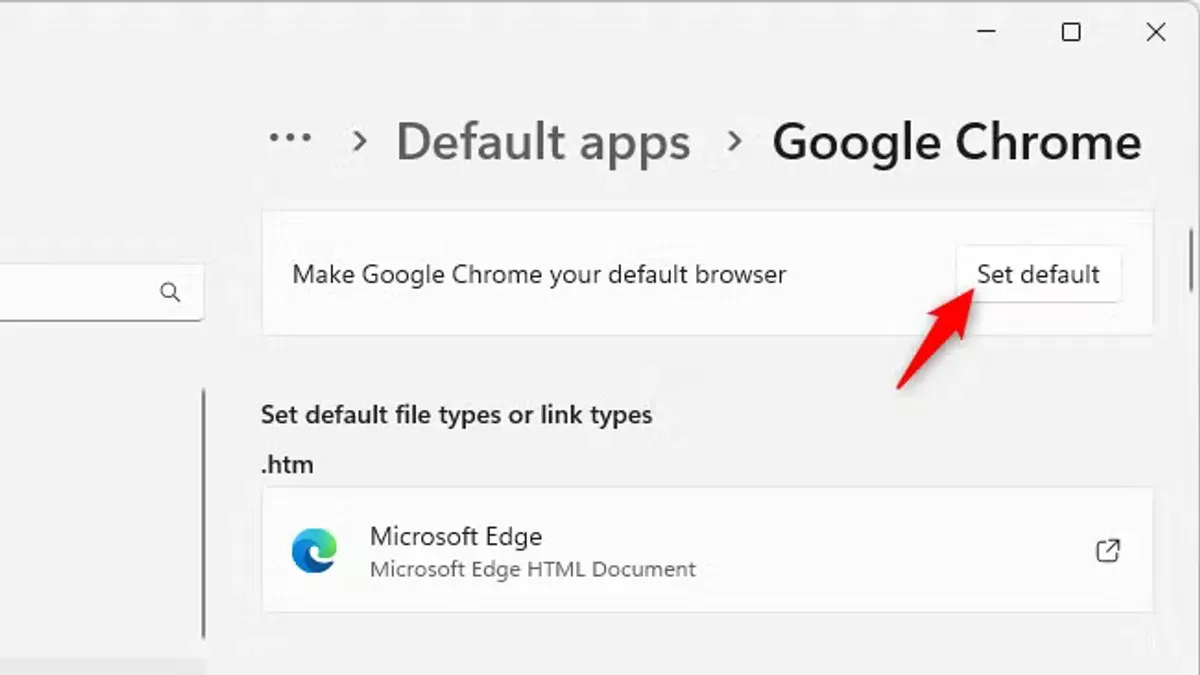
- Open Google Chrome on your Mac. Once open, click the three-dot menu icon located in the top-right corner of the window to access the menu.
- From the menu, select Settings. This will open Chrome’s settings page in a new tab.
- Within Settings, scroll down or use the search bar to find the Default browser section.
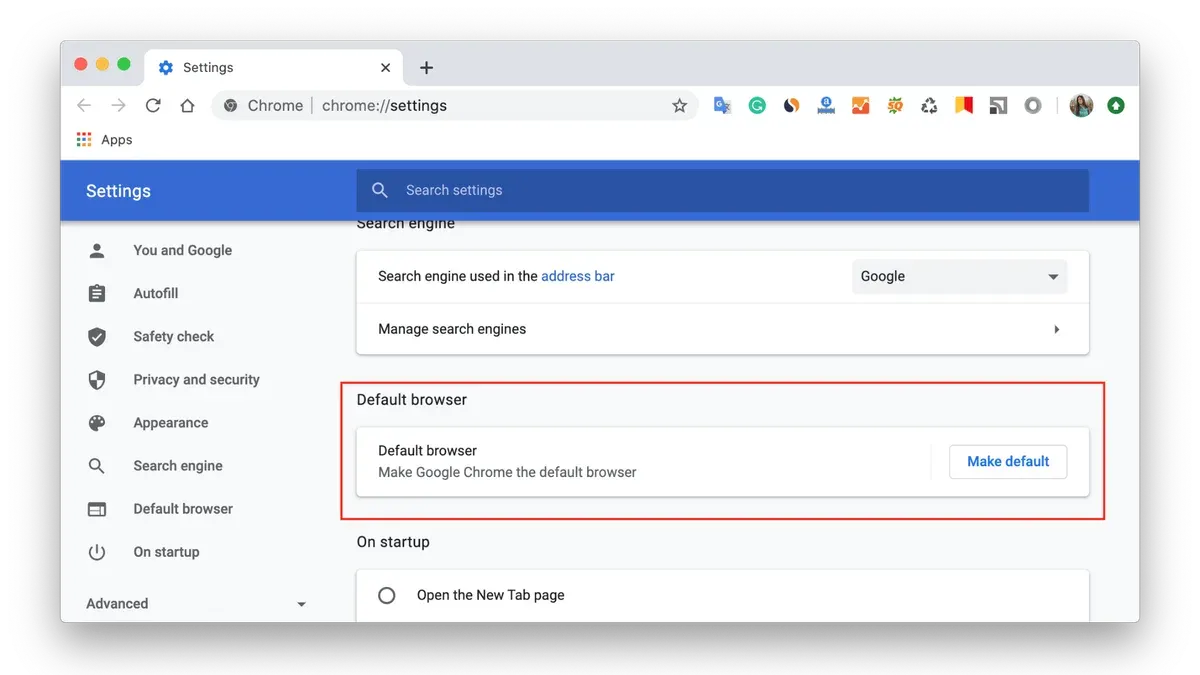
- In the Default browser section, look for the button labeled Make default. If this button is visible, click it. You should see a prompt from macOS asking you to confirm making Chrome your default browser.
- Confirm the change in the system prompt. Once confirmed, Chrome will become your default browser for opening all web links.
This Chrome settings option acts as a helpful shortcut by directly linking to the system default browser preference. However, it relies on macOS to finalize the change, so you might still need to confirm or adjust settings in System Settings if the change does not take effect immediately.
Example screenshots often show the Default browser section with the Make default button prominently displayed, providing clear visual confirmation of this option.
Frequently asked questions
Why can't I set Google Chrome as the default browser on my Mac?
You might be unable to set Chrome as your default browser if your Mac's System Settings are not properly accessed or if there is a temporary glitch. Ensure you're going to System Settings > Desktop & Dock > Default web browser and selecting Google Chrome there. If the option remains unchangeable, try restarting your Mac or updating both macOS and Google Chrome to the latest versions.
How do I check which browser is currently set as default on my Mac?
To check your current default browser, open System Settings on your Mac, then go to Desktop & Dock. Scroll down to find the “Default web browser” setting. The browser listed here is the one your Mac uses to open web links by default.
Will changing my default browser affect bookmarks or saved passwords?
Changing your default browser on Mac does not delete or modify bookmarks or saved passwords in any browser. Your bookmarks and passwords remain stored within each browser individually. However, you may want to import bookmarks and passwords into Chrome if you plan to use it regularly.
Can I set different default browsers for different types of links or apps on Mac?
macOS does not support setting different default browsers for various link types or specific apps system-wide. The default browser setting applies universally to all web links opened from any app. Some third-party apps may allow choosing a browser internally, but this is app-specific and not managed through system settings.
What This Guide Does Not Cover
This guide focuses on standard macOS user environments and assumes you have the necessary permissions to change system settings. It does not cover enterprise-managed Macs or those with custom security policies that restrict changing default applications. If your Mac is managed by an organization or has specialized security configurations, you may need to contact your system administrator or IT support to adjust default browser settings.
Additionally, this guide does not address setting default browsers for specific user profiles or within virtual machines and does not cover older macOS versions with different system settings layouts.
Next Step: Check Default Browser Behavior After Restart
After setting Google Chrome as your default browser, the most useful next step is to restart your Mac and test opening links from different applications like Mail, Messages, or Notes. This ensures the change has been registered system-wide and that all links open in Chrome as expected. If links still open in another browser, revisit the Default Browser setting in System Settings under Desktop & Dock and confirm Google Chrome is selected. This simple verification helps avoid surprises and confirms your Mac is fully using Chrome as the default browser.
See also: How to Import Passwords from Chrome to Apple Passwords App · How to Set Up Verification Codes in the Passwords App: A Step-by-Step Guide · How to Export Passwords to CSV in Passwords App: A Clear Step-by-Step Guide