
Switching from Canvas to Moodle: Your Expert Transition Guide
Learn how to smoothly switch from Canvas to Moodle with practical steps for module editing, navigation, and avoiding common migration pitfalls.
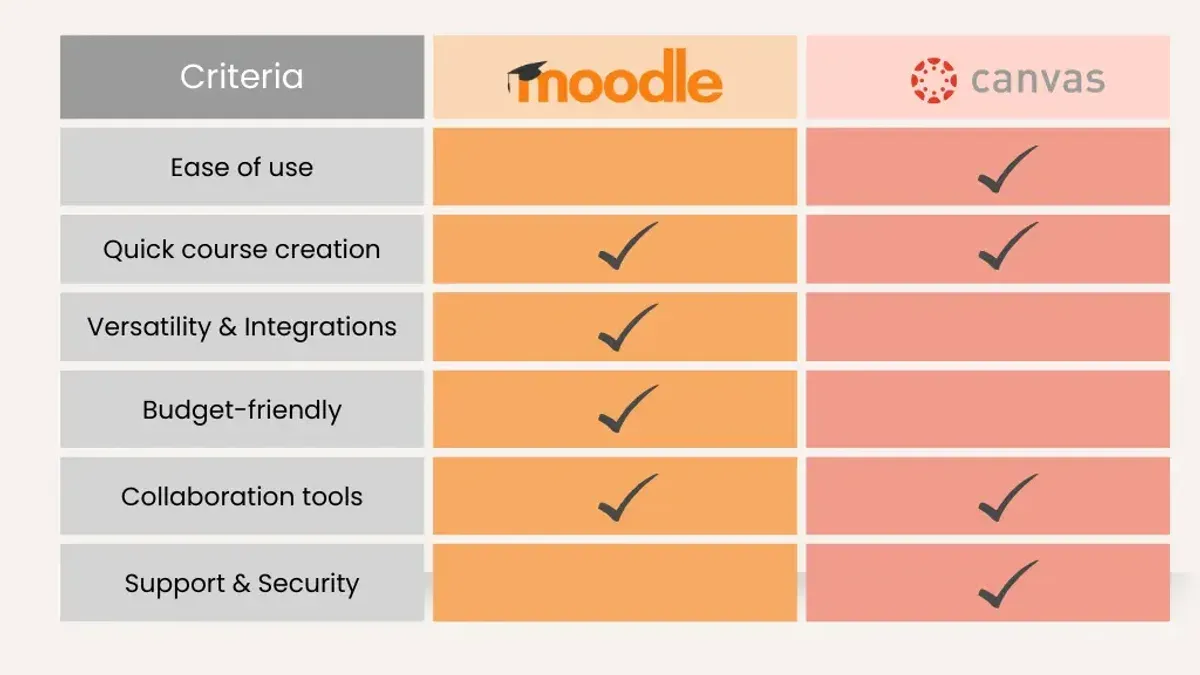
Short answer: Switching from Canvas to Moodle requires understanding key differences in how each platform structures and edits course modules. Moodle offers a more flexible but less intuitive interface for course design, demanding a shift in how you organize content and activities.
This guide walks you through the specific contrasts in module editing between Canvas and Moodle, providing practical steps to plan your migration carefully. You will learn how to navigate Moodle’s unique settings, avoid common pitfalls during transition, and leverage its features to enhance your virtual classroom experience beyond simple platform comparison.
Understand if Moodle is like Canvas
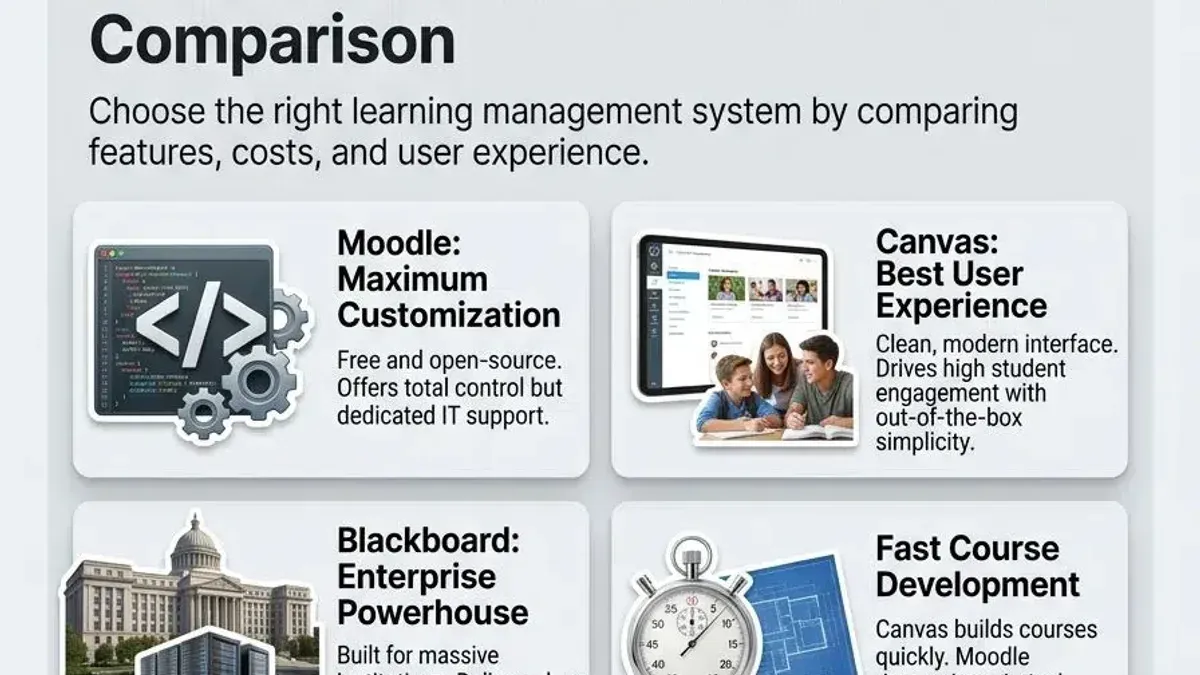
Moodle and Canvas serve the same fundamental purpose as Learning Management Systems, but they differ significantly in design philosophy and user experience. Moodle is an open-source platform, allowing you extensive customization and control, whereas Canvas is proprietary, offering a polished, consistent interface with less need for technical setup.
In terms of navigation, Canvas delivers a streamlined, modern UI with a global course menu and a dashboard highlighting recent activity. Moodle’s interface, accessed through the Site Administration menu and course settings, is more modular but can feel less intuitive initially, especially for those accustomed to Canvas’ linear workflows.
Use cases diverge: Canvas excels in institutions prioritizing ease of use and integration with third-party tools, while Moodle fits organizations that need high adaptability and social learning features like forums, wikis, and peer assessment built directly into the platform.
For example, Moodle’s Forum activity promotes ongoing discussions and collaboration within a course, fostering a community feel that Canvas typically supports through separate collaboration tools or external apps.
| Feature | Moodle | Canvas |
|---|---|---|
| Source | Open-source, customizable | Proprietary, standardized |
| Interface | Modular, less linear | Streamlined, dashboard-centric |
| Social Learning | Built-in forums, wikis, peer review | Limited native, relies on integrations |
| Typical Users | Tech-savvy, adaptive needs | Ease of use focused |
How to edit modules in Canvas
In Canvas, modules organize course content sequentially, often combining files, assignments, quizzes, and pages. To edit a module, you start by navigating to the course's Modules page, then click the three-dot menu next to the module title to access settings like Edit, Move, or Delete.
Adding content involves selecting the “+” button at the top right of the module, which opens a dropdown to add various item types such as Assignments, Quizzes, Files, or External URLs. The module items appear as a list, and you can drag and drop them to reorder or nest items under headings.
Canvas modules use a linear flow, with an optional requirement sequence setting that controls learner progression. This sequence feature is a key limitation; it enforces strict linearity and can be cumbersome to adjust once set. Additionally, editing module content typically requires separate work in the specific tool (e.g., the Assignment editor), meaning module editing is more about organizing existing content than creating it.
For example, a typical module might start with a Page introducing the topic, followed by a Quiz, then an Assignment. Users often overlook the "Add Module Item" button's ability to link directly to existing content instead of creating duplicates, a common transitional pain point.
- Go to Modules page in your course
- Click the three-dot menu to Edit settings or reorder modules
- Use the "+" button to add module items by type
- Drag and drop items to reorder or nest
- Manage prerequisite and requirement settings carefully
How to edit Moodle
Editing courses in Moodle starts with accessing the course homepage and selecting Turn editing on from the gear menu in the top right corner. Unlike Canvas’s linear module layout, Moodle uses a modular block system where you add activities and resources into weekly or topic sections. Each section can be rearranged by dragging the crosshair icon on the left.
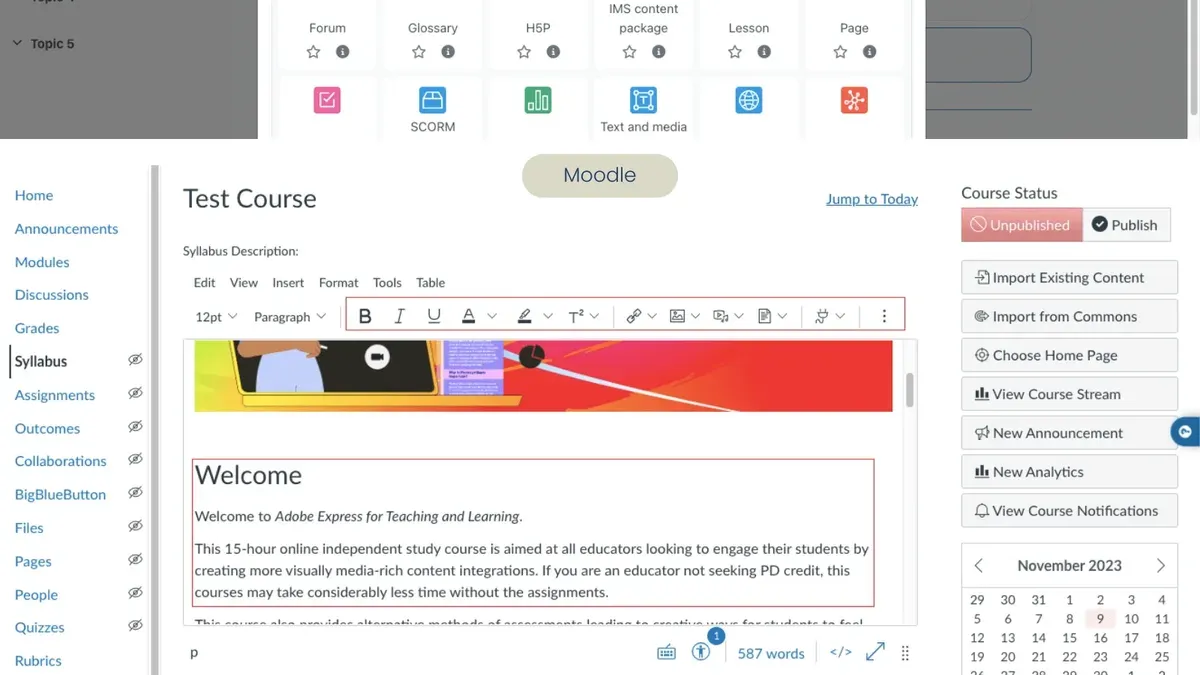
To add content, click Add an activity or resource at the bottom of any section. Moodle offers a wide variety of options such as Assignments, Quizzes, and Forums. After selecting one, you configure detailed settings like availability, grading, and completion tracking in the pop-up form.
A key advanced feature is conditional activities. For example, you can set a quiz to appear only after a student submits an assignment or achieves a certain grade, using the Activity completion and Restrict access settings within the activity’s edit screen. This replicates Canvas’s prerequisite progression but allows more granular control.
To replicate Canvas module structure, organize Moodle sections to reflect module topics and use labels to introduce each section. While Canvas modules are linear, Moodle’s flexibility lets you structure content in a more layered manner, which requires a mindset shift but offers richer customization.
- Turn editing on from the gear icon
- Rearrange sections by dragging the crosshair
- Add activities/resources via the Add an activity or resource button
- Configure settings like availability and completion in each activity
- Use conditional activities to control student progression
- Organize sections to mirror Canvas modules and use labels for clarity
Plan your migration from Canvas to Moodle
Begin by auditing your Canvas courses to identify which content can be migrated directly and what requires rebuilding. Core files, quizzes, and gradebooks often transfer well, but complex assignments or third-party integrations might need manual re-creation in Moodle’s environment.
Leverage migration tools like the Canvas2Moodle plugin or use IMS Common Cartridge exports. Canvas2Moodle supports most content types but may not handle advanced quiz question banks fully, while IMS export covers broader content but demands more manual setup after import.
Set a realistic timeline: for example, allocate 4 weeks for initial exports and imports, 2 weeks for content validation and reconfiguration, and 2 weeks for staff training on Moodle’s interface and workflows. This phased approach avoids last-minute issues.
Manage user accounts by syncing Canvas user lists with Moodle’s authentication system, whether through LDAP, SAML, or manual uploads, to ensure seamless access. Plan for a brief overlap period where both LMSs remain accessible to ease the transition.
- Audit and categorize content by migration readiness
- Choose and test migration tools on sample courses
- Create a phased timeline: export, import, validate, train
- Set up user authentication sync between Canvas and Moodle
- Plan overlap access for users during transition
Avoid common mistakes when switching to Moodle
One major pitfall is ignoring Moodle’s fundamentally different course structure, which can cause poor content mapping. For example, transplanting Canvas’s linear module sequence directly into Moodle’s block system often results in disorganized pages that confuse learners. A mid-sized university’s transition saw a 30% increase in helpdesk tickets because instructors failed to adapt their content layout, leading to student frustration.
Many underestimate Moodle’s steeper learning curve. Its extensive features and interface settings require deliberate exploration. Skipping thorough training for faculty and support staff exacerbates this, leaving users unable to fully utilize tools or resolve issues independently. One faculty member noted they struggled for weeks without structured guidance, impacting course delivery quality.
Finally, not leveraging Moodle’s social and collaborative tools is a missed opportunity. Institutions that treat Moodle simply as a content repository lose out on forums, workshops, and badges that enhance engagement. Effective transitions include training on activating and moderating these features to maximize classroom interaction.
- Audit and redesign course layouts to fit Moodle’s block-based structure
- Schedule comprehensive training sessions for all users before going live
- Encourage use of forums, workshops, and badges to boost collaboration
- Provide ongoing support to address interface challenges promptly
Leverage Moodle’s unique features for your virtual class
Moodle offers integrated tools like BigBlueButton for live virtual classrooms, allowing real-time video, audio, and whiteboard collaboration without third-party apps. You can enhance interaction by setting up Forums under the Activities menu, encouraging asynchronous discussions that deepen understanding.
Use the Workshops activity to facilitate peer assessment, where students submit assignments and anonymously review each other’s work, boosting engagement and critical thinking. Leverage Conditional Release in course settings to control content flow based on activity completion, ensuring students meet prerequisites before advancing.
Customize your course appearance with plugins like Essential Theme or Fordson to reflect your institution’s branding and improve navigation. For example, a community college increased forum participation by integrating a custom theme and enabling activity completion tracking, which guided students through modules and fostered accountability.
- Set up BigBlueButton sessions via Add an activity or resource > BigBlueButton
- Create Forums with clear participation guidelines
- Enable Workshops for peer assessments from Add an activity or resource
- Configure Conditional Release under Course Administration > Edit settings
- Install and activate themes via Site administration > Appearance > Themes
Read next
- Switching from Canvas to Brightspace: Your Complete Expert Guide
- Switching from Canvas to Blackboard: Your Expert Guide
- Moving from Blackboard to Moodle: Your Complete Migration Checklist
- Moving from Canvas to Google Classroom: Your Essential Checklist
Frequently asked questions
Is moodle like canvas?
Moodle and Canvas are both learning management systems designed to facilitate online education, but they differ significantly in structure and user experience. Moodle offers more customization through plugins and open-source flexibility, whereas Canvas focuses on a streamlined, user-friendly interface with consistent updates. While they share core features like course content delivery and grading, the way you manage and edit modules varies notably between the two.
Is Moodle like Canvas?
Though Moodle and Canvas serve similar educational purposes, Moodle is an open-source platform that allows extensive tailoring of course layouts and workflows, unlike Canvas, which uses a more uniform and polished user interface. Moodle’s modular editing approach demands a bit more setup but offers greater control, making the transition a matter of adjusting to different design philosophies rather than losing functionality.
How do I log in to Canvas and Moodle at SOWELA?
At SOWELA, you log in to Canvas by visiting sowela.instructure.com and entering your institutional credentials. For Moodle, access moodle.sowela.edu, then use the same username and password provided by your institution. If you encounter login issues, verify your credentials with the IT help desk as the two systems maintain separate authentication portals.
What is the difference between Moodle, Canvas, and Blackboard?
Moodle is an open-source LMS known for its flexibility and extensive customization options. Canvas offers a modern, intuitive interface with regular cloud-based updates and strong third-party integrations. Blackboard traditionally emphasizes enterprise-level solutions with robust assessment tools but can feel more complex. Each has unique strengths in user experience, scalability, and course management features, influencing your choice based on institutional needs.
Does Canvas or Moodle support dark mode?
Canvas provides an official dark mode option accessible via user settings under "Display Preferences," allowing easier viewing in low-light environments. Moodle itself does not include a built-in dark mode but supports it through third-party themes or browser extensions to adjust the interface colors. Relying on Moodle’s theming system can provide a customized dark appearance but requires additional setup compared to Canvas’s native support.
What this guide does not cover
This guide does not cover technical server setup or advanced custom development in Moodle, which may require specialized IT support. If your institution plans to heavily customize Moodle’s backend, integrate complex third-party tools, or manage large-scale server administration, consult your IT department or Moodle-certified developers for tailored solutions.
Quick checklist
- Review course module structures in both Canvas and Moodle to align content organization.
- Practice editing activities and resources within Moodle’s course editing interface before migration.
- Create a detailed migration timeline including content export from Canvas and import into Moodle.
- Identify and prepare your user roles and permissions to mirror Canvas settings appropriately.
- Test key course functionalities like quizzes and assignments in Moodle’s sandbox environment.
- Train instructors and staff on Moodle-specific workflows and interface nuances.
- Plan for ongoing support post-migration to address user questions and technical issues.
The most effective next step is to set up a pilot course in Moodle replicating a typical Canvas course module. This hands-on experience will reveal practical differences and help you refine your migration and training plans with real examples, ensuring a smoother transition for your entire educational community.



