
Switching from Dropbox to SharePoint: Your Expert Migration Guide
Learn how to switch from Dropbox to SharePoint with a strategic migration guide that ensures seamless collaboration and file management.
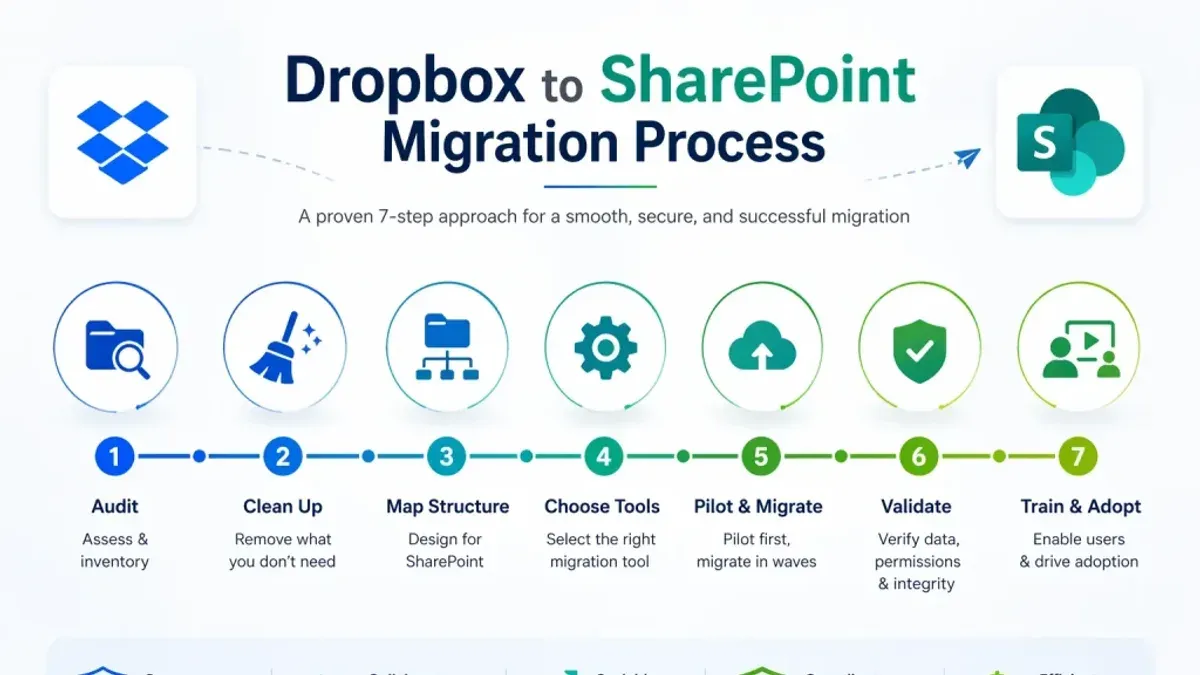
Short answer: Switching from Dropbox to SharePoint requires understanding that SharePoint is not just a file storage tool but a comprehensive collaboration platform designed to integrate deeply with Microsoft 365. This means your migration strategy should focus on mapping Dropbox’s simple folder structures into SharePoint sites, libraries, and permissions to leverage its strengths effectively.
This article guides you through the nuanced differences between Dropbox and SharePoint's collaboration models and provides a strategic migration roadmap. You will learn efficient file migration methods, how to replicate familiar Dropbox functionality within SharePoint, and avoid common pitfalls that can disrupt team workflows during the transition.
Understand the difference between Dropbox and SharePoint
Dropbox primarily serves as a personal and shared file storage solution, focused on straightforward folder-based file organization and syncing. It offers a flat structure where users typically work with files and folders much like they would on a local drive, with simple sharing options through links or invitations.
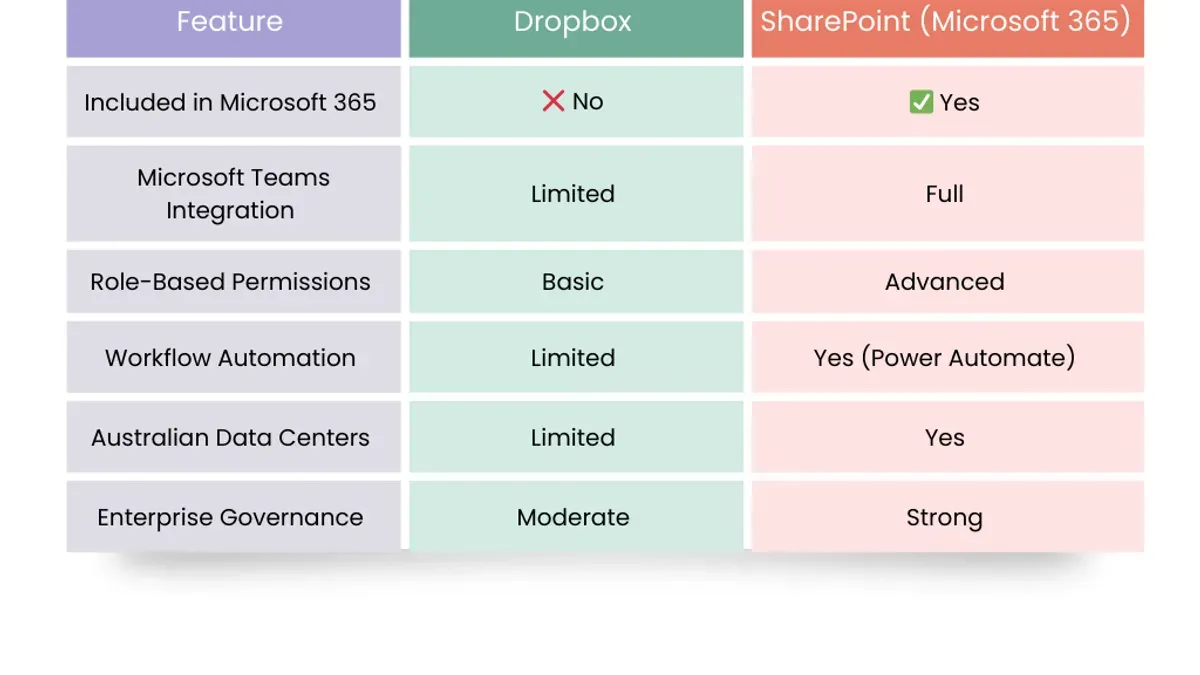
In contrast, SharePoint functions as a comprehensive collaborative intranet and document management platform. It integrates deeply with Microsoft 365 apps like Teams, Outlook, and Power Automate, enabling complex workflows, metadata tagging, and granular permission settings. SharePoint’s architecture is built around sites, document libraries, and lists, which differ significantly from Dropbox’s folder model and impact how files are organized and accessed.
For example, in SharePoint you might have a Project Site that contains multiple libraries, each with custom metadata columns like “Status” or “Department,” allowing dynamic sorting and filtering. This contrasts with Dropbox’s single folder hierarchy, where such metadata is absent and organization depends solely on folder placement and file names.
| Feature | Dropbox | SharePoint |
|---|---|---|
| Primary Use | Personal/shared file storage | Collaborative intranet and document management |
| File Organization | Folder-based hierarchy | Sites, libraries, lists with metadata |
| Collaboration | File sharing and comments | Workflows, versioning, co-authoring, metadata |
| Permissions | Folder/file level sharing | Granular, site-to-item level control |
| Integration | Limited app integrations | Full Microsoft 365 ecosystem integration |
Consider a team collaborating on a marketing campaign. In Dropbox, they share a campaign folder where everyone drops files. In SharePoint, the team uses a dedicated site where documents are stored in libraries with metadata tags for content type and approval status. Automated workflows can notify reviewers when new files are uploaded, supporting a more structured collaboration process.
How to migrate files from Dropbox to SharePoint efficiently
Begin by assessing your Dropbox environment: catalog the total data volume, file types, and folder structures. This analysis helps you select the best migration approach and anticipate potential challenges. For example, a 100GB folder with mixed file types and deep folder nesting requires a robust tool rather than manual transfer.
Choose your migration method based on scale and complexity. Manual download and upload works for small volumes but is prone to errors and disruption. Microsoft's SharePoint Migration Tool (SPMT) is suitable for straightforward migrations but has limitations with complex permissions and metadata. Third-party tools like ShareGate excel in handling large datasets, preserving metadata, version history, and permissions with minimal downtime.
When migrating with ShareGate, expect a 100GB folder to transfer in approximately 6 to 8 hours, depending on network speed. ShareGate's interface allows mapping Dropbox folders to SharePoint document libraries directly, maintaining folder structure and file versions. The tool flags errors such as unsupported file types or permission mismatches, enabling you to address them promptly.
After migration, validate by comparing file counts and sizes between Dropbox and SharePoint. Check key documents for intact metadata and version history. Common troubleshooting includes resolving permission inheritance conflicts and re-uploading files blocked due to path length limits.
- Inventory Dropbox data volume, file types, and folder hierarchy
- Select migration method: manual, SPMT, or ShareGate
- Configure migration tool to preserve metadata, versions, and permissions
- Perform migration during low-usage periods to minimize disruption
- Validate migrated content and troubleshoot flagged errors
How to use SharePoint like Dropbox for familiar file access
To replicate Dropbox’s straightforward folder experience in SharePoint, start by creating document libraries that reflect your existing Dropbox folder hierarchy. Within each library, use the “All Documents” view and customize it by adding folders and metadata columns sparingly to retain simplicity. For example, if your Dropbox teams folder has subfolders by project, mirror this structure with a SharePoint document library named “Teams” and subfolders for each project.
Next, leverage the OneDrive sync client to provide offline access and seamless syncing. Users can sync specific SharePoint document libraries to their local devices just like Dropbox folders. Go to the SharePoint library, click “Sync” in the command bar, and OneDrive will start syncing that library. This approach maintains the familiar local folder experience with automatic background updates.
Streamline navigation by creating a custom SharePoint site navigation menu with direct links to key libraries and folders. Simplify permissions by assigning access at the library or folder level rather than item-level to avoid complexity. For instance, grant project team members edit rights on their project folder only.
Finally, advise users to install and use the SharePoint mobile and desktop apps, which support offline access, file versioning, and sharing options similar to Dropbox. These apps provide a consistent experience across devices while tapping into SharePoint’s collaborative features.
- Set up document libraries mimicking Dropbox folder structures
- Customize views to keep navigation simple
- Use OneDrive sync client for offline and seamless sync
- Create user-friendly navigation with clear links
- Simplify permissions at library/folder level
- Encourage use of SharePoint mobile and desktop apps
How to create a Dropbox-style folder (a ‘dropbox’) on SharePoint
To set up a dedicated folder in SharePoint for file submissions or centralized storage, start by creating a new document library within your SharePoint site. Go to Site Contents > New > Document Library, name it clearly (e.g., “Project Submissions”), and configure it for contributor access.
Assign unique permissions by breaking inheritance: in Library Settings > Permissions for this document library, stop inheriting permissions and grant Contribute access to specific users or groups who will upload files. This limits editing rights while allowing submissions.
Enable versioning under Library Settings > Versioning Settings to keep track of changes and restore previous versions if needed. Add metadata columns like “Submission Date” or “Project Name” to help categorize incoming files and improve searchability.
Configure alerts via Library Settings > Alert Me to notify you or the team when new files are added or modified. This keeps stakeholders informed without manual checking.
To automate intake, create a Power Automate flow using the “When a file is created” trigger for your document library. For example, set the flow to send an email confirmation to submitters or move files to a review folder. A sample template named “Notify on new SharePoint file” can be customized with minimal effort.
Best practices include naming the library with a clear, action-oriented title like “Team DropBox” and organizing submissions by date or project with folders or metadata filters. Secure the dropbox by limiting permissions strictly and periodically reviewing access.
Example: You create a “Marketing DropBox” library, grant the marketing team Contribute access, enable versioning, add a “Campaign” metadata column, and set up a Power Automate flow that emails the campaign manager when new files arrive.
- Create a new document library with a clear name
- Break permission inheritance and assign contributor rights
- Enable versioning and add relevant metadata columns
- Set alerts for new or changed files
- Build a Power Automate flow for notifications or file routing
- Use clear naming and organize files for easy access
- Regularly audit permissions to maintain security
Common mistakes to avoid when migrating from Dropbox to SharePoint
One major pitfall is ignoring the fundamental differences between Dropbox’s simple folder permissions and SharePoint’s complex, layered permission model. For example, a financial services firm migrated thousands of files without adjusting SharePoint permissions, resulting in confidential reports being accessible company-wide. This overexposure caused compliance risks and forced an emergency rollback.
Another frequent error is underestimating the complexity of migrating metadata and version history. Unlike Dropbox, SharePoint relies heavily on metadata for search and organization. Migrating files without preserving this information can lead to lost context and disrupt workflows.
Skipping user training on SharePoint features is a common cause of low adoption. Users expecting Dropbox’s straightforward interface often get frustrated by SharePoint’s richer but more complex environment, reducing collaboration efficiency.
Finally, neglecting post-migration audits and cleanup leads to orphaned permissions, duplicate files, and unused libraries cluttering the system. A thorough audit using SharePoint’s Site Settings > Site Permissions and Version History reports ensures everything functions as intended.
- Review and adapt permissions carefully to fit SharePoint’s model.
- Ensure metadata and version history are preserved during migration.
- Provide targeted user training on SharePoint’s collaboration features.
- Conduct detailed post-migration audits to clean up and validate data.
Read next
- Moving from Dropbox to OneDrive Checklist: Your Step-by-Step Guide
- Moving from Dropbox to Google Drive Checklist for Seamless Migration
- Moving from Dropbox to Google Workspace: Your Complete Checklist
- Dropbox Implementation Timeline: From Inception to Everyday Use
Frequently asked questions
How to migrate dropbox to sharepoint?
Begin by auditing your Dropbox files and organizing them by relevance and size. Use the SharePoint Migration Tool or third-party migration services to transfer your data securely. Ensure you map Dropbox folders to appropriate SharePoint document libraries and maintain metadata during the migration to preserve file context.

How to make a dropbox in sharepoint?
Create a dedicated document library or folder within SharePoint and configure permissions to allow specific users to upload files. Use SharePoint’s versioning and alert features to track submissions, effectively mimicking a Dropbox-style dropbox for receiving files.
Does sharepoint work like dropbox?
SharePoint and Dropbox both offer cloud storage but differ fundamentally in collaboration models. SharePoint is designed for integrated team collaboration with customizable workflows, metadata, and tight Microsoft 365 integration, whereas Dropbox focuses on straightforward file syncing and sharing with simpler folder structures.
How to create a dropbox on sharepoint?
Set up a document library or folder with restricted editing permissions but open upload rights for contributors. Enable versioning and alerts to monitor incoming files. This approach creates a controlled dropbox environment within SharePoint for collecting documents.
How to migrate from dropbox to sharepoint?
Plan your migration by categorizing files and defining SharePoint’s site structure first. Use tools like Microsoft’s SharePoint Migration Tool to upload content, then adjust permissions and metadata post-migration. Validate file integrity and user access before fully switching workflows.
What this advice does not cover
This guide focuses on business and team migrations rather than personal Dropbox accounts with minimal data. Highly customized Dropbox setups or integrations involving third-party apps, advanced workflows, or unique metadata may require tailored solutions beyond this roadmap. If your migration involves complex API-driven processes or compliance-heavy environments, consider engaging a migration specialist who can design a bespoke strategy aligned with your organization's technical and governance requirements.
Quick checklist
- Evaluate and map Dropbox folder structures to SharePoint sites and libraries before migration.
- Use Microsoft’s SharePoint Migration Tool or a trusted third-party tool for bulk transfers.
- Configure SharePoint permissions at the site and document library level, avoiding inherited permissions where possible.
- Train users on SharePoint’s document library interface and versioning features to reduce resistance.
- Create a dedicated SharePoint folder with unique permissions to mimic a Dropbox-style dropbox for submissions.
- Test file synchronization and access on multiple devices to ensure seamless user experience.
- Communicate migration timelines clearly and provide ongoing support post-migration.
The single most practical next step is to pilot your migration with a small team or project folder. This lets you validate your folder mapping, permission settings, and user training approach while identifying any unexpected challenges in a controlled environment. Adjust your plan based on this pilot before scaling to the full organization to ensure a smooth transition that leverages SharePoint’s collaboration strengths effectively.



