
How to Turn On and Use Hover Text on Mac: A Step-by-Step Guide
This guide shows you how to enable and use Hover Text on Mac to enhance text readability and accessibility across apps and devices.
Trying to read small text on your Mac screen can be frustrating, especially when details matter. Whether you want to improve accessibility or add interactive effects, hover text can be a practical solution.
This article explains how to turn on Hover Text on Mac, covering system-wide activation as well as creating hover text in Microsoft Word and Excel. It also includes how to implement hover text in HTML for use on Mac devices, and how to manage hover text on iPhone and iPad. Troubleshooting tips and editing instructions round out the guide, helping you choose the best method for your needs across different applications and devices.
Key takeaways
- Enable Hover Text via Accessibility settings under System Preferences > Accessibility > Zoom > Hover Text.
- Add hover text in Word by inserting ScreenTips through the Hyperlink feature.
- Use Excel's comments or notes to simulate hover text on cells.
- Implement hover text in HTML using the title attribute within tags like <span> or <a>.
- On iPhone and iPad, hover text is limited but can be mimicked using VoiceOver or custom apps.
Before you start: What you need to know about Hover Text on Mac
Hover Text is a feature designed to display enlarged text when you place the pointer over a UI element or a portion of text, enhancing readability and accessibility. It is especially useful for users with visual impairments or those who want quick, contextual text previews without clicking.
On Mac, Hover Text functionality is supported at the system level through the Accessibility settings. macOS offers a specific Accessibility feature named “Hover Text,” which shows a zoomed-in text box near the pointer for any text you hover over, regardless of the app.
Many applications, such as Microsoft Word and Excel, also support hover text in the form of tooltips or ScreenTips, usually for comments, footnotes, or hyperlinks. Web browsers display hover text through HTML attributes like title, making it accessible across devices.
Note that Hover Text on Mac desktops and laptops differs from interactions on iPhone and iPad, which rely on touch and do not have a traditional cursor. However, some accessibility features on these devices mimic hover behavior differently.
To use Hover Text on Mac, ensure your system is running macOS with Accessibility Hover Text enabled. For Microsoft Word and Excel, compatibility generally requires versions supporting the ScreenTip feature, typically recent releases from Microsoft 365 or standalone editions. Older versions may not fully support hover text.
How to turn on Hover Text on Mac system-wide
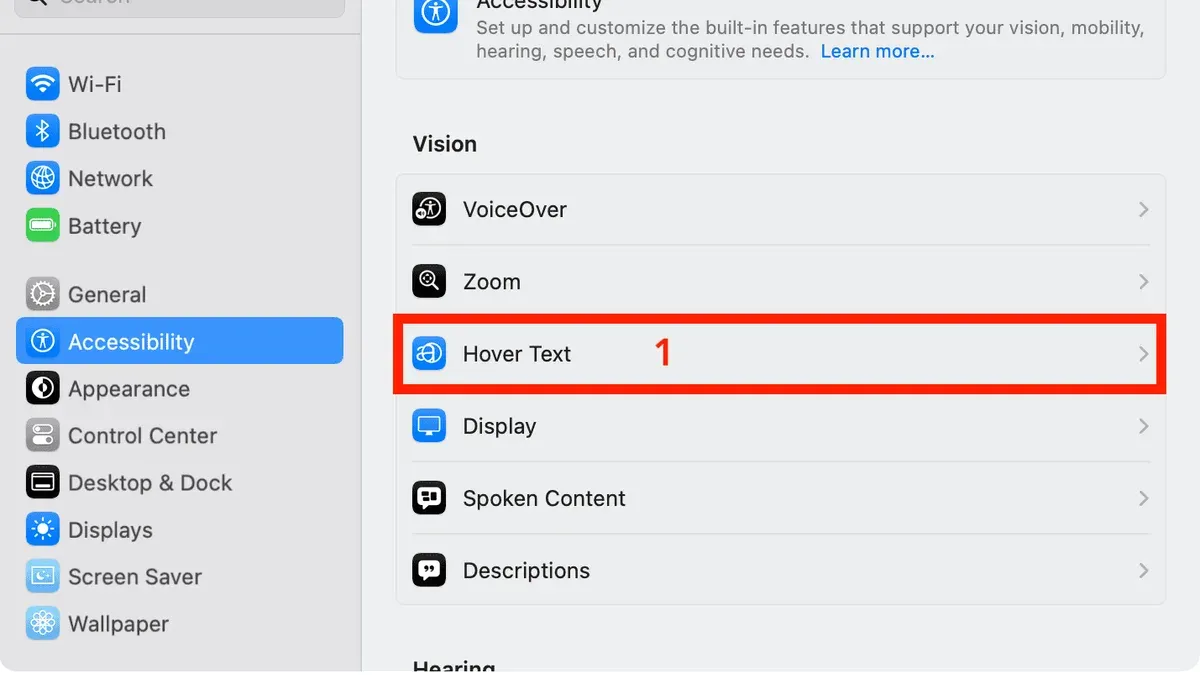
To enable Hover Text across your Mac, you need to activate this feature in System Settings under Accessibility. Once on, Hover Text displays enlarged text when you hover the pointer over interface elements like menu items and buttons, enhancing readability everywhere.
- Open System Settings from the Apple menu.
- Navigate to Accessibility.
- Scroll down and select Hover Text from the sidebar.
- Toggle on Enable Hover Text. You should immediately see a larger text box when hovering over text elements.
- Customize the appearance by adjusting Font Size, Background Color, and Tracking (the spacing between letters) to suit your vision and comfort.
- To activate Hover Text quickly, use the default keyboard shortcut Command + Control + H or perform a three-finger tap on the trackpad if enabled.
For example, when you hover over the Wi-Fi icon in the menu bar, the text label will appear in the customized larger font and background color. This system-wide feature works in most apps and menus, making it broadly useful.
Comparing default to customized settings, you’ll notice that increasing font size and changing background color significantly improves legibility, especially in bright or cluttered environments. Adjust these settings until the hover text fits your reading preference without obstructing other content.
How to create and add hover text in Microsoft Word
In Microsoft Word, hover text appears as ScreenTips when you point to certain elements like hyperlinks and shapes. This feature helps provide additional information without cluttering the document.
To add hover text to a hyperlink:
- Select the text you want to turn into a hyperlink.
- Go to the Insert tab and click Link (or press Ctrl+K).
- In the dialog box, enter the URL or choose a place in the document.
- Click the ScreenTip button in the top-right corner.
- Type the hover text you want to display, then click OK and OK again.
- When you hover over the hyperlink in the document, the ScreenTip appears.
To add hover text to a shape:
- Insert a shape via the Insert tab, then Shapes.
- Right-click the shape and select Edit Alt Text.
- Enter descriptive text in the Alt Text pane. While this is primarily for accessibility, Word displays this text as hover text over the shape.
- To add a proper ScreenTip, right-click the shape, choose Hyperlink, then click ScreenTip in the dialog box.
- Enter the desired hover text and click OK twice.
- Hover over the shape to see the ScreenTip.
Note that ScreenTips only appear on hyperlinks and shapes with hyperlinks. Regular text or images without hyperlinks do not support hover text in Word.
To preview hover text, simply hover your mouse pointer over the linked text or shape. If the ScreenTip does not appear, verify the hyperlink and ScreenTip settings.
How to do hover text in Microsoft Excel
In Microsoft Excel, hover text can be added using comments, notes, or ScreenTips on hyperlinks and shapes. Each option serves a different purpose and behaves uniquely when you hover over a cell or object.

| Feature | Purpose | Display Behavior | Edit Location |
|---|---|---|---|
| Comments | Threaded discussions and feedback | Hover displays comment with author and reply options | Review tab > New Comment or right-click cell > New Comment |
| Notes | Simple annotations or reminders | Hover shows plain text note | Review tab > Notes > New Note or right-click cell > New Note |
| ScreenTips | Hover text for hyperlinks and shapes | Hover shows custom text specified in hyperlink or shape properties | Insert tab > Hyperlink > ScreenTip button or Format Shape > Alt Text pane |
Adding hover text to cells with comments or notes
- Right-click the target cell and choose New Note or New Comment depending on your preference; a note is simpler, while a comment supports replies.
- Type your hover text content; for example, "Quarterly sales data verified."
- Click outside the note or comment box to save it; when you hover over the cell, the text will appear.
Adding ScreenTips to hyperlinks and shapes
- Select the cell or shape you want to add hover text to.
- For hyperlinks, go to the Insert tab and click Link (or right-click and choose Hyperlink).
- In the dialog, click the ScreenTip... button and enter your hover text, then click OK.
- For shapes, right-click the shape and choose Edit Alt Text, then type the desired hover text in the Description field.
- Hovering over the hyperlink or shape will display the ScreenTip text.
Tips for managing hover text: Comments support collaboration but may clutter your sheet; notes are lightweight but less interactive. ScreenTips are ideal for links and shapes but cannot be added directly to regular cells without linking. To edit any hover text, right-click the cell or object and select the appropriate option (Edit Comment, Edit Note, or Edit Hyperlink).
How to show text on hover in HTML for Mac users
To create hover text effects in web content viewed on a Mac, you can use basic HTML attributes or more advanced CSS techniques. The simplest method is adding the title attribute to an HTML element, which displays a default tooltip when you hover the pointer over it.
- Add the title attribute to an element, for example: <span title="Additional info">Hover me</span>. When you move your pointer over the text, a small tooltip with "Additional info" appears.
- For more customized hover text, use CSS with the
:hoverselector. Create a hidden element containing the tooltip text and reveal it on hover. For example: - Define a container with relative positioning and a hidden child tooltip:
- <div class="tooltip">Hover me<span class="tooltiptext">Custom hover text</span></div>
- Open the HTML file in Safari or another Mac browser and hover over the element. The custom-styled tooltip should appear smoothly above the text.
- Note that HTML hover text behavior has limitations on touch devices like iPhone and iPad, where hovering is not possible. Touch interfaces often require tapping or other gestures to show similar information.
Testing your hover text in Safari on Mac ensures compatibility with system pointer behavior and accessibility settings, though behavior may vary slightly across browsers.
How to hover text on iPhone and iPad: What you need to know
True hover text is generally unavailable on iPhone and iPad due to their touch-based interfaces lacking a pointer. Instead, accessibility and app-specific features offer alternatives to reveal additional text or descriptions.
Use VoiceOver for text descriptions: VoiceOver is an iOS screen reader that reads aloud text and descriptions when you tap or swipe over elements. To enable it, go to Settings > Accessibility > VoiceOver and toggle it on. Once active, tapping an item will cause VoiceOver to speak its label, helping you access hidden or descriptive text without hover.
Tap-and-hold or long-press in supported apps: Some apps mimic hover text by letting you tap and hold on elements to reveal additional information. For example, in Mail or Messages, long-pressing on a link or image may show a preview or details. Similarly, certain web apps and browsers implement long-press tooltips as hover substitutes.
Adding or editing hover-like text in Word and Excel on iOS: Microsoft Word and Excel for iPhone and iPad allow you to add or edit alternative text for images and shapes, which can be read by VoiceOver. To do this, tap an image or shape, select Picture or Shape options, then choose Alt Text and enter your description. This text acts similarly to hover text by providing context when accessibility features are used.
While true hover text is limited on iOS devices, leveraging VoiceOver and tap-and-hold gestures provides practical alternatives for accessing extra text information.
How to edit hover text in Word
Editing existing hover text, such as ScreenTips or alt text on shapes, helps keep your document clear and informative. First, you need to locate the element with hover text.
- Select the hyperlink or shape with the hover text you want to edit. For hyperlinks, right-click and choose Edit Hyperlink. You should see the ScreenTip button become active.
- Click the ScreenTip button to open the ScreenTip text box. Here, modify the text as needed. When done, click OK and then close the Edit Hyperlink dialog. The updated ScreenTip will appear on hover.
- For shapes or images with alt text, right-click the shape and select Edit Alt Text. Modify the text in the pane that appears on the right side. Changes save automatically.
- After editing, hover over the hyperlink or shape to preview the updated hover text.
Best practices for hover text include keeping it concise, avoiding redundancy with visible text, and ensuring it adds meaningful context or instructions. Avoid overly long descriptions that may overwhelm or distract users.
Common mistakes include leaving outdated information, using vague phrases like "click here," or duplicating visible content without adding value. Clear, specific hover text enhances accessibility and user experience.
Before and after screenshots of hover text edits typically show the original generic ScreenTip replaced by a precise, helpful message that guides the reader effectively.
Troubleshooting common issues when using Hover Text on Mac
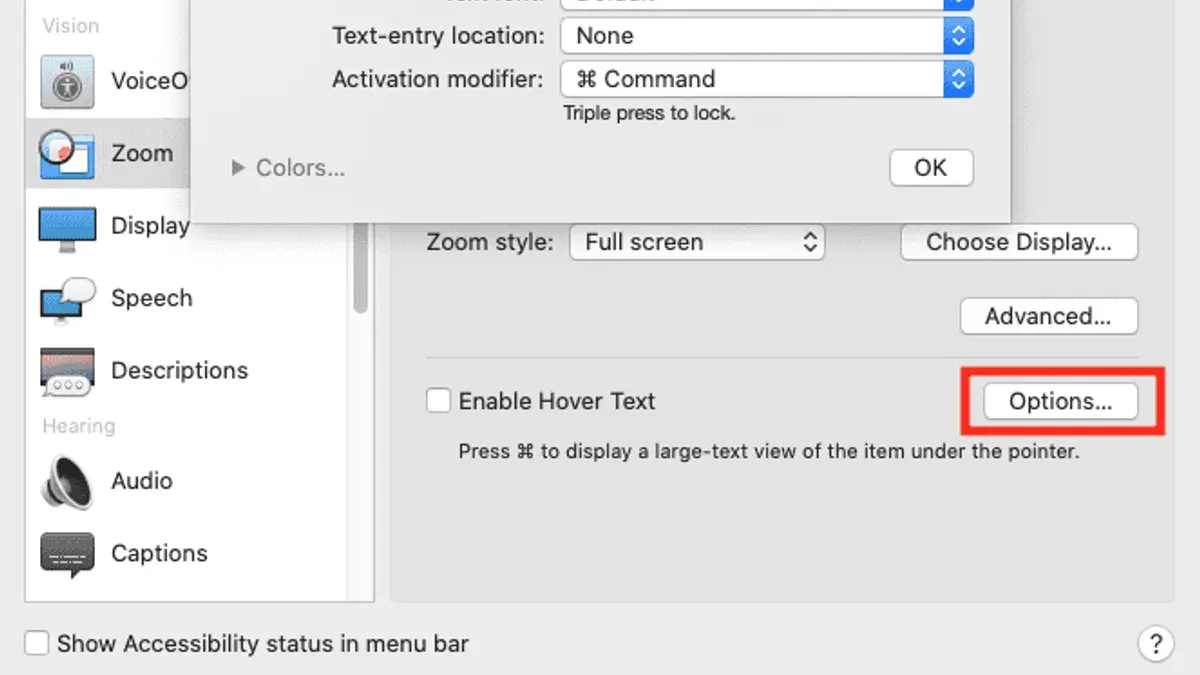
If Hover Text does not appear system-wide, ensure that the Accessibility setting "Hover Text" is enabled in System Settings > Accessibility > Zoom. If enabled but not working, try toggling it off and on again, then restart the Mac. Also, check that you are using a compatible pointing device, as some third-party mice may not trigger Hover Text properly.
When ScreenTips do not show in Microsoft Word or Excel, confirm that the feature is enabled in each application’s options. For Word, verify ScreenTips under File > Options > Proofing > AutoCorrect Options > ScreenTips. In Excel, check that comments or notes are properly inserted and not hidden. Sometimes, protected sheets or documents can block ScreenTips from displaying.
If Hover Text works on your Mac but not on iPhone or iPad, remember that touch devices do not support hover states. Instead, use VoiceOver or tap-and-hold gestures as alternatives to access additional text.
Performance or visibility issues with customized Hover Text settings can result from overly large text sizes or conflicting zoom settings. Adjust the font size slider in System Settings > Accessibility > Zoom carefully and disable any third-party screen magnifiers. If text appears blurry or flickers, update macOS and the applications involved to the latest versions.
Common error messages are rare but may include "Hover Text not available" or no response when hovering. If problems persist after these steps, contact Apple Support or the software vendor for further assistance.
- How to Reduce Motion on Mac: A Clear Step-by-Step Guide
- How to Turn On Zoom Accessibility on Mac: Step-by-Step Guide
- How to Turn On and Customize Color Filters on Your Mac
- How to Turn On Live Captions on Mac: A Clear Step-by-Step Guide
Frequently asked questions
How to add hover text?
To add hover text, you typically need to insert a tooltip or comment depending on the application. For system-wide hover text on Mac, enable it via System Settings > Accessibility > Zoom > Enable Hover Text. For documents, add tooltips or comments that display text when you hover over elements.
How to create hover text in word?
In Microsoft Word, you create hover text by inserting a ScreenTip using the Hyperlink or Bookmark feature, or by adding comments. To add a ScreenTip, select text or an object, go to Insert > Hyperlink > ScreenTip, then type your hover text and save.
How to add hover text in word?
Adding hover text in Word involves selecting the target word or object, then using Insert > Hyperlink > ScreenTip to input the desired text. Alternatively, you can add comments via Review > New Comment, which appear when hovering or clicking.
How to do hover text in excel?
In Excel, hover text is commonly added as comments or notes. Right-click a cell, choose New Note or New Comment, then type your text. When hovering over the cell, the note or comment will appear as hover text.
What is hover text on iphone?
Hover text on iPhone refers to the system accessibility feature that shows a larger, readable text preview when you hover a pointer or use assistive devices. It is part of VoiceOver and pointer support, mainly useful with external devices like a trackpad or mouse.
What this advice does not cover and who should look elsewhere
This article does not cover programming complex custom tooltip solutions beyond basic HTML and CSS, nor does it explore third-party Mac applications that provide advanced hover text features. If you need highly customized interactive text or integration with specialized software, consider consulting developer resources or software-specific guides.
The single most useful next step is to enable Hover Text in the Mac Accessibility settings under System Preferences > Accessibility > Zoom > Enable Hover Text. This system-wide feature ensures you can see enlarged text previews across most applications, improving readability and accessibility before moving on to app-specific hover text methods.



