How to Use Private Wi-Fi Address on Mac: A Clear Step-by-Step Guide
Discover how to enable and disable Private Wi-Fi address on Mac to protect your privacy and improve network compatibility with this easy guide.
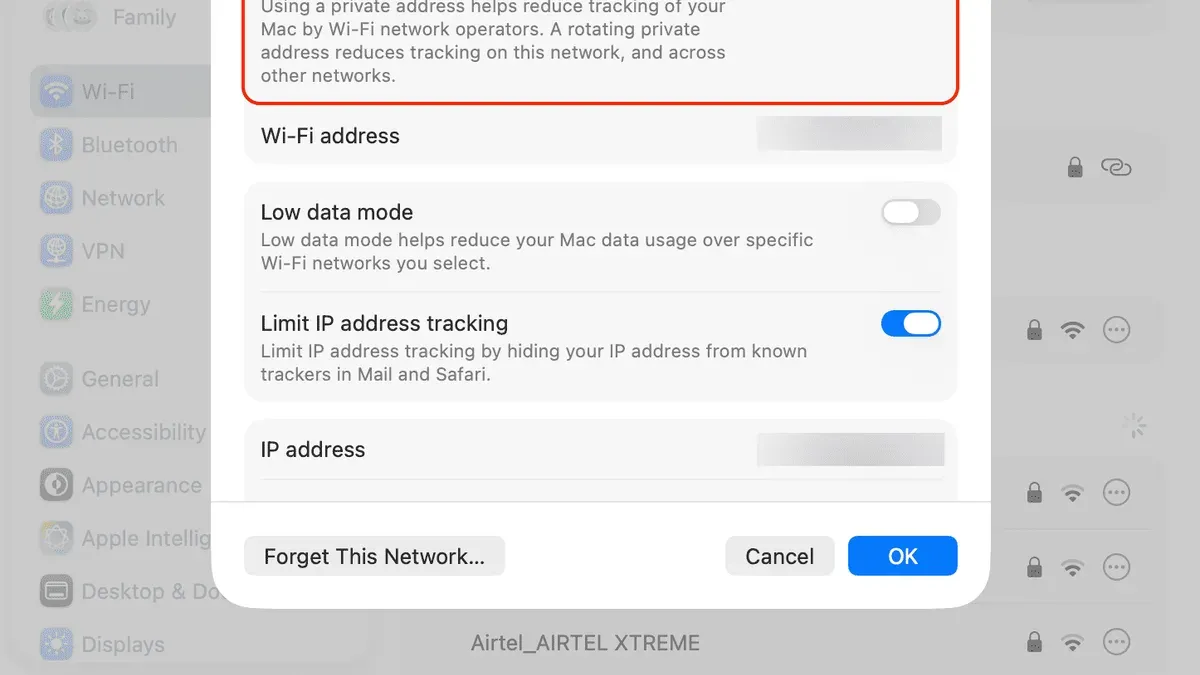
You connect to a public Wi-Fi hotspot, and your Mac automatically generates a different hardware address for enhanced privacy. Later, you find a network that requires device identification and wonder how to manage this setting effectively. Understanding your Mac's Private Wi-Fi Address feature can help you balance privacy with network compatibility.
This article explains how to use Private Wi-Fi address on Mac, guiding you through enabling and disabling it when necessary. You'll also learn how it relates to your device’s actual MAC address and when you might want to switch settings for smoother connections.
Key takeaways
- Private Wi-Fi Address masks your Mac’s real MAC address to improve privacy on Wi-Fi networks.
- Enable Private Address in System Preferences under Network > Wi-Fi > Advanced > Wi-Fi tab for each network.
- Disable Private Address when connecting to networks that require device filtering or cause connectivity issues.
- You can find your real MAC address by clicking the Wi-Fi icon while holding Option and selecting Network Preferences.
- Turning off Private Address may increase tracking risk but improves compatibility with some networks.
Before you start: What you need to know about Private Wi-Fi Address on Mac
A Private Wi-Fi Address is a randomized MAC (Media Access Control) address your Mac uses when connecting to Wi-Fi networks. Its primary purpose is to enhance your privacy by preventing network operators and observers from tracking your device based on its unique hardware MAC address.
Unlike a traditional MAC address, which is fixed and tied to your device’s network adapter, a Private Wi-Fi Address changes with each network to reduce tracking risks.
This feature is available on Macs running macOS Big Sur or later and requires compatible hardware that supports MAC address randomization.
Before enabling or managing this setting, you’ll need access to the Network preferences pane in System Settings. Administrative permissions are not usually necessary, but you must be connected to a Wi-Fi network to see relevant options.
Understanding this foundation prepares you to make informed choices about when to use or disable Private Wi-Fi Address based on your privacy needs and network compatibility.
What is a private Wi-Fi address on iPhone and how it relates to Mac's private MAC address feature
Apple's Private Wi-Fi Address feature on iPhone and iPad functions similarly to the Mac's private MAC address capability by generating a randomized hardware address when connecting to Wi-Fi networks. This helps prevent network operators and observers from tracking your device based on its actual MAC address.
On iOS devices, you can find this setting under Settings > Wi-Fi, tapping the info icon next to a network, and toggling "Private Address." When enabled, your iPhone uses a unique, randomized MAC address for each Wi-Fi network. The Mac implements this feature with a comparable approach, but the interface and exact behavior vary slightly.
For example, when connecting both your iPhone and Mac to the same Wi-Fi network with Private Address enabled, each device will present a different randomized MAC address. Even connecting the same device multiple times to the same network may generate different randomized addresses depending on system conditions and updates.
Understanding this relationship helps Mac users manage their devices consistently, especially when multiple Apple devices connect to the same network. For instance, if you see connectivity issues on one device but not another, checking the Private Address status on both can clarify whether MAC address randomization is influencing network behavior.
How to enable Private Wi-Fi Address on your Mac
- Click the Wi-Fi icon located in the menu bar at the top right of your screen. This opens the list of available networks.
- Select the Wi-Fi network you want to connect to or are already connected to, then click Network Preferences at the bottom of the dropdown menu. The Network settings window will open.
- In the left sidebar, ensure Wi-Fi is selected, then click the Advanced... button at the bottom right. This opens a panel showing all saved Wi-Fi networks.
- Find the specific network you want to manage and select it. Then click the Details button next to the network name if available, or simply view its settings.
- Look for the option labeled Use Private Address or Private Wi-Fi Address and check the box to enable it. This toggles the feature on for that network.
- Click OK to save changes, then click Apply in the main Network window. Your Mac will now use a randomized MAC address when connecting to this Wi-Fi network.
After enabling Private Wi-Fi Address, your Mac generates a unique randomized MAC address specifically for each Wi-Fi network. This helps mask your device's real hardware address, improving your privacy by making it harder for networks and observers to track your Mac across different locations.
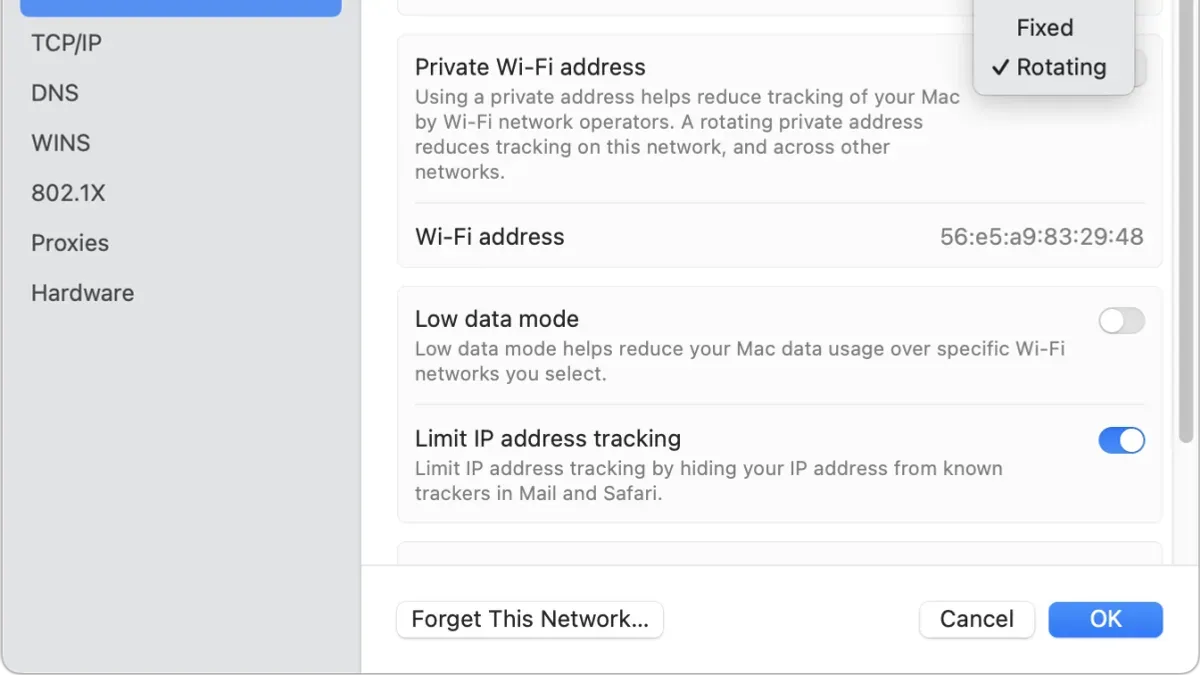
You may notice your Wi-Fi connection temporarily disconnect and reconnect as the new MAC address takes effect. Confirm the setting by revisiting the network details where the checkbox remains selected. This ensures your device is actively using the private address for enhanced privacy.
How to turn off Private Wi-Fi Address on MacBook when needed
You might need to disable Private Wi-Fi Address if your network requires device-specific authentication or if you experience connectivity issues with certain routers or enterprise networks. Some network devices or security systems restrict access based on known MAC addresses, making the randomized address problematic.
- Open System Preferences and select Network.
- Choose Wi-Fi from the sidebar, then click Advanced in the lower right corner.
- In the Wi-Fi tab, find the network you want to modify and select it.
- Uncheck the box labeled Use Private Address for that network.
- Click OK and then Apply to save changes.
- Reconnect to the network; your Mac will now use its real MAC address instead of a randomized one.
After disabling Private Wi-Fi Address, your Mac’s MAC address will revert to its hardware value, such as 00:1a:2b:3c:4d:5e instead of a random string. This change can improve compatibility with networks that whitelist devices by MAC address.
To verify your current MAC address, open System Preferences > Network > Wi-Fi > Advanced and look under the Wi-Fi tab for Wi-Fi Address. For example, a user resolved connection issues by switching from a randomized address like 82:fb:34:1a:9c:d7 to their original hardware MAC 00:1c:42:2e:60:4a, allowing access to a corporate network that required device registration.
Can you connect to Wi-Fi using a Mac address? How to use your Mac address in Wi-Fi networks
Your Mac’s Media Access Control (MAC) address is a unique identifier used by Wi-Fi networks to authenticate and control device access. Some networks use MAC address filtering to allow only approved devices to connect, enhancing security by blocking unknown hardware.
When Private Wi-Fi Address is enabled, your Mac uses a randomized MAC address instead of the real one. This protects your privacy but can interfere with networks that whitelist specific MAC addresses, causing connection failures or limited access.
To check which MAC address your Mac is currently using on a Wi-Fi network:
- Click the Apple menu and select System Settings (or System Preferences).
- Go to Network and select Wi-Fi.
- Click Details or Advanced depending on your macOS version.
- Find the Wi-Fi Address listed—this shows the MAC address your Mac is using on that network.
If you are on a network with MAC address filtering, use the real MAC address by disabling Private Wi-Fi Address for that network. For example, in a workplace Wi-Fi that only permits registered devices, enabling Private Wi-Fi Address can cause connection denial because the randomized address isn’t recognized.
Use the private address by default for better privacy on open or public Wi-Fi. Switch to your real MAC address when accessing networks that require device-specific authentication.
Troubleshooting Private Wi-Fi Address on Mac: Common issues and fixes
If your Mac won’t connect to a Wi-Fi network with Private Wi-Fi Address enabled, the issue may be network incompatibility or saved network conflicts. To verify if Private Wi-Fi Address is active, open System Preferences > Network > Wi-Fi > Advanced, and check the MAC Address listed under the network details; it should differ from your real device MAC if enabled.
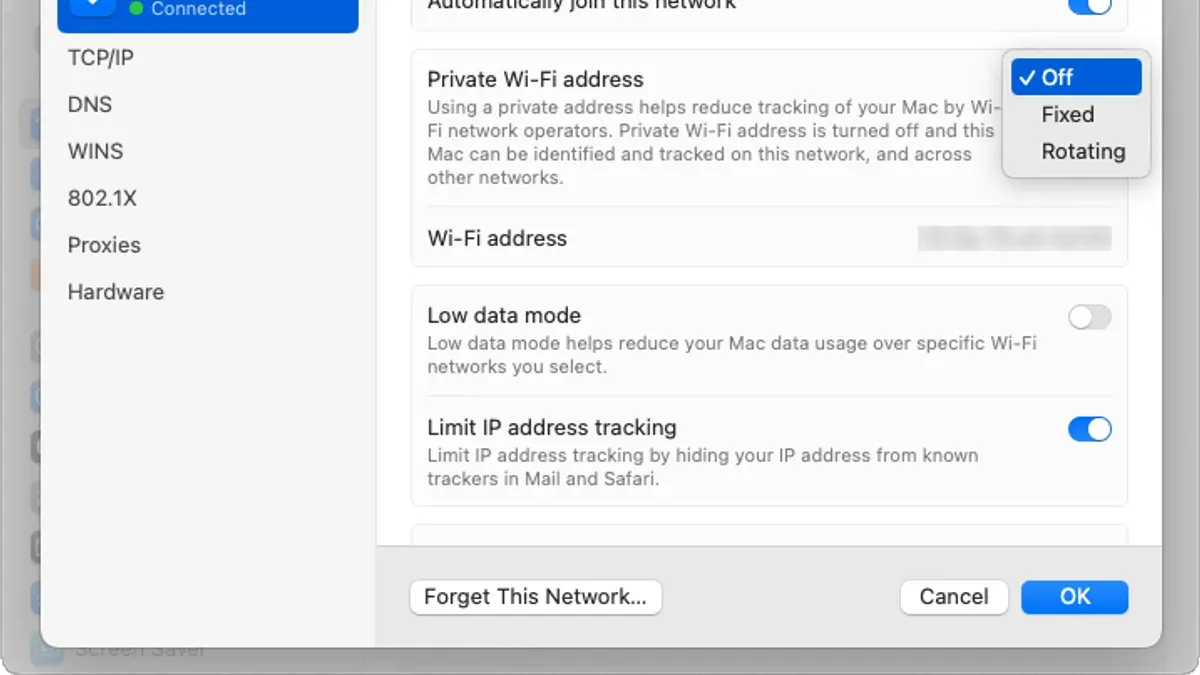
If connection issues persist, try resetting network preferences by removing the problematic Wi-Fi network:
- Go to System Preferences > Network > Wi-Fi > Advanced.
- Select the network causing issues and click the minus (–) button to forget it.
- Reconnect to the network and verify if the connection now succeeds with Private Wi-Fi Address enabled.
For stubborn problems, resetting network settings can help:
- Open Terminal and enter sudo ifconfig en0 down and then sudo ifconfig en0 up to reset the Wi-Fi interface (replace en0 with the correct interface if needed).
- Restart your Mac if problems continue.
Keep in mind that some enterprise or public Wi-Fi networks use MAC filtering or require device identification, which can block connections when Private Wi-Fi Address is active. In such cases, disabling the feature for that network restores compatibility but reduces privacy.
- How to Change Your Default Browser on a Mac: Step-by-Step Guide
- How to Turn On AirDrop for Everyone on Your Mac: A Complete Guide
- How to Change Your AirDrop Name on Mac: A Clear Step-by-Step Guide
- How to Turn On Find My Mac on Your MacBook: A Step-by-Step Guide
Frequently asked questions
What is a private mac address?
A private MAC address is a randomized hardware address that your device uses when connecting to Wi-Fi networks. It helps protect your privacy by preventing network operators and observers from tracking your device across multiple networks. Unlike your real MAC address, this private address changes periodically or per network to enhance anonymity.
What is private wi-fi address on iphone?
On iPhone, the Private Wi-Fi Address feature generates a unique, randomized MAC address for each Wi-Fi network your device joins. This reduces tracking risks by avoiding the use of your device’s permanent hardware address. It’s enabled by default on newer iOS versions to improve privacy during wireless connections.
What is private wifi address on iphone?
This term refers to the same feature as Private Wi-Fi Address on iPhone, where a unique, temporary MAC address replaces your device’s actual hardware address for each Wi-Fi network. Using this setting limits the chance of your device being tracked across different networks and enhances your overall privacy.
How to enable private wifi address on mac?
To enable Private Wi-Fi Address on your Mac, open System Settings and select Wi-Fi. Click the information button (i) next to your preferred network, then toggle on “Use Private Wi-Fi Address.” This setting applies per network and helps mask your device’s actual MAC address for enhanced privacy.
How to turn off private wi fi address on mac?
To disable Private Wi-Fi Address on Mac, go to System Settings > Wi-Fi, click the information button (i) next to the network you are connected to, and switch off “Use Private Wi-Fi Address.” You might want to turn it off if a network requires your real MAC address for access or compatibility reasons.
What this advice does not cover and when to seek specialized help
This guide focuses on managing Private Wi-Fi Address settings on personal Mac devices and does not cover advanced network security configurations or enterprise-managed networks. In environments where network policies restrict or disable the use of private MAC addresses, your ability to change these settings may be limited or overridden. If you are part of a corporate or educational network, consult your IT administrator before making changes.
For complex network issues beyond basic troubleshooting, such as persistent connectivity problems or security concerns, consider reaching out to a network professional. Adjusting Private Wi-Fi Address settings can affect how your device interacts with networks, but it is just one aspect of overall network security.
The single most useful next step is to review your Mac’s current Private Wi-Fi Address setting for each Wi-Fi network you connect to, found under System Settings > Network > Wi-Fi > Details. This lets you balance privacy and compatibility based on your specific networks and helps you make informed decisions about when to enable or disable this feature.