How to Allow Apps from Anywhere on Mac: A Step-by-Step Guide
Discover how to enable apps from anywhere on Mac using System Preferences and Terminal while maintaining your Mac’s security.
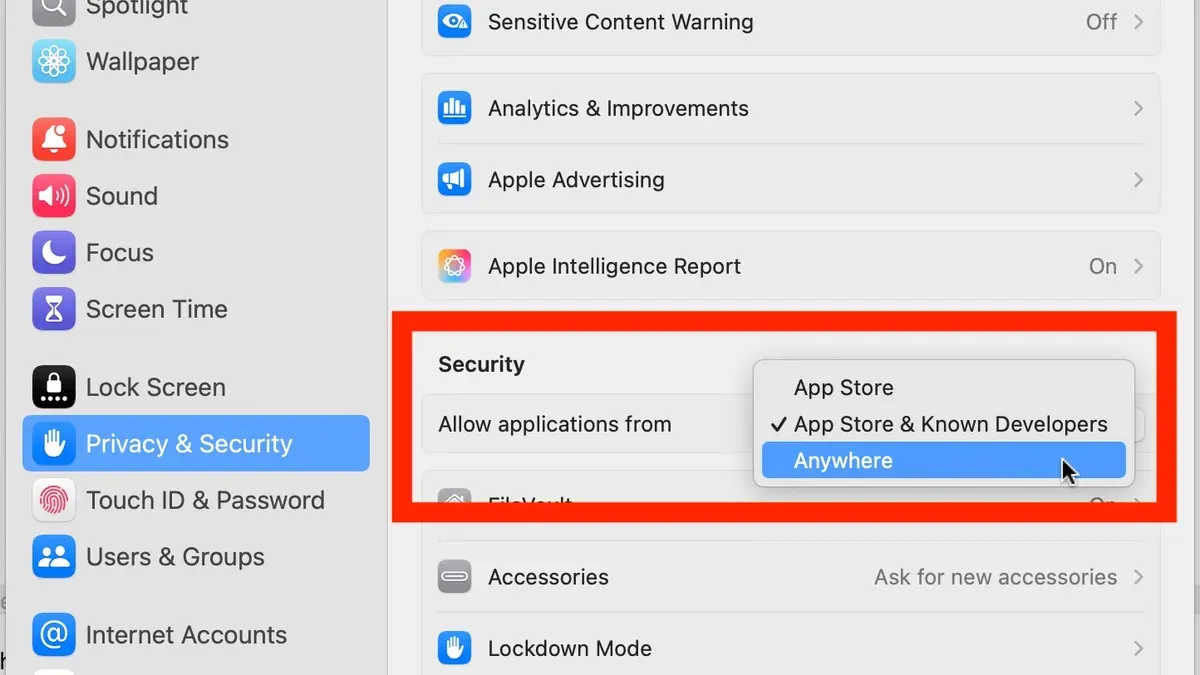
You've downloaded an app from a website not listed in the Mac App Store, but when you try to open it, macOS blocks it with a security warning. This happens because Apple restricts apps to those from the App Store or identified developers by default, making it tricky to run software from other sources.
This article explains how to allow apps from anywhere on Mac, guiding you through the necessary System Preferences and Terminal steps. You'll also learn how to balance this increased access with keeping your Mac secure, plus tips on safely using and troubleshooting apps after changing these settings.
Key takeaways
- Use the Security & Privacy pane in System Preferences or Terminal commands to enable apps from anywhere.
- Allowing apps from anywhere bypasses Apple's default protections, so only run trusted software.
- After enabling, you can right-click apps and select "Open" to launch blocked software.
- Revert settings after installing apps to maintain optimal security.
Before you start: What you need to know about Mac app security
Apple’s macOS includes a security feature called Gatekeeper designed to protect users from malicious software. Gatekeeper enforces app verification by allowing apps only from the App Store or identified developers by default. This reduces the risk of installing software that could harm your Mac or compromise your data.
Apps on Mac can come from three main sources: the App Store, where apps have been reviewed by Apple; identified developers, who sign their apps with Apple-issued certificates; and anywhere, which includes apps from any source without verification.
Allowing apps from anywhere bypasses Gatekeeper’s protections, which increases your exposure to malware and other security risks. Apple restricts this option by default to help safeguard your system integrity and personal information.
Before you proceed, ensure you have administrator access to your Mac and a basic understanding of using the Terminal app, as some changes require command-line input. It’s also highly recommended to back up your system using Time Machine or another backup solution to protect your data in case anything goes wrong.
How to allow apps from anywhere on Mac using System Preferences and Terminal
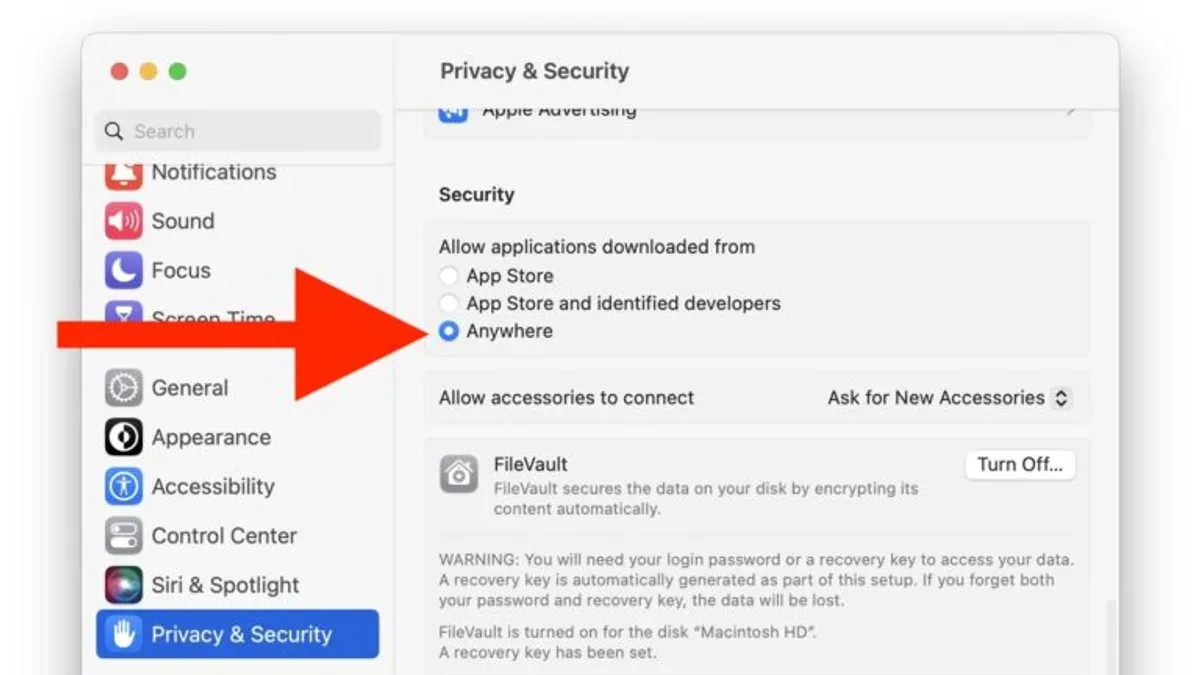
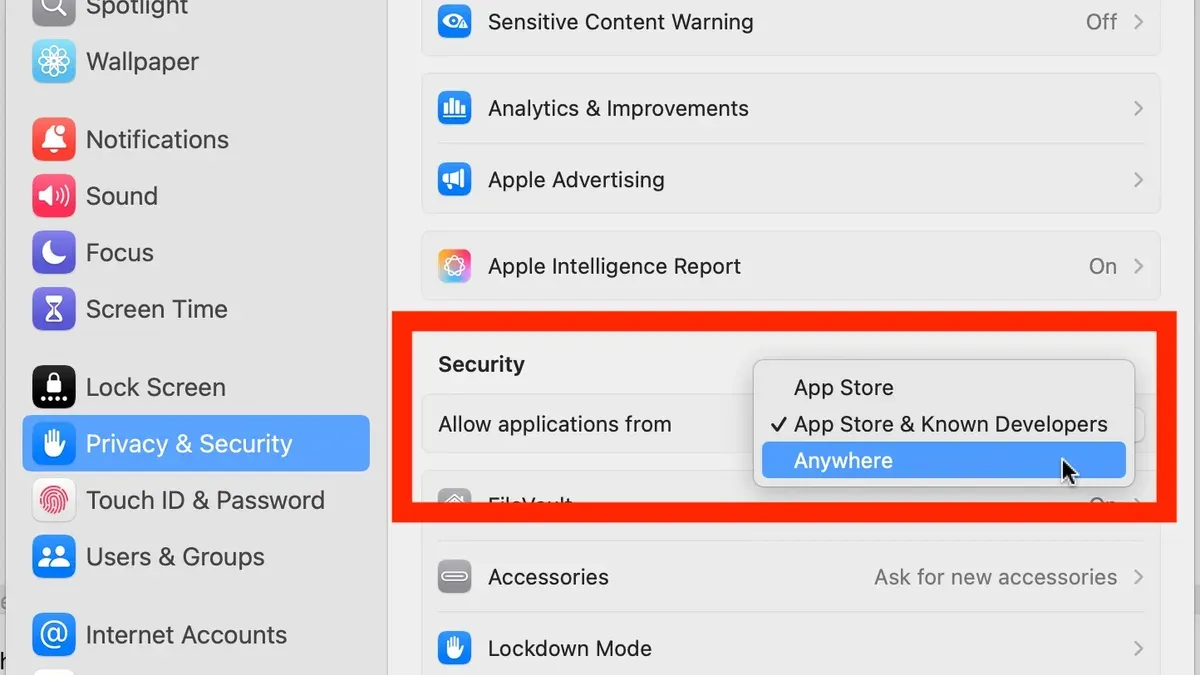
To enable apps from any source, you first check your current settings in System Preferences. Navigate to Security & Privacy > General. Here, you'll see three options under "Allow apps downloaded from": App Store, App Store and identified developers, and sometimes Anywhere. In recent macOS versions, the Anywhere option is hidden by default for security reasons.
If the Anywhere option is not visible, you can reveal it using Terminal commands. This requires administrator privileges and some care.
Using System Preferences
- Open System Preferences and select Security & Privacy.
- Click the General tab and check the "Allow apps downloaded from" section.
- If the Anywhere option is visible, select it and confirm with your admin password.
- If it’s not visible, proceed to the Terminal method.
Using Terminal to enable 'Anywhere'
- Open Terminal from Applications > Utilities.
- Enter the command
sudo spctl --master-disableand press Enter. - Provide your administrator password when prompted (note: the password will not show as you type).
- Return to System Preferences > Security & Privacy > General and you will find the Anywhere option available under "Allow apps downloaded from".
- Select Anywhere and confirm by clicking "Allow From Anywhere" in the popup.
Running spctl --master-disable disables Gatekeeper enforcement, allowing apps from any source.
Temporarily opening a blocked app
If you want to run a specific app that macOS blocks, you can bypass restrictions without enabling Anywhere globally:
- Locate the app in Finder.
- Right-click (or Control-click) the app and select Open.
- A warning dialog appears; click Open again to launch the app.
- This action adds the app to an exception list, letting you run it without changing global settings.
This method is safer for one-off app use.
Remember, macOS hides the Anywhere option by default to encourage safer app choices. Enabling it increases flexibility but reduces protection, so weigh your needs carefully.
How to access apps on Mac and use them safely after allowing apps from anywhere
After adjusting your Mac to allow apps from anywhere, you need to know how to find, open, and manage these apps safely.
- Open Finder and go to the "Downloads" folder or the location where the app was saved. You should see the app's icon there.
- Before opening the app, verify its integrity. Right-click the app, select "Get Info," and check the "Developer" field if available. You can also scan the file with a trusted antivirus or malware detection tool.
- Some apps may carry a quarantine attribute that prevents them from opening normally. To check for this, open Terminal and enter ls -l@ /path/to/app replacing the path with the app’s location. If you see "com.apple.quarantine" listed, the app is quarantined.
- If you trust the app and wish to remove the quarantine attribute, use the command xattr -d com.apple.quarantine /path/to/app. After running this, the app should open without quarantine warnings.
- Open the app by double-clicking it. If macOS displays a warning, you can right-click the app and select "Open" to bypass this prompt once.
- Limit running apps from unknown sources only to those you have verified and trust to reduce security risks.
Removing the quarantine attribute disables some of macOS's protective checks for that app, so only do this for apps you are confident are safe. Regularly scanning your Mac with security software adds an extra layer of protection when running apps from outside the App Store or identified developers.
How to allow mac to install apps from anywhere while keeping security balanced
Allowing your Mac to install apps from anywhere increases convenience but also raises security risks. This setting disables Gatekeeper’s default app source restrictions, potentially exposing your system to malicious software. Before enabling it, weigh the benefits against the risks.
| Gatekeeper Setting | Security Risk Level | Convenience Level |
|---|---|---|
| Allow apps from App Store only | Lowest | Low (restrictive) |
| Allow apps from App Store and identified developers | Moderate | Moderate (recommended default) |
| Allow apps from anywhere (hidden option) | Highest | High (most flexible) |
Instead of permanently enabling “Anywhere,” consider these alternative approaches:
- Install only from identified developers or notarized apps, which have been vetted by Apple for basic safety.
- Use the right-click “Open” method to bypass Gatekeeper temporarily for a specific app without changing global settings.
If you decide to allow apps from anywhere, revert the setting immediately after installing the needed app to maintain system protection. To revert, use Terminal to disable the “Anywhere” option or reset Gatekeeper to its default.
For users who frequently need apps outside the App Store, a balanced approach is to keep the setting on identified developers and use the temporary override method as needed. This approach reduces exposure while maintaining flexibility.
How to allow apps from anywhere on macOS when using Windows or iPhone alternatives
App installation restrictions vary significantly across macOS, Windows, and iPhone platforms. macOS employs Gatekeeper to enforce app source verification, requiring apps to be signed by identified developers or approved via user override. Windows 10 and later provide more flexibility, allowing users to install apps from any source by default, with optional controls under Settings > Apps > Apps & Features to restrict installations to Microsoft Store apps only.
For Mac users switching to Windows, this means fewer built-in barriers to running unsigned apps. Windows also uses User Account Control (UAC) prompts to alert you before app installations that affect system settings, offering a different security approach than macOS’s Gatekeeper.
iPhone app restrictions are more stringent and cannot be bypassed similarly. Apple mandates app installation through the App Store or enterprise provisioning profiles, with no user-accessible setting to allow apps from anywhere. This limitation is due to iOS’s sandboxing and security model.
If you want to run Mac apps on Windows, virtualization or emulation tools like Parallels Desktop or VMware Fusion can help. When using these, macOS security settings still apply within the virtual machine. You must manage app permissions inside the macOS environment, just as on a physical Mac, including navigating Gatekeeper prompts and privacy settings.
Understanding these platform differences can help you manage app permissions effectively when working across macOS, Windows, and iPhone environments.
Troubleshooting common issues when allowing apps from anywhere on Mac
Sometimes, even after enabling the 'Anywhere' option or modifying app permissions, you may encounter problems running apps on your Mac. Here are common issues and how to resolve them effectively.
'Anywhere' option does not appear after Terminal commands
If the 'Anywhere' option remains hidden in the Security & Privacy preferences after running sudo spctl --master-disable in Terminal, verify that the command was entered correctly and that you have administrator privileges. Restart System Preferences to refresh the settings pane.
If it still does not appear, try resetting Gatekeeper by running sudo spctl --master-enable followed by sudo spctl --master-disable again. This sequence can reinitialize the Gatekeeper settings and reveal the option.
Apps still won’t open despite permission changes
When an app refuses to launch, even though you have allowed apps from anywhere, check for error messages like “App can’t be opened because it is from an unidentified developer” or “You do not have permission to open the application.”
- Right-click (or Control-click) the app icon and select Open. You should see a prompt asking for confirmation to open the app despite the warning. Confirming this often bypasses the block.
- If that fails, check the app’s permissions by selecting the app in Finder, pressing Command + I to open the Info window, and expanding the Sharing & Permissions section. Ensure your user account has Read & Write access.
- If permission denied errors persist, use Terminal to reset permissions with
sudo chmod -R 755 /path/to/app(replace/path/to/appwith the actual app location). This grants execute permissions needed to run the app.
Resetting Gatekeeper settings
If problems continue, reset Gatekeeper to default by running sudo spctl --master-enable in Terminal. This disables the 'Anywhere' option but restores standard security controls, which can resolve conflicts caused by previous overrides.
Using Safe Mode or reinstalling macOS components
Boot into Safe Mode by holding the Shift key during startup to load essential system files and disable third-party software that might interfere. Try opening the app in Safe Mode; if it works, the issue may be caused by conflicting software or corrupted caches.
If problems persist, reinstall macOS components via Recovery Mode by restarting your Mac and holding Command + R until the utilities window appears. Choose Reinstall macOS to refresh system files without erasing your data, which can repair damaged security components affecting app permissions.
How to use mac apps on windows and considerations for app permissions
Running Mac applications on a Windows system typically requires virtualization or emulation software such as Parallels Desktop, VMware Fusion, or a Hackintosh setup. These solutions create a macOS environment within Windows, enabling you to launch Mac apps as if you were on a native Mac device.
App permissions in virtualized macOS differ from those on a native Mac. The guest macOS instance manages permissions internally, but integration with the Windows host can introduce permission mismatches. For example, file system access may be restricted or require additional configuration to allow Mac apps to read or write to shared folders. Additionally, security prompts and Gatekeeper behavior might not function identically, which can affect app launches and permission requests.
Security risks increase when running Mac apps in such cross-platform environments. Virtual machines can expose macOS to vulnerabilities in Windows or vice versa, and malicious software may exploit the bridging software to bypass restrictions. Furthermore, permanently allowing apps from anywhere within a virtualized macOS can amplify these risks since it reduces Gatekeeper’s protection.
To maintain security, keep your virtualization software updated and limit the use of the 'Allow apps from anywhere' setting to temporary overrides when necessary. Use shared folders sparingly and configure permissions explicitly. Also, apply macOS security updates inside the virtual machine promptly and avoid downloading apps from untrusted sources.
In summary, while virtualization enables Mac apps to run on Windows, permission handling and security differ significantly from a native Mac. Careful configuration and cautious permission management help mitigate potential risks.
- How to Enable and Use the Root User on Mac Safely and Effectively
- How to Turn On Find My Mac on Your MacBook: A Step-by-Step Guide
- How to Require Password After Sleep on Mac: A Clear Step-by-Step Guide
- How to Turn On FileVault on Mac: A Step-by-Step Guide
Frequently asked questions
How to allow other apps on windows?
To allow apps from outside the Microsoft Store on Windows, open Settings and go to Apps > Apps & features. Under "Choose where to get apps," select "Anywhere" or "Anywhere, but let me know if there's a comparable app in the Microsoft Store." This change permits installation of applications from any source, but be cautious of potential security risks from unverified software.
How to allow apps on iphone?
iPhone restricts app installations to the App Store by default. To install apps from outside the App Store, you need to use TestFlight for beta apps or an enterprise provisioning profile, which is typically intended for developers or organizational use. There is no general setting allowing installation of apps from anywhere due to Apple’s security policies.
How to access applications on mac?
You can access applications on your Mac by opening the Finder and selecting the "Applications" folder from the sidebar. Alternatively, use Spotlight Search by pressing Command + Space and typing the app's name. Launchpad also provides a grid view of installed apps accessible from the Dock or Launchpad key.
How to allow applications downloaded from anywhere on mac?
By default, macOS restricts apps to those from the App Store or identified developers. To allow apps from anywhere, you must first open Terminal and enter the command sudo spctl --master-disable, then provide your administrator password. This enables the "Anywhere" option under System Preferences > Security & Privacy > General, where you can allow apps downloaded from anywhere.
How to allow apps downloaded from anywhere on mac?
The process to allow apps downloaded from anywhere on Mac is the same as above: use Terminal to disable Gatekeeper's restrictions by running sudo spctl --master-disable. After this, confirm the "Anywhere" option appears in Security & Privacy settings. Remember, enabling this increases your exposure to untrusted software, so only use it when necessary and understand the security trade-offs.
Limits of this advice and when to seek alternatives
This advice does not cover jailbreaking iPhones or bypassing security on iOS devices, which is not recommended due to the risk of voiding warranties and exposing your device to serious vulnerabilities. Allowing apps from anywhere on your Mac increases the risk of malware infections and other security threats, so it should be done only when absolutely necessary and with careful attention to the source and integrity of the apps you install. Additionally, some corporate or managed Macs have restrictions set by system administrators that prevent changes to app security settings, meaning these steps may not apply or could be blocked entirely.
The most effective next step is to ensure you understand the security settings on your Mac by regularly reviewing the "Security & Privacy" pane in System Preferences. Keeping Gatekeeper enabled for most apps and only temporarily allowing apps from anywhere when needed helps maintain a balance between flexibility and safety.