How to Change Your Proton Mail Password: Clear Steps and Tips
This guide shows how to change your Proton Mail password safely with step-by-step instructions and security tips for web and mobile users.
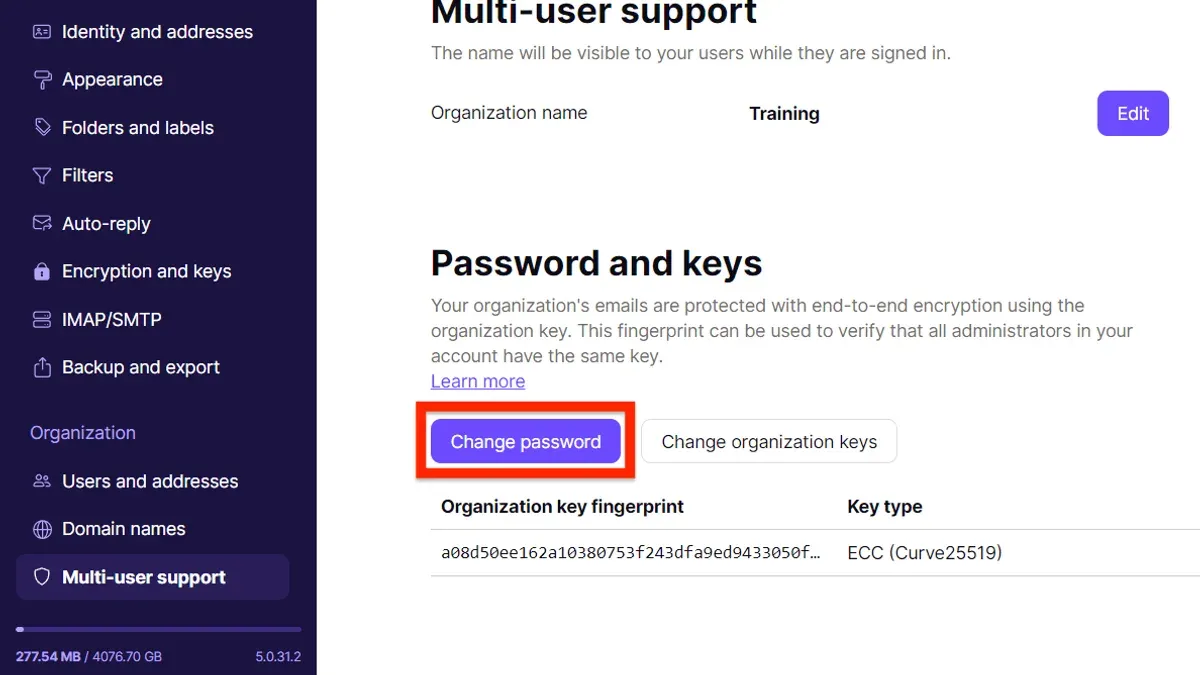
This article explains how to change Proton Mail password with clear, device-specific instructions and security considerations. Proton Mail’s encryption model demands careful handling of password updates to avoid access issues. Users will find straightforward steps for both the web interface and mobile apps, alongside tips for managing password security using password managers.
Changing the password involves navigating the Settings menu, specifically under Security or Password sections. Users must know their current password to make changes, except when using account recovery options. Understanding the limits, such as Proton Mail’s fixed email address policy, prevents confusion during the update process.
Following the outlined steps ensures that password changes do not interfere with encrypted data access or account settings. The guide also covers troubleshooting common issues, helping users avoid pitfalls that cause locked accounts or failed updates.
Before you start: What is needed to change your Proton Mail password
Changing a Proton Mail password requires current login credentials to confirm identity. Without the correct password, the process cannot proceed through standard settings. A stable internet connection on either desktop or mobile device is essential to avoid interruptions and ensure changes save successfully.
Changing the password also alters the mailbox encryption keys because Proton Mail uses end-to-end encryption tied to the password. This means access to encrypted emails depends on the new password. Users should have backup or recovery options set up beforehand, such as a recovery email address or two-factor authentication, to regain access if issues arise.
Lost access can occur if the password is forgotten and no recovery options are available. In such cases, Proton Mail's encrypted data cannot be retrieved. Recovery success varies but is generally low without prior setup of recovery methods. Users must recognize this risk before initiating a password change.
- Confirm current Proton Mail account username and password are available. Successful login to the inbox should be possible.
- Ensure the device has an active, stable internet connection. Opening Proton Mail’s inbox or settings without error confirms connectivity.
- Verify recovery options are configured under Settings > Security. Presence of a recovery email or enabled two-factor authentication indicates readiness.
- Be prepared for the mailbox to re-encrypt after the password update. This process may cause a brief delay in accessing encrypted emails.
How to change password on Proton Mail via the web interface
- Open a web browser and go to the official Proton Mail website at https://mail.proton.me/. Log in using the current email address and password. Successful login directs to the inbox.
- Click the gear icon in the upper-right corner to open Settings. The Settings panel appears with various account and security options.
- In the left sidebar, select Security. This section holds password and two-factor authentication settings.
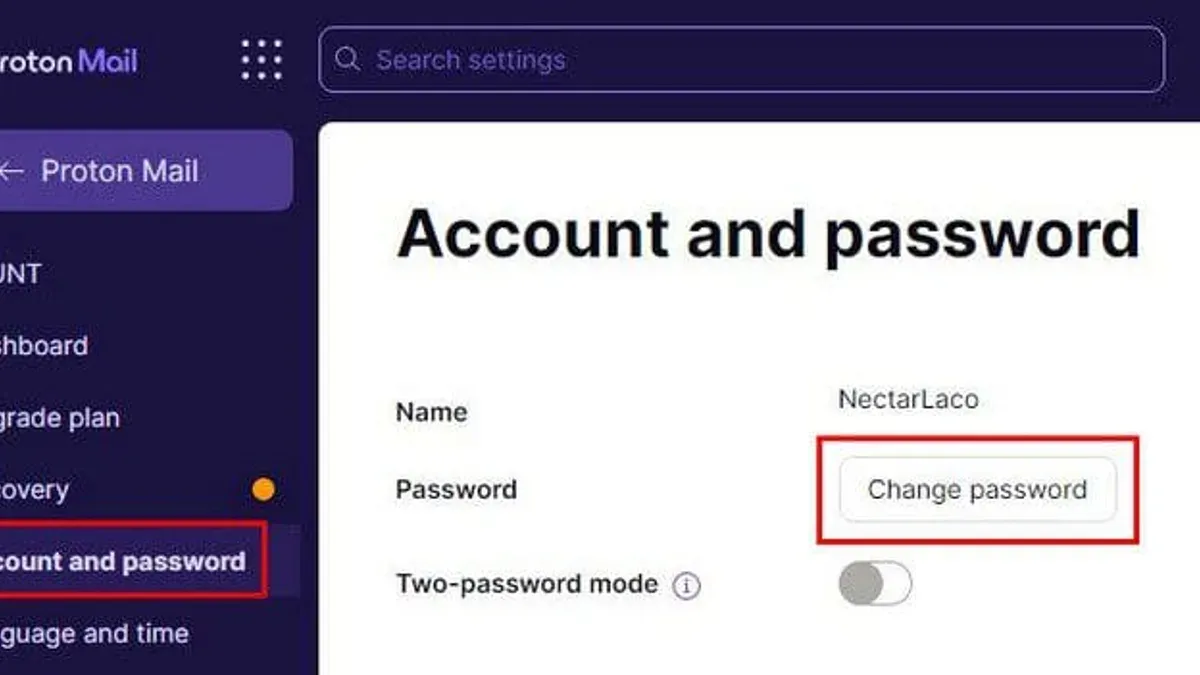
- Find the Change Password option and click it. A form appears asking for the current password and new password details.
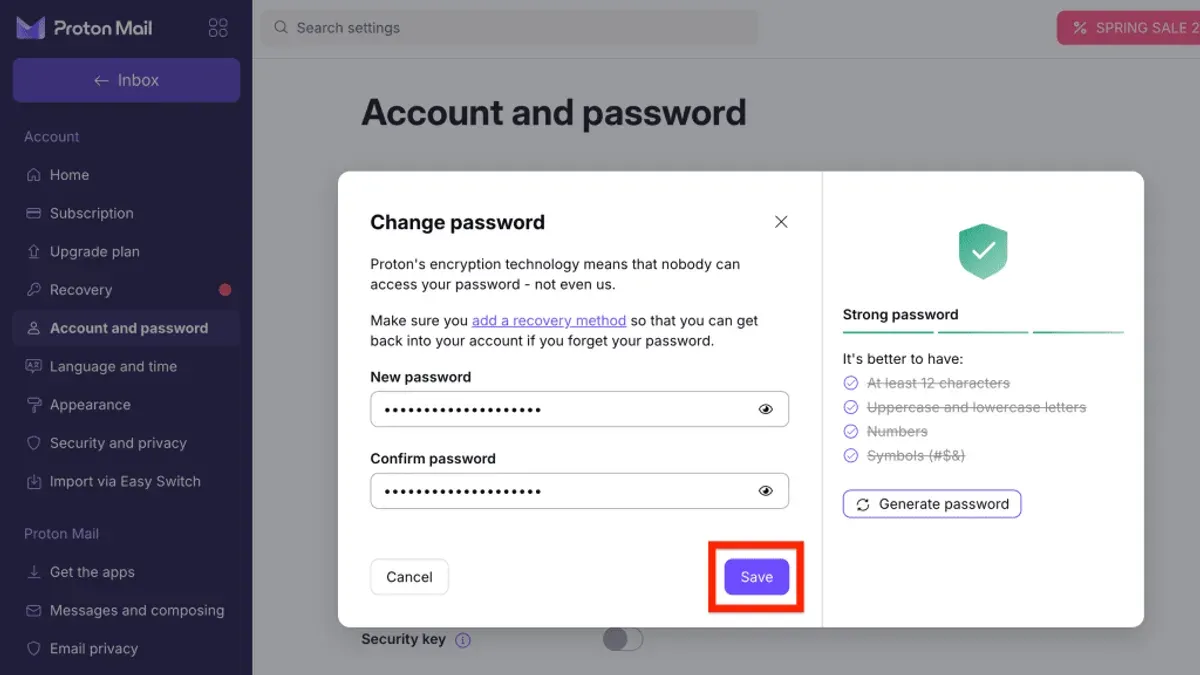
- Enter the current password to verify identity. Then, type the new password twice to confirm accuracy. Proton Mail requires a strong password with a mix of letters, numbers, and symbols.
- Click Save or Change Password to submit. Proton Mail processes the change and re-keys the encryption tied to the password.
- Wait for the confirmation message stating the password was successfully changed. This indicates the encryption keys have been updated, ensuring continued data security.
- Log out and log back in with the new password to verify the change. The inbox and all encrypted data should remain accessible without issues.
Tip: If the confirmation does not appear or an error shows, double-check the current password and new password strength before retrying.
How to change the email password on Proton Mail mobile apps
Changing the Proton Mail password on mobile apps involves navigating to account settings, with slight variations between iOS and Android interfaces. After logging into the Proton Mail app, locate the settings menu, typically accessed via the hamburger icon or bottom navigation bar. The password change option is found under the Security or Account section, depending on the platform.
- Open the Proton Mail app and log in. The inbox should appear upon successful login.
- Access the Settings menu: on iOS, tap the gear icon at the bottom right; on Android, tap the hamburger menu (three horizontal lines) at the top left, then select Settings.
- Within Settings, select Security or Account Settings. On iOS, this is usually labeled "Password & Security"; on Android, look for "Change Password" under the Security tab.
- Enter the current password, then input the new password twice for confirmation. Submit the change and wait for a confirmation prompt indicating the password has been updated and encryption keys re-encrypted.
- Note that changing the password on the mobile app will log out sessions on other devices for security. Re-login on those devices using the new password will be necessary.
Tip: Ensure the app is updated to the latest version to avoid interface discrepancies when changing passwords.
How can change the email password if the current password is forgotten
When the current Proton Mail password is forgotten, the only option is to initiate a password reset from the login screen. This process requires either a previously set recovery email address or recovery codes. Without these, access to the account cannot be restored due to Proton Mail’s end-to-end encryption model.
After selecting the "Forgot Password?" link on the login page, the user will be prompted to enter the recovery email or provide recovery codes. Successful verification leads to setting a new password. However, Proton Mail warns that encrypted data—such as stored emails and contacts—cannot be recovered if the account password is reset without the old password. This differs from many providers where password resets do not affect stored data.
Statistics on password reset success vary, but many users fail to regain full access if recovery options were not configured. Proton Mail emphasizes careful setup of recovery methods to avoid irreversible data loss. The trade-off between security and convenience is clear: Proton Mail prioritizes data privacy over easy password recovery.
- Go to the Proton Mail login page and click "Forgot Password?". The password reset interface appears.
- Enter the recovery email address or input recovery codes if available. Upon submission, a verification email or code confirmation should be received.
- Follow the instructions in the recovery email or complete code verification. A prompt to create a new password will appear.
- Set a new password. Confirmation ensures the password reset is complete.
- Note the warning that encrypted emails and contacts will be lost if the old password cannot be used to decrypt stored data.
Can I change my ProtonMail address or username?
Proton Mail does not allow changing the primary email address or username once the account has been created. This is a deliberate design choice tied to the service's security and encryption model, ensuring integrity and consistency of the account's cryptographic keys. Users seeking a different email address must create a new Proton Mail account.
Instead of changing the primary address, Proton Mail offers the option to create email aliases. These aliases can be managed from Settings > Identity & Addresses, allowing users to send and receive mail under different names without exposing the primary address. Aliases are useful for separating types of correspondence but do not replace the main account address.
For users who create a new Proton Mail account, forwarding emails from the old address to the new one can be set up via the old account's Settings > Filters or using Proton Mail's forwarding options. It is important to manage these settings carefully to avoid missing messages during the transition.
Switching to a new email address has broader security implications than changing a password. Password changes affect access control and encryption keys directly, while changing addresses requires managing multiple accounts or aliases, which can increase complexity and risk if not properly handled.
Tip: Use aliases when possible to maintain a consistent primary address while organizing incoming mail effectively.
How to manage Proton Mail password security with password managers
A strong, unique password is critical for Proton Mail due to its end-to-end encryption model. Reusing passwords or choosing weak ones compromises account security and encrypted data protection. Password managers help generate complex passwords and store them securely, reducing the risk of password-related breaches.
Popular password managers like LastPass, 1Password, and Bitwarden integrate easily with browsers and mobile devices, allowing seamless autofill during login. They offer built-in password generators that create random, high-entropy passwords meeting Proton Mail’s complexity requirements. When updating a Proton Mail password, save the new password immediately in the password manager to prevent lockout.
Tip: Enable two-factor authentication (2FA) alongside password management for layered security.
Avoid common pitfalls such as manually typing passwords, using simple memorable phrases, or storing passwords in insecure locations like text files or browser notes. Regularly review and update saved passwords in the manager, especially after a security incident or Proton Mail password change.
| Password Manager | Platform Support | Password Generation Features | Security Highlights |
|---|---|---|---|
| LastPass | Windows, macOS, iOS, Android, Web | Customizable length and complexity | Zero-knowledge encryption, 2FA support |
| 1Password | Windows, macOS, iOS, Android, Web | Strong password generator, password history | End-to-end encryption, Watchtower breach alerts |
| Bitwarden | Windows, macOS, Linux, iOS, Android, Web | Flexible password rules, open-source | Zero-knowledge encryption, 2FA, open-source auditability |
- Install a reputable password manager compatible with all Proton Mail access devices.
- Create a new strong password using the password generator feature—choose at least 16 characters with a mix of letters, numbers, and symbols.
- Update the Proton Mail password via the official interface and immediately save the new password in the manager.
- Enable autofill in browsers and apps to reduce manual password entry errors.
- Regularly audit stored passwords, removing duplicates and outdated entries.
Troubleshooting common issues when changing Proton Mail password
If a password change is rejected or an error appears, first verify that the current password was entered correctly and meets Proton Mail’s security criteria. Error codes like "ERR_INVALID_PASSWORD" typically indicate a mismatch or invalid format. Refresh the browser or app and retry the process to rule out temporary connectivity issues.
Two-factor authentication (2FA) may prompt for a verification code during the password update. If 2FA codes are not accepted, ensure the authentication app’s time settings are correct or use backup codes. Failure to complete 2FA will block the password change.
After updating the password, mobile and desktop Proton Mail apps may experience sync errors or login failures. To resolve this, log out from all devices, then log back in with the new password. On mobile apps, clearing app cache or reinstalling may be necessary if sync issues persist.
If these steps do not resolve the problem, contact Proton Mail support via the official help center. Support response times vary but generally occur within a few business days. Provide error messages, device details, and steps already taken to expedite assistance.
How to change password in ProtonMail on phone: device-specific nuances
Proton Mail’s mobile apps on iOS and Android differ in layout and menu structure, affecting how the password change process is accessed and completed. On iOS, the Settings tab is located at the bottom right, while Android places it in the hamburger menu top left. Password change options reside under Settings > Security in both, but UI labels and navigation steps vary slightly.
Recent app updates can shift menu locations or rename settings, so checking the latest app version and update notes is essential before proceeding. After changing the password, the app typically prompts for re-login or sync to update encryption keys across devices and maintain notification functionality.
To avoid losing access or encountering sync issues, backing up Proton Mail data through export options or enabling recovery codes beforehand is recommended. This precaution is vital since encryption keys tied to the password change may temporarily disrupt message access on mobile devices.
- Open the Proton Mail app and navigate to the Settings area (iOS: bottom right tab; Android: hamburger menu top left). The Settings screen should appear.
- Select Security (sometimes under Account or Privacy depending on updates). The Security settings page will load.
- Tap Change Password. A form requesting the current password and new password fields will display.
- Enter the current password and the desired new password, then confirm the new password. On success, a confirmation screen or message appears.
- Log out and back in if prompted to re-sync encryption keys. Email notifications and syncing should resume normally afterward.
Tip: After changing the password, check that push notifications remain active and messages sync correctly by sending a test email or refreshing the inbox.
Frequently asked questions
How to change proton password?
Access Proton Mail through the web interface and log in. Navigate to Settings > Password & Security, then select Change Password. Enter the current password, input the new password twice, and confirm the change. The update applies immediately to all devices.
How to change your password in proton mail?
Within Proton Mail, go to Settings, then find the Password & Security section. Click on Change Password, provide the current password, and set a new secure password. Save changes to update credentials across the account.
How to change proton.me email password?
Changing the password for a proton.me email follows the same process as Proton Mail accounts. Use the web or app interface, access Settings > Password & Security, and update the password after confirming the current one.
How do you change a password on email?
Log in to the email service and locate the security or account settings. Find the password change option, enter the existing password, then create and confirm a new one. Save the changes to finalize.
How do i change the email password on my phone?
Open the Proton Mail mobile app, tap the menu icon, and go to Settings > Password & Security. Select Change Password, input the current password, then set and confirm a new password. Ensure the app syncs to apply the update.
What this advice does not cover
Changing the Proton Mail password does not alter the encrypted mailbox key if the password recovery option is disabled. This means that if the new password is forgotten, access to encrypted emails could be permanently lost. Users relying on Proton Mail's zero-access encryption model should ensure password recovery is enabled or securely back up their mailbox key to avoid data loss.
This guide does not cover account recovery processes for compromised accounts or multi-factor authentication setup. Users facing account lockouts or suspicious activity should contact Proton Mail support directly or refer to official security guidelines.
Tip: Regularly verify that password recovery options are active to safeguard encrypted data accessibility.
Next step
After changing the password, immediately update any connected devices and password managers with the new credentials. Confirm that two-factor authentication is enabled to add an extra layer of security to the account. Regular password audits and monitoring account activity logs help maintain Proton Mail account security effectively.
See also: How to Change iCloud Password: Step-by-Step Guide for Every Device · How to Change Gmail Password Across Devices: Complete Step-by-Step Guide · How to Change Microsoft Account Password: Step-by-Step Guide · How to Change Your GitHub Password Across Devices: Complete Steps