How to Change Your Truth Social Password: Step-by-Step Guide
Step-by-step guide on how to change your Truth Social password securely and manage your account settings with ease.
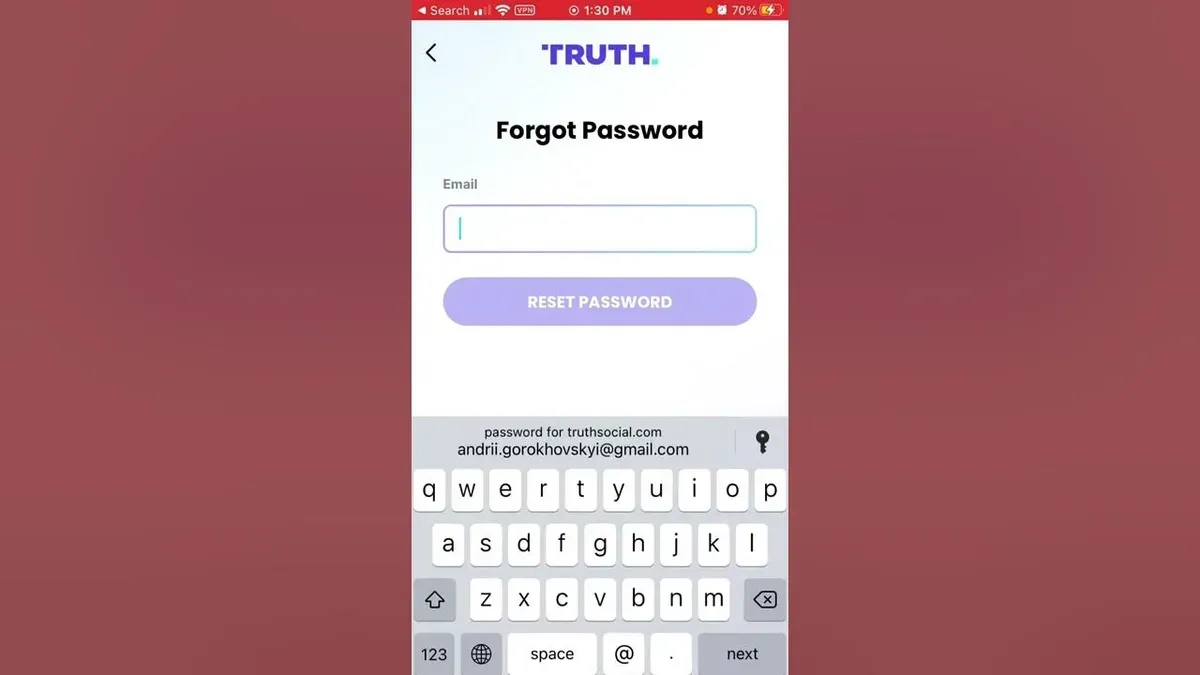
This article explains how to change Truth Social password and covers every step from account creation to security management. It guides through setting up a Truth Social account, navigating the platform, and securely updating login credentials. Detailed instructions clarify the password change process within the app’s settings, including locating the correct menu under Profile > Settings > Account > Password. It also addresses resetting forgotten passwords through the verified email or phone number linked to the account.
Additional sections highlight common issues such as unexpected password changes, tips for encrypted password management, and steps to follow if login fails after changing the password. Verification procedures and account cancellation are also explained, providing a complete resource for managing Truth Social security effectively. This ensures users maintain control over their accounts while avoiding frequent pitfalls and confusion around verification nuances.
How to get a Truth Social account
Creating a Truth Social account starts by choosing either the official app or the website. The signup process requires a valid email address, a phone number for verification, and a compatible device running the latest supported operating system version. Both platforms offer similar interfaces, but the app provides push notifications and easier access to mobile features.
- Navigate to the Truth Social website or download the app from an official store. A welcome screen with "Sign Up" or "Create Account" options should appear.
- Enter a valid email address and phone number when prompted. Upon successful entry, expect to receive a verification code via SMS or email.
- Input the verification code to confirm contact details. A confirmation message will indicate successful verification.
- Create a username and select a strong password. The password field typically indicates strength; aim for a mix of letters, numbers, and symbols to reduce the chance of resets.
- Agree to the Terms of Service and Privacy Policy by checking the required boxes. A "Complete Registration" button should activate.
- Submit the form to finalize the signup. The system will redirect to the main feed or user dashboard, confirming account creation.
Tip: Using the app can reduce signup time by streamlining verification steps compared to the website.
How to use Truth Social after signing up
Logging in to Truth Social can be done on multiple devices including smartphones, tablets, and desktop browsers. Access the app or website and enter the registered email and password. Successful login directs to the main feed, where posts from followed accounts appear.
To manage account settings and change the password, navigate to the profile icon usually located in the top right corner. Click or tap it, then select Settings & Privacy from the dropdown menu. This section houses key controls for password updates, account security, and privacy preferences.
Basic security settings include options to enable two-factor authentication (2FA), review active sessions across devices, and manage login alerts. Privacy controls allow users to adjust who can see posts, send messages, or follow the account. These measures help maintain account integrity and control visibility.
- Open the Truth Social app or website and log in with credentials; the main feed loads upon success.
- Tap the profile icon in the top right corner to open account options.
- Select Settings & Privacy to access password and security settings.
- Within this menu, review and adjust privacy settings to control audience and interactions.
- Enable two-factor authentication for added login security if desired.
Tip: Regularly checking active sessions helps detect unauthorized access early.
How to change your password on Truth Social
- Log in to the Truth Social app or website and tap the profile icon in the top right corner to open the account menu. Select Settings & Privacy to access account options. Upon success, the Settings page will display various options including password management.
- Scroll to Account Security and choose Change Password. This opens the password update form. It requires entering the current password for verification.
- Enter the current password, then input the new password twice to confirm. The new password must be at least 8 characters long, include uppercase and lowercase letters, a number, and a special character. A password strength meter will indicate if the new password meets these criteria.
- Tap Save or Update Password. A confirmation message appears indicating the password has been changed successfully. The user may be prompted to log out of other devices for security; selecting this is recommended if suspicious activity is suspected.
- After the update, the user should log in again on all devices using the new password to avoid access issues. If login fails, verify the password meets the policy and was entered correctly.
Tip: Use a password manager to generate and store complex passwords securely, reducing the risk of reuse or weak passwords.
How to reset a forgotten Truth Social password
- Go to the Truth Social login screen and click the "Forgot Password?" link below the password field. This opens the password recovery page.
- Enter the email address or phone number associated with the account. Upon submission, a verification code is sent to the provided contact method.
- Check the email inbox or SMS messages for the verification code. Reset emails typically arrive within a few minutes and contain a six-digit code; if not received, check the spam or junk folder.
- Enter the received verification code into the recovery page. Successful verification leads to the password reset form.
- Create a new password following Truth Social's requirements: at least 8 characters, including uppercase, lowercase, number, and special character. Submit to update the password.
- Log in with the new password to confirm access has been restored. It is advisable to update saved passwords on other devices or password managers after a reset.
Tip: If verification codes are not received, verify contact details for typos or try the alternate method (email if phone fails or vice versa).

Why does my Truth Social password keep changing?
Unexpected password changes or forced resets on Truth Social often stem from security protocols designed to protect accounts from unauthorized access. If unusual activity, such as multiple failed login attempts or logins from unfamiliar devices or locations, is detected, the platform may prompt or enforce a password change as a precaution.
Users should regularly check their account activity by navigating to Settings > Security > Account Activity. This section displays recent logins and device information. Any unfamiliar sessions should be immediately terminated, and the password updated to prevent further unauthorized access.
Repeated password changes may also result from malware or credential leaks on other platforms. Ensuring strong, unique passwords and enabling two-factor authentication in Settings > Security > Two-Factor Authentication significantly reduces risks. Avoid reusing passwords across services to minimize vulnerability.
Tip: Regularly reviewing authorized devices and session history helps detect suspicious activity early, reducing forced password resets.
How to cancel a Truth Social account
Canceling a Truth Social account requires navigating to the account settings where the deactivation or deletion options are located. Once initiated, the account enters a deactivation phase where it becomes inaccessible, but data might still be retained for a period specified by Truth Social’s policy. Permanent deletion typically follows deactivation after this retention window.
- Log in to the Truth Social account and open the profile menu.
- Select Settings & Privacy from the dropdown options.
- Locate and click on Account in the settings menu.
- Scroll to find the Deactivate Your Account or Delete Account option and select it.
- Follow on-screen prompts to confirm the cancellation request; a message indicating successful initiation should appear.
During the deactivation period, the account cannot be accessed or used to log in, but password recovery might still be possible if the account is reactivated. After permanent deletion, all data including password credentials are irretrievably erased, preventing any future login or recovery. Users should consider backing up any important information before proceeding.
Tip: Review Truth Social’s current data retention timeline in the help center to understand when permanent deletion occurs following cancellation.
How to get verified on Truth Social
Verification on Truth Social confirms an account’s authenticity, improving trust and the security of interactions. Eligibility typically requires the account to be notable, authentic, and active. Verification badges appear next to usernames, signaling verified status to other users.
Follow these steps to apply for verification:
- Open the Truth Social app and go to the profile menu by tapping your profile icon. The "Settings & Privacy" option should be visible.
- Select "Account Verification" from the settings menu; a verification application form will appear.
- Fill out the form with accurate information, including a valid government-issued ID and any additional documentation proving notability, such as news articles or official websites. After submission, the screen will confirm receipt of the application.
- Wait for review. Verification decisions can take several weeks due to volume and manual checks. The app will notify the user upon approval or rejection.
Tip: Incomplete or unclear documentation is a common cause of delays or denials; ensure all details are legible and relevant.
Verification enhances account security by associating the user’s identity with the account, reducing risks of impersonation and unauthorized password changes. However, verification acceptance rates are selective, and many applications are declined if eligibility criteria are not met.
How to change an encrypted password and security best practices
Truth Social stores passwords using encryption protocols that convert passwords into unreadable hashes. This means the platform cannot access the original passwords, enhancing security but limiting direct user control over raw password data. Changing a password updates its encrypted hash stored in the system, ensuring previous credentials cannot be reused.
Beyond changing passwords, users should adopt multi-layered security measures. Enabling two-factor authentication (2FA), if available in the account settings under "Security," adds a secondary verification step, significantly reducing unauthorized access risks. Use authentication apps or SMS codes rather than email-only verification when possible.
Security experts recommend regularly reviewing connected devices and active sessions in the "Devices" section of account settings to log out unknown sessions. Additionally, avoid password reuse across platforms and choose complex passwords with a mix of letters, numbers, and symbols.
- Navigate to Settings > Security > Password to initiate a password change; after updating, a confirmation message appears.
- Enable Two-Factor Authentication under Settings > Security > Two-Factor Authentication; follow prompts to link an authentication app or phone number; successful setup shows a confirmation screen.
- Review active sessions at Settings > Devices > Active Sessions; manually log out of unfamiliar devices by selecting them and choosing "Log Out," confirming session termination.
Tip: Use a reputable password manager to generate and store complex passwords securely.
What to do if login to Truth Social fails after changing the password
Login failures after changing a password usually stem from simple errors or device issues. Common error messages include "Incorrect password," "Account locked," or "Unable to connect." These often indicate mistyped input, app glitches, or temporary account restrictions.
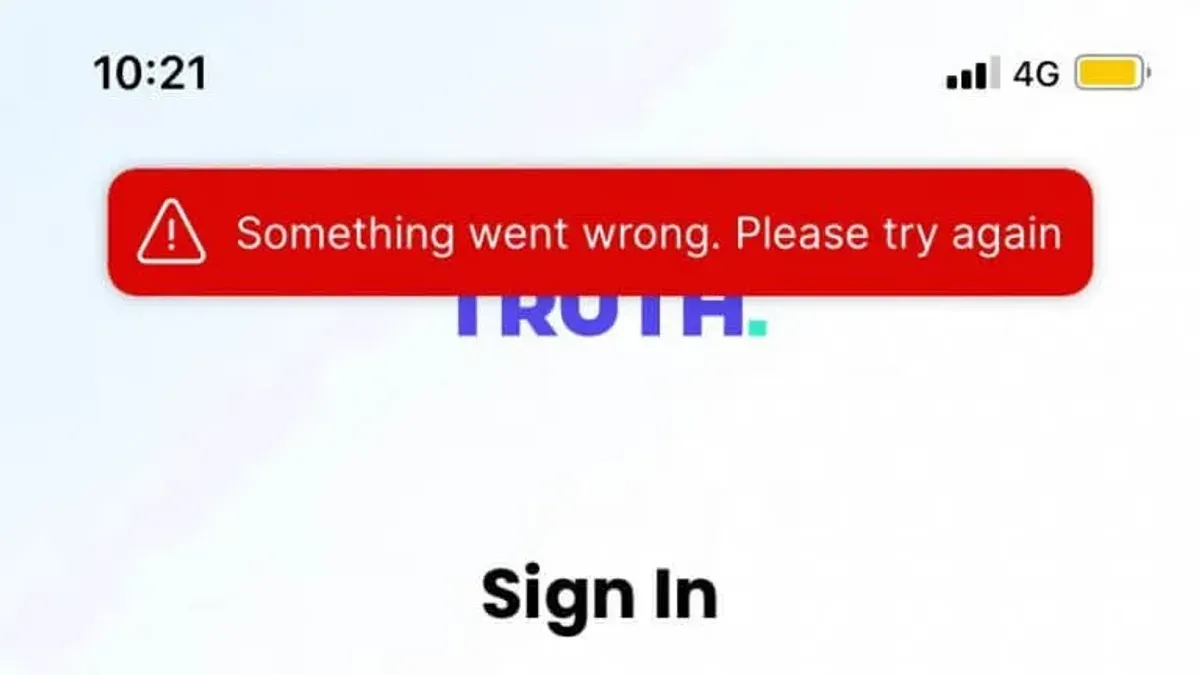
- Verify the password entry carefully, checking for typos, correct capitalization, and keyboard layout (e.g., QWERTY vs. AZERTY). The login screen should accept the input without error if correct.
- Clear the app cache or reinstall the Truth Social app. This removes corrupted data that can interfere with login. After reinstalling, the app should open normally and accept login credentials.
- Confirm the account is active and not locked or suspended by visiting the Truth Social support page or attempting password recovery. If recovery options work, the account is active.
- Contact Truth Social support if issues persist. Provide exact error messages and recent account activity. Support response times vary but typically resolve issues within a few days.
Tip: Use a password manager to avoid manual entry errors when logging in after password changes.
Frequently asked questions
How to sign up for truth social?
Visit the official Truth Social website or download the app from a trusted app store. Provide a valid email address and create a username, then follow the prompts to verify the email. Complete the profile setup by adding necessary personal details and agreeing to the terms of service.
How to change password on truth social?
Log into the account and navigate to the "Settings" menu, then select "Account" followed by "Password." Enter the current password, choose a new password that meets security criteria, and confirm it. Save changes to update the password immediately.
How to get on truth social website?
Access the official Truth Social website by typing the URL directly into a browser address bar. Use a supported, updated browser for best performance. Log in with your username and password to access the full features of the platform.
How to download truth social?
Download the Truth Social app from the Apple App Store or Google Play Store. Search for "Truth Social," verify the developer to avoid counterfeit apps, and install. Open the app and log in or sign up to start using the service.
How to cancel truth social account?
Go to "Settings," then "Account," and select "Deactivate Account." Follow the confirmation steps to complete cancellation. Note that deactivation may not delete all data immediately, so review the platform's data retention policies if concerned.
What this advice does not cover and when to seek help
This guide does not cover bypassing unauthorized access or hacking attempts. Users who suspect their account has been compromised, or who experience suspicious activity beyond password issues, should contact Truth Social’s official support channels without delay. Additionally, this article does not address advanced security configurations such as multi-factor authentication beyond the app’s standard settings.
For complex account recovery scenarios involving identity verification failures or locked accounts due to repeated login failures, professional assistance from official support is necessary. Attempting to circumvent security restrictions independently risks permanent account loss or further breaches.
Next step after managing your password
After successfully updating or resetting a Truth Social password, review the account’s security settings under Settings & Privacy > Security. Enable all available protections, such as login alerts and trusted device lists. Regularly monitoring these settings helps maintain control and prevents unauthorized changes that could lock users out or compromise their data.
See also: How to Change Your Kick Password and Switch to Passkeys · How to Change Lemon8 Password: Clear Steps and Related Account Actions · How to Change iCloud Password: Step-by-Step Guide for Every Device · How to Recognize, Secure, and Manage a Hacked Grindr Account