
How to Check Battery Cycle Count in Mac Terminal Easily
Discover how to check your Mac’s battery cycle count using Terminal commands to monitor battery health and decide on replacements.
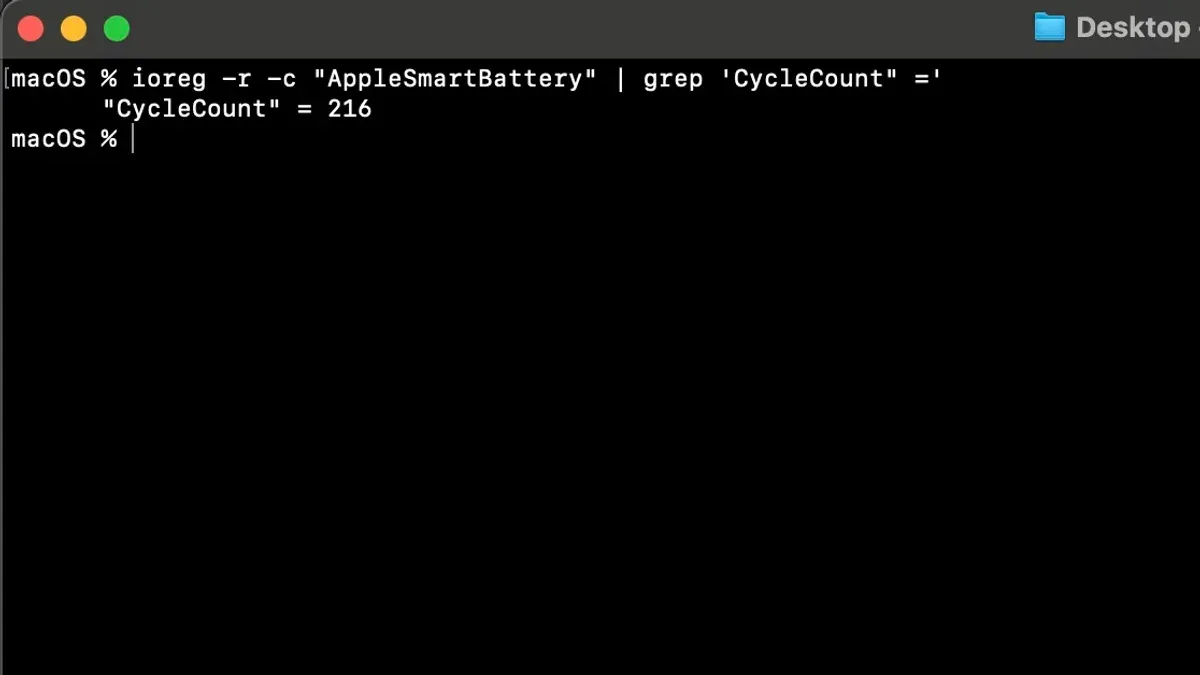
Your MacBook’s performance seems slower, or the battery drains faster than usual. You might suspect it’s time for a battery replacement, but how do you confirm this without guesswork? Knowing how to check battery cycle count in Mac Terminal helps you assess your Mac’s battery health directly, without relying on third-party apps.
This article guides you step-by-step through verifying your Mac’s battery cycle count using Terminal commands. You’ll learn how to access this information, troubleshoot common issues if data doesn’t appear, and understand what your cycle count means for battery longevity and replacement timing.
Key takeaways
- You can find your Mac’s battery cycle count directly via Terminal with simple commands.
- Battery cycle count helps determine when to seek battery service or replacement.
- Common issues like missing data can often be resolved by checking system permissions or using alternative commands.
- Apple defines specific maximum cycle counts depending on the Mac model, which guides replacement decisions.
Before you start: What you need to check your Mac’s battery cycle count
To check your Mac’s battery cycle count using Terminal, you need a Mac with macOS installed and administrator privileges. The Terminal app is pre-installed on all Macs, but basic familiarity with its interface and commands helps ensure a smooth process.
These battery cycle count commands work only for built-in batteries. External or connected devices such as wireless peripherals or battery packs are not supported by these methods.
Backing up your data before running system commands is recommended. Although the commands to check battery information are safe, having a current backup protects your data if any unexpected issues arise.
- Open the Terminal app from the Applications > Utilities folder. You should see a command prompt ready to accept input.
- Confirm you have administrator access by running a simple command like whoami to verify your username. Administrator accounts have the privileges needed for battery information commands.
- Ensure your Mac is running macOS Sierra (10.12) or later. The battery reporting commands are supported on these versions and newer.
- Verify that your Mac has a built-in battery by checking System Information > Power section. The battery cycle count is available only if a built-in battery is detected.
How to check battery cycle count on MacBook using Terminal
- Open Terminal by pressing Command + Spacebar to launch Spotlight, type "Terminal," and press Enter. Alternatively, navigate to Applications > Utilities > Terminal.
- Type the command
system_profiler SPPowerDataTypeand press Enter. This command displays detailed battery information. - In the output, scroll to the Battery Information section. Look for the line labeled Cycle Count. The number next to it is your battery's current cycle count.
- For a more raw data approach, enter the command
ioreg -l | grep Capacityand press Enter. This lists several capacity-related values. - Within the
ioregoutput, identify the CycleCount key and the number following it. This is another way to confirm your battery's cycle count. - If the cycle count is missing or unclear in the output, ensure you entered the commands correctly and that you have sufficient permissions to access system information.
Sample output snippet from system_profiler SPPowerDataType might look like:
Battery Information:
Cycle Count: 320
Condition: Normal
This clearly shows the cycle count value, which helps you understand your battery usage stage.
How to check macbook battery health cycle count terminal
To get a fuller picture of your MacBook's battery condition, check the Condition field alongside the cycle count within the system_profiler SPPowerDataType output. This field indicates the overall battery health with values like Normal, Replace Soon, Replace Now, or Service Battery.
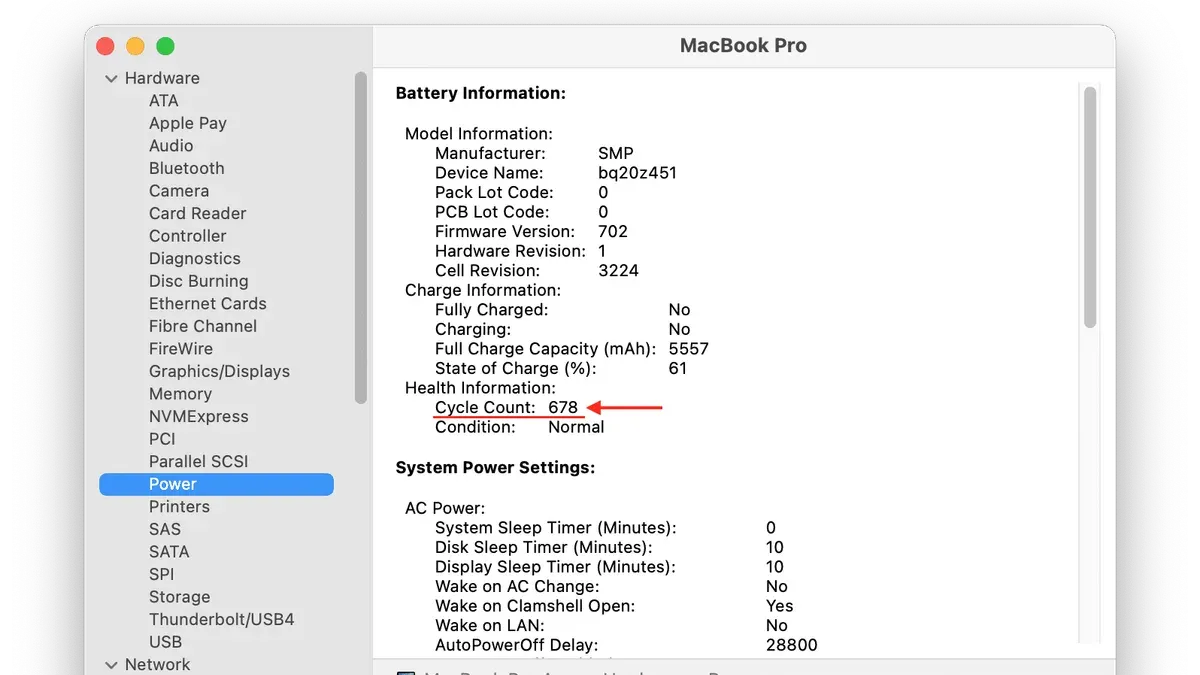
Follow these steps:
- Open Terminal and enter
system_profiler SPPowerDataType. Scroll to find the Cycle Count and Condition entries. You should see something like Cycle Count: 350 and Condition: Normal. - Interpret the condition: Normal means your battery is functioning well. Replace Soon or Replace Now suggest the battery’s capacity has diminished and a replacement is advisable. Service Battery indicates a problem requiring immediate attention.
- Compare your cycle count to Apple's documented limits, which vary by model but usually range between 300 and 1000 cycles. For example, a MacBook with 800 cycles and a "Replace Soon" condition is nearing the end of its expected life.
- Optionally, run
pmset -g battto check additional battery metrics like charge percentage and charging state, providing supplementary context.
Check mac battery cycle count through alternative Terminal commands
If you want a focused reading of your Mac's battery cycle count, you can use the command ioreg -w0 -l | grep -i cyclecount. This command isolates the cycle count value directly, presenting a clean output without the additional data found in system_profiler results.
- Open Terminal on your Mac.
- Type
ioreg -w0 -l | grep -i cyclecountand press Enter. - You should see a line indicating the cycle count, such as
"CycleCount" = 345. This confirms the command worked correctly.
While system_profiler offers a comprehensive overview including cycle count and other battery health metrics, ioreg provides a quicker, more concise output focused on specific properties like cycle count. For example, system_profiler SPPowerDataType outputs detailed battery information useful for a broader health check, whereas ioreg is ideal for quick, script-friendly queries.
Some users may consider third-party command-line utilities for extended battery diagnostics. However, built-in commands like ioreg and system_profiler are preferable for security and reliability since they do not require additional software installation or permissions.
Troubleshooting why battery cycle count might not appear or commands fail
If Terminal commands to check your Mac's battery cycle count return no data or error messages, several factors may be causing the issue.
- Confirm user permissions: Run Terminal commands as a standard user without using sudo. These commands do not require elevated privileges and using sudo can sometimes cause unexpected output or errors. Successful output typically shows the battery information directly in Terminal.
- Verify your device type: Desktop Macs, such as iMacs or Mac minis, do not have built-in batteries, so cycle count data will not appear. Additionally, some newer Mac models with different battery technologies or external battery accessories may not report this data via standard commands.
- Look for error messages: Common errors include "No such service" or "Battery information unavailable," which often indicate firmware or macOS glitches affecting battery data reporting.
- Reset the System Management Controller (SMC): This can resolve many battery-related reporting issues. To reset the SMC on most MacBooks, shut down your Mac, then press and hold Shift + Control + Option keys and the power button for 10 seconds, then release and power on normally. After reboot, re-run the Terminal commands to check for cycle count.
- Update macOS: Running the latest macOS version ensures the system firmware and battery management software are current, which can fix bugs that obscure battery data.
Following these steps should resolve most issues with missing or failing battery cycle count commands, allowing you to accurately assess your Mac’s battery health.
Understanding battery cycle counts and when to consider replacing your Mac battery
A battery cycle refers to the process of charging a battery to 100% and then discharging it to 0%. For Mac batteries, one cycle count does not necessarily mean a single full charge from zero to full; it can be composed of multiple partial charges that add up to 100%.
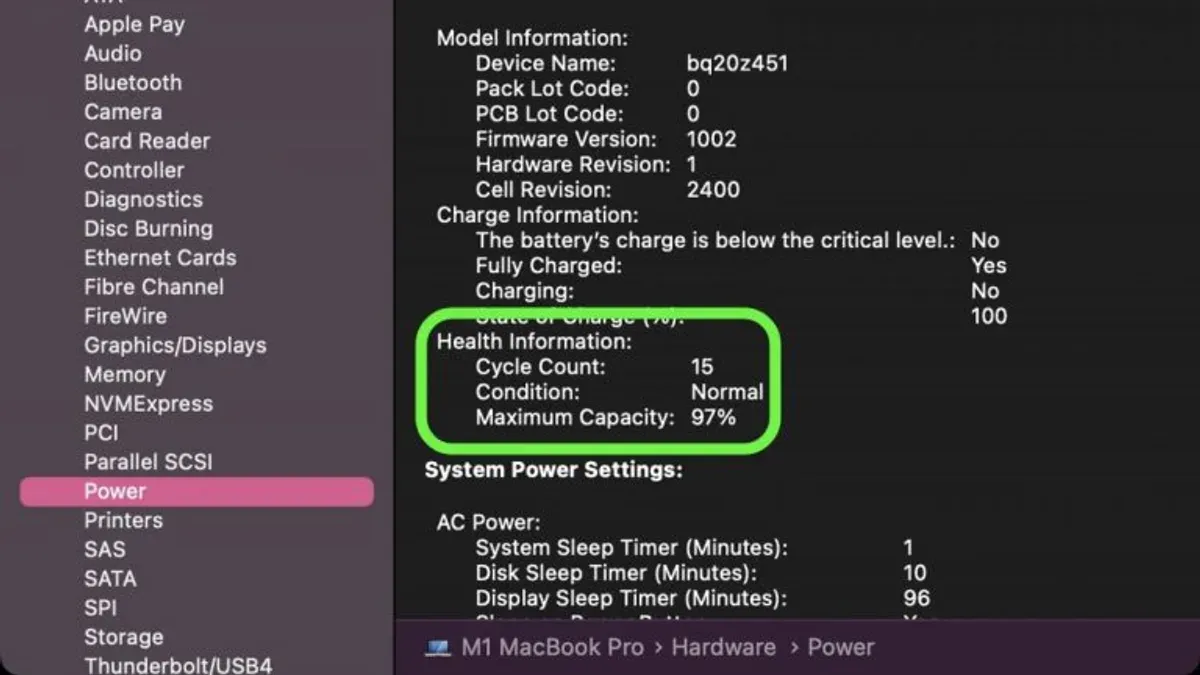
Apple defines maximum cycle count limits for different Mac models, usually ranging from 300 to 1000 cycles, after which the battery is considered to have consumed its full lifespan. Here is a summary table of common maximum cycle counts:
| Mac Model Type | Maximum Cycle Count |
|---|---|
| MacBook Air (Intel and Apple Silicon) | 1000 cycles |
| MacBook Pro (Retina, Intel and Apple Silicon) | 1000 cycles |
| Older MacBooks (pre-Retina) | 300 to 500 cycles |
Beyond cycle count, signs such as unexpected shutdowns, significantly reduced battery runtime, or physical swelling indicate battery degradation. These symptoms may prompt service even if the cycle count is below the maximum.
Cycle count is one element of battery health assessment. You should also consider battery condition reported by macOS, charging behavior, and performance impact. When your cycle count approaches the maximum and you notice signs of wear, it is wise to plan for battery replacement to maintain reliable Mac performance.
- How to Find Your Mac Serial Number Using Terminal
- How to Turn On Low Power Mode on Mac: A Clear Step-by-Step Guide
- How to Prevent Your Mac from Sleeping: Step-by-Step Solutions
Frequently asked questions
How to check battery cycles in mac?
You can check battery cycles on your Mac by using the Terminal app. Open Terminal and enter the command system_profiler SPPowerDataType, then look for the Cycle Count under the Battery Information section. This method does not require any third-party software.
How to check macbook battery health cycle count terminal
To check your MacBook's battery health and cycle count via Terminal, run system_profiler SPPowerDataType. The output includes both the Cycle Count and the battery's Condition, such as Normal or Service Recommended, which helps you assess battery health.
How to check battery cycles in mac
The simplest way is to open Terminal and type system_profiler SPPowerDataType. Scroll to the Battery Information section to find the current cycle count, which indicates how many full charge and discharge cycles your battery has undergone.
How to check battery cycle count on macbook
On your MacBook, launch Terminal and enter system_profiler SPPowerDataType. Locate the Cycle Count value under Battery Information to see how many cycles your battery has completed, which can guide you on battery service needs.
Can I check Mac battery cycle count without Terminal?
Yes, you can check battery cycle count without Terminal by holding the Option key and clicking the Apple menu, then selecting System Information > Power. The cycle count appears under Battery Information. However, Terminal offers a quick alternative without navigating menus.
Limits of this method and when to seek professional help
The Terminal commands outlined here only reveal the cycle count for built-in Mac batteries; external battery packs or connected devices are not covered. This approach assumes your macOS installation is fully functional and unmodified. If your system has hardware issues, corrupted system files, or is heavily customized, the battery information retrieved may be inaccurate or missing. For Macs with non-removable batteries that show no data, or if you experience persistent Terminal errors, contacting Apple Support or visiting an authorized service provider is advisable.
The single most useful next step is to cross-reference your battery’s cycle count with Apple’s official maximum cycle count limits for your specific Mac model, which you can find on Apple’s website. This will help you decide if your battery health is within normal parameters or if a battery replacement should be considered to maintain optimal performance and safety.



