How to Check Kernel Version in Mac Terminal: A Clear Step-by-Step Guide
This guide shows you how to check the kernel version in Mac Terminal to help with troubleshooting and software compatibility.
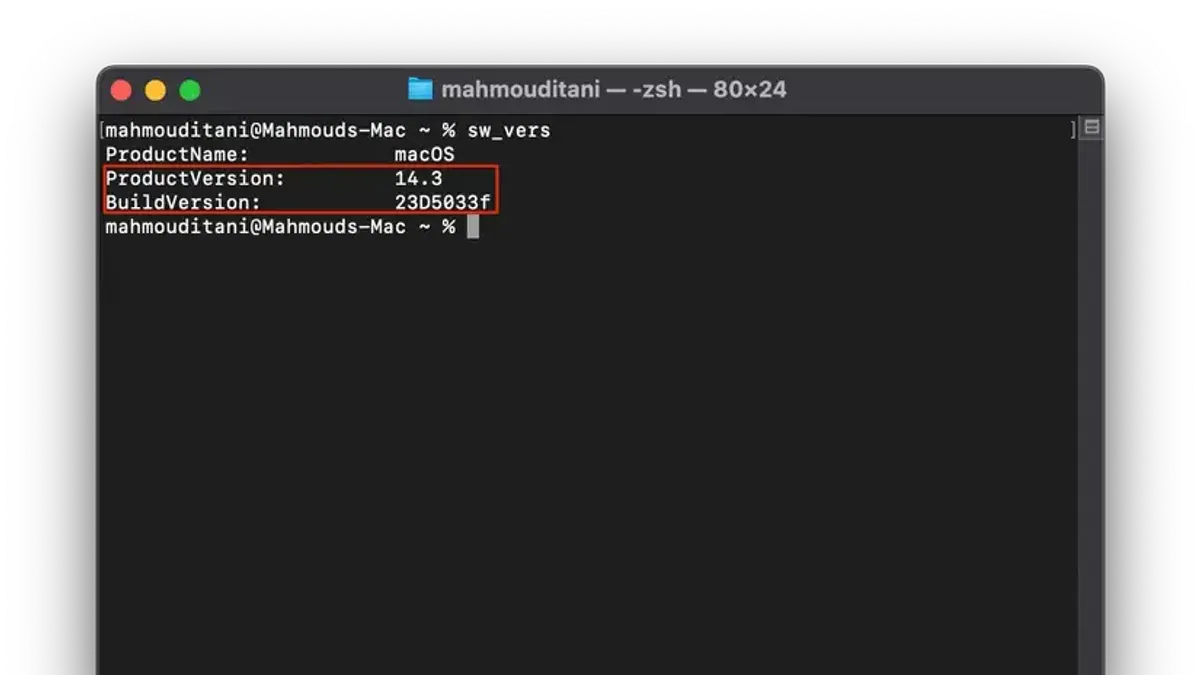
You might need to verify the kernel version on your Mac when troubleshooting hardware issues or ensuring software compatibility. Knowing the exact kernel version can clarify system behavior and help align with specific driver or application requirements.
This article explains how to check kernel version in Mac Terminal with a straightforward step-by-step guide. It also compares this process with Linux commands, highlighting differences and what Linux users switching to Mac should understand. Additionally, it covers interpreting the version output and common troubleshooting tips when the command doesn't behave as expected.
Key takeaways
- Use the command uname -r in Mac Terminal to see the kernel version.
- Linux kernel version commands differ but share similar options like uname -r.
- Kernel version helps determine system compatibility for drivers and software.
- Reading macOS kernel version requires understanding its naming and numbering conventions.
- Checking macOS system version alongside kernel version provides fuller system context.
Before you start: What you need to check your kernel version
To check your kernel version on a Mac, you need access to the built-in Terminal app and basic familiarity with command-line input. The Terminal app is located in Applications > Utilities > Terminal. Opening it presents a command prompt where you can enter text commands.
macOS uses the XNU kernel, which is different from the Linux kernel family. This means the commands and outputs you see will not be identical to Linux, though some concepts overlap.
No additional software is required; all necessary commands are included with macOS by default. This makes it straightforward to verify your kernel version without installing tools.
Knowing your kernel version is important in several scenarios. For example, if you are installing kernel extensions (kexts), compatibility depends on the kernel version. Similarly, debugging hardware support or troubleshooting system issues often requires confirming the kernel version matches software requirements.
- Open the Terminal app from Applications > Utilities. When it opens, you should see a prompt with your username and computer name.
- Ensure you can type commands by entering
lsand pressing Enter. This lists files in your current directory, confirming input works.
How to check kernel version in Mac Terminal
- Open Terminal: Launch the Terminal app from your Applications > Utilities folder or search for it via Spotlight.
- Type the command uname -r and press Enter. This command displays the kernel release version of your Mac’s XNU kernel.
- Review the output, which typically looks like a number such as 20.6.0. This represents the kernel version and can help you identify the underlying macOS build.
- For more detailed system information, including the kernel version, type uname -a and press Enter. This shows the kernel version along with the hostname, kernel build date, and architecture.
- Interpret the version string: the number before the first dot corresponds roughly to the macOS major release (e.g., 20 corresponds to macOS Big Sur series). The subsequent numbers indicate minor updates or patches to the kernel.
Example Terminal session:
user$ uname -r
20.6.0
user$ uname -a
Darwin MacBook-Pro.local 20.6.0 Darwin Kernel Version 20.6.0: Tue Jun 15 15:10:32 PDT 2021; root:xnu-7195.141.2~5/RELEASE_X86_64 x86_64
This output confirms you are running XNU kernel version 20.6.0, which corresponds to a specific macOS build. Understanding this helps in troubleshooting or verifying compatibility with software requiring certain kernel features.
How to check kernel version in Linux
On Linux systems, checking the kernel version is straightforward and usually provides critical information for troubleshooting and compatibility. You can use two main commands:
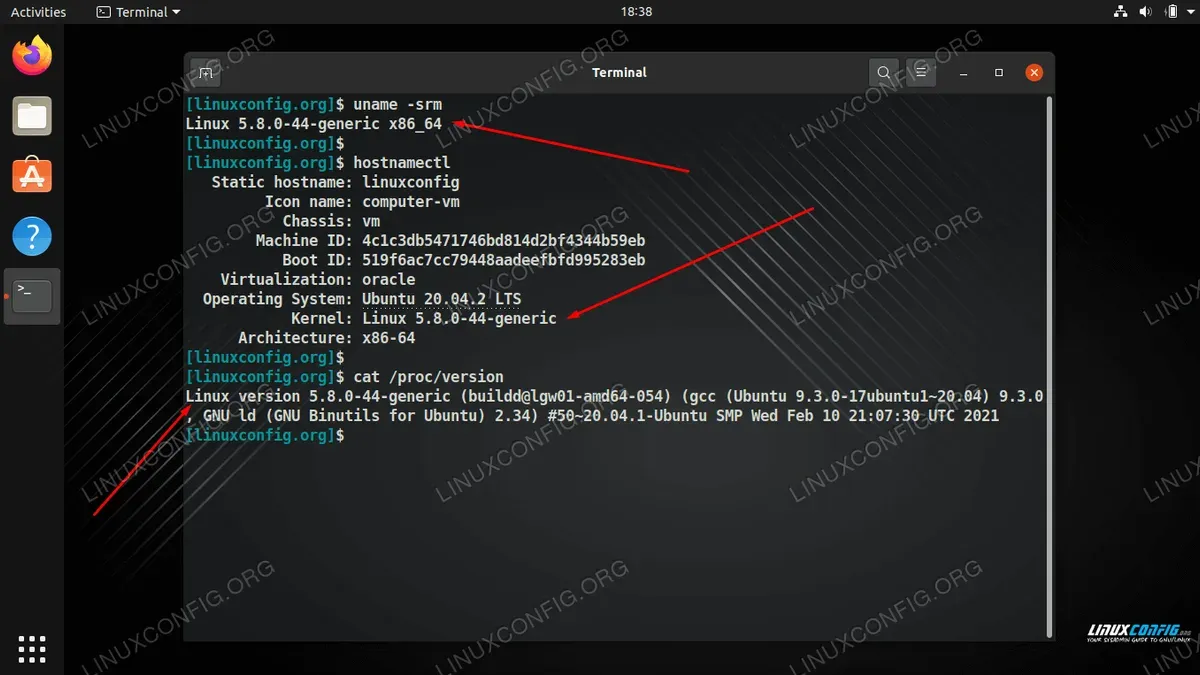
- Open a Terminal and type uname -r. This displays the kernel release version, for example, 5.15.0-52-generic.
- Alternatively, enter cat /proc/version to see detailed kernel version information, including the compiler used and build time.
Unlike macOS, where the kernel is the hybrid XNU and versioning ties closely to macOS builds, Linux kernels follow a more transparent numeric scheme (major.minor.patch). This makes it easier to identify kernel features, security patches, and compatibility directly from the version string.
Because many Linux distributions customize their kernels, the version number often indicates the base kernel plus distribution-specific patches. This is why knowing the exact kernel version is crucial when installing drivers or software.
| Command | macOS Example Output | Linux Example Output |
|---|---|---|
| uname -r | 20.6.0 | 5.15.0-52-generic |
How to tell kernel version Linux users switching to Mac should know
Linux users are accustomed to the Linux kernel, which is separate from the operating system and can be updated independently. macOS, however, uses the XNU kernel, which is tightly integrated with macOS releases. This means the kernel version in macOS corresponds directly to the macOS version rather than being updated separately.
On Linux, a typical kernel version output from uname -r might be 5.15.0-70-generic, indicating major, minor, and patch numbers. On macOS, uname -r returns a simpler number like 20.6.0, which refers to the XNU kernel version tied to a specific macOS build.
To bridge the gap, you can use familiar commands such as uname -r on Mac Terminal to find the kernel release. Understanding that this number reflects the XNU kernel helps when troubleshooting, ensuring compatibility checks are accurate, or managing cross-platform software that depends on kernel features.
- Open Terminal on your Mac.
- Type uname -r and press Enter.
- Note the output, for example, 20.6.0, which indicates the XNU kernel version.
- Compare this with your Linux kernel version output; remember macOS links this to the OS release, not just the kernel.
Troubleshooting common issues when checking kernel version in Mac Terminal
If you encounter errors or unexpected output when using commands like uname -r to check your kernel version, there are straightforward steps to resolve these issues.
- Confirm you typed the command correctly: uname -r is case-sensitive and requires a space between 'uname' and '-r'. A common error is a misspelled command, which will result in command not found or similar messages. When typed correctly, you should see a version string like
20.6.0. - Check Terminal permissions: Kernel version commands do not require elevated privileges, so avoid using
sudo. If you receive permission denied errors, ensure your Terminal session is running under a standard user account with access to system commands. - Be aware of custom or modified kernels: Although rare on Mac, if your system runs a custom kernel, the output might differ or commands may fail. In such cases, consult your system administrator or documentation about the specific kernel modifications.
- If the output is gibberish or incomplete, try resetting your Terminal environment or using a different shell such as
bashorzsh. Sometimes shell configuration issues cause command output problems.
Following these steps should help you successfully retrieve your Mac kernel version and interpret it correctly for troubleshooting or compatibility checks.
How to check macOS version from Terminal and why it matters alongside kernel version
While the kernel version provides insight into the core system, knowing the macOS version is equally important for a full understanding of your system’s compatibility and behavior.
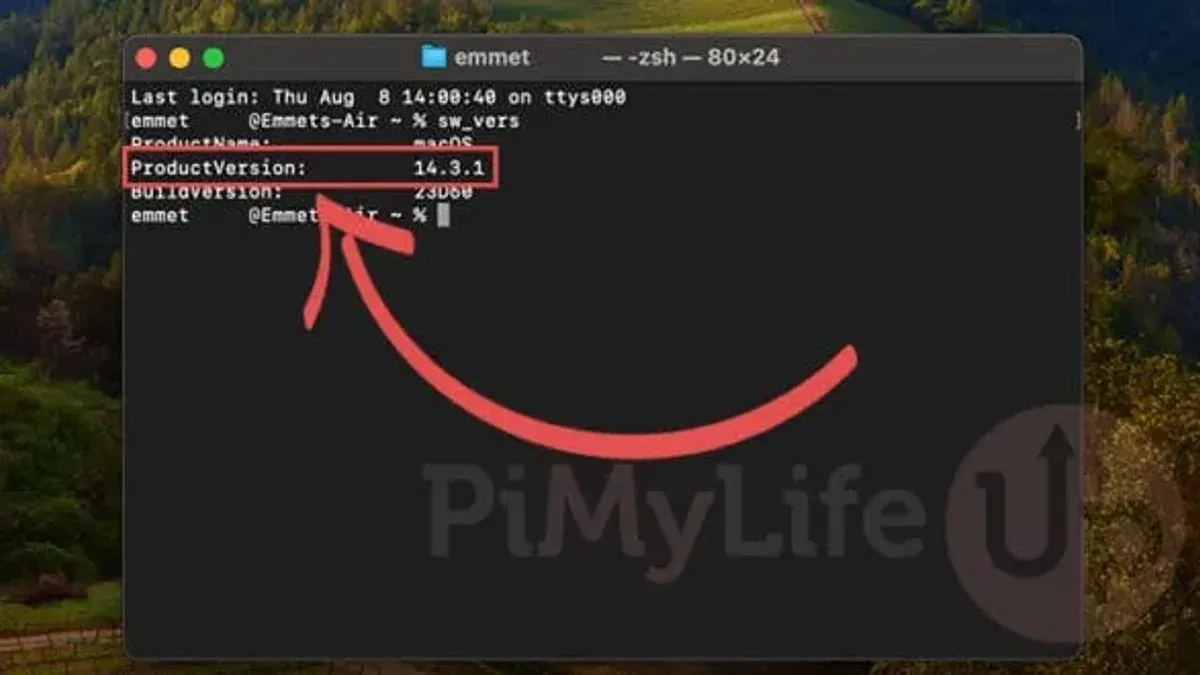
- Open Terminal on your Mac.
- Type sw_vers and press Enter.
You should see output similar to:
| ProductName | macOS |
|---|---|
| ProductVersion | 13.4.1 |
| BuildVersion | 22F82 |
This shows the macOS version name, version number, and build identifier.
The sw_vers command reveals the macOS version, which differs from the kernel version obtained via uname -r. The kernel version refers specifically to the XNU kernel release, while the macOS version encapsulates the entire operating system, including user interface, system libraries, and bundled software.
Some applications and troubleshooting scenarios depend on the macOS version rather than just the kernel version. For example, certain software may require a minimum macOS version for compatibility, regardless of kernel specifics.
By correlating the kernel version from uname -r and the macOS version from sw_vers, you gain a complete picture of your system's environment. This combined information helps you diagnose issues accurately and verify system requirements effectively.
- How to Check CPU Information Using sysctl in Mac Terminal
- How to Check Mac Temperature Using Powermetrics in Terminal
- How to Check Uptime Using Mac Terminal: A Clear Step-by-Step Guide
- How to Find Your Mac Serial Number Using Terminal
Frequently asked questions
How to check kernel version in linux?
To check the kernel version in Linux, open a terminal and type uname -r. This command displays the kernel release number, providing the essential version information. For more detailed kernel info, uname -a shows the full system details including kernel version, hostname, and architecture.
How to check kernel version?
You can check the kernel version by using system commands in the terminal or command prompt, depending on your operating system. On Mac and Linux, uname -r is commonly used, while Windows users typically check kernel details via system info tools or PowerShell commands.
Linux command to see kernel version?
The most straightforward Linux command to see the kernel version is uname -r. It outputs just the kernel release, making it quick for verifying your current kernel. For comprehensive details, uname -a provides additional context.
Command to check kernel version in windows?
Windows does not use the term 'kernel version' in the same way, but you can check system version details by running winver from Run or Command Prompt. For more technical kernel information, use PowerShell with Get-CimInstance Win32_OperatingSystem | Select-Object Version, BuildNumber which gives version and build details relevant to the Windows kernel.
What this advice does not cover and who should look elsewhere
This article does not cover how to update or patch the kernel on macOS, as these processes are managed by Apple and are not user-configurable like Linux kernels. If you need to modify or build custom kernels, especially on Linux systems, you should consult specialized resources focused on kernel development.
For most users and system administrators, verifying the kernel version via Terminal is sufficient for troubleshooting compatibility issues or gaining system insights. However, kernel updates and security patches on macOS are handled through system software updates, so manual intervention is neither required nor supported.
The most useful next step is to familiarize yourself with the macOS system software update process via System Preferences > Software Update. Ensuring your macOS version is current will keep your kernel and related components up to date, maintaining system stability and security alongside the kernel version you verified.