
How to Check CPU Information Using sysctl in Mac Terminal
Discover how to use sysctl in Mac Terminal to access detailed CPU information for better troubleshooting and performance assessment.
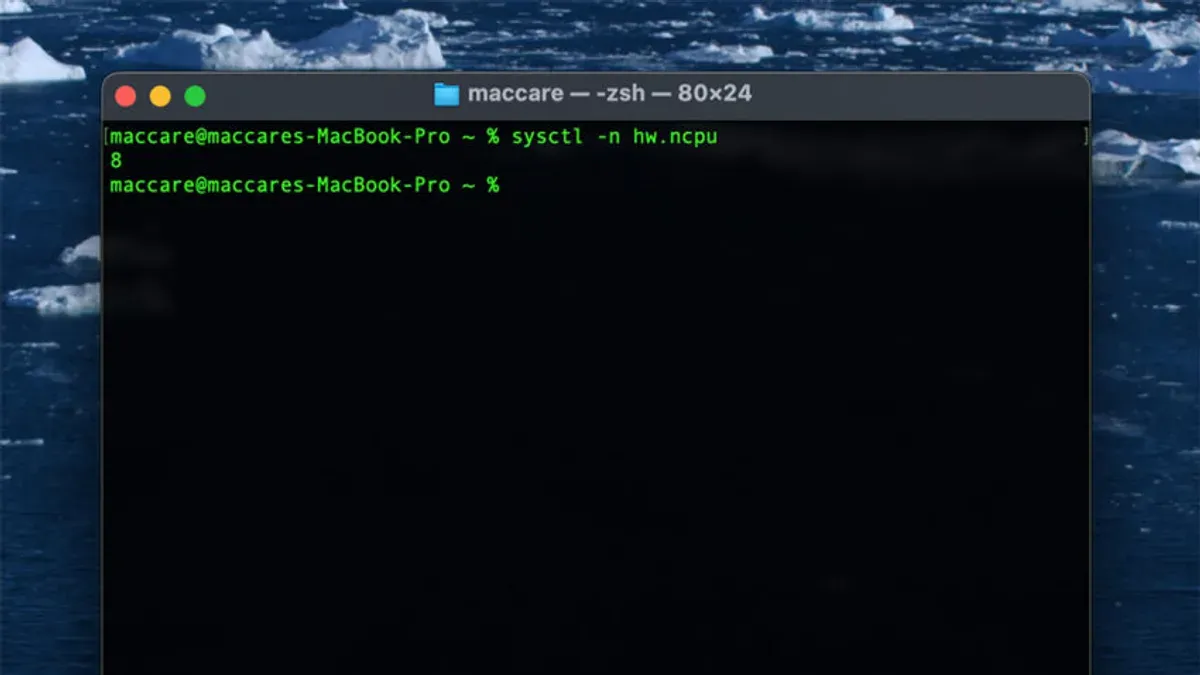
You want to understand your Mac’s CPU capabilities beyond the basic system overview, but the built-in About This Mac window doesn’t provide all the details you need. Using Terminal commands can reveal more nuanced CPU information that helps with troubleshooting, compatibility checks, or assessing performance potential.
This article guides you through how to check CPU info with sysctl in Mac Terminal. You will learn clear, practical steps to run key sysctl queries, interpret the output accurately, and identify which details matter for your specific needs. The approach balances beginner accessibility with intermediate insights, avoiding generic command dumps to give you meaningful, actionable information.
Key takeaways
- Open Terminal and use the sysctl -a | grep cpu command to start exploring CPU info.
- Key sysctl keys include machdep.cpu.brand_string, machdep.cpu.core_count, and machdep.cpu.features for detailed specifications.
- Interpreting sysctl output helps assess CPU generation, core count, and supported instruction sets for compatibility.
- Common issues include permission errors or missing keys; running Terminal with appropriate privileges can help.
- For some advanced details, consider system_profiler or third-party tools as complements to sysctl.
Before you start: what you need to know and prepare
To use sysctl commands effectively, you should have a basic familiarity with the Mac Terminal and how to enter commands. The Terminal app is located in /Applications/Utilities/Terminal.app, and opening it presents you with a command prompt, such as your-mac:~ username$, indicating readiness to receive commands.
Sysctl is a BSD system utility built into macOS, requiring no additional software installation. It provides access to kernel state variables, including detailed CPU information. Because it is a native tool, you must run it within the standard macOS Terminal environment to ensure full compatibility and correct permission handling.
For most CPU queries, regular user permissions suffice, but some commands may require administrator privileges. If so, prefixing the command with sudo will prompt you for your password and elevate permissions temporarily.
- Open the Terminal app from /Applications/Utilities/. You should see a prompt like
your-mac:~ username$. - Test your basic command entry by typing
sysctl -a | grep cpuand pressing Enter. This should return a list of CPU-related system variables. - If the output is visible without error, you are ready to proceed. If permission is denied, try using
sudo sysctl -a | grep cpuand enter your password when prompted.
Opening Terminal and running your first sysctl CPU query
- Open Terminal by navigating to Finder > Applications > Utilities > Terminal, or by pressing Command + Space, typing "Terminal," and hitting Enter. A new Terminal window should appear, ready for commands.
- Type the command sysctl -n machdep.cpu.brand_string and press Enter. This instructs your Mac to display the CPU brand string, which identifies the exact processor model.
- Observe the output, which should be a clear text string naming your CPU. On an Intel-based Mac, the output might read: Intel(R) Core(TM) i7-9750H CPU @ 2.60GHz. On an Apple Silicon Mac, it could show: Apple M1 Pro or Apple M2, depending on your chip.
- If you see the CPU name as output without errors, the command has run successfully. If you receive an error or no output, check your command syntax and ensure you have sufficient permissions.
This simple command gives you a quick and reliable way to confirm your Mac's processor model, essential for troubleshooting or verifying system capabilities.
Exploring detailed CPU specs with sysctl: multiple keys to know
- Open Terminal and run sysctl machdep.cpu. This lists detailed CPU information on Intel Macs, including core count (core_count), thread count (thread_count), CPU features (features), and frequency details (brand_freq). You should see multiple lines describing these attributes.
- On Apple Silicon Macs (M1, M2), run sysctl -a | grep cpu. The output differs: fewer traditional Intel-style keys appear, and some fields like machdep.cpu.brand_string may be missing or replaced by Apple-specific entries. Expect keys related to efficiency and performance cores but not classic hyper-threading details.
- Compare the two outputs: Intel Macs provide explicit counts for cores and threads, while Apple Silicon focuses on performance clusters without thread count keys. For example, Intel shows core_count: 4, thread_count: 8; Apple Silicon may show cpu_variant or cpu_family without direct thread counts.
- Note that some sysctl keys vary or might be absent depending on your Mac model and architecture. This reflects hardware differences and OS support for sysctl reporting.
Using these commands helps you understand your Mac’s CPU makeup beyond the brand and model, essential for performance tuning or troubleshooting compatibility.
Using sysctl for performance and compatibility insights
Knowing your Mac's CPU details with sysctl can guide software compatibility decisions and help diagnose performance issues. Certain applications require specific CPU features like virtualization support or hyper-threading, which you can confirm using sysctl.
- Open Terminal and enter sysctl machdep.cpu.features. The output lists CPU features; look for VMX indicating Intel virtualization extensions (VT-x) support.
- Run sysctl machdep.cpu.thread_count to see the number of hardware threads. If the thread count is double the core count (machdep.cpu.core_count), hyper-threading is active.
- Check clock speed with sysctl hw.cpufrequency to gauge baseline CPU speed, aiding performance expectations.
- If your Mac is slow or experiencing bugs, gather these CPU details to provide accurate data when troubleshooting or reporting issues.
For example, if an app needs virtualization, confirming the presence of VMX in machdep.cpu.features ensures compatibility before installation. Similarly, knowing if hyper-threading is enabled helps assess multithreaded performance potential.
Troubleshooting common sysctl command issues
If sysctl returns errors like unknown oid or produces no output, this usually means the key you queried is invalid or unsupported on your Mac's hardware or macOS version. Double-check the spelling and case of the sysctl key, as they are case-sensitive.
Permissions can also block output. If you encounter Operation not permitted, try running the command with sudo. For example, enter sudo sysctl -a to list all keys with elevated rights, then authenticate with your password.
Differences in macOS versions and architectures (Intel vs Apple Silicon) may cause some sysctl keys to be missing or behave differently. When a key is unavailable, consult Apple's developer documentation or use alternative commands.
If sysctl does not provide the needed info or is unavailable, you can use system_profiler SPHardwareDataType for summary CPU details, or third-party tools like iStat Menus for real-time monitoring. These tools complement sysctl when troubleshooting or verifying CPU information.
- Run a sysctl command, for example
sysctl machdep.cpu.features. If you see unknown oid, verify the key spelling and try again. - If you get Operation not permitted, rerun the command as
sudo sysctl machdep.cpu.features. You should now see the output without errors. - If output is empty or missing, confirm your macOS version and CPU type support that key; consult Apple's resources for updated key lists.
- Use
system_profiler SPHardwareDataTypeas an alternative to check CPU model and speed if sysctl keys are insufficient. - Consider third-party system monitoring apps for detailed or continuous CPU info beyond sysctl's scope.
When sysctl isn’t enough: limitations and alternatives
While sysctl provides valuable static CPU information, it does not offer real-time metrics such as CPU load, temperature, or power consumption. Additionally, some hardware-specific details, like precise thermal sensor readings or GPU data, are either unavailable or require elevated permissions and specialized utilities.
For more comprehensive system profiling, system_profiler offers detailed hardware reports including CPU architecture, cores, and cache sizes, accessible via system_profiler SPHardwareDataType. Meanwhile, powermetrics provides real-time power and thermal statistics but requires sudo access and can be more complex to interpret.
Third-party graphical applications, such as iStat Menus or Intel Power Gadget, present user-friendly interfaces for monitoring CPU usage, temperature, and frequency live. These tools are ideal if you prefer visual feedback instead of Terminal commands.
| Feature | sysctl | system_profiler |
|---|---|---|
| CPU model and brand | Yes | Yes |
| Cache sizes | Partial | Detailed |
| Real-time CPU load | No | No |
| Thermal info | No | No |
| Power metrics | No | No |
Use graphical tools when monitoring live performance or thermal behavior is essential. Reserve Terminal commands for quick hardware queries or scripting needs where a GUI is not practical.
- How to Check Mac Temperature Using Powermetrics in Terminal
- How to Check Uptime Using Mac Terminal: A Clear Step-by-Step Guide
- How to Check Battery Cycle Count in Mac Terminal Easily
- How to Generate an SSH Key in Mac Terminal: A Step-by-Step Guide
Frequently asked questions
What is sysctl and why use it to check CPU info on a Mac?
Sysctl is a command-line utility that retrieves kernel state and hardware information on Unix-based systems, including macOS. Using sysctl lets you access detailed CPU data directly from the system kernel without installing third-party tools. This method is lightweight, built into macOS, and provides precise information useful for performance assessment and troubleshooting.
How can I find out if my Mac’s CPU supports hyper-threading using sysctl?
To check hyper-threading support, run sysctl -a | grep hw.logicalcpu and compare it with hw.physicalcpu. If the logical CPU count is higher than the physical CPU count, hyper-threading is enabled. For example, a quad-core Mac showing 8 logical CPUs indicates hyper-threading is active.
Why do some sysctl CPU keys not return any data on my Mac?
Not all sysctl keys are supported on every Mac model or macOS version, causing some keys to return no data. This absence can happen because Apple limits access to certain hardware details for security or because the CPU or system architecture doesn’t expose that information. Always verify the keys relevant to your specific Mac hardware.
Can I use sysctl to check CPU temperature or load?
Sysctl does not provide CPU temperature readings or real-time load statistics. For temperature, you need third-party apps like iStat Menus or Intel Power Gadget. To monitor CPU load, use built-in commands like top or htop instead of sysctl.
What this advice does not cover and who should look elsewhere
This article focuses on retrieving static CPU information using sysctl and does not cover dynamic performance metrics, real-time hardware monitoring, or thermal and power data. If you need ongoing performance tracking, temperature readings, or detailed hardware diagnostics, consider using dedicated tools like Activity Monitor, Intel Power Gadget, or third-party monitoring apps designed for macOS.
For users requiring deeper insights into CPU behavior under load or detailed troubleshooting beyond basic sysctl queries, system profiling utilities or hardware diagnostics provided by Apple or third-party vendors may be more appropriate.
To further explore your CPU’s capabilities and ensure compatibility with software or hardware upgrades, the most practical next step is to combine your sysctl findings with Apple’s official system information app (accessible via Apple menu > About This Mac > System Report) for a comprehensive hardware overview.



