How to Check macOS Version Using Mac Terminal: Step-by-Step Guide
Discover how to quickly check your macOS version using Terminal commands like sw_vers, system_profiler, and uname with this step-by-step guide.
You need to verify your macOS version to troubleshoot an app or confirm compatibility before installing new software. Instead of navigating through system menus, you can quickly find this information using Terminal commands.
This article explains how to check macOS version in Mac Terminal with clear, step-by-step instructions. It covers multiple commands like sw_vers, system_profiler, and uname, plus how to read system files and identify your Mac model version. You will also learn how to interpret version numbers and build codes to understand what the output really means beyond the basic version string.
Key takeaways
- Use sw_vers for a quick and straightforward macOS version check.
- system_profiler SPSoftwareDataType provides detailed system info including version and build.
- uname -r
- System files like /System/Library/CoreServices/SystemVersion.plist can be read for version details.
- Knowing how to decode build numbers helps confirm exact macOS updates or point releases.
Before you start: what you need to check your macOS version in Terminal
To check your macOS version using Terminal, you must have access to a Mac with macOS installed. Basic familiarity with opening and navigating the Terminal app is helpful but not mandatory, as the steps are straightforward. No additional software installation is necessary because macOS includes all required commands by default.
The Terminal app can be found in the Utilities folder inside your Applications directory or quickly opened using Spotlight Search by pressing Command + Spacebar and typing "Terminal". When launched, you will see a prompt ready to accept commands, typically displaying your computer name followed by a dollar sign (e.g., MacBook-Pro:~ user$).
Administrator privileges are not required to run the commands covered in this guide, so you can perform version checks without entering an administrator password. The commands you will use—such as sw_vers, system_profiler, and uname—are standard and available on all macOS installations starting from earlier versions to the present.
- Open Finder, navigate to Applications > Utilities, and double-click Terminal. You should see a window with a command prompt.
- Alternatively, press Command + Spacebar to open Spotlight, type "Terminal," and press Enter. The Terminal window appears.
- At the prompt, you are ready to enter commands to check your macOS version.
With these prerequisites met, you can confidently proceed to use Terminal commands to retrieve detailed macOS version information.
How to check macOS version in Terminal using the sw_vers command
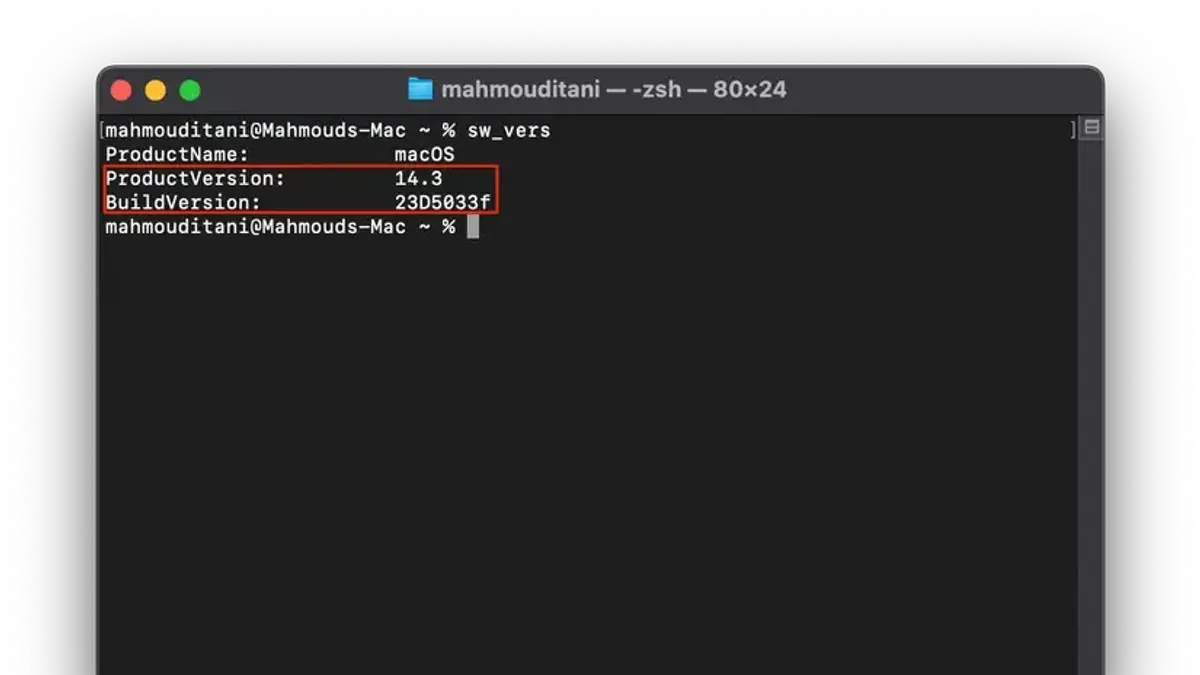
The sw_vers command is the primary and simplest way to check your macOS version directly in Terminal. It provides clear and standard output that includes the product name, version number, and build details.
- Open Terminal from your Applications > Utilities folder or by searching via Spotlight.
- Type
sw_versand press Enter. - You should see three lines of output: ProductName, ProductVersion, and BuildVersion.
For example, the output might look like this:
| Field | Example Output | Explanation |
|---|---|---|
| ProductName | macOS | The official name of the operating system. |
| ProductVersion | 13.4 | The user-friendly macOS version number. |
| BuildVersion | 22F66 | The specific build identifier, useful for pinpointing exact updates. |
If you want to retrieve just the version number or the build string, you can use these commands:
sw_vers -productVersionreturns only the version number, such as13.4.sw_vers -buildVersionreturns only the build identifier, like22F66.
The advantages of using sw_vers include its straightforward, consistent format and its presence on all macOS systems, making it reliable for scripts and troubleshooting. It provides more precise information than system preferences and is faster than graphical methods.
Here is a side-by-side comparison:
| Command | Output |
|---|---|
sw_vers | ProductName: macOS ProductVersion: 13.4 BuildVersion: 22F66 |
sw_vers -productVersion | 13.4 |
sw_vers -buildVersion | 22F66 |
How to find macOS version using the system_profiler command
The system_profiler command offers a more detailed view of your Mac's software and hardware configuration, including the macOS version. Running it with the SPSoftwareDataType argument returns comprehensive software details.
- Open Terminal on your Mac.
- Type
system_profiler SPSoftwareDataTypeand press Enter. This will output detailed software information including the macOS version, kernel version, and system boot time. - Scroll through the verbose output to find the line labeled System Version. This line displays the macOS version with additional context, such as the build number and release name.
- To filter the output and see only the macOS version line, run
system_profiler SPSoftwareDataType | grep 'System Version'. This returns a concise line like: System Version: macOS 13.0 (22A380).
Compared to sw_vers, system_profiler provides a more verbose and detailed report that is useful for in-depth system audits or troubleshooting involving multiple software attributes. However, its extensive output can be overwhelming if you only need the version number.
Sample snippet from system_profiler SPSoftwareDataType output:
Software:
System Software Overview:
System Version: macOS 13.0 (22A380)
Kernel Version: Darwin 22.0.0
Time since boot: 3:45
How to check macOS version with the uname command and what it reveals
The uname command in Terminal provides information about the system kernel rather than the full macOS version. Specifically, uname -r returns the kernel release number, which can give insight into the underlying Unix version that macOS is running.
- Open Terminal on your Mac.
- Type
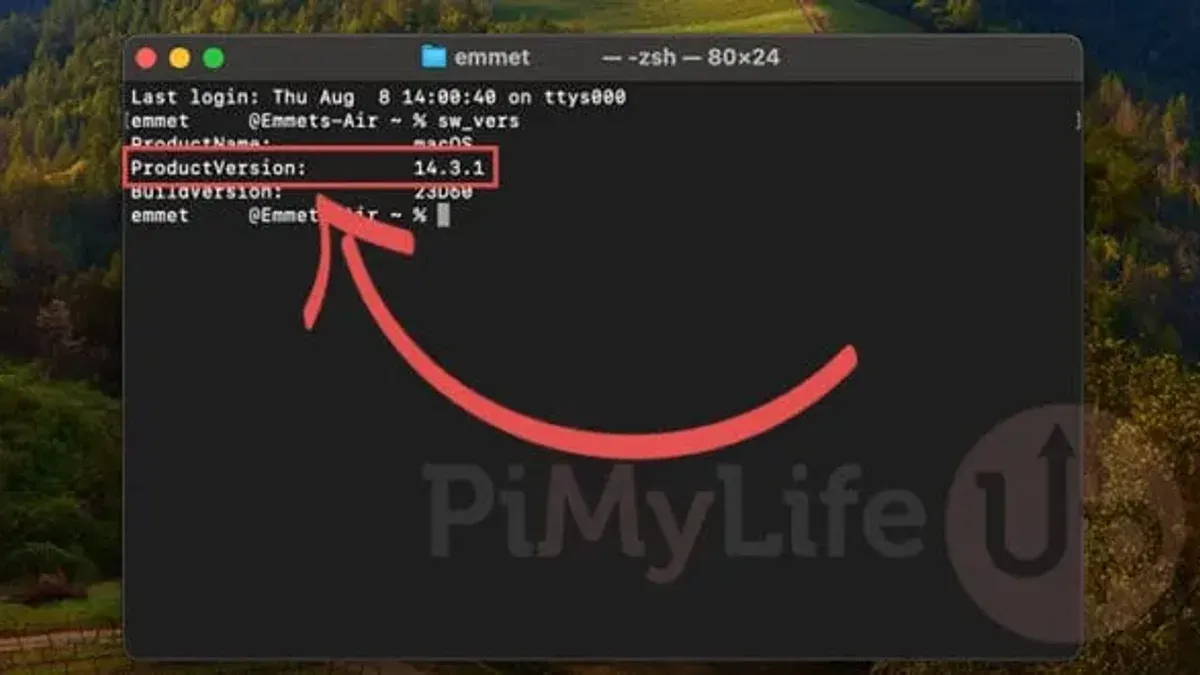
uname -rand press Enter. - Observe the output, which will be a version number such as
20.6.0or22.3.0.
This kernel release number corresponds to the Darwin kernel version macOS uses. For example, macOS 11 Big Sur uses Darwin 20.x, while macOS 12 Monterey uses Darwin 21.x. However, the kernel version alone does not specify the exact macOS version since multiple macOS updates can share the same kernel release.
Because uname only shows kernel details, it is insufficient by itself to identify the precise macOS version. For a fuller understanding, you should combine uname with commands like sw_vers or system_profiler that report product version and build information.
In summary, uname -r is useful for checking kernel-level details, which can help with troubleshooting or compatibility checks involving the Unix subsystem, but it does not replace version commands that reveal the full macOS version.
How to check macOS version by reading system files in Terminal
You can directly inspect system files to find macOS version details. The primary file for this is /System/Library/CoreServices/SystemVersion.plist, which stores the version information in a structured property list format.
- Open Terminal.
- Enter the command
defaults read /System/Library/CoreServices/SystemVersion ProductVersionand press Enter. - The output will display the macOS version number, such as 12.6.3. This confirms the system's current version.
This method reads the ProductVersion key within the plist file, which is a simple text value representing the version. You can also query ProductBuildVersion to get the build number by running defaults read /System/Library/CoreServices/SystemVersion ProductBuildVersion.
Reading plist files directly has the advantage of accessing official system data without relying on wrapper commands like sw_vers. However, it requires correct file path knowledge and depends on the file's integrity. Modifications or corruption of system files could lead to inaccurate results.
Compared to sw_vers, which also reads this plist internally but formats output for user convenience, direct plist reading offers more flexibility for scripting but less readability and error handling.
How to check iMac or Mac model version via Terminal
Knowing your Mac’s hardware model complements macOS version checks by helping you verify compatibility and troubleshoot issues related to your specific machine. The model identifier and model name provide insights into the generation and capabilities of your Mac, which can affect supported macOS versions.
- Open Terminal.
- Type system_profiler SPHardwareDataType and press Enter.
- Use this information to cross-reference your Mac’s model with official Apple support pages or compatibility lists to determine which macOS versions it supports.
Look for the Model Name and Model Identifier in the output. For example:
Model Name: iMac
Model Identifier: iMac19,1
The Model Identifier (like iMac19,1) encodes the device family and generation, where the number indicates the release cycle. This helps clarify if your Mac can run newer or older macOS releases.
For a more advanced alternative, you can use the ioreg command, which provides detailed hardware properties. For example, running ioreg -l | grep "model" returns a hexadecimal-encoded model identifier that you can decode to confirm the hardware version.
Understanding your Mac’s model version alongside its macOS version ensures accurate troubleshooting and compatibility verification.
Troubleshooting common issues when checking macOS version in Terminal
Sometimes Terminal commands for checking macOS versions may return errors, no output, or inconsistent information. One common error is "command not found", which usually means a typo or an unexpected shell environment. For example, if sw_vers returns "command not found," verify you typed it correctly and ensure your $PATH includes /usr/bin.
Permission issues rarely affect version commands but can cause unexpected behavior. If you see "Permission denied" when reading system files like /System/Library/CoreServices/SystemVersion.plist, try prefixing the command with sudo. For example, sudo defaults read /System/Library/CoreServices/SystemVersion should succeed.
If different commands show inconsistent version info—for instance, sw_vers showing one version and uname -r a different kernel version—remember these reflect different system layers. Cross-check with system_profiler SPSoftwareDataType to confirm.
When commands fail or output is unclear, booting into safe mode or the recovery environment can help. In safe mode, minimal system components load, reducing interference. To enter safe mode, restart your Mac and hold the Shift key until the login window appears. Then retry the version commands.
- Open Terminal and enter
sw_vers. You should see product name, version, and build number listed. - If you get "command not found," type
echo $PATHto ensure/usr/binis present. If not, reset your shell environment or use the full path/usr/bin/sw_vers. - If permission errors occur when reading system files, prepend commands with
sudo. For example,sudo defaults read /System/Library/CoreServices/SystemVersionshould succeed. - If version outputs conflict, run
system_profiler SPSoftwareDataTypeto get comprehensive system version info. - If commands still fail, restart your Mac in safe mode by holding Shift at boot. Then retry the commands to isolate software conflicts.
How to interpret macOS version numbers and build codes from Terminal output
macOS version numbers follow a major.minor.patch format, such as 13.4.1. The major number indicates the primary macOS release, the minor number reflects significant updates or feature additions, and the patch number denotes smaller fixes or security patches.
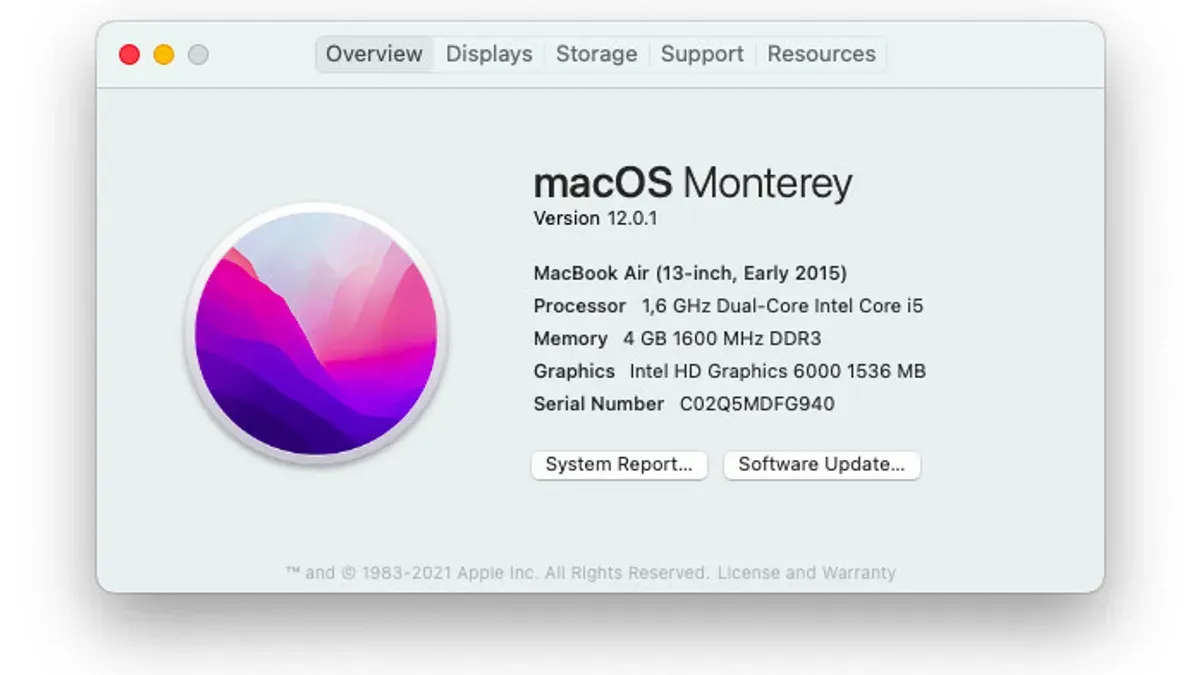
Build numbers, like 22F82, provide a more precise identifier for the exact macOS iteration installed. Apple uses these build codes internally to track updates and variations, with each build corresponding to a particular set of features and fixes. For example, build 22F82 belongs to macOS Ventura 13.4.1.
To check if your macOS version is the latest for your Mac, compare the version and build number you obtain in Terminal with the official Apple release notes or support pages. This helps confirm whether you have the newest security patches and features available for your hardware.
However, relying solely on version numbers has limitations. Some security updates may be delivered separately or require additional patches beyond the version increment. Also, feature availability can depend on your Mac model, so version number alone does not guarantee full feature support.
- Run
sw_versin Terminal. You should see output like:
ProductName: macOS
ProductVersion: 13.4.1
BuildVersion: 22F82 - Note the ProductVersion and BuildVersion values carefully; these represent your installed macOS release.
- Visit the Apple support website's macOS release notes section and locate your version number. Verify if the build number matches or is superseded by a newer one.
- If your build number is older, consider updating your macOS to access the latest security patches and features.
- How to Check Uptime Using Mac Terminal: A Clear Step-by-Step Guide
- How to Restart Your Mac from the Command Line in Terminal
- How to Generate an SSH Key in Mac Terminal: A Step-by-Step Guide
- How to Clear System Logs in Mac Terminal: A Complete Step-by-Step Guide
Frequently asked questions
How to determine mac os version?
You can determine your macOS version by opening Terminal and typing sw_vers. This command displays the ProductName, ProductVersion, and BuildVersion of your system, giving you a precise version number. Alternatively, you can use system_profiler SPSoftwareDataType for more detailed software information.
How to find mac version on mac?
To find your Mac version, click the Apple menu and select About This Mac. This window shows the macOS version prominently. For Terminal users, the sw_vers command also provides this information quickly and without needing to navigate menus.
How to know mac os version?
You can know your macOS version by using the Terminal command sw_vers which outputs the system name and version. If you prefer graphical methods, accessing About This Mac from the Apple menu displays the current macOS version along with hardware details.
How to find out mac os version?
Find out your macOS version by running sw_vers in the Terminal for a straightforward output of version details. For a deeper dive, system_profiler SPSoftwareDataType provides extended system information that includes the OS version and build number.
How to check mac os version?
To check your macOS version, open Terminal and enter the command sw_vers. This method is reliable and quick, especially when you need to verify the OS version for troubleshooting or compatibility. You can also check the version graphically through the Apple menu’s About This Mac option.
What this advice does not cover and when to seek alternatives
This article does not cover checking your macOS version through graphical user interface methods like About This Mac or third-party applications. If you are unfamiliar or uncomfortable using the Terminal, you may prefer those GUI options to avoid accidental command errors. Additionally, version commands such as sw_vers or system_profiler may not accurately reflect beta or developer preview versions of macOS, which often require developer accounts or specialized tools for precise identification.
For users needing detailed information about beta releases or those managing multiple Macs with varying configurations, using Apple’s official developer resources or dedicated system management software may be more appropriate.
As your next step, try running the sw_vers command in Terminal exactly as shown earlier. It provides a clear and concise macOS version output that works reliably for most troubleshooting and compatibility checks. This simple command often answers the vital question of your system’s version without complexity.