How to Copy Output to Clipboard with pbcopy in Mac Terminal
Discover how to quickly copy command output to your clipboard using pbcopy in Mac Terminal for faster and automated text handling.
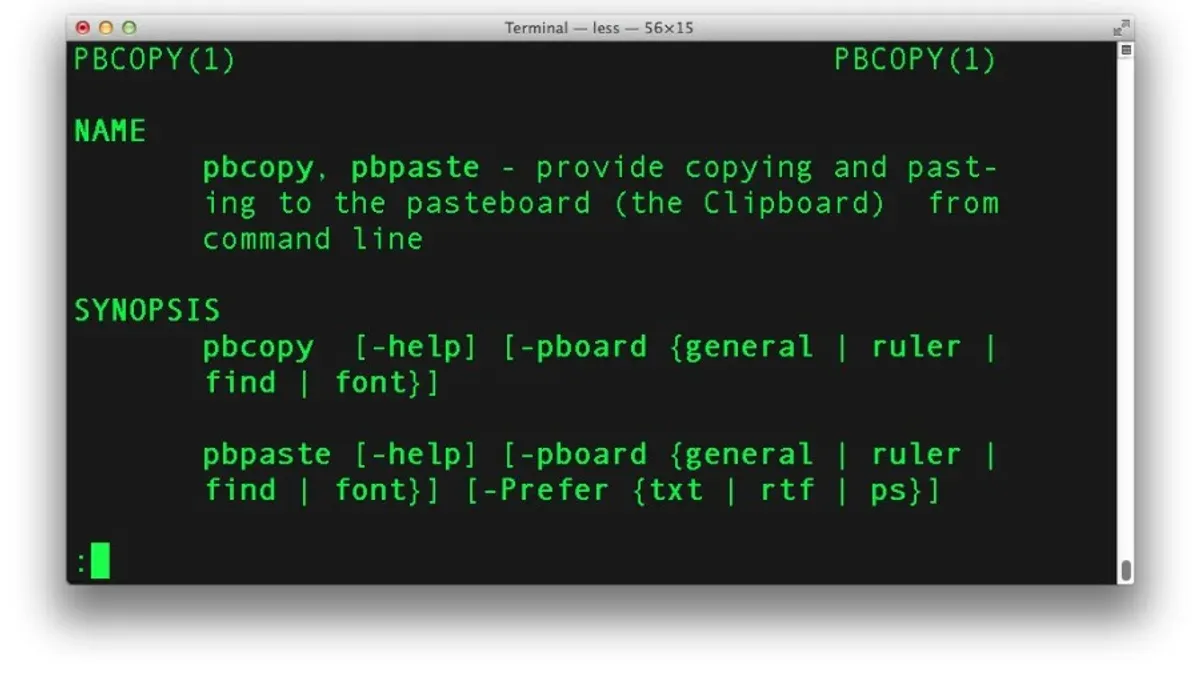
You're working in the Mac Terminal and need to quickly copy the output of a command to your clipboard for pasting elsewhere. Instead of manually selecting and copying text, you can streamline this task using the pbcopy command.
This article explains how to copy output to clipboard with pbcopy in Mac Terminal, covering practical steps for piping output, handling multiline content, embedding pbcopy in scripts, and troubleshooting common issues. Whether you want to automate copying or just speed up occasional tasks, you'll find useful tips to make pbcopy work efficiently in your workflow.
Key takeaways
- Use the pipe operator (|) to send command output directly to pbcopy.
- Copy entire files or multiline output by redirecting content into pbcopy.
- In scripts, pbcopy enables automated clipboard updates without manual intervention.
- Common pitfalls include empty clipboard results due to command errors or incorrect syntax.
- pbcopy is limited to plain text; consider alternatives for rich text or images.
Before you start: what you need to use pbcopy
pbcopy is a command-line utility included by default on macOS, designed to copy data from the Terminal directly to the system clipboard. To ensure pbcopy is available on your Mac, you can run a simple check.
- Open the Terminal application from Applications > Utilities or by searching Spotlight.
- Type which pbcopy and press Enter.
- If the output shows a file path like /usr/bin/pbcopy, pbcopy is available and ready to use.
Using pbcopy requires basic familiarity with the Terminal and command-line concepts, especially understanding that it operates by receiving input through standard input (stdin). This means you typically pipe the output of other commands or feed text directly into pbcopy to copy it to the clipboard.
Before proceeding, ensure you are comfortable running commands in Terminal and understand basic piping syntax to make the most of pbcopy’s functionality.
Basic usage of pbcopy to copy command output
You can quickly copy the output of simple commands to your clipboard by piping them into pbcopy. This is done by placing | pbcopy after the command whose output you want to copy.
- Open Terminal on your Mac.
- Type
echo 'Hello World' | pbcopyand press Enter. This command copies the text Hello World to your clipboard. - To verify, type
pbpasteand press Enter. You should see Hello World printed in the Terminal, confirming the clipboard content.
This method works similarly with other commands like cat filename to copy file contents or ls to copy a directory listing. Simply append | pbcopy to the command to send its output directly to the clipboard.
Copying multiline and file contents with pbcopy
You can use pbcopy to copy larger, multiline outputs or entire files to your clipboard efficiently. To copy the contents of a file, use cat filename | pbcopy. This method works well for scripts, configuration files, or any text-based documents.

When dealing with multiline command output such as logs or JSON data, piping the output directly into pbcopy preserves all formatting and whitespace. This is important for copying code snippets or structured data without losing indentation or line breaks.
- Open Terminal and navigate to the directory containing your file.
- Run cat script.sh | pbcopy to copy a multiline shell script. No error indicates success.
- Paste the clipboard contents into a text editor; the entire script should appear correctly formatted with all lines intact.
- For command output, type some_command | pbcopy. For example, cat config.json | pbcopy copies a JSON file while preserving special characters and whitespace.
- Paste the copied output into the desired location to confirm proper formatting and completeness.
Using these methods, pbcopy handles special characters and spaces seamlessly, ensuring that multiline or complex data is transferred accurately to your clipboard.
Using pbcopy in scripts and automation
You can embed pbcopy directly into your bash or zsh scripts to automate copying output without manual intervention. This is useful for saving command results like system info, search results, or version control data directly to your clipboard.
For example, to copy the latest git commit hash, you can use:
- Open your script file in a text editor.
- Add the line
git log -1 --format=%H | pbcopy. This command fetches the most recent commit hash and pipes it topbcopy. - Save and run your script.
- Check your clipboard by pasting the commit hash where needed.
Using command substitution, you can assign dynamic content to variables and pipe them to pbcopy. For instance, echo "$(uname -a)" | pbcopy copies detailed system information.
Best practices include ensuring your script only runs pbcopy when needed to avoid overwriting your clipboard unintentionally. Use conditional checks or user prompts when appropriate to preserve clipboard content.
Troubleshooting common pbcopy issues
If pbcopy doesn’t update the clipboard or the clipboard is empty after use, start by ensuring your Terminal has the necessary permissions. On macOS, go to System Settings > Privacy & Security > Accessibility and confirm your Terminal app is allowed. Also check Full Disk Access and Input Monitoring settings if available.
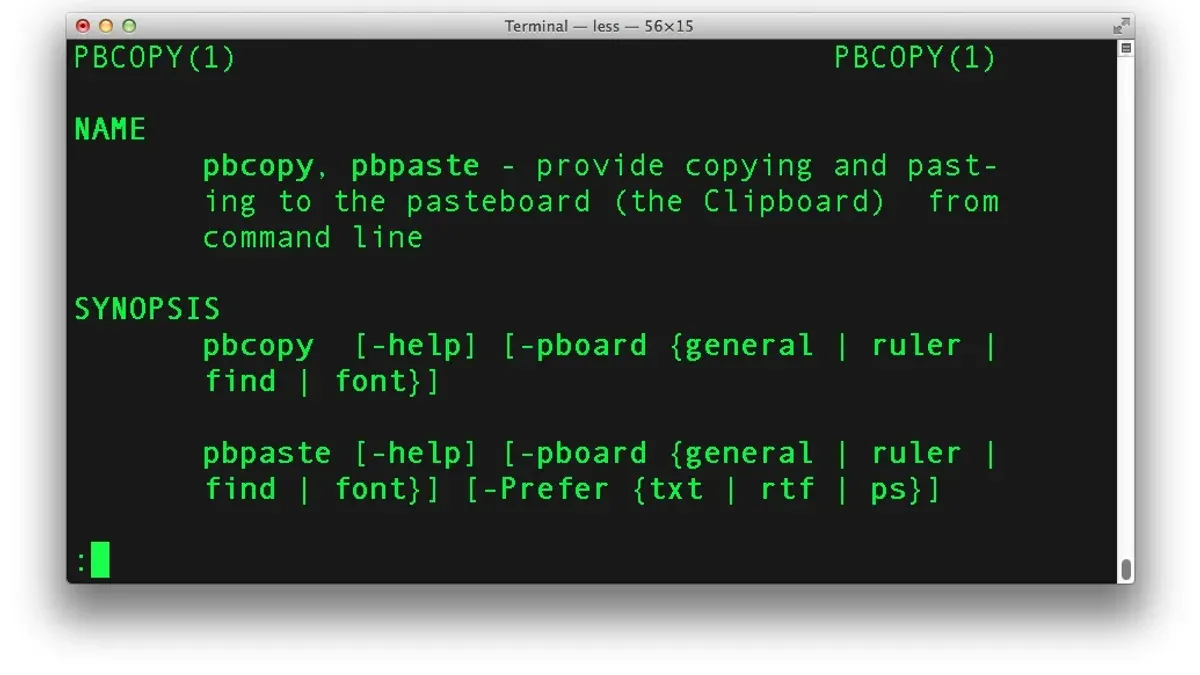
When copying non-text or binary data, pbcopy may not work as expected since it is designed for text input. For binary files, consider encoding them (e.g., with base64) before copying:
- Encode binary data: base64 file.bin | pbcopy. You should then see encoded text in the clipboard.
- Decode after pasting with pbpaste | base64 --decode > output.bin.
Common symptoms like an empty paste or unchanged clipboard often result from incorrect piping or missing permissions. If you encounter a "pbcopy: command not found" error, verify your PATH environment includes /usr/bin where pbcopy resides.
As an alternative, you can use the GUI copy commands or third-party clipboard managers if pbcopy repeatedly fails or your workflow requires richer data types.
Limitations and alternatives to pbcopy
While pbcopy is effective for copying plain text data in Terminal, it has several limitations that may affect your workflow. It does not support copying rich text formats like styled text or images, nor does it provide any feedback regarding the size of the clipboard content or confirmation of successful copy operations.
If you require more advanced clipboard management or need to handle non-text data, consider these alternatives:
| Feature | pbcopy | Alternatives (e.g., Clipy, Pastebot, AppleScript) |
|---|---|---|
| Supports rich text or images | No | Yes |
| Feedback on copy success or content size | No | Often yes |
| Cross-platform compatibility | No (macOS only) | Yes (varies by tool) |
| Clipboard history and management | No | Yes |
| Integration with GUI | Limited to Terminal | Full GUI support |
For advanced automation involving rich clipboard content, AppleScript can be used to manipulate the clipboard with more control, including images and styled text. GUI clipboard managers like Clipy or Pastebot provide history, quick access, and multi-format support, making them suitable if you frequently copy diverse content types or need to manage clipboard history.
- How to Open Apps from Terminal on Mac: A Step-by-Step Guide
- How to Download Files Using curl in Mac Terminal: A Step-by-Step Guide
- How to Search Text with Grep in Mac Terminal: A Step-by-Step Guide
- How to Use Aliases in zsh on Mac Terminal: A Practical Guide
Frequently asked questions
Can I use pbcopy to copy images or formatted text?
pbcopy is designed primarily for plain text and does not support copying images or rich text formats like HTML or RTF directly. To copy images or formatted text, you need to use other macOS tools or applications that handle those data types, such as Preview for images or a text editor that supports rich formats. Alternatively, scripting with AppleScript or Automator can help manage complex clipboard content.
How do I paste clipboard content from Terminal after using pbcopy?
To paste clipboard content in Terminal, you can use the Command + V keyboard shortcut if you are in a GUI Terminal window. Alternatively, use the pbpaste command to output clipboard contents back into the Terminal. For example, running pbpaste will print the clipboard text to the Terminal screen or can be redirected into a file.
What should I do if pbcopy doesn’t update the clipboard?
If pbcopy doesn’t update the clipboard, first ensure your Terminal session has access to the macOS pasteboard, especially when using remote or non-standard shells. Restarting the Terminal app or your Mac can resolve temporary issues. Also, check that the input to pbcopy is not empty and that you are not piping incompatible data types.
Can pbcopy be used in scripts to automate copying?
Yes, pbcopy is commonly used in shell scripts to automate copying output to the clipboard. You can pipe command outputs directly into pbcopy or redirect file contents to it. This makes it useful for workflows that require quick sharing or use of command-generated data without manual copying.
Limitations of pbcopy and when to use other tools
This article does not cover copying non-text data like images or rich formatted content, which pbcopy cannot handle. For users needing to transfer formatted documents, graphics, or complex data types, pbcopy is inadequate since it only processes plain text. Additionally, pbcopy does not support direct clipboard management for multiple clipboard buffers or advanced clipboard history features.
If your tasks require handling images, formatted text, or more sophisticated clipboard workflows, consider tools like osascript for AppleScript clipboard control or third-party clipboard managers such as Pastebot or Clipy. These options offer richer functionality beyond simple text copying.
To get started immediately with pbcopy, try copying the output of a simple command like ls -l by piping it directly: ls -l | pbcopy. This is often the most practical step to quickly integrate pbcopy into your Terminal workflow for fast, reliable text copying.