
How to Open.flv Files on Mac: Practical Step-by-Step Guide
Discover practical methods to open.flv files on your Mac using media players or conversion tools for seamless video playback.
You have a.flv video file on your Mac and want to watch it, but the default player won’t open it. This is a common issue since macOS does not natively support the Flash Video format.
This article explains how to open.flv file on Mac using practical, tested methods. You will learn about reliable media players like VLC and Elmedia Player, how to convert.flv files into more compatible formats, and how to troubleshoot common playback errors specific to Mac users.
Key takeaways
- VLC Media Player can play.flv files on Mac without additional codecs.
- Elmedia Player offers a user-friendly interface and supports.flv playback.
- Converting.flv files to MP4 or MOV improves compatibility with Mac apps.
- Using dedicated converters lets you adjust quality and file size.
- Troubleshooting includes reinstalling players or updating macOS for smoother playback.
Before you start: What you need to open.flv files on Mac
.flv files are Flash Video files originally designed for web streaming. macOS does not support.flv playback natively because Apple discontinued Flash support years ago, and the built-in QuickTime Player cannot open these files directly.
To watch.flv videos on your Mac, you must use third-party media players that support this format or convert the files to Mac-friendly formats like MP4 or MOV.
There are two main approaches:
- Use a media player app that can decode.flv files, such as VLC Media Player or Elmedia Player.
- Convert.flv files using video converter software to a format compatible with QuickTime and other Mac apps.
Hardware and macOS version can influence playback performance. Older Macs with limited processing power might struggle with high-resolution.flv videos. Also, ensure your macOS version meets the minimum requirements of the media player or converter you choose, as some apps require recent macOS versions for optimal functionality.
Compared to native macOS support—limited to formats like MP4, MOV, and M4V—third-party solutions provide broader codec compatibility and smoother playback of.flv files.
To prepare your Mac for.flv playback, follow these steps:
- Download and install a compatible media player such as VLC from videolan.org; after installation, open the app.
- Try opening your.flv file with the player; if it plays, you are ready to watch your video.
- If playback fails or you prefer QuickTime, download a video converter like HandBrake or any reputable converter app.
- Convert the.flv file to MP4 or MOV format using the converter; once done, open the converted file with QuickTime or any native player.
Following these steps ensures you have the necessary tools and setup to handle.flv files effectively on your Mac.
How to open.flv files on Mac using VLC Media Player
VLC Media Player is a free, open-source application widely used for playing a variety of video formats, including.flv files, on Mac. Its broad codec support makes it a reliable choice for.flv playback without requiring file conversion.
- Visit the official VLC website at videolan.org/vlc and download the Mac version. Once the download completes, open the.dmg file.
- Drag the VLC icon into your Applications folder as prompted. This installs the player on your Mac.
- Open VLC from the Applications folder. If a security warning appears, confirm that you want to open the app.
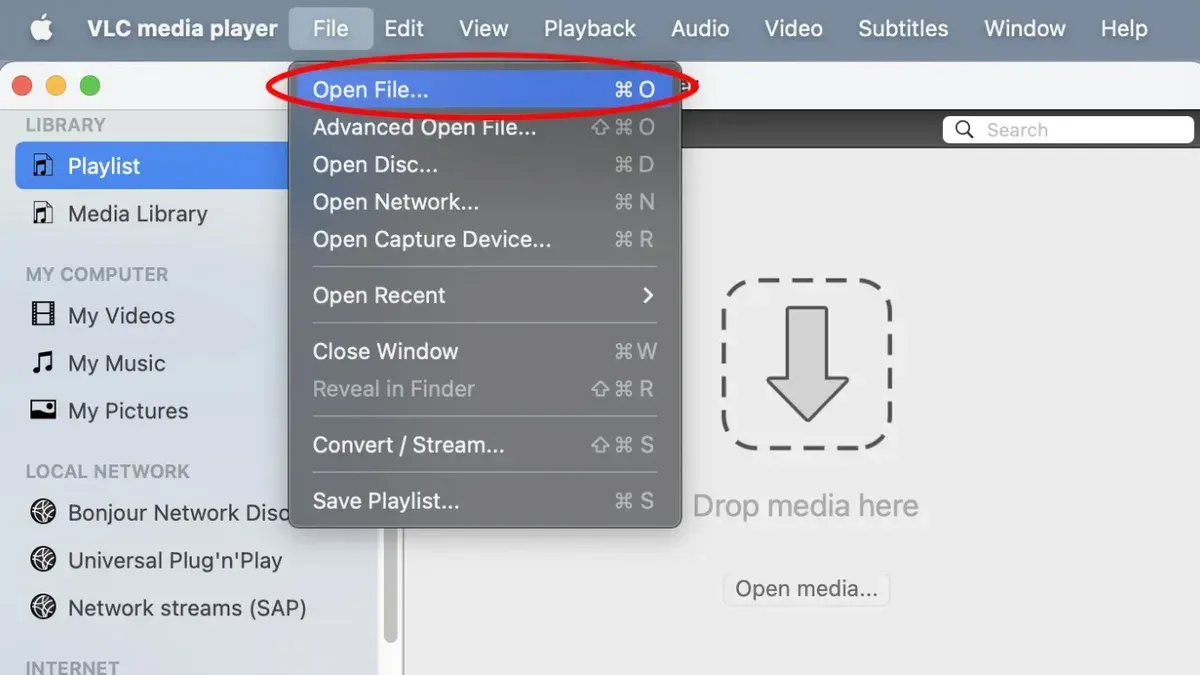
- Click on "File" in the menu bar, then select "Open File..." Navigate to your.flv file, select it, and click "Open." The video should start playing.
- Use the playback controls to play, pause, or adjust volume. VLC supports seeking within the file and full-screen mode.
VLC handles most.flv files effectively due to its comprehensive codec library, minimizing compatibility issues. It supports both video and audio streams typically found in.flv containers.
However, some.flv files with unusual codecs or corrupted data may not play smoothly. Performance varies depending on the Mac’s hardware and the file’s encoding specifics. VLC’s interface is functional but less intuitive for beginners compared to some paid players.
Overall, VLC offers a straightforward, cost-free option for opening and watching.flv videos on Mac, especially when you want to avoid converting files.
How to play.flv files on Mac with Elmedia Player
Elmedia Player offers a user-friendly alternative for playing.flv files on Mac, with a clean interface and several advanced features beyond basic playback. It supports a wide range of formats and integrates streaming and subtitle options that enhance the viewing experience.
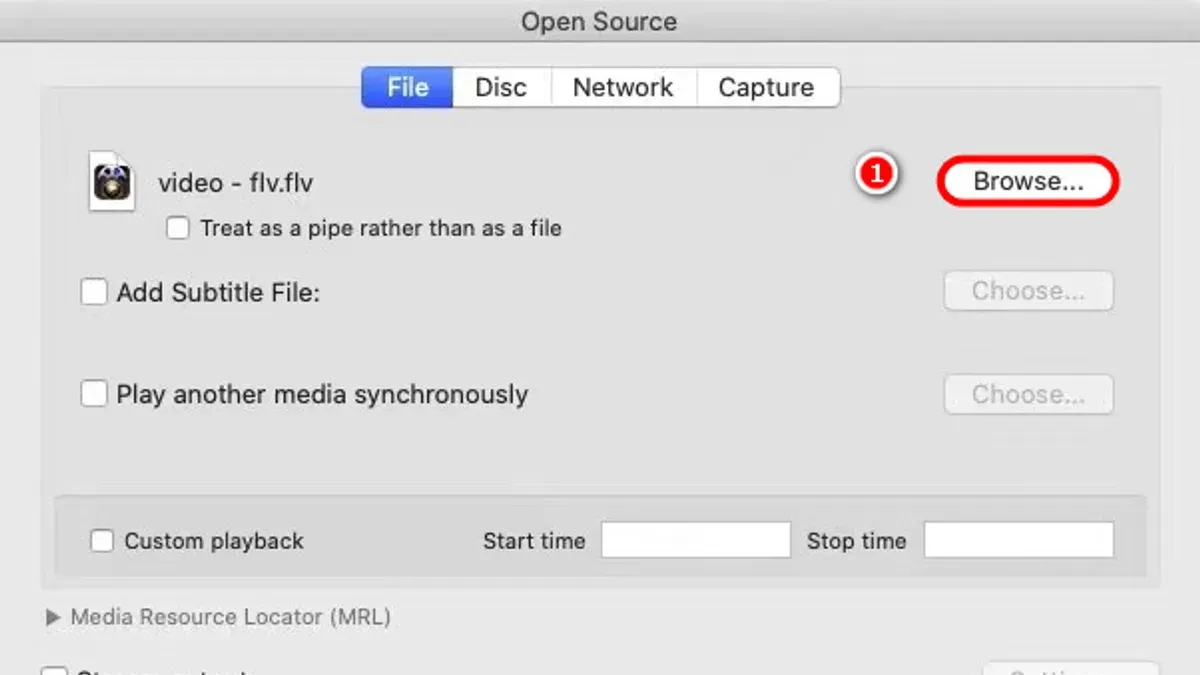
- Download Elmedia Player from the official Eltima website and install it by dragging the app icon to your Applications folder. When the installation is complete, launch Elmedia Player to open its main window.
- Open your.flv file by clicking File in the menu bar, selecting Open, and navigating to your video file. The video should begin playing immediately, with smooth performance and standard playback controls visible.
- To access subtitle options, click the Subtitle menu during playback. You can load external subtitle files or adjust synchronization settings, which is useful if your.flv video lacks embedded subtitles.
- Try streaming your video to other devices by clicking the AirPlay icon or using the Streaming feature in the player’s toolbar. This allows you to watch your.flv files on compatible smart TVs or other AirPlay-enabled devices without conversion.
Compared to VLC, Elmedia Player’s interface is considered more intuitive by many users, with a focus on macOS design aesthetics. While VLC is powerful and free, Elmedia includes additional conveniences like subtitle management and streaming that are easy to access without digging through menus. Screenshots of Elmedia show a minimalist control panel with clear icons for playback, subtitles, and streaming, which some find simpler to navigate than VLC’s interface.
How to convert.flv files to Mac-friendly formats
Converting.flv files to widely supported formats like MP4 can improve compatibility across Mac apps and devices. This is useful if you experience playback issues or want to edit or share your videos more easily. Both free and paid video converters are available, each with different features and performance.
Popular free converter: HandBrake is a trusted open-source option that supports.flv input and outputs to MP4 or MKV. It offers customizable presets and good output quality, though conversion speed depends on your Mac's hardware.
Popular paid converter: Wondershare UniConverter provides a user-friendly interface, faster conversion speeds, and additional tools like video editing and batch processing. It supports a broad range of formats and maintains high output quality.
- Download and install HandBrake from handbrake.fr.
- Open HandBrake and click “Open Source” to select your.flv file. The file details should appear in the main window.
- Under “Preset,” choose “Fast 1080p30” or another preset that matches your desired output quality and resolution.
- In the “Summary” tab, set the format to “MP4.”
- Optionally, adjust video codec settings under the “Video” tab to H.264 for wide compatibility.
- Click “Browse” to choose the destination folder and filename for the converted file.
- Press the “Start” button to begin conversion. A progress bar will show the status; time varies with file size and Mac performance.
- When complete, locate the MP4 file in the chosen folder and test playback using your preferred media player.
Converting is often better than relying solely on a player when you want to ensure your.flv videos work in editing software or on devices that don’t support.flv. Conversion removes codec compatibility issues and can reduce file size while preserving quality, depending on settings.
How to watch.flv files on PC versus Mac: Key differences
Windows offers more native support for.flv files than macOS, making playback generally more straightforward on PCs. Windows 10 and 11 do not include built-in support for.flv files in the default Movies & TV app, but they handle these files better through a wider range of compatible third-party players and codecs readily available in the Windows environment.
On Windows, popular players like Windows Media Player can play.flv files after installing the necessary codec packs such as K-Lite Codec Pack. Alternatively, free players like VLC or Media Player Classic provide hassle-free playback without additional setup.
| Feature | Windows 10/11 | macOS |
|---|---|---|
| Native.flv playback | Limited; requires codecs or third-party apps | None; relies entirely on third-party apps |
| Supported default players | Windows Media Player (with codecs), Movies & TV (not native.flv support) | QuickTime Player (no.flv support) |
| Recommended third-party players | VLC, Media Player Classic | VLC, Elmedia Player |
| Conversion tools availability | HandBrake, Format Factory | HandBrake, Adapter |
For Mac users, the absence of native support means you must rely on third-party software to open and play.flv files or convert them to compatible formats. Windows users often find the process smoother due to the broader availability of codec packs and media players configured to handle.flv files.
Steps for Windows users to play.flv files:
- Download and install VLC Media Player from the official website. You should be able to open.flv files directly after installation.
- If you prefer Windows Media Player, download and install the K-Lite Codec Pack. After installation, Windows Media Player will play.flv files.
- Double-click an.flv file to open it with your chosen player. The video should start playing without error.
Mac users must follow similar steps but with Mac-compatible apps and often need to convert files for better compatibility, making the process less seamless compared to Windows.
How to open.flv files on Mac if you encounter errors
If your.flv file won’t play or you face issues like no sound or error messages, start by verifying file integrity. An incomplete download or corrupted file often causes playback failure. Try opening the file in another media player to confirm the problem.
- Check the file size and source. If the file size seems unusually small or the download was interrupted, redownload the file fully. On success, the file should open without errors.
- Update or reinstall your media player. An outdated player can cause errors like “Unsupported codec” or “Cannot open file.” Download the latest version from the official website and reinstall. After this, the player should launch the file smoothly.
- Try an alternative player. If VLC or Elmedia Player fails, test another app such as IINA or MPlayerX. A different player might handle codecs better and play the file correctly.
- Convert the.flv file if playback still fails. Use a converter like HandBrake to change the file to MP4 or MOV format. Successful conversion usually results in error-free playback.
Common error messages include “No audio stream found” or “File cannot be played.” Users have resolved these by reinstalling players or converting files. If errors persist, check if the file opens on another device to isolate the issue.
How to open.drawio files on Mac: A quick note
.drawio files are diagram files created by the diagrams.net (formerly draw.io) application and are not video files like.flv. This difference means you cannot open.drawio files in media players used for video playback.
To open.drawio files on your Mac, you can use the diagrams.net web app, which runs in any modern browser, or the desktop version of diagrams.net available for macOS. These tools allow you to view, edit, and save diagrams easily.
- Open your preferred web browser and go to https://app.diagrams.net/. You should see the diagrams.net interface ready to create or open diagrams.
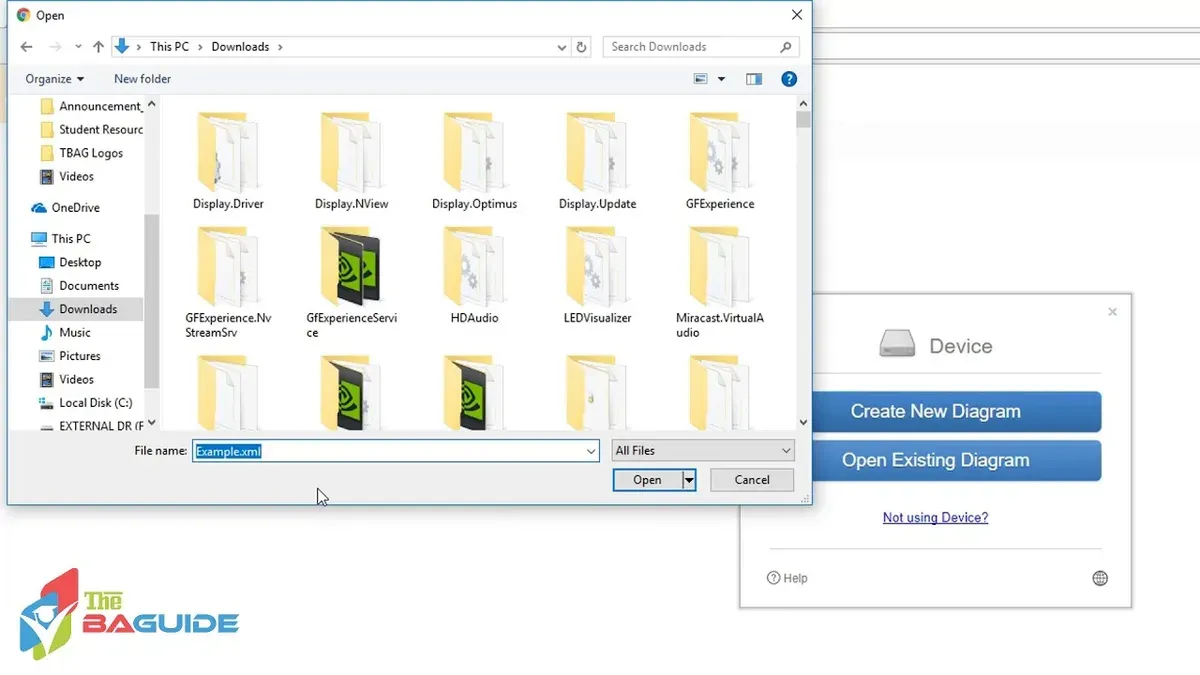
- Click on File in the top menu, then select Open From and choose Device. A file dialog will appear.
- Navigate to your.drawio file location, select the file, and click Open. The diagram will load and display in the editor window.
- Alternatively, if you prefer offline access, download the diagrams.net desktop app from their official website. After installation, launch the app and open your.drawio file through File > Open.
- Once opened, you can view and edit the diagram. The interface shows diagram elements like shapes, connectors, and text, confirming successful loading.
This approach differs fundamentally from opening.flv video files, as.drawio files contain structured diagram data rather than media streams. Therefore, using media players or converters for.drawio will not work.
- How to Open and Play WMV Files on Mac: Practical Step-by-Step Guide
- How to Open AVI Files on Mac: Step-by-Step Practical Guide
- How to Open MKV Files on Mac: Practical Step-by-Step Methods
Frequently asked questions
How to open flv video?
You can open FLV video files using media players that support the format, such as VLC Media Player or Elmedia Player on your Mac. Alternatively, you can convert FLV files to more compatible formats like MP4 using conversion tools like HandBrake or Movavi Video Converter.
How to open flv?
To open an FLV file, install a compatible media player that supports FLV playback directly, like VLC. If the player does not support FLV, convert the file to a supported format before opening it. Dragging the FLV file onto the player’s window usually initiates playback.
How to watch flv files?
Watching FLV files requires a media player that can handle the format, such as VLC or Elmedia Player. Once installed, open the player, use the File > Open option, and select your FLV file. If playback issues occur, converting the file to MP4 or MOV can improve compatibility.
How to watch flv files on pc?
On a PC, VLC Media Player is a popular free option for watching FLV files without conversion. Windows Media Player does not support FLV natively, so using VLC or converting the file with tools like Freemake Video Converter is recommended for smooth playback.
How to open flv file on mac?
On a Mac, you can open FLV files using VLC Media Player or Elmedia Player, both of which support FLV playback. Alternatively, convert the FLV file to a Mac-friendly format such as MP4 using software like HandBrake if you prefer to use QuickTime Player or other native apps.
What this advice does not cover and who should do something else
This article does not cover professional video editing of.flv files, which typically requires specialized software beyond simple playback or conversion. It also does not address playback on older macOS versions that may lack support for current media players like VLC or Elmedia Player. If you need advanced editing features or are running macOS versions prior to 10.12, consider professional-grade editing suites or upgrading your system.
The most practical next step is to download and install VLC Media Player, as it is free, widely supported, and handles.flv files reliably on Mac. After installation, open your.flv file via VLC’s File menu or drag-and-drop, ensuring quick access without conversion. This approach balances ease of use and compatibility for most Mac users working with.flv videos.



