
How to Install the ChatGPT App on Your Mac: A Step-by-Step Guide
Get quick and easy access to ChatGPT on your Mac with this step-by-step guide to installing the app and creating native-like experiences.
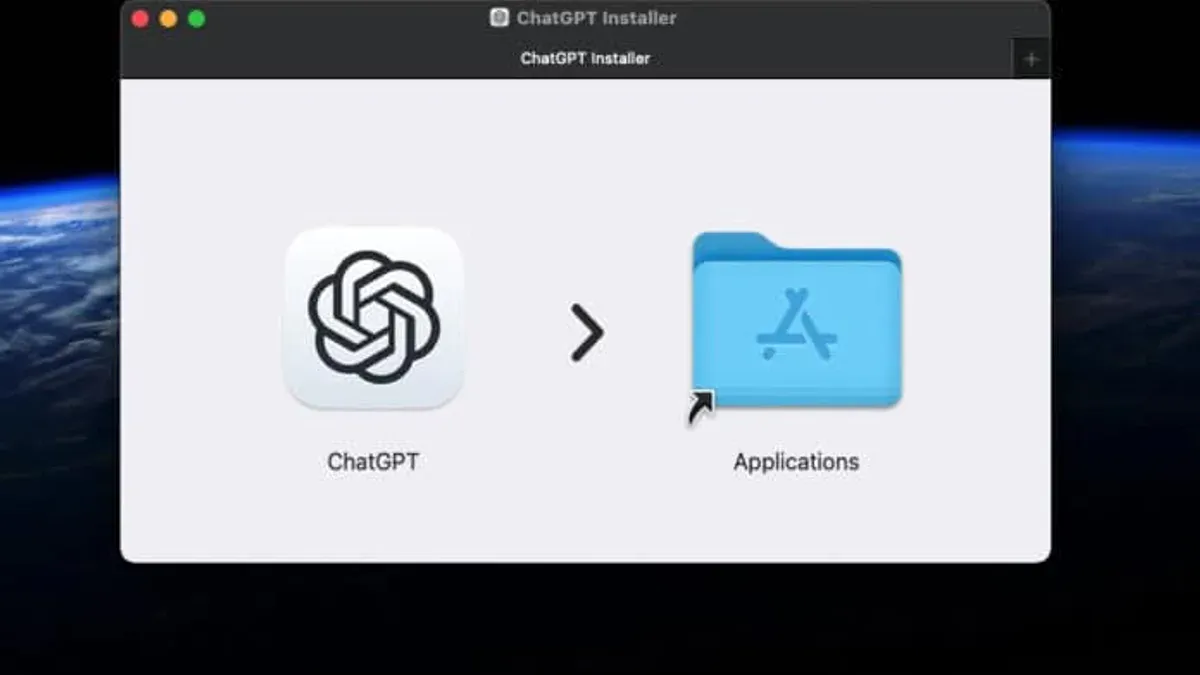
You want quick access to ChatGPT on your Mac, but relying only on the browser feels clunky. Whether you're using a MacBook or a desktop Mac, having ChatGPT as a standalone app saves time and keeps your workflow smoother.
This guide covers how to install ChatGPT app on Mac, presenting multiple ways to achieve a native-like experience. You'll learn to download the official app if available, create web app shortcuts, use trusted third-party wrappers, and handle common installation hurdles specific to macOS.
Key takeaways
- Download the official ChatGPT Mac app from OpenAI if available for the most straightforward setup.
- Create a web app shortcut via browsers like Safari or Chrome for a lightweight native feel.
- Third-party app wrappers can offer additional features but require careful selection for security.
- Adjust macOS security settings like Gatekeeper to allow app installations outside the App Store.
- Common issues include permission prompts and network access restrictions, which can be resolved through system preferences.
Before you start: What you need to install ChatGPT on Mac
To install ChatGPT on your Mac, ensure your device meets basic hardware and software requirements. You need a Mac running macOS 11 Big Sur or later, as earlier versions may lack compatibility with the latest app features. A stable internet connection is essential for downloading the app and for ChatGPT’s online functionality.
Access to the Apple App Store requires an active Apple ID. You will use this to download the official ChatGPT app if it is available. If you don’t have an Apple ID, create one via System Preferences > Apple ID or the App Store sign-in prompt. If the official ChatGPT app is not listed, alternative methods such as creating a web app shortcut or using third-party wrappers are viable options.
Before proceeding, verify your macOS version by clicking the Apple menu > About This Mac. Confirm your internet stability by browsing a website or streaming a video. When you open the App Store, you should see the search bar at the top-right corner and the categories on the left sidebar.
- Check your Mac’s macOS version: Click Apple menu > About This Mac. You should see macOS 11 or later displayed.
- Ensure internet connectivity: Open Safari and load a webpage. The page should load without errors.
- Sign in with your Apple ID: Open App Store and look for your profile icon at the bottom-left. You should see your Apple ID email or be prompted to sign in.
- Search for the ChatGPT app in the App Store: Type "ChatGPT" in the search bar. If available, the app should appear in the results.
How to download ChatGPT on Mac using the official Mac app
- Open the App Store on your Mac by clicking its icon in the Dock or searching with Spotlight. You should see the App Store window open.
- In the App Store’s search bar at the top-left, type ChatGPT and press Enter. The search results will display apps related to ChatGPT.
- Locate the official ChatGPT app published by OpenAI. It is usually prominently listed and shows OpenAI as the developer. When found, click the app’s icon to open its details page.
- Click the Get or Install button next to the app name. You may be prompted to enter your Apple ID password or authenticate with Touch ID or Face ID. Once done, the app will begin downloading and installing.
- After installation, click Open on the app page or find ChatGPT in your Applications folder or Launchpad. The app window will launch, showing the login screen.
- Sign in with your OpenAI account credentials or create a new account within the app if you do not have one. Successful login will take you to the ChatGPT interface ready for use.
- The app may request permissions such as notifications or access to the microphone if voice features are supported. Grant these based on your preference through the prompt or later in System Preferences under Security & Privacy.
How to install ChatGPT app on MacBook using a web app shortcut
If the official ChatGPT app is unavailable or you prefer a lightweight alternative, creating a web app shortcut allows you to use ChatGPT with a native-like experience directly from your MacBook.
Here’s how to create a ChatGPT web app shortcut using Safari or Chrome and add it to your Dock or Launchpad for quick access.
- Open Safari or Chrome and navigate to https://chat.openai.com. You should see the ChatGPT login page or chat interface.
- In Safari: Go to the menu bar, select File > Add to Dock. This option creates a web app icon in your Dock that opens ChatGPT in a standalone window without browser UI elements.
- In Chrome: Click the three-dot menu at the top right, choose More Tools > Create Shortcut. Check Open as window before clicking Create. This adds a ChatGPT shortcut to your Applications folder and Launchpad.
- Drag the created shortcut icon from your Applications folder or Dock to the Launchpad or keep it in the Dock for easy access.
- Launch ChatGPT using the shortcut to see it open in a minimal, app-like window without typical browser tabs or address bar.
Benefits: This method provides faster access than opening a browser tab, reduces distraction by eliminating browser UI, and requires no installation beyond creating a shortcut.
Limitations: Unlike a native app, this shortcut depends on your browser engine, may lack offline support, and can have limited integration with macOS features like notifications or Touch Bar.
| Feature | Web App Shortcut | Native ChatGPT App |
|---|---|---|
| Installation Complexity | Simple, uses existing browser | Requires App Store download |
| Offline Access | Not supported | Limited or no offline support |
| System Integration | Basic (Dock/Launchpad icon) | Enhanced (notifications, native menus) |
| Updates | Automatic with website | App Store managed updates |
| Performance | Depends on browser | Optimized for macOS |
How to install ChatGPT app on macOS using third-party app wrappers
If you want a standalone ChatGPT app experience on your Mac without relying on browsers or official apps, third-party app wrappers can help. These tools package the ChatGPT web interface into a native-like application using frameworks such as Electron or Fluid.
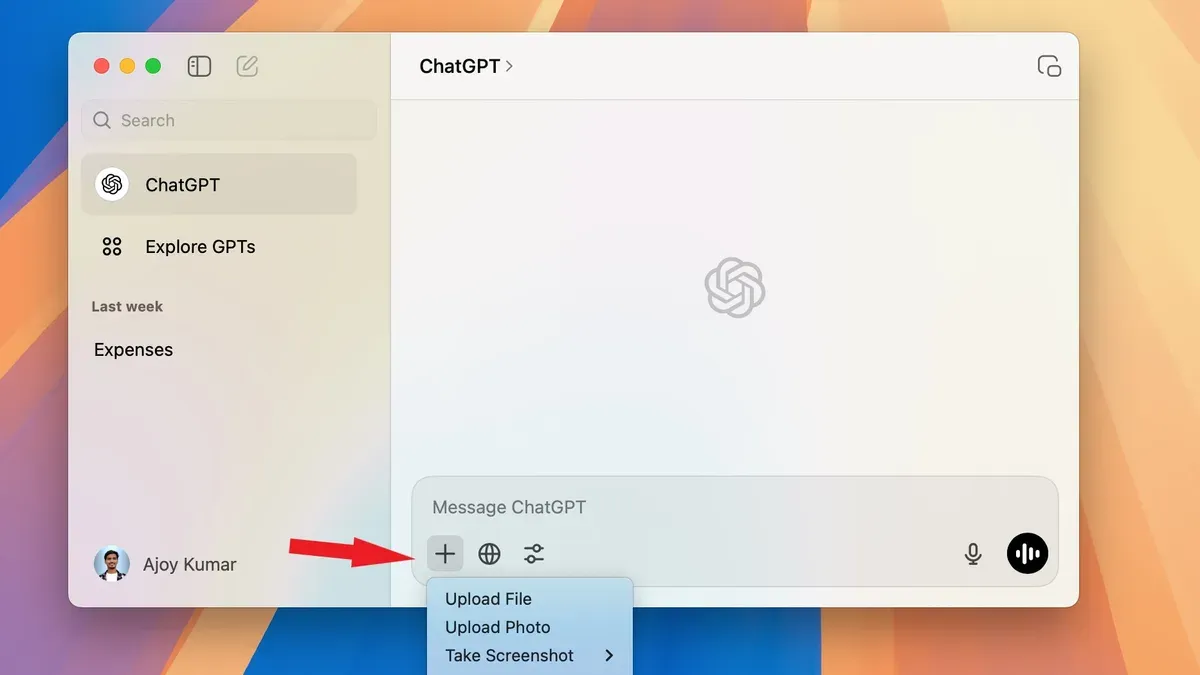
Electron-based wrappers create a dedicated window for ChatGPT with minimal setup, while Fluid converts websites into single-site macOS apps. Both methods give you app-like access but come with trade-offs, including potential security risks since these wrappers rely on web content and third-party code.
Here’s how to install ChatGPT using a popular Electron wrapper called "ChatGPT for Mac":
- Visit the official GitHub repository or developer site for "ChatGPT for Mac" and download the latest release (.dmg) file. Once downloaded, open the file to mount the installer.
- Drag the ChatGPT app icon into your Applications folder. This installs the app on your Mac.
- Launch the app from Applications. You should see the ChatGPT interface load within a native window, separate from your browser.
- Sign in with your OpenAI account credentials. The app will remember your login for future use.
- Adjust settings or preferences within the app menu to customize your experience.
Security considerations are crucial: since these wrappers display web content, they inherit any vulnerabilities present on the ChatGPT website. Also, trust the source of the wrapper carefully—download only from reputable developers or official project pages to minimize risks. User reviews on forums or GitHub can provide insight into reliability and safety.
How to install apps on macOS for ChatGPT and other applications
Installing apps on macOS can be done through the Mac App Store or by downloading installation files from the web, such as DMG or PKG packages. Each method requires different actions and security considerations to ensure safe installation.
Installing apps from the Mac App Store
- Open the App Store from your Dock or Applications folder. You should see the main App Store window.
- Use the search bar to find the app you want, such as ChatGPT or any other application.
- Click the Get button (or the price button if it's a paid app), then click Install. Once installed, the app will appear in your Applications folder and Launchpad.
Installing apps downloaded from the web
- Download the DMG or PKG file from a trusted source. The file will appear in your Downloads folder.
- For DMG files, double-click to mount the disk image. A window will open with the app icon and an Applications folder shortcut. Drag the app icon into the Applications folder.
- For PKG files, double-click to launch the installer and follow the on-screen instructions until the installation completes.
Managing Gatekeeper and security settings
macOS uses Gatekeeper to verify app sources. If you encounter a warning that the app is from an unidentified developer, do the following:
- Open System Preferences and select Security & Privacy.
- In the General tab, look for an Allow anyway button near the blocked app message and click it.
- Try opening the app again; you may see a prompt to confirm you want to open it despite the warning.
Uninstalling apps safely
- Open the Applications folder in Finder.
- Drag the app you want to uninstall to the Trash or right-click and choose Move to Trash.
- Empty the Trash to complete removal.
- For some apps, you may need to delete associated files in ~/Library/Application Support or ~/Library/Preferences for a full uninstall.
How to add ChatGPT as an app on MacBook for quick access
Making ChatGPT quickly accessible on your MacBook enhances productivity regardless of how you installed it. Pinning the ChatGPT app or web shortcut to the Dock offers one-click launching without searching.
- Open the ChatGPT app or your ChatGPT web shortcut in Safari or Chrome.
- Right-click (or Control-click) the app icon in the Dock once it is running.
- Select Options > Keep in Dock. The icon now remains in the Dock even after you close the app.
Using Spotlight or Launchpad helps if you prefer keyboard or grid-style app launching.
- Press Command + Space to open Spotlight, type "ChatGPT," then press Enter to launch.
- Open Launchpad from the Dock or with a trackpad gesture, locate the ChatGPT app icon, and click it to open.
To launch ChatGPT with a keyboard shortcut or automated workflow, use Automator to create a custom app or service.
- Open Automator from Applications.
- Create a new Quick Action or Application.
- Add a Run Shell Script action with the command to open ChatGPT, such as
open -a "ChatGPT"for the app oropen "https://chat.openai.com"for the web shortcut. - Save the workflow with a clear name like "Launch ChatGPT."
- Assign a keyboard shortcut in System Preferences > Keyboard > Shortcuts > Services if you created a Quick Action.
Users often miss pinning the icon to the Dock after first launch, which can save precious seconds daily. While Dock pinning and Spotlight provide immediate access, Automator workflows add flexibility for power users but require a few setup steps.
Troubleshooting common issues when installing ChatGPT app on Mac
If the ChatGPT app does not appear in the App Store or shows as unavailable, ensure your macOS version meets the minimum requirement and your Apple ID is active. Sometimes regional restrictions or App Store caching delays cause this issue.
When installation is stuck or the app fails to open, first check that your Mac has sufficient storage space and try restarting it. If the app shows "App cannot be opened" or "damaged and cannot be opened," go to System Preferences > Security & Privacy > General, and click "Open Anyway" for the ChatGPT app.
Login or connectivity problems within the app often relate to network settings. Verify your internet connection is stable and check if firewall or VPN settings are blocking the app's access. Error messages like "Unable to connect to server" indicate network restrictions.
Security or permission-related errors may require adjusting privacy settings. Navigate to System Preferences > Security & Privacy > Privacy tab, and ensure ChatGPT has permissions for Files and Folders or Network if prompted.
Performance issues such as slow response or app freezing can be improved by quitting background apps consuming high CPU or memory. Restarting the app or your Mac can also help.
For persistent issues, visit Apple Support or the OpenAI Community Forums for additional troubleshooting guidance.
Understanding the limits of ChatGPT app installation on Mac
The official ChatGPT app for Mac offers a native interface that can streamline access compared to using the browser. However, there are notable differences in features and flexibility between the app and the web version. For example, some integrations available through browser extensions or third-party tools may not function within the app environment.
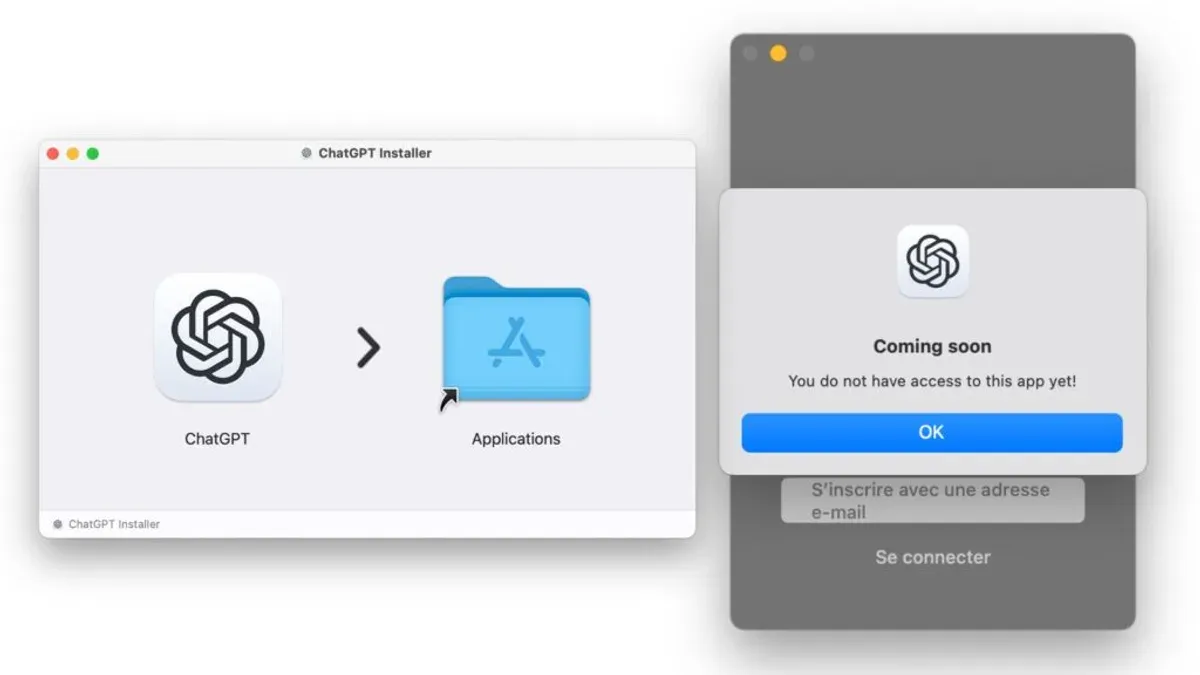
Offline use is not supported in either the app or browser versions, as ChatGPT requires an active internet connection to process queries. This can be a significant limitation for users needing access without reliable connectivity.
Users who rely heavily on browser-based workflows or prefer to use multiple tabs for research, referencing, or multitasking might find the browser version more practical. The browser also allows easier access to plugins and quick switching between accounts.
Regarding security and privacy, the Mac app adheres to OpenAI’s standard data handling policies, but users should consider macOS-specific permissions such as network access under System Preferences > Security & Privacy > Firewall. The app does not store conversations locally beyond temporary cache, similar to browser sessions.
| Feature | Official Mac App | Browser Version |
|---|---|---|
| Offline Access | No | No |
| Plugin Support | Limited or none | Available via browser extensions |
| Multi-account Handling | Manual logout/login required | Multiple tabs with different accounts |
| Integration Flexibility | Restricted by app sandbox | More flexible via browser APIs |
| System Permissions | Requires explicit network permissions | Managed by browser |
Official OpenAI documentation notes that the Mac app is designed for streamlined use but does not replace the full flexibility of the web platform.
Users have reported that while the app improves startup speed, they miss browser features like side-by-side tabs and plugin access.
- How to Install Grammarly on Mac: A Clear Step-by-Step Guide
- How to Install Telegram on Mac: A Clear Step-by-Step Guide
- How to Install WhatsApp on Your Mac: A Clear Step-by-Step Guide
- How to Install Zoom on Mac: A Clear Step-by-Step Guide
Frequently asked questions
How to install chatgpt on mac?
You can install ChatGPT on your Mac by downloading the official ChatGPT app from the Mac App Store, if available. Alternatively, create a web app shortcut via Safari by going to chat.openai.com, then selecting File > Add to Dock for a native-like experience. Third-party app wrappers are also an option but require caution regarding security and updates.
How to install apps on mac os?
To install apps on macOS, open the Mac App Store and search for the app, then click 'Get' or the price button to download and install. You can also download apps directly from trusted developers' websites; after downloading, drag the app icon to the Applications folder. For apps from outside the App Store, you may need to adjust Security & Privacy settings to allow installation.
How to add chatgpt app to macbook?
Adding ChatGPT as an app on your MacBook can be done by downloading the official app from the Mac App Store or by creating a web app shortcut in Safari using File > Add to Dock. You can also use third-party wrappers that package the web version into a standalone app. Once added, you can launch ChatGPT directly from your Dock or Applications folder.
How do i install an app on my macbook?
To install an app on your MacBook, use the Mac App Store for the safest and simplest method—open the store, find your app, then click 'Install'. For apps outside the store, download the installer from the developer’s website, open the downloaded file (usually a.dmg or.pkg), and follow on-screen instructions. Remember to check Security & Privacy settings if macOS blocks the installation.
Can you install apps on macbook?
Yes, you can install apps on a MacBook either through the Mac App Store or by downloading apps from trusted websites. macOS supports a wide range of applications, and you can manage installations through the Applications folder. Installing apps from outside the App Store may require adjusting security settings to allow apps from identified developers.
Understanding the limits of ChatGPT app installation on Mac
This guide does not cover unofficial or pirated versions of ChatGPT apps, which may expose you to security risks and unstable performance. If OpenAI has not released an official Mac app, some installation methods depend on workarounds like web app shortcuts or third-party wrappers, which might have limited features or introduce potential security concerns. Users with very old Mac hardware or outdated macOS versions may encounter compatibility issues not addressed here, such as inability to run the required software or install dependencies.
The best next step is to check OpenAI’s official website or the Mac App Store regularly for an official ChatGPT app release. Meanwhile, using a web app shortcut created via Safari or Chrome offers the safest and most straightforward way to have ChatGPT accessible as a native-like app on your Mac.



