
How to Install League of Legends on Mac: A Step-by-Step Guide
Step-by-step guide to install League of Legends on your Mac with tips on compatibility, download, installation, and troubleshooting.
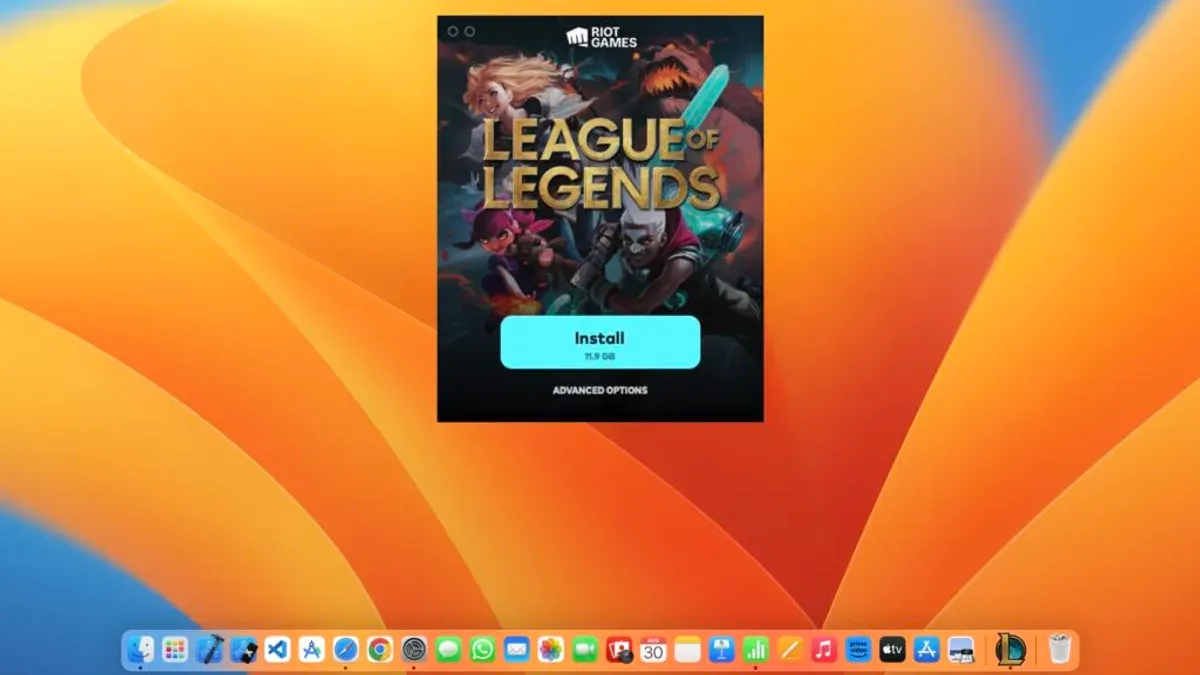
You want to play League of Legends on your Mac but aren’t sure how to get started. Whether you have a MacBook Air, MacBook Pro, or another Mac model, understanding the installation process and whether your device can handle the game is essential.
This guide explains how to install League of Legends on Mac with clear, step-by-step instructions. It covers the download process, installation tailored to different Mac models, performance expectations, troubleshooting common issues, updating the game, and uninstalling if needed.
Key takeaways
- Check your Mac’s specifications to ensure compatibility before installing.
- Download the installer directly from the official Riot Games website for security and updates.
- Installation steps vary slightly between MacBook Air, MacBook Pro, and other Macs; follow the guide carefully.
- League of Legends runs best on Macs with dedicated graphics or recent processors; expect lower performance on older or entry-level models.
- If installation issues arise, common fixes include adjusting security settings and freeing up disk space.
Before you start: What you need to install League of Legends on Mac
To successfully install League of Legends on your Mac, you need to ensure your hardware, software, and account setup meet the game's requirements. This helps avoid installation issues and ensures smoother gameplay.
- Check your Mac model and operating system: League of Legends supports macOS versions 10.14 Mojave and later. Compatible Mac models include MacBook Air and MacBook Pro released in the last several years. To verify your macOS version, click the Apple menu, select "About This Mac," and look for the version number. If your macOS is older than 10.14, you will need to update it before proceeding.
- Confirm available disk space: The League of Legends installer typically requires at least 12 GB of free disk space for download and installation. Open Finder, select your main drive, and press Command+I to view available space. Ensure you have enough room to avoid installation failure.
- Ensure a stable internet connection: A broadband connection with consistent speeds is important as the initial download is several gigabytes in size, and ongoing patches require regular updates. Avoid unstable Wi-Fi or cellular hotspots to prevent download interruptions.
- Create a Riot Games account: Visit the official Riot Games website to sign up for a free account. You will need this to log in and play. Keep your credentials secure for future access.
- Consider peripherals for better control: While you can use the MacBook’s trackpad and keyboard, many players prefer a USB or Bluetooth mouse for improved accuracy. A full external keyboard can also enhance gameplay comfort.
Meeting these requirements sets a solid foundation for installing and enjoying League of Legends on your Mac without unexpected issues.
How to download League of Legends on your Mac
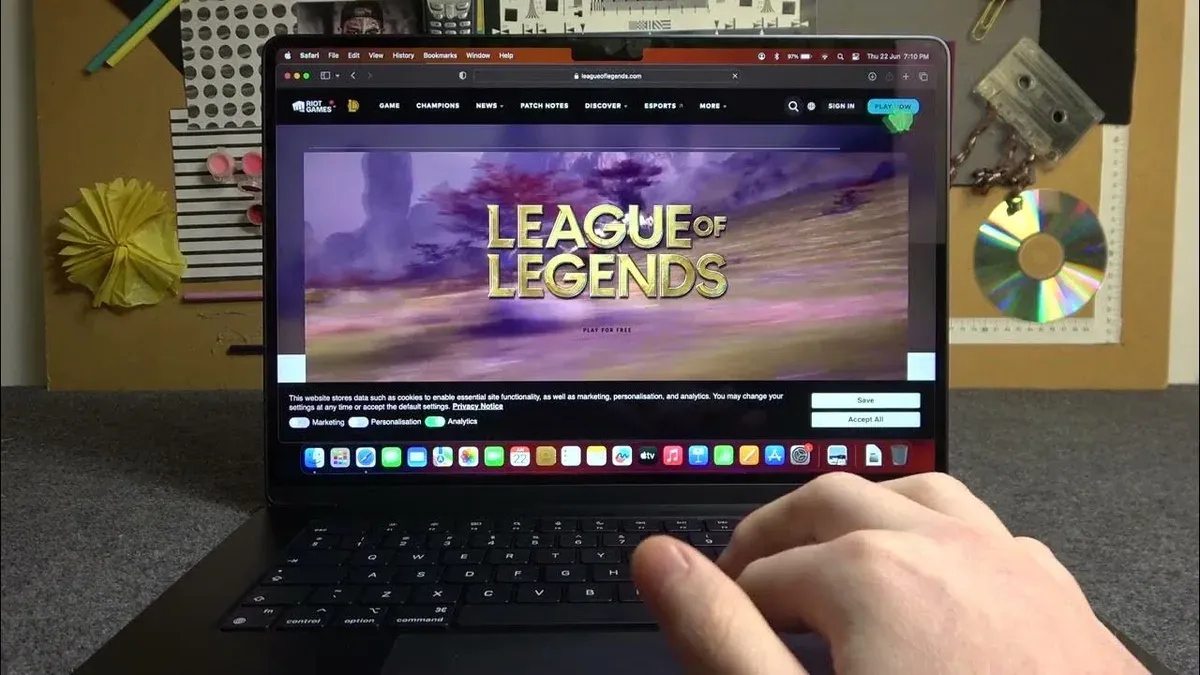
- Open your preferred web browser and go to the official Riot Games website at riotgames.com. You should see the main homepage with options for various games.
- Navigate to the "Games" menu at the top of the page and select "League of Legends" from the dropdown list. This will take you to the League of Legends game page where download options are available.
- Look for the "Download" or "Play Free" button prominently displayed on the League of Legends page. Click this button to proceed to the downloads section.
- On the downloads page, select the Mac OS option. This ensures you download the correct installer compatible with your Mac's operating system. The Mac download button is usually near the Windows option but clearly labeled.
- Click the Mac download button to start downloading the installer file. Your browser will prompt you to save the file; choose a folder you can easily access, such as "Downloads" or your desktop.
- Wait until the download completes fully. The installer file will typically be named something like "InstallLeagueofLegends.dmg" or similar. Verify the file size appears reasonable to confirm a full download.
- Once downloaded, locate the installer file and verify it is intact before proceeding to install. Do not open suspicious or incomplete files.
Following these steps will secure the official League of Legends installer on your Mac, ready for installation.
How to install League of Legends on MacBook Air, MacBook Pro, or other Macs
- Locate the League of Legends installer file you downloaded, usually named LeagueofLegends.dmg, in your Downloads folder. Double-click it to open; a new window with the installer package should appear.
- Double-click the Install League of Legends icon inside the window to launch the installer. You may see a security prompt from macOS; click Open to proceed.
- If macOS asks for permission to install software from Riot Games, go to System Preferences > Security & Privacy > General and click Allow next to the message about Riot Games. This is common on MacBook Air and Pro models with stricter security settings.
- Follow the on-screen instructions in the installer. It will ask you to select an installation location, typically the Applications folder. Confirm to start the installation process.
- Wait for the installer to copy files and set up the game. This may take a few minutes depending on your Mac’s speed and storage.
- Once installation finishes, the League of Legends launcher will open automatically. If it does not, open it manually from the Applications folder.
- Log in with your Riot Games account in the launcher. The game client will begin updating to the latest version if needed.
- On MacBook Air models with lower specs, expect longer load times during installation and updates. On MacBook Pro models, the process is typically faster due to better hardware.
- If you encounter permission errors during installation, ensure you have administrator rights on your Mac and retry the steps above.
Does League of Legends run well on Mac? Understanding performance and compatibility
League of Legends supports macOS 10.14 Mojave and later, running on Intel-based Macs and Apple Silicon models using Rosetta 2. Minimum specs include a dual-core 2.0 GHz processor, 4 GB RAM, and a GPU supporting Metal or OpenGL 3.3. Performance varies significantly depending on your Mac’s hardware.
MacBook Pro models with dedicated GPUs usually deliver smoother gameplay with higher frame rates and better visual settings. For example, users report consistent 60+ FPS on mid-tier MacBook Pros at medium settings. In contrast, MacBook Airs and Macs relying solely on integrated GPUs often require lowering graphics quality and resolution to maintain stable performance, especially during intense team fights.
Apple Silicon Macs running League of Legends under Rosetta 2 generally perform adequately but may experience slightly higher CPU usage and occasional frame drops compared to native Intel models. Riot Games continues optimizing the client, but some users report that macOS updates can temporarily disrupt game stability or launcher functionality.
Common issues after macOS upgrades include graphics glitches or crashes, often resolved by updating League of Legends to the latest version or reinstalling the game. Keeping macOS up to date while monitoring Riot’s support forums can help manage compatibility.
Common issues and how to fix unable to install League of Legends on Mac
If you encounter errors during installation, common causes include security settings blocking the installer, corrupted downloads, or issues with the Riot client. Here are practical steps to resolve these problems.
- Check Security & Privacy settings: Go to System Preferences > Security & Privacy > General. If you see a message saying """League of Legends was blocked because it is not from an identified developer""" or similar, click Allow Anyway. Then re-launch the installer. Successful permission will allow the installer window to appear without blocking.
- Verify your internet connection: Ensure your Mac has a stable connection by opening a web page or running a speed test. Interruptions can cause errors like """Download failed""" or """Unable to connect to server""". A stable connection will let the installer download files without timeout.
- Re-download the installer if corrupted: If you see errors such as """Installer corrupted""" or the installer quits unexpectedly, delete the current.dmg file. Download a fresh copy from the official Riot Games website. A valid installer will mount and show the League of Legends icon ready to install.
- Reset or reinstall the Riot client: If the launcher fails to open or crashes with messages like """Unexpected error occurred""", remove Riot client files by deleting ~/Library/Application Support/Riot Games and ~/Library/Preferences/com.riotgames.LeagueofLegends.plist. Then reinstall the client. A clean reinstall should start the launcher successfully.
How to update League of Legends on Mac and keep it running smoothly
The Riot client on Mac automatically checks for and installs updates to League of Legends, ensuring you usually have the latest version without manual effort. Typical update downloads vary in size, often ranging from a few hundred megabytes to over one gigabyte, depending on the patch. Download times depend on your internet speed but generally take several minutes on a standard broadband connection.
If you want to manually check for updates or the automatic update does not start, you can do so through the Riot client interface.
- Open the Riot client on your Mac. You should see the League of Legends tab with a "Launch" or "Update" button.
- If an update is available, the button will say "Update." Click it to begin downloading the latest patch. You will see a progress bar indicating download and installation status.
- Once the update completes, the button changes to "Launch," confirming the game is ready to play on the latest version.
If updates fail or freeze during installation on macOS, try these steps:
- Restart the Riot client and your Mac, then attempt the update again.
- Check your internet connection stability; a wired connection can improve download reliability.
- Temporarily disable any firewall or antivirus software that might block the Riot client's access.
- If problems persist, uninstall and reinstall the Riot client using the official installer from Riot Games' website.
Regularly updating League of Legends helps avoid compatibility problems and ensures optimal gameplay performance on your Mac.
How to uninstall League of Legends on Mac if needed
If you want to free up space or troubleshoot by removing League of Legends completely, follow these steps to delete the game and its associated files.

- Quit League of Legends and the Riot Client if they are running. You should see no active Riot processes in the Dock or Activity Monitor.
- Open the Applications folder in Finder and locate the League of Legends.app. Drag it to the Trash. Confirm the app is no longer in Applications.
- In Finder, press Shift + Command + G to open the Go to Folder dialog. Enter
~/Library/Application Support/Riot Gamesand press Go. Delete the entire Riot Games folder by moving it to Trash. This removes saved game files and settings. - Repeat the Go to Folder step for
~/Library/Caches/com.riotgames.LeagueofLegendsand delete this cache folder if present. - Go to
~/Library/Preferences/and locate any files starting with com.riotgames or com.leagueoflegends. Move these preference files to Trash. - Empty the Trash to permanently remove all files. This frees up disk space and removes leftover data.
- Restart your Mac to ensure all changes take effect and no Riot background services remain active.
- If you want to reinstall League of Legends later, download the latest installer from Riot Games’ official website and follow the installation steps again.
- How to Install Roblox on Mac: A Clear Step-by-Step Guide
- How to Install Minecraft Java Edition on Your Mac Step-by-Step
Frequently asked questions
Does league of legends run on mac?
Yes, League of Legends runs on Mac computers through an official macOS client provided by Riot Games. It supports macOS versions that meet the minimum system requirements, but performance may vary depending on your Mac's hardware.
Can macbook play league of legends?
MacBook models, including MacBook Air and MacBook Pro, can play League of Legends. However, older or lower-spec MacBooks may experience lower frame rates or reduced graphical settings, so checking your specific model's capabilities before playing is advisable.
Can MacBook play League of Legends smoothly?
Whether a MacBook runs League of Legends smoothly depends on its processor, RAM, and graphics capabilities. Newer MacBook Pro models with dedicated or more powerful integrated graphics tend to deliver better performance, while MacBook Airs with less powerful hardware might need to run the game on lower settings for smooth gameplay.
How to install League of Legends on MacBook Air?
To install League of Legends on a MacBook Air, first download the macOS installer from the official Riot Games website. Open the downloaded file, follow the on-screen prompts to drag the League of Legends app to your Applications folder, then launch it to complete the installation and updates.
How to download League of Legends Mac OS X client?
You can download the League of Legends macOS client by visiting the official League of Legends website and selecting the Mac download option. After downloading the installer, open it and follow the installation instructions, which includes moving the app to your Applications folder and allowing necessary permissions in System Preferences if prompted.
Limits of this guide and alternative options
This guide does not cover running League of Legends on Mac via virtualization software like Parallels Desktop or using Boot Camp. These methods might be necessary if you have a Mac with Apple silicon (such as an M1 or M2 chip) and encounter compatibility or performance issues with the native macOS client. Virtualization or Boot Camp can provide better support for Windows versions of the game but require additional setup and a valid Windows license.
If your Mac struggles to run the native League of Legends client smoothly or you want to access features unavailable on macOS, consider exploring these alternatives. However, they come with their own trade-offs in terms of resource usage, complexity, and potential stability.
For most users aiming for a straightforward installation and play experience, the steps outlined here will suffice. Your next best step is to verify that your Mac meets the minimum system requirements and proceed with downloading the game from the official League of Legends website, following the installation instructions carefully to ensure a smooth setup.



