
How to Install Roblox on Mac: A Clear Step-by-Step Guide
Follow this clear step-by-step guide to install Roblox on your Mac, covering Apple Silicon and Intel Macs with tips for smooth gameplay and troubleshooting.
You’ve just downloaded Roblox, eager to jump into your favorite games, but installing it on your Mac feels confusing. Whether you have a MacBook Air, Mac Mini, or iMac, differences in hardware and macOS versions can affect installation.
This guide explains how to install Roblox on Mac, addressing key nuances like Apple Silicon versus Intel processors and the role of virtual machines. You’ll get clear, step-by-step instructions tailored to various Mac models, plus tips for troubleshooting common issues and improving performance.
Key takeaways
- Roblox installation varies slightly between Apple Silicon and Intel Macs.
- Official Roblox installers support macOS 10.11 (El Capitan) and later.
- Virtual machines can run Roblox but may reduce performance.
- Granting permissions in System Preferences is often needed for smooth gameplay.
- Alternative installation methods exist if the official installer fails.
Before you start: What you need to install Roblox on your Mac
To install Roblox on your Mac, ensure you meet these hardware and software prerequisites to avoid interruptions.
- Check your Mac model and macOS version. Roblox supports macOS versions 10.11 (El Capitan) and later. Your MacBook Air, MacBook Pro, Mac Mini, or iMac must be running one of these supported versions. You can verify your macOS version by clicking the Apple menu and selecting About This Mac. If your system is older, Roblox may not install or run properly.
- Confirm Apple Silicon compatibility. Macs with Apple Silicon chips (M1, M2) are supported by the official Roblox installer. However, some older third-party tools and virtual machine setups may not work reliably on these models.
- Ensure a stable internet connection. A broadband connection is required to download the Roblox installer and to play online. Interruptions during download can corrupt the installer file.
- Prepare your Roblox account. You need a registered Roblox account to log in and access games. If you do not have one, visit roblox.com and click Sign Up to create an account before installation.
- Verify disk space and permissions. Roblox requires at least 1 GB of free disk space for installation and game data. Also, make sure you have administrator permissions on your Mac to install new software. Without these, the installer may fail or not run correctly.
Below is a comparison of macOS versions supported by Roblox's official installer:
| macOS Version | Support Status |
|---|---|
| 10.11 El Capitan and later | Supported |
| 10.10 Yosemite and earlier | Not supported |
How to install Roblox on a MacBook Air, MacBook Pro, Mac Mini, or iMac
- Open your preferred web browser and go to the official Roblox website at roblox.com. You should see a clear option to Download Roblox on the homepage.
- Click the download button to start downloading the Roblox installer package. The file size is typically around 100 MB and will be saved to your Downloads folder by default.
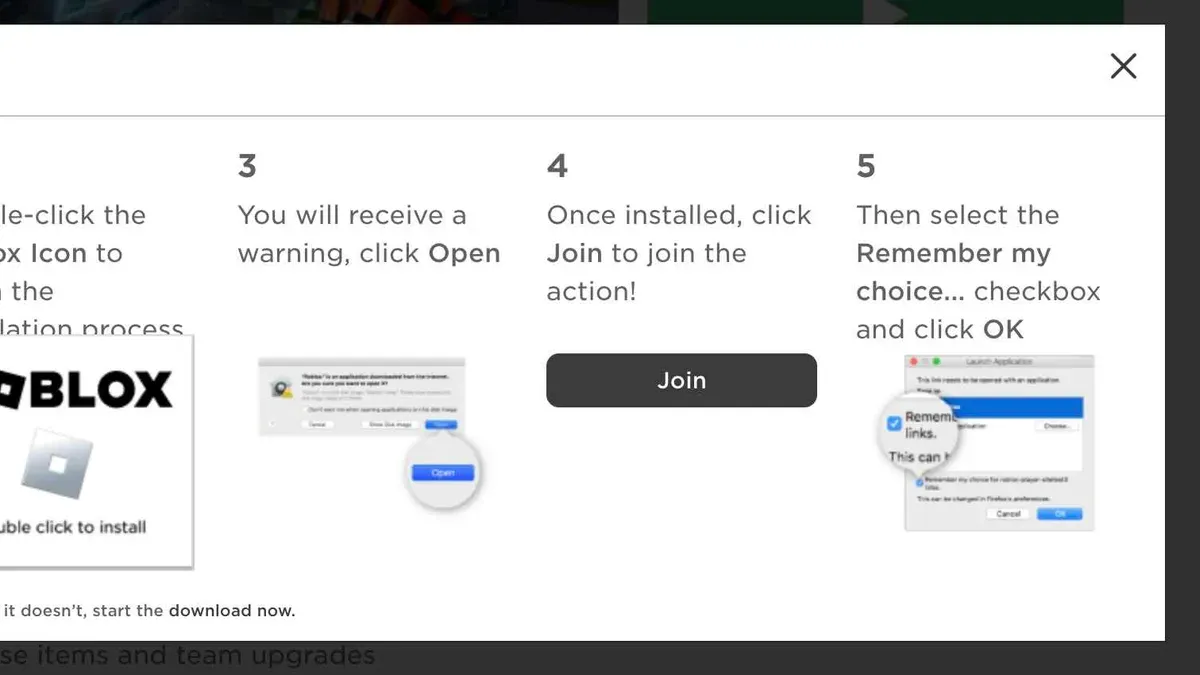
- Locate the downloaded Roblox.dmg installer file in Finder under Downloads. Double-click it to mount the installer volume. A new window should open showing the Roblox installer icon.
- Double-click the Roblox installer icon to launch the installation process. macOS will prompt you to confirm; click Open to proceed.
- Follow the on-screen prompts. You may be asked to enter your Mac’s administrator password to grant permission for the installation. This step ensures Roblox can install necessary components in the Applications folder.
- Once installation completes, the Roblox application will be located in your Applications folder. Open Finder and navigate to /Applications/Roblox.app to verify the installation.
- Launch Roblox from the Applications folder or via Spotlight search. The app will prompt you to log in with your Roblox account credentials. Enter your username and password to access your games.
- If this is your first time running Roblox on your Mac, the app may request permission to access the microphone or other system resources. Approve these requests to ensure full game functionality.
- After logging in, you can browse and launch games from the Roblox interface. The initial game download and launch may take a few moments depending on your internet speed.
The installer dialogs typically confirm file sizes around 100 MB, and the app installs in the standard Applications directory. If you encounter any unexpected permission requests or installation blocks, check your macOS Security & Privacy settings to allow Roblox to run.
How to install Roblox on Mac Neo and MacBook Air M4 models
Mac Neo and MacBook Air M4 models, powered by Apple Silicon chips, share similarities with other recent Apple Silicon Macs but have some specific considerations for Roblox installation.
Roblox has officially supported Apple Silicon Macs since a software update in 2021, allowing native ARM-based execution. However, some community reports indicate occasional performance issues or graphics glitches on the newest chipsets, such as those in Mac Neo and M4 models. These issues are typically resolved through Roblox client updates and macOS patches.
Unlike Intel-based Macs, you do not need to use Rosetta 2 to run Roblox on Mac Neo or MacBook Air M4. Installing Roblox through the official installer should proceed similarly to other Apple Silicon Macs but ensure your macOS version is up to date for best compatibility.
- Download the Roblox installer from the official Roblox website. You should see a file named "Roblox.dmg" in your Downloads folder after completion.
- Open the "Roblox.dmg" file by double-clicking it. A Finder window with the Roblox app icon and Applications shortcut should appear.
- Drag the Roblox app icon into the Applications folder shortcut. This copies Roblox to your Applications directory.
- Open the Applications folder and double-click the Roblox app. The first launch may prompt you to allow permissions in System Preferences under Security & Privacy; allow these to proceed.
- Log in with your Roblox account when the app opens. You should now be able to launch games without needing Rosetta 2 or additional software.
If you encounter persistent graphics or performance issues, check for Roblox updates via the app or update macOS to the latest version. Community forums and Roblox support have noted that keeping both updated improves stability on newer Apple Silicon models.
How to install Roblox on macOS using a virtual machine
Running Roblox on a Mac via a virtual machine (VM) involves installing a Windows or compatible operating system within macOS using software like Parallels Desktop or VMware Fusion. This method allows you to access the full Windows version of Roblox when native macOS support is insufficient or unavailable.
To set up Roblox in a VM:
- Install a virtual machine application such as Parallels Desktop or VMware Fusion. Once installed, launch the application and choose to create a new virtual machine.
- Install a Windows operating system within the VM. You will need a valid Windows installation image (ISO) and license. Follow the VM prompts to complete the OS setup.
- Start the Windows VM and open its web browser. Navigate to the official Roblox website to download the Windows Roblox installer.
- Run the Roblox installer inside the VM and complete the installation. After installation, launch Roblox within the Windows environment.
Performance in a VM typically lags behind native installation. Users report reduced frame rates and occasional input lag, especially on lower-spec Macs or when running resource-heavy games. Graphics acceleration support depends on the VM software and hardware, often limiting high-end rendering features.
Roblox officially supports Windows and macOS natively but does not endorse running the game via virtual machines. This approach may introduce compatibility issues and is generally less reliable than native installation.
In summary, while using a virtual machine can enable Roblox on Macs that otherwise cannot run the game natively, it demands more system resources and delivers a less smooth experience, making it a less ideal option for most users.
Common troubleshooting when Roblox won’t install or run on Mac
If Roblox fails to install or run on your Mac, several common issues may be the cause. Permission errors or macOS security settings often block the installation process. For example, you might see a message like "Roblox cannot be opened because the developer cannot be verified." To fix this, open System Settings > Privacy & Security, then allow apps downloaded from "App Store and identified developers" and click "Open Anyway" next to Roblox.
Network problems can cause failed downloads or connection errors. If the Roblox installer gets stuck or the game won’t load, check your internet connection and consider restarting your router. Temporarily disabling firewall or VPN software can also help identify if they interfere with Roblox servers.
Crashes or failure to launch may signal outdated software. Make sure your macOS version meets Roblox’s minimum requirements, and update Roblox through the official client or website. If you receive error messages like "Roblox has stopped working," try quitting the app, restarting your Mac, and relaunching.
If issues persist, verify system compatibility. Visit Roblox’s official support pages for the latest macOS versions supported. Some older Macs or macOS versions might not run Roblox properly.
- Check macOS security settings under System Settings > Privacy & Security and allow Roblox to run.
Roblox should open without a security warning. - Confirm your internet connection is stable and temporarily disable firewall or VPN.
Roblox installer or game should download and connect smoothly. - Update macOS and Roblox client to the latest versions.
Errors related to crashes or launch failures should reduce. - Review Roblox support pages for compatibility info if problems continue.
You will know if your Mac and software meet Roblox requirements.
Following these steps addresses the most frequent installation and runtime problems on Mac, ensuring a smoother Roblox experience.
How to get Roblox on Mac if the official installer fails
If the official Roblox installer does not work on your Mac, there are alternative ways to access Roblox, though each comes with trade-offs in functionality or security.
Use Roblox via the web browser
Roblox can be played through most modern browsers like Safari, Chrome, or Firefox without needing the desktop client. This method requires no installation and provides access to most games with basic features. However, some advanced features and graphical settings available in the desktop client might be limited or unavailable.
Check for updates or beta versions
Occasionally, Roblox releases updated or beta versions for Mac that address installer issues. Visit the official Roblox website or user forums to find links to these versions. Installing a beta may resolve compatibility problems, but beta software can sometimes have bugs or incomplete features.
Consider community tools or unofficial workarounds cautiously
Some community-developed tools or unofficial methods claim to enable Roblox installation or improve compatibility on Mac. These may involve scripts, modified installers, or third-party applications. Use these with caution as they can pose security risks, violate Roblox's terms of service, or cause system instability.
Before trying unofficial options, ensure you have backups of important data and understand the potential consequences.
Safety and performance tips for playing Roblox on Mac
To ensure a smooth and secure Roblox experience on your Mac, keeping both Roblox and macOS up to date is essential. Updates often include performance improvements and security patches that help prevent crashes and vulnerabilities.
Managing your Mac’s permissions and firewall settings correctly allows Roblox to communicate through your network without compromising security. Allow Roblox in System Preferences > Security & Privacy > Privacy > Files and Folders and check Firewall Options to permit incoming connections for Roblox.
Avoid downloading Roblox or related tools from third-party websites. Such sources may contain malware or altered software that can harm your Mac or lead to account theft. Always use the official Roblox website or trusted platforms for downloads.
Performance tweaks to reduce lag or crashes
- Close unnecessary background apps: Open Activity Monitor and quit apps consuming high CPU or memory. This frees resources for Roblox, reducing lag.
- Lower in-game graphics settings: Within Roblox, select Settings > Graphics Mode and reduce quality or turn off effects like shadows. You should see smoother gameplay and fewer crashes.
- Ensure stable internet connection: Use a wired Ethernet connection or stay close to your Wi-Fi router. Check network speed and latency with tools like Network Utility. Improved connectivity reduces in-game lag.
- Restart your Mac periodically: This clears cached data and resolves temporary glitches affecting Roblox performance.
Following Apple’s security guidelines and Roblox’s official recommendations maximizes both protection and playability on your Mac. Regular maintenance and cautious software sourcing significantly lower risks while enhancing gaming performance.
- How to Install Minecraft Java Edition on Your Mac Step-by-Step
- How to Delete Your Epic Games Account Permanently: A Step-by-Step Guide
- How to Install AnyDesk on Mac: A Clear Step-by-Step Guide
- How to Install TeamViewer on Mac: A Complete Step-by-Step Guide
Frequently asked questions
How to install roblox on macbook air?
To install Roblox on a MacBook Air, visit the official Roblox website and download the Mac installer. Open the downloaded.dmg file, drag the Roblox app to your Applications folder, then launch it. Ensure your macOS version is compatible, and allow Roblox access in Security & Privacy settings if prompted.
How to install roblox on macbook?
Installing Roblox on a MacBook follows similar steps: download the installer from Roblox’s site, open the.dmg file, and move the app to Applications. Confirm your MacBook meets the minimum macOS requirements. If you encounter permission issues, check System Preferences under Security & Privacy to allow Roblox to run.
How to install roblox on macbook neo?
For MacBook Neo models with Apple Silicon chips, download the Roblox installer directly from the official site. The app runs natively on Apple Silicon, so no emulation is needed. After installing, verify Roblox has necessary permissions in Security & Privacy, especially for screen recording if required by the game.
How to install roblox on macbook pro?
On a MacBook Pro, download Roblox’s Mac installer, open the.dmg file, and drag the app to Applications. MacBook Pros with Intel or Apple Silicon chips both support Roblox natively. If Roblox doesn’t open, check Gatekeeper settings in Security & Privacy and allow the app manually.
How to install roblox on macbook air m4?
The MacBook Air M4, powered by Apple Silicon, supports Roblox natively. Download the official installer, mount the.dmg, and copy Roblox to Applications. Confirm in System Preferences that Roblox has permissions needed for full functionality, such as accessibility or input monitoring if prompted.
What this guide does not cover and who should seek other options
This guide does not cover installing Roblox on Macs running outdated or unsupported macOS versions, such as anything earlier than macOS Mojave. It also does not endorse or provide instructions for unofficial, pirated, or modified versions of Roblox, which can pose security risks and violate Roblox's terms of service. Users with older Macs that cannot update to supported macOS versions should consider alternative devices or use Roblox on Windows or mobile platforms instead. Additionally, this guide does not cover advanced virtualization setups beyond basic virtual machines for macOS.
The single most useful next step is to ensure your Mac meets the minimum system requirements for Roblox and macOS updates are current. Then, download the official Roblox installer directly from roblox.com, follow the step-by-step installation instructions tailored to your Mac model, and adjust security settings in System Preferences > Security & Privacy > General if the installer is blocked. This approach provides the most reliable and secure way to enjoy Roblox on your Mac.



